PDF

Borehole Heat Exchanger with Pipe Flow
Introduction
Renewable energies are a growing industry and the geothermal energy branch is a hot topic of active research. Over the past few decades, different techniques were established to extract geothermal heat from shallow to deep subsurface levels. The closed-loop borehole heat exchanger (BHE) is a standard approach for lower- and mid-depth applications.
This model shows how to compute an array of borehole heat exchangers (BHEs) for shallow geothermal energy production. The BHEs are simplified as lines using the Nonisothermal Pipe Flow interface. The array is embedded into a layered subsurface model with groundwater flow in one of the layers.
Model Definition
The following model solves for the heat transport around a shallow geothermal installation embedded in a geological domain. The domain is separated into various parts, representing different geological layers with their particular properties. The thermal influence of seasonal temperature changes at the surface is taken into account using the COMSOL Multiphysics internal ambient weather database (in this case meteorological weather data from Berlin Tempelhof, Germany).
The geometry contains a three-by-three borehole heat exchanger (BHE) array that is 150 m deep and located in layered bedrock. Between 10 m and 50  m below the surface is an aquifer where groundwater flow occurs, causing horizontal convective heat transport. The BHEs are approximated by lines. Water of 10°C is pumped into the pipes at a volumetric flow rate of 6 l/min, corresponding to 104 m3/s. Figure 1 shows the geometry as implemented in the model.
Figure 1: Geometry of the BHE model. The boreholes whose temperatures have been further investigated and displayed in the Results section are marked in blue. The black arrows illustrate the aquifer flow field.
Although the boreholes look just like lines, each borehole is modeled as a bent pipe with inlet and outlet at the top.
The heat transfer in the whole model domain is computed using the Heat Transfer in Porous Media interface. Within the aquifer layer, the aquifer flow velocity is implemented as a convective velocity field u in the heat equation
(1)
The heat transfer between the BHEs and the surrounding bedrock is modeled using the Pipe Wall Heat Transfer multiphysics coupling node.
Results and Discussion
Figure 2: A multislice plot of the temperature after 1 year of simulated time. The borehole temperatures are displayed in a line plot and the arrow field shows the aquifer flow velocity.
Figure 2 and Figure 3 are examples of predefined ways to display the 3D temperature distribution in COMSOL Multiphysics. The top surface temperature changes seasonally between about 0°C and 22°C according to the meteorological weather data from Berlin Tempelhof, Germany, which leads to a layered temperature structure near the surface as shown in Figure 2. Both figures are dominated by the initial temperature profile, which shows a temperature increase with increasing depth. However, the cooling effect of the BHEs and the elongated heat pattern in the aquifer layer are clearly visible.
Figure 3: Isothermal layers around the BHEs after 1 year of simulated time.
Figure 4: Temperature profiles at the three different borehole positions relative to the aquifer flow field.
Shown in Figure 4 are the pipe-surrounding temperatures of the three BHEs in the middle of the array (as marked in Figure 1). The temperatures in the parts with downward flowing water are lower than in the parts with upward flowing water, as expected due to the heat exchange with the surrounding bedrock. The temperature gradient is much smaller than the initial one because the cooling effect of the BHEs is larger for larger temperature differences and varies slightly with different thermal properties of the different porous material layers.
Due to the thermal interaction between the heat sinks, the temperature of the middle BHE relative to the aquifer flow field (green line) is lower than that of the other two in the pipe sections with upward flow. An effect of the aquifer can hardly be seen in the temperature profiles.
Figure 5: Total line heat source integrated over all BHEs as a function of time.
Figure 5 shows the total line heat source with time, integrated over all BHEs. It decreases fast in the beginning of the simulation and more slowly when the heat transfer between pipes and porous media reaches quasi-equilibrium. Finally it seems to level out at about 3000 W.
Notes About the COMSOL Implementation
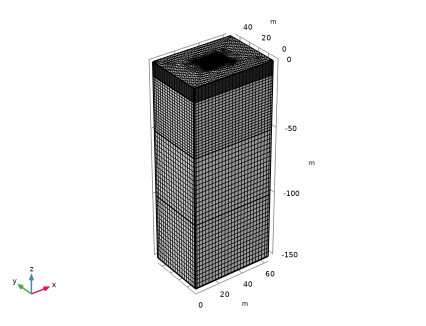
The boreholes are modeled as lines using the Nonisothermal Pipe Flow interface. The heat transfer between the pipes and the surrounding soil is modeled using the Pipe Wall Heat Transfer multiphysics coupling node. This node can only be activated on boundaries where a Wall Heat Transfer node is active. The Wall Heat Transfer node allows to define multiple wall layers — each defined in a Wall Layer subnode — with different material properties, which is used here to represent both the pipe walls and the grouting between the pipes and the borehole walls.
Reference
1. www.comsol.com/blogs/modeling-geothermal-processes-comsol-software
Application Library path: Pipe_Flow_Module/Heat_Transfer/borehole_heat_exchanger_pipe_flow
Modeling Instructions
From the File menu, choose New.
New
In the New window, click  Model Wizard.
Model Wizard
1
In the Model Wizard window, click  3D.
2
In the Select Physics tree, select Fluid Flow > Nonisothermal Flow > Nonisothermal Pipe Flow (nipfl).
3
Click Add.
4
In the Select Physics tree, select Heat Transfer > Porous Media > Heat Transfer in Porous Media (ht).
5
Click Add.
6
Click  Study.
7
In the Select Study tree, select General Studies > Time Dependent.
8
Geometry 1
The geometry sequence can be imported from an external file. As the pipe curvature at the bottom of the boreholes is very small compared to the borehole depth and the array size, the automatic detection of small details checkbox is cleared in the cleanup section of the Geometry node.
1
In the Geometry toolbar, click Insert Sequence and choose Insert Sequence.
2
3
In the Geometry toolbar, click  Build All.
4
Click the  Wireframe Rendering button in the Graphics toolbar.
5
In the Model Builder window, under Component 1 (comp1) click Geometry 1.
6
In the Settings window for Geometry, locate the Cleanup section.
7
Clear the Automatic detection of small details checkbox.
The geometry sequence is parametric. Add a few more parameters used setting up the physics.
Global Definitions
Parameters 1
1
In the Model Builder window, under Global Definitions click Parameters 1.
2
In the Settings window for Parameters, locate the Parameters section.
3
Materials
Define the different geological layers with their particular properties and use the selections provided by the Block feature in the geometry sequence.
Add Material from Library
In the Home toolbar, click  Windows and choose Add Material from Library.
Add Material
1
Go to the Add Material window.
2
In the tree, select Built-in > Water, liquid.
3
Click the Add to Component button in the window toolbar.
4
In the Home toolbar, click  Add Material to close the Add Material window.
Materials
Water, liquid (mat1)
1
In the Settings window for Material, locate the Geometric Entity Selection section.
2
From the Geometric entity level list, choose Edge.
3
From the Selection list, choose Work Plane: Boreholes.
Porous Material: Holocene Sediments
1
In the Model Builder window, right-click Materials and choose More Materials > Porous Material.
2
In the Settings window for Porous Material, type Porous Material: Holocene Sediments in the Label text field.
3
Locate the Geometric Entity Selection section. From the Selection list, choose Top (Block 1).
4
Locate the Phase-Specific Properties section. Click  Add Required Phase Nodes.
Fluid 1 (pmat1.fluid1)
1
In the Model Builder window, click Fluid 1 (pmat1.fluid1).
2
In the Settings window for Fluid, locate the Fluid Properties section.
3
From the Material list, choose Water, liquid (mat1).
Solid 1 (pmat1.solid1)
1
In the Model Builder window, click Solid 1 (pmat1.solid1).
2
In the Settings window for Solid, locate the Solid Properties section.
3
In the θs text field, type 0.7.
4
Locate the Material Contents section. In the table, enter the following settings:
Porous Material: Pleistocene Sands
1
In the Model Builder window, under Component 1 (comp1) right-click Materials and choose More Materials > Porous Material.
2
In the Settings window for Porous Material, type Porous Material: Pleistocene Sands in the Label text field.
3
Locate the Geometric Entity Selection section. From the Selection list, choose Aquifer (Block 1).
4
Locate the Phase-Specific Properties section. Click  Add Required Phase Nodes.
Fluid 1 (pmat2.fluid1)
1
In the Model Builder window, click Fluid 1 (pmat2.fluid1).
2
In the Settings window for Fluid, locate the Fluid Properties section.
3
From the Material list, choose Water, liquid (mat1).
Solid 1 (pmat2.solid1)
1
In the Model Builder window, click Solid 1 (pmat2.solid1).
2
In the Settings window for Solid, locate the Solid Properties section.
3
In the θs text field, type 0.75.
4
Locate the Material Contents section. In the table, enter the following settings:
Porous Material: Pleistocene Glacial Till
1
In the Model Builder window, under Component 1 (comp1) right-click Materials and choose More Materials > Porous Material.
2
In the Settings window for Porous Material, locate the Geometric Entity Selection section.
3
From the Selection list, choose Glacial Till (Block 1).
4
In the Label text field, type Porous Material: Pleistocene Glacial Till.
5
Locate the Phase-Specific Properties section. Click  Add Required Phase Nodes.
Fluid 1 (pmat3.fluid1)
1
In the Model Builder window, click Fluid 1 (pmat3.fluid1).
2
In the Settings window for Fluid, locate the Fluid Properties section.
3
From the Material list, choose Water, liquid (mat1).
Solid 1 (pmat3.solid1)
1
In the Model Builder window, click Solid 1 (pmat3.solid1).
2
In the Settings window for Solid, locate the Solid Properties section.
3
In the θs text field, type 0.85.
4
Locate the Material Contents section. In the table, enter the following settings:
Porous Material: Tertiary Sands
1
In the Model Builder window, under Component 1 (comp1) right-click Materials and choose More Materials > Porous Material.
2
In the Settings window for Porous Material, type Porous Material: Tertiary Sands in the Label text field.
3
Locate the Geometric Entity Selection section. From the Selection list, choose Core (Block 1).
4
Locate the Phase-Specific Properties section. Click  Add Required Phase Nodes.
Fluid 1 (pmat4.fluid1)
1
In the Model Builder window, click Fluid 1 (pmat4.fluid1).
2
In the Settings window for Fluid, locate the Fluid Properties section.
3
From the Material list, choose Water, liquid (mat1).
Solid 1 (pmat4.solid1)
1
In the Model Builder window, click Solid 1 (pmat4.solid1).
2
In the Settings window for Solid, locate the Solid Properties section.
3
In the θs text field, type 0.8.
4
Locate the Material Contents section. In the table, enter the following settings:
The Material node indicates that there are still missing material properties, which is the permeability required for Darcy’s Law. The permeability in the lower two layers is about two orders of magnitude smaller than in the upper two. Therefore add the permeability only for the upper layers.
Nonisothermal Pipe Flow (nipfl)
Now start to set up the physics. Start with the Nonisothermal Pipe Flow interface which should only be active on the pipe edges.
1
In the Model Builder window, under Component 1 (comp1) click Nonisothermal Pipe Flow (nipfl).
2
In the Settings window for Nonisothermal Pipe Flow, locate the Edge Selection section.
3
From the Selection list, choose Work Plane: Boreholes.
Pipe Properties 1
1
In the Model Builder window, under Component 1 (comp1) > Nonisothermal Pipe Flow (nipfl) click Pipe Properties 1.
2
In the Settings window for Pipe Properties, locate the Pipe Shape section.
3
4
In the di text field, type 2*(r_pipe-pth).
Temperature 1
1
In the Model Builder window, click Temperature 1.
2
In the Settings window for Temperature, locate the Temperature section.
3
In the Tin text field, type 283.15[K].
Initial Values 1
1
In the Model Builder window, click Initial Values 1.
2
In the Settings window for Initial Values, locate the Initial Values section.
3
In the T text field, type 283.15[K].
4
In the p text field, type 1[atm].
Pressure 1
1
In the Model Builder window, click Pressure 1.
2
In the Settings window for Pressure, locate the Boundary Pressure section.
3
In the p0 text field, type 1[atm].
Inlet 1
1
In the Physics toolbar, click  Points and choose Inlet.
2
In the Settings window for Inlet, locate the Point Selection section.
3
From the Selection list, choose Pipe Inlet (Work Plane: Boreholes).
4
Locate the Inlet Specification section. From the Specification list, choose Volumetric flow rate.
5
In the qv,0 text field, type vfr.
Heat Outflow 1
1
In the Physics toolbar, click  Points and choose Heat Outflow.
2
In the Settings window for Heat Outflow, locate the Point Selection section.
3
From the Selection list, choose Pipe Outlet (Work Plane: Boreholes).
Wall Heat Transfer 1
1
In the Physics toolbar, click  Edges and choose Wall Heat Transfer.
2
In the Settings window for Wall Heat Transfer, locate the Edge Selection section.
3
From the Selection list, choose Work Plane: Boreholes.
As the Wall Heat Transfer settings are influenced by the multiphysics coupling between heat transfer in pipes and heat transfer in the surrounding porous medium, add the corresponding multiphysics node before continuing.
Multiphysics
Pipe Wall Heat Transfer 1 (pwhtc1)
In the Physics toolbar, click  Multiphysics Couplings and choose Edge > Pipe Wall Heat Transfer.
Nonisothermal Pipe Flow (nipfl)
Wall Heat Transfer 1
In the Model Builder window, under Component 1 (comp1) > Nonisothermal Pipe Flow (nipfl) click Wall Heat Transfer 1.
Wall Layer 1
1
In the Physics toolbar, click  Attributes and choose Wall Layer.
2
In the Settings window for Wall Layer, locate the Specification section.
3
From the k list, choose User defined.
4
5
From the Δw list, choose User defined.
6
In the text field, type pth. Now you have added the thermal conductivity of the pipe material and the pipe wall thickness. In a second layer consider the grouting material which fills the space between pipes and borehole walls.
Wall Heat Transfer 1
In the Model Builder window, click Wall Heat Transfer 1.
Wall Layer 2
1
In the Physics toolbar, click  Attributes and choose Wall Layer.
2
In the Settings window for Wall Layer, locate the Specification section.
3
From the k list, choose User defined.
4
5
From the Δw list, choose User defined.
6
Wall Heat Transfer 1
In the Model Builder window, click Wall Heat Transfer 1.
Internal Film Resistance 1
In the Physics toolbar, click  Attributes and choose Internal Film Resistance.
Global Definitions
Before setting up the heat transfer in porous media, add an analytic function to describe the initial temperature profile in the bedrock.
Analytic 1 (an1)
1
In the Home toolbar, click  Functions and choose Global > Analytic.
2
In the Settings window for Analytic, type T0 in the Function name text field.
3
Locate the Definition section. In the Expression text field, type 283.15[K]+3[K]/100[m]*abs(z).
4
In the Arguments text field, type z.
5
Locate the Units section. In the Function text field, type K.
6
Furthermore, add the ambient properties to provide climate data for the upper boundary conditions.
Definitions (comp1)
Ambient Properties 1 (ampr1)
1
In the Physics toolbar, click  Shared Properties and choose Ambient Properties.
2
In the Settings window for Ambient Properties, locate the Ambient Settings section.
3
From the Ambient data list, choose Meteorological data (ASHRAE 2021).
4
Locate the Location section. Click Set Weather Station.
5
In the Weather Station dialog, select Europe > Germany > BERLIN TEMPELHOF (103840) in the tree.
6
Heat Transfer in Porous Media (ht)
Now set up the physics of the Heat Transfer in Porous Media interface.
Porous Matrix 1
1
In the Model Builder window, under Component 1 (comp1) > Heat Transfer in Porous Media (ht) > Porous Medium 1 click Porous Matrix 1.
2
In the Settings window for Porous Matrix, locate the Matrix Properties section.
3
From the Define list, choose Solid phase properties.
Porous Medium 2
1
In the Model Builder window, under Component 1 (comp1) > Heat Transfer in Porous Media (ht) right-click Porous Medium 1 and choose Duplicate.
2
In the Settings window for Porous Medium, locate the Domain Selection section.
3
Click  Clear Selection.
4
Fluid 1
1
In the Model Builder window, expand the Porous Medium 2 node, then click Fluid 1.
2
In the Settings window for Fluid, locate the Heat Convection section.
3
Specify the u vector as
Initial Values 1
1
In the Model Builder window, under Component 1 (comp1) > Heat Transfer in Porous Media (ht) click Initial Values 1.
2
In the Settings window for Initial Values, locate the Initial Values section.
3
In the T2 text field, type T0(z).
Temperature 1
1
In the Physics toolbar, click  Boundaries and choose Temperature.
2
3
In the Settings window for Temperature, locate the Temperature section.
4
From the T0 list, choose Ambient temperature (ampr1).
Open Boundary 1
1
In the Physics toolbar, click  Boundaries and choose Open Boundary.
2
In the Settings window for Open Boundary, locate the Boundary Selection section.
3
From the Selection list, choose Exterior.
4
Locate the Upstream Properties section. In the Tustr text field, type T0(z).
Temperature 2
1
In the Physics toolbar, click  Boundaries and choose Temperature.
2
3
In the Settings window for Temperature, locate the Temperature section.
4
In the T0 text field, type T0(z).
Mesh 1
Now mesh the geometry. The mesh parameters are chosen to resolve the distance between the upward- and downward part of each borehole pipe. A swept mesh in the vertical direction is more efficient than a triangular mesh.
Free Tetrahedral 1
1
In the Mesh toolbar, click  Free Tetrahedral.
2
In the Settings window for Free Tetrahedral, locate the Domain Selection section.
3
From the Geometric entity level list, choose Domain.
4
Size 1
1
Right-click Free Tetrahedral 1 and choose Size.
2
In the Settings window for Size, locate the Element Size section.
3
From the Calibrate for list, choose Fluid dynamics.
4
From the Predefined list, choose Extremely fine.
5
Click the Custom button.
6
Locate the Element Size Parameters section.
7
Select the Minimum element size checkbox. In the associated text field, type bhd*0.25.
8
Select the Maximum element size checkbox. In the associated text field, type 2.
9
Select the Maximum element growth rate checkbox. In the associated text field, type 1.75.
Free Tetrahedral 1
In the Model Builder window, right-click Free Tetrahedral 1 and choose Build Selected.
Free Tetrahedral 2
1
In the Mesh toolbar, click  Free Tetrahedral.
2
In the Settings window for Free Tetrahedral, locate the Domain Selection section.
3
From the Geometric entity level list, choose Domain.
4
Size 1
1
Right-click Free Tetrahedral 2 and choose Size.
2
In the Settings window for Size, locate the Element Size section.
3
From the Calibrate for list, choose Fluid dynamics.
4
From the Predefined list, choose Coarse.
5
Click the Custom button.
6
Locate the Element Size Parameters section.
7
Select the Maximum element growth rate checkbox. In the associated text field, type 1.5.
Free Tetrahedral 2
In the Model Builder window, right-click Free Tetrahedral 2 and choose Build Selected.
Swept 1
In the Mesh toolbar, click  Swept.
Distribution 1
1
Right-click Swept 1 and choose Distribution.
2
In the Settings window for Distribution, locate the Domain Selection section.
3
Click  Clear Selection.
4
5
Locate the Distribution section. In the Number of elements text field, type 15.
Distribution 2
1
In the Model Builder window, right-click Swept 1 and choose Distribution.
2
In the Settings window for Distribution, locate the Domain Selection section.
3
Click  Clear Selection.
4
5
Locate the Distribution section. In the Number of elements text field, type 20.
Distribution 3
1
Right-click Swept 1 and choose Distribution.
2
In the Settings window for Distribution, locate the Domain Selection section.
3
Click  Clear Selection.
4
5
Locate the Distribution section. In the Number of elements text field, type 15.
Swept 1
Right-click Swept 1 and choose Build Selected.
Study 1
1
In the Model Builder window, click Study 1.
2
In the Settings window for Study, locate the Study Settings section.
3
Clear the Generate default plots checkbox.
Step 1: Time Dependent
1
In the Model Builder window, under Study 1 click Step 1: Time Dependent.
2
In the Settings window for Time Dependent, locate the Study Settings section.
3
From the Time unit list, choose a.
4
In the Output times text field, type range(0,1/24,1).
Solution 1 (sol1)
1
In the Study toolbar, click  Show Default Solver.
2
In the Model Builder window, expand the Solution 1 (sol1) node, then click Time-Dependent Solver 1.
3
In the Settings window for Time-Dependent Solver, click to expand the Time Stepping section.
4
From the Steps taken by solver list, choose Strict to ensure that the changes of the ambient temperature are represented properly.
Step 1: Time Dependent
In the Study toolbar, click  Compute.
Results
To create Figure 2 and Figure 3 open the Result Templates.
Result Templates
1
In the Home toolbar, click  Windows and choose Result Templates.
2
Go to the Result Templates window.
3
In the tree, select Study 1/Solution 1 (sol1) > Heat Transfer in Porous Media > Temperature, Multislice (ht) and Study 1/Solution 1 (sol1) > Heat Transfer in Porous Media > Isothermal Contours (ht).
4
Click the Add Result Template button in the window toolbar.
5
In the Results toolbar, click  Result Templates to close the Result Templates window.
Results
Multislice 1
1
In the Model Builder window, expand the Temperature, Multislice (ht) node, then click Multislice 1.
2
In the Settings window for Multislice, locate the Multiplane Data section.
3
Find the X-planes subsection. From the Entry method list, choose Coordinates.
4
In the Coordinates text field, type lx.
5
Find the Y-planes subsection. From the Entry method list, choose Coordinates.
6
In the Coordinates text field, type ly.
7
Find the Z-planes subsection. In the Planes text field, type 5.
8
Locate the Expression section. From the Unit list, choose °C.
9
Click to expand the Range section. Select the Manual color range checkbox.
10
In the Maximum text field, type 14.6.
Temperature, Multislice (ht)
1
In the Model Builder window, click Temperature, Multislice (ht).
2
In the Settings window for 3D Plot Group, locate the Color Legend section.
3
Select the Show maximum and minimum values checkbox.
Arrow Volume 1
1
Right-click Temperature, Multislice (ht) and choose Arrow Volume.
2
In the Settings window for Arrow Volume, click Replace Expression in the upper-right corner of the Expression section. From the menu, choose Component 1 (comp1) > Heat Transfer in Porous Media > Velocity and pressure > Porous medium, fluid > ht.porous.fluid.ux,...,ht.porous.fluid.uz - Velocity field.
3
Locate the Coloring and Style section. From the Color list, choose Black.
Line 1
1
Right-click Temperature, Multislice (ht) and choose Line to add the pipe temperatures to the plot.
2
In the Settings window for Line, locate the Expression section.
3
From the Unit list, choose °C.
4
Click to expand the Inherit Style section. From the Plot list, choose Multislice 1.
5
Locate the Coloring and Style section. From the Line type list, choose Tube.
6
In the Temperature, Multislice (ht) toolbar, click  Plot.
7
Click the  Go to Default View button in the Graphics toolbar.
8
Click the  Zoom Extents button in the Graphics toolbar.
Isosurface 1
Here, specific levels are plotted to make it easier to compare the plot with other BHE models in our library.
1
In the Model Builder window, expand the Isothermal Contours (ht) node, then click Isosurface 1.
2
In the Settings window for Isosurface, locate the Levels section.
3
From the Entry method list, choose Levels.
4
In the Levels text field, type 10 11 12 13 14 15.
5
Locate the Expression section. From the Unit list, choose °C.
6
In the Isothermal Contours (ht) toolbar, click  Plot.
Temperature Profile
Create Figure 4 by following the steps below.
1
In the Results toolbar, click  1D Plot Group.
2
In the Settings window for 1D Plot Group, locate the Data section.
3
From the Time selection list, choose From list.
4
In the Times (a) list box, select 1.
5
In the Label text field, type Temperature Profile.
6
Click to expand the Title section. From the Title type list, choose None.
Line Graph 1
1
Right-click Temperature Profile and choose Line Graph.
2
In the Settings window for Line Graph, locate the Selection section.
3
From the Selection list, choose Probe 1.
4
Locate the y-Axis Data section. In the Expression text field, type z.
5
Locate the x-Axis Data section. From the Parameter list, choose Expression.
6
In the Expression text field, type T2.
7
From the Unit list, choose °C.
8
Click to expand the Legends section. Select the Show legends checkbox.
9
From the Legends list, choose Manual.
10
Line Graph 2
1
Right-click Line Graph 1 and choose Duplicate.
2
In the Settings window for Line Graph, locate the Selection section.
3
From the Selection list, choose Probe 2.
4
Locate the Legends section. In the table, enter the following settings:
Line Graph 3
1
Right-click Line Graph 2 and choose Duplicate.
2
In the Settings window for Line Graph, locate the Selection section.
3
From the Selection list, choose Probe 3.
4
Locate the Legends section. In the table, enter the following settings:
5
Click the  Go to Default View button in the Graphics toolbar.
6
In the Temperature Profile toolbar, click  Plot.
As the ambient temperature varies strongly with time and is much higher than in the subsurface layers, define axis limits to get a better view of the region of interest.
Temperature Profile
1
In the Model Builder window, click Temperature Profile.
2
In the Settings window for 1D Plot Group, locate the Axis section.
3
Select the Manual axis limits checkbox.
4
In the x minimum text field, type 9.5.
5
In the x maximum text field, type 12.5.
6
In the y minimum text field, type -150.5.
7
In the y maximum text field, type -5.
8
In the Temperature Profile toolbar, click  Plot.
Line Integration 1
In the next step you analyze the energy transferred from the soil to the BHEs.
1
In the Results toolbar, click  More Derived Values and choose Integration > Line Integration.
2
In the Settings window for Line Integration, locate the Selection section.
3
From the Selection list, choose Work Plane: Boreholes.
4
Click Replace Expression in the upper-right corner of the Expressions section. From the menu, choose Component 1 (comp1) > Heat Transfer in Porous Media > Heat sources > ht.Qlrtot - Total line heat source with radius - W/m.
5
Click  Evaluate.
Table 1
1
Go to the Table 1 window.
2
Click the Table Graph button in the window toolbar.
Results
Total Line Heat Source (Integrated over Pipes)
1
In the Model Builder window, under Results click 1D Plot Group 4.
2
In the Settings window for 1D Plot Group, type Total Line Heat Source (Integrated over Pipes) in the Label text field and compare with Figure 5.