
|
|
|

|
1
|
|
2
|
In the Select Physics tree, select Fluid Flow > Nonisothermal Flow > Large Eddy Simulation > LES RBVM.
|
|
3
|
Click Add.
|
|
4
|
In the Select Physics tree, select Fluid Flow > Particle Tracing > Particle Tracing for Fluid Flow (fpt).
|
|
5
|
Click Add.
|
|
6
|
Click
 Study. Study. |
|
7
|
|
8
|
Click
 Done. Done. |
|
1
|
|
2
|
|
3
|
|
4
|
|
5
|
Select the Use random seed checkbox.
|
|
6
|
|
1
|
|
2
|
|
3
|
|
1
|
|
2
|
|
3
|
|
1
|
|
2
|
|
3
|
|
4
|
|
5
|
|
6
|
Clear the Layers on bottom checkbox.
|
|
1
|
|
2
|
|
3
|
|
4
|
|
1
|
|
2
|
|
3
|
|
4
|
|
5
|
|
6
|
Locate the Layers section. In the table, enter the following settings:
|
|
1
|
|
2
|
|
3
|
|
4
|
|
5
|
|
6
|
|
7
|
Clear the Layers on bottom checkbox.
|
|
1
|
|
2
|
|
3
|
|
4
|
|
5
|
|
6
|
|
7
|
|
8
|
|
9
|
|
10
|
|
11
|
Clear the Layers on side checkbox.
|
|
1
|
|
2
|
|
3
|
|
4
|
|
5
|
|
6
|
|
7
|
|
1
|
|
2
|
Select the object rev1 only.
|
|
3
|
|
4
|
|
5
|
|
1
|
|
2
|
Go to the Add Material window.
|
|
3
|
|
4
|
Click the Add to Component button in the window toolbar.
|
|
5
|
|
1
|
|
2
|
Select the Include gravity checkbox.
|
|
3
|
Select the Use reduced pressure checkbox.
|
|
1
|
|
3
|
|
4
|
Click
 Create Selection. Create Selection. |
|
5
|
|
6
|
Click OK.
|
|
1
|
|
3
|
|
4
|
Click
 Create Selection. Create Selection. |
|
5
|
|
6
|
Click OK.
|
|
1
|
|
3
|
|
4
|
Click
 Create Selection. Create Selection. |
|
5
|
|
6
|
Click OK.
|
|
7
|
|
8
|
|
1
|
|
2
|
|
3
|
|
1
|
|
2
|
|
3
|
|
1
|
|
2
|
In the Settings window for Particle Tracing for Fluid Flow, locate the Particle Release and Propagation section.
|
|
3
|
|
1
|
In the Model Builder window, under Component 1 (comp1) > Particle Tracing for Fluid Flow (fpt) click Wall 1.
|
|
2
|
|
3
|
|
1
|
|
2
|
|
3
|
Specify the v vector as
|
|
1
|
|
2
|
|
3
|
|
4
|
|
5
|
|
6
|
|
1
|
In the Model Builder window, under Component 1 (comp1) > Multiphysics click Nonisothermal Flow 1 (nitf1).
|
|
2
|
|
3
|
Select the Boussinesq approximation checkbox.
|
|
1
|
|
2
|
|
3
|
Click the Custom button.
|
|
4
|
|
1
|
|
2
|
|
3
|
|
1
|
|
2
|
|
3
|
|
4
|
|
1
|
|
1
|
|
3
|
|
4
|
|
1
|
|
2
|
|
3
|
|
1
|
|
2
|
|
3
|
|
1
|
|
2
|
|
3
|
|
1
|
|
3
|
|
4
|
|
5
|
|
6
|
Click
 Build All. Build All. |
|
1
|
|
2
|
|
1
|
|
3
|
|
5
|
Click
 Evaluate. Evaluate. |
|
1
|
|
2
|
|
3
|
|
4
|
Locate the Physics and Variables Selection section. In the Solve for column of the table, under Component 1 (comp1), clear the checkbox for Particle Tracing for Fluid Flow (fpt).
|
|
5
|
|
6
|
|
7
|
Clear the Generate default plots checkbox, as the results will be discarded for this study.
|
|
1
|
|
2
|
|
3
|
|
4
|
|
5
|
In the Model Builder window, expand the Study 1 > Solver Configurations > Solution 1 (sol1) > Dependent Variables 1 node, then click Pressure (comp1.p).
|
|
6
|
|
7
|
|
8
|
In the Model Builder window, under Study 1 > Solver Configurations > Solution 1 (sol1) > Dependent Variables 1 click Particle Position (comp1.qfpt).
|
|
9
|
|
10
|
|
11
|
In the Model Builder window, under Study 1 > Solver Configurations > Solution 1 (sol1) > Dependent Variables 1 click Temperature (comp1.T).
|
|
12
|
|
13
|
|
14
|
In the Model Builder window, under Study 1 > Solver Configurations > Solution 1 (sol1) click Time-Dependent Solver 1.
|
|
15
|
|
16
|
|
17
|
|
18
|
|
19
|
|
20
|
Clear the Store the first time derivative checkbox.
|
|
21
|
|
1
|
|
2
|
Go to the Add Study window.
|
|
3
|
|
4
|
Click the Add Study button in the window toolbar.
|
|
5
|
|
1
|
|
2
|
|
3
|
Locate the Physics and Variables Selection section. In the Solve for column of the table, under Component 1 (comp1), clear the checkboxes for LES RBVM (spf) and Heat Transfer in Fluids (ht).
|
|
4
|
In the Solve for column of the table, under Component 1 (comp1) > Multiphysics, clear the checkbox for Nonisothermal Flow 1 (nitf1).
|
|
5
|
Click to expand the Values of Dependent Variables section. Find the Values of variables not solved for subsection. From the Settings list, choose User controlled.
|
|
6
|
|
7
|
|
8
|
|
9
|
|
10
|
|
11
|
Clear the Generate default plots checkbox, because the desired plots can be added later using the Result Templates.
|
|
1
|
|
2
|
|
3
|
|
4
|
|
5
|
In the Model Builder window, expand the Study 2 > Solver Configurations > Solution 2 (sol2) > Dependent Variables 1 node, then click Pressure (comp1.p).
|
|
6
|
|
7
|
|
8
|
In the Model Builder window, under Study 2 > Solver Configurations > Solution 2 (sol2) > Dependent Variables 1 click Temperature (comp1.T).
|
|
9
|
|
10
|
|
11
|
In the Model Builder window, under Study 2 > Solver Configurations > Solution 2 (sol2) click Time-Dependent Solver 1.
|
|
12
|
|
13
|
Clear the Store reaction forces checkbox.
|
|
14
|
Clear the Store the first time derivative checkbox.
|
|
15
|
|
1
|
Click
 Clear Solutions. Clear Solutions. |
|
2
|
|
3
|
Click Yes to confirm.
|
|
1
|
|
2
|
Go to the Result Templates window.
|
|
3
|
|
4
|
Click the Add Result Template button in the window toolbar.
|
|
5
|
|
1
|
|
2
|
|
3
|
|
4
|
|
5
|
|
1
|
|
2
|
|
3
|
|
4
|
|
5
|
|
6
|
|
7
|
Click Define custom colors.
|
|
9
|
Click Add to custom colors.
|
|
10
|
|
1
|
|
2
|
|
3
|
|
4
|
Click
 Paste Selection. Paste Selection. |
|
5
|
|
6
|
Click OK.
|
|
7
|
Click the
 Zoom to Selection button in the Graphics toolbar and zoom out a little bit to get a better view. Zoom to Selection button in the Graphics toolbar and zoom out a little bit to get a better view.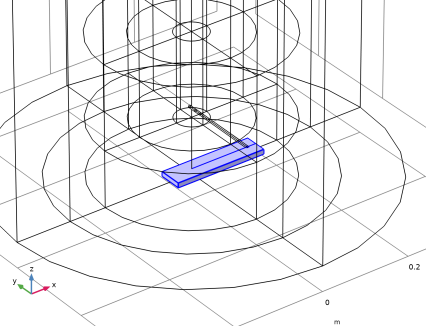 |
|
1
|
In the Model Builder window, under Results > Velocity (spf) right-click Surface 1 and choose Duplicate.
|
|
2
|
|
3
|
|
1
|
|
2
|
|
3
|
Click
 Clear Selection. Clear Selection. |
|
4
|
Click
 Paste Selection. Paste Selection. |
|
5
|
In the Paste Selection dialog, type 83 84 85 86 87 172 173 174 175 176 177 178 179 in the Selection text field.
|
|
6
|
|
1
|
|
2
|
|
3
|
Clear the Plot dataset edges checkbox.
|
|
4
|
|
5
|
|
6
|
|
7
|
|
8
|
|
1
|
|
2
|
Go to the Result Templates window.
|
|
3
|
In the tree, select Study 2/Solution 2 (sol2) > Particle Tracing for Fluid Flow > Particle Trajectories (fpt).
|
|
4
|
Click the Add Result Template button in the window toolbar.
|
|
5
|
|
1
|
In the Settings window for 3D Plot Group, type Particle Trajectories over Time in the Label text field.
|
|
2
|
|
3
|
|
4
|
|
5
|
|
6
|
|
7
|
|
1
|
In the Model Builder window, expand the Results > Particle Trajectories over Time > Particle Trajectories 1 node.
|
|
2
|
|
1
|
|
2
|
Find the Point style subsection.
|
|
3
|
|
4
|
|
1
|
|
2
|
|
3
|
|
4
|
|
5
|
|
6
|
|
1
|
|
2
|
|
3
|
|
4
|
|
1
|
|
2
|
|
1
|
|
2
|
|
1
|
|
2
|
|
3
|
|
4
|
Locate the Coloring and Style section. Find the Line style subsection. From the Type list, choose None.
|
|
5
|
|
6
|
|
1
|
|
2
|
|
3
|
|
4
|
|
1
|
|
2
|
Enter a filename or click Browse to navigate the file system.
|
|
3
|
|
4
|
|
5
|
|
6
|
Click Export in the settings toolbar.
|




 next to


