|
|
|

|
•
|
rp (SI unit: m) is the radius of a spherical particle in the field,
|
|
•
|
|
•
|
Erms (SI unit: V/m) is the root mean square electric field.
|

 of a homogeneous particle comprising both the shell and the interior of the particle:
|
•
|
|
1
|
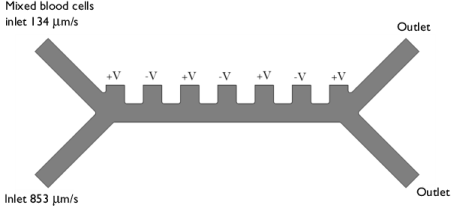
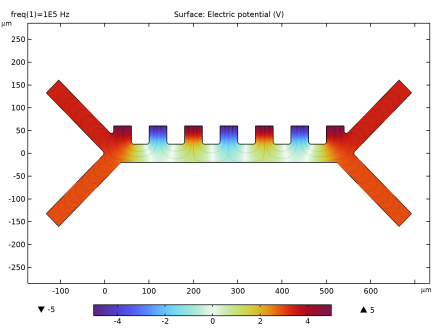
Study 1 (Stationary and Frequency Domain) solves for the fluid velocity, pressure, and AC electric potential.
|
|
2
|
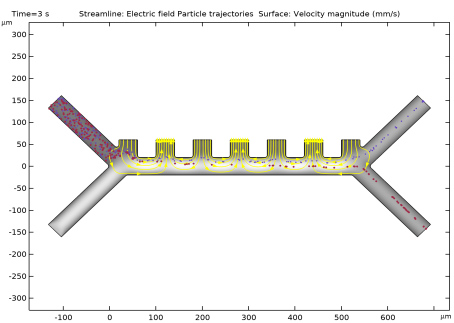
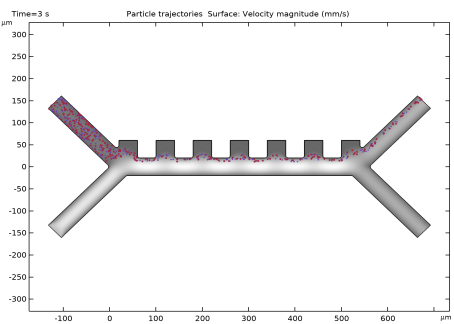
Study 2 (Time Dependent) estimates the particle trajectories in the flow without the DEP force, so that all particles (platelets and RBC) follow the same path.
|
|
3
|
Study 3 (Time Dependent) computes the particle trajectories including the DEP force.
|
|
1
|
|
2
|
|
3
|
Click Add.
|
|
4
|
|
5
|
Click Add.
|
|
6
|
In the Select Physics tree, select Fluid Flow > Particle Tracing > Particle Tracing for Fluid Flow (fpt).
|
|
7
|
Click Add.
|
|
8
|
Click
 Done. Done. |
|
1
|
|
2
|
Browse to the model’s Application Libraries folder and double-click the file dielectrophoretic_separation_geom_sequence.mph.
|
|
1
|
|
2
|
|
3
|
Click
 Load from File. Load from File. |
|
4
|
Browse to the model’s Application Libraries folder and double-click the file dielectrophoretic_separation_parameters.txt.
|
|
1
|
|
2
|
|
3
|
|
1
|
|
2
|
|
3
|
|
1
|
|
3
|
|
4
|
|
1
|
|
3
|
|
4
|
|
1
|
|
1
|
|
2
|
In the Settings window for Particle Tracing for Fluid Flow, locate the Particle Release and Propagation section.
|
|
3
|
|
1
|
In the Model Builder window, under Component 1 (comp1) > Particle Tracing for Fluid Flow (fpt) click Particle Properties 1.
|
|
2
|
|
3
|
Locate the Particle Properties section. From the ρp list, choose User defined. In the associated text field, type rho_p.
|
|
4
|
|
1
|
|
2
|
|
3
|
Locate the Particle Properties section. From the ρp list, choose User defined. In the associated text field, type rho_p.
|
|
4
|
|
1
|
|
2
|
|
4
|
|
5
|
|
1
|
|
2
|
|
3
|
Click to expand the Released Particle Properties section. From the Released particle properties list, choose Red Blood Cells.
|
|
1
|
|
1
|
|
2
|
|
3
|
|
4
|
|
5
|
Locate the Additional Terms section. Select the Include virtual mass and pressure gradient forces checkbox.
|
|
1
|
|
2
|
In the Settings window for Dielectrophoretic Force, type Dielectrophoretic Force, Platelets in the Label text field.
|
|
3
|
|
4
|
|
5
|
Locate the Advanced Settings section. Select the Use piecewise polynomial recovery on field checkbox.
|
|
6
|
|
1
|
|
2
|
|
3
|
|
4
|
|
5
|
|
1
|
|
2
|
In the Settings window for Dielectrophoretic Force, type Dielectrophoretic Force, Red Blood Cells in the Label text field.
|
|
3
|
Locate the Advanced Settings section. From the Affected particle properties list, choose Red Blood Cells.
|
|
1
|
In the Model Builder window, expand the Dielectrophoretic Force, Red Blood Cells node, then click Shell 1.
|
|
2
|
|
3
|
|
4
|
|
5
|
|
1
|
In the Model Builder window, under Component 1 (comp1) > Particle Tracing for Fluid Flow (fpt) click Platelets.
|
|
2
|
|
3
|
|
4
|
|
1
|
|
2
|
|
3
|
|
4
|
|
1
|
In the Model Builder window, under Component 1 (comp1) right-click Materials and choose Blank Material.
|
|
2
|
|
1
|
|
2
|
Go to the Add Study window.
|
|
3
|
Find the Physics interfaces in study subsection. In the table, clear the Solve checkboxes for Electric Currents (ec) and Particle Tracing for Fluid Flow (fpt).
|
|
4
|
|
5
|
Click the Add Study button in the window toolbar.
|
|
6
|
|
1
|
|
2
|
|
3
|
|
4
|
|
1
|
|
2
|
|
1
|
|
2
|
|
3
|
|
1
|
|
2
|
Go to the Add Study window.
|
|
3
|
Find the Physics interfaces in study subsection. In the table, clear the Solve checkboxes for Electric Currents (ec) and Creeping Flow (spf).
|
|
4
|
|
5
|
Click the Add Study button in the window toolbar.
|
|
6
|
|
1
|
In the Model Builder window, under Study 2, no Dielectrophoretic Force click Step 1: Time Dependent.
|
|
2
|
|
3
|
|
4
|
Locate the Physics and Variables Selection section. Select the Modify model configuration for study step checkbox.
|
|
5
|
In the tree, select Component 1 (comp1) > Particle Tracing for Fluid Flow (fpt) > Dielectrophoretic Force, Platelets and Component 1 (comp1) > Particle Tracing for Fluid Flow (fpt) > Dielectrophoretic Force, Red Blood Cells.
|
|
6
|
Click
 Disable. Disable. |
|
7
|
Click to expand the Values of Dependent Variables section. Find the Values of variables not solved for subsection. From the Settings list, choose User controlled.
|
|
8
|
|
9
|
|
10
|
|
1
|
|
2
|
Clear the Show legends checkbox.
|
|
1
|
In the Model Builder window, expand the Particle Trajectories (fpt) node, then click Particle Trajectories 1.
|
|
2
|
|
3
|
Find the Point style subsection. In the Point radius expression text field, type if(fpt.sidx==2,dp2/2,dp1).
|
|
1
|
In the Model Builder window, expand the Particle Trajectories 1 node, then click Color Expression 1.
|
|
2
|
|
3
|
|
4
|
|
1
|
|
2
|
In the Settings window for Surface, click Replace Expression in the upper-right corner of the Expression section. From the menu, choose Component 1 (comp1) > Creeping Flow > Velocity and pressure > spf.U - Velocity magnitude - m/s.
|
|
3
|
|
4
|
|
5
|
|
6
|
|
7
|
|
8
|
|
1
|
In the Model Builder window, under Study 2, no Dielectrophoretic Force click Step 1: Time Dependent.
|
|
2
|
|
3
|
Select the Plot checkbox.
|
|
4
|
|
5
|
|
1
|
|
2
|
Go to the Add Study window.
|
|
3
|
Find the Physics interfaces in study subsection. In the table, clear the Solve checkboxes for Electric Currents (ec) and Creeping Flow (spf).
|
|
4
|
|
5
|
Click the Add Study button in the window toolbar.
|
|
6
|
|
1
|
|
2
|
|
3
|
|
4
|
Locate the Values of Dependent Variables section. Find the Values of variables not solved for subsection. From the Settings list, choose User controlled.
|
|
5
|
|
6
|
|
7
|
|
1
|
|
2
|
Clear the Show legends checkbox.
|
|
1
|
In the Model Builder window, expand the Particle Trajectories (fpt) 1 node, then click Particle Trajectories 1.
|
|
2
|
|
3
|
Find the Point style subsection. In the Point radius expression text field, type if(fpt.dp==dp2,dp2/2,dp1).
|
|
1
|
In the Model Builder window, expand the Particle Trajectories 1 node, then click Color Expression 1.
|
|
2
|
|
3
|
|
4
|
|
1
|
|
2
|
In the Settings window for Surface, click Replace Expression in the upper-right corner of the Expression section. From the menu, choose Component 1 (comp1) > Creeping Flow > Velocity and pressure > spf.U - Velocity magnitude - m/s.
|
|
3
|
|
4
|
|
5
|
|
6
|
|
7
|
|
1
|
|
2
|
In the Settings window for Streamline, click Replace Expression in the upper-right corner of the Expression section. From the menu, choose Component 1 (comp1) > Electric Currents > Electric > ec.Ex,ec.Ey - Electric field.
|
|
3
|
|
4
|
|
5
|
|
6
|
Locate the Coloring and Style section. Find the Point style subsection. From the Color list, choose Yellow.
|
|
7
|
|
8
|
|
9
|
Drag and drop above Particle Trajectories 1.
|
|
10
|
|
1
|
|
2
|
|
3
|
Select the Plot checkbox.
|
|
4
|
|
5
|
|
1
|
|
1
|
|
2
|
|
1
|
|
2
|
|
3
|
|
4
|
|
5
|
|
1
|
|
2
|
|
3
|
|
4
|
|
5
|
|
6
|
|
7
|
|
1
|
|
2
|
Select the object r2 only.
|
|
3
|
|
4
|
|
5
|
|
6
|
|
1
|
|
2
|
Click in the Graphics window and then press Ctrl+A to select all objects.
|
|
3
|
|
4
|
Select the Keep input objects checkbox.
|
|
5
|
|
1
|
|
2
|
|
3
|
|
4
|
|
5
|
|
1
|
|
2
|
Select the object sq1 only.
|
|
3
|
|
4
|
|
5
|
|
1
|
|
2
|
Click in the Graphics window and then press Ctrl+A to select all objects.
|
|
3
|
|
4
|
Clear the Keep interior boundaries checkbox.
|
|
1
|
|
2
|
On the object uni1, select Points 5, 6, 8, 9, 11, 13, 15, 17, 19, 22, 24, 26, 28, 30, 32, 34, 35, and 37 only.
|
|
3
|
|
4
|
|
5
|
Click
 Build All Objects. Build All Objects. |
 (dimensionless) is the complex relative permittivity of the fluid,
 (dimensionless) is the complex relative permittivity of the particle, and
 (dimensionless) is the complex relative permittivity of the particle, and
 (dimensionless) is the complex relative permittivity of the outer shell.