PDF

Shape Optimization of a Step Thrust Bearing
Introduction
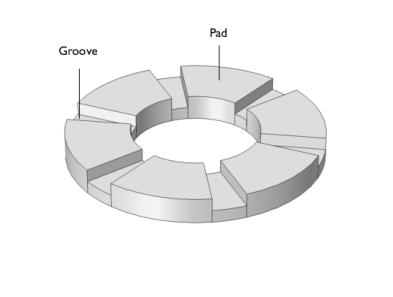
This model is inspired by the Step Thrust Bearing model in the Rotordynamics Module Application Library. In this example, shape optimization is applied to identify the optimal shape of grooves and pads as well as their optimal number.
Model Definition
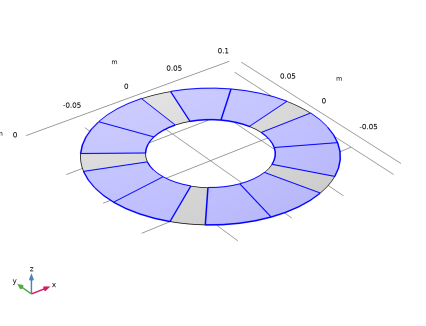
The geometry and mesh are fixed, as is the norm for shape optimization. The out-of-plane geometry is defined in terms of a spatially varying bearing clearance; see Figure 1.
Figure 1: Initial step thrust bearing geometry.
Initially, a model of a classic six step bearing is set up. This constitutes a benchmark for the subsequent shape optimization. The shape is optimized using the Polynomial Shell feature.
The bearing load capacity is used as objective function. The amount of design freedom is determined by the order and maximum displacement of the Polynomial Shell. Too aggressive settings can, however, be expected to introduce problems with inverted elements.
Results and Discussion
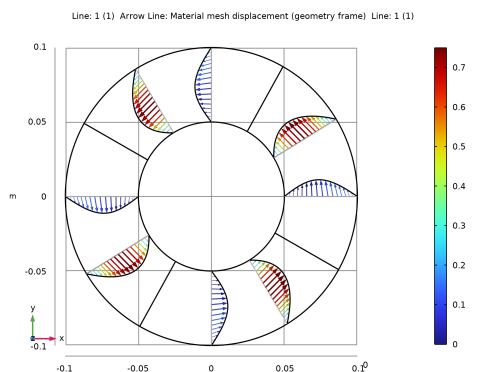
Figure 2 shows the optimized bearing for the case of four grooves.
Figure 2: The edges of the optimized bearing is shown for the case of four grooves.
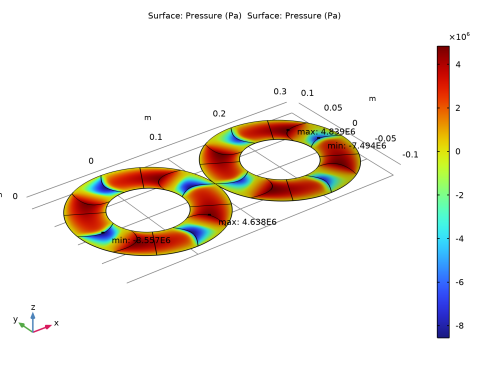
The shape optimization deforms the mesh, and this can impact the simulation accuracy, so it is good practice to remesh the geometry in the deformed configuration and recompute the result. Comparing the raw optimization results with such a verification simulation can reveal if the optimization relies on unphysical effects rooted in numerical errors, but this does not seem to be the case as illustrated in Figure 3.
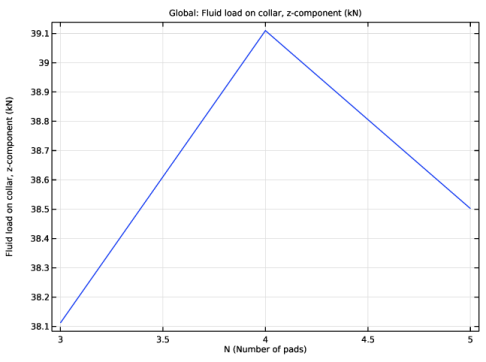
Finally, one can identify the optimal number of pads by wrapping an optimization study with a Parametric Sweep, the result of which is shown in Figure 4.
Figure 3: A comparison between the pressure distribution on the optimization mesh and on a mesh generated in the deformed configuration.
Figure 4: The optimized bearing load capacity is plotted versus the number of pads.
Application Library path: Optimization_Module/Shape_Optimization/step_thrust_bearing_shape_optimization
Modeling Instructions
Start by setting up an analysis of a classic step thrust bearing.
From the File menu, choose New.
New
In the New window, click  Model Wizard.
Model Wizard
1
In the Model Wizard window, click  3D.
2
In the Select Physics tree, select Structural Mechanics > Rotordynamics > Hydrodynamic Bearing (hdb).
3
Click Add.
4
Click  Study.
5
In the Select Study tree, select General Studies > Stationary.
6
Global Definitions
Parameters 1
Load a set of parameters used to define the geometry of the thrust bearing.
1
In the Model Builder window, under Global Definitions click Parameters 1.
2
In the Settings window for Parameters, locate the Parameters section.
3
Click  Load from File.
4
Browse to the model’s Application Libraries folder and double-click the file step_thrust_bearing_shape_optimization_parameters.txt.
Geometry 1
Work Plane 1 (wp1)
In the Geometry toolbar, click  Work Plane.
Work Plane 1 (wp1) > Plane Geometry
In the Model Builder window, click Plane Geometry.
Work Plane 1 (wp1) > Circle 1 (c1)
1
In the Work Plane toolbar, click  Circle.
2
In the Settings window for Circle, locate the Size and Shape section.
3
In the Radius text field, type Ro.
4
In the Sector angle text field, type gAng.
5
Click to expand the Layers section. In the table, enter the following settings:
Work Plane 1 (wp1) > Circle 2 (c2)
1
Right-click Component 1 (comp1) > Geometry 1 > Work Plane 1 (wp1) > Plane Geometry > Circle 1 (c1) and choose Duplicate.
2
In the Settings window for Circle, locate the Size and Shape section.
3
In the Sector angle text field, type padAng/2.
4
Locate the Rotation Angle section. In the Rotation text field, type gAng.
Work Plane 1 (wp1) > Circle 3 (c3)
1
Right-click Component 1 (comp1) > Geometry 1 > Work Plane 1 (wp1) > Plane Geometry > Circle 2 (c2) and choose Duplicate.
2
In the Settings window for Circle, locate the Rotation Angle section.
3
In the Rotation text field, type gAng+padAng/2.
Domains to Delete
1
In the Work Plane toolbar, click  Selections and choose Disk Selection.
2
In the Settings window for Disk Selection, type Domains to Delete in the Label text field.
3
Locate the Size and Shape section. In the Outer radius text field, type Ri*1.01.
4
Locate the Output Entities section. From the Include entity if list, choose Entity inside disk.
Work Plane 1 (wp1) > Delete Entities 1 (del1)
1
In the Model Builder window, right-click Plane Geometry and choose Delete Entities.
2
Click the  Zoom Extents button in the Graphics toolbar.
3
Click in the Graphics window and then press Ctrl+D to clear all objects.
4
In the Model Builder window, click Delete Entities 1 (del1).
5
In the Settings window for Delete Entities, locate the Entities or Objects to Delete section.
6
From the Geometric entity level list, choose Domain.
7
From the Selection list, choose Domains to Delete.
8
Locate the Selections of Resulting Entities section. Select the Resulting objects selection checkbox.
9
Click  Build Selected.
Disk Selection: Leading Edge
1
In the Work Plane toolbar, click  Selections and choose Disk Selection.
2
In the Settings window for Disk Selection, type Disk Selection: Leading Edge in the Label text field.
3
Locate the Geometric Entity Level section. From the Level list, choose Boundary.
4
Locate the Size and Shape section. In the Outer radius text field, type 1.01*Ro.
5
In the Inner radius text field, type 0.99*Ri.
6
In the Start angle text field, type gAng-1.
7
In the End angle text field, type gAng+1.
8
Locate the Output Entities section. From the Include entity if list, choose Entity inside disk.
9
Click  Build Selected.
Disk Selection: Trailing Edge
1
Right-click Disk Selection: Leading Edge and choose Duplicate.
2
In the Settings window for Disk Selection, locate the Size and Shape section.
3
In the Start angle text field, type secAng-1.
4
In the End angle text field, type secAng+1.
5
Click  Build Selected.
6
In the Label text field, type Disk Selection: Trailing Edge.
Disk Selection: Groove
1
In the Work Plane toolbar, click  Selections and choose Disk Selection.
2
In the Settings window for Disk Selection, locate the Size and Shape section.
3
In the Outer radius text field, type 1.01*Ro.
4
In the Inner radius text field, type 0.99*Ri.
5
In the End angle text field, type gAng.
6
Locate the Output Entities section. From the Include entity if list, choose Entity inside disk.
7
Click  Build Selected.
8
In the Label text field, type Disk Selection: Groove.
Disk Selection: Pad
1
Right-click Disk Selection: Groove and choose Duplicate.
2
In the Settings window for Disk Selection, type Disk Selection: Pad in the Label text field.
3
Locate the Size and Shape section. In the Start angle text field, type gAng.
4
In the End angle text field, type 360/N.
5
Click  Build Selected.
Work Plane 1 (wp1) > Rotate 1 (rot1)
1
In the Work Plane toolbar, click  Transforms and choose Rotate.
2
In the Settings window for Rotate, locate the Input section.
3
From the Input objects list, choose Delete Entities 1.
4
Locate the Rotation section. In the Angle text field, type range(0,secAng,360-secAng).
5
Click  Build Selected.
6
Click the  Zoom Extents button in the Graphics toolbar.
Leading Edges of the Pads
1
In the Model Builder window, right-click Geometry 1 and choose Selections > Union Selection.
2
In the Settings window for Union Selection, type Leading Edges of the Pads in the Label text field.
3
Locate the Geometric Entity Level section. From the Level list, choose Edge.
4
Locate the Input Entities section. Click  Add.
5
In the Add dialog, select Disk Selection: Leading Edge (Work Plane 1) in the Selections to add list.
6
Trailing Edges of the Pads
1
Right-click Leading Edges of the Pads and choose Duplicate.
2
In the Settings window for Union Selection, type Trailing Edges of the Pads in the Label text field.
3
Locate the Input Entities section. Click Build Preceding State.
4
In the Selections to add list box, select Disk Selection: Leading Edge (Work Plane 1).
5
Click  Delete.
6
7
In the Add dialog, select Disk Selection: Trailing Edge (Work Plane 1) in the Selections to add list.
8
9
In the Settings window for Union Selection, click  Build Selected.
Grooves
1
In the Geometry toolbar, click  Selections and choose Union Selection.
2
In the Settings window for Union Selection, locate the Geometric Entity Level section.
3
From the Level list, choose Boundary.
4
Locate the Input Entities section. Click  Add.
5
In the Add dialog, select Disk Selection: Groove (Work Plane 1) in the Selections to add list.
6
7
In the Settings window for Union Selection, type Grooves in the Label text field.
Pads
1
Right-click Grooves and choose Duplicate.
2
In the Settings window for Union Selection, type Pads in the Label text field.
3
Locate the Input Entities section. Click Build Preceding State.
4
In the Selections to add list box, select Disk Selection: Groove (Work Plane 1).
5
Click  Delete.
6
7
In the Add dialog, select Disk Selection: Pad (Work Plane 1) in the Selections to add list.
8
9
In the Settings window for Union Selection, click  Build Selected.
Groove Edges
1
In the Geometry toolbar, click  Selections and choose Adjacent Selection.
2
In the Settings window for Adjacent Selection, locate the Input Entities section.
3
From the Geometric entity level list, choose Boundary.
4
5
In the Add dialog, select Grooves in the Input selections list.
6
7
In the Settings window for Adjacent Selection, locate the Output Entities section.
8
From the Geometric entity level list, choose Adjacent edges.
9
In the Label text field, type Groove Edges.
Groove Inner Edges
1
In the Geometry toolbar, click  Selections and choose Cylinder Selection.
2
In the Settings window for Cylinder Selection, locate the Geometric Entity Level section.
3
From the Level list, choose Edge.
4
Locate the Input Entities section. From the Entities list, choose From selections.
5
6
In the Add dialog, select Groove Edges in the Selections list.
7
8
In the Settings window for Cylinder Selection, locate the Size and Shape section.
9
In the Outer radius text field, type 1.01*Ri.
10
In the Inner radius text field, type 0.99*Ri.
11
Locate the Output Entities section. From the Include entity if list, choose Entity inside cylinder.
12
In the Label text field, type Groove Inner Edges.
Groove Edges (adjsel1), Groove Inner Edges (cylsel1)
1
In the Model Builder window, under Component 1 (comp1) > Geometry 1, Ctrl-click to select Groove Edges (adjsel1) and Groove Inner Edges (cylsel1).
2
Pad Edges
1
In the Settings window for Adjacent Selection, type Pad Edges in the Label text field.
2
Locate the Input Entities section. Click Build Preceding State.
3
In the Input selections list box, select Grooves.
4
Click  Delete.
5
6
In the Add dialog, select Pads in the Input selections list.
7
8
In the Settings window for Adjacent Selection, click  Build Selected.
Pad Inner Edges
1
In the Model Builder window, under Component 1 (comp1) > Geometry 1 click Groove Inner Edges 1 (cylsel2).
2
In the Settings window for Cylinder Selection, type Pad Inner Edges in the Label text field.
3
Locate the Input Entities section. In the Selections list box, select Groove Edges.
4
Click  Delete.
5
6
In the Add dialog, select Pad Edges in the Selections list.
7
Control Boundaries
1
In the Geometry toolbar, click  Selections and choose Cylinder Selection.
2
In the Settings window for Cylinder Selection, type Control Boundaries in the Label text field.
3
Locate the Geometric Entity Level section. From the Level list, choose Boundary.
4
Locate the Size and Shape section. In the Outer radius text field, type INf.
5
In the Start angle text field, type -padAng*0.51.
6
In the End angle text field, type gAng+0.51*padAng.
7
Locate the Output Entities section. From the Include entity if list, choose Entity inside cylinder.
Sector Symmetry
1
In the Geometry toolbar, click  Selections and choose Complement Selection.
2
In the Settings window for Complement Selection, type Sector Symmetry in the Label text field.
3
Locate the Geometric Entity Level section. From the Level list, choose Boundary.
4
Locate the Input Entities section. Click  Add.
5
In the Add dialog, select Control Boundaries in the Selections to invert list.
6
Fixed Edges
1
In the Geometry toolbar, click  Selections and choose Adjacent Selection.
2
In the Settings window for Adjacent Selection, type Fixed Edges in the Label text field.
3
Locate the Input Entities section. From the Geometric entity level list, choose Boundary.
4
Locate the Output Entities section. From the Geometric entity level list, choose Adjacent edges.
5
Locate the Input Entities section. Click  Add.
6
In the Add dialog, select Control Boundaries in the Input selections list.
7
Definitions
In the step bearing, the film thickness varies in steps with one value in the groove and another on the pad. Define a film thickness variable hf in two separate Variable nodes with complementary selections to specify different values in different regions.
Variables: Grooves
1
In the Model Builder window, expand the Component 1 (comp1) > Definitions node.
2
Right-click Definitions and choose Variables.
3
In the Settings window for Variables, locate the Geometric Entity Selection section.
4
From the Geometric entity level list, choose Boundary.
5
From the Selection list, choose Grooves.
6
Locate the Variables section. In the table, enter the following settings:
7
In the Label text field, type Variables: Grooves.
Variables: Pads
1
Right-click Variables: Grooves and choose Duplicate.
2
In the Settings window for Variables, locate the Geometric Entity Selection section.
3
From the Selection list, choose Pads.
4
Locate the Variables section. In the table, enter the following settings:
5
In the Label text field, type Variables: Pads.
Hydrodynamic Bearing (hdb)
1
Click the  Show More Options button in the Model Builder toolbar.
2
In the Show More Options dialog, in the tree, select the checkbox for the node Physics > Advanced Physics Options.
3
Enable the Cavitation formulation in the bearing.
4
In the Model Builder window, under Component 1 (comp1) click Hydrodynamic Bearing (hdb).
5
In the Settings window for Hydrodynamic Bearing, locate the Physical Model section.
6
From the Fluid type list, choose Liquid with cavitation.
Reduce the Cavitation transition width for the sharper transition between the cavitated and noncavitated regions.
7
In the Δpsw text field, type 0.5[MPa].
Materials
Material 1 (mat1)
1
In the Model Builder window, under Component 1 (comp1) right-click Materials and choose Blank Material.
2
In the Settings window for Material, locate the Material Contents section.
3
Hydrodynamic Bearing (hdb)
Hydrodynamic Thrust Bearing 1
1
In the Physics toolbar, click  Boundaries and choose Hydrodynamic Thrust Bearing.
2
In the Settings window for Hydrodynamic Thrust Bearing, locate the Boundary Selection section.
3
From the Selection list, choose All boundaries.
Because the reference surface is assumed to be located on the collar, change the Reference normal orientation to align it with the collar normal.
4
Locate the Reference Surface Properties section. From the Reference normal orientation list, choose Opposite direction to geometry normal.
5
Locate the Bearing Properties section. From the Bearing type list, choose User defined.
6
In the hb1 text field, type hf.
7
Locate the Collar Properties section. In the Ω text field, type angSpeed.
8
Locate the Fluid Properties section. In the ρc text field, type rho_c.
Bearing Orientation 1
1
In the Model Builder window, click Bearing Orientation 1.
2
In the Settings window for Bearing Orientation, locate the Bearing Orientation section.
3
From the Axis list, choose z-axis.
4
Specify the V vector as
Initial Values 1
An auxiliary sweep will be used in the stationary study, which does not support parameter dependencies in initial expressions. Therefore, apply a constant initial value for the pressure.
1
In the Model Builder window, click Initial Values 1.
2
In the Settings window for Initial Values, locate the Initial Values section.
3
In the pfilm text field, type 100000[Pa].
Mesh 1
Mapped 1
1
In the Mesh toolbar, click  More Generators and choose Mapped.
2
In the Settings window for Mapped, locate the Boundary Selection section.
3
From the Selection list, choose All boundaries.
Create one element per degree in the azimuthal direction to capture the pressure accurately.
Distribution 1
1
Right-click Mapped 1 and choose Distribution.
2
In the Settings window for Distribution, locate the Edge Selection section.
3
From the Selection list, choose Groove Inner Edges.
4
Locate the Distribution section. In the Number of elements text field, type round(gAng).
Distribution 2
1
In the Model Builder window, right-click Mapped 1 and choose Distribution.
2
In the Settings window for Distribution, locate the Edge Selection section.
3
From the Selection list, choose Pad Inner Edges.
4
Locate the Distribution section. In the Number of elements text field, type round(padAng/2).
Distribution 3
1
Right-click Mapped 1 and choose Distribution.
2
In the Settings window for Distribution, locate the Edge Selection section.
3
From the Selection list, choose Leading Edges of the Pads.
4
Locate the Distribution section. In the Number of elements text field, type 20.
5
In the Model Builder window, right-click Mesh 1 and choose Build All.
Study 1
Step 1: Stationary
1
In the Model Builder window, under Study 1 click Step 1: Stationary.
2
In the Settings window for Stationary, click to expand the Study Extensions section.
3
Select the Auxiliary sweep checkbox.
4
5
6
7
8
From the Sweep type list, choose All combinations.
9
In the Model Builder window, click Study 1.
10
In the Settings window for Study, type Study 1: Initial Design in the Label text field.
11
In the Study toolbar, click  Compute.
A set of default plot are generated. These show the pressure distribution in the bearing. To generate a height plot of the pressure distribution, start by creating a Surface dataset.
Results
Surface 1
1
In the Results toolbar, click  More Datasets and choose Surface.
2
In the Settings window for Surface, locate the Selection section.
3
From the Selection list, choose All boundaries.
Pressure (Height)
1
In the Results toolbar, click  2D Plot Group.
2
In the Settings window for 2D Plot Group, type Pressure (Height) in the Label text field.
Surface 1
1
Right-click Pressure (Height) and choose Surface.
2
In the Settings window for Surface, locate the Expression section.
3
In the Expression text field, type hdb.p.
4
Locate the Coloring and Style section. From the Color table list, choose Traffic.
Height Expression 1
1
Right-click Surface 1 and choose Height Expression.
2
In the Settings window for Height Expression, locate the Axis section.
3
Select the Scale factor checkbox. In the associated text field, type 2e-8.
4
Click the  Go to Default View button in the Graphics toolbar.
5
In the Pressure (Height) toolbar, click  Plot.
Follow the instructions below to create visualize the mass fraction of the lubricant.
Mass Fraction
1
In the Results toolbar, click  3D Plot Group.
2
In the Settings window for 3D Plot Group, type Mass Fraction in the Label text field.
Contour 1
1
Right-click Mass Fraction and choose Contour.
2
In the Settings window for Contour, click Replace Expression in the upper-right corner of the Expression section. From the menu, choose Component 1 (comp1) > Hydrodynamic Bearing > Cavitation > hdb.theta - Mass fraction - 1.
3
Locate the Coloring and Style section. From the Contour type list, choose Filled.
4
Locate the Levels section. In the Total levels text field, type 5.
5
Locate the Coloring and Style section. From the Color table list, choose JupiterAuroraBorealis.
6
Click the  Go to Default View button in the Graphics toolbar.
7
In the Mass Fraction toolbar, click  Plot.
Now, generate a plot which shows the bearing profile.
2D Plot Group 4
In the Results toolbar, click  2D Plot Group.
Surface 1
1
Right-click 2D Plot Group 4 and choose Surface.
2
In the Settings window for Surface, locate the Expression section.
3
In the Expression text field, type hg-hdb.h.
4
Locate the Coloring and Style section. From the Coloring list, choose Uniform.
5
From the Color list, choose Gray.
Height Expression 1
1
Right-click Surface 1 and choose Height Expression.
2
In the Settings window for Height Expression, locate the Axis section.
3
Select the Scale factor checkbox. In the associated text field, type 100.
Pad Profile
1
In the Model Builder window, under Results click 2D Plot Group 4.
2
In the Settings window for 2D Plot Group, type Pad Profile in the Label text field.
3
Locate the Plot Settings section. Clear the Plot dataset edges checkbox.
4
Click the  Go to Default View button in the Graphics toolbar.
5
In the Pad Profile toolbar, click  Plot.
Generate a plot of the pressure distributions along the radial and circumferential directions of the bearing. Start by creating a Cut line along the radial line.
Cut Line 3D: Radial Line
1
In the Results toolbar, click  Cut Line 3D.
2
In the Settings window for Cut Line 3D, locate the Line Data section.
3
In row Point 2, set X to 0.
4
In row Point 2, set Y to Ro.
5
6
In the Label text field, type Cut Line 3D: Radial Line.
Radial Distribution of Pressure (Film Thickness)
1
In the Results toolbar, click  1D Plot Group.
2
In the Settings window for 1D Plot Group, locate the Data section.
3
From the Dataset list, choose Cut Line 3D: Radial Line.
4
From the Parameter selection (angSpeed) list, choose Last.
5
In the Label text field, type Radial Distribution of Pressure (Film Thickness).
6
Click to expand the Title section. From the Title type list, choose Label.
Line Graph 1
1
Right-click Radial Distribution of Pressure (Film Thickness) and choose Line Graph.
2
In the Settings window for Line Graph, locate the y-Axis Data section.
3
In the Expression text field, type hdb.p.
4
Click to expand the Legends section. Select the Show legends checkbox.
5
From the Legends list, choose Evaluated.
6
In the Legend text field, type h = eval(h_film, um) \mu m.
7
In the Radial Distribution of Pressure (Film Thickness) toolbar, click  Plot.
Radial Distribution of Pressure (Film Thickness)
1
In the Model Builder window, click Radial Distribution of Pressure (Film Thickness).
2
In the Settings window for 1D Plot Group, locate the Legend section.
3
From the Position list, choose Upper left.
Radial Distribution of Pressure (Angular Speed)
1
Right-click Radial Distribution of Pressure (Film Thickness) and choose Duplicate.
2
In the Settings window for 1D Plot Group, locate the Data section.
3
From the Parameter selection (h_film) list, choose Last.
4
From the Parameter selection (angSpeed) list, choose All.
5
In the Label text field, type Radial Distribution of Pressure (Angular Speed).
Line Graph 1
1
In the Model Builder window, expand the Radial Distribution of Pressure (Angular Speed) node, then click Line Graph 1.
2
In the Settings window for Line Graph, locate the Legends section.
3
In the Legend text field, type \Omega = eval(angSpeed) rad/s.
4
In the Radial Distribution of Pressure (Angular Speed) toolbar, click  Plot.
Radial Distribution of Pressure (Film Thickness)
In the Model Builder window, collapse the Results > Radial Distribution of Pressure (Film Thickness) node.
Use the Parametric Curve to create the circumferential sector line.
Parametric Curve 3D: Circumferential Line
1
In the Results toolbar, click  More Datasets and choose Parametric Curve 3D.
2
In the Settings window for Parametric Curve 3D, locate the Parameter section.
3
In the Maximum text field, type 2*pi/N.
4
Locate the Expressions section. In the x text field, type 0.5*(Ro+Ri)*cos(s).
5
In the y text field, type 0.5*(Ro+Ri)*sin(s).
6
In the Label text field, type Parametric Curve 3D: Circumferential Line.
7
Radial Distribution of Pressure (Angular Speed), Radial Distribution of Pressure (Film Thickness)
1
In the Model Builder window, under Results, Ctrl-click to select Radial Distribution of Pressure (Film Thickness) and Radial Distribution of Pressure (Angular Speed).
2
Circumferential Distribution of Pressure (Film Thickness)
1
In the Settings window for 1D Plot Group, type Circumferential Distribution of Pressure (Film Thickness) in the Label text field.
2
Locate the Data section. From the Dataset list, choose Parametric Curve 3D: Circumferential Line.
3
In the Circumferential Distribution of Pressure (Film Thickness) toolbar, click  Plot.
Circumferential Distribution of Pressure (Angular Speed)
1
In the Model Builder window, under Results click Radial Distribution of Pressure (Angular Speed) 1.
2
In the Settings window for 1D Plot Group, type Circumferential Distribution of Pressure (Angular Speed) in the Label text field.
3
Locate the Data section. From the Dataset list, choose Parametric Curve 3D: Circumferential Line.
4
In the Circumferential Distribution of Pressure (Angular Speed) toolbar, click  Plot.
Lift Force
1
In the Results toolbar, click  1D Plot Group.
2
In the Settings window for 1D Plot Group, type Lift Force in the Label text field.
3
Locate the Title section. From the Title type list, choose Label.
Global 1
1
Right-click Lift Force and choose Global.
2
In the Settings window for Global, click Replace Expression in the upper-right corner of the y-Axis Data section. From the menu, choose Component 1 (comp1) > Hydrodynamic Bearing > Fluid loads > Fluid load on collar - N > hdb.htb1.Fcz - Fluid load on collar, z-component.
3
Click to expand the Legends section. Locate the y-Axis Data section. In the table, enter the following settings:
4
Locate the Legends section. From the Legends list, choose Evaluated.
5
In the Legend text field, type h = eval(h_film, um) \mu m.
6
In the Lift Force toolbar, click  Plot.
Lift Force
1
In the Model Builder window, click Lift Force.
2
In the Settings window for 1D Plot Group, locate the Legend section.
3
From the Position list, choose Upper left.
4
Locate the Plot Settings section.
5
Select the x-axis label checkbox. In the associated text field, type Angular speed of the shaft (rad/s).
6
In the Lift Force toolbar, click  Plot.
Global Definitions
Parameters 1
Introduce a parameter for the maximum azimuthal deformation and increase the groove angle to allow larger mesh deformation.
1
In the Model Builder window, under Global Definitions click Parameters 1.
2
In the Settings window for Parameters, locate the Parameters section.
3
Define some selections for later use.
Geometry 1
Circular Boundaries
1
In the Geometry toolbar, click  Selections and choose Adjacent Selection.
2
In the Settings window for Adjacent Selection, locate the Input Entities section.
3
From the Geometric entity level list, choose Boundary.
4
5
In the Add dialog, in the Input selections list, choose Grooves and Pads.
6
7
In the Settings window for Adjacent Selection, locate the Output Entities section.
8
From the Geometric entity level list, choose Adjacent edges.
9
In the Label text field, type Circular Boundaries.
10
Click  Build Selected.
Circular & pad edges
1
In the Geometry toolbar, click  Selections and choose Union Selection.
2
In the Settings window for Union Selection, locate the Geometric Entity Level section.
3
From the Level list, choose Edge.
4
Locate the Input Entities section. Click  Add.
5
In the Add dialog, in the Selections to add list, choose Leading Edges of the Pads, Trailing Edges of the Pads, and Circular Boundaries.
6
7
In the Settings window for Union Selection, type Circular & pad edges in the Label text field.
Geometry 1
In the Model Builder window, collapse the Component 1 (comp1) > Geometry 1 node.
Manually set the location of the bearing center. This avoids high memory consumption when the compensation of nojac terms is enabled on the Optimization Solver node.
Definitions
In the Model Builder window, collapse the Definitions node.
Component 1 (comp1)
Free Shape Domain 1
In the Physics toolbar, click  Optimization and choose Shape Optimization.
The periodicity is not supported by the Shape Optimization interface, so the geometry is constructed such that the trailing and leading edges of the pads are internal to the selection of the Polynomial Shell feature. Then the exterior edges can be fixed and the deformation can be copied to the other sectors using the Sector Symmetry feature.
Polynomial Shell 1
1
In the Shape Optimization toolbar, click  Polynomial Shell.
2
In the Settings window for Polynomial Shell, locate the Boundary Selection section.
3
From the Selection list, choose Control Boundaries.
4
Locate the Control Variable Settings section. From the dmax list, choose User defined.
5
6
Locate the Polynomial section. In the Order text field, type 3.
This will add eight controls per boundary which do not change the geometry, so the sensitivity of those controls is small. In practice, the main problem is that there is no PDE smoothing for the interior elements.
Sector Symmetry 1
1
In the Shape Optimization toolbar, click  Sector Symmetry.
2
In the Settings window for Sector Symmetry, locate the Geometric Entity Selection section.
3
From the Geometric entity level list, choose Boundary.
4
From the Selection list, choose Sector Symmetry.
5
Locate the Sector section. From the Transformation list, choose Rotation.
Free Shape Domain 1
In the Model Builder window, right-click Free Shape Domain 1 and choose Delete.
Fixed Edge 1
1
In the Shape Optimization toolbar, click  Fixed Edge.
2
In the Settings window for Fixed Edge, locate the Edge Selection section.
3
From the Selection list, choose Fixed Edges.
Add an optimization study to maximize the net lift force in the bearing.
Add Study
1
In the Home toolbar, click  Add Study to open the Add Study window.
2
Go to the Add Study window.
3
Find the Studies subsection. In the Select Study tree, select General Studies > Stationary.
4
Click the Add Study button in the window toolbar.
5
In the Home toolbar, click  Add Study to close the Add Study window.
Study 2
Shape Optimization
1
In the Study toolbar, click  Optimization and choose Shape Optimization.
2
In the Settings window for Shape Optimization, locate the Optimization Solver section.
3
From the Method list, choose MMA.
4
In the Maximum number of iterations text field, type 15.
5
Click Replace Expression in the upper-right corner of the Objective Function section. From the menu, choose Component 1 (comp1) > Hydrodynamic Bearing > Fluid loads > Fluid load on collar (spatial and material frames) - N > comp1.hdb.htb1.Fcz - Fluid load on collar, z-component.
6
Locate the Objective Function section. From the Type list, choose Maximization.
Scale the objective for better behavior of the optimization solver.
7
Find the Objective settings subsection. From the Objective scaling list, choose Initial solution based.
8
Click to expand the Output section. From the Probes list, choose None.
9
Select the Plot checkbox.
10
In the Model Builder window, click Study 2.
11
In the Settings window for Study, type Study 2: Shape Optimization in the Label text field.
Initialize the study to regenerate default plot for use while optimizing.
12
In the Study toolbar, click  Get Initial Value.
Solution 2 (sol2)
1
In the Model Builder window, expand the Study 2: Shape Optimization > Solver Configurations node.
2
In the Model Builder window, expand the Solution 2 (sol2) node, then click Optimization Solver 1.
3
In the Settings window for Optimization Solver, click to expand the Advanced section.
Switching off the compensation for nojac terms allows to reduce the memory consumption if you compute the bearing center from geometry.
4
From the Compensate for nojac terms list, choose Off.
5
In the Study toolbar, click  Compute.
Shape Optimization
1
In the Model Builder window, under Study 2: Shape Optimization click Shape Optimization.
2
In the Settings window for Shape Optimization, locate the Output section.
3
From the Plot group list, choose Pressure (Height).
4
In the Study toolbar, click  Compute.
Results
Fluid Pressure, Shape Optimization (hdb)
In the Settings window for 3D Plot Group, type Fluid Pressure, Shape Optimization (hdb) in the Label text field.
Delete the default shape optimization plot.
Shape Optimization
In the Model Builder window, right-click Shape Optimization and choose Delete.
Duplicate the Pressure (Height), Mass Fraction, and Pad Profile plots from the previous study and change the settings to plot the shape optimized results.
Mass Fraction, Pad Profile, Pressure (Height)
1
In the Model Builder window, under Results, Ctrl-click to select Pressure (Height), Mass Fraction, and Pad Profile.
2
Surface (Shape Optimization)
1
In the Model Builder window, under Results > Datasets right-click Surface 1 and choose Duplicate.
2
In the Settings window for Surface, locate the Data section.
3
From the Dataset list, choose Study 2: Shape Optimization/Solution 2 (sol2).
4
In the Label text field, type Surface (Shape Optimization).
Pressure, Shape Optimization (Height)
1
In the Model Builder window, under Results click Pressure (Height) 1.
2
In the Settings window for 2D Plot Group, locate the Data section.
3
From the Dataset list, choose Surface (Shape Optimization).
4
In the Label text field, type Pressure, Shape Optimization (Height).
5
In the Pressure, Shape Optimization (Height) toolbar, click  Plot.
Mass Fraction, Shape Optimization
1
In the Model Builder window, click Mass Fraction 1.
2
In the Settings window for 3D Plot Group, locate the Data section.
3
From the Dataset list, choose Study 2: Shape Optimization/Solution 2 (sol2).
4
In the Label text field, type Mass Fraction, Shape Optimization.
5
In the Mass Fraction, Shape Optimization toolbar, click  Plot.
Pad Profile, Shape Optimization
1
In the Model Builder window, click Pad Profile 1.
2
In the Settings window for 2D Plot Group, locate the Data section.
3
From the Dataset list, choose Surface (Shape Optimization).
4
In the Label text field, type Pad Profile, Shape Optimization.
5
In the Pad Profile, Shape Optimization toolbar, click  Plot.
Similarly, duplicate the radial and circumferential distribution of the pressure plots and change the settings for the shape optimization study to generate the plots. Note that this will also require duplicating the corresponding datasets.
Circumferential Distribution of Pressure (Film Thickness), Radial Distribution of Pressure (Film Thickness)
1
In the Model Builder window, under Results, Ctrl-click to select Radial Distribution of Pressure (Film Thickness) and Circumferential Distribution of Pressure (Film Thickness).
2
Cut Line 3D: Radial Line, Parametric Curve 3D: Circumferential Line
Right-click and choose Duplicate.
Cut Line 3D: Radial line (Optimization)
1
In the Settings window for Cut Line 3D, type Cut Line 3D: Radial line (Optimization) in the Label text field.
2
Locate the Data section. From the Dataset list, choose Study 2: Shape Optimization/Solution 2 (sol2).
Parametric Curve 3D: Circumferential line (Optimization)
1
In the Model Builder window, under Results > Datasets click Parametric Curve 3D: Circumferential Line 1.
2
In the Settings window for Parametric Curve 3D, type Parametric Curve 3D: Circumferential line (Optimization) in the Label text field.
3
Locate the Data section. From the Dataset list, choose Study 2: Shape Optimization/Solution 2 (sol2).
Radial Distribution of Pressure (Shape Optimization)
1
In the Model Builder window, under Results click Radial Distribution of Pressure (Film Thickness) 1.
2
In the Settings window for 1D Plot Group, locate the Data section.
3
From the Dataset list, choose Cut Line 3D: Radial line (Optimization).
4
In the Label text field, type Radial Distribution of Pressure (Shape Optimization).
5
In the Radial Distribution of Pressure (Shape Optimization) toolbar, click  Plot.
6
Click the  Show Legends button in the Graphics toolbar.
Circumferential Distribution of Pressure (Shape Optimization)
1
In the Model Builder window, click Circumferential Distribution of Pressure (Film Thickness) 1.
2
In the Settings window for 1D Plot Group, locate the Data section.
3
From the Dataset list, choose Parametric Curve 3D: Circumferential line (Optimization).
4
In the Label text field, type Circumferential Distribution of Pressure (Shape Optimization).
5
In the Circumferential Distribution of Pressure (Shape Optimization) toolbar, click  Plot.
6
Click the  Show Legends button in the Graphics toolbar.
Use the following instructions to plot the deformed mesh shape after the optimization.
Mesh
1
In the Results toolbar, click  3D Plot Group.
2
In the Settings window for 3D Plot Group, locate the Data section.
3
From the Dataset list, choose Study 2: Shape Optimization/Solution 2 (sol2).
4
In the Label text field, type Mesh.
Mesh 1
1
Right-click Mesh and choose Mesh.
2
In the Mesh toolbar, click  Plot.
You can highlight the optimized pad shape and change from the original shape by following the instructions below.
Shape Optimization
1
In the Results toolbar, click  3D Plot Group.
2
In the Settings window for 3D Plot Group, type Shape Optimization in the Label text field.
3
Locate the Data section. From the Dataset list, choose Study 2: Shape Optimization/Solution 2 (sol2).
Line 1
1
Right-click Shape Optimization and choose Line.
2
In the Settings window for Line, locate the Expression section.
3
In the Expression text field, type 1.
4
Locate the Coloring and Style section. From the Coloring list, choose Uniform.
5
From the Color list, choose Gray.
Deformation 1
1
Right-click Line 1 and choose Deformation.
2
In the Settings window for Deformation, locate the Expression section.
3
In the X-component text field, type -material.dX.
4
In the Y-component text field, type -material.dY.
5
In the Z-component text field, type 0.
6
Locate the Scale section.
7
Select the Scale factor checkbox. In the associated text field, type 1.
8
In the Shape Optimization toolbar, click  Plot.
Arrow Line 1
1
In the Model Builder window, right-click Shape Optimization and choose Arrow Line.
2
In the Settings window for Arrow Line, locate the Expression section.
3
In the X-component text field, type material.dX.
4
In the Y-component text field, type material.dY.
5
In the Z-component text field, type material.dZ.
6
Locate the Arrow Positioning section. From the Placement list, choose Mesh vertices.
7
Locate the Coloring and Style section. From the Arrow base list, choose Head.
8
Select the Scale factor checkbox.
Color Expression 1
1
Right-click Arrow Line 1 and choose Color Expression.
2
In the Settings window for Color Expression, click Replace Expression in the upper-right corner of the Expression section. From the menu, choose Component 1 (comp1) > Definitions > Polynomial Shell 1 > pls1.rel_disp - Relative displacement - 1.
3
Click to expand the Range section. Select the Manual color range checkbox.
4
In the Minimum text field, type 0.
5
In the Maximum text field, type 1.
Surface 1
1
In the Model Builder window, right-click Shape Optimization and choose Surface.
2
In the Settings window for Surface, locate the Expression section.
3
In the Expression text field, type hf.
4
Locate the Coloring and Style section. From the Color table transformation list, choose Reverse.
5
In the Shape Optimization toolbar, click  Plot.
Shape Optimization
1
In the Model Builder window, click Shape Optimization.
2
In the Settings window for 3D Plot Group, locate the Color Legend section.
3
From the Position list, choose Right double.
Circumferential Distribution of Pressure (Angular Speed), Circumferential Distribution of Pressure (Film Thickness), Fluid Pressure (hdb), Lift Force, Mass Fraction, Pad Profile, Pressure (Height), Radial Distribution of Pressure (Angular Speed), Radial Distribution of Pressure (Film Thickness)
1
In the Model Builder window, under Results, Ctrl-click to select Fluid Pressure (hdb), Pressure (Height), Mass Fraction, Pad Profile, Radial Distribution of Pressure (Film Thickness), Radial Distribution of Pressure (Angular Speed), Circumferential Distribution of Pressure (Film Thickness), Circumferential Distribution of Pressure (Angular Speed), and Lift Force.
2
Initial Design
In the Settings window for Group, type Initial Design in the Label text field.
Circumferential Distribution of Pressure (Shape Optimization), Fluid Pressure, Shape Optimization (hdb), Mass Fraction, Shape Optimization, Mesh, Pad Profile, Shape Optimization, Pressure, Shape Optimization (Height), Radial Distribution of Pressure (Shape Optimization), Shape Optimization
1
In the Model Builder window, under Results, Ctrl-click to select Fluid Pressure, Shape Optimization (hdb), Pressure, Shape Optimization (Height), Mass Fraction, Shape Optimization, Pad Profile, Shape Optimization, Radial Distribution of Pressure (Shape Optimization), Circumferential Distribution of Pressure (Shape Optimization), Mesh, and Shape Optimization.
2
Shape Optimization
In the Settings window for Group, type Shape Optimization in the Label text field.
Filter 1
The optimization study is now completed. Next, remesh the optimized configuration and recompute the pressure profile and compare it with the optimized results. If the number of pads and other geometry parameters were fixed, this could be achieved by remeshing in the deformed configuration, but we wish to vary the number of pads in a parametric sweep later on and therefore it is necessary to perform the verification in a separate component.
1
In the Results toolbar, click  More Datasets and choose Filter.
2
In the Settings window for Filter, locate the Data section.
3
From the Dataset list, choose Study 2: Shape Optimization/Solution 2 (sol2).
4
Locate the Expression section. In the Expression text field, type 1.
5
Right-click Filter 1 and choose Create Mesh Part.
Mesh Part 1
Import 1
1
In the Settings window for Import, locate the Import section.
2
From the Boundary partitioning list, choose Minimal.
3
Click  Build All.
4
In the Model Builder window, right-click Mesh Part 1 and choose Create Geometry.
Component 1: Optimization
In the Settings window for Component, type Component 1: Optimization in the Label text field.
Component 2: Verification
1
In the Model Builder window, click Component 2 (comp2).
2
In the Settings window for Component, type Component 2: Verification in the Label text field.
Geometry 2
Import 1 (imp1)
1
In the Model Builder window, under Component 2: Verification (comp2) > Geometry 2 click Import 1 (imp1).
2
In the Settings window for Import, locate the Simplify and Repair section.
3
Clear the Simplify mesh checkbox.
4
Clear the Form solids from surface objects checkbox.
5
Click  Build Selected.
Materials
Material 1 (mat1)
In the Model Builder window, under Component 1: Optimization (comp1) > Materials right-click Material 1 (mat1) and choose Copy.
Material 1 (mat2)
In the Model Builder window, under Component 2: Verification (comp2) right-click Materials and choose Paste Material.
Hydrodynamic Bearing (hdb)
In the Model Builder window, under Component 1: Optimization (comp1) right-click Hydrodynamic Bearing (hdb) and choose Copy.
Hydrodynamic Bearing (hdb2)
1
In the Model Builder window, right-click Component 2: Verification (comp2) and choose Paste Hydrodynamic Bearing.
2
In the Messages from Paste dialog, click OK.
Initial Values 1
1
In the Model Builder window, expand the Hydrodynamic Bearing (hdb2) node, then click Initial Values 1.
2
In the Settings window for Initial Values, locate the Initial Values section.
3
In the pfilm text field, type 100000[Pa]*hdb2.max(hdb2.hB1)/(0.1*hdb2.max(hdb2.hB1)+hdb2.hB1).
Definitions (comp1)
Variables: Grooves, Variables: Pads
1
In the Model Builder window, under Component 1: Optimization (comp1) > Definitions, Ctrl-click to select Variables: Grooves and Variables: Pads.
2
Definitions (comp2)
In the Model Builder window, under Component 2: Verification (comp2) right-click Definitions and choose Paste Multiple Items.
Variables: Grooves
1
In the Settings window for Variables, locate the Geometric Entity Selection section.
2
From the Geometric entity level list, choose Boundary.
3
From the Selection list, choose Grooves (Import 1).
Variables: Pads
1
In the Model Builder window, click Variables: Pads.
2
In the Settings window for Variables, locate the Geometric Entity Selection section.
3
From the Geometric entity level list, choose Boundary.
4
From the Selection list, choose Pads (Import 1).
Mesh 2
Free Triangular 1
1
In the Mesh toolbar, click  More Generators and choose Free Triangular.
2
In the Settings window for Free Triangular, locate the Boundary Selection section.
3
From the Geometric entity level list, choose Remaining.
Size
1
In the Model Builder window, click Size.
2
In the Settings window for Size, click to expand the Element Size Parameters section.
3
In the Maximum element size text field, type 2*pi*Ro/360.
4
In the Minimum element size text field, type 2*pi*Ro/720.
5
Click  Build All.
Study 2: Shape Optimization
Step 1: Stationary
1
In the Model Builder window, under Study 2: Shape Optimization click Step 1: Stationary.
2
In the Settings window for Stationary, locate the Physics and Variables Selection section.
3
In the Solve for column of the table, under Component 2: Verification (comp2), clear the checkbox for Hydrodynamic Bearing (hdb2).
Study 1: Initial Design
1
In the Model Builder window, under Study 1: Initial Design click Step 1: Stationary.
2
In the Settings window for Stationary, locate the Physics and Variables Selection section.
3
In the Solve for column of the table, under Component 2: Verification (comp2), clear the checkbox for Hydrodynamic Bearing (hdb2).
Add a new study for verification.
Add Study
1
In the Home toolbar, click  Add Study to open the Add Study window.
2
Go to the Add Study window.
3
Find the Studies subsection. In the Select Study tree, select General Studies > Stationary.
4
Find the Physics interfaces in study subsection. In the table, clear the Solve checkbox for Hydrodynamic Bearing (hdb).
5
Click the Add Study button in the window toolbar.
6
In the Home toolbar, click  Add Study to close the Add Study window.
Study 3: Remesh and Verify
1
In the Settings window for Study, type Study 3: Remesh and Verify in the Label text field.
2
Locate the Study Settings section. Clear the Generate default plots checkbox.
3
In the Study toolbar, click  Compute.
Follow the instructions below to compare the results of the optimization study with the solution on the optimized configuration.
Results
Verification
1
In the Results toolbar, click  3D Plot Group.
2
In the Settings window for 3D Plot Group, locate the Data section.
3
From the Dataset list, choose Study 3: Remesh and Verify/Solution 3 (4) (sol3).
4
In the Label text field, type Verification.
Surface 1
Right-click Verification and choose Surface.
Marker 1
1
In the Model Builder window, right-click Surface 1 and choose Marker.
2
In the Settings window for Marker, locate the Text Format section.
3
In the Precision text field, type 4.
Surface 2
1
In the Model Builder window, under Results > Verification right-click Surface 1 and choose Duplicate.
2
In the Settings window for Surface, locate the Data section.
3
From the Dataset list, choose Study 2: Shape Optimization/Solution 2 (sol2).
Transformation 1
1
Right-click Surface 2 and choose Transformation.
2
In the Settings window for Transformation, locate the Transformation section.
3
In the X text field, type 0.2.
4
In the Verification toolbar, click  Plot.
Surface 2
1
In the Model Builder window, click Surface 2.
2
In the Settings window for Surface, click to expand the Inherit Style section.
3
From the Plot list, choose Surface 1.
4
In the Verification toolbar, click  Plot.
5
Click the  Go to Default View button in the Graphics toolbar.
Root
You can now optimize the pad shapes for different numbers of pads in the bearings. Add a new study with shape optimization and a parametric sweep over the number of pads.
Add Study
1
In the Home toolbar, click  Add Study to open the Add Study window.
2
Go to the Add Study window.
3
Find the Studies subsection. In the Select Study tree, select General Studies > Stationary.
4
Find the Physics interfaces in study subsection. In the table, clear the Solve checkbox for Hydrodynamic Bearing (hdb2).
5
Click the Add Study button in the window toolbar.
6
In the Home toolbar, click  Add Study to close the Add Study window.
Study 4
Step 1: Stationary
1
In the Settings window for Stationary, click to expand the Results While Solving section.
2
From the Probes list, choose None.
Shape Optimization
1
In the Study toolbar, click  Optimization and choose Shape Optimization.
2
In the Settings window for Shape Optimization, locate the Optimization Solver section.
3
From the Method list, choose MMA.
4
In the Maximum number of iterations text field, type 15.
5
Click Replace Expression in the upper-right corner of the Objective Function section. From the menu, choose Component 1: Optimization (comp1) > Hydrodynamic Bearing > Fluid loads > Fluid load on collar (spatial and material frames) - N > comp1.hdb.htb1.Fcz - Fluid load on collar, z-component.
6
Locate the Objective Function section. From the Type list, choose Maximization.
7
Find the Objective settings subsection. From the Objective scaling list, choose Initial solution based.
8
Locate the Output section. From the Probes list, choose None.
Parametric Sweep
1
In the Study toolbar, click  Parametric Sweep.
2
In the Settings window for Parametric Sweep, locate the Study Settings section.
3
4
5
Locate the Output While Solving section. From the Probes list, choose None.
6
In the Model Builder window, click Study 4.
7
In the Settings window for Study, type Study 4: Shape Optimization Sweep in the Label text field.
8
Locate the Study Settings section. Clear the Generate default plots checkbox.
Solution 4 (sol4)
1
In the Study toolbar, click  Show Default Solver.
2
In the Model Builder window, expand the Solution 4 (sol4) node, then click Optimization Solver 1.
3
In the Settings window for Optimization Solver, locate the Advanced section.
4
From the Compensate for nojac terms list, choose Off.
Step 1: Stationary
1
In the Model Builder window, under Study 4: Shape Optimization Sweep click Step 1: Stationary.
2
In the Settings window for Stationary, click to expand the Mesh Selection section.
3
4
In the Study toolbar, click  Compute.
Results
Shape Optimization Sweep
1
In the Model Builder window, right-click Shape Optimization and choose Duplicate.
2
In the Settings window for 3D Plot Group, type Shape Optimization Sweep in the Label text field.
3
Locate the Data section. From the Dataset list, choose Study 4: Shape Optimization Sweep/Parametric Solutions 1 (7) (sol5).
4
From the Parameter value (N) list, choose 3.
5
In the Shape Optimization Sweep toolbar, click  Plot.
Objective vs. Number of Pads
1
In the Results toolbar, click  1D Plot Group.
2
In the Settings window for 1D Plot Group, type Objective vs. Number of Pads in the Label text field.
3
Locate the Data section. From the Dataset list, choose Study 4: Shape Optimization Sweep/Parametric Solutions 1 (7) (sol5).
Global 1
1
Right-click Objective vs. Number of Pads and choose Global.
2
In the Settings window for Global, click Add Expression in the upper-right corner of the y-Axis Data section. From the menu, choose Component 1: Optimization (comp1) > Hydrodynamic Bearing > Fluid loads > Fluid load on collar (spatial and material frames) - N > hdb.htb1.Fcz - Fluid load on collar, z-component.
3
In the Objective vs. Number of Pads toolbar, click  Plot.
4
Locate the y-Axis Data section. In the table, enter the following settings:
5
Locate the Legends section. Clear the Show legends checkbox.
6
In the Objective vs. Number of Pads toolbar, click  Plot.
Duplicate the Shape Optimization plot once again to generate the thumbnail for the model.
Thumbnail
1
In the Model Builder window, right-click Shape Optimization and choose Duplicate.
2
In the Settings window for 3D Plot Group, type Thumbnail in the Label text field.
3
Right-click Thumbnail and choose Move Out.
4
Right-click Thumbnail and choose Move Down.
5
Right-click Thumbnail and choose Move Down.
Surface 1
1
In the Model Builder window, expand the Thumbnail node.
2
Right-click Surface 1 and choose Delete.
Arrow Line 1
1
In the Settings window for Arrow Line, locate the Arrow Positioning section.
2
From the Placement list, choose Uniform.
3
In the Number of arrows text field, type 500.
Color Expression 1
1
In the Model Builder window, expand the Arrow Line 1 node, then click Color Expression 1.
2
In the Settings window for Color Expression, locate the Range section.
3
Clear the Manual color range checkbox.
4
In the Thumbnail toolbar, click  Plot.
Line 1
1
In the Model Builder window, under Results > Thumbnail click Line 1.
2
In the Settings window for Line, locate the Coloring and Style section.
3
From the Line type list, choose Tube.
4
In the Tube radius expression text field, type 4e-4.
5
Select the Radius scale factor checkbox.
Line 2
1
Right-click Results > Thumbnail > Line 1 and choose Duplicate.
2
In the Settings window for Line, locate the Coloring and Style section.
3
From the Color list, choose Black.
Deformation 1
1
In the Model Builder window, expand the Line 2 node.
2
Right-click Deformation 1 and choose Delete.
Thumbnail
1
Click the  Go to XY View button in the Graphics toolbar.
2
Click the  Zoom Extents button in the Graphics toolbar.