|
|
|

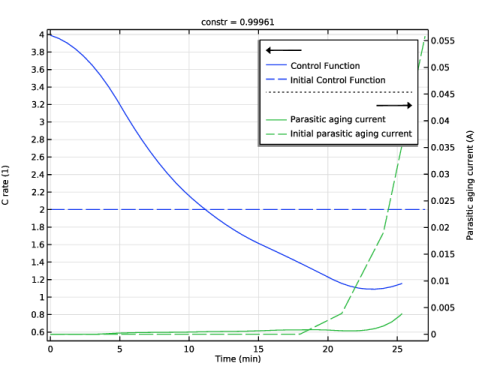
 , scaled so that the value 0 represents the time at the beginning of the charge cycle and 1 the final time when the battery has reached the target SOC of 90%. By this definition, the area of the control function equals the average C-rate over the whole charge cycle.






|
1
|
|
2
|
In the Application Libraries window, select Battery Design Module > Lithium-Ion Batteries, Performance > lib_base_model_1d in the tree.
|
|
3
|
Click
 Open. Open. |
|
1
|
|
2
|
|
1
|
|
2
|
|
3
|
Locate the Parameters section. In the table, enter the following settings:
|
|
1
|
|
2
|
|
3
|
|
4
|
|
5
|
Locate the Control Variable Discretization section. From the Control type list, choose Piecewise Bernstein polynomial.
|
|
6
|
|
7
|
|
8
|
|
9
|
Click OK.
|
|
1
|
In the Model Builder window, under Component 1 (comp1) right-click Definitions and choose Variables.
|
|
2
|
In the Settings window for Variables, type Variables 2 - Negative Electrode in the Label text field.
|
|
3
|
|
4
|
|
5
|
Locate the Variables section. In the table, enter the following settings:
|
|
1
|
|
2
|
|
3
|
|
4
|
|
5
|
Click Replace Expression in the upper-right corner of the Expression section. From the menu, choose Component 1 (comp1) > Definitions > Variables > i_aging - Parasitic aging current density to use in constraint variable - A/m³.
|
|
6
|
|
1
|
|
2
|
Right-click Component 1 (comp1) > Lithium-Ion Battery (liion) and choose Electrode Phase > Electrode Current.
|
|
4
|
|
5
|
From the list, choose C-rate multiple.
|
|
6
|
|
1
|
In the Model Builder window, expand the Component 1 (comp1) > Lithium-Ion Battery (liion) > Porous Electrode - Negative node, then click Particle Intercalation 1.
|
|
2
|
In the Settings window for Particle Intercalation, click to expand the Particle Discretization section.
|
|
3
|
Select the Fast assembly in particle dimension checkbox to reduce the computational time.
|
|
1
|
In the Model Builder window, expand the Component 1 (comp1) > Lithium-Ion Battery (liion) > Porous Electrode - Positive node, then click Particle Intercalation 1.
|
|
2
|
|
3
|
Select the Fast assembly in particle dimension checkbox.
|
|
1
|
|
2
|
Go to the Add Physics window.
|
|
3
|
|
4
|
Click the Add to Component 1 button in the window toolbar.
|
|
5
|
|
1
|
|
3
|
|
4
|
In the Dependent variable quantity table, enter the following settings:
|
|
5
|
Click
 Select Source Term Quantity. Select Source Term Quantity. |
|
6
|
|
7
|
Click OK.
|
|
1
|
|
2
|
|
3
|
Locate the Variables section. In the table, enter the following settings:
|
|
1
|
In the Model Builder window, expand the Study 1 node, then click Step 1: Current Distribution Initialization.
|
|
2
|
In the Settings window for Current Distribution Initialization, locate the Physics and Variables Selection section.
|
|
3
|
In the Solve for column of the table, under Component 1 (comp1), clear the checkbox for Global ODEs and DAEs (ge).
|
|
1
|
|
2
|
|
3
|
|
4
|
|
5
|
|
6
|
|
7
|
|
1
|
|
2
|
|
1
|
|
2
|
|
3
|
Clear the Generate default plots checkbox.
|
|
1
|
|
2
|
|
3
|
Click
 Add. Add. |
|
5
|
|
6
|
|
1
|
|
2
|
Go to the Add Study window.
|
|
3
|
|
4
|
Click the Add Study button in the window toolbar.
|
|
5
|
|
1
|
In the Model Builder window, under Study 1: Initial, Ctrl-click to select Step 1: Current Distribution Initialization and Step 2: Time Dependent.
|
|
2
|
Right-click and choose Copy.
|
|
1
|
|
2
|
|
3
|
|
4
|
|
5
|
Click Add Expression in the upper-right corner of the Objective Function section. From the menu, choose Component 1 (comp1) > Definitions > Variables > comp1.avg_C_rate - Average C rate (to be maximized) - 1.
|
|
6
|
|
7
|
Select the Condition-based final time checkbox.
|
|
8
|
In the Stop expression text field, type t_1C-t*comp1.avg_C_rate, so that the total charge becomes fixed.
|
|
9
|
Click Add Expression in the upper-right corner of the Constraints section. From the menu, choose Component 1 (comp1) > Definitions > Variables > comp1.constr - Constraint - 1.
|
|
10
|
Locate the Constraints section. In the table, enter the following settings:
|
|
11
|
|
1
|
|
2
|
|
3
|
|
4
|
|
5
|
|
6
|
|
7
|
In the Study toolbar, click
 Get Initial Value, so that a plot can be setup to be shown while solving. Get Initial Value, so that a plot can be setup to be shown while solving. |
|
1
|
|
2
|
|
3
|
|
4
|
|
5
|
|
6
|
|
1
|
|
2
|
|
4
|
|
5
|
|
6
|
|
1
|
|
2
|
In the Settings window for Global, click Replace Expression in the upper-right corner of the y-Axis Data section. From the menu, choose Component 1 (comp1) > Definitions > total_aging_current - Domain Probe 1 - A.
|
|
3
|
Locate the y-Axis Data section. In the table, enter the following settings:
|
|
1
|
In the Model Builder window, under Results > Control Function right-click Global 1 and choose Duplicate.
|
|
2
|
|
3
|
|
4
|
|
5
|
Locate the y-Axis Data section. In the table, enter the following settings:
|
|
6
|
|
7
|
|
1
|
In the Model Builder window, under Results > Control Function right-click Global 2 and choose Duplicate.
|
|
2
|
|
3
|
|
4
|
Locate the y-Axis Data section. In the table, enter the following settings:
|
|
5
|
Locate the Coloring and Style section. Find the Line style subsection. From the Line list, choose Dashed.
|
|
1
|
|
2
|
|
3
|
Select the Two y-axes checkbox.
|
|
4
|
|
5
|
|
6
|
Select the Secondary y-axis label checkbox. In the associated text field, type Parasitic aging current (A).
|
|
1
|
|
2
|
|
3
|
Select the Plot checkbox.
|
|
1
|
In the Model Builder window, expand the Study 2: Optimization > Solver Configurations > Solution 8 (sol8) > Optimization Solver 1 > Time-Dependent Solver 1 node, then click Advanced.
|
|
2
|
|
3
|
Clear the Reuse sparsity pattern checkbox to avoid messages in the log for every reassembly of the sparsity pattern.
|
|
1
|
|
2
|
|
3
|
Click
 Add. Add. |
|
5
|
|
6
|
Click to expand the Advanced Settings section. Select the Reuse solution from previous step checkbox to reduce the computational time.
|
|
7
|
|
1
|
|
2
|
Select the Manual axis limits checkbox.
|
|
3
|
|
4
|
|
1
|
|
2
|
|
3
|
Locate the Data section. From the Dataset list, choose Study 2: Optimization/Parametric Solutions 2 (sol10).
|
|
4
|
|
5
|
|
6
|
Locate the Plot Settings section.
|
|
7
|
|
8
|
|
9
|
|
1
|
|
2
|
|
4
|
|
5
|
|
6
|
|
7
|
|
8
|
|
9
|
|
1
|
|
2
|
|
3
|
|
4
|
|
5
|
Locate the y-Axis Data section. In the table, enter the following settings:
|
|
6
|
|
7
|
Locate the Coloring and Style section. Find the Line style subsection. From the Line list, choose Dashed.
|
|
8
|
|
9
|