PDF

Impedance Tube Parameter Estimation
with Data Generation
Introduction
Impedance tubes are used for characterizing poroacoustic materials, usually with a focus on a frequency-dependent surface impedance. Alternatively, it is possible to assume a poroacoustic model and estimate the associated (frequency-independent) material parameters. This model uses a Johnson–Champoux–Allard material to generate synthetic data for two different meshes. This ensures that the data noise is dominated by the explicitly added noise rather than that of the mesh. The material parameters are taken from Ref. 1, and they are recovered based on the real and imaginary parts of the pressure at two probes (microphones). The generation of synthetic data and recovery of material parameters is a good sanity test, which can indicate the level of achievable accuracy given a certain experimental measurement error.
Model Definition
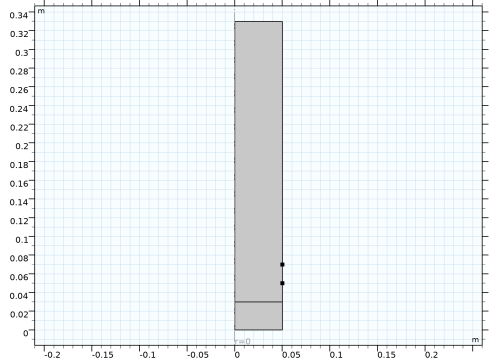
The model geometry (Figure 1) consists of two regions: the tube filled with air above a domain for the porous material (the test sample).
Figure 1: The model geometry.
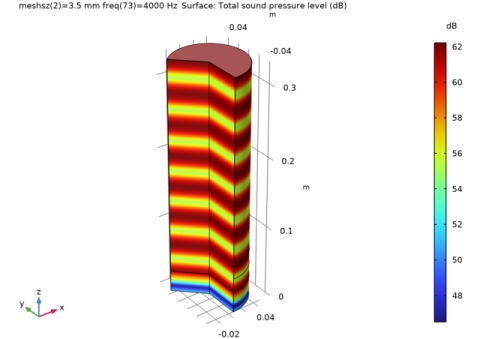
The pressure in the top of the tube is described using a linear elastic pressure acoustics model, while the bottom is governed by the Johnson–Champoux–Allard model (using the Poroacoustics domain feature). The tube is exited using Normal Acceleration on the top boundary. The model makes use of axisymmetry and the azimuthal mode number is fixed at 0 as illustrated in Figure 2.
Figure 2: The sound pressure level is plotted for a frequency of 4 KHz.
Results and Discussion
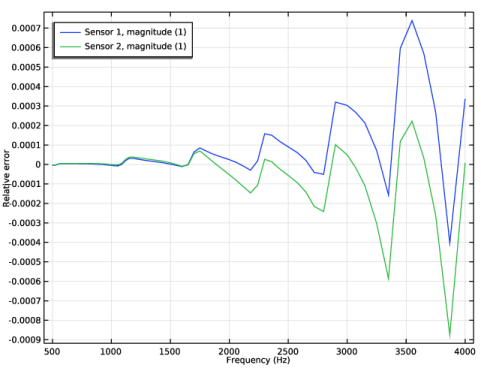
Figure 3 shows the relative difference between using 18 and 36 elements per wavelength. Since the difference is smaller than 0.1%, add 0.5% (normally distributed) noise to the data generated with 18 elements per wavelength.
Figure 3: The relative difference between using 18 and 36 elements per (minimum) wavelength.
The relative errors on the estimated parameters are 0.0008%, 0.6%, 3.5%, 1.9%, and 0.2% for the flow resistivity, thermal characteristic length, viscous characteristic length, tortuosity factor, and porosity, respectively. These values will be larger if more noise is added to the generated data, but if less noise is added the accuracy of the estimation might be limited by the mesh resolution. This effect might not be observable unless different meshes are used for generating the data and recovering the parameters.
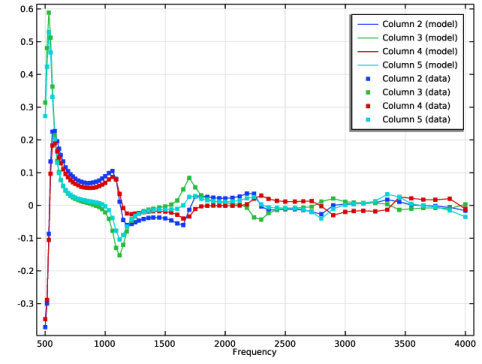
The generated pressure data with 1% noise is compared with the fitted values in Figure 4.
Figure 4: The real and imaginary parts of the pressure compared with the generated data for sensor 4.
Notes About the COMSOL Implementation
This model combines the Pressure Acoustics interface with the Parameter Estimation study step. Splitting of complex variables into real and imaginary parts is enabled in the Compile Equations step in the parameter estimation study. The generated data is imported directly in the Parameter Estimation study step. The Levenberg–Marquardt optimizer is used to solve the optimization problem with the frequencies automatically taken from the file. Global Evaluation groups as well as Global plots make use of the withsol operator to combine data from different solutions.
Reference
1. Multilayered Porous Material: Poroelastic Waves with Thermal and Viscous Losses (Biot–Allard Model), www.comsol.com/model/multilayered-porous-material-poroelastic-waves-with-thermal-and-viscous-losses-biot-allard-model-34531
Application Library path: Optimization_Module/Parameter_Estimation/impedance_tube_parameter_estimation_data
Modeling Instructions
From the File menu, choose New.
New
In the New window, click  Model Wizard.
Model Wizard
1
In the Model Wizard window, click  2D Axisymmetric.
2
In the Select Physics tree, select Acoustics > Pressure Acoustics > Pressure Acoustics, Frequency Domain (acpr).
3
Click Add.
4
Click  Study.
5
In the Select Study tree, select General Studies > Frequency Domain.
6
Global Definitions
Add four parameter sets: One each for the geometry, the material, the initial guess material parameters, and miscellaneous parameters. Alternatively, you can load the parameters from the file impedance_tube_parameter_estimation_data_parameters.txt in the model’s Application Libraries folder.
Geometrical Parameters
1
In the Model Builder window, under Global Definitions click Parameters 1.
2
In the Settings window for Parameters, type Geometrical Parameters in the Label text field.
3
Locate the Parameters section. In the table, enter the following settings:
Material Parameters
1
In the Home toolbar, click  Parameters and choose Add > Parameters.
2
In the Settings window for Parameters, type Material Parameters in the Label text field.
3
Locate the Parameters section. In the table, enter the following settings:
Material Parameters (Initial Guess)
1
In the Home toolbar, click  Parameters and choose Add > Parameters.
2
In the Settings window for Parameters, type Material Parameters (Initial Guess) in the Label text field.
3
Locate the Parameters section. In the table, enter the following settings:
Parameters 4
1
In the Home toolbar, click  Parameters and choose Add > Parameters.
2
In the Settings window for Parameters, locate the Parameters section.
3
Geometry 1
Use the parameters to define the geometry.
Rectangle 1 (r1)
1
In the Geometry toolbar, click  Rectangle.
2
In the Settings window for Rectangle, locate the Size and Shape section.
3
In the Width text field, type D1/2.
4
In the Height text field, type L1.
5
Locate the Position section. In the z text field, type L2.
Rectangle 2 (r2)
1
In the Geometry toolbar, click  Rectangle.
2
In the Settings window for Rectangle, locate the Size and Shape section.
3
In the Width text field, type D1/2.
4
In the Height text field, type L2.
Point 1 (pt1)
1
In the Geometry toolbar, click  Point.
2
In the Settings window for Point, locate the Point section.
3
In the r text field, type D1/2.
4
In the z text field, type L2+L3.
5
Locate the Selections of Resulting Entities section. Select the Resulting objects selection checkbox.
Point 2 (pt2)
1
In the Geometry toolbar, click  Point.
2
In the Settings window for Point, locate the Point section.
3
In the r text field, type D1/2.
4
In the z text field, type L2+2*L3.
5
Locate the Selections of Resulting Entities section. Select the Resulting objects selection checkbox.
6
Click  Build Selected.
7
In the Graphics window toolbar, clicknext to  Select Objects, then choose Select Points.
8
Click the  Zoom Extents button in the Graphics toolbar.
Define a Random function to simulate noise. Then add probes for the two pressure sensors.
Global Definitions
Random 1 (rn1)
1
In the Home toolbar, click  Functions and choose Global > Random.
2
In the Settings window for Random, locate the Parameters section.
3
From the Distribution list, choose Normal.
Definitions
Microphone 1 (real)
1
In the Definitions toolbar, click  Probes and choose Point Probe.
2
In the Settings window for Point Probe, type Microphone 1 (real) in the Label text field.
3
In the Variable name text field, type mic1_real.
4
Locate the Source Selection section. From the Selection list, choose Point 1.
5
Locate the Expression section. In the Expression text field, type real(acpr.p_t).
Microphone 1 (imag)
1
Right-click Microphone 1 (real) and choose Duplicate.
2
In the Settings window for Point Probe, type Microphone 1 (imag) in the Label text field.
3
In the Variable name text field, type mic1_imag.
4
Locate the Expression section. In the Expression text field, type imag(acpr.p_t).
Microphone 2 (real)
1
In the Model Builder window, under Component 1 (comp1) > Definitions right-click Microphone 1 (real) (mic1_real) and choose Duplicate.
2
In the Settings window for Point Probe, type Microphone 2 (real) in the Label text field.
3
In the Variable name text field, type mic2_real.
4
Locate the Source Selection section. From the Selection list, choose Point 2.
Microphone 2 (imag)
1
Right-click Microphone 2 (real) and choose Duplicate.
2
In the Settings window for Point Probe, type Microphone 2 (imag) in the Label text field.
3
In the Variable name text field, type mic2_imag.
4
Locate the Expression section. In the Expression text field, type imag(acpr.p_t).
Add Material
1
In the Materials toolbar, click  Add Material to open the Add Material window.
2
Go to the Add Material window.
3
In the tree, select Built-in > Air.
4
Click the Add to Component button in the window toolbar.
5
In the Materials toolbar, click  Add Material to close the Add Material window.
Materials
Material 2 (mat2)
In the Model Builder window, under Component 1 (comp1) right-click Materials and choose Blank Material.
Pressure Acoustics, Frequency Domain (acpr)
Add four parameter sets: One each for the geometry, the material, the initial guess material parameters, and miscellaneous parameters. Alternatively, you can load the parameters from the file impedance_tube_parameter_estimation_data_parameters.txt in the model’s Application Libraries folder.
Poroacoustics 1
1
In the Model Builder window, expand the Material 2 (mat2) node.
2
Right-click Component 1 (comp1) > Pressure Acoustics, Frequency Domain (acpr) and choose Poroacoustics.
3
4
In the Settings window for Poroacoustics, locate the Poroacoustics Model section.
5
From the Poroacoustics model list, choose Johnson–Champoux–Allard (JCA).
6
Locate the Porous Matrix Properties section. From the Porous elastic material list, choose Material 2 (mat2).
Normal Acceleration 1
1
In the Physics toolbar, click  Boundaries and choose Normal Acceleration.
2
3
In the Settings window for Normal Acceleration, locate the Normal Acceleration section.
4
In the an text field, type 1.
Materials
Material 2 (mat2)
1
In the Model Builder window, under Component 1 (comp1) > Materials click Material 2 (mat2).
2
In the Settings window for Material, locate the Material Contents section.
3
Mesh 1
Free Triangular 1
In the Mesh toolbar, click  Free Triangular.
Size
1
In the Model Builder window, click Size.
2
In the Settings window for Size, locate the Element Size section.
3
Click the Custom button.
4
Locate the Element Size Parameters section. In the Maximum element size text field, type meshsz.
5
In the Minimum element size text field, type meshsz/2.
6
In the Model Builder window, right-click Mesh 1 and choose Build All.
Study 1: Generate Experimental Data
1
In the Model Builder window, click Study 1.
2
In the Settings window for Study, type Study 1: Generate Experimental Data in the Label text field.
Parametric Sweep
1
In the Study toolbar, click  Parametric Sweep.
2
In the Settings window for Parametric Sweep, locate the Study Settings section.
3
4
5
Locate the Output While Solving section. From the Probes list, choose None.
Step 1: Frequency Domain
1
In the Model Builder window, click Step 1: Frequency Domain.
2
In the Settings window for Frequency Domain, click to expand the Results While Solving section.
3
From the Probes list, choose None.
4
Locate the Study Settings section. Click  Range.
5
In the Range dialog, choose ISO preferred frequencies from the Entry method list.
6
In the Start frequency text field, type fmin.
7
In the Stop frequency text field, type fmax.
8
From the Interval list, choose 1/24 octave.
9
Click Replace.
10
In the Study toolbar, click  Compute.
Results
Sound Pressure Level, 3D (acpr)
1
In the Model Builder window, under Results click Sound Pressure Level, 3D (acpr).
2
In the Sound Pressure Level, 3D (acpr) toolbar, click  Plot.
3
Click the  Zoom Extents button in the Graphics toolbar.
Acoustic Pressure (acpr), Acoustic Pressure, 3D (acpr), Sound Pressure Level (acpr), Sound Pressure Level, 3D (acpr)
1
In the Model Builder window, under Results, Ctrl-click to select Acoustic Pressure (acpr), Sound Pressure Level (acpr), Acoustic Pressure, 3D (acpr), and Sound Pressure Level, 3D (acpr).
2
Experimental Data
In the Settings window for Group, type Experimental Data in the Label text field.
Experimental Data
1
In the Results toolbar, click  Evaluation Group.
2
In the Settings window for Evaluation Group, type Experimental Data in the Label text field.
Generate the experimental data using the probes and the random error function. You can import the table contents from impedance_tube_parameter_estimation_data_pressure.txt.
Global Evaluation 1
1
Right-click Experimental Data and choose Global Evaluation.
2
In the Settings window for Global Evaluation, locate the Expressions section.
3
4
In the Experimental Data toolbar, click  Evaluate.
The error due to the mesh should be smaller than the added error. To check if this is the case, investigate the effect of mesh refinement for the measured pressure.
Relative Errors (mesh)
1
In the Results toolbar, click  Evaluation Group.
2
In the Settings window for Evaluation Group, locate the Data section.
3
From the Dataset list, choose Study 1: Generate Experimental Data/Parametric Solutions 1 (sol2).
4
From the Parameter selection (meshsz) list, choose First.
5
In the Label text field, type Relative Errors (mesh).
Compute the relative errors of the measured pressures. Use the magnitude to avoid spikes when the real and imaginary parts go through zero.
Global Evaluation 1
1
Right-click Relative Errors (mesh) and choose Global Evaluation.
2
In the Settings window for Global Evaluation, locate the Expressions section.
3
Click  Clear Table.
4
Click  Load from File.
5
Browse to the model’s Application Libraries folder and double-click the file impedance_tube_parameter_estimation_data_errors_mesh.txt.
6
In the Relative Errors (mesh) toolbar, click  Evaluate.
Errors
1
In the Results toolbar, click  1D Plot Group.
2
In the Settings window for 1D Plot Group, type Errors in the Label text field.
Table Graph 1
1
Right-click Errors and choose Table Graph.
2
In the Settings window for Table Graph, locate the Data section.
3
From the Source list, choose Evaluation group.
4
From the Evaluation group list, choose Relative Errors (mesh).
5
From the x-axis data list, choose freq (Hz).
6
From the Plot columns list, choose Manual.
7
In the Columns list, choose Sensor 1, magnitude (1) and Sensor 2, magnitude (1).
8
Click to expand the Legends section. Select the Show legends checkbox.
Errors
1
In the Model Builder window, click Errors.
2
In the Settings window for 1D Plot Group, locate the Plot Settings section.
3
Select the x-axis label checkbox. In the associated text field, type Frequency (Hz).
4
Select the y-axis label checkbox. In the associated text field, type Relative error.
5
Locate the Legend section. From the Position list, choose Upper left.
6
In the Errors toolbar, click  Plot.
7
Click the  Zoom Extents button in the Graphics toolbar.
The error due to the mesh is an order of magnitude smaller than the added error, so the mesh is sufficiently fine. It is thus safe to export the table.
Table 1
1
In the Results toolbar, click  Data and choose Table.
2
In the Settings window for Table, locate the Table section.
3
From the Source list, choose Evaluation group.
4
Locate the Output section. In the Filename text field, type impedance_tube_parameter_estimation_data.csv.
5
Locate the Layout section. Clear the Include header checkbox.
6
Click  Export.
Root
Add a second study for the parameter estimation.
Add Study
1
In the Home toolbar, click  Add Study to open the Add Study window.
2
Go to the Add Study window.
3
Find the Studies subsection. In the Select Study tree, select General Studies > Frequency Domain.
4
Click the Add Study button in the window toolbar.
5
In the Home toolbar, click  Add Study to close the Add Study window.
Study 2: Parameter Estimation
In the Settings window for Study, type Study 2: Parameter Estimation in the Label text field.
Parameter Estimation
1
In the Study toolbar, click  Optimization and choose Parameter Estimation.
2
In the Settings window for Parameter Estimation, locate the Experimental Data section.
3
In the Filename text field, type impedance_tube_parameter_estimation_data.csv.
4
5
Locate the Data Column Settings section. In the table, click to select the cell at row number 1 and column number 2.
6
7
8
In the Model expression text field, type comp1.mic1_real.
9
In the Column name text field, type pressure1_real.
10
In the Unit text field, type Pa.
11
12
In the Model expression text field, type comp1.mic1_imag.
13
In the Column name text field, type pressure1_imag.
14
In the Unit text field, type Pa.
15
16
In the Model expression text field, type comp1.mic2_real.
17
In the Column name text field, type pressure2_real.
18
In the Unit text field, type Pa.
19
20
In the Model expression text field, type comp1.mic2_imag.
21
In the Column name text field, type pressure2_imag.
22
In the Unit text field, type Pa.
23
Locate the Parameter Estimation Method section. From the Method list, choose Levenberg–Marquardt.
24
From the Least-squares time/parameter list method list, choose Use only least-squares data points.
25
Click to expand the Output section. From the Probes list, choose None.
26
Locate the Data Column Settings section. In the table, click to select the cell at row number 2 and column number 2.
27
Locate the Estimated Parameters section. Click  Add five times.
28
Solution 5 (sol5)
1
In the Study toolbar, click  Show Default Solver to initialize the solver so that the splitting of complex variables can be enabled.
2
In the Model Builder window, expand the Solution 5 (sol5) node, then click Compile Equations: Frequency Domain.
3
In the Settings window for Compile Equations, locate the Study and Step section.
4
Select the Split complex variables in real and imaginary parts checkbox.
Step 1: Frequency Domain
1
In the Model Builder window, under Study 2: Parameter Estimation click Step 1: Frequency Domain.
2
In the Settings window for Frequency Domain, click to expand the Mesh Selection section.
3
4
In the Study toolbar, click  Compute.
Results
Acoustic Pressure (acpr) 1, Acoustic Pressure, 3D (acpr) 1, Parameter estimation, Sound Pressure Level (acpr) 1, Sound Pressure Level, 3D (acpr) 1
Right-click and choose Group.
Parameter Estimation
In the Settings window for Group, type Parameter Estimation in the Label text field.
Add two 1D plot groups for comparing the noisy exported pressures with the fitted pressures.
Parameter estimation
1
In the Model Builder window, click Parameter estimation.
2
In the Parameter estimation toolbar, click  Plot.
3
Click the  Zoom Extents button in the Graphics toolbar.
Relative Errors
1
In the Results toolbar, click  Evaluation Group.
2
In the Settings window for Evaluation Group, type Relative Errors in the Label text field.
3
Locate the Data section. From the Dataset list, choose Study 2: Parameter Estimation/Solution 5 (sol5).
4
From the Parameter selection (freq) list, choose First.
Compute the relative errors of the fitted material parameters. You can import the table contents from impedance_tube_parameter_estimation_errors_parameters.txt.
Global Evaluation 1
1
Right-click Relative Errors and choose Global Evaluation.
2
In the Settings window for Global Evaluation, locate the Expressions section.
3
4
In the Relative Errors toolbar, click  Evaluate.