
|
|
|







|
1
|
|
2
|
|
1
|
|
2
|
|
1
|
|
2
|
Go to the Add Study window.
|
|
3
|
Find the Studies subsection. In the Select Study tree, select Preset Studies for Selected Physics Interfaces > Stationary.
|
|
4
|
Click the Add Study button in the window toolbar.
|
|
5
|
|
1
|
|
2
|
|
3
|
|
4
|
Browse to the model’s Application Libraries folder and double-click the file curve_fit_mooney_rivlin.csv.
|
|
5
|
Click
 Import. Import. |
|
6
|
Locate the Data Column Settings section. In the table, click to select the cell at row number 1 and column number 2.
|
|
7
|
From the list, choose Parameter.
|
|
8
|
|
9
|
|
11
|
|
12
|
|
13
|
|
14
|
|
16
|
Locate the Parameter Estimation Method section. From the Least-squares time/parameter list method list, choose Use only least-squares data points.
|
|
17
|
|
1
|
|
2
|
|
1
|
|
2
|
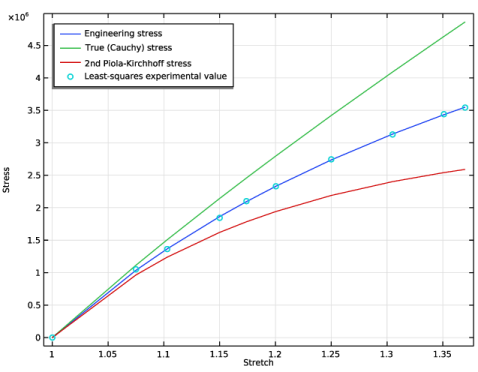
In the Settings window for Global, click Replace Expression in the upper-right corner of the y-Axis Data section. From the menu, choose Global definitions > Variables > P - Engineering stress - Pa.
|
|
3
|
Locate the y-Axis Data section. In the table, enter the following settings:
|
|
1
|
|
2
|
In the Settings window for Global, click Add Expression in the upper-right corner of the y-Axis Data section. From the menu, choose Solver > Parameter estimation > opt.glsobj.engStress.data - Least-squares experimental value - Pa.
|
|
3
|
Click to expand the Coloring and Style section. Find the Line style subsection. From the Line list, choose None.
|
|
4
|
|
5
|
|
1
|
|
2
|
|
3
|
|
4
|
Locate the Plot Settings section.
|
|
5
|
|
6
|
|
7
|
|
1
|
|
2
|
|
1
|
|
2
|
In the Settings window for Global Evaluation, click Add Expression in the upper-right corner of the Expressions section. From the menu, choose Solver > Control parameters > C10 - Mooney-Rivlin parameter - Pa.
|
|
3
|
Click Add Expression in the upper-right corner of the Expressions section. From the menu, choose Solver > Control parameters > C01 - Mooney-Rivlin parameter - Pa.
|
|
4
|


