PDF

Bracket — Eigenfrequency Shape Optimization
Introduction
Shape optimization in a structural mechanics context can be used with different objectives, but this model focuses on the case of eigenfrequency optimization. The model demonstrates how to identify the shape deformation so that the lowest eigenfrequency is maximized. Such investigations can occur during the concept design or at later stages.
Manufacturing constraints might prevent all of the performance improvements gained by the shape optimization, but in many cases the deformed design can be used to tweak the design and/or the manufacturing process to achieve improved performance. Having some idea about the magnitude of the potential performance improvements can also be useful when deciding whether to change the manufacturing tool/process.
The various examples based on a bracket geometry form a suite of tutorials that summarizes the fundamentals when modeling structural mechanics problems in COMSOL Multiphysics and the Structural Mechanics Module. In addition, this example requires the Optimization Module.
Model Definition
The model shows how to determine the optimal shape deformation of a bracket geometry. The bracket is symmetric about the plane x = 0 and is made of a linear elastic material, structural steel. The optimization preserves the symmetry of the design using the Mirror Symmetry feature and the Free Shape Boundary feature supports regularization by
The thickness of the metal sheet is preserved by copying the shape deformation using a General Extrusion operator and a Prescribed Deformation feature.
The bracket is optimized with respect to the lowest natural frequency, but the eigenmode with the lowest frequency can change due to shape change, and therefore the first six eigenfrequencies are computed in every optimization iteration. The MMA optimization algorithm is then used to maximize the lowest eigenfrequency, but the algorithm considers all eigenfrequencies in every iteration.
Results
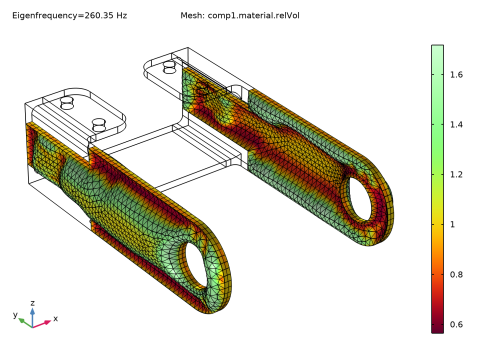
The result of the optimization is shown in Figure 1. The optimization increases the moment of inertia around the z-axis by making a bulge in the x direction. This results in an eigenfrequency that is twice as high as the initial value.
Figure 1: The mesh quality is plotted after the shape optimization has deformed the elements.
Notes About the COMSOL Implementation
The filter equation introduced by the Free Shape Boundary feature requires a Stationary solver. Computation of the eigenfrequency requires an Eigenvalue Solver, but gradient-based optimization is only supported over a single study step. To circumvent this limitation, one has to use the Stationary Then Eigenfrequency study step. This study step is designed specifically for optimization, and it creates both solvers such that the one-way coupling between them is accounted for in the computation of the gradient.
Application Library path: Optimization_Module/Shape_Optimization/bracket_eigenfrequency_shape_optimization
Modeling Instructions
This example starts from an existing model from the Structural Mechanics Module Application Library.
From the File menu, choose Open.
Browse to the model’s Application Libraries folder and double-click the file bracket_eigenfrequency.mph.
Component 1 (comp1)
Free Shape Domain 1
1
In the Physics toolbar, click  Optimization and choose Shape Optimization.
2
In the Settings window for Free Shape Domain, locate the Domain Selection section.
3
Click  Clear Selection.
4
Free Shape Boundary 1
1
In the Shape Optimization toolbar, click  Free Shape Boundary.
2
3
In the Settings window for Free Shape Boundary, locate the Control Variable Settings section.
4
From the dmax list, choose User defined.
5
6
Locate the Filtering section. From the Rmin list, choose User defined.
7
Preserve the symmetry of the bracket using a Mirror Symmetry feature.
Mirror Symmetry 1
1
In the Shape Optimization toolbar, click  Mirror Symmetry.
2
3
In the Settings window for Mirror Symmetry, locate the Plane section.
4
From the p list, choose User defined.
5
From the n list, choose User defined.
Definitions
Preserve the thickness of the bracket by copying the deformation to the other side of the bracket arm using a General Extrusion operator and a Prescribed Deformation feature.
General Extrusion 1 (genext1)
1
In the Definitions toolbar, click  Nonlocal Couplings and choose General Extrusion.
2
In the Settings window for General Extrusion, locate the Source Selection section.
3
From the Geometric entity level list, choose Boundary.
4
5
Locate the Destination Map section. In the x-expression text field, type 10[cm]*sign(Xg).
6
In the y-expression text field, type Yg.
7
In the z-expression text field, type Zg.
8
Locate the Source section. From the Source frame list, choose Geometry  (Xg, Yg, Zg).
Component 1 (comp1)
Prescribed Deformation 1
1
In the Model Builder window, right-click Component 1 (comp1) and choose Deformed Geometry > Prescribed Deformation.
2
In the Settings window for Prescribed Deformation, locate the Geometric Entity Selection section.
3
From the Geometric entity level list, choose Boundary.
4
5
Locate the Prescribed Deformation section. Specify the dx vector as
The Boundary Load feature is not used for eigenfrequency analysis, so it can be deleted.
Solid Mechanics (solid)
Boundary Load 1
1
In the Model Builder window, expand the Component 1 (comp1) > Solid Mechanics (solid) node.
2
Right-click Component 1 (comp1) > Solid Mechanics (solid) > Boundary Load 1 and choose Delete.
Mesh 1
Increase the mesh resolution on the selection of the Free Shape Boundary to resolve the shape deformation better.
Edge 1
1
In the Model Builder window, expand the Component 1 (comp1) > Mesh 1 node.
2
Right-click Component 1 (comp1) > Mesh 1 > Edge 1 and choose Build Selected.
Free Triangular 1
1
In the Model Builder window, expand the Component 1 (comp1) > Mesh 1 > Free Tetrahedral 1 node.
2
Right-click Mesh 1 and choose More Generators > Free Triangular.
3
Size 1
1
Right-click Free Triangular 1 and choose Size.
2
In the Settings window for Size, locate the Element Size section.
3
From the Predefined list, choose Extremely fine.
Free Tetrahedral 1
In the Model Builder window, under Component 1 (comp1) > Mesh 1 right-click Free Tetrahedral 1 and choose Build All.
Study 2
In the Model Builder window, expand the Study 2 node.
Solver Configurations
In the Model Builder window, expand the Study 2 > Solver Configurations node.
Solution 2 (sol2), Step 1: Stationary, Step 2: Eigenfrequency
1
In the Model Builder window, under Study 2, Ctrl-click to select Step 1: Stationary, Step 2: Eigenfrequency, and Solver Configurations > Solution 2 (sol2).
2
Step 1: Stationary Then Eigenfrequency
In the Study toolbar, click  More Study Steps and choose Eigenfrequency > Stationary Then Eigenfrequency.
Shape Optimization
1
In the Study toolbar, click  Optimization and choose Shape Optimization.
2
In the Settings window for Shape Optimization, locate the Optimization Solver section.
3
From the Method list, choose MMA.
4
In the Maximum number of iterations text field, type 25.
5
Locate the Objective Function section. In the table, enter the following settings:
6
From the Type list, choose Maximization.
7
From the Solution list, choose Minimum of objectives.
8
Find the Objective settings subsection. From the Objective scaling list, choose Initial solution based.
Study 1: Initial Design
1
In the Model Builder window, click Study 1.
2
In the Settings window for Study, type Study 1: Initial Design in the Label text field.
Study 2: Shape Optimization
1
In the Model Builder window, click Study 2.
2
In the Settings window for Study, type Study 2: Shape Optimization in the Label text field.
3
Locate the Study Settings section. Select the Generate default plots checkbox.
4
In the Study toolbar, click  Get Initial Value.
Study 2: Shape Optimization
Shape Optimization
1
In the Model Builder window, under Study 2: Shape Optimization click Shape Optimization.
2
In the Settings window for Shape Optimization, click to expand the Output section.
3
Select the Plot checkbox.
4
5
In the Home toolbar, click  Compute.