 | 
|
|
|
|
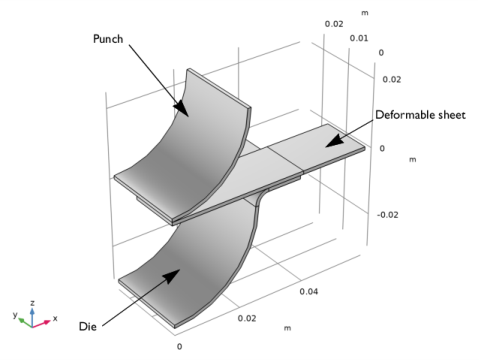
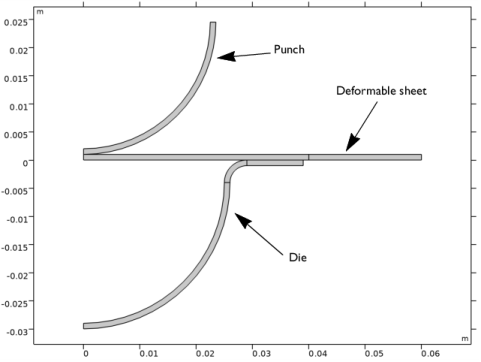

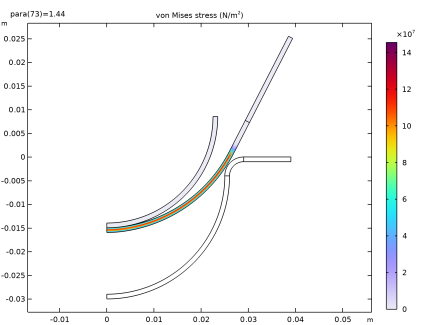
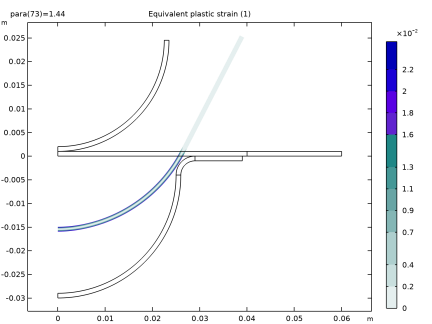
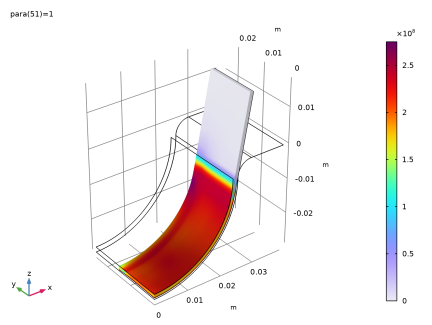
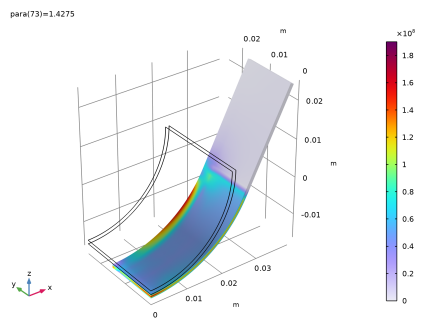
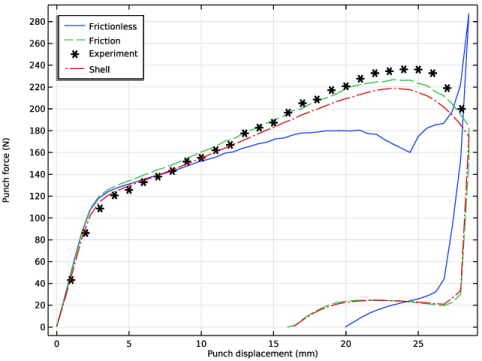
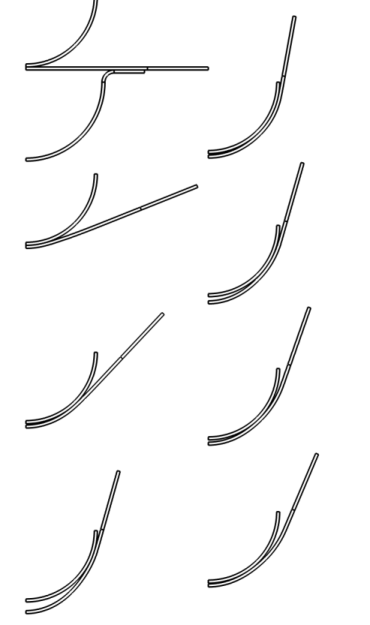
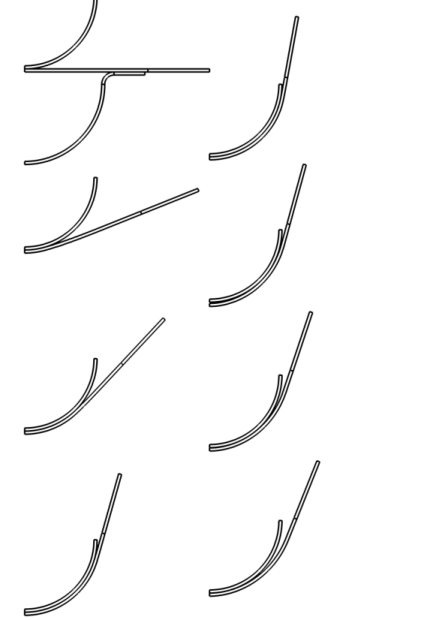
|
1
|
|
2
|
|
3
|
Click Add.
|
|
4
|
Click
 Study. Study. |
|
5
|
|
6
|
Click
 Done. Done. |
|
1
|
|
2
|
|
3
|
Click
 Load from File. Load from File. |
|
4
|
Browse to the model’s Application Libraries folder and double-click the file sheet_metal_forming_parameters.txt.
|
|
1
|
|
1
|
|
2
|
|
3
|
|
4
|
|
5
|
Click to expand the Layers section. In the table, enter the following settings:
|
|
6
|
Select the Layers to the left checkbox.
|
|
7
|
Clear the Layers on bottom checkbox.
|
|
8
|
Click
 Build Selected. Build Selected. |
|
1
|
|
2
|
|
3
|
|
4
|
|
5
|
|
6
|
|
7
|
Click to expand the Layers section. In the table, enter the following settings:
|
|
8
|
Click
 Build Selected. Build Selected. |
|
1
|
|
2
|
|
3
|
|
4
|
|
5
|
|
6
|
|
7
|
Locate the Layers section. In the table, enter the following settings:
|
|
8
|
Click
 Build Selected. Build Selected. |
|
1
|
|
2
|
|
3
|
|
4
|
|
5
|
|
6
|
|
7
|
|
8
|
Locate the Layers section. In the table, enter the following settings:
|
|
9
|
Click
 Build Selected. Build Selected. |
|
1
|
|
2
|
|
3
|
|
4
|
|
5
|
|
6
|
|
7
|
Click
 Build Selected. Build Selected. |
|
1
|
|
2
|
|
3
|
|
4
|
On the object c1, select Domain 1 only.
|
|
5
|
On the object c2, select Domain 1 only.
|
|
6
|
On the object c3, select Domain 1 only.
|
|
7
|
Click
 Build Selected. Build Selected. |
|
1
|
|
2
|
|
1
|
|
2
|
|
1
|
|
2
|
|
3
|
|
4
|
Clear the Create pairs checkbox.
|
|
5
|
Click
 Build Selected. Build Selected. |
|
1
|
|
3
|
|
4
|
Click to select the
 Activate Selection toggle button. Activate Selection toggle button. |
|
1
|
|
3
|
|
4
|
Click to select the
 Activate Selection toggle button. Activate Selection toggle button. |
|
1
|
|
2
|
|
3
|
|
5
|
|
6
|
In the Argument table, enter the following settings:
|
|
1
|
|
2
|
Go to the Add Material window.
|
|
3
|
|
4
|
Right-click and choose Add to Global Materials.
|
|
5
|
|
1
|
|
3
|
|
4
|
|
1
|
|
2
|
|
4
|
Click to expand the Material Properties section. In the Material properties tree, select Solid Mechanics > Elastoplastic Material > Elastoplastic Material Model > Initial yield stress (sigmags).
|
|
5
|
Click
 Add to Material. Add to Material. |
|
6
|
Locate the Material Contents section. In the table, enter the following settings:
|
|
1
|
|
2
|
Right-click Global Definitions > Materials > Material 2 (mat2) > Elastoplastic material model (ElastoplasticModel) and choose Functions > Piecewise.
|
|
3
|
|
4
|
|
5
|
|
6
|
Find the Intervals subsection. In the table, enter the following settings:
|
|
7
|
|
8
|
|
9
|
|
1
|
In the Model Builder window, under Global Definitions > Materials > Material 2 (mat2) click Elastoplastic material model (ElastoplasticModel).
|
|
2
|
|
3
|
Click
 Select Quantity. Select Quantity. |
|
4
|
|
5
|
|
6
|
Click OK.
|
|
7
|
|
8
|
|
1
|
|
3
|
|
4
|
|
1
|
|
3
|
|
4
|
|
1
|
|
1
|
|
3
|
|
4
|
|
5
|
|
6
|
|
1
|
|
2
|
|
3
|
From the list, choose Augmented Lagrangian.
|
|
4
|
Locate the Contact Pressure Penalty Factor section. From the Penalty factor control list, choose Manual tuning.
|
|
5
|
|
6
|
|
1
|
|
2
|
|
3
|
|
4
|
Click
 Add. Add. |
|
5
|
|
6
|
Click OK.
|
|
7
|
|
8
|
|
1
|
|
3
|
|
4
|
|
2
|
Click
 Build All. Build All. |
|
1
|
|
2
|
|
3
|
|
1
|
|
2
|
|
3
|
|
1
|
|
2
|
|
1
|
|
2
|
|
1
|
|
2
|
|
3
|
Select the Plot checkbox.
|
|
4
|
|
5
|
Click
 Add. Add. |
|
1
|
|
2
|
|
3
|
In the Model Builder window, expand the Frictionless > Solver Configurations > Solution 1 (sol1) > Stationary Solver 1 node, then click Parametric 1.
|
|
4
|
|
5
|
Select the Tuning of step size checkbox.
|
|
6
|
|
7
|
|
8
|
|
9
|
|
10
|
Right-click Frictionless > Solver Configurations > Solution 1 (sol1) > Stationary Solver 1 > Parametric 1 and choose Stop Condition.
|
|
11
|
|
12
|
Click
 Add. Add. |
|
14
|
|
15
|
Clear the Add information checkbox.
|
|
16
|
Click
 Run. Run. |
|
1
|
|
2
|
|
1
|
|
2
|
Go to the Result Templates window.
|
|
3
|
In the tree, select Frictionless/Solution 1 (sol1) > Solid Mechanics > Equivalent Plastic Strain (solid).
|
|
4
|
Click the Add Result Template button in the window toolbar.
|
|
1
|
|
2
|
|
3
|
|
4
|
|
5
|
|
1
|
|
2
|
|
3
|
In the Settings window for Global Evaluation, type Deformation Angle (Frictionless) in the Label text field.
|
|
4
|
|
5
|
|
6
|
Click Replace Expression in the upper-right corner of the Expressions section. From the menu, choose Component 1 (comp1) > Definitions > Variables > angle - Blank deformation angle - rad.
|
|
7
|
Locate the Expressions section. In the table, enter the following settings:
|
|
8
|
Click
 Evaluate. Evaluate. |
|
1
|
|
2
|
|
1
|
|
2
|
In the Settings window for 1D Plot Group, type Punch Force vs. Displacement in the Label text field.
|
|
3
|
|
4
|
|
5
|
Locate the Plot Settings section.
|
|
6
|
|
7
|
|
8
|
|
1
|
|
2
|
|
3
|
|
4
|
Locate the y-Axis Data section. In the table, enter the following settings:
|
|
5
|
|
6
|
|
7
|
|
8
|
|
10
|
|
1
|
|
2
|
|
3
|
|
1
|
|
2
|
|
3
|
|
1
|
|
2
|
Go to the Add Study window.
|
|
3
|
|
4
|
Click the Add Study button in the window toolbar.
|
|
5
|
|
1
|
|
2
|
|
3
|
Select the Plot checkbox.
|
|
5
|
|
6
|
Click
 Add. Add. |
|
1
|
|
2
|
|
3
|
In the Model Builder window, expand the Friction > Solver Configurations > Solution 2 (sol2) > Stationary Solver 1 node, then click Parametric 1.
|
|
4
|
|
5
|
Select the Tuning of step size checkbox.
|
|
6
|
|
7
|
|
8
|
|
9
|
|
10
|
Right-click Friction > Solver Configurations > Solution 2 (sol2) > Stationary Solver 1 > Parametric 1 and choose Stop Condition.
|
|
11
|
|
12
|
Click
 Add. Add. |
|
14
|
|
15
|
Clear the Add information checkbox.
|
|
16
|
 Compute.
|
1
|
|
2
|
|
1
|
Go to the Result Templates window.
|
|
2
|
In the tree, select Friction/Solution 2 (sol2) > Solid Mechanics > Equivalent Plastic Strain (solid).
|
|
3
|
Click the Add Result Template button in the window toolbar.
|
|
1
|
|
2
|
|
3
|
|
4
|
|
5
|
|
1
|
|
2
|
In the Settings window for Global Evaluation, type Deformation Angle (Friction) in the Label text field.
|
|
3
|
|
4
|
|
5
|
|
1
|
|
2
|
|
1
|
In the Model Builder window, under Results > Punch Force vs. Displacement right-click Global 1 and choose Duplicate.
|
|
2
|
|
3
|
|
4
|
Click to expand the Coloring and Style section. Find the Line style subsection. From the Line list, choose Dashed.
|
|
5
|
Locate the Legends section. In the table, enter the following settings:
|
|
6
|
|
1
|
|
2
|
|
3
|
|
4
|
Browse to the model’s Application Libraries folder and double-click the file sheet_metal_forming.txt.
|
|
1
|
|
2
|
|
3
|
|
4
|
Locate the Coloring and Style section. Find the Line style subsection. From the Line list, choose None.
|
|
5
|
|
6
|
|
7
|
|
8
|
|
10
|
|
1
|
|
2
|
|
3
|
Select the Modify model configuration for study step checkbox.
|
|
4
|
In the tree, select Component 1 (comp1) > Solid Mechanics (solid), Controls spatial frame > Contact 1 > Friction 1.
|
|
5
|
Right-click and choose Disable.
|
|
6
|
In the tree, select Component 1 (comp1) > Solid Mechanics (solid), Controls spatial frame > Contact 2 > Friction 1.
|
|
7
|
Right-click and choose Disable.
|
|
1
|
|
2
|
|
3
|
|
4
|
|
1
|
|
2
|
|
3
|
|
1
|
In the Model Builder window, under Component 2 (comp2) > Geometry 2 right-click Work Plane 1 (wp1) and choose Extrude.
|
|
2
|
Select the object wp1.pi1(1) only.
|
|
3
|
|
5
|
Select the Reverse direction checkbox.
|
|
6
|
Click
 Build Selected. Build Selected. |
|
1
|
|
2
|
|
4
|
Select the Reverse direction checkbox.
|
|
5
|
Click
 Build Selected. Build Selected. |
|
1
|
|
2
|
|
3
|
|
4
|
Clear the Create pairs checkbox.
|
|
1
|
|
3
|
|
4
|
Click to select the
 Activate Selection toggle button. Activate Selection toggle button. |
|
1
|
|
3
|
|
4
|
Click to select the
 Activate Selection toggle button. Activate Selection toggle button. |
|
1
|
In the Model Builder window, under Global Definitions > Materials right-click Material 2 (mat2) and choose Duplicate.
|
|
2
|
|
3
|
|
4
|
Click
 Add to Material. Add to Material. |
|
5
|
Locate the Material Contents section. In the table, enter the following settings:
|
|
m²·s4/kg²
|
||||
|
1
|
In the Model Builder window, under Component 2 (comp2) right-click Materials and choose More Materials > Material Link.
|
|
2
|
|
3
|
|
1
|
In the Model Builder window, under Component 2 (comp2) right-click Materials and choose Paste Material.
|
|
2
|
|
3
|
|
1
|
|
2
|
Go to the Add Physics window.
|
|
3
|
|
4
|
Find the Physics interfaces in study subsection. In the table, clear the Solve checkboxes for Frictionless and Friction.
|
|
5
|
Click the Add to Component 2 button in the window toolbar.
|
|
6
|
|
1
|
|
2
|
Click
 Clear Selection. Clear Selection. |
|
1
|
In the Model Builder window, under Component 2 (comp2) > Shell (shell) click Thickness and Offset 1.
|
|
2
|
|
3
|
|
4
|
|
1
|
|
1
|
|
2
|
|
3
|
|
4
|
|
1
|
|
2
|
In the Show More Options dialog, in the tree, select the checkbox for the node Physics > Advanced Physics Options.
|
|
3
|
Click OK.
|
|
4
|
In the Model Builder window, under Component 2 (comp2) > Shell (shell) click Linear Elastic Material, Layered 1.
|
|
5
|
In the Settings window for Linear Elastic Material, Layered, click to expand the Out-of-Plane Strain section.
|
|
6
|
Select the Solve for out-of-plane strain components checkbox.
|
|
1
|
|
3
|
|
4
|
|
1
|
|
3
|
In the Settings window for Prescribed Displacement/Rotation, locate the Prescribed Displacement section.
|
|
4
|
|
5
|
|
6
|
|
7
|
|
1
|
|
1
|
|
2
|
|
3
|
|
4
|
Locate the Contact Pressure Penalty Factor section. From the Penalty factor control list, choose Automatic, soft.
|
|
1
|
|
2
|
|
3
|
|
4
|
Locate the Friction Force Penalty Factor section. From the Penalty factor control list, choose From parent.
|
|
1
|
|
2
|
|
3
|
|
4
|
Click
 Add. Add. |
|
5
|
|
6
|
Click OK.
|
|
7
|
|
8
|
|
1
|
|
1
|
|
3
|
|
4
|
|
1
|
|
3
|
|
4
|
|
1
|
|
3
|
|
4
|
|
1
|
|
3
|
|
4
|
|
1
|
|
3
|
|
1
|
|
2
|
|
3
|
|
1
|
|
2
|
|
3
|
|
1
|
|
2
|
|
1
|
|
2
|
Go to the Add Study window.
|
|
3
|
|
4
|
Find the Physics interfaces in study subsection. In the table, clear the Solve checkbox for Solid Mechanics (solid).
|
|
5
|
Click the Add Study button in the window toolbar.
|
|
6
|
|
1
|
|
2
|
Select the Auxiliary sweep checkbox.
|
|
3
|
Click
 Add. Add. |
|
5
|
|
6
|
|
1
|
|
2
|
|
3
|
In the Model Builder window, expand the Friction (shell) > Solver Configurations > Solution 3 (sol3) > Stationary Solver 1 node, then click Parametric 1.
|
|
4
|
|
5
|
Select the Tuning of step size checkbox.
|
|
6
|
|
7
|
|
8
|
|
9
|
|
10
|
Right-click Friction (shell) > Solver Configurations > Solution 3 (sol3) > Stationary Solver 1 > Parametric 1 and choose Stop Condition.
|
|
11
|
|
12
|
Click
 Add. Add. |
|
14
|
|
15
|
Clear the Add information checkbox.
|
|
16
|
|
1
|
|
2
|
|
3
|
Select the Plot checkbox.
|
|
5
|
|
1
|
|
2
|
|
1
|
|
2
|
|
3
|
|
4
|
|
5
|
|
1
|
|
2
|
|
1
|
Go to the Result Templates window.
|
|
2
|
In the tree, select Friction (shell)/Solution 3 (4) (sol3) > Shell > Equivalent Plastic Strain (shell).
|
|
3
|
Click the Add Result Template button in the window toolbar.
|
|
4
|
|
1
|
|
2
|
|
3
|
|
4
|
|
5
|
|
6
|
|
7
|
Locate the Scale section.
|
|
8
|
|
9
|
|
1
|
|
2
|
In the Settings window for Global Evaluation, type Deformation angle (Shell) in the Label text field.
|
|
3
|
|
4
|
|
5
|
Locate the Expressions section. In the table, enter the following settings:
|
|
6
|
|
1
|
In the Model Builder window, under Results > Punch Force vs. Displacement right-click Global 2 and choose Duplicate.
|
|
2
|
|
3
|
|
4
|
Locate the y-Axis Data section. In the table, enter the following settings:
|
|
5
|
Locate the Coloring and Style section. Find the Line style subsection. From the Line list, choose Dash-dot.
|
|
6
|
Locate the Legends section. In the table, enter the following settings:
|
|
7
|


 next to


 next to
