PDF

Elasto-Acoustic Effect in Rail Steel
Introduction
The elasto-acoustic effect is the change in the speed of elastic waves that propagate in a structure undergoing static elastic deformations. The effect is used in many ultrasonic techniques for nondestructive testing of prestressed states within structures.
This example model studies the elastoacoustic effect in steels typically used in railroad rails. The analysis is based on the Murnaghan material model, which represents a hyperelastic isotropic material, and is based on an expansion of the elastic potential in terms of displacement gradients keeping the terms up to the third order. This material model can be used to study various nonlinear effects in materials and structures, of which the elasto-acoustic effect is an example.
Model Definition
The geometry represents a head of a railroad rail. It is a beam with a length of L0 = 0.607 m and a cross section of 0.0624 m by 0.0262 m. The rail is made of steel with the following properties (taken from Ref. 1):
Density: ρ = 7800 kg/m3
Lamé elastic moduli: λ = 11.58·1010 Pa and μ = 7.99·1010 Pa.
Murnaghan third-order elastic constants: l = 24.8·1010 Pa, m = 62.3·1010 Pa, and n = 71.4·1010 Pa.
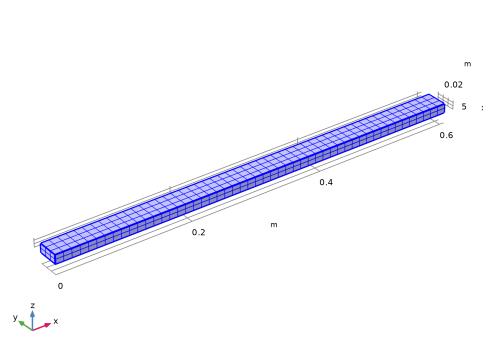
To create a prestressed state, the beam is stretched to a length L = (1 + ε)L0, where ε = 5·104. The model computes the eigenfrequencies of the beam for the free and prestressed states and the relative change in the speed of propagating elastic waves. Since only the axial waves are of interest here, symmetry conditions are used along two planes (xy and xz), so that bending is suppressed. The model is shown in Figure 1.
Figure 1: Geometry and mesh.
Results and Discussion
Instead of directly computing the wave speed, which can be a difficult task, the eigenfrequencies of the structure are used in order to implicitly obtain the wave speed. The relative change in the axial wave speed per unit strain can be estimated by the following formula:
(1)
Here the letter c denotes axial wave speed, and f the natural frequency for an axial mode. The subscript 0 refers to the unstrained state. This equation takes the elongation of the rod into account through the last two terms.
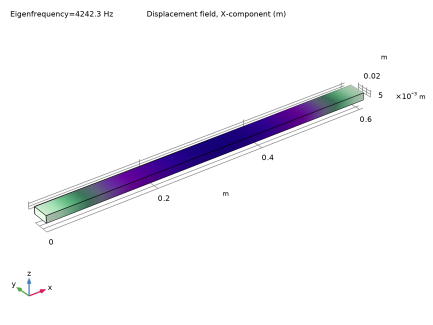
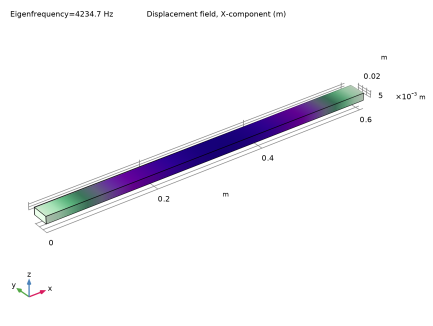
For a stress free sample, the computed eigenfrequency is f0 = 4242.34 Hz, which is shown in Figure 2. For prestressed sample, the computed eigenfrequency is f = 4234.66 Hz shown in Figure 3.
Figure 2: Eigenfrequency and normalized eigenfunction for a stress-free rail.
Figure 3: Eigenfrequency and normalized eigenfunction for a prestressed rail.
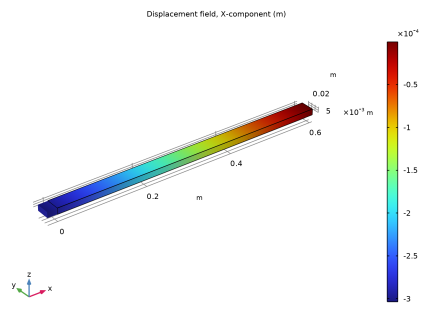
The deformation in the prestressed state is shown in Figure 4 below.
Figure 4: The static displacement field in the prestressed beam.
When the piece of rail is stretched as shown in Figure 4, the length of the rail changes, but most importantly, we get a prestressed state, which changes the wave speed in the material. Therefore, the eigenfrequency changes to f = 4234.66 Hz. The resulting value of the relative change in wave speed using Equation 1 is 2.62, which is in a good agreement with the experimental value of 2.52 reported in Ref. 1 (Table III, specimen 1). It is noted that if a linearly elastic material model is used, the predicted change in wave speed instead shows an increase.
Notes About the COMSOL Implementation
The eigenfrequency computation is performed using boundary conditions in the axial direction in both ends. One of them is implemented using a symmetry condition, which is just a simple way of prescribing the displacement in the normal direction to zero. In the other end, the displacement is prescribed to the value that gives the intended axial strain. In the first analysis, where the unstrained eigenfrequency is studied, this boundary condition acts as if the prescribed value is zero, since no static analysis precedes the eigenfrequency calculation.
Reference
1. D.M. Egle and D.E. Bray, “Measurement of Acoustoelastic and Third-order Elastic Constants for Rail Steel,” J. Acoust. Soc. Am., vol. 60, no. 3, p. 741, 1976.
Application Library path: Nonlinear_Structural_Materials_Module/Hyperelasticity/rail_steel
Modeling Instructions
From the File menu, choose New.
New
In the New window, click  Model Wizard.
Model Wizard
1
In the Model Wizard window, click  3D.
2
In the Select Physics tree, select Structural Mechanics > Solid Mechanics (solid).
3
Click Add.
4
Click  Study.
5
In the Select Study tree, select General Studies > Eigenfrequency.
6
Global Definitions
Parameters 1
1
In the Model Builder window, under Global Definitions click Parameters 1.
2
In the Settings window for Parameters, locate the Parameters section.
3
Geometry 1
Block 1 (blk1)
1
In the Geometry toolbar, click  Block.
2
In the Settings window for Block, locate the Size and Shape section.
3
In the Width text field, type L0.
4
In the Depth text field, type 0.0624*0.5.
5
In the Height text field, type 0.0262*0.5.
6
Click  Build All Objects.
7
Click the  Zoom Extents button in the Graphics toolbar.
Form Union (fin)
1
In the Model Builder window, click Form Union (fin).
2
In the Settings window for Form Union/Assembly, click  Build Selected.
Solid Mechanics (solid)
Hyperelastic Material 1
1
In the Physics toolbar, click  Domains and choose Hyperelastic Material.
2
In the Settings window for Hyperelastic Material, locate the Domain Selection section.
3
From the Selection list, choose All domains.
4
Locate the Hyperelastic Material section. From the Material model list, choose Murnaghan.
Materials
Material 1 (mat1)
1
In the Model Builder window, under Component 1 (comp1) right-click Materials and choose Blank Material.
2
In the Settings window for Material, locate the Material Contents section.
3
Solid Mechanics (solid)
Symmetry 1
1
In the Physics toolbar, click  Boundaries and choose Symmetry.
2
Prescribed Displacement 1
1
In the Physics toolbar, click  Boundaries and choose Prescribed Displacement.
2
3
In the Settings window for Prescribed Displacement, locate the Prescribed Displacement section.
4
From the Displacement in x direction list, choose Prescribed.
5
In the u0x text field, type -eps0*L0.
Mesh 1
1
In the Model Builder window, under Component 1 (comp1) click Mesh 1.
2
In the Settings window for Mesh, locate the Physics-Controlled Mesh section.
3
From the Element size list, choose Extremely fine.
Mapped 1
1
In the Mesh toolbar, click  More Generators and choose Mapped.
2
3
In the Settings window for Mapped, click  Build All.
Swept 1
1
In the Mesh toolbar, click  Swept.
2
In the Settings window for Swept, click  Build All.
Study 1
Solve for the natural frequencies in the undeformed case.
1
In the Study toolbar, click  Compute.
Results
Mode Shape (Stress-Free)
In the Settings window for 3D Plot Group, type Mode Shape (Stress-Free) in the Label text field.
Reproduce the plot in Figure 2 as follows.
Surface 1
1
In the Model Builder window, expand the Mode Shape (Stress-Free) node, then click Surface 1.
2
In the Settings window for Surface, click Replace Expression in the upper-right corner of the Expression section. From the menu, choose Component 1 (comp1) > Solid Mechanics > Displacement > Displacement field - m > u - Displacement field, X-component.
3
In the Mode Shape (Stress-Free) toolbar, click  Plot.
Root
Add a new study to solve for the natural frequencies in the prestressed case.
Add Study
1
In the Home toolbar, click  Add Study to open the Add Study window.
2
Go to the Add Study window.
3
Find the Studies subsection. In the Select Study tree, select Preset Studies for Selected Physics Interfaces > Eigenfrequency, Prestressed.
4
Click the Add Study button in the window toolbar.
5
In the Home toolbar, click  Add Study to close the Add Study window.
Study 2
In the Study toolbar, click  Compute.
Results
Mode Shape (Prestressed)
In the Settings window for 3D Plot Group, type Mode Shape (Prestressed) in the Label text field.
To reproduce the plot in Figure 3, follow these steps:
Surface 1
1
In the Model Builder window, expand the Mode Shape (Prestressed) node, then click Surface 1.
2
In the Settings window for Surface, click Replace Expression in the upper-right corner of the Expression section. From the menu, choose Component 1 (comp1) > Solid Mechanics > Displacement > Displacement field - m > u - Displacement field, X-component.
3
In the Mode Shape (Prestressed) toolbar, click  Plot.
Finally, reproduce the plot in Figure 4.
Displacement
1
In the Results toolbar, click  3D Plot Group.
2
In the Settings window for 3D Plot Group, type Displacement in the Label text field.
3
Locate the Data section. From the Dataset list, choose Study 2/Solution Store 1 (sol3).
Surface 1
1
Right-click Displacement and choose Surface.
2
In the Settings window for Surface, click Replace Expression in the upper-right corner of the Expression section. From the menu, choose Component 1 (comp1) > Solid Mechanics > Displacement > Displacement field - m > u - Displacement field, X-component.
Deformation 1
1
Right-click Surface 1 and choose Deformation.
2
Click the  Go to Default View button in the Graphics toolbar.
3
In the Displacement toolbar, click  Plot.