PDF

Phone Drop Test
Introduction
Drop tests are commonly performed to evaluate how consumer products respond to impacts and high accelerations. This example uses the Solid Mechanics, Explicit Dynamics interface to numerically simulate a drop test of a mobile phone. The simulation highlights the permanent plastic deformation of the aluminum case and the damage sustained by the glass screen.
Model Definition
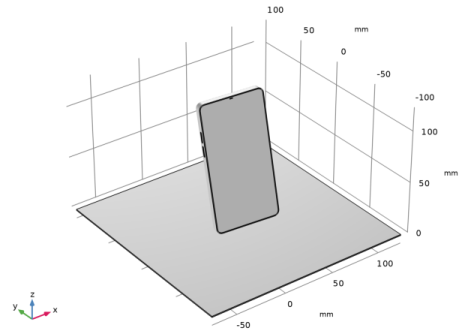
Figure 1 shows the setup employed for drop test simulation, which consists of a mobile phone positioned just before impact with the ground.
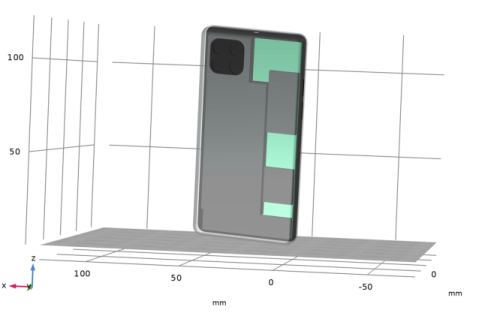
The phone geometry includes the case, screen, and simplified internal components as shown in Figure 2.
The metal case is modeled as aluminum with an elastoplastic constitutive law incorporating linear isotropic hardening. The screen is modeled as glass, with a damage model to simulate the brittle behavior. The internal components are represented by linear elastic materials.
Contact interactions are defined both between the phone and the ground, and between the internal components and the case.
The phone is given an initial velocity of 6 m/s in the vertical direction, corresponding to a drop height of approximately 1.83 m. The ground is assumed to be perfectly rigid.
Because of the short duration of the event and the nonlinearities introduced by contact interactions and material models, an explicit time integration scheme is employed for computational efficiency.
Figure 1: Geometry used as computational domain.
Figure 2: View on the internal components.
Results and Discussion
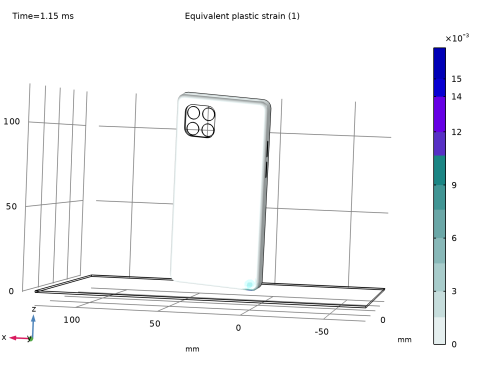
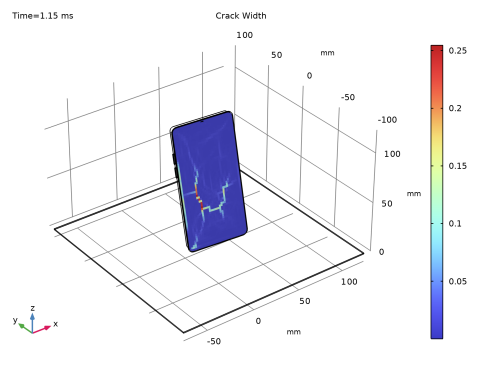
Figure 3 shows the permanent strain that is developed at the corner where the phone impacts the ground, whereas Figure 4 shows the crack width on the glass screen at the last computed time in the simulation.
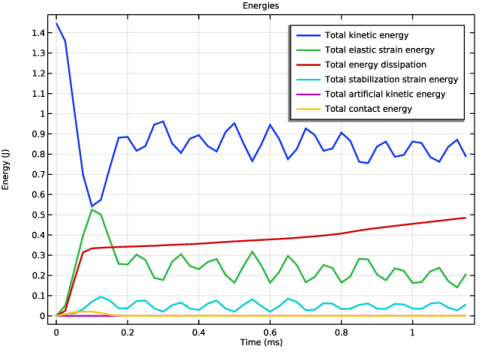
Figure 5 shows the evolution in time of various energy quantities. Initially, the total kinetic energy (blue in the graph) quickly reduces due to the high deceleration during the impact with the ground. At the same time, part of this energy is dissipated as irrecoverable plastic deformation while the remaining part is stored as strain energy (green). As time progresses, the vibrations induced by the impact are witnessed in the plot by an exchange between kinetic and strain energy, while the dissipated energy (red) steadily increases due to crack propagation and artificial viscosity.
The graph also allows you to monitor the stabilization energy and the artificial kinetic energy, which remain low with respect to the physical ones throughout the simulation. The total contact energy shows a peak in correspondence with the impact between the phone and the ground.
Figure 3: Permanent deformation of the aluminum case.
Figure 4: The crack width on the glass screen.
Figure 5: Time evolution of energy quantities.
Notes About the COMSOL Implementation
The Solid Mechanics, Explicit Dynamics interface along with the Explicit Dynamics study step automatically sets up explicit time stepping and provides automatic evaluation of the stable time step.
An Interior Contact node is added to model the contact between the screen and its support.
An Artificial Viscosity node is added to partially damp out the energy of the impact.
A Mass scaling node is added to inject localized artificial density where small elements would otherwise limit the stable time step.
Attachments between the internal components and the case are modeled by a Continuity condition. This allows nonconforming meshes at each interface, which in turn makes it easier to be better control of the mesh size and quality of each component.
Application Library path: Nonlinear_Structural_Materials_Module/Plasticity/phone_drop_test
Modeling Instructions
From the File menu, choose New.
New
In the New window, click  Model Wizard.
Model Wizard
1
In the Model Wizard window, click  3D.
2
In the Select Physics tree, select Structural Mechanics > Explicit Dynamics > Solid Mechanics, Explicit Dynamics (solid).
3
Click Add.
4
Click  Study.
5
In the Select Study tree, select Preset Studies for Selected Physics Interfaces > Explicit Dynamics.
6
Geometry 1
The geometry sequence for each component used in the geometry of the model is available in a file. If you want to create them from scratch yourself, follow the instructions in the Appendix — Geometry Modeling Instructions section. Otherwise, insert each geometry sequence as follows:
Case and Screen
1
In the Model Builder window, right-click Global Definitions and choose Geometry Parts > 3D Part.
2
In the Settings window for Part, type Case and Screen in the Label text field.
3
Locate the Advanced section. From the Geometry representation list, choose CAD kernel.
4
In the Geometry toolbar, click Insert Sequence and choose Insert Sequence.
5
6
In the Insert Sequence dialog, select Case and Screen in the Select geometry sequence to insert list.
7
8
In the Geometry toolbar, click  Build All.
9
In the Model Builder window, collapse the Case and Screen node.
Battery
1
In the Model Builder window, under Global Definitions right-click Geometry Parts and choose 3D Part.
2
In the Settings window for Part, type Battery in the Label text field.
3
In the Geometry toolbar, click Insert Sequence and choose Insert Sequence.
4
5
In the Insert Sequence dialog, select Battery in the Select geometry sequence to insert list.
6
7
In the Geometry toolbar, click  Build All.
8
In the Model Builder window, collapse the Battery node.
Camera
1
Right-click Geometry Parts and choose 3D Part.
2
In the Settings window for Part, type Camera in the Label text field.
3
In the Geometry toolbar, click Insert Sequence and choose Insert Sequence.
4
5
In the Insert Sequence dialog, select Camera in the Select geometry sequence to insert list.
6
7
In the Geometry toolbar, click  Build All.
8
In the Model Builder window, collapse the Camera node.
Other Components
1
Right-click Geometry Parts and choose 3D Part.
2
In the Settings window for Part, type Other Components in the Label text field.
3
In the Geometry toolbar, click Insert Sequence and choose Insert Sequence.
4
5
In the Insert Sequence dialog, select Other Components in the Select geometry sequence to insert list.
6
7
In the Geometry toolbar, click  Build All.
8
In the Model Builder window, collapse the Other Components node.
Geometry 1
1
In the Model Builder window, under Component 1 (comp1) click Geometry 1.
2
In the Settings window for Geometry, locate the Units section.
3
From the Length unit list, choose mm.
4
Locate the Advanced section. From the Geometry representation list, choose CAD kernel.
Case and Screen 1 (pi1)
1
In the Geometry toolbar, click  Part Instance and choose Case and Screen.
2
In the Settings window for Part Instance, click  Build Selected.
Battery 1 (pi2)
1
In the Geometry toolbar, click  Part Instance and choose Battery.
2
In the Settings window for Part Instance, locate the Position and Orientation of Output section.
3
Find the Displacement subsection. In the xwi text field, type 21.
4
In the ywi text field, type 15.
5
In the zwi text field, type 2.5.
6
Click to expand the Domain Selections section. In the table, select the Keep checkbox for Battery.
7
Click  Build Selected.
Camera 1 (pi3)
1
In the Geometry toolbar, click  Part Instance and choose Camera.
2
In the Settings window for Part Instance, locate the Position and Orientation of Output section.
3
Find the Displacement subsection. In the xwi text field, type 31.
4
In the ywi text field, type 90.
5
In the zwi text field, type 1.5.
6
Locate the Domain Selections section. In the table, select the Keep checkbox for Camera.
7
Click to expand the Boundary Selections section. In the table, select the Keep checkbox for Camera - Attachments.
8
Click  Build Selected.
Other Components 1 (pi4)
1
In the Geometry toolbar, click  Part Instance and choose Other Components.
2
In the Settings window for Part Instance, locate the Position and Orientation of Output section.
3
Find the Displacement subsection. In the xwi text field, type 3.
4
In the ywi text field, type 3.
5
In the zwi text field, type 5.5.
6
Locate the Domain Selections section. In the table, select the Keep checkboxes for Other 1, Other 2, and Other Components.
7
Locate the Boundary Selections section. In the table, select the Keep checkbox for Board - Attachments.
8
Click  Build Selected.
Rotate 1 (rot1)
1
In the Geometry toolbar, click  Transforms and choose Rotate.
2
In the Settings window for Rotate, locate the Input section.
3
From the Input objects list, choose All objects.
4
Locate the Rotation section. From the Axis type list, choose x-axis.
5
In the Angle text field, type 90.
6
Click  Build Selected.
Rotate 2 (rot2)
1
In the Geometry toolbar, click  Transforms and choose Rotate.
2
In the Settings window for Rotate, locate the Input section.
3
From the Input objects list, choose All objects.
4
Locate the Rotation section. From the Specify list, choose Euler angles (Z-X-Z).
5
In the α text field, type 10.
6
In the β text field, type -10.
7
In the γ text field, type -20.
8
Click  Build Selected.
9
Click in the Graphics window and then press Ctrl+D to clear all objects.
Block 1 (blk1)
1
In the Geometry toolbar, click  Block.
2
In the Settings window for Block, locate the Size and Shape section.
3
In the Width text field, type 200.
4
In the Depth text field, type 200.
5
Locate the Position section. From the Base list, choose Center.
6
In the x text field, type 25.
7
In the z text field, type 0.06.
8
Click  Build Selected.
Form Union (fin)
1
In the Model Builder window, under Component 1 (comp1) > Geometry 1 click Form Union (fin).
2
In the Settings window for Form Union/Assembly, locate the Form Union/Assembly section.
3
From the Action list, choose Form an assembly.
4
Clear the Create pairs checkbox.
5
Click  Build Selected.
The geometry includes several partitions that will be useful later on to generate a regular mesh. You can mark faces, edges and domains that are used for this purpose as Mesh Control entities, such that they do not contribute to selections when setting up the physics.
Mesh Control Edges 1 (mce1)
1
In the Geometry toolbar, click  Virtual Operations and choose Mesh Control Edges.
2
In the Settings window for Mesh Control Edges, locate the Input section.
3
Click the  Paste Selection button for Edges to include.
4
In the Paste Selection dialog, type 22, 27, 32, 34, 42, 43, 45, 52, 57, 64, 65, 69, 70, 78, 84, 91, 95, 97, 174, 179, 181, 205, 280, 288, 295, 298, 299, 301-307, 311, 323, 330, 347, 423, 440, 445, 447 in the Selection text field.
5
6
In the Settings window for Mesh Control Edges, click  Build Selected.
Mesh Control Domains 1 (mcd1)
1
In the Geometry toolbar, click  Virtual Operations and choose Mesh Control Domains.
2
In the Settings window for Mesh Control Domains, locate the Input section.
3
Click the  Paste Selection button for Domains to include.
4
In the Paste Selection dialog, type 2-41 in the Selection text field.
5
Mesh Control Faces 1 (mcf1)
1
In the Geometry toolbar, click  Virtual Operations and choose Mesh Control Faces.
2
In the Settings window for Mesh Control Faces, locate the Input section.
3
Click the  Paste Selection button for Faces to include.
4
In the Paste Selection dialog, type 101, 106, 108, 113, 117, 122, 123, 128 in the Selection text field.
5
6
In the Settings window for Mesh Control Faces, click  Build Selected.
Mesh Control Faces 2 (mcf2)
1
In the Geometry toolbar, click  Virtual Operations and choose Mesh Control Faces.
2
In the Settings window for Mesh Control Faces, locate the Input section.
3
Click the  Paste Selection button for Faces to include.
4
In the Paste Selection dialog, type 114, 120, 161, 162, 164, 165, 173-176, 181, 182, 184, 185, 193-196 in the Selection text field.
5
6
In the Settings window for Mesh Control Faces, click  Build Selected.
Ignore Edges 1 (ige1)
1
In the Geometry toolbar, click  Virtual Operations and choose Ignore Edges.
2
In the Settings window for Ignore Edges, locate the Input section.
3
Click the  Paste Selection button for Edges to ignore.
4
In the Paste Selection dialog, type 23, 25, 31, 36, 38, 43, 49, 51, 79, 82, 97, 100, 115, 118, 133, 136, 143, 164, 173, 176, 191, 194, 209, 212, 227, 230 in the Selection text field.
5
6
In the Settings window for Ignore Edges, click  Build Selected.
7
Click the  Go to Default View button in the Graphics toolbar.
Attachments
1
In the Geometry toolbar, click  Selections and choose Union Selection.
2
In the Settings window for Union Selection, locate the Geometric Entity Level section.
3
From the Level list, choose Boundary.
4
Locate the Input Entities section. Click  Add.
5
In the Add dialog, in the Selections to add list, choose Camera - Attachments (Camera 1) and Board - Attachments (Other Components 1).
6
7
In the Settings window for Union Selection, type Attachments in the Label text field.
Add a Domain Probe to monitor the vibration of the battery.
Definitions
Domain Probe: Battery Vibration
1
In the Model Builder window, expand the Component 1 (comp1) > Definitions node.
2
Right-click Definitions and choose Probes > Domain Probe.
3
In the Settings window for Domain Probe, type Domain Probe: Battery Vibration in the Label text field.
4
Locate the Source Selection section. From the Selection list, choose Battery (Battery 1).
5
Locate the Expression section. In the Expression text field, type solid.u_tZ.
6
Locate the Integration Settings section. In the Integration order text field, type 1.
Contact Pair: Phone-Ground
1
In the Definitions toolbar, click  Pairs and choose Contact Pair.
2
In the Settings window for Pair, type Contact Pair: Phone-Ground in the Label text field.
3
4
Locate the Destination Boundaries section. Click to select the  Activate Selection toggle button.
5
Contact Pair: Case-Internal Components
1
In the Definitions toolbar, click  Pairs and choose Contact Pair.
2
In the Settings window for Pair, type Contact Pair: Case-Internal Components in the Label text field.
3
Click in the Graphics window and then press Ctrl+A to select all boundaries.
The wireframe rendering helps identifying surfaces inside the geometry.
4
Click the  Wireframe Rendering button in the Graphics toolbar.
5
Locate the Source Boundaries section. Click  Paste Selection.
6
In the Paste Selection dialog, type 17, 20, 64 in the Selection text field.
7
8
In the Settings window for Pair, locate the Destination Boundaries section.
9
Click to select the  Activate Selection toggle button.
10
Click  Paste Selection.
11
In the Paste Selection dialog, type 81-87, 91, 93-97, 99-103, 105-108, 111-114, 116, 117, 119, 120, 122, 123, 126, 149 in the Selection text field.
12
Identity Boundary Pair: Board-Internal Components
1
In the Definitions toolbar, click  Pairs and choose Identity Boundary Pair.
2
In the Settings window for Pair, type Identity Boundary Pair: Board-Internal Components in the Label text field.
3
4
Locate the Destination Boundaries section. Click to select the  Activate Selection toggle button.
5
6
Locate the Frame section. From the Source frame list, choose Material  (X, Y, Z).
7
From the Destination frame list, choose Material  (X, Y, Z).
Identity Boundary Pair: Case-Screen
1
In the Definitions toolbar, click  Pairs and choose Identity Boundary Pair.
2
In the Settings window for Pair, type Identity Boundary Pair: Case-Screen in the Label text field.
3
Locate the Source Boundaries section. Click  Paste Selection.
4
In the Paste Selection dialog, type 58, 59, 61, 62, 64-70, 75-80 in the Selection text field.
5
6
In the Settings window for Pair, locate the Destination Boundaries section.
7
Click  Paste Selection.
8
In the Paste Selection dialog, type 9, 10 in the Selection text field.
9
10
In the Settings window for Pair, locate the Frame section.
11
From the Source frame list, choose Material  (X, Y, Z).
12
From the Destination frame list, choose Material  (X, Y, Z).
Identity Boundary Pair: Attachments
1
In the Definitions toolbar, click  Pairs and choose Identity Boundary Pair.
2
In the Settings window for Pair, type Identity Boundary Pair: Attachments in the Label text field.
3
Locate the Source Boundaries section. From the Selection list, choose Attachments.
4
Locate the Destination Boundaries section. Click to select the  Activate Selection toggle button.
5
6
Locate the Frame section. From the Source frame list, choose Material  (X, Y, Z).
7
From the Destination frame list, choose Material  (X, Y, Z).
Identity Boundary Pair: Battery Attachment
1
In the Definitions toolbar, click  Pairs and choose Identity Boundary Pair.
2
In the Settings window for Pair, type Identity Boundary Pair: Battery Attachment in the Label text field.
3
Locate the Source Boundaries section. Click  Paste Selection.
4
In the Paste Selection dialog, type 90 125 in the Selection text field.
5
6
In the Settings window for Pair, locate the Destination Boundaries section.
7
Click to select the  Activate Selection toggle button.
8
Click  Paste Selection.
9
In the Paste Selection dialog, type 115 118 in the Selection text field.
10
11
In the Settings window for Pair, locate the Frame section.
12
From the Source frame list, choose Material  (X, Y, Z).
13
From the Destination frame list, choose Material  (X, Y, Z).
Add Material
1
In the Materials toolbar, click  Add Material to open the Add Material window.
2
Go to the Add Material window.
3
In the tree, select Built-in > Aluminum.
4
Click the Add to Component button in the window toolbar.
Materials
Aluminum (mat1)
1
In the Settings window for Material, locate the Geometric Entity Selection section.
2
Click  Clear Selection.
3
Add Material
1
Go to the Add Material window.
2
In the tree, select Built-in > Glass (quartz).
3
Click the Add to Component button in the window toolbar.
Materials
Glass (quartz) (mat2)
1
2
In the Settings window for Material, locate the Material Contents section.
3
Add Material
1
Go to the Add Material window.
2
In the tree, select Built-in > FR4 (Circuit Board).
3
Click the Add to Component button in the window toolbar.
Materials
FR4 (Circuit Board) (mat3)
1
In the Settings window for Material, locate the Geometric Entity Selection section.
2
From the Selection list, choose Other 1 (Other Components 1).
Add Material
1
Go to the Add Material window.
2
In the tree, select Built-in > Silica glass.
3
Click the Add to Component button in the window toolbar.
Materials
Silica glass (mat4)
Select Domain 4 only.
Add Material
1
Go to the Add Material window.
2
In the tree, select Built-in > Acrylic plastic.
3
Click the Add to Component button in the window toolbar.
Materials
Acrylic plastic (mat5)
Select Domains 8 and 10 only.
Add Material
1
Go to the Add Material window.
2
In the tree, select Built-in > Silicon.
3
Click the Add to Component button in the window toolbar.
4
In the Materials toolbar, click  Add Material to close the Add Material window.
Materials
Silicon (mat6)
Select Domains 6 and 7 only.
Battery
1
In the Model Builder window, right-click Materials and choose Blank Material.
2
In the Settings window for Material, type Battery in the Label text field.
3
Locate the Geometric Entity Selection section. From the Selection list, choose Battery (Battery 1).
4
Locate the Material Contents section. In the table, enter the following settings:
Solid Mechanics, Explicit Dynamics (solid)
1
In the Model Builder window, under Component 1 (comp1) click Solid Mechanics, Explicit Dynamics (solid).
2
3
In the Settings window for Solid Mechanics, Explicit Dynamics, click to expand the Energy Dissipation section.
4
From the Store dissipation list, choose Total.
Initial Values 1
1
In the Model Builder window, under Component 1 (comp1) > Solid Mechanics, Explicit Dynamics (solid) click Initial Values 1.
2
In the Settings window for Initial Values, locate the Initial Values section.
3
In the structural velocity field vector, enter
Gravity 1
In the Physics toolbar, click  Global and choose Gravity.
Linear Elastic Material 1
In the Model Builder window, click Linear Elastic Material 1.
Plasticity 1
1
In the Physics toolbar, click  Attributes and choose Plasticity.
2
In the Settings window for Plasticity, locate the Domain Selection section.
3
Click  Clear Selection.
4
Materials
Aluminum (mat1)
1
In the Model Builder window, under Component 1 (comp1) > Materials click Aluminum (mat1).
2
In the Settings window for Material, locate the Material Contents section.
3
Solid Mechanics, Explicit Dynamics (solid)
Linear Elastic Material 1
In the Model Builder window, under Component 1 (comp1) > Solid Mechanics, Explicit Dynamics (solid) click Linear Elastic Material 1.
Damage 1
1
In the Physics toolbar, click  Attributes and choose Damage.
2
In the Settings window for Damage, locate the Damage section.
3
Find the Damage evolution subsection. From the σp list, choose User defined. In the associated text field, type 14e6.
4
From the Gf list, choose User defined. In the associated text field, type 100.
5
Locate the Domain Selection section. Click  Clear Selection.
6
Interior Contact 1
1
In the Physics toolbar, click  Boundaries and choose Interior Contact.
2
Friction 1
1
In the Physics toolbar, click  Attributes and choose Friction.
2
In the Settings window for Friction, locate the Friction Parameters section.
3
In the μ text field, type 0.5.
4
In the Tcohe text field, type 1e3.
Artificial Viscosity 1
1
In the Physics toolbar, click  Domains and choose Artificial Viscosity.
2
In the Settings window for Artificial Viscosity, locate the Domain Selection section.
3
From the Selection list, choose All domains.
Mesh 1
Free Quad 1
1
In the Mesh toolbar, click  More Generators and choose Free Quad.
2
In the Settings window for Free Quad, locate the Boundary Selection section.
3
Click  Paste Selection.
4
In the Paste Selection dialog, type 157, 163, 174, 178, 196, 199, 201 in the Selection text field.
5
6
In the Settings window for Free Quad, click to expand the Mesh Generation section.
7
From the Method list, choose Quad.
Size
1
In the Model Builder window, click Size.
2
In the Settings window for Size, locate the Element Size section.
3
Click the Custom button.
4
Locate the Element Size Parameters section. In the Maximum element size text field, type 2.
5
In the Minimum element size text field, type 0.5.
6
In the Maximum element growth rate text field, type 1.2.
7
In the Curvature factor text field, type 0.4.
8
In the Resolution of narrow regions text field, type 0.7.
Distribution 1
1
In the Model Builder window, right-click Free Quad 1 and choose Distribution.
2
In the Settings window for Distribution, locate the Edge Selection section.
3
Click  Paste Selection.
4
In the Paste Selection dialog, type 458 in the Selection text field.
5
6
In the Settings window for Distribution, locate the Distribution section.
7
In the Number of elements text field, type 1.
Distribution 2
1
Right-click Free Quad 1 and choose Distribution.
2
In the Settings window for Distribution, locate the Edge Selection section.
3
Click  Paste Selection.
4
In the Paste Selection dialog, type 455, 460 in the Selection text field.
5
6
In the Settings window for Distribution, locate the Distribution section.
7
In the Number of elements text field, type 2.
Distribution 3
1
Right-click Free Quad 1 and choose Distribution.
2
In the Settings window for Distribution, locate the Edge Selection section.
3
Click  Paste Selection.
4
In the Paste Selection dialog, type 493, 504 in the Selection text field.
5
6
In the Settings window for Distribution, locate the Distribution section.
7
In the Number of elements text field, type 3.
8
Click  Build Selected.
Distribution 4
1
Right-click Free Quad 1 and choose Distribution.
2
In the Settings window for Distribution, locate the Edge Selection section.
3
Click  Paste Selection.
4
In the Paste Selection dialog, type 489-491, 497 in the Selection text field.
5
6
In the Settings window for Distribution, locate the Distribution section.
7
In the Number of elements text field, type 2.
8
Click  Build Selected.
Copy Face 1
1
In the Mesh toolbar, click  Copy and choose Copy Face.
2
In the Settings window for Copy Face, locate the Source Boundaries section.
3
Click  Paste Selection.
4
In the Paste Selection dialog, type 199 in the Selection text field.
5
6
In the Settings window for Copy Face, locate the Destination Boundaries section.
7
Click  Paste Selection.
8
In the Paste Selection dialog, type 198 in the Selection text field.
9
10
In the Settings window for Copy Face, click  Build Selected.
Copy Face 2
1
In the Mesh toolbar, click  Copy and choose Copy Face.
2
In the Settings window for Copy Face, locate the Source Boundaries section.
3
Click  Paste Selection.
4
In the Paste Selection dialog, type 196, 198, 199, 201 in the Selection text field.
5
6
In the Settings window for Copy Face, locate the Destination Boundaries section.
7
Click  Paste Selection.
8
In the Paste Selection dialog, type 189, 191, 192, 194 in the Selection text field.
9
10
In the Settings window for Copy Face, click  Build Selected.
Mapped 1
1
In the Mesh toolbar, click  More Generators and choose Mapped.
2
In the Settings window for Mapped, locate the Boundary Selection section.
3
Click  Paste Selection.
4
In the Paste Selection dialog, type 150-156, 158-162, 164-173, 175-177, 179-184, 186-188, 190, 193, 195, 197, 200, 202-208, 211, 215-219 in the Selection text field.
5
6
In the Settings window for Mapped, click to expand the Reduce Element Skewness section.
7
Select the Adjust edge mesh checkbox.
Distribution 1
1
Right-click Mapped 1 and choose Distribution.
2
In the Settings window for Distribution, locate the Edge Selection section.
3
Click  Paste Selection.
4
In the Paste Selection dialog, type 487 in the Selection text field.
5
6
In the Settings window for Distribution, locate the Distribution section.
7
In the Number of elements text field, type 1.
8
Click  Build Selected.
Mapped 2
1
In the Mesh toolbar, click  More Generators and choose Mapped.
2
In the Settings window for Mapped, locate the Boundary Selection section.
3
Click  Paste Selection.
4
In the Paste Selection dialog, type 7, 185, 214 in the Selection text field.
5
6
In the Settings window for Mapped, locate the Reduce Element Skewness section.
7
Select the Adjust edge mesh checkbox.
8
Click  Build Selected.
Free Quad 2
1
In the Mesh toolbar, click  More Generators and choose Free Quad.
2
In the Settings window for Free Quad, locate the Boundary Selection section.
3
Click  Paste Selection.
4
In the Paste Selection dialog, type 212, 213 in the Selection text field.
5
6
In the Settings window for Free Quad, locate the Mesh Generation section.
7
From the Method list, choose Quad.
Size 1
1
Right-click Free Quad 2 and choose Size.
2
3
In the Settings window for Size, locate the Element Size section.
4
From the Predefined list, choose Coarser.
5
Click  Build Selected.
Copy Face 3
1
In the Mesh toolbar, click  Copy and choose Copy Face.
2
In the Settings window for Copy Face, locate the Source Boundaries section.
3
Click  Paste Selection.
4
In the Paste Selection dialog, type 212, 213 in the Selection text field.
5
6
In the Settings window for Copy Face, locate the Destination Boundaries section.
7
Click  Paste Selection.
8
In the Paste Selection dialog, type 209, 210 in the Selection text field.
9
10
In the Settings window for Copy Face, click  Build Selected.
Swept 1
1
In the Mesh toolbar, click  Swept.
2
In the Settings window for Swept, locate the Domain Selection section.
3
From the Geometric entity level list, choose Domain.
4
Click  Paste Selection.
5
In the Paste Selection dialog, type 2, 23-25, 28-31, 33, 34, 36-43, 45-51, 53-59 in the Selection text field.
6
Distribution 1
1
Right-click Swept 1 and choose Distribution.
2
In the Settings window for Distribution, locate the Domain Selection section.
3
Click  Clear Selection.
4
Click  Paste Selection.
5
In the Paste Selection dialog, type 2 23 28 29 30 33 36 37 38 39 40 41 43 45 46 47 48 49 51 53 54 55 58 59 in the Selection text field.
6
7
In the Settings window for Distribution, locate the Distribution section.
8
In the Number of elements text field, type 2.
9
Click  Build Selected.
Free Quad 3
1
In the Mesh toolbar, click  More Generators and choose Free Quad.
2
In the Settings window for Free Quad, locate the Boundary Selection section.
3
Click  Paste Selection.
4
In the Paste Selection dialog, type 340 in the Selection text field.
5
6
In the Settings window for Free Quad, click  Build Selected.
Swept 2
1
In the Mesh toolbar, click  Swept.
2
In the Settings window for Swept, locate the Domain Selection section.
3
From the Geometric entity level list, choose Domain.
4
Click  Paste Selection.
5
In the Paste Selection dialog, type 26, 27, 32, 35, 44, 52, 60, 61 in the Selection text field.
6
7
In the Settings window for Swept, click  Build Selected.
Mapped 3
1
In the Mesh toolbar, click  More Generators and choose Mapped.
2
In the Settings window for Mapped, locate the Boundary Selection section.
3
Click  Paste Selection.
4
In the Paste Selection dialog, type 270, 272 in the Selection text field.
5
6
In the Settings window for Mapped, click  Build Selected.
Free Quad 4
1
In the Mesh toolbar, click  More Generators and choose Free Quad.
2
In the Settings window for Free Quad, locate the Boundary Selection section.
3
Click  Paste Selection.
4
In the Paste Selection dialog, type 60, 271 in the Selection text field.
5
6
In the Settings window for Free Quad, click  Build Selected.
Swept 3
1
In the Mesh toolbar, click  Swept.
2
In the Settings window for Swept, locate the Domain Selection section.
3
From the Geometric entity level list, choose Domain.
4
Click  Paste Selection.
5
In the Paste Selection dialog, type 3, 4, 17-22, 32 in the Selection text field.
6
Distribution 1
1
Right-click Swept 3 and choose Distribution.
2
In the Settings window for Distribution, locate the Distribution section.
3
In the Number of elements text field, type 2.
4
Click  Build Selected.
Swept 4
1
In the Mesh toolbar, click  Swept.
2
In the Settings window for Swept, locate the Domain Selection section.
3
From the Geometric entity level list, choose Domain.
4
Click  Paste Selection.
5
In the Paste Selection dialog, type 5-11, 13-16 in the Selection text field.
6
7
In the Settings window for Swept, locate the Mesh Generation section.
8
From the Elements list, choose Hexahedra.
Distribution 1
1
Right-click Swept 4 and choose Distribution.
2
In the Settings window for Distribution, locate the Domain Selection section.
3
Click  Clear Selection.
4
Click  Paste Selection.
5
In the Paste Selection dialog, type 5, 8 in the Selection text field.
6
7
In the Settings window for Distribution, locate the Distribution section.
8
In the Number of elements text field, type 2.
9
Click  Build Selected.
Swept 5
1
In the Mesh toolbar, click  Swept.
2
In the Settings window for Swept, click  Build All.
Study 1
1
In the Model Builder window, click Study 1.
2
In the Settings window for Study, locate the Study Settings section.
3
Clear the Generate default plots checkbox.
Step 1: Explicit Dynamics
1
In the Model Builder window, under Study 1 click Step 1: Explicit Dynamics.
2
In the Settings window for Explicit Dynamics, locate the Study Settings section.
3
From the Time unit list, choose ms.
4
In the Output times text field, type range(0,0.025,1.15).
5
Click to expand the Results While Solving section. From the Update at list, choose Time steps taken by solver.
The time step is automatically computed from the material properties and the size of the mesh elements. To locate critical mesh elements, use Get Initial Value in order to get access to Result Templates.
6
In the Study toolbar, click  Get Initial Value.
Add a plot of the cell time from Result Templates.
Result Templates
1
In the Home toolbar, click  Result Templates to open the Result Templates window.
2
Go to the Result Templates window.
3
In the tree, select Study 1/Solution 1 (sol1) > Solid Mechanics, Explicit Dynamics > Cell Time (solid).
4
Click the Add Result Template button in the window toolbar.
5
In the Home toolbar, click  Result Templates to close the Result Templates window.
Results
Probe Plot Group 1
A few small elements are limiting the size of the time step. You can remedy this by adding a Mass Scaling node to inject artificial mass in those elements.
Solid Mechanics, Explicit Dynamics (solid)
Mass Scaling 1
1
In the Physics toolbar, click  Domains and choose Mass Scaling.
2
3
In the Settings window for Mass Scaling, locate the Mass Scaling section.
4
In the Δtcell0 text field, type 1.5E-8.
Study 1
In the Study toolbar, click  Compute.
Results
Battery Vibration
1
In the Model Builder window, under Results click Probe Plot Group 1.
2
In the Settings window for 1D Plot Group, type Battery Vibration in the Label text field.
3
Locate the Legend section. Clear the Show legends checkbox.
4
Click to expand the Title section. From the Title type list, choose Label.
Add a plot of the equivalent plastic strain from Result Templates.
Result Templates
1
In the Home toolbar, click  Result Templates to open the Result Templates window.
2
Go to the Result Templates window.
3
In the tree, select Study 1/Solution 1 (sol1) > Solid Mechanics, Explicit Dynamics > Equivalent Plastic Strain (solid).
4
Click the Add Result Template button in the window toolbar.
5
In the Home toolbar, click  Result Templates to close the Result Templates window.
Results
Equivalent Plastic Strain (solid)
1
Click the  Show More Options button in the Model Builder toolbar.
2
In the Show More Options dialog, select Results > Views in the tree.
3
4
View 3D 27
In the Model Builder window, under Results right-click Views and choose View 3D.
Camera
1
In the Model Builder window, expand the View 3D 27 node, then click Camera.
2
In the Settings window for Camera, locate the Camera section.
3
In the Zoom angle text field, type 14.4.
4
Locate the Position section. In the x text field, type -166.
5
In the y text field, type 1604.
6
In the z text field, type 92.
7
Locate the Target section. In the x text field, type 25.
8
In the z text field, type 60.
9
Locate the Up Vector section. In the x text field, type 0.04.
10
Locate the Center of Rotation section. In the y text field, type -0.01.
11
Locate the Up Vector section. In the y text field, type -0.01.
12
In the z text field, type 1.
13
Locate the Center of Rotation section. In the y text field, type 0.
14
Locate the View Offset section. In the x text field, type 0.01.
15
In the y text field, type 0.04.
Equivalent Plastic Strain (solid)
1
In the Model Builder window, under Results click Equivalent Plastic Strain (solid).
2
In the Settings window for 3D Plot Group, locate the Plot Settings section.
3
From the View list, choose View 3D 27.
4
In the Equivalent Plastic Strain (solid) toolbar, click  Plot.
Crack Width
1
In the Results toolbar, click  3D Plot Group.
2
In the Settings window for 3D Plot Group, type Crack Width in the Label text field.
3
Click to expand the Title section. From the Title type list, choose Label.
Surface 1
1
Right-click Crack Width and choose Surface.
2
In the Settings window for Surface, locate the Expression section.
3
In the Expression text field, type solid.kappadmgGp*solid.hcb.
4
Click to expand the Quality section. From the Evaluation settings list, choose Manual.
5
From the Resolution list, choose No refinement.
6
From the Smoothing list, choose None.
7
Locate the Coloring and Style section. From the Color table list, choose RainbowLight.
8
In the Crack Width toolbar, click  Plot.
Energies
1
In the Results toolbar, click  1D Plot Group.
2
In the Settings window for 1D Plot Group, type Energies in the Label text field.
3
Locate the Plot Settings section.
4
Select the y-axis label checkbox. In the associated text field, type Energy (J).
5
Locate the Title section. From the Title type list, choose Label.
Global 1
1
Right-click Energies and choose Global.
2
In the Settings window for Global, locate the y-Axis Data section.
3
4
Click to expand the Coloring and Style section. From the Width list, choose 2.
5
In the Energies toolbar, click  Plot.
Thumbnail
1
In the Results toolbar, click  3D Plot Group.
2
In the Settings window for 3D Plot Group, type Thumbnail in the Label text field.
3
Locate the Title section. From the Title type list, choose None.
4
Locate the Plot Settings section. Clear the Plot dataset edges checkbox.
5
Locate the Color Legend section. Clear the Show legends checkbox.
Case
1
Right-click Thumbnail and choose Surface.
2
In the Settings window for Surface, type Case in the Label text field.
3
Locate the Expression section. In the Expression text field, type 1.
Selection 1
1
Right-click Case and choose Selection.
2
Material Appearance 1
1
In the Model Builder window, right-click Case and choose Material Appearance.
2
In the Settings window for Material Appearance, locate the Appearance section.
3
From the Appearance list, choose Custom.
4
From the Material type list, choose Aluminum (polished).
Deformation 1
1
Right-click Case and choose Deformation.
2
In the Settings window for Deformation, locate the Scale section.
3
Select the Scale factor checkbox. In the associated text field, type 1.
Crack Width
1
In the Model Builder window, right-click Thumbnail and choose Surface.
2
In the Settings window for Surface, type Crack Width in the Label text field.
3
Locate the Expression section. In the Expression text field, type solid.kappadmgGp*solid.hcb.
4
Locate the Coloring and Style section. From the Color table list, choose GrayScale.
5
From the Color table transformation list, choose Nonlinear.
6
In the Color calibration parameter text field, type -1.5.
7
Locate the Quality section. From the Evaluation settings list, choose Manual.
8
From the Smoothing list, choose None.
Deformation 1
In the Model Builder window, under Results > Thumbnail > Case right-click Deformation 1 and choose Copy.
Deformation 1
In the Model Builder window, right-click Crack Width and choose Paste Deformation.
Floor
1
In the Model Builder window, right-click Thumbnail and choose Surface.
2
In the Settings window for Surface, type Floor in the Label text field.
3
Locate the Expression section. In the Expression text field, type 1.
Selection 1
1
Right-click Floor and choose Selection.
2
Material Appearance 1
1
In the Model Builder window, right-click Floor and choose Material Appearance.
2
In the Settings window for Material Appearance, locate the Appearance section.
3
From the Appearance list, choose Custom.
4
From the Material type list, choose Concrete.
Visual Effects 1
1
Right-click Floor and choose Visual Effects.
2
In the Settings window for Visual Effects, locate the Visual Effects section.
3
Find the Direct shadows subsection. From the Mode list, choose Manual.
4
Clear the Casts shadows checkbox.
Circuit Board
1
In the Model Builder window, right-click Thumbnail and choose Volume.
2
In the Settings window for Volume, type Circuit Board in the Label text field.
3
Locate the Expression section. In the Expression text field, type 1.
Selection 1
1
Right-click Circuit Board and choose Selection.
2
In the Settings window for Selection, locate the Selection section.
3
From the Selection list, choose Other 1 (Other Components 1).
Material Appearance 1
1
In the Model Builder window, right-click Circuit Board and choose Material Appearance.
2
In the Settings window for Material Appearance, locate the Appearance section.
3
From the Material list, choose FR4 (Circuit Board) (mat3).
Deformation 1
In the Model Builder window, under Results > Thumbnail > Crack Width right-click Deformation 1 and choose Copy.
Deformation 1
In the Model Builder window, right-click Circuit Board and choose Paste Deformation.
Battery and Internal Components
1
In the Model Builder window, right-click Thumbnail and choose Volume.
2
In the Settings window for Volume, type Battery and Internal Components in the Label text field.
3
Locate the Expression section. In the Expression text field, type 1.
Selection 1
1
Right-click Battery and Internal Components and choose Selection.
2
Material Appearance 1
1
In the Model Builder window, right-click Battery and Internal Components and choose Material Appearance.
2
In the Settings window for Material Appearance, locate the Appearance section.
3
From the Appearance list, choose Custom.
4
From the Color list, choose Black.
Deformation 1
In the Model Builder window, under Results > Thumbnail > Circuit Board right-click Deformation 1 and choose Copy.
Deformation 1
In the Model Builder window, right-click Battery and Internal Components and choose Paste Deformation.
Thumbnail
1
Click the  Show Grid button in the Graphics toolbar.
2
Click the  Zoom Extents button in the Graphics toolbar.
3
Click the  Go to Default View button in the Graphics toolbar.
Appendix — Geometry Modeling Instructions
From the File menu, choose New.
New
In the New window, click  Model Wizard.
Model Wizard
1
In the Model Wizard window, click  3D.
2
Case and Screen
1
In the Model Builder window, right-click Global Definitions and choose Geometry Parts > 3D Part.
2
In the Settings window for Part, type Case and Screen in the Label text field.
3
Locate the Units section. From the Length unit list, choose mm.
4
Locate the Advanced section. From the Geometry representation list, choose CAD kernel.
Work Plane 1 (wp1)
In the Geometry toolbar, click  Work Plane.
Work Plane 1 (wp1) > Plane Geometry
In the Model Builder window, click Plane Geometry.
Work Plane 1 (wp1) > Rectangle 1 (r1)
1
In the Work Plane toolbar, click  Rectangle.
2
In the Settings window for Rectangle, locate the Object Type section.
3
From the Type list, choose Curve.
4
Locate the Size and Shape section. In the Width text field, type 60.
5
In the Height text field, type 120.
6
Click  Build Selected.
Work Plane 1 (wp1) > Fillet 1 (fil1)
1
In the Work Plane toolbar, click  Fillet.
2
On the object r1, select Points 1–4 only.
3
In the Settings window for Fillet, locate the Radius section.
4
In the Radius text field, type 5.
5
Click  Build Selected.
Work Plane 1 (wp1) > Thicken 1 (thi1)
1
In the Work Plane toolbar, click  Conversions and choose Thicken.
2
3
In the Settings window for Thicken, locate the Options section.
4
From the Offset list, choose Asymmetric.
5
In the Upside thickness text field, type 1.5.
6
Click  Build Selected.
Extrude 1 (ext1)
1
In the Model Builder window, right-click Case and Screen and choose Extrude.
2
In the Settings window for Extrude, locate the Distances section.
3
4
Click  Build Selected.
5
Click the  Go to Default View button in the Graphics toolbar.
Work Plane 2 (wp2)
In the Geometry toolbar, click  Work Plane.
Work Plane 2 (wp2) > Plane Geometry
In the Model Builder window, click Plane Geometry.
Work Plane 2 (wp2) > Projection 1 (proj1)
1
In the Work Plane toolbar, click  Projection.
2
In the Settings window for Projection, locate the Projection section.
3
From the Project list, choose Selected edges.
4
Click the  Paste Selection button for Entities to project.
5
In the Paste Selection dialog, type ext1: 10, 11, 15, 21, 24, 33, 36, 42 in the Selection text field.
6
Work Plane 2 (wp2) > Convert to Solid 1 (csol1)
1
In the Work Plane toolbar, click  Conversions and choose Convert to Solid.
2
Work Plane 2 (wp2)
1
In the Model Builder window, under Global Definitions > Geometry Parts > Case and Screen click Work Plane 2 (wp2).
2
In the Settings window for Work Plane, click  Build Selected.
Extrude 2 (ext2)
1
In the Geometry toolbar, click  Extrude.
2
In the Settings window for Extrude, locate the Distances section.
3
4
Click  Build Selected.
Fillet 1 (fil1)
1
In the Geometry toolbar, click  Editing and choose Fillet.
2
In the Settings window for Fillet, locate the Edges section.
3
Click the  Paste Selection button for Edges to fillet.
4
In the Paste Selection dialog, type ext1: 2, 3, 7, 18, 27, 30, 39, 46 in the Selection text field.
5
6
In the Settings window for Fillet, locate the Radius section.
7
In the Radius text field, type 1.5.
8
Click  Build Selected.
Union 1 (uni1)
1
In the Geometry toolbar, click  Booleans and Partitions and choose Union.
2
Click in the Graphics window and then press Ctrl+A to select both objects.
3
In the Settings window for Union, click  Build Selected.
Work Plane 3 (wp3)
1
In the Geometry toolbar, click  Work Plane.
2
In the Settings window for Work Plane, locate the Plane Definition section.
3
From the Plane type list, choose Face parallel.
4
On the object uni1, select Boundary 5 only.
Work Plane 3 (wp3) > Plane Geometry
In the Model Builder window, click Plane Geometry.
Work Plane 3 (wp3) > Projection 1 (proj1)
1
In the Work Plane toolbar, click  Projection.
2
In the Settings window for Projection, locate the Projection section.
3
From the Project list, choose Selected edges.
4
Click the  Paste Selection button for Entities to project.
5
In the Paste Selection dialog, type uni1: 17, 18, 23, 32, 38, 50, 56, 65 in the Selection text field.
6
7
In the Settings window for Projection, click  Build Selected.
Work Plane 3 (wp3) > Thicken 1 (thi1)
1
In the Work Plane toolbar, click  Conversions and choose Thicken.
2
3
In the Settings window for Thicken, locate the Options section.
4
In the Total thickness text field, type 1.5.
5
Click  Build Selected.
Extrude 3 (ext3)
1
In the Model Builder window, right-click Case and Screen and choose Extrude.
2
In the Settings window for Extrude, locate the Distances section.
3
Select the Reverse direction checkbox.
4
Click  Build Selected.
Difference 1 (dif1)
1
In the Geometry toolbar, click  Booleans and Partitions and choose Difference.
2
3
In the Settings window for Difference, locate the Difference section.
4
Click to select the  Activate Selection toggle button for Objects to subtract.
5
6
Click  Build Selected.
Work Plane 4 (wp4)
1
In the Geometry toolbar, click  Work Plane.
2
In the Settings window for Work Plane, locate the Plane Definition section.
3
In the z-coordinate text field, type 8.
Work Plane 4 (wp4) > Plane Geometry
In the Model Builder window, click Plane Geometry.
Work Plane 4 (wp4) > Projection 1 (proj1)
1
In the Work Plane toolbar, click  Projection.
2
In the Settings window for Projection, locate the Projection section.
3
From the Project list, choose Selected edges.
4
Click the  Paste Selection button for Entities to project.
5
In the Paste Selection dialog, type dif1: 14, 15, 18, 38, 52, 62, 76, 91 in the Selection text field.
6
7
In the Settings window for Projection, click  Build Selected.
Work Plane 4 (wp4) > Convert to Solid 1 (csol1)
1
In the Work Plane toolbar, click  Conversions and choose Convert to Solid.
2
3
In the Settings window for Convert to Solid, click  Build Selected.
Extrude 4 (ext4)
1
In the Model Builder window, right-click Case and Screen and choose Extrude.
2
In the Settings window for Extrude, locate the Distances section.
3
4
Select the Reverse direction checkbox.
5
Click  Build Selected.
Work Plane 5 (wp5)
1
In the Geometry toolbar, click  Work Plane.
2
In the Settings window for Work Plane, locate the Plane Definition section.
3
From the Plane type list, choose Face parallel.
4
On the object dif1, select Boundary 20 only.
Work Plane 5 (wp5) > Plane Geometry
In the Model Builder window, click Plane Geometry.
Work Plane 5 (wp5) > Rectangle 1 (r1)
1
In the Work Plane toolbar, click  Rectangle.
2
In the Settings window for Rectangle, locate the Size and Shape section.
3
In the Width text field, type 0.8.
4
In the Height text field, type 2.
5
Locate the Position section. From the Base list, choose Center.
6
In the xw text field, type 8.
7
In the yw text field, type -0.5.
8
Click  Build Selected.
Work Plane 5 (wp5) > Fillet 1 (fil1)
1
In the Work Plane toolbar, click  Fillet.
2
On the object r1, select Points 1–4 only.
3
In the Settings window for Fillet, locate the Radius section.
4
In the Radius text field, type 0.4.
5
Click  Build Selected.
Work Plane 5 (wp5) > Array 1 (arr1)
1
In the Work Plane toolbar, click  Transforms and choose Array.
2
3
In the Settings window for Array, locate the Size section.
4
In the xw size text field, type 4.
5
Locate the Displacement section. In the xw text field, type 1.2.
6
Click  Build Selected.
Work Plane 5 (wp5) > Mirror 1 (mir1)
1
In the Work Plane toolbar, click  Transforms and choose Mirror.
2
Click in the Graphics window and then press Ctrl+A to select all objects.
3
In the Settings window for Mirror, locate the Input section.
4
Select the Keep input objects checkbox.
5
Click  Build Selected.
Work Plane 5 (wp5) > Rectangle 2 (r2)
1
In the Work Plane toolbar, click  Rectangle.
2
In the Settings window for Rectangle, locate the Size and Shape section.
3
In the Width text field, type 5.
4
In the Height text field, type 1.5.
5
Locate the Position section. In the yw text field, type -0.5.
6
From the Base list, choose Center.
7
Click  Build Selected.
Work Plane 5 (wp5) > Fillet 2 (fil2)
1
In the Work Plane toolbar, click  Fillet.
2
On the object r2, select Points 1–4 only.
3
In the Settings window for Fillet, locate the Radius section.
4
In the Radius text field, type 0.75.
5
Click  Build Selected.
Extrude 5 (ext5)
1
In the Model Builder window, right-click Case and Screen and choose Extrude.
2
In the Settings window for Extrude, locate the Distances section.
3
4
Select the Reverse direction checkbox.
5
Click  Build Selected.
Difference 2 (dif2)
1
In the Geometry toolbar, click  Booleans and Partitions and choose Difference.
2
3
In the Settings window for Difference, locate the Difference section.
4
Click to select the  Activate Selection toggle button for Objects to subtract.
5
6
Click  Build Selected.
Work Plane 6 (wp6)
1
In the Geometry toolbar, click  Work Plane.
2
In the Settings window for Work Plane, locate the Plane Definition section.
3
From the Plane type list, choose Face parallel.
4
On the object dif2, select Boundary 1 only.
Work Plane 6 (wp6) > Plane Geometry
In the Model Builder window, click Plane Geometry.
Work Plane 6 (wp6) > Rectangle 1 (r1)
1
In the Work Plane toolbar, click  Rectangle.
2
In the Settings window for Rectangle, locate the Size and Shape section.
3
In the Width text field, type 10.
4
In the Height text field, type 1.5.
5
Locate the Position section. In the xw text field, type -30.
6
In the yw text field, type -0.5.
7
From the Base list, choose Center.
8
Click  Build Selected.
Work Plane 6 (wp6) > Fillet 1 (fil1)
1
In the Work Plane toolbar, click  Fillet.
2
On the object r1, select Points 1–4 only.
3
In the Settings window for Fillet, locate the Radius section.
4
In the Radius text field, type 0.5.
5
Click  Build Selected.
Work Plane 6 (wp6) > Array 1 (arr1)
1
In the Work Plane toolbar, click  Transforms and choose Array.
2
3
In the Settings window for Array, locate the Size section.
4
In the xw size text field, type 2.
5
Locate the Displacement section. In the xw text field, type 13.
6
Click  Build Selected.
Extrude 6 (ext6)
1
In the Model Builder window, right-click Case and Screen and choose Extrude.
2
In the Settings window for Extrude, locate the Distances section.
3
4
Select the Reverse direction checkbox.
5
Click  Build Selected.
Difference 3 (dif3)
1
In the Geometry toolbar, click  Booleans and Partitions and choose Difference.
2
3
In the Settings window for Difference, locate the Difference section.
4
Click to select the  Activate Selection toggle button for Objects to subtract.
5
6
Click  Build Selected.
Work Plane 7 (wp7)
1
In the Geometry toolbar, click  Work Plane.
2
In the Settings window for Work Plane, locate the Plane Definition section.
3
From the Plane type list, choose Face parallel.
4
On the object ext4, select Boundary 7 only.
Work Plane 7 (wp7) > Plane Geometry
In the Model Builder window, click Plane Geometry.
Work Plane 7 (wp7) > Rectangle 1 (r1)
1
In the Work Plane toolbar, click  Rectangle.
2
In the Settings window for Rectangle, locate the Size and Shape section.
3
In the Width text field, type 3.
4
In the Height text field, type 0.4.
5
Locate the Position section. From the Base list, choose Center.
6
In the yw text field, type 58.
7
Click  Build Selected.
Work Plane 7 (wp7) > Fillet 1 (fil1)
1
In the Work Plane toolbar, click  Fillet.
2
On the object r1, select Points 1–4 only.
3
In the Settings window for Fillet, locate the Radius section.
4
In the Radius text field, type 0.2.
5
Click  Build Selected.
Extrude 7 (ext7)
1
In the Model Builder window, right-click Case and Screen and choose Extrude.
2
In the Settings window for Extrude, locate the Distances section.
3
Select the Reverse direction checkbox.
4
Click  Build Selected.
Difference 4 (dif4)
1
In the Geometry toolbar, click  Booleans and Partitions and choose Difference.
2
3
In the Settings window for Difference, locate the Difference section.
4
Click to select the  Activate Selection toggle button for Objects to subtract.
5
6
Click  Build Selected.
Work Plane 8 (wp8)
1
In the Geometry toolbar, click  Work Plane.
2
In the Settings window for Work Plane, locate the Plane Definition section.
3
From the Plane type list, choose Face parallel.
4
On the object dif3, select Boundary 30 only.
Work Plane 8 (wp8) > Plane Geometry
In the Model Builder window, click Plane Geometry.
Work Plane 8 (wp8) > Rectangle 1 (r1)
1
In the Work Plane toolbar, click  Rectangle.
2
In the Settings window for Rectangle, locate the Size and Shape section.
3
In the Width text field, type 20.
4
In the Height text field, type 20.
5
Locate the Position section. From the Base list, choose Center.
6
In the xw text field, type 14.
7
In the yw text field, type -44.
8
Click  Build Selected.
Work Plane 8 (wp8) > Fillet 1 (fil1)
1
In the Work Plane toolbar, click  Fillet.
2
On the object r1, select Points 1–4 only.
3
In the Settings window for Fillet, locate the Radius section.
4
In the Radius text field, type 5.
5
Click  Build Selected.
Extrude 8 (ext8)
1
In the Model Builder window, right-click Case and Screen and choose Extrude.
2
In the Settings window for Extrude, locate the Distances section.
3
4
Select the Reverse direction checkbox.
5
Click  Build Selected.
Difference 5 (dif5)
1
In the Geometry toolbar, click  Booleans and Partitions and choose Difference.
2
3
In the Settings window for Difference, locate the Difference section.
4
Click to select the  Activate Selection toggle button for Objects to subtract.
5
6
Click  Build Selected.
Partition Domains 1 (pard1)
1
In the Geometry toolbar, click  Booleans and Partitions and choose Partition Domains.
2
On the object dif5, select Domain 1 only.
3
In the Settings window for Partition Domains, locate the Partition Domains section.
4
From the Partition with list, choose Extended faces.
5
Click the  Paste Selection button for Planar, cylindrical, or spherical faces.
6
In the Paste Selection dialog, type dif5: 26, 33 dif4: 7 in the Selection text field.
7
8
In the Settings window for Partition Domains, click  Build Selected.
Work Plane 9 (wp9)
1
In the Geometry toolbar, click  Work Plane.
2
In the Settings window for Work Plane, locate the Plane Definition section.
3
From the Plane type list, choose Vertices.
4
On the object pard1, select Point 3 only.
5
Click to select the  Activate Selection toggle button for Second vertex.
6
On the object pard1, select Point 1 only.
7
Click to select the  Activate Selection toggle button for Third vertex.
8
Click the  Wireframe Rendering button in the Graphics toolbar.
9
On the object pard1, select Point 29 only.
Work Plane 10 (wp10)
1
In the Geometry toolbar, click  Work Plane.
2
In the Settings window for Work Plane, locate the Plane Definition section.
3
From the Plane type list, choose Vertices.
4
On the object pard1, select Point 21 only.
5
Click to select the  Activate Selection toggle button for Second vertex.
6
On the object pard1, select Point 20 only.
7
Click to select the  Activate Selection toggle button for Third vertex.
8
On the object pard1, select Point 48 only.
Partition Domains 2 (pard2)
1
In the Geometry toolbar, click  Booleans and Partitions and choose Partition Domains.
2
In the Settings window for Partition Domains, locate the Partition Domains section.
3
Click the  Paste Selection button for Domains to partition.
4
In the Paste Selection dialog, type pard1: 1-4 in the Selection text field.
5
6
In the Settings window for Partition Domains, locate the Partition Domains section.
7
From the Work plane list, choose Work Plane 9 (wp9).
8
Click  Build Selected.
Partition Domains 3 (pard3)
1
In the Geometry toolbar, click  Booleans and Partitions and choose Partition Domains.
2
In the Settings window for Partition Domains, locate the Partition Domains section.
3
Click the  Paste Selection button for Domains to partition.
4
In the Paste Selection dialog, type pard2: 1, 3, 5, 7 in the Selection text field.
5
6
In the Settings window for Partition Domains, click  Build Selected.
Work Plane 11 (wp11)
1
In the Geometry toolbar, click  Work Plane.
2
In the Settings window for Work Plane, locate the Plane Definition section.
3
From the Plane type list, choose Vertices.
4
On the object pard3, select Point 50 only.
5
Click to select the  Activate Selection toggle button for Second vertex.
6
On the object pard3, select Point 49 only.
7
Click to select the  Activate Selection toggle button for Third vertex.
8
On the object pard3, select Point 56 only.
9
Click  Build Selected.
Work Plane 12 (wp12)
1
In the Geometry toolbar, click  Work Plane.
2
In the Settings window for Work Plane, locate the Plane Definition section.
3
From the Plane type list, choose Vertices.
4
On the object pard3, select Point 190 only.
5
Click to select the  Activate Selection toggle button for Second vertex.
6
On the object pard3, select Point 189 only.
7
Click to select the  Activate Selection toggle button for Third vertex.
8
On the object pard3, select Point 195 only.
9
Click  Build Selected.
Work Plane 11 (wp11)
In the Model Builder window, collapse the Global Definitions > Geometry Parts > Case and Screen > Work Plane 11 (wp11) node.
Partition Domains 4 (pard4)
1
In the Geometry toolbar, click  Booleans and Partitions and choose Partition Domains.
2
In the Settings window for Partition Domains, locate the Partition Domains section.
3
Click the  Paste Selection button for Domains to partition.
4
In the Paste Selection dialog, type pard3: 2, 4, 6-12 in the Selection text field.
5
6
In the Settings window for Partition Domains, click  Build Selected.
Partition Domains 5 (pard5)
1
In the Geometry toolbar, click  Booleans and Partitions and choose Partition Domains.
2
In the Settings window for Partition Domains, locate the Partition Domains section.
3
Click the  Paste Selection button for Domains to partition.
4
In the Paste Selection dialog, type pard4: 2, 4, 6-12, 16 in the Selection text field.
5
6
In the Settings window for Partition Domains, locate the Partition Domains section.
7
From the Work plane list, choose Work Plane 11 (wp11).
8
Click  Build Selected.
Work Plane 13 (wp13)
1
In the Geometry toolbar, click  Work Plane.
2
In the Settings window for Work Plane, locate the Plane Definition section.
3
From the Plane type list, choose Vertices.
4
On the object pard5, select Point 188 only.
5
Click to select the  Activate Selection toggle button for Second vertex.
6
On the object pard5, select Point 186 only.
7
Click to select the  Activate Selection toggle button for Third vertex.
8
On the object pard5, select Point 187 only.
Work Plane 14 (wp14)
1
In the Geometry toolbar, click  Work Plane.
2
In the Settings window for Work Plane, locate the Plane Definition section.
3
From the Plane type list, choose Vertices.
4
On the object pard5, select Point 152 only.
5
Click to select the  Activate Selection toggle button for Second vertex.
6
On the object pard5, select Point 150 only.
7
Click to select the  Activate Selection toggle button for Third vertex.
8
On the object pard5, select Point 151 only.
Partition Domains 6 (pard6)
1
In the Geometry toolbar, click  Booleans and Partitions and choose Partition Domains.
2
In the Settings window for Partition Domains, locate the Partition Domains section.
3
From the Work plane list, choose Work Plane 13 (wp13).
4
On the object pard5, select Domain 17 only.
5
Click  Build Selected.
Partition Domains 7 (pard7)
1
In the Geometry toolbar, click  Booleans and Partitions and choose Partition Domains.
2
On the object pard6, select Domain 17 only.
3
In the Settings window for Partition Domains, click  Build Selected.
Work Plane 15 (wp15)
1
In the Geometry toolbar, click  Work Plane.
2
In the Settings window for Work Plane, locate the Plane Definition section.
3
From the Plane type list, choose Vertices.
4
On the object pard7, select Point 200 only.
5
Click to select the  Activate Selection toggle button for Second vertex.
6
On the object pard7, select Point 199 only.
7
Click to select the  Activate Selection toggle button for Third vertex.
8
On the object pard7, select Point 132 only.
Work Plane 16 (wp16)
1
In the Geometry toolbar, click  Work Plane.
2
In the Settings window for Work Plane, locate the Plane Definition section.
3
From the Plane type list, choose Vertices.
4
On the object pard7, select Point 198 only.
5
Click to select the  Activate Selection toggle button for Second vertex.
6
On the object pard7, select Point 197 only.
7
Click to select the  Activate Selection toggle button for Third vertex.
8
On the object pard7, select Point 130 only.
Partition Domains 8 (pard8)
1
In the Geometry toolbar, click  Booleans and Partitions and choose Partition Domains.
2
In the Settings window for Partition Domains, locate the Partition Domains section.
3
From the Work plane list, choose Work Plane 15 (wp15).
4
On the object pard7, select Domains 17 and 24 only.
5
Click  Build Selected.
Partition Domains 9 (pard9)
1
In the Geometry toolbar, click  Booleans and Partitions and choose Partition Domains.
2
On the object pard8, select Domains 17 and 25 only.
3
In the Settings window for Partition Domains, click  Build Selected.
Work Plane 17 (wp17)
1
In the Geometry toolbar, click  Work Plane.
2
In the Settings window for Work Plane, locate the Plane Definition section.
3
From the Plane type list, choose Vertices.
4
On the object dif4, select Point 27 only.
5
Click to select the  Activate Selection toggle button for Second vertex.
6
On the object dif4, select Point 25 only.
7
Click to select the  Activate Selection toggle button for Third vertex.
8
On the object dif4, select Point 22 only.
Work Plane 18 (wp18)
1
In the Geometry toolbar, click  Work Plane.
2
In the Settings window for Work Plane, locate the Plane Definition section.
3
From the Plane type list, choose Vertices.
4
On the object dif4, select Point 21 only.
5
Click to select the  Activate Selection toggle button for Second vertex.
6
On the object dif4, select Point 19 only.
7
Click to select the  Activate Selection toggle button for Third vertex.
8
On the object dif4, select Point 16 only.
Partition Domains 10 (pard10)
1
In the Geometry toolbar, click  Booleans and Partitions and choose Partition Domains.
2
In the Settings window for Partition Domains, locate the Partition Domains section.
3
From the Work plane list, choose Work Plane 17 (wp17).
4
On the object dif4, select Domains 1 and 2 only.
5
Click  Build Selected.
Partition Domains 11 (pard11)
1
In the Geometry toolbar, click  Booleans and Partitions and choose Partition Domains.
2
On the object pard10, select Domains 1 and 2 only.
3
In the Settings window for Partition Domains, click  Build Selected.
Partition Edges 1 (pare1)
1
In the Geometry toolbar, click  Booleans and Partitions and choose Partition Edges.
2
On the object pard9, select Edge 351 only.
3
In the Settings window for Partition Edges, click  Build Selected.
Partition Faces 1 (parf1)
1
In the Geometry toolbar, click  Booleans and Partitions and choose Partition Faces.
2
On the object pare1, select Boundary 180 only.
3
In the Settings window for Partition Faces, locate the Partition Faces section.
4
Click to select the  Activate Selection toggle button for Vertices defining curve segments.
5
On the object pare1, select Points 201 and 220 only.
6
Click  Build Selected.
Partition Edges 2 (pare2)
1
In the Geometry toolbar, click  Booleans and Partitions and choose Partition Edges.
2
On the object parf1, select Edge 129 only.
3
In the Settings window for Partition Edges, locate the Positions section.
4
5
Click  Build Selected.
Partition Edges 3 (pare3)
1
In the Geometry toolbar, click  Booleans and Partitions and choose Partition Edges.
2
On the object pare2, select Edges 124 and 134 only.
3
In the Settings window for Partition Edges, locate the Positions section.
4
From the Type of specification list, choose Vertex projection.
5
On the object pare2, select Point 133 only.
6
Click  Build Selected.
Partition Edges 4 (pare4)
1
In the Geometry toolbar, click  Booleans and Partitions and choose Partition Edges.
2
On the object pare3, select Edge 283 only.
3
In the Settings window for Partition Edges, locate the Positions section.
4
5
Click  Build Selected.
Partition Edges 5 (pare5)
1
In the Geometry toolbar, click  Booleans and Partitions and choose Partition Edges.
2
On the object pare4, select Edges 118, 346, and 392 only.
3
In the Settings window for Partition Edges, locate the Positions section.
4
From the Type of specification list, choose Vertex projection.
5
On the object pare4, select Point 158 only.
6
Click  Build Selected.
Partition Faces 2 (parf2)
1
In the Geometry toolbar, click  Booleans and Partitions and choose Partition Faces.
2
On the object pare5, select Boundaries 79, 150, and 175 only.
3
In the Settings window for Partition Faces, locate the Partition Faces section.
4
Click to select the  Activate Selection toggle button for Vertices defining curve segments.
5
On the object pare5, select Points 59, 159, 200, and 222 only.
6
Click  Build Selected.
Partition Faces 3 (parf3)
1
In the Geometry toolbar, click  Booleans and Partitions and choose Partition Faces.
2
On the object parf2, select Boundaries 84 and 88 only.
3
In the Settings window for Partition Faces, locate the Partition Faces section.
4
Click to select the  Activate Selection toggle button for Vertices defining curve segments.
5
On the object parf2, select Points 134–136 only.
6
Click  Build Selected.
Partition Edges 6 (pare6)
1
In the Geometry toolbar, click  Booleans and Partitions and choose Partition Edges.
2
On the object parf3, select Edges 119 and 123 only.
3
In the Settings window for Partition Edges, locate the Positions section.
4
From the Type of specification list, choose Vertex projection.
5
On the object parf3, select Point 134 only.
6
Click  Build Selected.
Partition Faces 4 (parf4)
1
In the Geometry toolbar, click  Booleans and Partitions and choose Partition Faces.
2
On the object pare6, select Boundaries 79 and 81 only.
3
In the Settings window for Partition Faces, locate the Partition Faces section.
4
Click to select the  Activate Selection toggle button for Vertices defining curve segments.
5
On the object pare6, select Points 134–136 only.
6
Click  Build Selected.
Partition Edges 7 (pare7)
1
In the Geometry toolbar, click  Booleans and Partitions and choose Partition Edges.
2
On the object parf4, select Edges 258, 262, and 362 only.
3
In the Settings window for Partition Edges, locate the Positions section.
4
From the Type of specification list, choose Vertex projection.
5
On the object parf4, select Points 135, 138, and 224 only.
6
Click  Build Selected.
Partition Faces 5 (parf5)
1
In the Geometry toolbar, click  Booleans and Partitions and choose Partition Faces.
2
On the object pare7, select Boundaries 138, 140, and 183 only.
3
In the Settings window for Partition Faces, locate the Partition Faces section.
4
Click to select the  Activate Selection toggle button for Vertices defining curve segments.
5
On the object pare7, select Points 135, 138, 143, 144, 211, and 227 only.
6
Click  Build Selected.
Partition Edges 8 (pare8)
1
In the Geometry toolbar, click  Booleans and Partitions and choose Partition Edges.
2
On the object parf5, select Edge 7 only.
3
In the Settings window for Partition Edges, locate the Positions section.
4
From the Type of specification list, choose Vertex projection.
5
On the object parf5, select Points 6, 8, 14, and 16 only.
6
Click  Build Selected.
Partition Edges 9 (pare9)
1
In the Geometry toolbar, click  Booleans and Partitions and choose Partition Edges.
2
On the object pare8, select Edge 2 only.
3
In the Settings window for Partition Edges, locate the Positions section.
4
From the Type of specification list, choose Vertex projection.
5
On the object pare8, select Points 6, 9, 16, and 19 only.
6
Click  Build Selected.
Partition Faces 6 (parf6)
1
In the Geometry toolbar, click  Booleans and Partitions and choose Partition Faces.
2
On the object pare9, select Boundary 1 only.
3
In the Settings window for Partition Faces, locate the Partition Faces section.
4
Click to select the  Activate Selection toggle button for Vertices defining curve segments.
5
On the object pare9, select Points 6 and 9 only.
6
Click  Build Selected.
Partition Faces 7 (parf7)
1
In the Geometry toolbar, click  Booleans and Partitions and choose Partition Faces.
2
On the object parf6, select Boundary 19 only.
3
In the Settings window for Partition Faces, locate the Partition Faces section.
4
Click to select the  Activate Selection toggle button for Vertices defining curve segments.
5
On the object parf6, select Points 10 and 13 only.
6
Click  Build Selected.
Partition Faces 8 (parf8)
1
In the Geometry toolbar, click  Booleans and Partitions and choose Partition Faces.
2
On the object parf7, select Boundary 23 only.
3
In the Settings window for Partition Faces, locate the Partition Faces section.
4
Click to select the  Activate Selection toggle button for Vertices defining curve segments.
5
On the object parf7, select Points 18 and 21 only.
6
Click  Build Selected.
Partition Faces 9 (parf9)
1
In the Geometry toolbar, click  Booleans and Partitions and choose Partition Faces.
2
On the object parf8, select Boundary 30 only.
3
In the Settings window for Partition Faces, locate the Partition Faces section.
4
Click to select the  Activate Selection toggle button for Vertices defining curve segments.
5
On the object parf8, select Points 22 and 25 only.
6
Click  Build Selected.
Partition Edges 10 (pare10)
1
In the Geometry toolbar, click  Booleans and Partitions and choose Partition Edges.
2
On the object parf9, select Edges 13, 34, 37, and 58 only.
3
In the Settings window for Partition Edges, click  Build Selected.
Partition Faces 10 (parf10)
1
In the Geometry toolbar, click  Booleans and Partitions and choose Partition Faces.
2
On the object pare10, select Boundary 23 only.
3
In the Settings window for Partition Faces, locate the Partition Faces section.
4
Click to select the  Activate Selection toggle button for Vertices defining curve segments.
5
On the object pare10, select Points 16 and 19 only.
6
Click  Build Selected.
Partition Edges 11 (pare11)
1
In the Geometry toolbar, click  Booleans and Partitions and choose Partition Edges.
2
On the object parf10, select Edges 28, 34, and 38 only.
3
In the Settings window for Partition Edges, click  Build Selected.
Partition Faces 11 (parf11)
1
In the Geometry toolbar, click  Booleans and Partitions and choose Partition Faces.
2
On the object pare11, select Boundaries 23 and 25 only.
3
In the Settings window for Partition Faces, locate the Partition Faces section.
4
Click to select the  Activate Selection toggle button for Vertices defining curve segments.
5
On the object pare11, select Points 18–20 only.
6
Click  Build Selected.
Partition Edges 12 (pare12)
1
In the Geometry toolbar, click  Booleans and Partitions and choose Partition Edges.
2
On the object parf11, select Edge 7 only.
3
In the Settings window for Partition Edges, locate the Positions section.
4
5
Click  Build Selected.
Partition Edges 13 (pare13)
1
In the Geometry toolbar, click  Booleans and Partitions and choose Partition Edges.
2
On the object pare12, select Edge 67 only.
3
In the Settings window for Partition Edges, locate the Positions section.
4
5
Click  Build Selected.
Partition Edges 14 (pare14)
1
In the Geometry toolbar, click  Booleans and Partitions and choose Partition Edges.
2
On the object pare13, select Edges 2 and 61 only.
3
In the Settings window for Partition Edges, locate the Positions section.
4
From the Type of specification list, choose Vertex projection.
5
On the object pare13, select Points 4 and 36 only.
6
Click  Build Selected.
Partition Faces 12 (parf12)
1
In the Geometry toolbar, click  Booleans and Partitions and choose Partition Faces.
2
On the object pare14, select Boundaries 1 and 37 only.
3
In the Settings window for Partition Faces, locate the Partition Faces section.
4
Click to select the  Activate Selection toggle button for Vertices defining curve segments.
5
On the object pare14, select Points 4, 5, 37, and 38 only.
6
Click  Build Selected.
Partition Edges 15 (pare15)
1
In the Geometry toolbar, click  Booleans and Partitions and choose Partition Edges.
2
On the object parf12, select Edges 13 and 74 only.
3
In the Settings window for Partition Edges, locate the Positions section.
4
From the Type of specification list, choose Vertex projection.
5
On the object parf12, select Points 7 and 35 only.
6
Click  Build Selected.
Partition Faces 13 (parf13)
1
In the Geometry toolbar, click  Booleans and Partitions and choose Partition Faces.
2
On the object pare15, select Boundaries 16 and 38 only.
3
In the Settings window for Partition Faces, locate the Partition Faces section.
4
Click to select the  Activate Selection toggle button for Vertices defining curve segments.
5
On the object pare15, select Points 5, 8, 36, and 39 only.
6
Click  Build Selected.
Partition Edges 16 (pare16)
1
In the Geometry toolbar, click  Booleans and Partitions and choose Partition Edges.
2
On the object parf13, select Edges 136 and 139 only.
3
In the Settings window for Partition Edges, locate the Positions section.
4
5
Click  Build Selected.
Partition Edges 17 (pare17)
1
In the Geometry toolbar, click  Booleans and Partitions and choose Partition Edges.
2
On the object pare16, select Edges 139 and 193 only.
3
In the Settings window for Partition Edges, locate the Positions section.
4
From the Type of specification list, choose Vertex projection.
5
On the object pare16, select Points 95 and 224 only.
6
Click  Build Selected.
Partition Faces 14 (parf14)
1
In the Geometry toolbar, click  Booleans and Partitions and choose Partition Faces.
2
On the object pare17, select Boundary 75 only.
3
In the Settings window for Partition Faces, locate the Partition Faces section.
4
Click to select the  Activate Selection toggle button for Vertices defining curve segments.
5
On the object pare17, select Points 95, 96, 225, and 226 only.
6
Click  Build Selected.
Partition Edges 18 (pare18)
1
In the Geometry toolbar, click  Booleans and Partitions and choose Partition Edges.
2
On the object parf14, select Edge 194 only.
3
In the Settings window for Partition Edges, locate the Positions section.
4
From the Type of specification list, choose Vertex projection.
5
On the object parf14, select Points 147 and 151 only.
6
Click  Build Selected.
Partition Edges 19 (pare19)
1
In the Geometry toolbar, click  Booleans and Partitions and choose Partition Edges.
2
On the object pare18, select Edge 195 only.
3
In the Settings window for Partition Edges, locate the Positions section.
4
From the Type of specification list, choose Vertex projection.
5
On the object pare18, select Points 149 and 154 only.
6
Click  Build Selected.
Partition Faces 15 (parf15)
1
In the Geometry toolbar, click  Booleans and Partitions and choose Partition Faces.
2
On the object pare19, select Boundary 120 only.
3
In the Settings window for Partition Faces, locate the Partition Faces section.
4
Click to select the  Activate Selection toggle button for Vertices defining curve segments.
5
On the object pare19, select Points 147, 150, 153, and 156 only.
6
Click  Build Selected.
Partition Edges 20 (pare20)
1
In the Geometry toolbar, click  Booleans and Partitions and choose Partition Edges.
2
On the object parf15, select Edges 195 and 284 only.
3
In the Settings window for Partition Edges, locate the Positions section.
4
5
Click  Build Selected.
Partition Edges 21 (pare21)
1
In the Geometry toolbar, click  Booleans and Partitions and choose Partition Edges.
2
On the object pare20, select Edges 194 and 291 only.
3
In the Settings window for Partition Edges, locate the Positions section.
4
From the Type of specification list, choose Vertex projection.
5
On the object pare20, select Points 145 and 172 only.
6
Click  Build Selected.
Partition Faces 16 (parf16)
1
In the Geometry toolbar, click  Booleans and Partitions and choose Partition Faces.
2
On the object pare21, select Boundaries 120 and 151 only.
3
In the Settings window for Partition Faces, locate the Partition Faces section.
4
Click to select the  Activate Selection toggle button for Vertices defining curve segments.
5
On the object pare21, select Points 145, 146, 173, and 174 only.
6
Click  Build Selected.
Partition Domains 1 (pard1), Partition Domains 10 (pard10), Partition Domains 11 (pard11), Partition Domains 2 (pard2), Partition Domains 3 (pard3), Partition Domains 4 (pard4), Partition Domains 5 (pard5), Partition Domains 6 (pard6), Partition Domains 7 (pard7), Partition Domains 8 (pard8), Partition Domains 9 (pard9), Partition Edges 1 (pare1), Partition Edges 10 (pare10), Partition Edges 11 (pare11), Partition Edges 12 (pare12), Partition Edges 13 (pare13), Partition Edges 14 (pare14), Partition Edges 15 (pare15), Partition Edges 16 (pare16), Partition Edges 17 (pare17), Partition Edges 18 (pare18), Partition Edges 19 (pare19), Partition Edges 2 (pare2), Partition Edges 20 (pare20), Partition Edges 21 (pare21), Partition Edges 3 (pare3), Partition Edges 4 (pare4), Partition Edges 5 (pare5), Partition Edges 6 (pare6), Partition Edges 7 (pare7), Partition Edges 8 (pare8), Partition Edges 9 (pare9), Partition Faces 1 (parf1), Partition Faces 10 (parf10), Partition Faces 11 (parf11), Partition Faces 12 (parf12), Partition Faces 13 (parf13), Partition Faces 14 (parf14), Partition Faces 15 (parf15), Partition Faces 16 (parf16), Partition Faces 2 (parf2), Partition Faces 3 (parf3), Partition Faces 4 (parf4), Partition Faces 5 (parf5), Partition Faces 6 (parf6), Partition Faces 7 (parf7), Partition Faces 8 (parf8), Partition Faces 9 (parf9), Work Plane 10 (wp10), Work Plane 11 (wp11), Work Plane 12 (wp12), Work Plane 13 (wp13), Work Plane 14 (wp14), Work Plane 15 (wp15), Work Plane 16 (wp16), Work Plane 17 (wp17), Work Plane 18 (wp18), Work Plane 9 (wp9)
1
In the Model Builder window, under Global Definitions > Geometry Parts > Case and Screen, Ctrl-click to select Partition Domains 1 (pard1), Work Plane 9 (wp9), Work Plane 10 (wp10), Partition Domains 2 (pard2), Partition Domains 3 (pard3), Work Plane 11 (wp11), Work Plane 12 (wp12), Partition Domains 4 (pard4), Partition Domains 5 (pard5), Work Plane 13 (wp13), Work Plane 14 (wp14), Partition Domains 6 (pard6), Partition Domains 7 (pard7), Work Plane 15 (wp15), Work Plane 16 (wp16), Partition Domains 8 (pard8), Partition Domains 9 (pard9), Work Plane 17 (wp17), Work Plane 18 (wp18), Partition Domains 10 (pard10), Partition Domains 11 (pard11), Partition Edges 1 (pare1), Partition Faces 1 (parf1), Partition Edges 2 (pare2), Partition Edges 3 (pare3), Partition Edges 4 (pare4), Partition Edges 5 (pare5), Partition Faces 2 (parf2), Partition Faces 3 (parf3), Partition Edges 6 (pare6), Partition Faces 4 (parf4), Partition Edges 7 (pare7), Partition Faces 5 (parf5), Partition Edges 8 (pare8), Partition Edges 9 (pare9), Partition Faces 6 (parf6), Partition Faces 7 (parf7), Partition Faces 8 (parf8), Partition Faces 9 (parf9), Partition Edges 10 (pare10), Partition Faces 10 (parf10), Partition Edges 11 (pare11), Partition Faces 11 (parf11), Partition Edges 12 (pare12), Partition Edges 13 (pare13), Partition Edges 14 (pare14), Partition Faces 12 (parf12), Partition Edges 15 (pare15), Partition Faces 13 (parf13), Partition Edges 16 (pare16), Partition Edges 17 (pare17), Partition Faces 14 (parf14), Partition Edges 18 (pare18), Partition Edges 19 (pare19), Partition Faces 15 (parf15), Partition Edges 20 (pare20), Partition Edges 21 (pare21), and Partition Faces 16 (parf16).
2
Partitions
In the Settings window for Group, type Partitions in the Label text field.
Case and Screen
In the Model Builder window, collapse the Global Definitions > Geometry Parts > Case and Screen node.
Battery
1
In the Model Builder window, under Global Definitions right-click Geometry Parts and choose 3D Part.
2
In the Settings window for Part, type Battery in the Label text field.
3
Locate the Units section. From the Length unit list, choose mm.
Block 1 (blk1)
1
In the Geometry toolbar, click  Block.
2
In the Model Builder window, expand the Battery node, then click Block 1 (blk1).
3
In the Settings window for Block, locate the Size and Shape section.
4
In the Width text field, type 35.
5
In the Depth text field, type 75.
6
In the Height text field, type 4.5.
Battery
1
In the Geometry toolbar, click  Selections and choose Explicit Selection.
2
On the object blk1, select Domain 1 only.
3
In the Settings window for Explicit Selection, type Battery in the Label text field.
4
Locate the Color section. From the Color list, choose Color 19.
Camera
1
In the Model Builder window, under Global Definitions right-click Geometry Parts and choose 3D Part.
2
In the Settings window for Part, type Camera in the Label text field.
3
Locate the Units section. From the Length unit list, choose mm.
Block 1 (blk1)
1
In the Geometry toolbar, click  Block.
2
In the Settings window for Block, locate the Size and Shape section.
3
In the Width text field, type 25.
4
In the Depth text field, type 25.
5
In the Height text field, type 5.5.
6
Click  Build Selected.
Work Plane 1 (wp1)
In the Geometry toolbar, click  Work Plane.
Work Plane 1 (wp1) > Plane Geometry
In the Model Builder window, click Plane Geometry.
Work Plane 1 (wp1) > Circle 1 (c1)
1
In the Work Plane toolbar, click  Circle.
2
In the Settings window for Circle, locate the Size and Shape section.
3
In the Radius text field, type 4.
4
Locate the Position section. In the xw text field, type 8.
5
In the yw text field, type 8.5.
Work Plane 1 (wp1) > Array 1 (arr1)
1
In the Work Plane toolbar, click  Transforms and choose Array.
2
3
In the Settings window for Array, locate the Size section.
4
In the xw size text field, type 2.
5
In the yw size text field, type 2.
6
Locate the Displacement section. In the xw text field, type 10.
7
In the yw text field, type 10.
8
Click  Build Selected.
Extrude 1 (ext1)
1
In the Model Builder window, right-click Camera and choose Extrude.
2
In the Settings window for Extrude, locate the Distances section.
3
4
Click  Build Selected.
Difference 1 (dif1)
1
In the Geometry toolbar, click  Booleans and Partitions and choose Difference.
2
3
In the Settings window for Difference, locate the Difference section.
4
Click to select the  Activate Selection toggle button for Objects to subtract.
5
6
Click  Build Selected.
Extrude 2 (ext2)
1
In the Geometry toolbar, click  Extrude.
2
In the Settings window for Extrude, locate the General section.
3
From the Extrude from list, choose Faces.
4
On the object dif1, select Boundaries 8, 11, 18, and 21 only.
5
Locate the Distances section. In the table, enter the following settings:
6
Select the Reverse direction checkbox.
7
Click  Build Selected.
Work Plane 2 (wp2)
1
In the Geometry toolbar, click  Work Plane.
2
In the Settings window for Work Plane, locate the Plane Definition section.
3
From the Plane type list, choose Face parallel.
4
On the object ext2, select Boundary 4 only.
Work Plane 2 (wp2) > Plane Geometry
In the Model Builder window, click Plane Geometry.
Work Plane 2 (wp2) > Square 1 (sq1)
1
In the Work Plane toolbar, click  Square.
2
In the Settings window for Square, locate the Size section.
3
In the Side length text field, type 2.
4
Locate the Position section. In the xw text field, type -12.5.
5
In the yw text field, type -12.5.
6
Click  Build Selected.
Work Plane 2 (wp2) > Array 1 (arr1)
1
In the Work Plane toolbar, click  Transforms and choose Array.
2
3
In the Settings window for Array, locate the Size section.
4
In the xw size text field, type 2.
5
In the yw size text field, type 2.
6
Locate the Displacement section. In the xw text field, type 23.
7
In the yw text field, type 23.
8
Click  Build Selected.
9
Click  Build Selected.
Union 1 (uni1)
1
In the Model Builder window, right-click Camera and choose Booleans and Partitions > Union.
2
Click in the Graphics window and then press Ctrl+A to select both objects.
3
In the Settings window for Union, click  Build Selected.
Camera
1
In the Geometry toolbar, click  Selections and choose Explicit Selection.
2
In the Settings window for Explicit Selection, type Camera in the Label text field.
3
Click the  Select All button in the Graphics toolbar.
4
Locate the Color section. From the Color list, choose Color 6.
Camera - Attachments
1
In the Geometry toolbar, click  Selections and choose Explicit Selection.
2
In the Settings window for Explicit Selection, type Camera - Attachments in the Label text field.
3
Locate the Entities to Select section. From the Geometric entity level list, choose Boundary.
4
On the object uni1, select Boundaries 4, 6, 48, and 49 only.
Other Components
1
In the Model Builder window, under Global Definitions right-click Geometry Parts and choose 3D Part.
2
In the Settings window for Part, type Other Components in the Label text field.
3
Locate the Units section. From the Length unit list, choose mm.
Block 1 (blk1)
1
In the Geometry toolbar, click  Block.
2
In the Settings window for Block, locate the Size and Shape section.
3
In the Width text field, type 17.
4
In the Depth text field, type 112.
5
In the Height text field, type 1.5.
Block 2 (blk2)
1
In the Geometry toolbar, click  Block.
2
In the Settings window for Block, locate the Size and Shape section.
3
In the Width text field, type 35.
4
In the Depth text field, type 12.
5
In the Height text field, type 1.5.
6
Locate the Position section. In the x text field, type 17.
Block 3 (blk3)
1
In the Geometry toolbar, click  Block.
2
In the Settings window for Block, locate the Size and Shape section.
3
In the Width text field, type 10.
4
In the Depth text field, type 24.
5
In the Height text field, type 1.5.
6
Locate the Position section. In the x text field, type 17.
7
In the y text field, type 88.
Block 4 (blk4)
1
In the Geometry toolbar, click  Block.
2
In the Settings window for Block, locate the Size and Shape section.
3
In the Width text field, type 52.
4
In the Depth text field, type 12.
5
In the Height text field, type 2.
6
Locate the Position section. In the z text field, type -2.
7
Click  Build Selected.
Block 5 (blk5)
1
In the Geometry toolbar, click  Block.
2
In the Settings window for Block, locate the Size and Shape section.
3
In the Width text field, type 17.
4
In the Depth text field, type 20.
5
In the Height text field, type 2.5.
6
Locate the Position section. In the y text field, type 20.
7
In the z text field, type -2.5.
Block 6 (blk6)
1
In the Geometry toolbar, click  Block.
2
In the Settings window for Block, locate the Size and Shape section.
3
In the Width text field, type 17.
4
In the Depth text field, type 35.
5
In the Height text field, type 2.5.
6
Locate the Position section. In the y text field, type 60.
7
In the z text field, type -2.5.
8
Click  Build Selected.
Work Plane 1 (wp1)
1
In the Geometry toolbar, click  Work Plane.
2
In the Settings window for Work Plane, locate the Plane Definition section.
3
From the Plane type list, choose Face parallel.
4
On the object blk1, select Boundary 4 only.
Work Plane 1 (wp1) > Plane Geometry
In the Model Builder window, click Plane Geometry.
Work Plane 1 (wp1) > Square 1 (sq1)
1
In the Work Plane toolbar, click  Square.
2
In the Settings window for Square, locate the Size section.
3
In the Side length text field, type 2.
4
Locate the Position section. In the xw text field, type -18.5.
5
In the yw text field, type -56.
Work Plane 1 (wp1) > Square 2 (sq2)
1
In the Work Plane toolbar, click  Square.
2
In the Settings window for Square, locate the Size section.
3
In the Side length text field, type 2.
4
Locate the Position section. In the xw text field, type 6.5.
5
In the yw text field, type -56.
Work Plane 1 (wp1) > Square 3 (sq3)
1
In the Work Plane toolbar, click  Square.
2
In the Settings window for Square, locate the Size section.
3
In the Side length text field, type 2.
4
Locate the Position section. In the xw text field, type 6.5.
5
In the yw text field, type 54.
Work Plane 1 (wp1) > Square 4 (sq4)
1
In the Work Plane toolbar, click  Square.
2
In the Settings window for Square, locate the Size section.
3
In the Side length text field, type 2.
4
Locate the Position section. In the xw text field, type -43.5.
5
In the yw text field, type 54.
Work Plane 1 (wp1) > Square 5 (sq5)
1
In the Work Plane toolbar, click  Square.
2
In the Settings window for Square, locate the Size section.
3
In the Side length text field, type 2.
4
Locate the Position section. In the xw text field, type -43.5.
5
In the yw text field, type 44.
6
Click  Build Selected.
Work Plane 1 (wp1)
1
In the Model Builder window, under Global Definitions > Geometry Parts > Other Components click Work Plane 1 (wp1).
2
In the Settings window for Work Plane, click  Build Selected.
Other 1
1
In the Geometry toolbar, click  Selections and choose Explicit Selection.
2
In the Settings window for Explicit Selection, type Other 1 in the Label text field.
3
On the object blk1, select Domain 1 only.
4
On the object blk2, select Domain 1 only.
5
On the object blk3, select Domain 1 only.
6
Locate the Color section. From the Color list, choose Color 11.
Other 2
1
In the Geometry toolbar, click  Selections and choose Explicit Selection.
2
In the Settings window for Explicit Selection, type Other 2 in the Label text field.
3
On the object blk4, select Domain 1 only.
4
On the object blk5, select Domain 1 only.
5
On the object blk6, select Domain 1 only.
6
Locate the Color section. From the Color list, choose Color 9.
Other Components
1
In the Geometry toolbar, click  Selections and choose Union Selection.
2
In the Settings window for Union Selection, type Other Components in the Label text field.
3
Locate the Input Entities section. Click  Add.
4
In the Add dialog, in the Selections to add list, choose Other 1 and Other 2.
5
Union 1 (uni1)
1
In the Geometry toolbar, click  Booleans and Partitions and choose Union.
2
Select the objects blk1, blk2, blk3, and wp1 only.
3
In the Settings window for Union, click  Build Selected.
Form Assembly (fin)
1
In the Geometry toolbar, click  Booleans and Partitions and choose Form Assembly.
2
Click  Build All.
Board - Attachments
1
In the Geometry toolbar, click  Selections and choose Explicit Selection.
2
In the Settings window for Explicit Selection, type Board - Attachments in the Label text field.
3
Locate the Entities to Select section. From the Geometric entity level list, choose Boundary.
4
On the object fin, select Boundaries 10, 12, 25, 27, and 28 only.