PDF

Pharmaceutical Tableting Process
Introduction
Powder compaction is a widely adopted manufacturing process in the ceramic, automotive, and pharmaceutical industries due to its high flexibility, high material utilization, and better control over quality.
The Capped Drucker–Prager (DPC) model is popular for modeling the compaction processes of pharmaceutical powders since it is relatively easy to characterize the material parameters from experimental data.
This model is inspired by the example presented in Ref. 1, where material properties for a microcrystalline cellulose (MCC) powder are obtained from experiments. A specimen of the powder is then compacted. Friction between the metal powder and the compaction tools is taken into account.
Model Definition
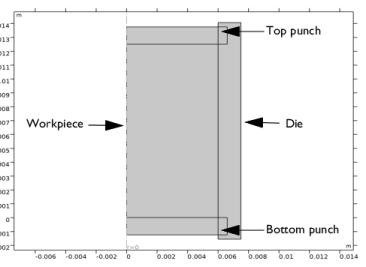
The geometry of the workpiece (pharmaceutical powder), punches, and die are shown in Figure 1. The actual compaction process needs two punches: a fixed bottom punch and a moving top punch. Because the bottom punch and die are fixed and rigid, they are not explicitly modeled. The top punch is modeled with a moving rigid material. Due to axial symmetry, the size of the model can be reduced.
Figure 1: Geometry of the workpiece (pharmaceutical powder), punches, and die.
Material Properties
A series of experiments were performed in Ref. 1 for several specimens compacted to different final densities to calibrate elastic and plastic material properties of the MCC powder. During the compaction process, the powder density changes, affecting the material properties. Therefore, many material properties are expressed in terms of the relative density of the powder.
Young’s modulus and Poisson’s ratio are given as functions of the relative density in Ref. 1. But since the variation of Poisson’s ratio with respect to changes in relative density is small, a constant Poisson’s ratio of 0.16 is used instead.
It is clear that the hardening law given in Ref. 1 and the exponential law used in COMSOL Multiphysics are different. The parameters pc0, Kc, and εpvol,max are therefore chosen so to match the results given in Ref. 1. The initial location of the cap, pc0, is set to zero since loose powder undergoes negligible initial elastic loading.
The size of the die is the same as given in Ref. 1, which is 12.5 mm in height and 12 mm in diameter. The true density of the powder is taken as 1590 kg/m3 (Ref. 1), while the loose bulk density is taken as 360 kg/m3 in order to get a similar hardening and final relative density range as given in Ref. 1. These values give an initial relative density of 0.2264.
Boundary Conditions
The applied boundary conditions are:
The penalty contact method with Coulomb friction (coefficient of friction equal to 0.1) is used to model the contact interaction between the powder and the die, as well as between the powder and punches.
Results
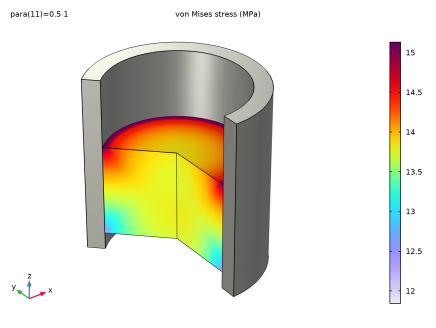
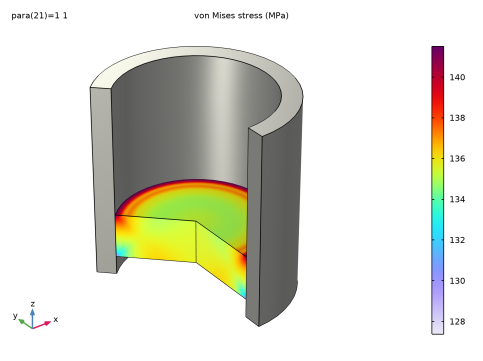
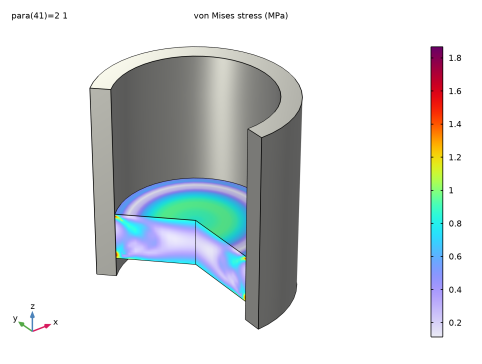
Figure 2 to Figure 4 shows the von Mises stress at the middle of the compaction process, at the end of the compaction process, and after decompression. The stress is at its maximum on the top periphery, and at its minimum on the bottom periphery for all stages of compaction. The higher and lower stress rings are visible at the top and bottom surfaces of the compacted mold, which is consistent with the experimental observations; see Ref. 1. The stress relaxes once the top punch is moved upward from the mold during decompression.
Figure 2: Distribution of von Mises stress at the middle of the compaction process.
Figure 3: Distribution of von Mises stress at the end of the compaction process.
Figure 4: Distribution of von Mises stress after decompression.
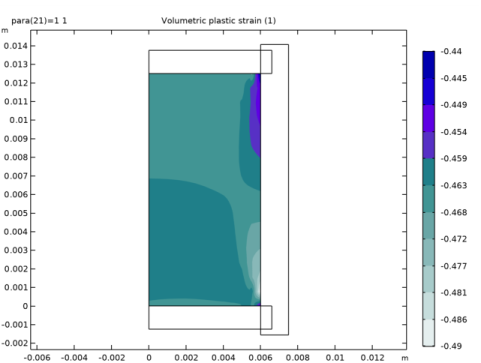
Figure 5 shows the volumetric plastic strain at the end of compaction for the pharmaceutical powder mold. There is a large variation in volumetric plastic strain from the bottom face to the top face, with the maximum plastic strain occurring in the top region.
Figure 5: Volumetric plastic strain at the end of the compaction process.
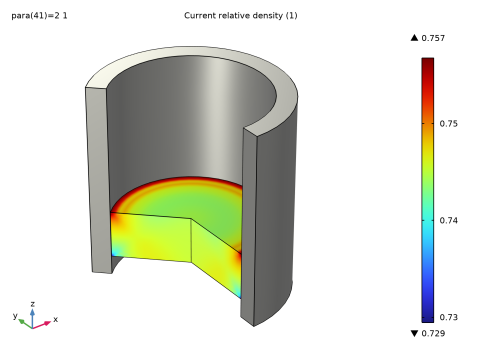
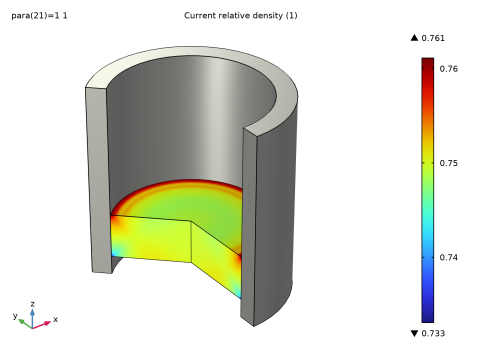
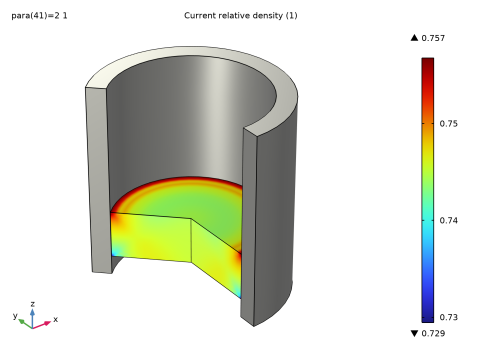
The relative density distribution at different stages of compaction processes is shown in Figure 6 to Figure 8. During all stages of compaction, the high-density zone is formed at the top periphery while a low-density zone is formed at the bottom periphery. Due to friction, a nonuniform density is observed at the powder mold, which is consistent with the experimental observations reported in Ref. 1. The decompression stage has negligible impact on the relative density, unlike the stress plot, as relative density is dependent on plastic deformation which is irreversible.
Figure 6: Relative density at the middle of the compaction process.
Figure 7: Relative density at the end of the compaction process.
Figure 8: Relative density at different after decompression.
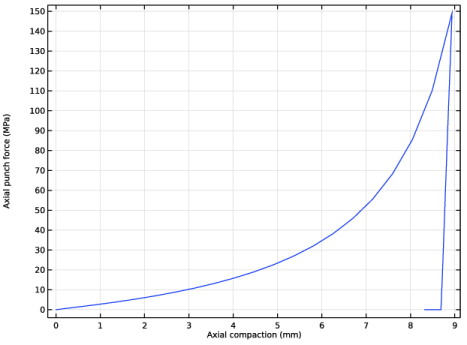
Figure 9 shows the punch pressure versus axial compaction in the compaction and decompression process. The yielding starts occurring at the beginning of the compaction process. The curve matches the numerical and experimental results presented in the Ref. 1.
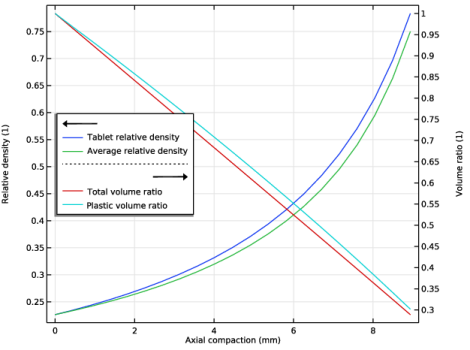
The relative density and average relative density during the compaction process are shown in Figure 10. The difference between them can be better explained by the volume ratios presented in the same plot. The average relative density of the powder is related to the plastic volume ratio, while the tablet’s relative density is related to the total volume ratio. The elastic deformation is small during the compaction process.
Figure 9: Axial punch pressure versus axial compaction.
Figure 10: Relative density and volume ratio during axial compaction.
Notes About the COMSOL Implementation
In the compaction process, the interaction between the workpiece and the die as well as the workpiece and the punches is modeled using a contact node. The die and bottom punch are assumed to be rigid due to their high stiffness compared to the powder mold. As the bottom punch and die are rigid and fixed, they do not need to be modeled explicitly. In the contact node, the workpiece is taken as the destination boundary.
Reference
1. A. Baroutaji, S. Lenihan, and K. Bryan, “Combination of finite element method and Drucker-Prager Cap material model for simulation of pharmaceutical tableting process,” Material Science and Engineering Technology, vol. 48, no. 11, 2017.
Application Library path: Nonlinear_Structural_Materials_Module/Porous_Plasticity/pharmaceutical_tableting_process
Modeling Instructions
From the File menu, choose New.
New
In the New window, click  Model Wizard.
Model Wizard
1
In the Model Wizard window, click  2D Axisymmetric.
2
In the Select Physics tree, select Structural Mechanics > Solid Mechanics (solid).
3
Click Add.
4
Click  Study.
5
In the Select Study tree, select General Studies > Stationary.
6
Geometry 1
Model parameters are available in text file.
Global Definitions
Parameters 1
1
In the Model Builder window, under Global Definitions click Parameters 1.
2
In the Settings window for Parameters, locate the Parameters section.
3
Click  Load from File.
4
Young’s Modulus
1
In the Home toolbar, click  Functions and choose Global > Analytic.
2
In the Settings window for Analytic, type Young's Modulus in the Label text field.
3
In the Function name text field, type EE.
4
Locate the Definition section. In the Expression text field, type 111.96*exp(4.395*x).
5
Locate the Units section. In the table, enter the following settings:
6
In the Function text field, type MPa.
7
Locate the Plot Parameters section. In the table, enter the following settings:
Yield Stress
1
In the Home toolbar, click  Functions and choose Global > Analytic.
2
In the Settings window for Analytic, type Yield Stress in the Label text field.
3
In the Function name text field, type sigmay.
4
Locate the Definition section. In the Expression text field, type 0.2955*exp(4.5642*x).
5
Locate the Units section. In the table, enter the following settings:
6
In the Function text field, type MPa.
7
Locate the Plot Parameters section. In the table, enter the following settings:
Yield Function Parameter
1
In the Home toolbar, click  Functions and choose Global > Analytic.
2
In the Settings window for Analytic, type Yield Function Parameter in the Label text field.
3
In the Function name text field, type a1.
4
Locate the Definition section. In the Expression text field, type tan((12.628*x+56.194)[deg]).
5
Locate the Units section. In the table, enter the following settings:
6
In the Function text field, type 1.
7
Locate the Plot Parameters section. In the table, enter the following settings:
Geometry 1
Rectangle 1 (r1)
1
In the Geometry toolbar, click  Rectangle.
2
In the Settings window for Rectangle, locate the Size and Shape section.
3
In the Width text field, type R0.
4
In the Height text field, type H0.
Rectangle 2 (r2)
1
Right-click Rectangle 1 (r1) and choose Duplicate.
2
In the Settings window for Rectangle, locate the Size and Shape section.
3
In the Width text field, type R0*1.1.
4
In the Height text field, type H0/10.
5
Locate the Position section. In the z text field, type H0.
Rectangle 3 (r3)
1
Right-click Rectangle 2 (r2) and choose Duplicate.
2
In the Settings window for Rectangle, locate the Position section.
3
In the z text field, type -H0/10.
Rectangle 4 (r4)
1
Right-click Rectangle 3 (r3) and choose Duplicate.
2
In the Settings window for Rectangle, locate the Size and Shape section.
3
In the Width text field, type R0/4.
4
In the Height text field, type H0*1.25.
5
Locate the Position section. In the r text field, type R0.
6
In the z text field, type -H0/8.
7
Click  Build All Objects.
Form Union (fin)
1
In the Model Builder window, under Component 1 (comp1) > Geometry 1 click Form Union (fin).
2
In the Settings window for Form Union/Assembly, locate the Form Union/Assembly section.
3
From the Action list, choose Form an assembly.
4
From the Pair type list, choose Contact pair.
5
In the Geometry toolbar, click  Build All.
Add a nonlocal integration coupling operator to compute the axial force and pressure.
Definitions
Integration 1 (intop1)
1
In the Definitions toolbar, click  Nonlocal Couplings and choose Integration.
2
In the Settings window for Integration, locate the Source Selection section.
3
From the Geometric entity level list, choose Boundary.
4
Integration 2 (intop2)
1
Right-click Integration 1 (intop1) and choose Duplicate.
Add a nonlocal integration coupling operator to compute the axial compaction.
2
In the Settings window for Integration, locate the Source Selection section.
3
Click  Clear Selection.
4
5
Locate the Advanced section. Clear the Compute integral in revolved geometry checkbox.
Variables 1
1
In the Model Builder window, right-click Definitions and choose Variables.
2
In the Settings window for Variables, locate the Variables section.
3
Piecewise 1 (pw1)
1
In the Definitions toolbar, click  Piecewise.
2
In the Settings window for Piecewise, type punchDisp in the Function name text field.
3
Locate the Definition section. Find the Intervals subsection. In the table, enter the following settings:
4
Locate the Units section. In the Arguments text field, type 1.
5
In the Function text field, type m.
The die is considered as rigid and fixed, hence there is no to include them in the physics, only a mesh is required.
Solid Mechanics (solid)
1
In the Model Builder window, under Component 1 (comp1) click Solid Mechanics (solid).
2
In the Settings window for Solid Mechanics, locate the Domain Selection section.
3
Click  Clear Selection.
4
Linear Elastic Material 1
In the Model Builder window, under Component 1 (comp1) > Solid Mechanics (solid) click Linear Elastic Material 1.
Porous Plasticity 1
1
In the Physics toolbar, click  Attributes and choose Porous Plasticity.
2
In the Settings window for Porous Plasticity, locate the Porous Plasticity Model section.
3
From the Material model list, choose Capped Drucker–Prager.
4
Locate the Cap Model section. From the Hardening model list, choose Exponential.
Contact 1
In the Model Builder window, under Component 1 (comp1) > Solid Mechanics (solid) click Contact 1.
Friction 1
1
In the Physics toolbar, click  Attributes and choose Friction.
2
In the Settings window for Friction, locate the Friction Parameters section.
3
In the μ text field, type 0.1.
Rigid Material 1
1
In the Physics toolbar, click  Domains and choose Rigid Material.
2
3
In the Settings window for Rigid Material, locate the Density section.
4
From the ρ list, choose User defined.
Prescribed Displacement/Rotation 1
1
In the Physics toolbar, click  Attributes and choose Prescribed Displacement/Rotation.
2
In the Settings window for Prescribed Displacement/Rotation, locate the Prescribed Displacement section.
3
In the w0 text field, type -punchDisp(para).
Gravity 1
In the Physics toolbar, click  Global and choose Gravity.
Materials
Microcrystalline Cellulose (MCC)
1
In the Model Builder window, under Component 1 (comp1) right-click Materials and choose Blank Material.
2
In the Settings window for Material, type Microcrystalline Cellulose (MCC) in the Label text field.
3
4
Locate the Material Contents section. In the table, enter the following settings:
Mesh 1
Mapped 1
In the Mesh toolbar, click  Mapped.
Distribution 1
1
Right-click Mapped 1 and choose Distribution.
2
3
In the Settings window for Distribution, locate the Distribution section.
4
In the Number of elements text field, type 1.
Distribution 2
1
In the Model Builder window, right-click Mapped 1 and choose Distribution.
2
3
In the Settings window for Distribution, locate the Distribution section.
4
In the Number of elements text field, type 12.
Distribution 3
1
Right-click Mapped 1 and choose Distribution.
2
3
In the Settings window for Distribution, locate the Distribution section.
4
In the Number of elements text field, type 16.
5
In the Model Builder window, right-click Mesh 1 and choose Build All.
Study 1
Step 1: Stationary
1
In the Model Builder window, under Study 1 click Step 1: Stationary.
2
In the Settings window for Stationary, click to expand the Study Extensions section.
3
Select the Auxiliary sweep checkbox.
4
5
Use customized solver settings in order to get the faster convergence.
Solution 1 (sol1)
1
In the Study toolbar, click  Show Default Solver.
2
In the Model Builder window, expand the Solution 1 (sol1) node.
3
In the Model Builder window, expand the Study 1 > Solver Configurations > Solution 1 (sol1) > Stationary Solver 1 node, then click Parametric 1.
4
In the Settings window for Parametric, click to expand the Continuation section.
5
Select the Tuning of step size checkbox.
6
In the Initial step size text field, type 1E-5.
7
In the Minimum step size text field, type 1E-5.
8
From the Predictor list, choose Automatic.
9
In the Model Builder window, under Study 1 > Solver Configurations > Solution 1 (sol1) > Stationary Solver 1 click Fully Coupled 1.
10
In the Settings window for Fully Coupled, click to expand the Method and Termination section.
11
From the Nonlinear method list, choose Constant (Newton).
12
In the Maximum number of iterations text field, type 8.
13
In the Tolerance factor text field, type 0.1.
14
In the Study toolbar, click  Compute.
Set default units for result presentation.
Results
Preferred Units 1
1
In the Results toolbar, click  Configurations and choose Preferred Units.
2
In the Settings window for Preferred Units, locate the Units section.
3
Click  Add Physical Quantity.
4
In the Physical Quantity dialog, select Solid Mechanics > Stress tensor (N/m^2) in the tree.
5
6
In the Settings window for Preferred Units, locate the Units section.
7
8
Select the Apply conversions to expressions with the same dimensions checkbox.
9
Click  Apply.
First modify the revolution dataset to not include the punches.
Revolution 2D
In the Model Builder window, expand the Results > Datasets node, then click Revolution 2D.
Selection
1
In the Results toolbar, click  Attributes and choose Selection.
2
In the Settings window for Selection, locate the Geometric Entity Selection section.
3
From the Geometric entity level list, choose Domain.
4
Surface 2
1
In the Model Builder window, right-click Stress, 3D (solid) and choose Surface.
2
In the Settings window for Surface, locate the Expression section.
3
In the Expression text field, type 1.
4
Click to expand the Title section. From the Title type list, choose None.
Material Appearance 1
1
Right-click Surface 2 and choose Material Appearance.
2
In the Settings window for Material Appearance, locate the Appearance section.
3
From the Appearance list, choose Custom.
4
From the Material type list, choose Steel.
Selection 1
1
In the Model Builder window, right-click Surface 2 and choose Selection.
2
Stress, 3D (solid)
Create a plot to show the relative density.
Relative Density
1
In the Model Builder window, right-click Stress, 3D (solid) and choose Duplicate.
2
In the Settings window for 3D Plot Group, type Relative Density in the Label text field.
3
Locate the Color Legend section. Select the Show maximum and minimum values checkbox.
Surface 1
1
In the Model Builder window, expand the Relative Density node, then click Surface 1.
2
In the Settings window for Surface, click Replace Expression in the upper-right corner of the Expression section. From the menu, choose Component 1 (comp1) > Solid Mechanics > Porous plasticity > solid.rhorelGp - Current relative density - 1.
3
Locate the Coloring and Style section. From the Color table list, choose Rainbow.
Result Templates
1
In the Results toolbar, click  Result Templates to open the Result Templates window.
2
Go to the Result Templates window.
3
In the tree, select Study 1/Solution 1 (sol1) > Solid Mechanics > Volumetric Plastic Strain (solid).
4
Click the Add Result Template button in the window toolbar.
5
In the Results toolbar, click  Result Templates to close the Result Templates window.
Results
Volumetric Plastic Strain (solid)
1
In the Settings window for 2D Plot Group, locate the Data section.
2
From the Parameter value (para (1)) list, choose 1.
3
Click to expand the Number Format section. Select the Manual color legend settings checkbox.
4
In the Precision text field, type 4.
5
In the Volumetric Plastic Strain (solid) toolbar, click  Plot.
Create a 1D plot of punch pressure for the tableting processes.
Axial Punch Pressure vs. Axial Compaction
1
In the Results toolbar, click  1D Plot Group.
2
In the Settings window for 1D Plot Group, type Axial Punch Pressure vs. Axial Compaction in the Label text field.
3
Click to expand the Title section. From the Title type list, choose None.
4
Locate the Plot Settings section.
5
Select the x-axis label checkbox. In the associated text field, type Axial compaction (mm).
6
Select the y-axis label checkbox. In the associated text field, type Axial punch force (MPa).
Global 1
1
Right-click Axial Punch Pressure vs. Axial Compaction and choose Global.
2
In the Settings window for Global, locate the y-Axis Data section.
3
4
Locate the x-Axis Data section. From the Parameter list, choose Expression.
5
In the Expression text field, type punchDisp(para).
6
From the Unit list, choose mm.
7
Click to expand the Legends section. Clear the Show legends checkbox.
8
In the Axial Punch Pressure vs. Axial Compaction toolbar, click  Plot.
Create a 1D plot of relative density and volume ratio.
Average 1
In the Results toolbar, click  More Datasets and choose Evaluation > Average.
Selection
1
In the Results toolbar, click  Attributes and choose Selection.
2
In the Settings window for Selection, locate the Geometric Entity Selection section.
3
From the Geometric entity level list, choose Domain.
4
Relative Density and Volume Ratio
1
In the Results toolbar, click  1D Plot Group.
2
In the Settings window for 1D Plot Group, type Relative Density and Volume Ratio in the Label text field.
3
Locate the Data section. From the Parameter selection (para) list, choose Manual.
4
In the Parameter indices (1-41) text field, type range(1,1,21).
5
Locate the Title section. From the Title type list, choose None.
6
Locate the Plot Settings section.
7
Select the x-axis label checkbox. In the associated text field, type Axial compaction (mm).
8
Select the y-axis label checkbox. In the associated text field, type Relative density (1).
9
Select the Two y-axes checkbox.
10
Select the Secondary y-axis label checkbox. In the associated text field, type Volume ratio (1).
Global 1
1
Right-click Relative Density and Volume Ratio and choose Global.
2
In the Settings window for Global, locate the y-Axis Data section.
3
4
Locate the x-Axis Data section. From the Parameter list, choose Expression.
5
In the Expression text field, type punchDisp(para).
6
From the Unit list, choose mm.
7
Locate the Legends section. Find the Include subsection. Clear the Solution checkbox.
Global 2
1
Right-click Global 1 and choose Duplicate.
2
In the Settings window for Global, locate the Data section.
3
From the Dataset list, choose Average 1.
4
From the Parameter selection (para) list, choose Manual.
5
In the Parameter indices (1-41) text field, type range(1,1,21).
6
Locate the y-Axis Data section. In the table, enter the following settings:
Global 3
1
Right-click Global 2 and choose Duplicate.
2
In the Settings window for Global, locate the y-Axis Data section.
3
Relative Density and Volume Ratio
1
In the Model Builder window, click Relative Density and Volume Ratio.
2
In the Settings window for 1D Plot Group, locate the Plot Settings section.
3
In the table, select the Plot on secondary y-axis checkbox for Global 3.
4
Locate the Legend section. From the Position list, choose Middle left.
5
In the Relative Density and Volume Ratio toolbar, click  Plot.