PDF

Needle Penetration
Introduction
Modeling needle penetration into soft materials such as gelatin involves several mechanical challenges, including large deformations, high friction, contact forces, and material failure. In this example, the insertion process into tissue-like material is simulated using a cohesive zone model to represent fracture behavior. The setup is inspired by the study presented in Ref. 1.
Model Definition
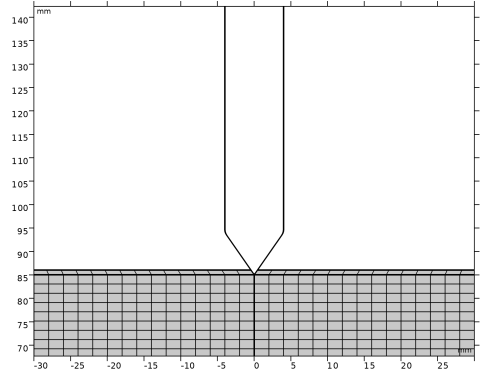
A fully resolved 3D model of crack propagation would require excessive computational resources. Therefore, a plane-strain approximation is used in this example. In this approach, the needle (see Figure 1) is represented by a rigid body represented by a moving boundary mesh, prescribed to penetrate a gelatin block at a constant velocity of 10 mm/s.
Figure 1: Model with a cohesive zone formulation along the center line of the gelatin block.
To further simplify the analysis, the crack path is predefined along the centerline. Fracture behavior along this path is modeled using a displacement-based linear traction–separation law. The gelatin is described as a Neo-Hookean hyperelastic material with a high Poisson’s ratio to approximate incompressibility. The material properties used in the simulation are summarized in the following table.
Gc
σ
υ
The sides of the gelatin block are fixed, while the bottom boundary is subject to a roller constraint. Two contact pairs are defined, one between the needle and the gelatin, and another along the predefined crack path in the gelatin block.
Results and Discussion
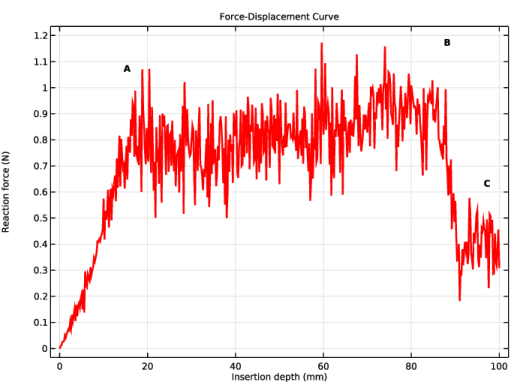
Figure 2 shows the reaction force as a function of needle insertion depth. The noisy curve arises from the undamped dynamic response and the stick–slip behavior between the needle and the gelatin.
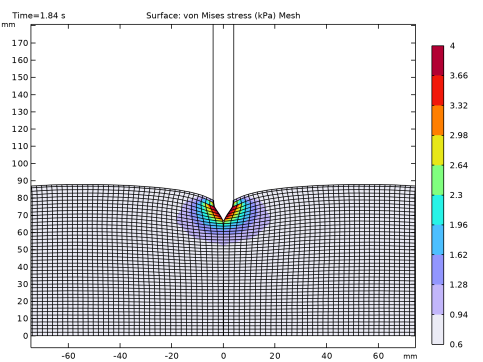
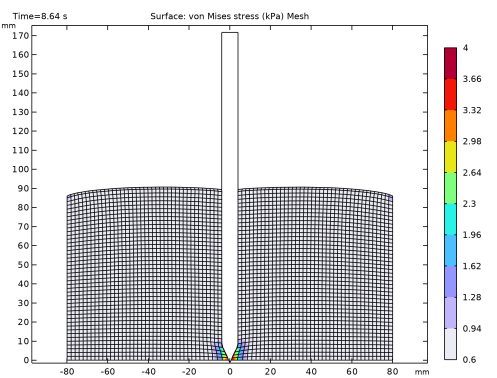
Before puncture (i.e., prior to point A in Figure 2 and illustrated in Figure 3), the external work is stored as strain energy until the onset of crack propagation, at which point a slight relaxation occurs due to damage softening.
Figure 2: Reaction force versus insertion depth. Crack propagation begins at point A. At point B, deeper penetration increases the contact surface, raising frictional forces. At point C, the needle tip emerges from the bottom, and the reaction force reaches equilibrium.
Figure 3: von Mises stress right before the needle tip penetrates the gelatin block.
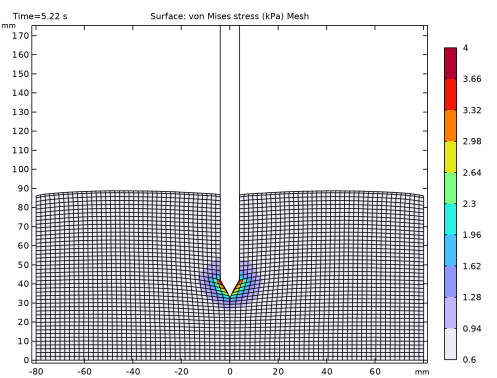
Between point A and point B, the external work is balanced between further crack propagation, deformation of the material to open the crack, and overcoming friction. As the contact area between the needle and the gelatin increases, the reaction force gradually increases, see Figure 4.
Figure 4: During crack propagation.
Around point C, when the needle tip exits the bottom surface (Figure 5), no further crack opening nor damage occurs, leading to a drop in force. The reaction force stabilizes at a steady-state value dominated by frictional sliding.
Figure 5: Needle tip starts to emerge from the bottom of the gelatin block.
Reference
1. M. Oldfield, D. Dini, G. Giordano, and F. Rodriguez y Baena, “Detailed finite element modelling of deep needle insertions into a soft tissue phantom using a cohesive approach,” Comput. Methods Biomech. Biomed. Eng., vol. 16, pp. 530–543, 2013; dx.doi.org/10.1080/10255842.2011.628448.
Application Library path: Nonlinear_Structural_Materials_Module/Hyperelasticity/needle_penetration
Modeling Instructions
From the File menu, choose New.
New
In the New window, click  Model Wizard.
Model Wizard
1
In the Model Wizard window, click  2D.
2
In the Select Physics tree, select Structural Mechanics > Explicit Dynamics > Solid Mechanics, Explicit Dynamics (solid).
3
Click Add.
4
Click  Study.
5
In the Select Study tree, select Preset Studies for Selected Physics Interfaces > Explicit Dynamics.
6
Global Definitions
Parameters 1
1
In the Model Builder window, under Global Definitions click Parameters 1.
2
In the Settings window for Parameters, locate the Parameters section.
3
Click  Load from File.
4
Geometry 1
1
In the Model Builder window, under Component 1 (comp1) click Geometry 1.
2
In the Settings window for Geometry, locate the Units section.
3
From the Length unit list, choose mm.
Rectangle 1 (r1)
1
In the Geometry toolbar, click  Rectangle.
2
In the Settings window for Rectangle, locate the Size and Shape section.
3
In the Width text field, type W.
4
In the Height text field, type H.
5
Click to expand the Layers section. In the table, enter the following settings:
6
Select the Layers on top checkbox.
7
Clear the Layers on bottom checkbox.
Polygon 1 (pol1)
1
In the Geometry toolbar, click  Polygon.
2
In the Settings window for Polygon, locate the Coordinates section.
3
4
Click  Build Selected.
Difference 1 (dif1)
1
In the Geometry toolbar, click  Booleans and Partitions and choose Difference.
2
3
In the Settings window for Difference, locate the Difference section.
4
Click to select the  Activate Selection toggle button for Objects to subtract.
5
6
Select the Keep objects to subtract checkbox.
7
Click  Build Selected.
Mirror 1 (mir1)
1
In the Geometry toolbar, click  Transforms and choose Mirror.
2
Click in the Graphics window and then press Ctrl+A to select both objects.
3
In the Settings window for Mirror, locate the Input section.
4
Select the Keep input objects checkbox.
5
Click  Build Selected.
Union 1 (uni1)
1
In the Geometry toolbar, click  Booleans and Partitions and choose Union.
2
Select the objects mir1(2) and pol1 only.
3
In the Settings window for Union, locate the Union section.
4
Clear the Keep interior boundaries checkbox.
5
Click  Build Selected.
Fillet 1 (fil1)
1
In the Geometry toolbar, click  Fillet.
2
On the object uni1, select Point 3 only.
3
In the Settings window for Fillet, locate the Radius section.
4
In the Radius text field, type 0.1.
5
Click  Build Selected.
Fillet 2 (fil2)
1
In the Geometry toolbar, click  Fillet.
2
On the object fil1, select Points 1 and 6 only.
3
In the Settings window for Fillet, locate the Radius section.
4
In the Radius text field, type 3.
5
Click  Build Selected.
Convert to Curve 1 (ccur1)
1
In the Geometry toolbar, click  Conversions and choose Convert to Curve.
2
3
In the Settings window for Convert to Curve, click  Build Selected.
Form Union (fin)
1
In the Model Builder window, under Component 1 (comp1) > Geometry 1 click Form Union (fin).
2
In the Settings window for Form Union/Assembly, locate the Form Union/Assembly section.
3
From the Action list, choose Form an assembly.
4
Clear the Create pairs checkbox.
5
Click  Build Selected.
Definitions
Define a Contact Pair for both needle and gelatin block, and an additional pair to describe the interaction between the two gelatin segments. Ensure that the needle is the source as it is a rigid body in the context of Contact.
Contact Pair 1 (p1)
1
In the Definitions toolbar, click  Pairs and choose Contact Pair.
2
3
In the Settings window for Pair, locate the Destination Boundaries section.
4
Click to select the  Activate Selection toggle button.
5
6
Locate the Advanced section. From the Mapping method list, choose Initial configuration.
Contact Pair 2 (p2)
1
In the Definitions toolbar, click  Pairs and choose Contact Pair.
2
3
In the Settings window for Pair, locate the Destination Boundaries section.
4
Click to select the  Activate Selection toggle button.
5
Materials
Gelatin
1
In the Model Builder window, under Component 1 (comp1) right-click Materials and choose Blank Material.
2
In the Settings window for Material, type Gelatin in the Label text field.
3
Locate the Geometric Entity Selection section. From the Selection list, choose Manual.
4
Locate the Material Contents section. In the table, enter the following settings:
Component 1 (comp1)
Prescribed Deformation 1
1
In the Physics toolbar, click  Moving Mesh and choose Prescribed Deformation.
2
In the Settings window for Prescribed Deformation, locate the Geometric Entity Selection section.
3
From the Geometric entity level list, choose Boundary.
4
5
Locate the Prescribed Deformation section. Specify the dx vector as
The Moving Mesh feature enables the creation of a pseudo rigid body by selecting a geometric entity such as a line and prescribing a deformation. Since it lacks a material model, this body cannot deform, but it can still participate in a Contact Pair within the physics interface.
Solid Mechanics, Explicit Dynamics (solid)
1
In the Model Builder window, under Component 1 (comp1) click Solid Mechanics, Explicit Dynamics (solid).
2
In the Settings window for Solid Mechanics, Explicit Dynamics, locate the Thickness section.
3
In the d text field, type thickness.
Hyperelastic Material 1
1
In the Physics toolbar, click  Domains and choose Hyperelastic Material.
2
In the Settings window for Hyperelastic Material, locate the Domain Selection section.
3
From the Selection list, choose All domains.
4
Locate the Quadrature Settings section. Clear the Reduced integration checkbox.
Contact - Gelatin
1
In the Model Builder window, under Component 1 (comp1) > Solid Mechanics, Explicit Dynamics (solid) click Contact 1.
2
In the Settings window for Contact, type Contact - Gelatin in the Label text field.
3
Locate the Contact Pressure Penalty Factor section. From the Penalty factor control list, choose Manual tuning.
4
In the fp text field, type 0.5.
Adhesion 1
1
In the Physics toolbar, click  Attributes and choose Adhesion.
2
In the Settings window for Adhesion, locate the Adhesive Activation section.
3
From the Activation criterion list, choose Always active.
4
Locate the Adhesive Stiffness section. From the Adhesive stiffness list, choose User defined.
5
Specify the k vector as
Contact - Gelatin
In the Model Builder window, click Contact - Gelatin.
Decohesion 1
1
In the Physics toolbar, click  Attributes and choose Decohesion.
2
In the Settings window for Decohesion, locate the Decohesion section.
3
In the σts text field, type sigma.
4
In the σss text field, type sigma.
5
In the Gct text field, type Gc.
6
In the Gcs text field, type Gc.
Contact - Needle-Gelatin
1
In the Physics toolbar, click  Pairs and choose Contact.
2
In the Settings window for Contact, type Contact - Needle-Gelatin in the Label text field.
3
Locate the Pair Selection section. Click  Add.
4
In the Add dialog, select Contact Pair 2 (p2) in the Pairs list.
5
6
In the Settings window for Contact, locate the Contact Pressure Penalty Factor section.
7
From the Penalty factor control list, choose Manual tuning.
8
In the fp text field, type 5.
Friction 1
1
In the Physics toolbar, click  Attributes and choose Friction.
2
In the Settings window for Friction, locate the Friction Parameters section.
3
In the μ text field, type mu.
4
Locate the Friction Force Penalty Factor section. From the Penalty factor control list, choose From parent.
Fixed Constraint 1
1
In the Physics toolbar, click  Boundaries and choose Fixed Constraint.
2
Roller 1
1
In the Physics toolbar, click  Boundaries and choose Roller.
2
Mesh 1
Mapped 1
In the Mesh toolbar, click  Mapped.
Size
1
In the Model Builder window, click Size.
2
In the Settings window for Size, locate the Element Size section.
3
From the Predefined list, choose Fine.
4
Click  Build Selected.
Mapped 1
1
In the Model Builder window, click Mapped 1.
2
In the Settings window for Mapped, locate the Domain Selection section.
3
From the Geometric entity level list, choose Domain.
4
Click in the Graphics window and then press Ctrl+A to select all domains.
5
Click  Build Selected.
Size 1
1
Right-click Mapped 1 and choose Size.
2
In the Settings window for Size, locate the Element Size section.
3
Click the Custom button.
4
Locate the Element Size Parameters section.
5
Select the Maximum element size checkbox. In the associated text field, type 2.
Edge 1
1
In the Mesh toolbar, click  More Generators and choose Edge.
2
3
In the Settings window for Edge, click  Build Selected.
Size 1
1
Right-click Edge 1 and choose Size.
2
In the Settings window for Size, locate the Element Size section.
3
Click the Custom button.
4
Locate the Element Size Parameters section.
5
Select the Maximum element size checkbox. In the associated text field, type 0.5.
6
Click  Build Selected.
Study 1
1
In the Model Builder window, click Study 1.
2
In the Settings window for Study, locate the Study Settings section.
3
Clear the Generate default plots checkbox.
4
In the Study toolbar, click  Get Initial Value.
Result Templates
1
In the Results toolbar, click  Result Templates to open the Result Templates window.
2
Go to the Result Templates window.
3
In the tree, select Study 1/Solution 1 (sol1) > Solid Mechanics, Explicit Dynamics > Stress (solid).
4
Click the Add Result Template button in the window toolbar.
Results
Surface 1
1
In the Model Builder window, expand the Results > Stress (solid) node, then click Surface 1.
2
In the Settings window for Surface, locate the Expression section.
3
From the Unit list, choose kPa.
4
Locate the Coloring and Style section. From the Color table type list, choose Discrete.
5
Click to expand the Range section. Select the Manual color range checkbox.
6
In the Minimum text field, type .6.
7
In the Maximum text field, type 4.
Mesh 1
1
In the Model Builder window, right-click Stress (solid) and choose Mesh.
2
In the Settings window for Mesh, locate the Coloring and Style section.
3
From the Element color list, choose None.
4
In the Study toolbar, click  Show Default Solver.
Study 1
Solution 1 (sol1)
1
In the Model Builder window, expand the Solution 1 (sol1) node.
2
In the Model Builder window, expand the Study 1 > Solver Configurations > Solution 1 (sol1) > Dependent Variables 1 node.
Step 1: Explicit Dynamics
1
In the Model Builder window, expand the Study 1 > Solver Configurations > Solution 1 (sol1) > Time-Dependent Solver 1 node, then click Study 1 > Step 1: Explicit Dynamics.
2
In the Settings window for Explicit Dynamics, locate the Study Settings section.
3
In the Output times text field, type range(0,0.02,10).
4
Click to expand the Results While Solving section. Select the Plot checkbox.
5
From the Update at list, choose Time steps taken by solver.
6
Click to expand the Explicit Dynamics Settings section.
7
Select the Time step safety factor checkbox. In the associated text field, type 1/2.
Solution 1 (sol1)
1
In the Model Builder window, under Study 1 > Solver Configurations > Solution 1 (sol1) click Dependent Variables 1.
2
In the Settings window for Dependent Variables, locate the Scaling section.
3
From the Method list, choose Manual.
4
Locate the Residual Scaling section. From the Method list, choose Manual.
5
In the Model Builder window, under Study 1 > Solver Configurations > Solution 1 (sol1) > Dependent Variables 1 click Displacement Field (comp1.u).
6
In the Settings window for Field, locate the Scaling section.
7
In the Scale text field, type 1.
8
In the Model Builder window, under Study 1 > Solver Configurations > Solution 1 (sol1) > Time-Dependent Solver 1 click Fully Coupled 1.
9
In the Settings window for Fully Coupled, click to expand the Method and Termination section.
10
From the Nonlinear method list, choose Constant (Newton).
11
Results
Force-Displacement Curve
1
In the Results toolbar, click  1D Plot Group.
2
In the Settings window for 1D Plot Group, type Force-Displacement Curve in the Label text field.
3
Click to expand the Title section. From the Title type list, choose Manual.
4
In the Title text area, type Force-Displacement Curve
5
Locate the Plot Settings section.
6
Select the x-axis label checkbox. In the associated text field, type Insertion depth (mm).
7
Select the y-axis label checkbox. In the associated text field, type Reaction force (N).
Global 1
1
Right-click Force-Displacement Curve and choose Global.
2
In the Settings window for Global, locate the y-Axis Data section.
3
4
Locate the x-Axis Data section. From the Parameter list, choose Expression.
5
In the Expression text field, type -vel*t.
6
Click to expand the Coloring and Style section. From the Color list, choose Red.
7
From the Width list, choose 2.
8
Click to expand the Legends section. Clear the Show legends checkbox.
Annotation 1
1
In the Model Builder window, right-click Force-Displacement Curve and choose Annotation.
2
In the Settings window for Annotation, locate the Annotation section.
3
In the Text text field, type \textbf{A}.
4
Select the LaTeX markup checkbox.
5
Locate the Position section. In the x text field, type 13.
6
In the y text field, type 1.1.
7
Locate the Coloring and Style section. Clear the Show point checkbox.
Annotation 2
1
Right-click Annotation 1 and choose Duplicate.
2
In the Settings window for Annotation, locate the Annotation section.
3
In the Text text field, type \textbf{B}.
4
Locate the Position section. In the x text field, type 86.
5
In the y text field, type 1.2.
Annotation 3
1
Right-click Annotation 2 and choose Duplicate.
2
In the Settings window for Annotation, locate the Annotation section.
3
In the Text text field, type \textbf{C}.
4
Locate the Position section. In the x text field, type 95.
5
In the y text field, type 0.66.
Animation 1
1
In the Results toolbar, click  Animation and choose Player.
2
Click the  Play button in the Graphics toolbar.