PDF

Combining Elastoplastic and Creep Material Models
Introduction
This example shows how to combine different types of material nonlinearity, such as creep and elastoplasticity. In this specific example, you perform a stress and nonlinear strain analysis on a thick cylinder under a nonproportional loading: an initial temperature increase followed by a fluctuating pressure applied to the internal surface of the cylinder.
This load case involves two different nonlinear material behaviors: elastoplasticity and creep. The plastic behavior is introduced during the temperature increase and the rapid change of the sign of the pressure. The creep behavior develops under the constant pressure load applied to the pipe for a sufficiently long period of time.
The original model is a NAFEMS benchmark model described in Selected Benchmarks for Material Non-Linearity (Ref. 1). The COMSOL Multiphysics solutions are compared with the reference data.
Model Definition
The physical geometry of the problem consists of a hollow cylinder with a 0.16 m inner radius and a 0.25 m outer radius. For simplicity, the study is performed on a 2D plane using an axial symmetry assumption, reducing the model geometry to a rectangle.
The benchmark setup takes the cylinder to be infinitely long so that it can be modeled using a plane strain assumption in the pipe axis plane. This assumption can easily be implemented by constraining the axial displacement in the whole geometry.
Material Properties
Isotropic material with E = 2.2·107 Pa, ν = 0.3, α = 1.85·10-5 K-1
This nonlinear hardening function σh(εpe) is defined in the Materials node by an interpolation function.
(1)
where εc is the equivalent creep strain, σ is the equivalent stress, and t is the time. In Equation 1, the stress is given in Pa and the time in seconds. To follow the benchmark example, the creep behavior starts after 2 s.
Load History
The internal pressure is ramped up from 0 to 3600 Pa during 1 s at t = 1 s and change sign within 1 s at t = 999 s as illustrated in Figure 1.
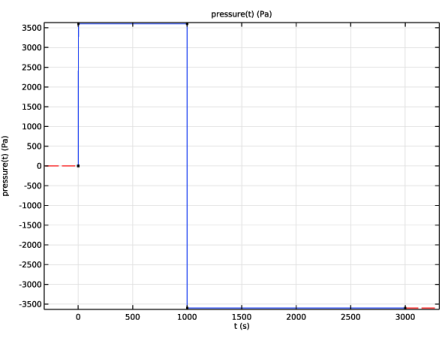
Figure 1: Internal pressure versus time. The red line is the default extrapolation of the pressure outside the defined domain.
where both time and radius, r, are given in default units.
Results and Discussion
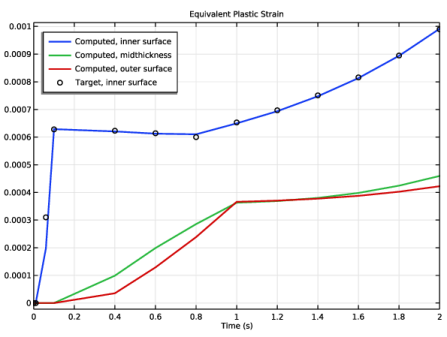
In Figure 2 you can see the increase of the equivalent plastic strain for t < 2 s.
Figure 2: History of the equivalent plastic strain when the cylinder is affected by the temperature gradient.
The dotted curve corresponds to the target data from the benchmark. You can see that the computed solution is in fairly good agreement with the targeted solution.
The initial temperature gradient creates thermal stresses in the cylinder. The stress varies through the cross section and is high enough to develop plastic strains at the inner surface. In the considered time interval, stress is significantly higher at the inner surface than in the center, and at the outer radius. After 0.1 s, the thermal load at the inner surface is removed, but it is still present in the rest of the cylinder, where the material starts to deform plastically. After 1 s, the temperature is constant in the material and, in combination with the mechanical load, the plasticity develops, but at a lower rate. After 2 s, the material relaxes and creep takes over, see Figure 3.
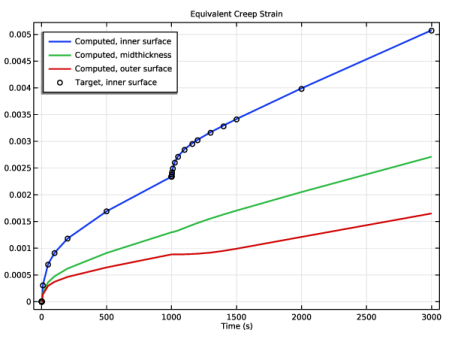
Figure 3: History of the equivalent creep strain.
The change in pressure at t = 999 s has the most significant effect on the creep strain at the inner wall.
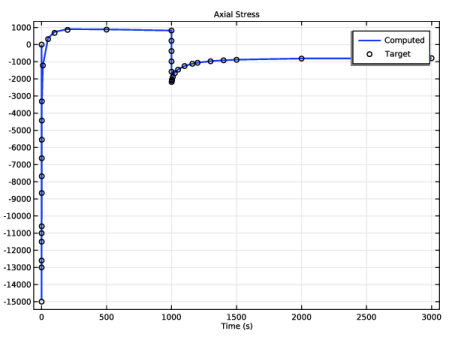
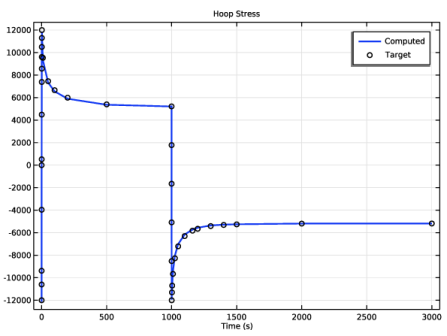
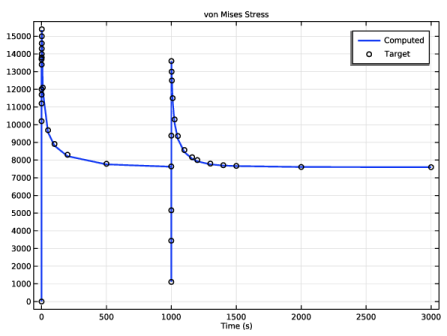
Figure 4, Figure 5, and Figure 6 show, respectively, the axial, hoop, and von Mises stress at the inner wall. The axial and hoop stresses both change direction when the inner pressure is reversed. The asymptotic behavior is caused by the creep of the material. The equivalent stress, on the other hand, cannot be negative. When the pressure is changed within 1 s, the von Mises stress first decreases, pressure decreases to zero, and then increases, the pressure decreases further to a nonzero negative pressure. The peak is caused by the creep strains, which needs instantaneous reverse due to the pressure change.
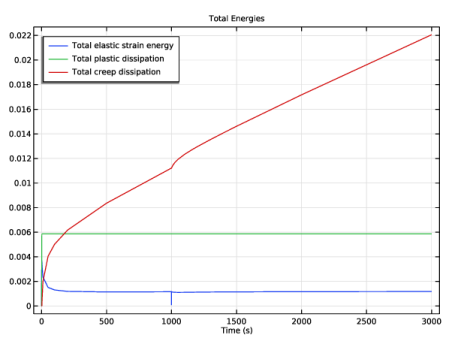
Figure 7 shows variation the total strain energy in the model, and the energy that is dissipated due to creep and plastic deformations.
Figure 4: History of axial stress at the inner surface.
Figure 5: History of hoop stress at the inner surface.
Figure 6: History of von Mises stress at the inner surface.
Figure 7: Elastic strain energy, plastic dissipation and creep dissipation.
Notes About the COMSOL Implementation
In COMSOL Multiphysics you can combine several nonlinear models for the same material. Different material models are available as subnodes to the Linear Elastic Material node. COMSOL Multiphysics adds the strain contribution of each node to the total strain.
The examined creep behavior can be modeled with the built-in Norton model combined with a time hardening model; this corresponds to a Norton–Bailey model. To normalize the equivalent stress in Pa and the time in hours, set the reference stress σr = 1 Pa and the reference time tr = 1 s. Time offset, t0, is here set to 1 ms to avoid the singularity that occurs at t = 0. To set the COMSOL model identical to the benchmark model, the creep strain is added only after t2 s. To do this multiply the creep rate coefficient, A, with the logical expression, (t > 2).
The creep equations are here integrated using the explicit Forward Euler method. This is sometimes preferable for elastoplastic creep problems due to efficiency of the internal algorithms. The time duration of the benchmark problem is also so that the time step is below the stability limit of the Forward Euler method. Note that COMSOL Multiphysics automatically limits the time step so be below this stability limit when the default solver is generated.
When computing the creep material model, the time steps taken by the solver must be small when the creep rate is high and large when the creep rate is low. Because the time step can be difficult to predict, you can let the solver control what time steps to store.
Note that the benchmark (Ref. 1) utilizes a very coarse mesh. Due to the interpolation from Gauss points, this coarse mesh results in decreasing equivalent plastic strains, as shown around 0.1 < t < 1 s in Figure 2.
Reference
1. D. Linkens, Selected Benchmarks For Material Non-Linearity, volume 2, NAFEMS, 1993.
Application Library path: Nonlinear_Structural_Materials_Module/Creep/elastoplastic_creep
Modeling Instructions
From the File menu, choose New.
New
In the New window, click  Model Wizard.
Model Wizard
1
In the Model Wizard window, click  2D Axisymmetric.
2
In the Select Physics tree, select Structural Mechanics > Solid Mechanics (solid).
3
Click Add.
4
Click  Study.
5
In the Select Study tree, select General Studies > Time Dependent.
6
Global Definitions
Parameters 1
1
In the Model Builder window, under Global Definitions click Parameters 1.
2
In the Settings window for Parameters, locate the Parameters section.
3
Definitions
Interpolation 1 (int1)
1
In the Definitions toolbar, click  Interpolation.
2
In the Settings window for Interpolation, locate the Definition section.
3
In the Function name text field, type pressure.
4
5
Locate the Units section. In the Argument table, enter the following settings:
6
In the Function table, enter the following settings:
7
Analytic 1 (an1)
1
In the Definitions toolbar, click  Analytic.
2
In the Settings window for Analytic, type T in the Function name text field.
3
Locate the Definition section. In the Expression text field, type 500*t^((r-7e-2)/9e-2)*(t<=0.1)+50*t^((r-0.16)/9e-2)*(t>0.1)*(t<=1)+50*(t>1).
4
In the Arguments text field, type t, r.
5
Locate the Units section. In the table, enter the following settings:
6
In the Function text field, type K.
Interpolation 2 (int2)
1
In the Definitions toolbar, click  Interpolation.
2
In the Settings window for Interpolation, locate the Definition section.
3
From the Data source list, choose File.
4
Click  Browse.
5
6
Click  Import.
7
Locate the Data Column Settings section. In the table, enter the following settings:
8
9
In the Name text field, type sz_target.
10
11
In the Name text field, type sphi_target.
12
13
In the Name text field, type mises_target.
14
15
In the Name text field, type epe_target.
16
17
In the Name text field, type ece_target.
Geometry 1
Rectangle 1 (r1)
1
In the Geometry toolbar, click  Rectangle.
2
In the Settings window for Rectangle, locate the Size and Shape section.
3
In the Width text field, type 9e-2.
4
In the Height text field, type 9e-3.
5
Locate the Position section. In the r text field, type 0.16.
6
Click  Build All Objects.
Solid Mechanics (solid)
1
In the Model Builder window, under Component 1 (comp1) click Solid Mechanics (solid).
2
In the Settings window for Solid Mechanics, locate the Structural Transient Behavior section.
3
Linear Elastic Material 1
In the Model Builder window, under Component 1 (comp1) > Solid Mechanics (solid) click Linear Elastic Material 1.
Thermal Expansion 1
1
In the Physics toolbar, click  Attributes and choose Thermal Expansion.
2
In the Settings window for Thermal Expansion, locate the Model Input section.
3
From the T list, choose User defined. In the associated text field, type T(t,R).
4
Click  Go to Source for Volume reference temperature.
Global Definitions
Default Model Inputs
1
In the Model Builder window, under Global Definitions click Default Model Inputs.
2
In the Settings window for Default Model Inputs, locate the Browse Model Inputs section.
3
Find the Expression for remaining selection subsection. In the Volume reference temperature text field, type 0.
Solid Mechanics (solid)
Linear Elastic Material 1
In the Model Builder window, under Component 1 (comp1) > Solid Mechanics (solid) click Linear Elastic Material 1.
Plasticity 1
1
In the Physics toolbar, click  Attributes and choose Plasticity.
2
In the Settings window for Plasticity, locate the Plasticity Model section.
3
Find the Isotropic hardening model subsection. From the list, choose Hardening function.
Linear Elastic Material 1
In the Model Builder window, click Linear Elastic Material 1.
Creep 1
In the Physics toolbar, click  Attributes and choose Creep.
In order to fulfill the benchmark requirements, the creep material model is activated only after t = 2 s.
1
In the Settings window for Creep, locate the Creep Model section.
2
From the A list, choose User defined. In the associated text field, type 1e-26/m*(t>2).
3
From the σref list, choose User defined. In the associated text field, type 1.
4
From the n list, choose User defined. In the associated text field, type 5.25.
5
Find the Isotropic hardening model subsection. From the h  (εce  ,t) list, choose Time hardening.
6
In the m text field, type m.
7
In the tshift text field, type 1e-3.
8
In the tref text field, type 1.
Use the forward Euler method when combining creep and plasticity.
9
Locate the Time Stepping section. From the Method list, choose Forward Euler.
Linear Elastic Material 1
1
Click the  Show More Options button in the Model Builder toolbar.
2
In the Show More Options dialog, in the tree, select the checkbox for the node Physics > Advanced Physics Options.
3
Enable the computation of the dissipated energy.
4
In the Model Builder window, click Linear Elastic Material 1.
5
In the Settings window for Linear Elastic Material, click to expand the Energy Dissipation section.
6
From the Store dissipation list, choose Individual contributions.
Boundary Load 1
1
In the Physics toolbar, click  Boundaries and choose Boundary Load.
2
3
In the Settings window for Boundary Load, locate the Force section.
4
Specify the fA vector as
Prescribed Displacement 1
1
In the Physics toolbar, click  Domains and choose Prescribed Displacement.
2
3
In the Settings window for Prescribed Displacement, locate the Prescribed Displacement section.
4
From the Displacement in z direction list, choose Prescribed.
Materials
Material 1 (mat1)
1
In the Model Builder window, under Component 1 (comp1) right-click Materials and choose Blank Material.
2
In the Settings window for Material, locate the Material Contents section.
3
4
In the Model Builder window, expand the Material 1 (mat1) node, then click Elastoplastic material model (ElastoplasticModel).
5
In the Settings window for Elastoplastic Material Model, locate the Model Inputs section.
6
Click  Select Quantity.
7
In the Physical Quantity dialog, type plastic strain in the text field.
8
In the tree, select Solid Mechanics > Equivalent plastic strain (1).
9
Interpolation 1 (int1)
1
In the Home toolbar, click  Functions and choose Global > Interpolation.
2
In the Settings window for Interpolation, locate the Definition section.
3
In the Function name text field, type sigma_yield.
4
5
Locate the Units section. In the Argument table, enter the following settings:
6
In the Function table, enter the following settings:
Mesh 1
Mapped 1
In the Mesh toolbar, click  Mapped.
Distribution 1
1
Right-click Mapped 1 and choose Distribution.
2
3
In the Settings window for Distribution, locate the Distribution section.
4
In the Number of elements text field, type 1.
Distribution 2
1
In the Model Builder window, right-click Mapped 1 and choose Distribution.
2
3
In the Settings window for Distribution, locate the Distribution section.
4
In the Number of elements text field, type 10.
5
Click  Build All.
Study 1
Step 1: Time Dependent
1
In the Model Builder window, under Study 1 click Step 1: Time Dependent.
2
In the Settings window for Time Dependent, locate the Study Settings section.
3
In the Output times text field, type 0 0.01 0.06 0.1 range(0.4, 0.2, 2) 10 50 100 200 500 range(999, 0.2, 1000) 1002 1004 1010 1025 1050 1100 1160 range(1200, 100, 1500) 2000 3000.
Solution 1 (sol1)
1
In the Study toolbar, click  Show Default Solver.
2
In the Model Builder window, expand the Solution 1 (sol1) node, then click Time-Dependent Solver 1.
3
In the Settings window for Time-Dependent Solver, click to expand the Time Stepping section.
Ensure that results are given at exactly the same times as in the benchmark reference.
1
From the Steps taken by solver list, choose Strict.
2
Select the Initial step checkbox. In the associated text field, type 0.01.
Setting the initial step ensures a good calculation of the creep strain at t = 0.
3
In the Study toolbar, click  Compute.
Results
Stress (solid)
Follow the steps below to obtain Figure 2.
Cut Point 2D 1
1
In the Results toolbar, click  Cut Point 2D.
2
In the Settings window for Cut Point 2D, locate the Point Data section.
3
In the R text field, type 0.16 0.205 0.25.
4
In the Z text field, type 5e-3.
Equivalent Plastic Strain
1
In the Results toolbar, click  1D Plot Group.
2
In the Settings window for 1D Plot Group, type Equivalent Plastic Strain in the Label text field.
3
Locate the Legend section. From the Position list, choose Upper left.
4
Locate the Data section. From the Dataset list, choose Cut Point 2D 1.
5
Click to expand the Title section. From the Title type list, choose Label.
Point Graph 1
1
Right-click Equivalent Plastic Strain and choose Point Graph.
2
In the Settings window for Point Graph, click Replace Expression in the upper-right corner of the y-Axis Data section. From the menu, choose Component 1 (comp1) > Solid Mechanics > Strain > solid.epeGp - Equivalent plastic strain - 1.
3
Click to expand the Coloring and Style section. From the Width list, choose 2.
4
Click to expand the Legends section. Select the Show legends checkbox.
5
From the Legends list, choose Manual.
6
Global 1
1
In the Model Builder window, right-click Equivalent Plastic Strain and choose Global.
2
In the Settings window for Global, locate the y-Axis Data section.
3
4
Click to expand the Coloring and Style section. Find the Line style subsection. From the Line list, choose None.
5
Find the Line markers subsection. From the Marker list, choose Circle.
6
From the Color list, choose From theme.
7
Click to expand the Legends section. From the Legends list, choose Manual.
8
9
In the Equivalent Plastic Strain toolbar, click  Plot.
Display development of plastic strains in the first two seconds, as in the benchmark example.
Equivalent Plastic Strain
1
In the Model Builder window, click Equivalent Plastic Strain.
2
In the Settings window for 1D Plot Group, locate the Axis section.
3
Select the Manual axis limits checkbox.
4
In the x minimum text field, type 0.
5
In the x maximum text field, type 2.
6
In the Equivalent Plastic Strain toolbar, click  Plot.
You can obtain Figure 3 by running the following instructions.
Equivalent Creep Strain
1
Right-click Equivalent Plastic Strain and choose Duplicate.
2
In the Settings window for 1D Plot Group, type Equivalent Creep Strain in the Label text field.
3
Locate the Axis section. Clear the Manual axis limits checkbox.
Point Graph 1
1
In the Model Builder window, expand the Equivalent Creep Strain node, then click Point Graph 1.
2
In the Settings window for Point Graph, click Replace Expression in the upper-right corner of the y-Axis Data section. From the menu, choose Component 1 (comp1) > Solid Mechanics > Strain > solid.eceGp - Equivalent creep strain - 1.
Global 1
1
In the Model Builder window, click Global 1.
2
In the Settings window for Global, locate the y-Axis Data section.
3
4
In the Equivalent Creep Strain toolbar, click  Plot.
To get Figure 4, follow the instruction below.
Cut Point 2D 2
1
In the Results toolbar, click  Cut Point 2D.
2
In the Settings window for Cut Point 2D, locate the Point Data section.
3
In the R text field, type 0.16.
4
In the Z text field, type 5e-3.
Axial Stress
1
In the Model Builder window, right-click Equivalent Creep Strain and choose Duplicate.
2
In the Settings window for 1D Plot Group, type Axial Stress in the Label text field.
3
Locate the Data section. From the Dataset list, choose Cut Point 2D 2.
4
Locate the Legend section. From the Position list, choose Upper right.
Point Graph 1
1
In the Model Builder window, expand the Axial Stress node, then click Point Graph 1.
2
In the Settings window for Point Graph, click Replace Expression in the upper-right corner of the y-Axis Data section. From the menu, choose Component 1 (comp1) > Solid Mechanics > Stress > Stress tensor (spatial frame) - N/m² > solid.sGpzz - Stress tensor, zz-component.
3
Locate the Legends section. In the table, enter the following settings:
Global 1
1
In the Model Builder window, click Global 1.
2
In the Settings window for Global, locate the y-Axis Data section.
3
4
Locate the Legends section. In the table, enter the following settings:
5
In the Axial Stress toolbar, click  Plot.
Follow the instructions below to get Figure 5.
Hoop Stress
1
In the Model Builder window, right-click Axial Stress and choose Duplicate.
2
In the Settings window for 1D Plot Group, type Hoop Stress in the Label text field.
Point Graph 1
1
In the Model Builder window, expand the Hoop Stress node, then click Point Graph 1.
2
In the Settings window for Point Graph, click Replace Expression in the upper-right corner of the y-Axis Data section. From the menu, choose Component 1 (comp1) > Solid Mechanics > Stress > Stress tensor (spatial frame) - N/m² > solid.sGpphiphi - Stress tensor, phiphi-component.
Global 1
1
In the Model Builder window, click Global 1.
2
In the Settings window for Global, locate the y-Axis Data section.
3
4
In the Hoop Stress toolbar, click  Plot.
Follow the instructions below to get Figure 6.
von Mises Stress
1
In the Model Builder window, right-click Hoop Stress and choose Duplicate.
2
In the Settings window for 1D Plot Group, type von Mises Stress in the Label text field.
Point Graph 1
1
In the Model Builder window, expand the von Mises Stress node, then click Point Graph 1.
2
In the Settings window for Point Graph, click Replace Expression in the upper-right corner of the y-Axis Data section. From the menu, choose Component 1 (comp1) > Solid Mechanics > Stress > solid.misesGp - von Mises stress - N/m².
Global 1
1
In the Model Builder window, click Global 1.
2
In the Settings window for Global, locate the y-Axis Data section.
3
4
In the von Mises Stress toolbar, click  Plot.
Total Energies
1
In the Results toolbar, click  1D Plot Group.
2
In the Settings window for 1D Plot Group, type Total Energies in the Label text field.
3
Locate the Title section. From the Title type list, choose Label.
Global 1
1
Right-click Total Energies and choose Global.
2
In the Settings window for Global, click Add Expression in the upper-right corner of the y-Axis Data section. From the menu, choose Component 1 (comp1) > Solid Mechanics > Global > solid.Ws_tot - Total elastic strain energy - J.
3
Click Add Expression in the upper-right corner of the y-Axis Data section. From the menu, choose Component 1 (comp1) > Solid Mechanics > Global > solid.Wp_tot - Total plastic dissipation - J.
4
Click Add Expression in the upper-right corner of the y-Axis Data section. From the menu, choose Component 1 (comp1) > Solid Mechanics > Global > solid.Wc_tot - Total creep dissipation - J.
Total Energies
1
In the Model Builder window, click Total Energies.
2
In the Settings window for 1D Plot Group, locate the Legend section.
3
From the Position list, choose Upper left.
4
In the Total Energies toolbar, click  Plot.