
PDF

Diaphragm Accumulator
Introduction
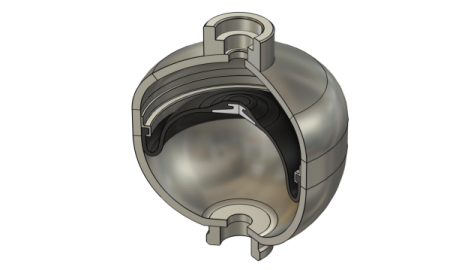
Diaphragm accumulators are pressure vessels used in hydraulic systems. A rubber diaphragm separates the hydraulic fluid from an inert, compressible gas, typically nitrogen (Figure 1). Accumulators can serve various purposes. For example, they can provide a temporary energy storage for the hydraulic fluid and compensate for pressure and volume fluctuations, thereby dampening pulsations and shocks.
Figure 1: A diaphragm accumulator consisting of a steel pressure vessel with connections for nitrogen (top) and the hydraulic fluid (bottom). The fluids are separated by a rubber membrane.
The analysis of these accumulators involves solving a fluid–structure interaction (FSI) problem, where two types of fluids exert pressure on both sides of the diaphragm and the surrounding metallic walls.
If the pressure changes in the fluids are slow enough so that momentum and energy transfer remain minimal, it is not necessary to explicitly solve for the fluid domains. Instead, pressure changes can be computed through the equation of state.
This approach eliminates the need to mesh the fluid domain, significantly simplifying the modeling of diaphragm accumulators, especially when contact problems are involved.
Model Definition
Diaphragm accumulators can be manufactured in different ways (screwed, forged, or welded). In this example, the geometry is given for a welded design, where the diaphragm is pressed into the bottom part of the shell with a clamp ring before the accumulator is welded together.
The pressure vessel has a gas connection on the top side, and a hydraulic connection on the bottom side, where the hydraulic fluid (for example, mineral oil) enters the accumulator. The rubber diaphragm mounted in the clamp ring separates the fluids. A valve seat (also poppet or button) made from a thermoset is vulcanized into the membrane. When the accumulator is precharged, the valve seat covers the fluid connection.
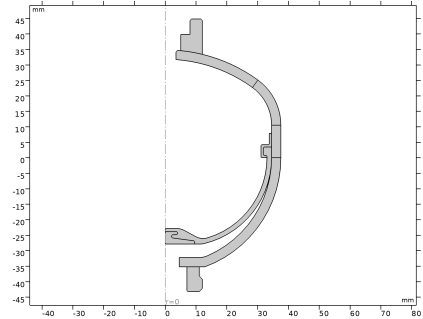
The geometry of a small accumulator is illustrated in Figure 2. Some geometric details such as welds, threads, or valves are not modeled explicitly. The geometry is assumed to be axially symmetric.
Figure 2: Diaphragm accumulator geometry.
The accumulator walls and the valve seat are modeled as linear elastic materials with material properties listed in Table 1.
The diaphragm is made from nitrile butadiene rubber (NBR). It is modeled as an incompressible Neo-Hookean hyperelastic material with Lamé parameter μ = 0.7 MPa and a density ρ = 1100 kg/m3.
Diaphragm accumulators have different operating conditions. Initially, neither the gas nor hydraulic fluid are pressurized. Before operation, nitrogen is precharged to an operating pressure, p0, which is determined by the operating requirements of the hydraulic system. Typically, the precharge pressure is set between 70% and 90% of the hydraulic fluid’s minimum operating pressure.
During operation, the hydraulic fluid flows into the accumulator when the system pressure exceeds p0. The system’s minimum and maximum operating pressures are denoted p1 and p2, respectively. All pressures, pi (i = 0, 1, 2), are relative pressures with respect to the atmospheric pressure.
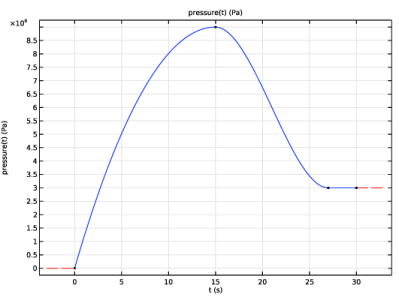
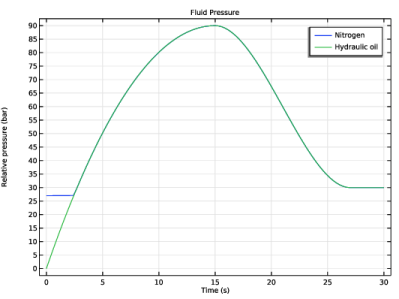
In this example, the accumulator is first precharged to a pressure equal to p0 in a stationary study. In a second time-dependent study, a temporary increase of the hydraulic pressure is considered, and the response of the diaphragm and gas cavities are analyzed. The hydraulic pressure is increased to a maximum pressure p2 and subsequently decreased to p1. The time-dependent pressure variation is shown in Figure 3.
Figure 3: Pressure variation in the hydraulic fluid.
Nitrogen is modeled as an ideal gas. As the compression and expansion of the gas take place relatively fast, adiabatic conditions are assumed; that is, heat transfer between the gas and the surrounding walls is assumed negligible. For an adiabatic process, the deformed volume of the cavity, V, is related to its initial volume, Vref, by the equation of state
Here, pref is the reference fluid pressure inside the undeformed cavity, p is the absolute pressure after deformation, and γ is the ratio of specific heats. For nitrogen γ = 1.4. Since p = pref + prel, the equation of state is equivalently written as
where prel is the relative pressure acting on all cavity walls. The volume in the reference and deformed configurations can be obtained using the divergence theorem (or Gauss’s theorem). More information on the volume computation can be found in the section Enclosed Fluids in the Structural Mechanics Theory chapter of the Structural Mechanics Module User’s Guide.
Results and Discussion
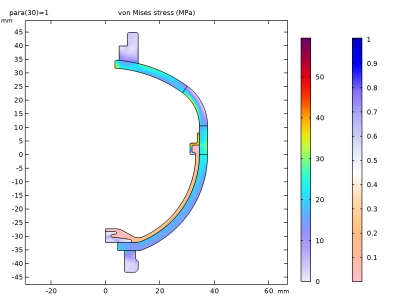
In the first study, the accumulator is precharged with nitrogen. There is no relative pressure acting on the hydraulic fluid side. Figure 4 shows the deformation of the diaphragm and the von Mises stress distribution after the precharge step.
Figure 4: von Mises stress distribution after precharging the accumulator with nitrogen gas.
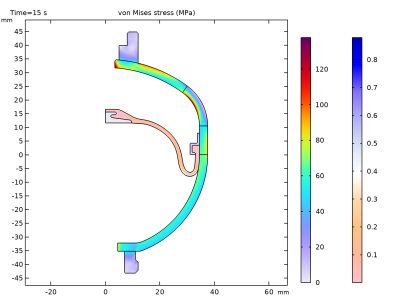
In the second study, the effect of a time-dependent pressure change in the hydraulic fluid is analyzed. The pressure in the hydraulic fluid increases to the maximum pressure, p2, and the rubber membrane deforms significantly. The diaphragm bulges into the gas cavity, thereby compressing the nitrogen. The von Mises stress at p(t = 15 s) = p2 is shown in Figure 5.
Figure 5: von Mises stress at the maximum hydraulic pressure.
Once the hydraulic pressure exceeds the precharge pressure, there is a pressure equilibrium; that is, the gas pressure and fluid pressures balance each other as shown in Figure 6.
Figure 6: Pressure variation of the nitrogen gas and hydraulic fluid.
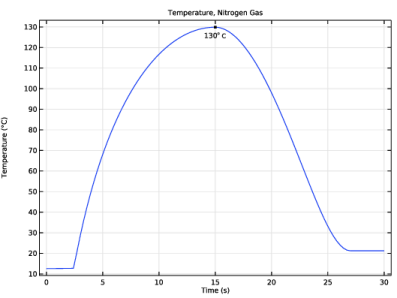
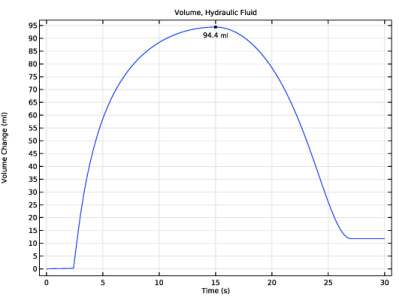
Figure 7 shows the volume of the hydraulic fluid that enters the accumulator. At a pressure p = p2, a volume of 94.4 ml has entered the accumulator. During the adiabatic compression of the nitrogen chamber, the gas temperature increases significantly as shown in Figure 8.
Figure 7: Volume of hydraulic fluid entering the accumulator.
Figure 8: Temperature change of the nitrogen gas.
Notes About the COMSOL Implementation
To account for the initial strain state due to press fitting the clamp ring, an Initial Stress and Strain node is added. Here, the circumferential strain resulting from the press fit is entered.
The cavities for the nitrogen gas and hydraulic fluid are modeled with the built-in Enclosed Cavity node in the Solid Mechanics interface.
The Enclosed Cavity feature automatically computes the volume of the undeformed and deformed configurations. The advantage of this approach is such that these domains do not need to be meshed.
The pressure load is known for the hydraulic fluid. It can be applied with an ordinary Boundary Load node. However, it is also possible to apply this load with the Prescribed Pressure subnode under Enclosed Cavity. The advantage with this approach is that the volume change is automatically tracked.
Application Library path: Nonlinear_Structural_Materials_Module/Hyperelasticity/diaphragm_accumulator
Modeling Instructions
From the File menu, choose New.
New
In the New window, click  Model Wizard.
Model Wizard
1
In the Model Wizard window, click  2D Axisymmetric.
2
In the Select Physics tree, select Structural Mechanics > Solid Mechanics (solid).
3
Click Add.
4
Click  Study.
5
In the Select Study tree, select General Studies > Stationary.
6
Geometry 1
1
In the Geometry toolbar, click Insert Sequence and choose Insert Sequence.
2
Global Definitions
Import the geometry sequence for the diaphragm accumulator.
Geometry Parameters
1
In the Model Builder window, under Global Definitions click Parameters 1.
2
In the Settings window for Parameters, type Geometry Parameters in the Label text field.
Operating Parameters
Next, add auxiliary parameters for the operating pressures.
1
In the Home toolbar, click  Parameters and choose Add > Parameters.
2
In the Settings window for Parameters, type Operating Parameters in the Label text field.
3
Locate the Parameters section. In the table, enter the following settings:
Interpolation 1 (int1)
Add an interpolation function for the prescribed hydraulic fluid pressure.
1
In the Home toolbar, click  Functions and choose Global > Interpolation.
2
In the Settings window for Interpolation, locate the Definition section.
3
In the Function name text field, type pressure.
4
5
Locate the Interpolation and Extrapolation section. From the Interpolation list, choose Piecewise cubic.
6
Locate the Units section. In the Function table, enter the following settings:
7
In the Argument table, enter the following settings:
8
Definitions
Contact Pair 1 (p1)
1
In the Definitions toolbar, click  Pairs and choose Contact Pair.
2
In the Settings window for Pair, locate the Source Boundaries section.
3
Click  Paste Selection.
4
In the Paste Selection dialog, type 13, 60, 65, 73 in the Selection text field.
5
6
In the Settings window for Pair, locate the Destination Boundaries section.
7
Click  Paste Selection.
8
In the Paste Selection dialog, type 2, 25, 40, 61, 63 in the Selection text field.
9
Solid Mechanics (solid)
Linear Elastic Material 1
As the clamp ring has been pressfitted, add an approximate initial strain.
1
In the Model Builder window, under Component 1 (comp1) > Solid Mechanics (solid) click Linear Elastic Material 1.
Initial Stress and Strain 1
1
In the Physics toolbar, click  Attributes and choose Initial Stress and Strain.
2
In the Settings window for Initial Stress and Strain, locate the Domain Selection section.
3
Click  Clear Selection.
4
5
Locate the Initial Stress and Strain section. Specify the ε0 matrix as
Contact 1
1
In the Model Builder window, under Component 1 (comp1) > Solid Mechanics (solid) click Contact 1.
2
In the Settings window for Contact, locate the Contact Pressure Penalty Factor section.
3
From the Penalty factor control list, choose Manual tuning.
4
In the fp text field, type 5.
Hyperelastic Material 1
1
In the Physics toolbar, click  Domains and choose Hyperelastic Material.
2
In the Settings window for Hyperelastic Material, locate the Domain Selection section.
3
From the Selection list, choose Diaphragm.
4
Locate the Hyperelastic Material section. From the Compressibility list, choose Incompressible.
Fixed Constraint 1
1
In the Physics toolbar, click  Boundaries and choose Fixed Constraint.
2
Enclosed Cavity, Nitrogen Gas
Add an Enclosed Fluid node to model the compressible nitrogen gas. Select the boundaries, which are enclosing the gas in order to compute the volume change, and thus compute the pressure change.
1
In the Physics toolbar, click  Boundaries and choose Enclosed Cavity.
2
In the Settings window for Enclosed Cavity, type Enclosed Cavity, Nitrogen Gas in the Label text field.
3
Locate the Boundary Selection section. Click  Paste Selection.
4
In the Paste Selection dialog, type 5, 9, 10, 16, 34-36, 40-42, 47, 52, 55, 59, 66, 67, 69, 70, 73, 75 in the Selection text field.
5
As the selected boundaries do not form a watertight volume, mark the selection as open and select a reference point. The reference point defines a virtual cut plane parallel to the R-axis. In axisymmetry, only the Z-coordinate of the chosen point is taken into account.
6
In the Settings window for Enclosed Cavity, locate the Volume Definition section.
7
From the Volume type list, choose Open surface.
8
Locate the Reference Point section. Click to select the  Activate Selection toggle button.
9
Prescribed Pressure 1
Precharging the accumulator involves two study steps. First, the known precharge pressure is applied with a Prescribed Pressure subnode. The precharge pressure and the computed volume then serve as the new reference configuration for the equation of state when the hydraulic pressure is applied.
1
In the Physics toolbar, click  Attributes and choose Prescribed Pressure.
2
In the Settings window for Prescribed Pressure, locate the Prescribed Pressure section.
3
In the p text field, type p0*para.
Fluid 1
The compression and expansion of the nitrogen gas is assumed to be adiabatic. Change the reference pressure and reference volume in order to set the new reference state for the analysis involving the hydraulic fluid.
1
In the Model Builder window, click Fluid 1.
2
In the Settings window for Fluid, locate the Fluid Properties section.
3
From the Reference pressure list, choose From prescribed pressure.
4
Click to expand the Advanced section. From the Reference volume list, choose User defined.
Enclosed Cavity, Hydraulic Fluid
1
In the Physics toolbar, click  Boundaries and choose Enclosed Cavity.
2
In the Settings window for Enclosed Cavity, type Enclosed Cavity, Hydraulic Fluid in the Label text field.
3
Locate the Volume Definition section. From the Volume type list, choose Open surface.
4
Locate the Reference Point section. Click to select the  Activate Selection toggle button.
5
6
Locate the Boundary Selection section. Click  Paste Selection.
7
In the Paste Selection dialog, type 2, 11, 13, 25, 60, 61, 63, 65 in the Selection text field.
8
Fluid 1
In the Model Builder window, right-click Fluid 1 and choose Delete.
Prescribed Pressure 1
1
In the Physics toolbar, click  Attributes and choose Prescribed Pressure.
2
In the Settings window for Prescribed Pressure, locate the Prescribed Pressure section.
3
In the p text field, type pressure(t).
Add Material
1
In the Materials toolbar, click  Add Material to open the Add Material window.
2
Go to the Add Material window.
3
In the tree, select Built-in > Structural steel.
4
Right-click and choose Add to Component 1 (comp1).
5
In the Materials toolbar, click  Add Material to close the Add Material window.
Materials
Structural steel (mat1)
1
In the Settings window for Material, locate the Geometric Entity Selection section.
2
From the Selection list, choose Steel Vessel.
Nitrile butadiene rubber (NBR)
1
In the Model Builder window, right-click Materials and choose Blank Material.
2
In the Settings window for Material, type Nitrile butadiene rubber (NBR) in the Label text field.
3
Locate the Geometric Entity Selection section. From the Selection list, choose Diaphragm.
4
Locate the Material Contents section. In the table, enter the following settings:
Thermoset
1
In the Model Builder window, expand the Component 1 (comp1) > Materials > Nitrile butadiene rubber (NBR) (mat2) node.
2
Right-click Materials and choose Blank Material.
3
In the Settings window for Material, type Thermoset in the Label text field.
4
Locate the Geometric Entity Selection section. From the Selection list, choose Diaphragm Plate.
5
Locate the Material Contents section. In the table, enter the following settings:
Mesh 1
Free Triangular 1
In the Mesh toolbar, click  Free Triangular.
Size 1
1
Right-click Free Triangular 1 and choose Size.
2
In the Settings window for Size, locate the Geometric Entity Selection section.
3
From the Geometric entity level list, choose Domain.
4
5
Locate the Element Size section. From the Predefined list, choose Extremely coarse.
Size 2
1
In the Model Builder window, right-click Free Triangular 1 and choose Size.
2
In the Settings window for Size, locate the Geometric Entity Selection section.
3
From the Geometric entity level list, choose Domain.
4
5
Locate the Element Size section. Click the Custom button.
6
Locate the Element Size Parameters section.
7
Select the Maximum element size checkbox. In the associated text field, type shell.th/2.
8
Select the Minimum element size checkbox. In the associated text field, type shell.th/2.
Size Expression 1
1
Right-click Free Triangular 1 and choose Size Expression.
2
In the Settings window for Size Expression, locate the Geometric Entity Selection section.
3
From the Geometric entity level list, choose Domain.
4
5
Locate the Element Size Expression section. In the Size expression text field, type if(R>10[mm], 0.22, 0.5)*dia.th.
Distribution 1
1
Right-click Free Triangular 1 and choose Distribution.
2
3
In the Settings window for Distribution, locate the Distribution section.
4
In the Number of elements text field, type 3.
5
Click  Build All.
Precharge
1
In the Model Builder window, click Study 1.
2
In the Settings window for Study, type Precharge in the Label text field.
Step 1: Stationary
1
In the Model Builder window, under Precharge click Step 1: Stationary.
2
In the Settings window for Stationary, locate the Physics and Variables Selection section.
3
Select the Modify model configuration for study step checkbox.
4
In the tree, select Component 1 (comp1) > Solid Mechanics (solid), Controls spatial frame > Enclosed Cavity, Nitrogen Gas > Fluid 1 and Component 1 (comp1) > Solid Mechanics (solid), Controls spatial frame > Enclosed Cavity, Hydraulic Fluid > Prescribed Pressure 1.
5
6
Click to expand the Study Extensions section. Select the Auxiliary sweep checkbox.
7
8
9
In the Study toolbar, click  Compute.
Set default units for result presentation.
Results
Preferred Units 1
1
In the Results toolbar, click  Configurations and choose Preferred Units.
2
In the Settings window for Preferred Units, locate the Units section.
3
Click  Add Physical Quantity.
4
In the Physical Quantity dialog, select Solid Mechanics > Stress tensor (N/m^2) in the tree.
5
6
In the Settings window for Preferred Units, locate the Units section.
7
8
Click  Apply.
Stress (Precharge)
1
In the Model Builder window, under Results click Stress (solid).
2
In the Settings window for 2D Plot Group, type Stress (Precharge) in the Label text field.
Surface 2
1
In the Model Builder window, expand the Stress (Precharge) node.
2
Right-click Results > Stress (Precharge) > Surface 1 and choose Duplicate.
3
In the Settings window for Surface, click to expand the Title section.
4
From the Title type list, choose None.
5
Locate the Coloring and Style section. From the Color table list, choose Twilight.
Selection 1
1
Right-click Surface 2 and choose Selection.
2
In the Settings window for Selection, locate the Selection section.
3
From the Selection list, choose Diaphragm.
4
In the Stress (Precharge) toolbar, click  Plot.
Stress, 3D (Precharge)
1
In the Model Builder window, under Results click Stress, 3D (solid).
2
In the Settings window for 3D Plot Group, type Stress, 3D (Precharge) in the Label text field.
Add Study
1
In the Home toolbar, click  Add Study to open the Add Study window.
2
Go to the Add Study window.
3
Find the Studies subsection. In the Select Study tree, select General Studies > Time Dependent.
4
5
In the Home toolbar, click  Add Study to close the Add Study window.
Hydraulic Fluid
In the Settings window for Study, type Hydraulic Fluid in the Label text field.
Step 1: Time Dependent
1
In the Model Builder window, under Hydraulic Fluid click Step 1: Time Dependent.
2
In the Settings window for Time Dependent, locate the Study Settings section.
3
In the Output times text field, type range(0,t_end/100,t_end).
4
Click to expand the Values of Dependent Variables section. Find the Initial values of variables solved for subsection. From the Settings list, choose User controlled.
5
From the Method list, choose Solution.
6
From the Study list, choose Precharge, Stationary.
7
From the Parameter value (para) list, choose Last.
Solution 2 (sol2)
1
In the Study toolbar, click  Show Default Solver.
The diaphragm deformation involves a local snap-through problem. Change to the BDF method, which handles this problem better as it introduces more numerical damping.
2
In the Model Builder window, expand the Solution 2 (sol2) node, then click Time-Dependent Solver 1.
3
In the Settings window for Time-Dependent Solver, click to expand the Time Stepping section.
4
From the Method list, choose BDF.
5
From the Steps taken by solver list, choose Strict.
6
In the Model Builder window, expand the Hydraulic Fluid > Solver Configurations > Solution 2 (sol2) > Time-Dependent Solver 1 node, then click Fully Coupled 1.
7
In the Settings window for Fully Coupled, click to expand the Method and Termination section.
8
From the Nonlinear method list, choose Constant (Newton).
9
From the Jacobian update list, choose On every iteration.
10
Results
Stress (Hydraulic Fluid)
1
In the Settings window for 2D Plot Group, type Stress (Hydraulic Fluid) in the Label text field.
2
Locate the Data section. From the Time (s) list, choose 15.
Surface 2
1
In the Model Builder window, expand the Stress (Hydraulic Fluid) node.
2
Right-click Results > Stress (Hydraulic Fluid) > Surface 1 and choose Duplicate.
3
In the Settings window for Surface, locate the Title section.
4
From the Title type list, choose None.
5
Locate the Coloring and Style section. From the Color table list, choose Twilight.
Selection 1
1
Right-click Surface 2 and choose Selection.
2
In the Settings window for Selection, locate the Selection section.
3
From the Selection list, choose Diaphragm.
4
In the Stress (Hydraulic Fluid) toolbar, click  Plot.
Stress, 3D (Hydraulic Fluid)
1
In the Model Builder window, under Results click Stress, 3D (solid).
2
In the Settings window for 3D Plot Group, type Stress, 3D (Hydraulic Fluid) in the Label text field.
Results
Fluid Pressure
Add a plot showing the pressure in the nitrogen gas and the hydraulic fluid.
1
In the Model Builder window, expand the Hydraulic Fluid > Solver Configurations > Solution 2 (sol2) > Time-Dependent Solver 1 node.
2
Right-click Results and choose 1D Plot Group.
3
In the Settings window for 1D Plot Group, type Fluid Pressure in the Label text field.
4
Click to expand the Title section. Locate the Data section. From the Dataset list, choose Hydraulic Fluid/Solution 2 (sol2).
5
Locate the Title section. From the Title type list, choose Label.
6
Locate the Plot Settings section.
7
Select the y-axis label checkbox. In the associated text field, type Relative pressure (bar).
Global 1
1
Right-click Fluid Pressure and choose Global.
2
In the Settings window for Global, locate the y-Axis Data section.
3
4
In the Fluid Pressure toolbar, click  Plot.
Volume, Hydraulic Fluid
1
In the Results toolbar, click  1D Plot Group.
2
In the Settings window for 1D Plot Group, type Volume, Hydraulic Fluid in the Label text field.
3
Locate the Data section. From the Dataset list, choose Hydraulic Fluid/Solution 2 (sol2).
4
Locate the Title section. From the Title type list, choose Label.
5
Locate the Legend section. Clear the Show legends checkbox.
Global 1
1
Right-click Volume, Hydraulic Fluid and choose Global.
2
In the Settings window for Global, locate the y-Axis Data section.
3
4
In the Volume, Hydraulic Fluid toolbar, click  Plot.
Graph Marker 1
1
Right-click Global 1 and choose Graph Marker.
2
In the Settings window for Graph Marker, locate the Display section.
3
From the Display list, choose Max.
4
Locate the Text Format section. Select the Include unit checkbox.
5
In the Precision text field, type 3.
6
Click to expand the Coloring and Style section. From the Anchor point list, choose Upper middle.
7
In the Volume, Hydraulic Fluid toolbar, click  Plot.
Temperature, Nitrogen Gas
1
In the Model Builder window, right-click Volume, Hydraulic Fluid and choose Duplicate.
2
In the Settings window for 1D Plot Group, type Temperature, Nitrogen Gas in the Label text field.
Global 1
1
In the Model Builder window, expand the Temperature, Nitrogen Gas node, then click Global 1.
2
In the Settings window for Global, locate the y-Axis Data section.
3
Click  Clear Table.
4
5
In the Temperature, Nitrogen Gas toolbar, click  Plot.
Diaphragm Accumulator, 3D
1
In the Results toolbar, click  3D Plot Group.
2
In the Settings window for 3D Plot Group, type Diaphragm Accumulator, 3D in the Label text field.
3
Locate the Data section. From the Dataset list, choose Revolution 2D 2.
4
From the Time (s) list, choose 15.
5
Click to expand the Title section. From the Title type list, choose None.
6
Locate the Plot Settings section. From the Frame list, choose Spatial  (r, phi, z).
Surface 1
1
Right-click Diaphragm Accumulator, 3D and choose Surface.
2
In the Settings window for Surface, locate the Expression section.
3
In the Expression text field, type 1.
Material Appearance 1
1
Right-click Surface 1 and choose Material Appearance.
2
In the Settings window for Material Appearance, locate the Appearance section.
3
From the Appearance list, choose Custom.
4
From the Material type list, choose Steel.
Deformation 1
1
In the Model Builder window, right-click Surface 1 and choose Deformation.
2
In the Settings window for Deformation, locate the Scale section.
3
Select the Scale factor checkbox. In the associated text field, type 1.
Selection 1
1
Right-click Surface 1 and choose Selection.
2
Surface 2
Right-click Surface 1 and choose Duplicate.
Material Appearance 1
1
In the Model Builder window, expand the Surface 2 node, then click Material Appearance 1.
2
In the Settings window for Material Appearance, locate the Appearance section.
3
From the Material type list, choose Rubber.
4
From the Color list, choose Black.
Selection 1
1
In the Model Builder window, click Selection 1.
2
In the Settings window for Selection, locate the Selection section.
3
From the Selection list, choose Diaphragm.
Surface 3
In the Model Builder window, under Results > Diaphragm Accumulator, 3D right-click Surface 2 and choose Duplicate.
Material Appearance 1
1
In the Model Builder window, expand the Surface 3 node, then click Material Appearance 1.
2
In the Settings window for Material Appearance, locate the Appearance section.
3
From the Material type list, choose Plastic.
4
From the Color list, choose Gray.
Selection 1
1
In the Model Builder window, click Selection 1.
2
In the Settings window for Selection, locate the Selection section.
3
From the Selection list, choose Diaphragm Plate.
Diaphragm Accumulator, 3D
1
Click the  Zoom Extents button in the Graphics toolbar.
2
Click the  Go to Default View button in the Graphics toolbar.
3
Click the  Show Grid button in the Graphics toolbar.
4
In the Model Builder window, under Results click Diaphragm Accumulator, 3D.
5
In the Settings window for 3D Plot Group, in the Graphics window toolbar, clicknext to  Scene Light, then choose Ambient Occlusion.
6
In the Graphics window toolbar, clicknext to  Scene Light, then choose Indoor.
7
In the Graphics window toolbar, clicknext to  Scene Light, then choose Gamma Correction.
8
Click the  Show Axis Orientation button in the Graphics toolbar.
9
In the Diaphragm Accumulator, 3D toolbar, click  Plot.