PDF

Crimping of a Cable Terminal
Introduction
Crimping is the plastic deformation process used to form an electrical and mechanical connection between a stranded conductor and a terminal. The process involves complex multi-surface contact, including self contact, as the terminal sleeve is plastically deformed around the wire strands. This example analyzes the crimping of an aviation wire terminal using an explicit dynamics simulation. The problem is inspired by Ref. 1.
Model Definition
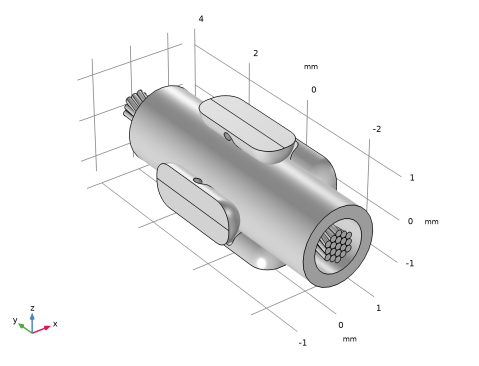
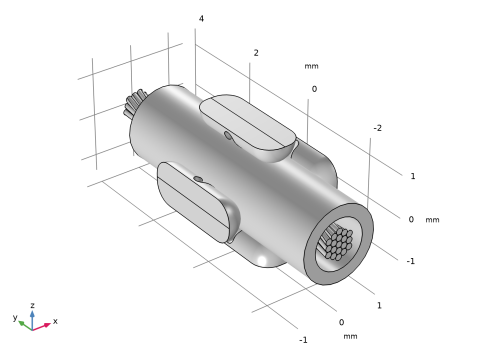
This example analyzes the formation of a crimp joint between a cylindrical terminal and a stranded conductor composed of 19 individual wire strands. The geometry is shown in Figure 1. Compaction is achieved by pressing the cylindrical sleeve against the wires using four rigid indenters. Both the terminal and the wires are modeled as elastoplastic materials with linear isotropic hardening. The material properties, summarized in Table 1, are selected to be representative of copper alloys.
Figure 1: Geometry of the undeformed crimp joint formation assembly.
Results and Discussion
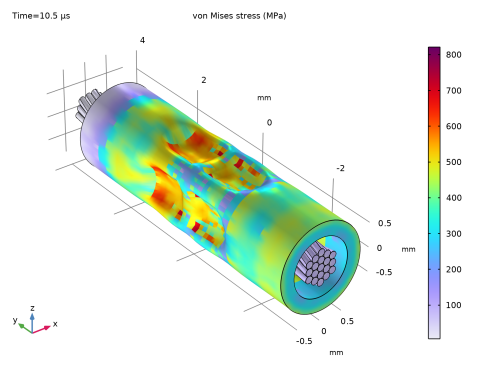
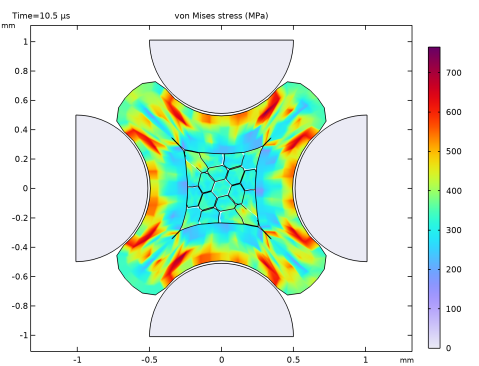
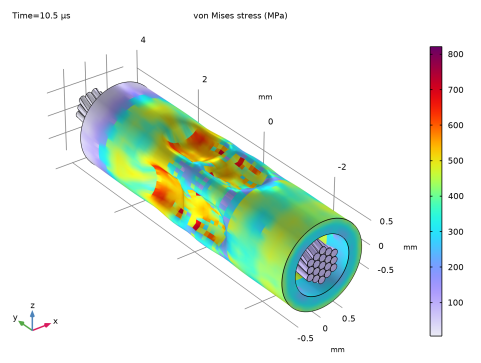
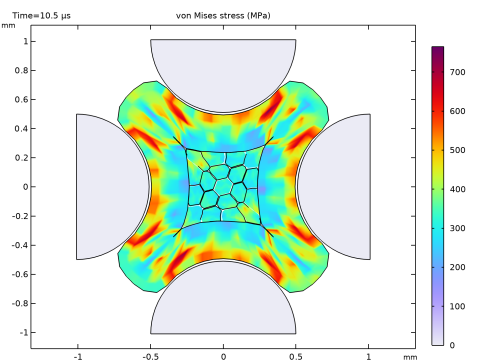
Figure 2 shows the residual von Mises stress in the deformed crimp joint after unloading. A detailed view of the stress distribution in a cross section is displayed in Figure 3. This close-up illustrates the complex contact conditions that develop between individual wires, between the terminal and the wires, and due to self-contact arising from folding at the corners of the initially cylindrical terminal sleeve.
Figure 2: von Mises stress in the assembly after completion of the crimp joint formation.
Figure 3: von Mises stress distribution in a cross section of the crimp joint.
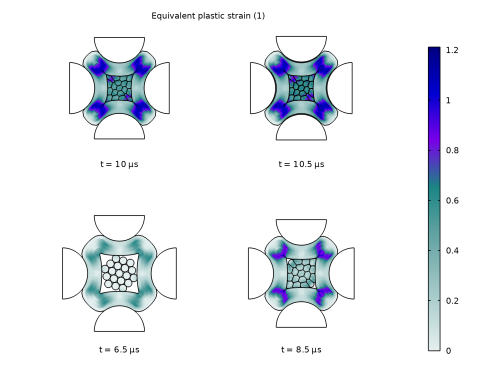
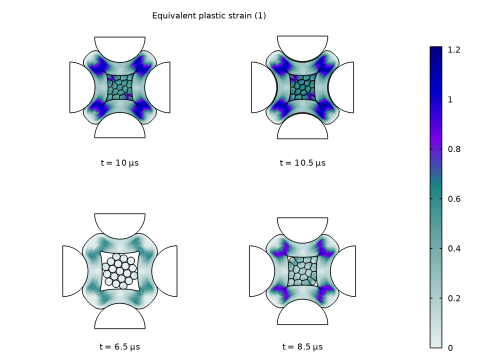
The equivalent plastic strain for the same cross section is shown in Figure 4 at several selected time points. The top-right snapshot corresponds to the cross section after unloading and indicates minimal elastic snap-back, an expected outcome given the extreme plastic deformations.
Figure 4: Necking development in the midsection.
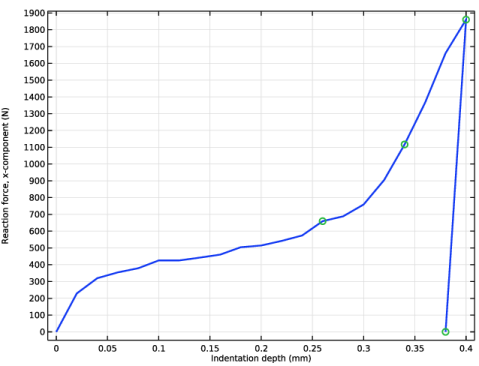
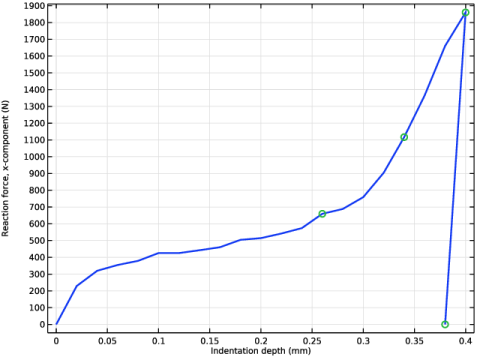
The reaction force measured on one of the indenters is plotted in Figure 5. At the end of the crimping process, a retraction of the indenter by 0.025 mm is sufficient to achieve complete detachment.
Figure 5: Reaction force measured on one of the indenters. The green circles correspond to the time points visualized in Figure 4.
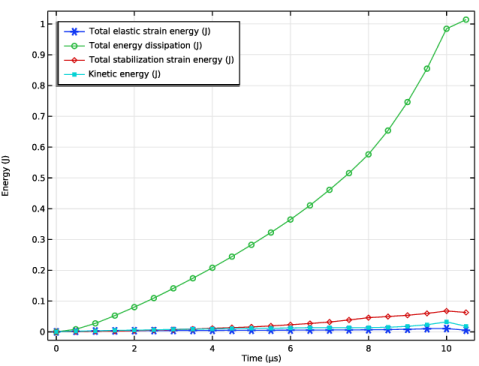
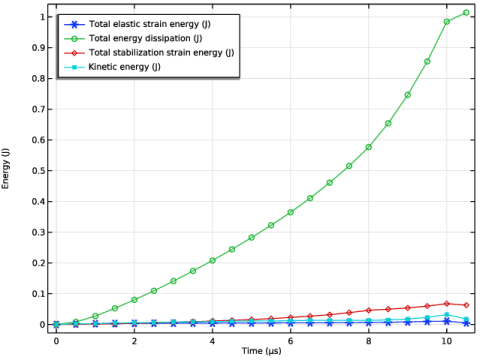
Figure 6 shows a comparison between the most important energy measures during the crimping process. For a nearly quasistatic process like crimping, it is important to verify that the inertial effects are small compared to the elastic and dissipated energy in the materials. As the previous results indicate, the dominant contribution in this case is the energy dissipation due to plastic deformation. The kinetic energy stays well below 5% of the elastic and dissipated energy, while the hourglass stabilization energy accounts for approximately 8% of that.
Figure 6: Elastic strain energy, dissipated energy, hourglass stabilization energy, and kinetic energy in the crimp joint during the formation process.
Notes About the COMSOL Implementation
Crimping represents a highly nonlinear problem that is typically slow enough to be considered as quasistatic. However, the nonlinearities introduced by large plastic deformations and contact makes such a problem challenging for implicit solvers. By increasing the indenter speed while ensuring that the inertial effects stay small, these problems can be solved more efficiently using explicit solvers.
Reference
1. P. Li, G. Liu, P. Wang, G. Huang, Z. Yu, H. Xiu, and C. Tian, “Numerical and experimental study on the relationship between pull-out force and indentation depth of aviation wire crimp terminal,” Sci. Rep., vol. 12, 21939, 2022.
Application Library path: Nonlinear_Structural_Materials_Module/Plasticity/cable_crimping
Modeling Instructions
From the File menu, choose New.
New
In the New window, click  Model Wizard.
Model Wizard
1
In the Model Wizard window, click  3D.
2
In the Select Physics tree, select Structural Mechanics > Explicit Dynamics > Solid Mechanics, Explicit Dynamics (solid).
3
Click Add.
4
Click  Study.
5
In the Select Study tree, select Preset Studies for Selected Physics Interfaces > Explicit Dynamics.
6
Global Definitions
Parameters 1
1
In the Model Builder window, under Global Definitions click Parameters 1.
2
In the Settings window for Parameters, locate the Parameters section.
3
Click the Load button. From the menu, choose Load from File.
4
Triangle 1 (tri1)
Add a Triangle function that will be used to apply the prescribed displacement.
1
In the Home toolbar, click  Functions and choose Global > Triangle.
2
In the Settings window for Triangle, locate the Parameters section.
3
In the Lower limit text field, type 0.
4
In the Upper limit text field, type 2*tend.
5
In the Amplitude text field, type disp.
6
Click to expand the Smoothing section. Clear the Size of transition zone checkbox.
Geometry 1
Import the geometry sequence from an auxiliary file. Complete instructions to create the geometry are available in the Geometry Instructions section.
1
In the Geometry toolbar, click Insert Sequence and choose Insert Sequence.
2
3
In the Geometry toolbar, click  Build All.
4
Click the  Go to Default View button in the Graphics toolbar.
5
In the Model Builder window, under Component 1 (comp1) click Geometry 1.
Definitions
Use a General Contact Pair to conveniently define multisurface contact interactions between all surfaces in the geometry.
General Contact Pair 1 (p1)
In the Definitions toolbar, click  Pairs and choose General Contact Pair.
Solid Mechanics, Explicit Dynamics (solid)
1
In the Model Builder window, under Component 1 (comp1) click Solid Mechanics, Explicit Dynamics (solid).
2
In the Settings window for Solid Mechanics, Explicit Dynamics, click to expand the Energy Dissipation section.
3
From the Store dissipation list, choose Total.
Linear Elastic Material 1
Tune the hourglass stabilization method to exclude inelastic effects, which can help alleviate problems during unloading.
1
In the Model Builder window, under Component 1 (comp1) > Solid Mechanics, Explicit Dynamics (solid) click Linear Elastic Material 1.
2
In the Settings window for Linear Elastic Material, locate the Quadrature Settings section.
3
Find the Hexahedron subsection. From the Hourglass stabilization list, choose Flanagan–Belytschko.
4
Find the Advanced settings subsection. From the Inelastic deformations list, choose Ignore.
Plasticity 1
1
In the Physics toolbar, click  Attributes and choose Plasticity.
2
In the Settings window for Plasticity, locate the Domain Selection section.
3
From the Selection list, choose Deformable Domains to model only the terminal and the wires as elastoplastic materials.
Keep the default settings to use a linear isotropic hardening model for both materials.
Contact Model 1
1
In the Model Builder window, expand the General Contact 1 node, then click Contact Model 1.
2
In the Settings window for Contact Model, locate the Contact Model section.
3
From the Penalty factor multiplier list, choose Manual tuning.
4
In the fp text field, type 0.5.
Friction 1
1
In the Physics toolbar, click  Attributes and choose Friction.
2
In the Settings window for Friction, locate the Friction Parameters section.
3
In the μ text field, type 0.2.
Fixed Constraint 1
1
In the Physics toolbar, click  Boundaries and choose Fixed Constraint.
2
Prescribed Displacement 1
Prescribe the displacement of the four indenters.
1
In the Physics toolbar, click  Domains and choose Prescribed Displacement.
2
3
In the Settings window for Prescribed Displacement, locate the Prescribed Displacement section.
4
Specify the u0 vector as
Prescribed Displacement 2
1
In the Physics toolbar, click  Domains and choose Prescribed Displacement.
2
3
In the Settings window for Prescribed Displacement, locate the Prescribed Displacement section.
4
Specify the u0 vector as
Prescribed Displacement 3
1
In the Physics toolbar, click  Domains and choose Prescribed Displacement.
2
3
In the Settings window for Prescribed Displacement, locate the Prescribed Displacement section.
4
Specify the u0 vector as
Prescribed Displacement 4
1
In the Physics toolbar, click  Domains and choose Prescribed Displacement.
2
3
In the Settings window for Prescribed Displacement, locate the Prescribed Displacement section.
4
Specify the u0 vector as
Materials
Add the required material properties for the wires, terminal, and indenters.
Wire
1
In the Model Builder window, under Component 1 (comp1) right-click Materials and choose Blank Material.
2
In the Settings window for Material, locate the Geometric Entity Selection section.
3
From the Selection list, choose Wire Domains.
4
In the Label text field, type Wire.
5
Locate the Material Contents section. In the table, enter the following settings:
Terminal
1
Right-click Materials and choose Blank Material.
2
In the Settings window for Material, type Terminal in the Label text field.
3
Locate the Geometric Entity Selection section. From the Selection list, choose Terminal Domains.
4
Locate the Material Contents section. In the table, enter the following settings:
Indenter
1
Right-click Materials and choose Blank Material.
2
In the Settings window for Material, type Indenter in the Label text field.
3
Locate the Geometric Entity Selection section. From the Selection list, choose Indenter Domains.
4
Locate the Material Contents section. In the table, enter the following settings:
Mesh 1
When using explicit time integration, care must be taken to create a mesh that avoids small, low-quality elements, which restrict the stable time step. For this reason, use Swept mesh operations to mesh the terminal and the wires with hexahedral elements. Constant strain tetrahedral elements should generally be avoided, but they can be used to mesh the indenters for which the displacement field is prescribed.
Free Quad 1
1
In the Mesh toolbar, click  More Generators and choose Free Quad.
2
Copy Face 1
1
In the Mesh toolbar, click  Copy and choose Copy Face.
2
3
In the Settings window for Copy Face, locate the Destination Boundaries section.
4
Click to select the  Activate Selection toggle button.
5
6
Size
1
In the Model Builder window, click Size.
2
In the Settings window for Size, locate the Element Size section.
3
Click the Custom button.
4
Locate the Element Size Parameters section. In the Maximum element size text field, type 0.075.
5
In the Minimum element size text field, type 0.05.
Swept 1
1
In the Mesh toolbar, click  Swept.
2
In the Settings window for Swept, locate the Domain Selection section.
3
From the Geometric entity level list, choose Domain.
4
From the Selection list, choose Wire Domains.
5
Click  Build Selected.
Mapped 1
1
In the Mesh toolbar, click  More Generators and choose Mapped.
2
Distribution 1
1
Right-click Mapped 1 and choose Distribution.
2
3
In the Settings window for Distribution, locate the Distribution section.
4
In the Number of elements text field, type 4.
Swept 2
1
In the Mesh toolbar, click  Swept.
2
In the Settings window for Swept, locate the Domain Selection section.
3
From the Geometric entity level list, choose Domain.
4
From the Selection list, choose Terminal Domains.
Distribution 1
1
Right-click Swept 2 and choose Distribution.
Refine the mesh in the central portion of the terminal where contact is expected.
2
In the Settings window for Distribution, locate the Distribution section.
3
From the Distribution type list, choose Explicit.
4
In the Relative placement of vertices along edge text field, type range(0,0.1,1) range(1.05,0.05,2) range(2.1,0.1,3).
5
Click  Build Selected.
Free Triangular 1
For the indenters where the displacement field is prescribed, use a fine triangular mesh on the contact surfaces and a coarse mesh for the remaining domains.
1
In the Mesh toolbar, click  More Generators and choose Free Triangular.
2
Size 1
1
Right-click Free Triangular 1 and choose Size.
2
In the Settings window for Size, locate the Element Size section.
3
Click the Custom button.
4
Locate the Element Size Parameters section.
5
Select the Maximum element size checkbox. In the associated text field, type 0.05.
Free Tetrahedral 1
In the Mesh toolbar, click  Free Tetrahedral.
Size 1
1
Right-click Free Tetrahedral 1 and choose Size.
2
In the Settings window for Size, locate the Element Size section.
3
From the Predefined list, choose Extremely coarse.
4
Click  Build All.
Study 1
Step 1: Explicit Dynamics
1
In the Model Builder window, under Study 1 click Step 1: Explicit Dynamics.
2
In the Settings window for Explicit Dynamics, locate the Study Settings section.
3
From the Time unit list, choose µs.
4
In the Output times text field, type range(0,0.5,10.5).
Before computing, create a plot of the central cross-section that can be used to monitor the solution while solving. Start by computing the initial values.
5
In the Study toolbar, click  Get Initial Value.
Results
Cut Plane 1
1
In the Results toolbar, click  Cut Plane.
2
In the Settings window for Cut Plane, locate the Plane Data section.
3
From the Plane list, choose XZ-planes.
4
In the Y-coordinate text field, type -Hi/4.
5
Click  Plot to verify the placement and orientation of the cut plane.
Preferred Units 1
1
In the Results toolbar, click  Configurations and choose Preferred Units.
2
In the Settings window for Preferred Units, locate the Units section.
3
Click  Add Physical Quantity.
4
In the Physical Quantity dialog, type stress in the text field.
5
In the tree, select Solid Mechanics > Stress tensor (N/m^2).
6
7
In the Settings window for Preferred Units, locate the Units section.
8
9
Click  Apply.
Stress, Cross Section
1
In the Results toolbar, click  2D Plot Group.
2
In the Settings window for 2D Plot Group, type Stress, Cross Section in the Label text field.
3
Locate the Plot Settings section. From the Frame list, choose Spatial  (x, y, z).
Surface 1
1
Right-click Stress, Cross Section and choose Surface.
2
In the Settings window for Surface, locate the Expression section.
3
In the Expression text field, type solid.misesGp.
4
Locate the Coloring and Style section. From the Color table list, choose Prism.
5
Click to expand the Quality section. From the Evaluation settings list, choose Manual.
6
From the Resolution list, choose No refinement.
Deformation 1
1
Right-click Surface 1 and choose Deformation.
2
In the Settings window for Deformation, locate the Scale section.
3
Select the Scale factor checkbox. In the associated text field, type 1.
4
In the Stress, Cross Section toolbar, click  Plot.
Study 1
Step 1: Explicit Dynamics
1
In the Model Builder window, under Study 1 click Step 1: Explicit Dynamics.
2
In the Settings window for Explicit Dynamics, click to expand the Results While Solving section.
3
Select the Plot checkbox.
4
5
In the Study toolbar, click  Compute.
Results
Stress (solid)
Start by visualizing the stress and the deformed shape of the crimp joint after unloading.
1
In the Settings window for 3D Plot Group, locate the Plot Settings section.
2
Clear the Plot dataset edges checkbox.
3
Click  Plot Last.
Line 1
1
Right-click Stress (solid) and choose Line.
2
In the Settings window for Line, locate the Expression section.
3
In the Expression text field, type 1.
4
Click to expand the Title section. From the Title type list, choose None.
5
Locate the Coloring and Style section. From the Coloring list, choose Uniform.
6
From the Color list, choose Black.
7
Click to expand the Inherit Style section. From the Plot list, choose Volume 1.
8
Clear the Color checkbox.
9
Clear the Color and data range checkbox.
Deformation 1
Right-click Line 1 and choose Deformation.
Selection 1
1
In the Model Builder window, right-click Line 1 and choose Selection.
2
In the Settings window for Selection, locate the Selection section.
3
From the Geometric entity level list, choose Domain.
4
From the Selection list, choose Deformable Domains.
Selection 1
1
In the Model Builder window, right-click Volume 1 and choose Selection.
2
In the Settings window for Selection, locate the Selection section.
3
From the Selection list, choose Deformable Domains.
Stress (solid)
1
In the Model Builder window, under Results click Stress (solid).
2
In the Stress (solid) toolbar, click  Plot.
3
Click the  Go to Default View button in the Graphics toolbar.
Multiselect Solution 1
Next, visualize the equivalent plastic strain in the crimp joint cross-section for a few select time points.
1
In the Results toolbar, click  Configurations and choose Multiselect Solution.
2
In the Settings window for Multiselect Solution, locate the Solution section.
3
From the Time selection list, choose From list.
4
In the Times (µs) list, choose 6.5, 8.5, 10, and 10.5.
Stress, Cross Section
In the Model Builder window, under Results click Stress, Cross Section.
Equivalent Plastic Strain, Cross Section
1
Right-click Stress, Cross Section and choose Duplicate.
2
In the Settings window for 2D Plot Group, type Equivalent Plastic Strain, Cross Section in the Label text field.
3
Click to expand the Title section. From the Title type list, choose Custom.
4
Find the Solution subsection. Clear the Solution checkbox.
5
Find the Type and data subsection. Clear the Type checkbox.
6
Locate the Plot Settings section. Clear the Plot dataset edges checkbox.
7
Click to collapse the Title section. Locate the Plot Settings section. From the View list, choose New view.
8
Click to expand the Plot Array section. From the Array type list, choose Square.
Surface 1
1
In the Model Builder window, expand the Equivalent Plastic Strain, Cross Section node, then click Surface 1.
2
In the Settings window for Surface, locate the Expression section.
3
In the Expression text field, type solid.epeGp.
4
Locate the Coloring and Style section. From the Color table list, choose AuroraAustralisDark.
Line 1
1
In the Model Builder window, right-click Equivalent Plastic Strain, Cross Section and choose Line.
2
In the Settings window for Line, locate the Expression section.
3
In the Expression text field, type 1.
4
Click to expand the Title section. From the Title type list, choose None.
5
Locate the Coloring and Style section. From the Coloring list, choose Uniform.
6
From the Color list, choose Black.
7
Click to expand the Inherit Style section. From the Plot list, choose Surface 1.
8
Clear the Color checkbox.
9
Clear the Color and data range checkbox.
10
Click to expand the Plot Array section. Select the Manual indexing checkbox.
Deformation 1
Right-click Line 1 and choose Deformation.
Equivalent Plastic Strain, Cross Section
In the Equivalent Plastic Strain, Cross Section toolbar, click  Plot.
Annotation 1
1
In the Model Builder window, right-click Equivalent Plastic Strain, Cross Section and choose Annotation.
2
In the Settings window for Annotation, locate the Annotation section.
3
In the Text text field, type t = eval(t,us,3) µs.
4
From the Geometry level list, choose Global.
5
Locate the Position section. In the y text field, type -1.5.
6
Locate the Coloring and Style section. Clear the Show point checkbox.
7
From the Anchor point list, choose Center.
8
Click to expand the Plot Array section. Select the Manual indexing checkbox.
Solution Array 1
1
In the Model Builder window, right-click Surface 1 and choose Solution Array.
2
In the Settings window for Solution Array, locate the Data section.
3
From the Solution parameters list, choose From configuration.
4
Locate the Plot Array section. From the Array shape list, choose Square.
5
Right-click Solution Array 1 and choose Copy.
Solution Array 1
In the Model Builder window, right-click Line 1 and choose Paste Solution Array.
Solution Array 1
In the Model Builder window, right-click Annotation 1 and choose Paste Solution Array.
Equivalent Plastic Strain, Cross Section
1
In the Equivalent Plastic Strain, Cross Section toolbar, click  Plot.
2
Click the  Zoom Extents button in the Graphics toolbar.
3
Click the  Show Grid button in the Graphics toolbar.
4
In the Model Builder window, under Results click Equivalent Plastic Strain, Cross Section.
Indenter Reaction Force
Evaluate the reaction force applied to one of the indenters.
1
In the Results toolbar, click  1D Plot Group.
2
In the Settings window for 1D Plot Group, type Indenter Reaction Force in the Label text field.
3
Locate the Data section. From the Solution parameters list, choose From configuration.
4
Click to expand the Title section. From the Title type list, choose None.
5
Locate the Legend section. Clear the Show legends checkbox.
Global 1
1
Right-click Indenter Reaction Force and choose Global.
2
In the Settings window for Global, locate the Data section.
3
From the Dataset list, choose Study 1/Solution 1 (sol1).
4
Click Add Expression in the upper-right corner of the y-Axis Data section. From the menu, choose Component 1 (comp1) > Solid Mechanics, Explicit Dynamics > Reactions > Prescribed Displacement 1 > Reaction force (spatial frame) - N > solid.pdisp1.RFsumx - Reaction force, x-component.
5
Locate the x-Axis Data section. From the Parameter list, choose Expression.
6
In the Expression text field, type tri1(t).
7
Select the Description checkbox. In the associated text field, type Indentation depth.
8
Click to expand the Coloring and Style section. From the Width list, choose 2.
Duplicate the plot to mark the time points shown in the previous plot group of the equivalent plastic strain in the joint cross-section.
Global 2
1
Right-click Global 1 and choose Duplicate.
2
In the Settings window for Global, locate the Data section.
3
From the Dataset list, choose From parent.
4
Locate the Coloring and Style section. Find the Line style subsection. From the Line list, choose None.
5
Find the Line markers subsection. From the Marker list, choose Circle.
6
In the Indenter Reaction Force toolbar, click  Plot.
Energy Evaluation
For results verification, compute the amount of kinetic and hourglass stabilization energy in comparison to the elastic and dissipated energy in the material. In this particular example, the indentation speed has been set to an unphysically high value to obtain a reasonable total simulation time in comparison with the stable time step. We therefore need to verify that the inertial effects are reasonably small compared to the elastic and dissipated energy.
1
In the Results toolbar, click  Evaluation Group.
2
In the Settings window for Evaluation Group, type Energy Evaluation in the Label text field.
Global Evaluation 1
1
Right-click Energy Evaluation and choose Global Evaluation.
2
In the Settings window for Global Evaluation, locate the Expressions section.
3
Energy Evaluation
Exclude the indenter domains from the kinetic energy evaluation where the displacement is prescribed and the density is arbitrary.
Volume Integration 1
1
In the Model Builder window, right-click Energy Evaluation and choose Integration > Volume Integration.
2
In the Settings window for Volume Integration, locate the Selection section.
3
From the Selection list, choose Deformable Domains.
4
Locate the Expressions section. In the table, enter the following settings:
5
Locate the Integration Settings section.
6
Select the Integration order checkbox. In the associated text field, type 2.
7
In the Energy Evaluation toolbar, click  Evaluate.
Energy Evaluation
1
Go to the Energy Evaluation window.
2
Click the Table Graph button in the window toolbar.
Results
Table Graph 1
1
In the Settings window for Table Graph, locate the Coloring and Style section.
2
Find the Line markers subsection. From the Marker list, choose Cycle.
3
Click to expand the Legends section. Select the Show legends checkbox.
Energy Verification
1
In the Model Builder window, under Results click 1D Plot Group 5.
2
In the Settings window for 1D Plot Group, type Energy Verification in the Label text field.
3
Locate the Plot Settings section.
4
Select the y-axis label checkbox. In the associated text field, type Energy (J).
5
Locate the Legend section. From the Position list, choose Upper left.
6
In the Energy Verification toolbar, click  Plot.
Geometry Instructions
From the File menu, choose New.
New
In the New window, click  Model Wizard.
Model Wizard
1
In the Model Wizard window, click  3D.
2
Global Definitions
Parameters 1
1
In the Model Builder window, under Global Definitions click Parameters 1.
2
In the Settings window for Parameters, locate the Parameters section.
3
Click the Load button. From the menu, choose Load from File.
4
Geometry 1
Start by creating the wire strands. Draw the cross-section on a work plane, which can be swept with a helical twist angle.
1
In the Model Builder window, under Component 1 (comp1) click Geometry 1.
2
In the Settings window for Geometry, locate the Units section.
3
From the Length unit list, choose mm.
Work Plane 1 (wp1)
1
In the Geometry toolbar, click  Work Plane.
2
In the Settings window for Work Plane, locate the Plane Definition section.
3
From the Plane list, choose zx-plane.
4
In the y-coordinate text field, type -Ht/2.
Work Plane 1 (wp1) > Plane Geometry
In the Model Builder window, click Plane Geometry.
Work Plane 1 (wp1) > Circle 1 (c1)
1
In the Work Plane toolbar, click  Circle.
2
In the Settings window for Circle, locate the Size and Shape section.
3
In the Radius text field, type ds/2.
Work Plane 1 (wp1) > Circle 2 (c2)
1
Right-click Component 1 (comp1) > Geometry 1 > Work Plane 1 (wp1) > Plane Geometry > Circle 1 (c1) and choose Duplicate.
2
In the Settings window for Circle, locate the Position section.
3
In the xw text field, type ds+deltas.
Work Plane 1 (wp1) > Rotate 1 (rot1)
1
In the Work Plane toolbar, click  Transforms and choose Rotate.
2
3
In the Settings window for Rotate, locate the Rotation section.
4
In the Angle text field, type range(0,60,300).
Work Plane 1 (wp1) > Copy 1 (copy1)
1
In the Work Plane toolbar, click  Transforms and choose Copy.
2
Select the objects rot1(1) and rot1(6) only.
3
In the Settings window for Copy, locate the Displacement section.
4
In the xw text field, type ds+deltas.
Work Plane 1 (wp1) > Rotate 2 (rot2)
1
In the Work Plane toolbar, click  Transforms and choose Rotate.
2
Select the objects copy1(1) and copy1(2) only.
3
In the Settings window for Rotate, locate the Rotation section.
4
In the Angle text field, type range(0,60,300).
Line Segment 1 (ls1)
Create a construction line for the sweep operation.
1
In the Model Builder window, right-click Geometry 1 and choose More Primitives > Line Segment.
2
In the Settings window for Line Segment, locate the Starting Point section.
3
From the Specify list, choose Coordinates.
4
In the y text field, type -Ht/2.
5
Locate the Endpoint section. From the Specify list, choose Coordinates.
6
In the y text field, type Ht/2+1[mm].
7
Locate the Assigned Attributes section. Select the Construction geometry checkbox.
Sweep 1 (swe1)
1
In the Geometry toolbar, click  Sweep.
2
On the object wp1, select Boundaries 1–19 only.
3
In the Settings window for Sweep, locate the Spine Curve section.
4
Click to select the  Activate Selection toggle button for Edges to follow.
5
On the object ls1, select Edge 1 only.
6
Locate the Motion of Cross Section section. Find the Additional twisting and scaling subsection. In the Twist angle text field, type theta*s.
7
Click  Build Selected.
Next, create the cylindrical terminal sleeve.
Cylinder 1 (cyl1)
1
In the Geometry toolbar, click  Cylinder.
2
In the Settings window for Cylinder, locate the Size and Shape section.
3
In the Radius text field, type r2.
4
In the Height text field, type Ht.
5
Locate the Position section. In the y text field, type -Ht/2.
6
Locate the Axis section. From the Axis type list, choose y-axis.
7
Click to expand the Layers section. In the table, enter the following settings:
Delete Entities 1 (del1)
1
Right-click Geometry 1 and choose Delete Entities.
2
In the Settings window for Delete Entities, locate the Entities or Objects to Delete section.
3
From the Geometric entity level list, choose Domain.
4
On the object cyl1, select Domain 3 only.
Work Plane 2 (wp2)
Finally, build the indenter geometry. Start by drawing the exterior geometry of the tool on a work plane.
1
In the Geometry toolbar, click  Work Plane.
Shift the origin of the work-plane coordinate system to simplify the drawing of the indenter. Include a small offset between the indenter and the cylinder.
2
In the Settings window for Work Plane, click to expand the Local Coordinate System section.
3
In the xw-displacement text field, type -r2-r6-1[um].
Work Plane 2 (wp2) > Plane Geometry
In the Model Builder window, click Plane Geometry.
Work Plane 2 (wp2) > Polygon 1 (pol1)
1
In the Work Plane toolbar, click  Polygon.
2
In the Settings window for Polygon, locate the Object Type section.
3
From the Type list, choose Open curve.
4
Locate the Coordinates section. In the table, enter the following settings:
Work Plane 2 (wp2) > Circular Arc 1 (ca1)
1
In the Work Plane toolbar, click  More Primitives and choose Circular Arc.
2
In the Settings window for Circular Arc, locate the Properties section.
3
From the Specify list, choose Endpoints and radius.
4
Locate the Starting Point section. In the xw text field, type r6-r5.
5
In the yw text field, type Hi/2.
6
Locate the Endpoint section. In the xw text field, type r6.
7
In the yw text field, type r3+r4+d.
8
Locate the Radius section. In the Radius text field, type r5.
9
Locate the Angles section. Select the Clockwise checkbox.
Work Plane 2 (wp2) > Polygon 2 (pol2)
1
In the Work Plane toolbar, click  Polygon.
2
In the Settings window for Polygon, locate the Object Type section.
3
From the Type list, choose Open curve.
4
Locate the Coordinates section. In the table, enter the following settings:
Work Plane 2 (wp2) > Mirror 1 (mir1)
1
In the Work Plane toolbar, click  Transforms and choose Mirror.
2
Click in the Graphics window and then press Ctrl+A to select all objects.
3
In the Settings window for Mirror, locate the Input section.
4
Select the Keep input objects checkbox.
5
Locate the Normal Vector to Line of Reflection section. In the xw text field, type 0.
6
In the yw text field, type 1.
Work Plane 2 (wp2) > Convert to Solid 1 (csol1)
1
In the Work Plane toolbar, click  Conversions and choose Convert to Solid.
2
Click in the Graphics window and then press Ctrl+A to select all objects.
Revolve 1 (rev1)
Revolve the work-plane geometry 180 degrees to create the base geometry of the indenter.
1
In the Model Builder window, right-click Geometry 1 and choose Revolve.
2
In the Settings window for Revolve, locate the Revolution Angles section.
3
Click the Angles button.
4
In the Start angle text field, type -90.
5
In the End angle text field, type 90.
Work Plane 3 (wp3)
Add a new work plane to draw the cross section of the central cutout that is to be removed from the indenter.
1
In the Geometry toolbar, click  Work Plane.
2
In the Settings window for Work Plane, locate the Local Coordinate System section.
3
In the xw-displacement text field, type -r2-r6-1[um].
Work Plane 3 (wp3) > Plane Geometry
In the Model Builder window, click Plane Geometry.
Work Plane 3 (wp3) > Circular Arc 1 (ca1)
1
In the Work Plane toolbar, click  More Primitives and choose Circular Arc.
2
In the Settings window for Circular Arc, locate the Center section.
3
In the xw text field, type r6-r4.
4
Locate the Radius section. In the Radius text field, type r3.
5
Locate the Angles section. In the Start angle text field, type 90.
6
In the End angle text field, type 180.
Work Plane 3 (wp3) > Circular Arc 2 (ca2)
1
Right-click Component 1 (comp1) > Geometry 1 > Work Plane 3 (wp3) > Plane Geometry > Circular Arc 1 (ca1) and choose Duplicate.
2
In the Settings window for Circular Arc, locate the Center section.
3
In the yw text field, type r3+r4.
4
Locate the Radius section. In the Radius text field, type r4.
5
Locate the Angles section. In the Start angle text field, type -90.
6
In the End angle text field, type 0.
Work Plane 3 (wp3) > Polygon 1 (pol1)
1
In the Work Plane toolbar, click  Polygon.
2
In the Settings window for Polygon, locate the Object Type section.
3
From the Type list, choose Open curve.
4
Locate the Coordinates section. In the table, enter the following settings:
Work Plane 3 (wp3) > Mirror 1 (mir1)
1
In the Work Plane toolbar, click  Transforms and choose Mirror.
2
Click in the Graphics window and then press Ctrl+A to select all objects.
3
In the Settings window for Mirror, locate the Input section.
4
Select the Keep input objects checkbox.
5
Locate the Normal Vector to Line of Reflection section. In the xw text field, type 0.
6
In the yw text field, type 1.
Work Plane 3 (wp3) > Convert to Solid 1 (csol1)
1
In the Work Plane toolbar, click  Conversions and choose Convert to Solid.
2
Click in the Graphics window and then press Ctrl+A to select all objects.
Extrude 1 (ext1)
1
In the Model Builder window, right-click Geometry 1 and choose Extrude.
2
In the Settings window for Extrude, locate the Distances section.
3
Difference 1 (dif1)
1
In the Geometry toolbar, click  Booleans and Partitions and choose Difference.
2
3
In the Settings window for Difference, locate the Difference section.
4
Click to select the  Activate Selection toggle button for Objects to subtract.
5
6
Click  Build Selected.
Explicit Selection 1 (sel1)
The indenter geometry is now complete and we can place multiple such objects around the cylinder by using a Rotate operation. First, create two selections for the curved surfaces, which will be used to remove some unnecessary edges in the finalized geometry.
1
In the Geometry toolbar, click  Selections and choose Explicit Selection.
2
In the Settings window for Explicit Selection, locate the Entities to Select section.
3
From the Geometric entity level list, choose Boundary.
4
On the object dif1, select Boundary 3 only.
5
Select the Group by continuous tangent checkbox.
Explicit Selection 2 (sel2)
1
In the Geometry toolbar, click  Selections and choose Explicit Selection.
2
In the Settings window for Explicit Selection, locate the Entities to Select section.
3
From the Geometric entity level list, choose Boundary.
4
On the object dif1, select Boundary 17 only.
5
Select the Group by continuous tangent checkbox.
Rotate 1 (rot1)
1
In the Geometry toolbar, click  Transforms and choose Rotate.
2
3
In the Settings window for Rotate, locate the Rotation section.
4
From the Axis type list, choose y-axis.
5
In the Angle text field, type range(0,90,270).
Form Union (fin)
1
In the Model Builder window, under Component 1 (comp1) > Geometry 1 click Form Union (fin).
2
In the Settings window for Form Union/Assembly, locate the Form Union/Assembly section.
3
From the Action list, choose Form an assembly.
4
Clear the Create pairs checkbox.
5
In the Geometry toolbar, click  Build All.
Mesh Control Domains 1 (mcd1)
1
In the Geometry toolbar, click  Virtual Operations and choose Mesh Control Domains.
2
On the object fin, select Domains 2–5 only.
Form Composite Faces 1 (cmf1)
1
In the Geometry toolbar, click  Virtual Operations and choose Form Composite Faces.
2
In the Settings window for Form Composite Faces, locate the Input section.
3
From the Faces to composite list, choose Explicit Selection 1.
Form Composite Faces 2 (cmf2)
1
Right-click Form Composite Faces 1 (cmf1) and choose Duplicate.
2
In the Settings window for Form Composite Faces, locate the Input section.
3
Click to select the  Activate Selection toggle button for Faces to composite.
4
From the Faces to composite list, choose Explicit Selection 2.
5
In the Geometry toolbar, click  Build All.
Wire Domains
1
In the Geometry toolbar, click  Selections and choose Explicit Selection.
2
In the Settings window for Explicit Selection, type Wire Domains in the Label text field.
3
On the object cmf2, select Domains 5–23 only.
Terminal Domains
1
In the Geometry toolbar, click  Selections and choose Explicit Selection.
2
In the Settings window for Explicit Selection, type Terminal Domains in the Label text field.
3
On the object cmf2, select Domain 2 only.
Indenter Domains
1
In the Geometry toolbar, click  Selections and choose Explicit Selection.
2
In the Settings window for Explicit Selection, type Indenter Domains in the Label text field.
3
On the object cmf2, select Domains 1, 3, 4, and 24 only.
Deformable Domains
1
In the Geometry toolbar, click  Selections and choose Union Selection.
2
In the Settings window for Union Selection, type Deformable Domains in the Label text field.
3
Locate the Input Entities section. Click  Add.
4
In the Add dialog, in the Selections to add list, choose Wire Domains and Terminal Domains.
5
6
In the Geometry toolbar, click  Build All.