



PDF

Buckling of HDPE Liners
Introduction
High Density Polyethylene (HDPE) is a thermoplastic material used in the oil and gas industry to make liners for damaged pipes, mainly due to its availability, low production costs, and ease of installation. These components have been reported to experience sudden collapse during idle times connected to maintenance, when the pressure inside the pipe drops. This type of failure is mainly caused by permeation of oil-derived gases between the liners and the inner pipe wall; the larger the volume of gas trapped in such a gap, the higher the pressure on the external surface of the liner, which will then lead to buckling when not balanced by pressure on the inner surface (Ref. 1).
The Bergstrom–Bischoff viscoplastic model has been shown to be suitable to predict the behavior of thermoplastic materials and can be used to foresee the collapse of HDPE liners under different working temperatures and loading strain rates.
Model Definition
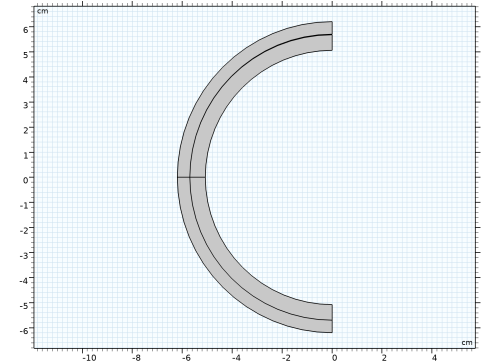
This model uses a plane-strain approximation to simulate a 1 m long HDPE liner. The geometry of the cross section is depicted in Figure 1. The thickness of the liner is 6.2 mm and the nominal outer diameter is 114 mm. A small geometrical defect is introduced in order to facilitate convergence to a single-lobe buckling collapse, which is the one mostly reported experimentally. In particular, one diameter is made 0.2% shorter. Considering such a defected geometry, the problem shows one mirror symmetry along the short diameter. As a consequence, the computational cost can be reduced by modeling only half of the cross section and using symmetry boundary conditions. The pipe is modeled as an infinitely rigid body.
T
Figure 1: Model geometry.
Material Model
The inner surface of the liner is subjected to atmospheric pressure, simulating depressurization during shutdowns. The interaction between the gas in the annulus gap between the host pipe and the liner is instead simplified by the use of the ideal gas law, that is, the pressure acting on the outside of the liner is computed as
Here, T is the absolute working temperature, R is the gas constant, and M is the molar mass of the considered gas. The pressure loading the liner is increased by imposing a constant inflow mass rate:
Moreover, V is the current volume of the gap between the pipe and the liner, computed by accounting for the deformation of the liner.
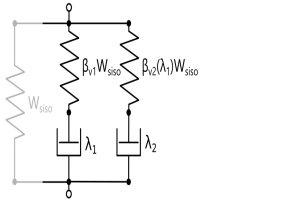
The rheology of the Bergstrom–Bischoff material model is shown in Figure 2. It features a so-called equilibrium network that can be schematized as a simple hyperelastic spring characterized by an Arruda–Boyce strain energy, with a temperature-dependent shear modulus:
where θ0 and θr are material properties. Such an equilibrium network is placed in parallel with two other networks that model the nonequilibrium behavior. Each of the latter networks are defined by an isochoric Arruda–Boyce spring in series with a viscoplastic element whose rate multiplier is given by
(1)
where σvm is the von Mises stress of the nonequilibrium network and A, ai, ni, m, and σres,i identify material properties. The shear modulus of the nonequilibrium networks is controlled with an energy factor βvi that sets the relative stiffness of each nonequilibrium network with respect to the equilibrium one. The energy factor of the second nonequilibrium network is made dependent on the viscoplastic strain of the first one by the differential equation
where α and βv,f are material properties.
The numerical values of the material properties used in the model are given in Table 1, and are inspired by those found in Ref. 2.
μ0
ρ
βv1
σres,1
n1
βv,i
βv,f
σres,2
n2
α
θr
θ0
Figure 2: Rheology of the Bergstrom–Bischoff material model.
Results and Discussion
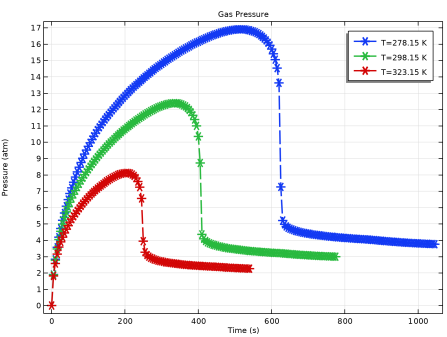
Figure 3 depicts the deformed shape of the liner after buckling at 278.15 K, showing the one-lobe type of collapse. The evolution of the gas pressure in the gap as a function of time is depicted in Figure 4, where it can be observed how the pressure suddenly drops after collapse as a consequence of the increased gap volume. The figure also shows how the collapse pressure reduces at high working temperatures.
Figure 3: One-lobe failure of the HDPE liner.
Figure 4: Evolution of pressure of the gas trapped in the gap between liner and pipe.
Notes About the COMSOL Implementation
You can use the Bergstrom–Bischoff material model by adding a Polymer Viscoplasticity node under Hyperelastic Material. Select Power Law in the Thermal Effects section to add the temperature dependency to the rate multiplier. You find the Domain ODEs option in the Time stepping section under the Polymer Viscoplasticity node. This option can be faster than Backward Euler when the number of degrees of freedom is small.
Add Enclosed Cavity nodes to compute the volume inside the liner, as well as the volume formed in between the pipe and liner. The pipe boundaries forming the pipe–liner cavity are not included in the Solid Mechanics interface, but these external boundaries can still be included in Enclosed Cavity.
The gas is assumed to permeate along the whole circumference of the liner in a uniform manner. For this reason, the pressure would be applied on the whole external surface of the liner, even if the initial nominal geometry assumes no gap between liner and pipe. To do that, select the All regions option instead of the default Fallback and nonpair regions under the Applicable Pair Region section in the Free boundary condition. This section is visible when you select Advanced Physics Options in the Show More Options menu.
Add a Stationary study step before the Time Dependent one in order to compute consistent initial conditions, making contact easier to initiate at the first time steps. Use the Instantaneous stiffness of the Bergstrom–Bischoff material in the Stationary step.
References
1. F. Rueda, J.P. Torres, M. Machado, P.M. Frontini, and J.L. Otegui, “External pressure induced buckling collapse of high density polyethylene (HDPE) liners: FEM modeling and predictions,” Thin-Walled Struct., vol. 96, pp. 56–63, 2015.
2. F. Rueda, A. Marquez, J.L. Otegui, and P.M. Frontini, “Buckling collapse of HDPE liners: Experimental set-up and FEM simulations,” Thin-Walled Struct., vol. 109, pp. 103–112, 2016.
Application Library path: Nonlinear_Structural_Materials_Module/Viscoplasticity/buckling_hdpe_liner
Modeling Instructions
From the File menu, choose New.
New
In the New window, click  Model Wizard.
Model Wizard
1
In the Model Wizard window, click  2D.
2
In the Select Physics tree, select Structural Mechanics > Solid Mechanics (solid).
3
Click Add.
4
Click  Study.
5
In the Select Study tree, select General Studies > Time Dependent.
6
Global Definitions
Material Properties
1
In the Model Builder window, under Global Definitions click Parameters 1.
2
In the Settings window for Parameters, type Material Properties in the Label text field.
3
Locate the Parameters section. In the table, enter the following settings:
Geometrical Parameters
1
In the Home toolbar, click  Parameters and choose Add > Parameters.
2
In the Settings window for Parameters, type Geometrical Parameters in the Label text field.
3
Locate the Parameters section. In the table, enter the following settings:
Gas Properties
1
In the Home toolbar, click  Parameters and choose Add > Parameters.
2
In the Settings window for Parameters, type Gas Properties in the Label text field.
3
Locate the Parameters section. In the table, enter the following settings:
Geometry 1
1
In the Model Builder window, under Component 1 (comp1) click Geometry 1.
2
In the Settings window for Geometry, locate the Units section.
3
From the Length unit list, choose cm.
Circle 1 (c1)
1
In the Geometry toolbar, click  Circle.
2
In the Settings window for Circle, locate the Size and Shape section.
3
In the Radius text field, type outer_r.
4
In the Sector angle text field, type 180.
5
Locate the Rotation Angle section. In the Rotation text field, type 180.
6
Click to expand the Layers section. In the table, enter the following settings:
7
Click  Build Selected.
Ellipse 1 (e1)
1
In the Geometry toolbar, click  Ellipse.
2
In the Settings window for Ellipse, locate the Size and Shape section.
3
In the a-semiaxis text field, type outer_r.
4
In the b-semiaxis text field, type outer_r*0.996.
5
In the Sector angle text field, type 180.
6
Click to expand the Layers section. In the table, enter the following settings:
7
Click  Build Selected.
Delete Entities 1 (del1)
1
In the Model Builder window, right-click Geometry 1 and choose Delete Entities.
2
In the Settings window for Delete Entities, locate the Entities or Objects to Delete section.
3
From the Geometric entity level list, choose Domain.
4
On the object c1, select Domains 1 and 2 only.
5
On the object e1, select Domains 2 and 3 only.
Circle 2 (c2)
1
In the Geometry toolbar, click  Circle.
2
In the Settings window for Circle, locate the Size and Shape section.
3
In the Radius text field, type outer_r+th_pipe.
4
In the Sector angle text field, type 180.
5
Locate the Rotation Angle section. In the Rotation text field, type 90.
6
Click to expand the Layers section. In the table, enter the following settings:
7
Click  Build Selected.
Delete Entities 2 (del2)
1
Right-click Geometry 1 and choose Delete Entities.
2
In the Settings window for Delete Entities, locate the Entities or Objects to Delete section.
3
From the Geometric entity level list, choose Domain.
4
On the object c2, select Domain 2 only.
5
Click  Build Selected.
6
Click the  Zoom Extents button in the Graphics toolbar.
Union 1 (uni1)
1
In the Geometry toolbar, click  Booleans and Partitions and choose Union.
2
Select the objects del1(1) and del1(2) only.
3
In the Settings window for Union, click  Build Selected.
Form Union (fin)
1
In the Model Builder window, under Component 1 (comp1) > Geometry 1 click Form Union (fin).
2
In the Settings window for Form Union/Assembly, locate the Form Union/Assembly section.
3
From the Action list, choose Form an assembly.
4
Clear the Create pairs checkbox.
5
In the Geometry toolbar, click  Build All.
Definitions
Contact Pair 1 (p1)
1
In the Definitions toolbar, click  Pairs and choose Contact Pair.
2
3
In the Settings window for Pair, locate the Source Boundaries section.
4
Click  Create Selection.
5
In the Create Selection dialog, type Pipe Inner Surface in the Selection name text field.
6
7
In the Settings window for Pair, locate the Destination Boundaries section.
8
Click to select the  Activate Selection toggle button.
9
10
Click  Create Selection.
11
In the Create Selection dialog, type Liner Outer Surface in the Selection name text field.
12
Liner Inner Surface
1
In the Definitions toolbar, click  Explicit.
2
In the Settings window for Explicit, locate the Input Entities section.
3
From the Geometric entity level list, choose Boundary.
4
5
In the Label text field, type Liner Inner Surface.
Pipe–Liner Cavity
1
In the Definitions toolbar, click  Union.
2
In the Settings window for Union, locate the Geometric Entity Level section.
3
From the Level list, choose Boundary.
4
Locate the Input Entities section. Under Selections to add, click  Add.
5
In the Add dialog, in the Selections to add list, choose Pipe Inner Surface and Liner Outer Surface.
6
7
In the Settings window for Union, type Pipe-Liner Cavity in the Label text field.
You can include only the liner in Solid Mechanics, since the pipe is modeled as a rigid boundary.
Solid Mechanics (solid)
1
In the Model Builder window, under Component 1 (comp1) click Solid Mechanics (solid).
2
3
In the Settings window for Solid Mechanics, locate the Domain Selection section.
4
Click  Create Selection.
5
In the Create Selection dialog, type Liner in the Selection name text field.
6
7
In the Settings window for Solid Mechanics, locate the Thickness section.
8
In the d text field, type L.
Contact 1
1
In the Model Builder window, under Component 1 (comp1) > Solid Mechanics (solid) click Contact 1.
2
In the Settings window for Contact, locate the Contact Pressure Penalty Factor section.
3
From the Penalty factor control list, choose Manual tuning.
4
In the fp text field, type 8.
Symmetry 1
1
In the Physics toolbar, click  Boundaries and choose Symmetry.
2
Enclosed Cavity, Inner Pressure
1
In the Physics toolbar, click  Boundaries and choose Enclosed Cavity.
2
In the Settings window for Enclosed Cavity, type Enclosed Cavity, Inner Pressure in the Label text field.
3
Locate the Boundary Selection section. From the Selection list, choose Liner Inner Surface.
4
Locate the Volume Definition section. From the Volume type list, choose Open surface.
5
Locate the Reference Point section. Click to select the  Activate Selection toggle button.
6
7
Locate the Volume Definition section. In the fV text field, type 2.
Remove the Fluid node, and use a Prescribed Pressure node instead to apply a known pressure load on the liner’s inner boundary.
Fluid 1
In the Model Builder window, right-click Fluid 1 and choose Delete.
Prescribed Pressure 1
1
In the Physics toolbar, click  Attributes and choose Prescribed Pressure.
2
In the Settings window for Prescribed Pressure, locate the Prescribed Pressure section.
3
In the p text field, type 1[atm].
Next, model the cavity formed between the pipe and liner.
Enclosed Cavity, Outer Pressure
1
In the Model Builder window, right-click Enclosed Cavity, Inner Pressure and choose Duplicate.
2
In the Settings window for Enclosed Cavity, type Enclosed Cavity, Outer Pressure in the Label text field.
Select the PipeLiner Cavity to define the volume in between the pipe and liner. Notice that the pipe boundaries, which are not included in the Solid Mechanics interface, will be marked as "not applicable". These boundaries have to be explicitly allowed.
3
Locate the Boundary Selection section. From the Selection list, choose Pipe–Liner Cavity.
4
Click to expand the Advanced section. Select the Include boundaries external to current physics checkbox.
When including external boundaries, a normal direction has to be specified. By convention, the normal for external boundaries has to point toward the fluid. In this case, the normal of the referenced default boundary system is oriented correctly.
Prescribed Pressure 1
1
In the Model Builder window, expand the Enclosed Cavity, Outer Pressure node, then click Prescribed Pressure 1.
2
In the Settings window for Prescribed Pressure, locate the Prescribed Pressure section.
3
In the p text field, type Rs*mdot*t*T/solid.enc2.V.
Hyperelastic Material 1
1
In the Physics toolbar, click  Domains and choose Hyperelastic Material.
2
In the Settings window for Hyperelastic Material, locate the Domain Selection section.
3
From the Selection list, choose Liner.
4
Locate the Hyperelastic Material section. From the Material model list, choose Arruda–Boyce.
5
From the Compressibility list, choose Compressible, uncoupled.
Polymer Viscoplasticity 1
1
In the Physics toolbar, click  Attributes and choose Polymer Viscoplasticity.
2
In the Settings window for Polymer Viscoplasticity, locate the Viscoplasticity Model section.
3
From the Material model list, choose Bergstrom–Bischoff.
4
Find the Network 1 subsection. In the βv1 text field, type beta1.
5
Find the Network 2 subsection. In the βv,  i text field, type beta2_i.
6
In the βv,  f text field, type beta2_f.
7
In the α text field, type alpha.
8
Locate the Thermal Effects section. From the g  (T) list, choose Power law.
9
In the m text field, type m.
10
Locate the Model Input section. From the T list, choose User defined. In the associated text field, type T.
11
Locate the Thermal Effects section. In the Tref text field, type theta0.
12
Locate the Time Stepping section. From the Method list, choose Domain ODEs.
Materials
HDPE
1
In the Model Builder window, under Component 1 (comp1) right-click Materials and choose Blank Material.
2
In the Settings window for Material, locate the Geometric Entity Selection section.
3
From the Selection list, choose Liner.
4
Locate the Material Contents section. In the table, enter the following settings:
5
In the Label text field, type HDPE.
Mesh 1
Mapped 1
1
In the Mesh toolbar, click  Mapped.
2
In the Settings window for Mapped, locate the Domain Selection section.
3
From the Geometric entity level list, choose Domain.
4
Distribution 1
1
Right-click Mapped 1 and choose Distribution.
2
3
In the Settings window for Distribution, locate the Distribution section.
4
In the Number of elements text field, type 2.
Distribution 2
1
In the Model Builder window, right-click Mapped 1 and choose Distribution.
2
In the Settings window for Distribution, locate the Boundary Selection section.
3
From the Selection list, choose Liner Inner Surface.
4
Locate the Distribution section. In the Number of elements text field, type 25.
5
Click  Build All.
Mapped 2
1
In the Mesh toolbar, click  Mapped.
2
In the Settings window for Mapped, locate the Domain Selection section.
3
From the Geometric entity level list, choose Domain.
4
Size 1
1
Right-click Mapped 2 and choose Size.
2
In the Settings window for Size, locate the Element Size section.
3
From the Predefined list, choose Finer.
4
Click  Build Selected.
Add a Stationary step to compute consistent initial values for the Time Dependent step.
Study 1
Step 2: Stationary
1
In the Study toolbar, click  Stationary.
2
Drag and drop above Step 2: Time Dependent.
3
In the Settings window for Stationary, locate the Physics and Variables Selection section.
4
Select the Modify model configuration for study step checkbox.
5
In the tree, select Component 1 (comp1) > Solid Mechanics (solid), Controls spatial frame > Enclosed Cavity, Outer Pressure > Prescribed Pressure 1.
6
Use the Instantaneous stiffness of the Bergstrom–Bischoff model for the Stationary step.
Solid Mechanics (solid)
Polymer Viscoplasticity 1
1
In the Model Builder window, under Component 1 (comp1) > Solid Mechanics (solid) > Hyperelastic Material 1 click Polymer Viscoplasticity 1.
2
In the Settings window for Polymer Viscoplasticity, locate the Viscoplasticity Model section.
3
Find the Stiffness used in stationary studies subsection. From the list, choose Instantaneous.
Study 1
Step 2: Time Dependent
1
In the Model Builder window, under Study 1 click Step 2: Time Dependent.
2
In the Settings window for Time Dependent, locate the Study Settings section.
3
In the Output times text field, type range(0,5,20[min]).
Solution 1 (sol1)
1
In the Study toolbar, click  Show Default Solver.
2
In the Model Builder window, expand the Solution 1 (sol1) node.
3
In the Model Builder window, expand the Study 1 > Solver Configurations > Solution 1 (sol1) > Dependent Variables 2 node, then click Viscoplastic Strain Tensor, Local Coordinate System (comp1.solid.hmm1.pvp1.evp1).
4
In the Settings window for Field, locate the Scaling section.
5
From the Method list, choose Manual.
6
In the Model Builder window, under Study 1 > Solver Configurations > Solution 1 (sol1) > Dependent Variables 2 click Viscoplastic Strain Tensor, Local Coordinate System (comp1.solid.hmm1.pvp1.evp2).
7
In the Settings window for Field, locate the Scaling section.
8
From the Method list, choose Manual.
9
In the Model Builder window, under Study 1 > Solver Configurations > Solution 1 (sol1) > Dependent Variables 2 click Equivalent Viscoplastic Strain, Network 1 (comp1.solid.hmm1.pvp1.evpe1).
10
In the Settings window for Field, locate the Scaling section.
11
From the Method list, choose Manual.
12
In the Model Builder window, under Study 1 > Solver Configurations > Solution 1 (sol1) > Dependent Variables 2 click Equivalent Viscoplastic Strain, Network 2 (comp1.solid.hmm1.pvp1.evpe2).
13
In the Settings window for Field, locate the Scaling section.
14
From the Method list, choose Manual.
15
In the Model Builder window, under Study 1 > Solver Configurations > Solution 1 (sol1) click Time-Dependent Solver 1.
16
In the Settings window for Time-Dependent Solver, click to expand the Time Stepping section.
17
From the Method list, choose BDF.
18
In the Model Builder window, expand the Study 1 > Solver Configurations > Solution 1 (sol1) > Time-Dependent Solver 1 node, then click Fully Coupled 1.
19
In the Settings window for Fully Coupled, click to expand the Method and Termination section.
20
In the Minimum damping factor text field, type 0.25.
21
In the Maximum number of iterations text field, type 20.
22
In the Model Builder window, under Study 1 > Solver Configurations > Solution 1 (sol1) right-click Time-Dependent Solver 1 and choose Stop Condition.
23
In the Settings window for Stop Condition, locate the Stop Expressions section.
24
25
26
Parametric Sweep
1
In the Study toolbar, click  Parametric Sweep.
2
In the Settings window for Parametric Sweep, locate the Study Settings section.
3
4
5
In the Study toolbar, click  Get Initial Value.
Results
Mirror 2D 1
1
In the Model Builder window, expand the Results > Datasets node.
2
Right-click Results > Datasets and choose More 2D Datasets > Mirror 2D.
Displacement
1
In the Settings window for 2D Plot Group, type Displacement in the Label text field.
2
Locate the Data section. From the Dataset list, choose Mirror 2D 1.
3
Click to expand the Title section. From the Title type list, choose Manual.
4
In the Title text area, type Displacements [mm].
5
In the Parameter indicator text field, type Time=eval(t) s, T=eval(T) K.
6
Locate the Plot Settings section. Clear the Plot dataset edges checkbox.
Liner
1
In the Model Builder window, expand the Displacement node, then click Surface 1.
2
In the Settings window for Surface, type Liner in the Label text field.
3
Locate the Expression section. In the Expression text field, type solid.disp.
4
From the Unit list, choose mm.
Pipe
1
In the Model Builder window, right-click Displacement and choose Line.
2
In the Settings window for Line, type Pipe in the Label text field.
3
Locate the Expression section. In the Expression text field, type 1.
4
Locate the Coloring and Style section. From the Coloring list, choose Uniform.
5
From the Color list, choose From theme.
Selection 1
1
Right-click Pipe and choose Selection.
2
In the Settings window for Selection, locate the Selection section.
3
From the Selection list, choose Pipe Inner Surface.
Study 1
Step 2: Time Dependent
1
In the Model Builder window, under Study 1 click Step 2: Time Dependent.
2
In the Settings window for Time Dependent, click to expand the Results While Solving section.
3
Select the Plot checkbox.
4
From the Update at list, choose Time steps taken by solver.
5
In the Model Builder window, click Study 1.
6
In the Settings window for Study, locate the Study Settings section.
7
Clear the Generate default plots checkbox.
8
In the Study toolbar, click  Compute.
Results
Mirror 2D 1
1
In the Model Builder window, under Results > Datasets click Mirror 2D 1.
2
In the Settings window for Mirror 2D, locate the Data section.
3
From the Dataset list, choose Study 1/Parametric Solutions 1 (sol3).
Displacement
1
In the Model Builder window, under Results click Displacement.
2
In the Settings window for 2D Plot Group, locate the Data section.
3
From the Parameter value (T (K)) list, choose 278.15.
4
In the Displacement toolbar, click  Plot.
Gas Pressure
1
In the Results toolbar, click  1D Plot Group.
2
In the Settings window for 1D Plot Group, locate the Data section.
3
From the Dataset list, choose Study 1/Parametric Solutions 1 (sol3).
4
In the Label text field, type Gas Pressure.
5
Click to expand the Title section. From the Title type list, choose Manual.
6
In the Title text area, type Gas Pressure.
7
Locate the Plot Settings section.
8
Select the y-axis label checkbox. In the associated text field, type Pressure (atm).
Global 1
1
Right-click Gas Pressure and choose Global.
2
In the Settings window for Global, click Replace Expression in the upper-right corner of the y-Axis Data section. From the menu, choose Component 1 (comp1) > Solid Mechanics > Enclosed cavities > Enclosed Cavity, Outer Pressure > solid.enc2.pp1.p_rel - Relative pressure - Pa.
3
Locate the y-Axis Data section. In the table, enter the following settings:
4
Click to expand the Coloring and Style section. Find the Line style subsection. From the Line list, choose Dashed.
5
From the Width list, choose 2.
6
Find the Line markers subsection. From the Marker list, choose Asterisk.
7
Click to expand the Legends section. Find the Include subsection. Clear the Description checkbox.
8
In the Gas Pressure toolbar, click  Plot.
Extrusion 2D 1
1
In the Results toolbar, click  More Datasets and choose Extrusion 2D.
2
In the Settings window for Extrusion 2D, locate the Data section.
3
From the Dataset list, choose Mirror 2D 1.
4
Locate the Extrusion section. In the z maximum text field, type 20[cm].
5
Find the Embedding subsection. From the Map plane to list, choose yz-plane.
6
3D Pipe and Liner
1
In the Results toolbar, click  3D Plot Group.
2
In the Settings window for 3D Plot Group, type 3D Pipe and Liner in the Label text field.
3
Click to expand the Title section. From the Title type list, choose Manual.
4
In the Parameter indicator text field, type Time=eval(t) s, T=eval(T) K.
5
Locate the Plot Settings section. Clear the Plot dataset edges checkbox.
Volume 1
1
Right-click 3D Pipe and Liner and choose Volume.
2
In the Settings window for Volume, locate the Expression section.
3
In the Expression text field, type 1.
4
Locate the Coloring and Style section. From the Coloring list, choose Uniform.
5
In the 3D Pipe and Liner toolbar, click  Plot.
Material Appearance 1
1
Right-click Volume 1 and choose Material Appearance.
2
In the Settings window for Material Appearance, locate the Appearance section.
3
From the Appearance list, choose Custom.
4
Click the  Go to Default View button in the Graphics toolbar.
5
From the Material type list, choose Rubber.
6
From the Color list, choose Gray.
Liner
1
In the Model Builder window, under Results > 3D Pipe and Liner click Volume 1.
2
In the Settings window for Volume, type Liner in the Label text field.
Deformation 1
1
Right-click Liner and choose Deformation.
2
In the Settings window for Deformation, locate the Scale section.
3
Select the Scale factor checkbox. In the associated text field, type 1.
4
Locate the Expression section. In the x-component text field, type 0.
5
In the y-component text field, type u.
6
In the z-component text field, type v.
Mirror 2D 2
In the Model Builder window, under Results > Datasets right-click Mirror 2D 1 and choose Duplicate.
Selection
1
In the Results toolbar, click  Attributes and choose Selection.
2
In the Settings window for Selection, locate the Geometric Entity Selection section.
3
From the Geometric entity level list, choose Domain.
4
Extrusion 2D 2
1
In the Model Builder window, under Results > Datasets right-click Extrusion 2D 1 and choose Duplicate.
2
In the Settings window for Extrusion 2D, locate the Data section.
3
From the Dataset list, choose Mirror 2D 2.
4
Locate the Extrusion section. In the z minimum text field, type 5.
Pipe
1
In the Model Builder window, right-click 3D Pipe and Liner and choose Surface.
2
In the Settings window for Surface, type Pipe in the Label text field.
3
Locate the Data section. From the Dataset list, choose Extrusion 2D 2.
4
From the Solution parameters list, choose From parent.
5
Locate the Expression section. In the Expression text field, type 1.
6
Locate the Coloring and Style section. From the Coloring list, choose Uniform.
Material Appearance 1
1
Right-click Pipe and choose Material Appearance.
2
In the Settings window for Material Appearance, locate the Appearance section.
3
From the Appearance list, choose Custom.
4
From the Material type list, choose Steel (scratched).
5
Click the  Show Grid button in the Graphics toolbar.
6
In the Graphics window toolbar, clicknext to  Scene Light, then choose Ambient Occlusion.
7
In the 3D Pipe and Liner toolbar, click  Plot.