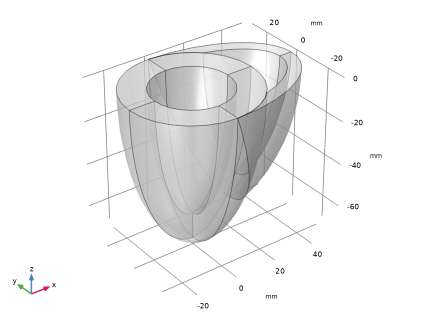
|
|
|
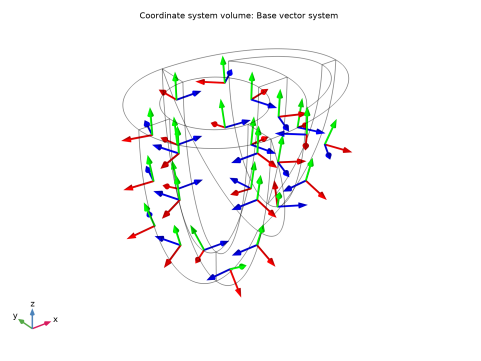
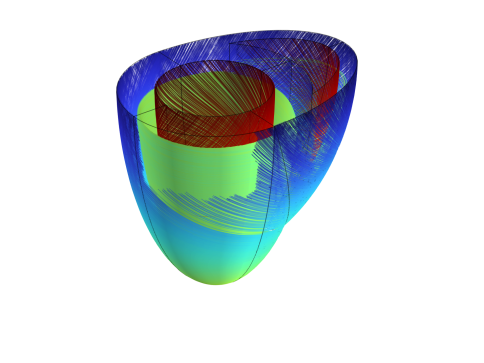
 ) and −60° at the epicardium (
 ) with respect to the horizontal basal plane (Z = 0). It is also assumed that the fibers’ inclination goes to zero at the left ventricle apex (
 ), so the expressions for the fiber angle on the myocardium boundaries read




















 is the invariant of the isochoric Green–Cauchy strain tensor along the fiber direction:
|
•
|
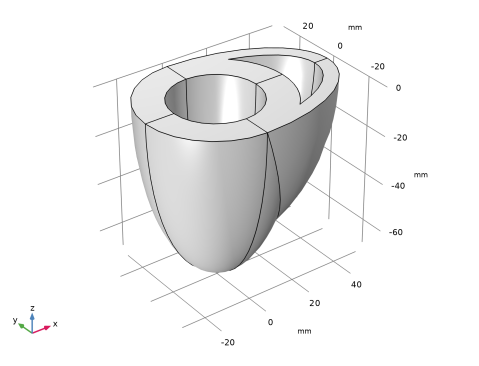
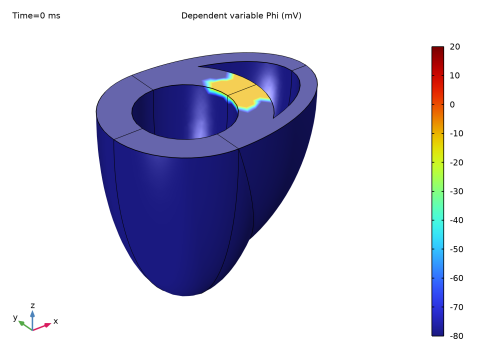
An initial pulse of electric potential (−10 mV) is applied on a rectangular area on the basal surface between the ventricles (Figure 6).
 |
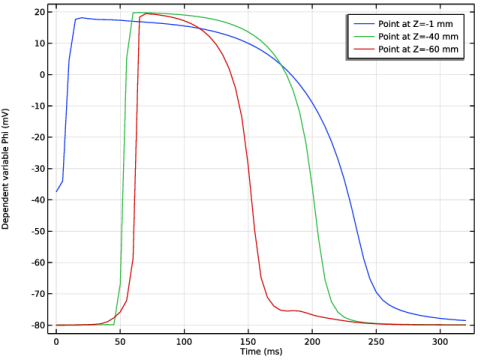
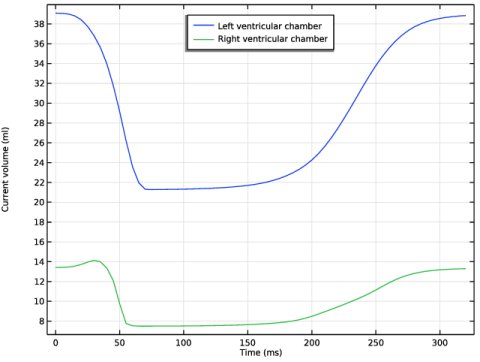
|
•
|
|
•
|
|
•
|
The Fiber feature is set up using the curvilinear fiber orientation.
|
|
1
|
|
2
|
|
3
|
Click Add.
|
|
4
|
Click Add.
|
|
5
|
|
6
|
Click Add.
|
|
7
|
Click
 Study. Study. |
|
8
|
|
9
|
Click
 Done. Done. |
|
1
|
|
2
|
Browse to the model’s Application Libraries folder and double-click the file biventricular_cardiac_model_geom_sequence.mph.
|
|
3
|
|
4
|
|
1
|
|
2
|
|
1
|
|
2
|
|
3
|
|
4
|
|
1
|
|
2
|
|
3
|
|
1
|
|
2
|
|
3
|
|
1
|
|
2
|
|
3
|
|
1
|
|
2
|
|
3
|
|
4
|
|
5
|
|
6
|
Click OK.
|
|
1
|
|
2
|
In the Settings window for Parameters, type Structural Mechanics Parameters in the Label text field.
|
|
3
|
|
4
|
Browse to the model’s Application Libraries folder and double-click the file biventricular_cardiac_model_mechanical_passive_parameters.txt.
|
|
1
|
|
2
|
|
3
|
|
4
|
Browse to the model’s Application Libraries folder and double-click the file biventricular_cardiac_model_electrical_parameters.txt.
|
|
1
|
|
2
|
|
3
|
|
4
|
Browse to the model’s Application Libraries folder and double-click the file biventricular_cardiac_model_active_stress_parameters.txt.
|
|
1
|
|
2
|
|
3
|
|
4
|
Browse to the model’s Application Libraries folder and double-click the file biventricular_cardiac_model_conversion_parameters.txt.
|
|
1
|
|
2
|
|
1
|
|
2
|
|
3
|
|
1
|
|
2
|
|
3
|
|
1
|
|
2
|
|
1
|
|
2
|
|
3
|
|
1
|
In the Model Builder window, under Component 1 (comp1) > Sheet Direction (cc) click Coordinate System Settings 1.
|
|
2
|
|
3
|
|
1
|
|
2
|
|
3
|
|
1
|
|
2
|
|
3
|
|
1
|
|
2
|
|
3
|
|
4
|
Click
 Build All. Build All. |
|
1
|
|
2
|
|
3
|
|
1
|
|
2
|
|
1
|
In the Model Builder window, under Results, Ctrl-click to select Wall Distance: Epicardium, Wall Distance: Endocardium, Vector Field (cc), and Coordinate system (cc).
|
|
2
|
Right-click and choose Group.
|
|
1
|
In the Model Builder window, under Component 1 (comp1) right-click Definitions and choose Variables.
|
|
2
|
|
3
|
|
4
|
Browse to the model’s Application Libraries folder and double-click the file biventricular_cardiac_model_fibers.txt.
|
|
1
|
|
2
|
|
3
|
|
1
|
|
2
|
|
3
|
Locate the Input Systems section. From the Base system list, choose Curvilinear System (cc) (cc_cs).
|
|
4
|
|
1
|
|
2
|
|
3
|
|
1
|
In the Model Builder window, under Component 1 (comp1) > Definitions, Ctrl-click to select Boundary System 1 (sys1), Curvilinear System (cc) (cc_cs), Rotated System 2 (sys2), Fiber Reference System (sys3), and Cylindrical System 4 (sys4).
|
|
2
|
Right-click and choose Group.
|
|
1
|
|
2
|
|
1
|
|
2
|
Go to the Add Physics window.
|
|
3
|
|
4
|
Find the Physics interfaces in study subsection. In the table, clear the Solve checkbox for Study: Fiber Direction.
|
|
5
|
Click the Add to Component 1 button in the window toolbar.
|
|
6
|
|
7
|
|
8
|
Click the Add to Component 1 button in the window toolbar.
|
|
9
|
|
10
|
|
11
|
Click the Add to Component 1 button in the window toolbar.
|
|
12
|
|
13
|
|
14
|
Click the Add to Component 1 button in the window toolbar.
|
|
15
|
|
1
|
|
2
|
From the list, choose Quasistatic.
|
|
3
|
|
1
|
|
2
|
|
3
|
|
1
|
In the Model Builder window, under Component 1 (comp1) right-click Materials and choose Blank Material.
|
|
2
|
|
1
|
|
2
|
In the Settings window for Coefficient Form PDE, type Electrophysiology: Transmembrane Potential (Phi) in the Label text field.
|
|
3
|
|
4
|
|
5
|
|
6
|
Click OK.
|
|
7
|
|
8
|
In the Source term quantity table, enter the following settings:
|
|
9
|
|
10
|
|
11
|
|
12
|
In the Dependent variables (V) table, enter the following settings:
|
|
1
|
|
2
|
In the Settings window for Coefficient Form PDE, type Electrophysiology: Conductance of Slow Processes (r) in the Label text field.
|
|
3
|
|
4
|
|
5
|
|
6
|
|
7
|
In the Dependent variables (1) table, enter the following settings:
|
|
1
|
|
2
|
|
3
|
|
4
|
|
5
|
|
6
|
Click OK.
|
|
7
|
|
8
|
In the Source term quantity table, enter the following settings:
|
|
9
|
|
10
|
|
11
|
|
12
|
In the Dependent variables (N/m²) table, enter the following settings:
|
|
1
|
In the Model Builder window, under Component 1 (comp1) right-click Definitions and choose Variables.
|
|
2
|
|
3
|
|
4
|
Browse to the model’s Application Libraries folder and double-click the file biventricular_cardiac_model_electrophysiology.txt.
|
|
1
|
In the Model Builder window, under Component 1 (comp1) > Electrophysiology: Transmembrane Potential (Phi) (c) click Coefficient Form PDE 1.
|
|
2
|
|
3
|
From the list, choose Symmetric.
|
|
4
|
Specify the c matrix as
|
|
5
|
|
6
|
|
1
|
|
2
|
|
3
|
|
1
|
In the Model Builder window, under Component 1 (comp1) > Electrophysiology: Conductance of Slow Processes (r) (c2) click Coefficient Form PDE 1.
|
|
2
|
|
3
|
|
4
|
Locate the Absorption Coefficient section. In the a text field, type (1/betat)*(gamma+(mu1/(phi+mu2))*c*phi*(phi-b-1)).
|
|
5
|
Locate the Source Term section. In the f text field, type (1/betat)*(-gamma*c*phi*(phi-b-1)-mu1/(phi+mu2)*r^2).
|
|
1
|
In the Model Builder window, under Component 1 (comp1) > Active Stress (Sa) (c3) click Coefficient Form PDE 1.
|
|
2
|
|
3
|
|
4
|
|
5
|
|
1
|
In the Model Builder window, under Component 1 (comp1) > Solid Mechanics (solid) > Hyperelastic Material 1 click Fiber 1.
|
|
2
|
|
3
|
|
4
|
|
1
|
|
2
|
|
3
|
|
4
|
|
5
|
|
1
|
|
2
|
|
3
|
|
4
|
Locate the Prescribed Displacement section. From the Displacement in x direction list, choose Prescribed.
|
|
5
|
|
6
|
|
1
|
In the Settings window for Enclosed Cavity, type Enclosed Cavity: Left Ventricle in the Label text field.
|
|
2
|
|
3
|
|
4
|
|
1
|
|
2
|
In the Settings window for Enclosed Cavity, type Enclosed Cavity: Right Ventricle in the Label text field.
|
|
3
|
|
1
|
In the Model Builder window, under Component 1 (comp1) > Solid Mechanics (solid), Ctrl-click to select Enclosed Cavity: Left Ventricle and Enclosed Cavity: Right Ventricle.
|
|
2
|
Right-click and choose Group.
|
|
1
|
|
2
|
Go to the Add Study window.
|
|
3
|
Find the Physics interfaces in study subsection. In the table, clear the Solve checkboxes for Wall Distance: Epicardium (wd), Wall Distance: Endocardium (wd2), and Sheet Direction (cc).
|
|
4
|
|
5
|
Click the Add Study button in the window toolbar.
|
|
6
|
|
1
|
|
2
|
|
3
|
|
4
|
|
5
|
Click to expand the Values of Dependent Variables section. Find the Values of variables not solved for subsection. From the Settings list, choose User controlled.
|
|
6
|
|
7
|
|
8
|
|
1
|
In the Model Builder window, expand the Results > Datasets node, then click Study: Excitation-Contraction/Solution 2 (sol2).
|
|
2
|
|
3
|
|
1
|
In the Model Builder window, under Results, Ctrl-click to select Stress (solid), Electrophysiology: Transmembrane Potential (Phi), Electrophysiology: Conductance of Slow Processes (r), and Active Stress (Sa).
|
|
2
|
Right-click and choose Delete.
|
|
1
|
|
2
|
Go to the Result Templates window.
|
|
3
|
In the tree, select Study: Excitation-Contraction/Solution 2 (sol2) > Solid Mechanics > Fibers (solid) > Fiber, Hyperelastic Material 1 (solid).
|
|
4
|
Click the Add Result Template button in the window toolbar.
|
|
5
|
|
1
|
|
2
|
|
3
|
|
1
|
|
2
|
|
3
|
|
4
|
|
5
|
|
6
|
|
8
|
Locate the Coloring and Style section. Find the Line style subsection. From the Type list, choose Line.
|
|
1
|
|
2
|
|
3
|
|
4
|
|
5
|
|
6
|
|
1
|
|
2
|
|
3
|
|
1
|
|
2
|
|
3
|
|
5
|
|
6
|
|
1
|
|
2
|
|
3
|
|
1
|
|
2
|
|
3
|
|
5
|
|
1
|
|
2
|
|
3
|
In the Logical expression for inclusion text field, type Beta<0.05*((sys4.phi>-100[deg])*(sys4.phi<190[deg])*(Z>-cL/3) || (Z<-cL/3)).
|
|
4
|
|
5
|
|
1
|
|
1
|
|
2
|
|
3
|
Click
 Add Physical Quantity. Add Physical Quantity. |
|
4
|
|
5
|
|
6
|
Click OK.
|
|
7
|
|
9
|
Click
 Apply. Apply. |
|
1
|
|
2
|
|
3
|
Locate the Data section. From the Dataset list, choose Study: Excitation-Contraction/Solution 2 (sol2).
|
|
1
|
|
2
|
|
3
|
|
4
|
|
5
|
|
6
|
|
1
|
|
2
|
|
3
|
|
1
|
|
2
|
|
3
|
Clear the Generate default plots checkbox.
|
|
1
|
|
2
|
|
3
|
Select the Plot checkbox.
|
|
5
|
|
1
|
|
2
|
|
3
|
Locate the Data section. From the Dataset list, choose Study: Excitation-Contraction/Solution 2 (sol2).
|
|
4
|
|
5
|
|
6
|
|
7
|
|
8
|
|
1
|
|
2
|
|
3
|
|
4
|
|
5
|
|
6
|
|
7
|
|
8
|
|
1
|
|
2
|
|
3
|
|
4
|
|
1
|
In the Model Builder window, under Results > Contraction, Snapshots right-click Slice 1 and choose Duplicate.
|
|
2
|
|
3
|
|
4
|
|
5
|
|
6
|
|
7
|
|
1
|
|
2
|
|
3
|
|
4
|
|
5
|
|
1
|
In the Model Builder window, under Results > Contraction, Snapshots, Ctrl-click to select Slice 1, Slice 2, and Annotation 1.
|
|
2
|
Right-click and choose Duplicate.
|
|
1
|
|
2
|
|
3
|
|
4
|
|
5
|
|
6
|
|
1
|
|
2
|
|
3
|
|
4
|
|
1
|
|
2
|
|
3
|
|
4
|
|
5
|
|
6
|
|
1
|
In the Model Builder window, under Results > Contraction, Snapshots, Ctrl-click to select Slice 3, Slice 4, and Annotation 2.
|
|
2
|
Right-click and choose Duplicate.
|
|
1
|
|
2
|
|
3
|
|
1
|
|
2
|
|
3
|
|
4
|
|
1
|
|
2
|
|
3
|
|
4
|
|
5
|
|
6
|
|
1
|
In the Model Builder window, under Results > Contraction, Snapshots, Ctrl-click to select Slice 5, Slice 6, and Annotation 3.
|
|
2
|
Right-click and choose Duplicate.
|
|
1
|
|
2
|
|
3
|
|
1
|
|
2
|
|
3
|
|
4
|
|
1
|
|
2
|
|
3
|
|
4
|
|
5
|
|
6
|
|
1
|
In the Model Builder window, under Results > Contraction, Snapshots, Ctrl-click to select Slice 7, Slice 8, and Annotation 4.
|
|
2
|
Right-click and choose Duplicate.
|
|
1
|
|
2
|
|
3
|
|
4
|
|
1
|
|
2
|
|
3
|
|
4
|
|
5
|
|
1
|
|
2
|
|
3
|
|
4
|
|
5
|
|
6
|
|
7
|
|
8
|
|
1
|
In the Model Builder window, under Results > Contraction, Snapshots, Ctrl-click to select Slice 9, Slice 10, and Annotation 5.
|
|
2
|
Right-click and choose Duplicate.
|
|
1
|
|
2
|
|
3
|
|
1
|
|
2
|
|
3
|
|
4
|
|
1
|
|
2
|
|
3
|
|
4
|
|
5
|
|
6
|
|
1
|
In the Model Builder window, under Results > Contraction, Snapshots, Ctrl-click to select Slice 11, Slice 12, and Annotation 6.
|
|
2
|
Right-click and choose Duplicate.
|
|
1
|
|
2
|
|
3
|
|
1
|
|
2
|
|
3
|
|
4
|
|
1
|
|
2
|
|
3
|
|
4
|
|
5
|
|
6
|
|
1
|
In the Model Builder window, under Results > Contraction, Snapshots, Ctrl-click to select Slice 13, Slice 14, and Annotation 7.
|
|
2
|
Right-click and choose Duplicate.
|
|
1
|
|
2
|
|
3
|
|
1
|
|
2
|
|
3
|
|
4
|
|
1
|
|
2
|
|
3
|
|
4
|
|
1
|
|
2
|
|
3
|
|
4
|
|
1
|
|
2
|
|
3
|
Locate the Data section. From the Dataset list, choose Study: Excitation-Contraction/Solution 2 (sol2).
|
|
4
|
|
5
|
|
6
|
|
7
|
|
1
|
|
2
|
|
4
|
|
6
|
|
1
|
|
2
|
|
3
|
Locate the Data section. From the Dataset list, choose Study: Excitation-Contraction/Solution 2 (sol2).
|
|
4
|
|
5
|
|
6
|
|
1
|
|
2
|
|
3
|
|
4
|
|
1
|
|
2
|
|
3
|
|
4
|
|
1
|
|
2
|
|
3
|
|
1
|
|
2
|
|
3
|
|
4
|
|
5
|
|
6
|
|
1
|
|
2
|
|
3
|
|
4
|
|
5
|
Locate the Legends section. In the table, enter the following settings:
|
|
1
|
|
2
|
|
3
|
|
4
|
Locate the Legends section. In the table, enter the following settings:
|
|
5
|
|
1
|
|
2
|
|
3
|
|
4
|
|
5
|
|
1
|
|
2
|
Click
 Done. Done. |
|
1
|
|
2
|
|
3
|
|
4
|
Browse to the model’s Application Libraries folder and double-click the file biventricular_cardiac_model_geom_parameters.txt.
|
|
1
|
|
2
|
|
3
|
|
1
|
|
2
|
|
3
|
|
4
|
|
5
|
|
6
|
Click to expand the Layers section. In the table, enter the following settings:
|
|
1
|
|
2
|
|
3
|
|
4
|
|
5
|
|
6
|
Locate the Layers section. In the table, enter the following settings:
|
|
1
|
|
2
|
|
3
|
On the object elp2, select Domains 1, 3, 5, 6, and 8 only.
|
|
4
|
|
5
|
|
6
|
On the object elp1, select Boundaries 16 and 22 only.
|
|
1
|
|
2
|
|
3
|
|
4
|
On the object elp1, select Domains 2, 4, 5, 7, and 9 only.
|
|
5
|
On the object pard1, select Domains 1–7, 9, and 10 only.
|
|
6
|
Click
 Build All Objects. Build All Objects. |
|
7
|
|
1
|
|
2
|
On the object fin, select Boundaries 11 and 20 only.
|
|
3
|
 , and stretch-induced current