PDF

Geometry Cleanup on a Wheel Rim Geometry
Introduction
CAD geometries, especially those imported from CAD design software, may contain small features, such as faces or edges, that could significantly increase the number of mesh elements in the model. The built in geometry Cleanup can, for example, remove small faces, short edges, sliver faces, thin domains, and gaps. Remove Details is one among several actions that the cleanup process can use. Remove Details uses virtual operations to remove small details in the geometry, which is an efficient modeling approach that “hides” the details from the mesher. A benefit of using virtual geometry operations is also that the curvature of the geometry is preserved, which could be important for certain physics applications, such as stress analysis.
In this tutorial you prepare a wheel rim geometry for stress analysis by defeaturing it using geometry cleanup. The stress analysis is described in the model Submodel of a Wheel Rim found in the Application Libraries for the Structural Mechanics Module.
Note: See also the tutorials Removing Small Geometric Entities with the Defeaturing Tools, Removing Small Geometric Entities with Remove Details, and Removing Small Geometric Entities with Repair, available in the Application Libraries for the CAD Import Module, the Design Module, and the LiveLink for CAD products.
Model Definition
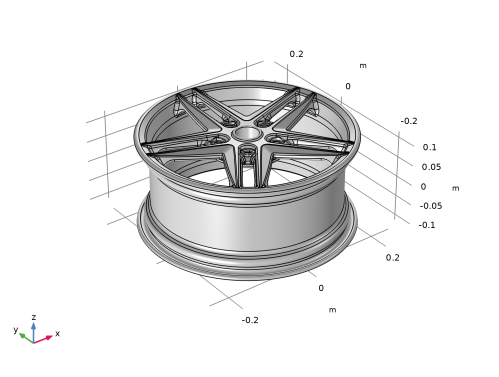
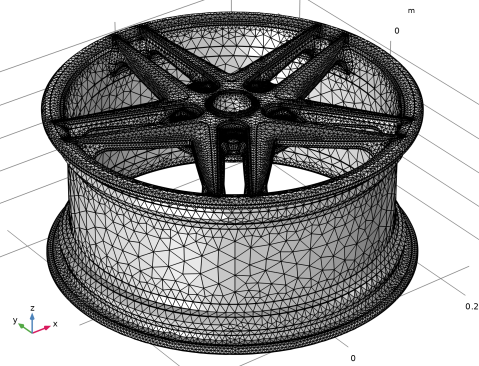
The geometry to be meshed is of a ten-spoke rim design, shown in Figure 1.
Figure 1: Wheel rim geometry.
To provide accurate results for the stiffness of the rim create a mesh for the analysis using the default coarser predefined mesh settings. Perform geometry cleanup to further reduce the number of elements in the mesh.
Results and Discussion
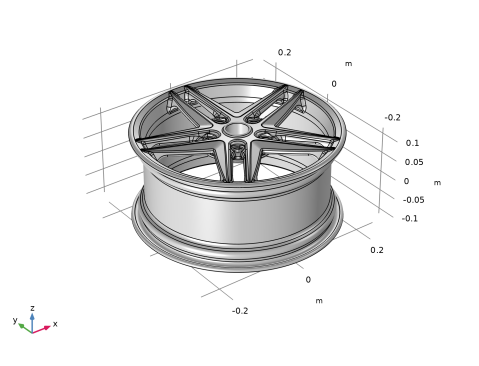
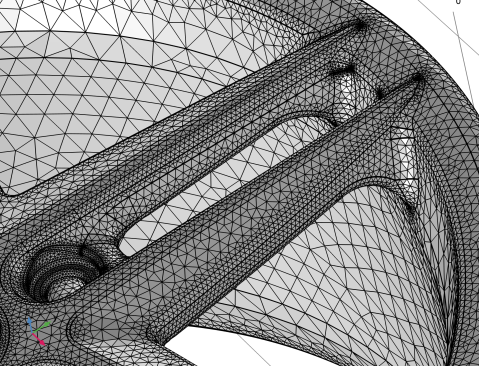
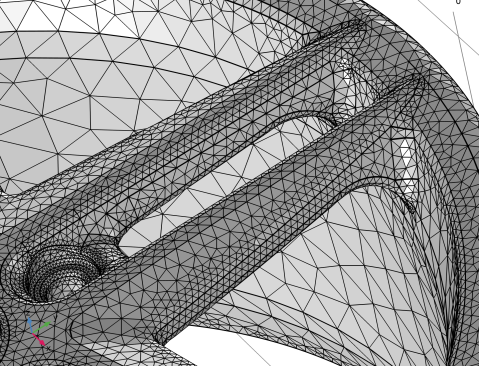
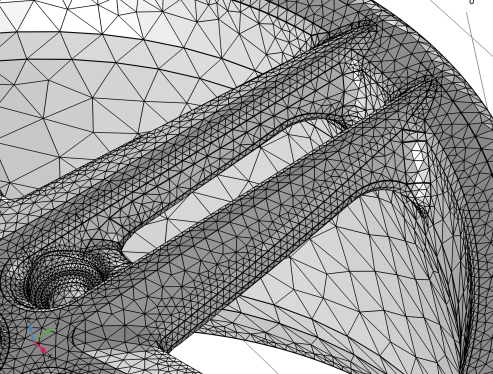
The mesh generated with the original geometry and using the default normal size setting becomes well resolved, as shown in Figure 2 below. Some places are resolved with a very fine mes, which can be seen as black regions in the mesh. This mesh will require too much memory and time to use for simulation.
Figure 2: Mesh of the geometry with default normal size setting and before running Geometry Cleanup.
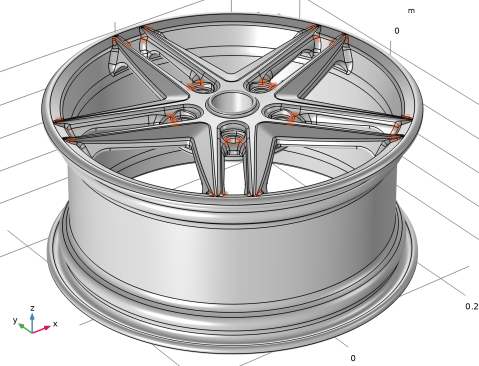
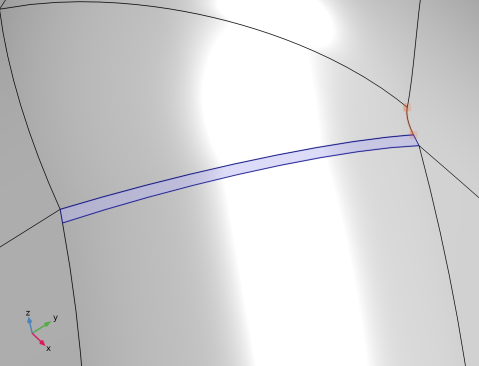
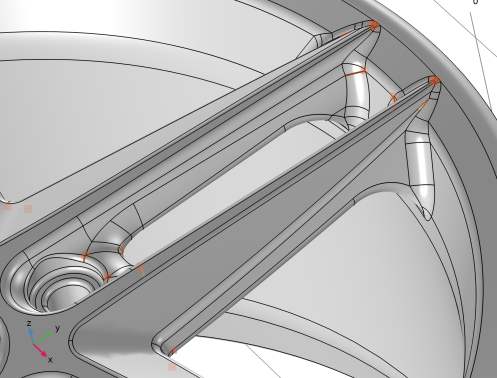
Due to some small faces, narrow face regions, and short edges, the geometry cleanup is triggered when leaving the Geometry sequence. The small details are highlighted in the Graphics window, as seen in Figure 3, along with a list of the details and their respective sizes. The highlighted details coincide with the black spots in the mesh in Figure 2.
Figure 3: The details that are detected by the cleanup correspond to the black spots in the mesh in Figure 2.
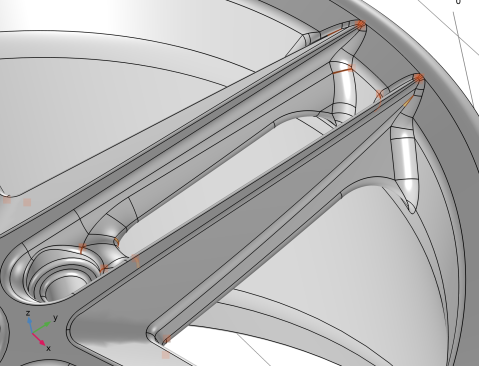
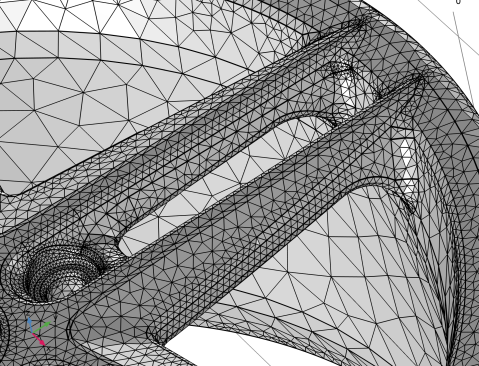
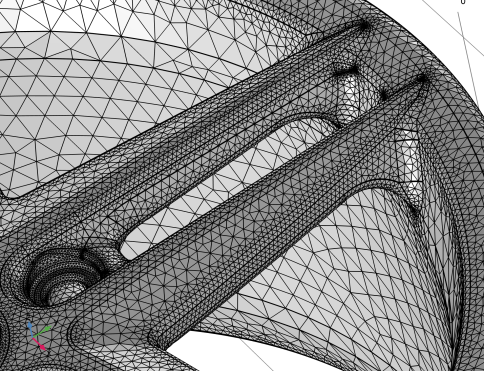
The final mesh, seen in Figure 4 below, is built using a coarser mesh size setting and the number of elements are reduced further by running the geometry cleanup.
Figure 4: Mesh of the geometry after running geometry cleanup.
The number of elements is significantly reduced in the final mesh which reduces the memory requirements for computing the solution.
Notes About the COMSOL Implementation
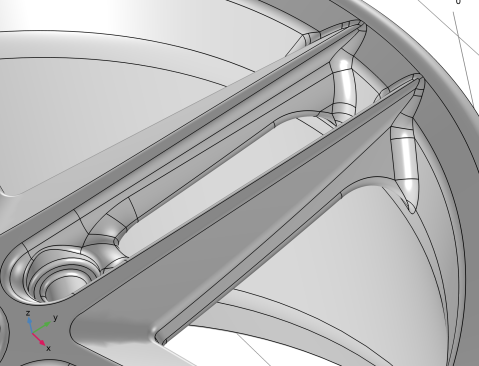
Remove Details and virtual geometry operations appear after the Finalize node in the geometry sequence. Virtual geometry operations do not modify the geometry, rather they hide geometric entities — such as faces, edges, or vertices — from the mesher, hence the name of these operations. As a result, a virtual geometry can be meshed with fewer elements and that leaves room to resolve important regions only.
Application Library path: COMSOL_Multiphysics/Meshing_Tutorials/wheel_rim
Modeling Instructions
From the File menu, choose New.
New
In the New window, click  Model Wizard.
Model Wizard
1
In the Model Wizard window, click  3D.
2
Geometry 1
Import 1 (imp1)
The wheel rim geometry has been saved in the COMSOL MPHBIN-format.
1
In the Geometry toolbar, click  Import.
2
In the Settings window for Import, locate the Source section.
3
Click  Browse.
4
5
Click  Import.
Now, generate the full geometry using a transform operation.
Rotate 1 (rot1)
1
In the Geometry toolbar, click  Transforms and choose Rotate.
2
3
In the Settings window for Rotate, locate the Rotation section.
4
Click  Range.
5
In the Range dialog, choose Number of values from the Entry method list.
6
In the Start text field, type 0.
7
In the Stop text field, type 4/5*360.
8
In the Number of values text field, type 5.
9
Click Replace.
10
Right-click Rotate 1 (rot1) and choose Build Selected.
11
Click the  Zoom Extents button in the Graphics toolbar.
Form Union (fin)
In the Geometry toolbar, click  Build All.
Form Composite Domains 1 (cmd1)
The geometry now contains interior boundaries, which delimit five distinct domains. As the entire rim is made of the same material, you can create a single domain by using the Form Composite Domains operation.
1
In the Geometry toolbar, click  Virtual Operations and choose Form Composite Domains.
2
Click the  Select All button in the Graphics toolbar.
3
In the Settings window for Form Composite Domains, click  Build Selected.
Before using the Geometry Cleanup functionality to clean up the geometry, follow the steps below to make sure that it is active.
4
In the Model Builder window, click Geometry 1.
5
In the Settings window for Geometry, locate the Cleanup section.
6
Select the Automatic detection of small details checkbox if it wasn’t already selected.
Mesh 1
1
In the Model Builder window, click Mesh 1.
2
In the Geometry Cleanup dialog that opens, click Open Wizard to open the Cleanup Wizard.
The option Clean up Automatically is typically the same as opening the wizard and accepting all the suggested steps. The option Cancel will close the dialog without doing anything about the small details.
The Cleanup can detect narrow face regions, sliver faces, small faces, short edges, narrow domain regions, and gaps. These are highlighted in the Graphics when the Remaining details section is active. As the geometry has sector symmetry, the same small details occur around all of the spokes.
Cleanup Wizard
Increase the Detail size used for the cleanup to detect more details to remove.
1
Go to the Cleanup Wizard window.
2
Click the Manual button.
3
In the Detail size text field, type 1[mm].
4
Click the Refresh button in the window toolbar.
Zoom in and rotate the rim to see the view below.
Expand the list of details. There are four types of details in the geometry: narrow face regions, sliver faces, small faces, and short edges. You can select them in the list, zoom in, and possibly also clip around the detail to inspect it in more detail.
5
In the tree, select Sliver Faces (30) > Face 380 (3.1E-4 m).
6
Click  Zoom to Selection.
The above image also shows a short edge (highlighted in yellow). Zoom out a bit so that you see two spokes in the Graphics window.
Mesh 1
Before we continue to look at the cleanup process, let us first mesh the geometry to later see the effects of the cleanup. Building the mesh with the default settings will run a geometric analysis that will take the geometric details into account when setting up the size settings. This means that curvature, as well as small details like the ones that we just looked at, will influence the size settings to properly resolve them.
1
In the Model Builder window, under Component 1 (comp1) right-click Mesh 1 and choose Build All.
The mesh resolves the geometry nicely. Note that the details that were highlighted by the cleanup wizard can be seen as black spots in the mesh, when the view is zoomed out a bit. To save time and lower the memory consumption when solving, change the mesh size to a coarser setting.
2
In the Settings window for Mesh, locate the Physics-Controlled Mesh section.
3
From the Element size list, choose Extra coarse.
4
Click  Build All.
This reduced the total number of elements but still gives a reasonably resolved mesh that can be used for simulation. Now, return to the Cleanup Wizard to see if the number of elements can be reduced further by removing the small details.
Cleanup Wizard
1
Go to the Cleanup Wizard window.
2
Click the Apply button in the window toolbar to continue with the specified detail size.
A new page in the Cleanup Wizard suggests adding a Remove Details operation to handle the reported details. You can always skip a step in the cleanup process, but we will continue applying the suggested action in this tutorial.
3
Click the Apply button in the window toolbar to add and build the Remove Details node.
The small details have been removed and there are no further details in the Remaining details list.
Geometry 1
The Remove details operation is a collection of virtual operations to help simplify a geometry for meshing. By using the manual mode, it is possible to inspect the sequence of operations in detail.
Remove Details 1 (rmd1)
1
In the Settings window for Remove Details, locate the Automation section.
2
From the Mode of operation list, choose Manual.
The Remove Details operation used a collection of virtual operations to clean the geometry. By expanding the Remove Details node and stepping through the list, you can check what has been done and modify it, if needed. For this tutorial, the removed details are only the expected ones so switch back to the automatic mode.
3
In the Model Builder window, click Remove Details 1 (rmd1).
4
From the Mode of operation list, choose Automatic.
The Information section for Remove Details gives an overview of what type of details have been removed by the operation and how many. This concludes the cleanup process for this geometry as this was the only step suggested by the cleanup wizard.
Cleanup Wizard
1
Go to the Cleanup Wizard window.
2
Click the Done button in the window toolbar to close the window and add a Cleanup Log node.
In the Settings window of the Cleanup Log, you can find information about the actions performed by the geometry cleanup process. In this case, only a Remove Details operation was added, but for more complex geometries, this list can be longer. Here, you can also restart the Wizard, easily go to a node to inspect the modification, and select to revert some or all of the modifications.
Mesh 1
Continue to mesh the final geometry of the rim.
1
In the Model Builder window, under Component 1 (comp1) right-click Mesh 1 and choose Build All.
The mesh resolves the geometry well enough and the earlier black spots are now gone.
The Information section in the Settings window for Mesh contains information about the number of generated elements and the quality of the elements. You can also get the statistics of a mesh if you click the Statistics button on the Mesh toolbar or if you right-click the Mesh node and select Statistics. A minimum element quality above 0.1 is considered good, but some applications may run and give accurate results also for lower quality, especially if the elements with lowest quality is located a distance away from the most important regions.
The number of mesh elements was lowered by a few thousands of elements after the cleanup was performed. This final mesh has a reasonable amount of elements for the thought application and the mesh elements have good quality.
2
Click the  Go to Default View button in the Graphics toolbar.