
|
|
|

|
•
|
|
•
|
|
•
|


|
•
|
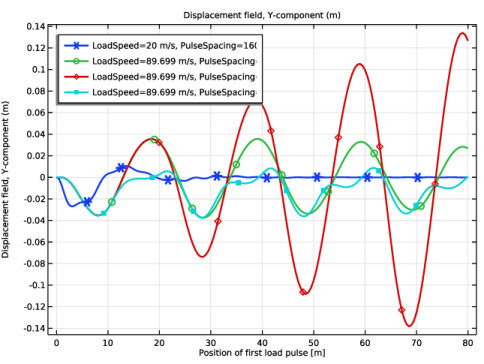
At a low load speed (20 m/s), the solution resembles a stationary solution. As the load moves away from the first span, the deflection there decreases.
|
|
•
|
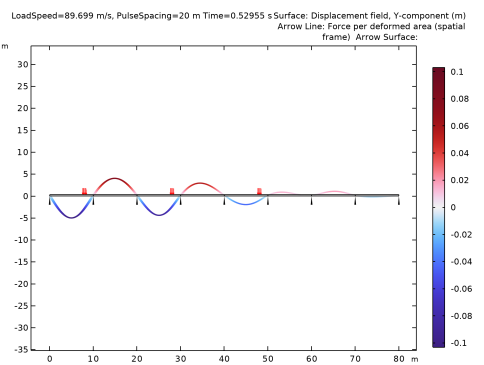
When the load speed is such (89.7 m/s) that the load travels two spans in the time T0 of one period, then the load can actually excite resonances. This can be seen when using a very long load spacing (160 m, essentially giving a single load), as well as when using a spacing of two spans (20 m). The reason is that the load will always act on a downward motion of the beam, thus giving a positive power input.
|
|
•
|
Even if the loads travel with the critical speed, they can counteract each other. This is the case in the last analysis, where the spacing between the loads matches the length of one span (10 m). In this case, every other load will act against the velocity, and thus limit the response.
|
|
1
|
|
2
|
|
3
|
Click Add.
|
|
4
|
Click
 Study. Study. |
|
5
|
|
6
|
Click
 Done. Done. |
|
1
|
|
2
|
|
3
|
Click
 Load from File. Load from File. |
|
4
|
Browse to the model’s Application Libraries folder and double-click the file traveling_load_parameters.txt.
|
|
1
|
|
2
|
|
3
|
|
4
|
|
1
|
|
2
|
|
3
|
|
1
|
|
2
|
|
3
|
|
4
|
Click
 Build All Objects. Build All Objects. |
|
1
|
|
2
|
Click in the Graphics window and then press Ctrl+A to select all objects.
|
|
3
|
|
1
|
|
2
|
Select the object uni1 only.
|
|
3
|
|
4
|
|
5
|
|
6
|
Click
 Build All Objects. Build All Objects. |
|
7
|
|
1
|
|
2
|
|
3
|
|
4
|
|
5
|
|
6
|
|
1
|
|
2
|
|
3
|
|
4
|
|
5
|
|
1
|
|
2
|
Go to the Add Material window.
|
|
3
|
|
4
|
Click the Add to Component button in the window toolbar.
|
|
5
|
|
1
|
|
2
|
From the list, choose Plane stress.
|
|
1
|
|
2
|
|
3
|
|
1
|
|
2
|
|
3
|
|
1
|
|
2
|
|
3
|
|
4
|
|
5
|
Click to expand the Smoothing section. In the Size of transition zone text field, type 0.1*PulseWidth.
|
|
1
|
|
2
|
|
3
|
|
4
|
Locate the Units section. In the table, enter the following settings:
|
|
5
|
|
6
|
|
7
|
|
1
|
|
2
|
|
1
|
|
2
|
|
3
|
|
4
|
|
1
|
|
3
|
|
4
|
|
1
|
|
2
|
|
3
|
|
4
|
|
5
|
Click
 Build All. Build All. |
|
1
|
|
2
|
|
3
|
Click
 Add. Add. |
|
4
|
Click
 Add. Add. |
|
1
|
|
2
|
|
3
|
|
4
|
|
5
|
|
1
|
|
2
|
|
3
|
|
4
|
|
5
|
|
6
|
In the Model Builder window, expand the Study 1 > Solver Configurations > Solution 1 (sol1) > Dependent Variables 1 node, then click Displacement Field (comp1.u).
|
|
7
|
|
8
|
|
9
|
|
1
|
|
2
|
|
3
|
|
4
|
|
5
|
|
1
|
|
2
|
|
3
|
|
1
|
|
2
|
Go to the Result Templates window.
|
|
3
|
In the tree, select Study 1/Parametric Solutions 1 (sol2) > Solid Mechanics > Applied Loads (solid) > Boundary Loads (solid).
|
|
4
|
Click the Add Result Template button in the window toolbar.
|
|
5
|
|
1
|
In the Model Builder window, expand the Results > Boundary Loads (solid) node, then click Boundary Load 1.
|
|
2
|
|
3
|
|
4
|
|
5
|
|
6
|
|
7
|
|
8
|
|
1
|
In the Model Builder window, under Results > Boundary Loads (solid) > Load Arrows, Ctrl-click to select Color Expression and Deformation.
|
|
2
|
Right-click and choose Delete.
|
|
1
|
|
2
|
|
3
|
|
4
|
|
5
|
Locate the Arrow Positioning section. Find the X grid points subsection. From the Entry method list, choose Coordinates.
|
|
6
|
|
7
|
|
8
|
|
9
|
|
10
|
|
11
|
|
12
|
|
1
|
|
2
|
|
3
|
|
4
|
|
5
|
From the Parameter value (LoadSpeed (m/s),PulseSpacing (m)) list, choose 3: LoadSpeed=89.699 m/s, PulseSpacing=20 m.
|
|
6
|
|
7
|
|
1
|
|
2
|
|
3
|
From the Parameter value (LoadSpeed (m/s),PulseSpacing (m)) list, choose 2: LoadSpeed=89.699 m/s, PulseSpacing=160 m.
|
|
4
|
|
5
|
From the Parameter value (LoadSpeed (m/s),PulseSpacing (m)) list, choose 3: LoadSpeed=89.699 m/s, PulseSpacing=20 m.
|
|
6
|
|
7
|
From the Parameter value (LoadSpeed (m/s),PulseSpacing (m)) list, choose 4: LoadSpeed=89.699 m/s, PulseSpacing=10 m.
|
|
8
|
|
1
|
|
2
|
|
3
|
|
4
|
|
5
|
|
1
|
|
2
|
|
3
|
|
4
|
|
5
|
|
6
|
|
7
|
|
8
|
|
9
|
|
10
|
|
11
|
|
12
|
|
1
|
|
2
|
|
3
|
|
4
|
Locate the Plot Settings section.
|
|
5
|
Select the x-axis label checkbox. In the associated text field, type Position of first load pulse [m].
|
|
6
|


