|
|
|
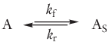

|
•
|
|
•
|
R is the gas constant (J/(mol·K))
|
|
•
|
T is temperature (K)
|


|
•
|
|
•
|








|
•
|
|
•
|
|
•
|
|
1
|
|
2
|
|
3
|
Click Add.
|
|
4
|
In the Select Physics tree, select Mathematics > PDE Interfaces > Lower Dimensions > General Form Boundary PDE (gb).
|
|
5
|
Click Add.
|
|
6
|
In the Dependent variables (1) table, enter the following settings:
|
|
7
|
Click
 Study. Study. |
|
8
|
|
9
|
Click
 Done. Done. |
|
1
|
|
2
|
|
3
|
Click
 Load from File. Load from File. |
|
4
|
Browse to the model’s Application Libraries folder and double-click the file transport_and_adsorption_parameters.txt.
|
|
1
|
|
2
|
|
3
|
|
1
|
|
2
|
|
3
|
|
4
|
|
5
|
|
6
|
Click
 Build All Objects. Build All Objects. |
|
1
|
|
2
|
|
3
|
|
4
|
Click
 Build All Objects. Build All Objects. |
|
1
|
|
2
|
|
3
|
|
4
|
|
5
|
Click
 Build All Objects. Build All Objects. |
|
6
|
|
1
|
|
2
|
|
3
|
|
5
|
Locate the Variables section. In the table, enter the following settings:
|
|
1
|
|
2
|
|
3
|
|
5
|
Locate the Variables section. In the table, enter the following settings:
|
|
1
|
In the Model Builder window, under Component 1 (comp1) > Transport of Diluted Species (tds) click Fluid 1.
|
|
2
|
|
3
|
|
4
|
|
1
|
|
2
|
|
3
|
|
1
|
|
3
|
|
4
|
Select the Species c checkbox.
|
|
5
|
|
1
|
|
3
|
|
4
|
Select the Species c checkbox.
|
|
5
|
|
1
|
|
1
|
|
1
|
|
2
|
|
3
|
|
4
|
Click
 Clear Selection. Clear Selection. |
|
6
|
|
7
|
In the Dependent variable quantity table, enter the following settings:
|
|
8
|
In the Source term quantity table, enter the following settings:
|
|
1
|
In the Model Builder window, under Component 1 (comp1) > General Form Boundary PDE (gb) click General Form PDE 1.
|
|
2
|
|
3
|
|
4
|
|
1
|
|
2
|
|
3
|
|
5
|
|
6
|
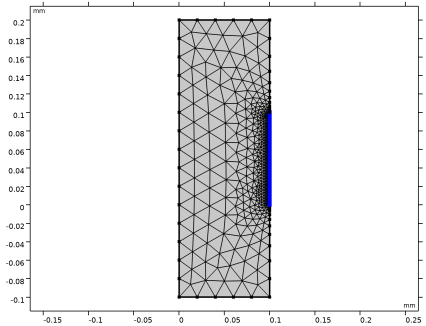
Locate the Element Size Parameters section.
|
|
7
|
|
8
|
|
1
|
|
2
|
|
3
|
|
4
|
|
1
|
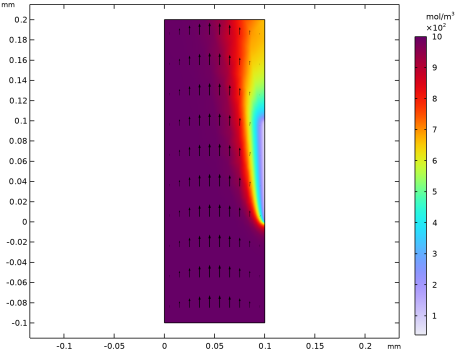
In the Settings window for 2D Plot Group, type Concentration Species in Reactor in the Label text field.
|
|
2
|
|
3
|
|
4
|
|
1
|
|
2
|
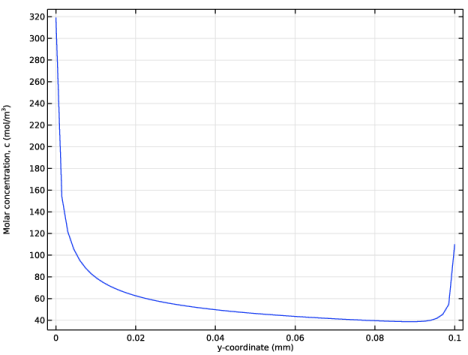
In the Settings window for 1D Plot Group, type Concentration Reacting Species Along Active Surface in the Label text field.
|
|
3
|
|
4
|
|
5
|
|
1
|
|
3
|
In the Settings window for Line Graph, click Replace Expression in the upper-right corner of the y-Axis Data section. From the menu, choose Component 1 (comp1) > Transport of Diluted Species > Species c > c - Molar concentration, c - mol/m³.
|
|
4
|
Click Replace Expression in the upper-right corner of the x-Axis Data section. From the menu, choose Component 1 (comp1) > Geometry > Coordinate > y - y-coordinate.
|
|
5
|
|
1
|
In the Model Builder window, right-click Concentration Reacting Species Along Active Surface and choose Duplicate.
|
|
2
|
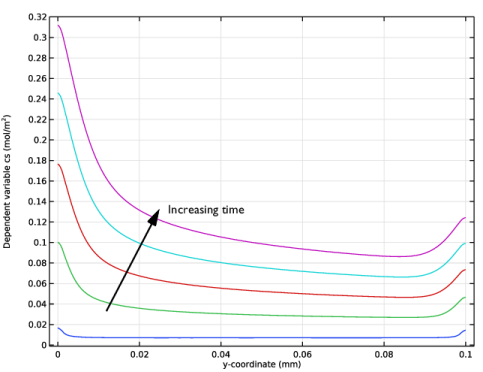
In the Settings window for 1D Plot Group, type Concentration Adsorbed Species Along Active Surface in the Label text field.
|
|
3
|
|
4
|
|
1
|
In the Model Builder window, expand the Concentration Adsorbed Species Along Active Surface node, then click Line Graph 1.
|
|
2
|
In the Settings window for Line Graph, click Replace Expression in the upper-right corner of the y-Axis Data section. From the menu, choose Component 1 (comp1) > General Form Boundary PDE > cs - Dependent variable cs - mol/m².
|
|
3
|
|
1
|
In the Model Builder window, right-click Concentration Adsorbed Species Along Active Surface and choose Duplicate.
|
|
2
|
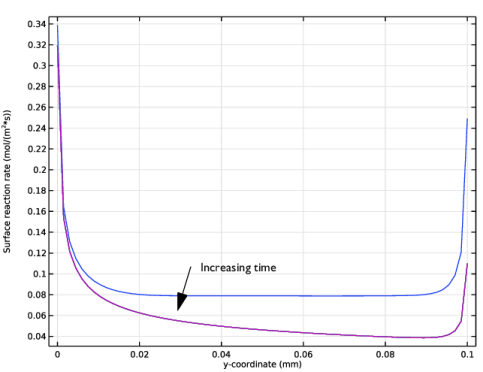
In the Settings window for 1D Plot Group, type Surface Reaction Rate Along Active Surface in the Label text field.
|
|
3
|
|
1
|
In the Model Builder window, expand the Surface Reaction Rate Along Active Surface node, then click Line Graph 1.
|
|
2
|
In the Settings window for Line Graph, click Replace Expression in the upper-right corner of the y-Axis Data section. From the menu, choose Component 1 (comp1) > Definitions > Variables > R - Surface reaction rate - mol/(m²·s).
|
|
3
|
|
1
|
|
2
|
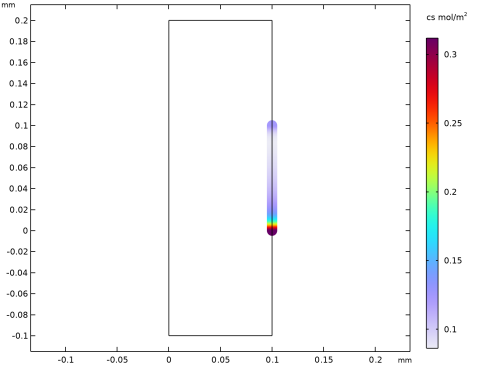
In the Settings window for 2D Plot Group, type Concentration Adsorbed Species at Active Surface in the Label text field.
|
|
3
|
|
4
|
|
1
|
In the Model Builder window, expand the Concentration Adsorbed Species at Active Surface node, then click Line 1.
|
|
2
|
|
3
|
|
4
|
|
5
|
|
6
|
|
7
|