PDF

Thermal Controller, Reduced-Order Model
Introduction
This example demonstrates controlling the temperature in a heated metal block using a thermal controller and how to use reduced-order modeling to shorten computing time for additional simulations.
The model studies the controlled temperature response to a sinusoidal variation of the external temperature for two candidate thermostat positions and two temperature setpoints. One candidate location for the thermostat is between the surface with the external temperature variation and the heater, and in the other location both the heater and the surface with the external temperature are located on the same side.
Model Definition
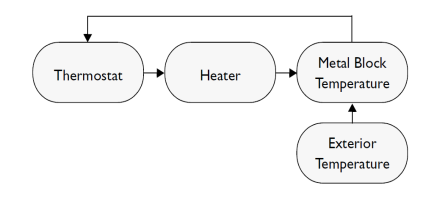
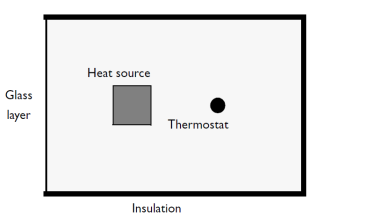
The dynamic system consists of a metal block that exchanges heat with the environment. A heater and a thermostat switch are situated inside the glass-enclosed system. The system works as follows: The thermostat turns the heater on or off when the temperature becomes too low or too high.
The finite-element model of the metal block requires two inputs:
As its output, the model supplies the temperature at the thermostat’s location.
Figure 1: Block diagram for the thermal controller system.
The PDE describes the overall system’s temperature distribution given the temperature of the heater and the exterior environment. If the heat transfer is so fast that the heat distribution is more or less constant (in space, not in time), a single state is sufficient. Otherwise, controlling the temperature requires modeling a space-dependent PDE in COMSOL Multiphysics.
Domain Equations
The heat equation is
Boundary conditions
The boundary conditions come from the level of insulation around the system. On well-insulated sides the temperature flux is zero, which gives the Neumann boundary condition n · (kT) = 0. The poorly insulated sides involve the Neumann condition n · (kT) = (kG/lG)(Tout − T), where kG and lG are the thermal conductivity and the thickness of the glass sheet that separates the metal block and the exterior.
Figure 2: Geometry of the thermal controller system. The figure shows one of the two candidate thermostat positions.
Because only the temperature distribution in the xy-plane is of interest, you can use a 2D model. For the units to make sense, think of the domain as having a depth (z direction) of 1 m.
Controlling Temperature
The temperature is controlled by switching the heater on and off depending on a temperature measurement (T) relative to a temperature setpoint (Tset). In order to avoid switching on an off as soon as there is a small deviation, a deadband (+/- dT) is often used to define an acceptable deviation from the setpoint before the controller switches its state. Introducing indicator functions (lowtemp and hightemp) switching signs when the temperature changes to a value outside the acceptable range, events can be used to switch the heater on and off.
lowtemp = (Tset – dT) – T
hightemp = T – (Tset + dT)
The event triggered when detecting lowtemp > 0 switches the heater on and the event triggered when detecting hightemp > 0 switches the heater off.
Reduced-Order Modeling (Model reduction)
Large finite-element simulations can be costly, and if repeated simulations are needed it can be beneficial to use reduced-order models (ROMs). Reduced-order modeling is a method for reducing a given dynamic finite element model to one with fewer degrees of freedom while maintaining the dynamic characteristics of the system. ROMs are typically valid only in the vicinity of their design conditions and have lower accuracy, but the simulation time is significantly shorter. The objective for model reduction is to provide a sufficiently accurate representation of the input-output dynamics of the unreduced model in a given parameter range with a minimal total computational cost, including the cost of creating the reduced model. The characteristics of the unreduced model as well as the value of the reduced model guide the choice of model-reduction method. Nonlinearities require special treatment, and if the model is to be valid in a large parameter range it can be costly to produce basis functions or input-output samples. Model reduction can, for example, be performed by linearization of the finite-element model and projection of the resulting system matrices onto a limited set of base functions representing the dynamics of significance for the application and defining the relevant inputs and outputs of interest. In this case, the model reduction is performed by projection onto a selected subset of eigenmodes for the system, corresponding to the dominant dynamics.
In the present example the unreduced model as well as the outputs are linear and the dependence on the input parameters has an affine representation. A small number of eigenmodes are used as the basis functions and the inputs represent the exterior temperature (Tout) and the fraction of maximum power of the heater (HeatState). The outputs are defined as the temperatures in two candidate points for thermostat placement (T1, T2). The control strategy described in the previous section is, however, clearly nonlinear and not a candidate for model reduction since it only has two states.
Results and Discussion
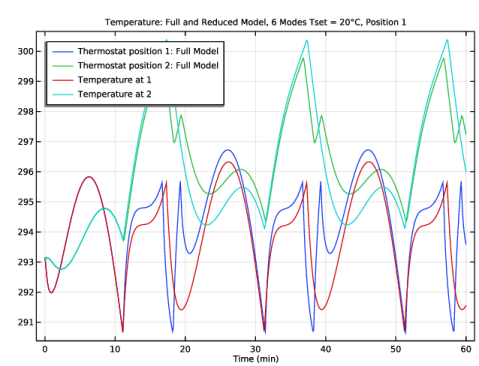
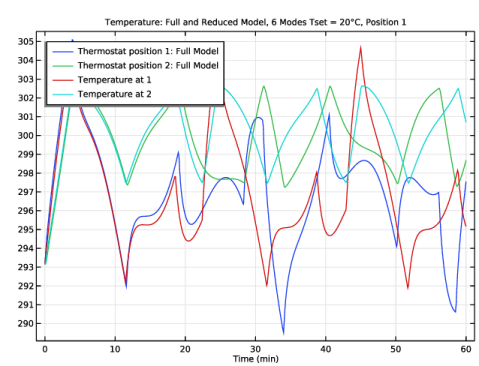
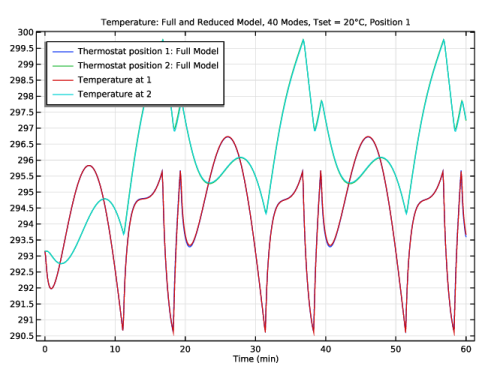
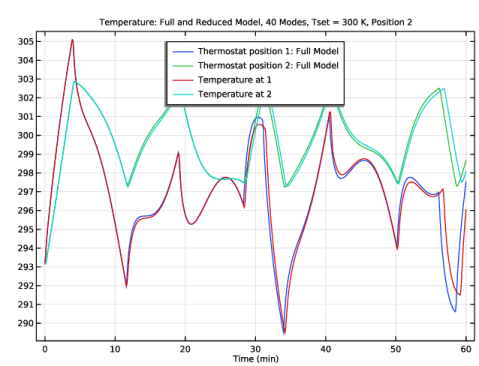
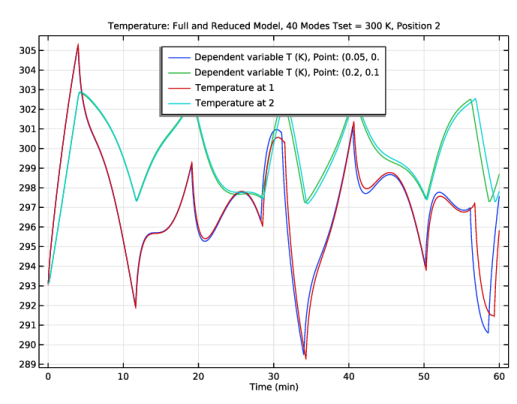
The tutorial shows how to use a reduced model rather than a full finite-element simulation to evaluate a control strategy. In this case, the controlled system is linear but the controller has nonlinear dynamics. It is also illustrated how increasing the number of basis functions can improve the transient response of the reduced model when compared to a finite-element simulation. The external temperature variation is slow and smooth, but the dynamics of the controller can introduce high-frequency transients. The dynamic response of the reduced model is determined by the eigenmodes included in the basis, and increasing the number of modes extends the dynamic range of the reduced model and improves the accuracy of the transient response. From the comparison with the response of the unreduced model it is clear that an increase from 6 to 40 eigenmodes, which is done in the settings for the eigenvalue study, brings the reduced model response closer to that of the unreduced model. The final comparison is shown in Figure 3.
Figure 3: Comparing the reduced model outputs with the temperatures from the finite-element model with the thermostat shows good agreement when using 40 eigenmodes, a setpoint of 300 K, and placing the thermostat at position 2.
Application Library path: COMSOL_Multiphysics/Multiphysics/thermal_controller_rom
Modeling Instructions
From the File menu, choose New.
New
In the New window, click  Model Wizard.
Model Wizard
1
In the Model Wizard window, click  2D.
2
In the Select Physics tree, select Mathematics > Classical PDEs > Heat Equation (hteq).
3
Click Add.
4
In the Dependent variable (K) text field, type T.
5
Geometry 1
Rectangle 1 (r1)
1
In the Geometry toolbar, click  Rectangle.
2
In the Settings window for Rectangle, locate the Size and Shape section.
3
In the Width text field, type 0.3.
4
In the Height text field, type 0.2.
Square 1 (sq1)
1
In the Geometry toolbar, click  Square.
2
In the Settings window for Square, locate the Size section.
3
In the Side length text field, type 0.04.
4
Locate the Position section. In the x text field, type 0.1.
5
In the y text field, type 0.1.
6
From the Base list, choose Center.
7
Locate the Selections of Resulting Entities section. Select the Resulting objects selection checkbox.
Point 1 (pt1)
Add two points to represent the candidate thermostat positions 1 and 2.
1
In the Geometry toolbar, click  Point.
2
In the Settings window for Point, locate the Point section.
3
In the x text field, type 0.05.
4
In the y text field, type 0.1.
5
Locate the Selections of Resulting Entities section. Select the Resulting objects selection checkbox.
Point 2 (pt2)
1
Right-click Point 1 (pt1) and choose Duplicate.
2
In the Settings window for Point, locate the Point section.
3
In the x text field, type 0.2.
4
In the Geometry toolbar, click  Build All.
Add a 2D component to set up the geometry and use the Heat Transfer in Solids interface in a time-dependent study.
Add Material from Library
In the Home toolbar, click  Windows and choose Add Material from Library.
Add Material
1
Go to the Add Material window.
2
In the tree, select Built-in > Copper.
3
Click the Add to Component button in the window toolbar.
4
In the Home toolbar, click  Add Material to close the Add Material window.
Component 1: Physics
In the Settings window for Component, type Component 1: Physics in the Label text field.
Global Definitions
Add model parameters for the temperature setpoint, thermal conductivity, density, and heat capacity.
Parameters 1
1
In the Model Builder window, under Global Definitions click Parameters 1.
2
In the Settings window for Parameters, locate the Parameters section.
3
Define the inputs of the reduced model separately.
Root
1
Click the  Show More Options button in the Model Builder toolbar.
2
In the Show More Options dialog, in the tree, select the checkbox for the node Study > Reduced-Order Modeling.
3
Global Definitions
Global Reduced-Model Inputs 1
1
In the Physics toolbar, click  Reduced-Order Modeling and choose Global Reduced-Model Inputs.
2
In the Settings window for Global Reduced-Model Inputs, locate the Reduced-Model Inputs section.
3
Heat Equation (hteq)
Heat Equation 1
1
In the Model Builder window, under Component 1: Physics (comp1) > Heat Equation (hteq) click Heat Equation 1.
2
In the Settings window for Heat Equation, locate the Diffusion Coefficient section.
3
In the c text field, type mat1.def.k_iso.
4
Locate the Source Term section. In the f text field, type 0.
5
Locate the Damping or Mass Coefficient section. In the da text field, type mat1.def.rho*mat1.def.Cp.
Initial Values 1
1
In the Model Builder window, click Initial Values 1.
2
In the Settings window for Initial Values, locate the Initial Values section.
3
In the T text field, type 293.15[K].
Source 1
1
In the Physics toolbar, click  Domains and choose Source.
2
3
In the Settings window for Source, locate the Source Term section.
4
In the f text field, type heatSrc*HeatState.
5
Locate the Domain Selection section. From the Selection list, choose Square 1.
Flux/Source 1
1
In the Physics toolbar, click  Boundaries and choose Flux/Source.
2
3
In the Settings window for Flux/Source, locate the Boundary Flux/Source section.
4
In the g text field, type cpl*(Tout-T).
Definitions
Introduce point probes for the finite-element model outputs in the positions 1 and 2.
Thermostat position 1: Full Model
1
In the Definitions toolbar, click  Probes and choose Point Probe.
2
In the Settings window for Point Probe, locate the Source Selection section.
3
From the Selection list, choose Point 1.
4
In the Label text field, type Thermostat position 1: Full Model.
5
In the Variable name text field, type ppb1.
Thermostat position 2: Full Model
1
Right-click Thermostat position 1: Full Model and choose Duplicate.
2
In the Settings window for Point Probe, type Thermostat position 2: Full Model in the Label text field.
3
In the Variable name text field, type ppb2.
4
Locate the Source Selection section. From the Selection list, choose Point 2.
Thermostat position 1: Full Model (ppb1), Thermostat position 2: Full Model (ppb2)
1
In the Model Builder window, under Component 1: Physics (comp1) > Definitions, Ctrl-click to select Thermostat position 1: Full Model (ppb1) and Thermostat position 2: Full Model (ppb2).
2
Probes for Full Model
In the Settings window for Group, type Probes for Full Model in the Label text field.
Root
The thermostat can be modeled by a discrete on/off state that can be described using Events. Add a 0D component to set up appropriate events.
Add Component
In the Model Builder window, right-click the root node and choose Add Component > 0D.
Component 2: Controller Events
In the Settings window for Component, type Component 2: Controller Events in the Label text field.
Add a variable that defines the source of the measured temperature from the full model.
Definitions (comp2)
Variables 1: Temperature at Position 1 or 2 Using the Full Model
1
In the Model Builder window, under Component 2: Controller Events (comp2) right-click Definitions and choose Variables.
2
In the Settings window for Variables, locate the Variables section.
3
4
In the Label text field, type Variables 1: Temperature at Position 1 or 2 Using the Full Model.
This assigns Tmeasured the value of the FEM probe variable corresponding to the measured temperature at Position 1.
Set up an eigenvalue study to compute six bases to be used for model reduction.
Add Study
1
In the Home toolbar, click  Add Study to open the Add Study window.
2
Go to the Add Study window.
3
Find the Studies subsection. In the Select Study tree, select Empty Study.
4
Click the Add Study button in the window toolbar.
5
In the Home toolbar, click  Add Study to close the Add Study window.
Study 1: Model Reduction with 6 Modes
1
In the Settings window for Study, type Study 1: Model Reduction with 6 Modes in the Label text field.
2
Locate the Study Settings section. Clear the Generate default plots checkbox.
3
Clear the Generate convergence plots checkbox.
Step 1: Eigenvalue
1
In the Study toolbar, click  More Study Steps and choose Eigenfrequency > Eigenvalue.
2
In the Settings window for Eigenvalue, locate the Study Settings section.
3
Select the Desired number of eigenvalues checkbox.
4
Click to expand the Results While Solving section. From the Probes list, choose None.
Add a Model Reduction study step. Configure inputs and outputs using the global inputs and the output probes.
Step 2: Model Reduction
In the Study toolbar, click  More Study Extensions and choose Model Reduction.
Time Dependent 1
1
Right-click Step 2: Model Reduction and choose Time Dependent.
2
In the Settings window for Time Dependent, locate the Study Settings section.
3
From the Time unit list, choose min.
4
In the Output times text field, type range(0, outputStep, tmax).
Step 2: Model Reduction
1
In the Model Builder window, click Step 2: Model Reduction.
2
In the Settings window for Model Reduction, locate the Model Reduction Settings section.
3
From the Training study for eigenmodes list, choose Study 1: Model Reduction with 6 Modes.
4
From the Unreduced model study list, choose Study 1: Model Reduction with 6 Modes.
5
From the Defined by study step list, choose Time Dependent 1.
6
Locate the Outputs section. In the table, enter the following settings:
7
Locate the Model Control Inputs section. In the table, set up the training values: change the value of Tout to 293.15 and HeatState to 1.
8
Locate the Model Reduction Settings section. Clear the Ensure reconstruction capability checkbox.
9
In the Study toolbar, click  Compute.
Add Physics
1
In the Home toolbar, click  Add Physics to open the Add Physics window.
2
Go to the Add Physics window.
3
In the tree, select Mathematics > ODE and DAE Interfaces > Events (ev).
4
Click the Add to Component 2: Controller Events button in the window toolbar.
5
In the Home toolbar, click  Add Physics to close the Add Physics window.
Events (ev)
Set up a discrete state for the current on/off setting and indicator functions for the temperatures relative to the controller setpoint and deadband. If the temperature is too low, lowtemp changes sign and triggers an event to turn the heater on, and if the temperature is too high, hightemp changes sign and triggers an event to turn the heater off.
Indicator States 1
1
In the Events toolbar, click  Indicator States.
2
In the Settings window for Indicator States, locate the Indicator Variables section.
3
Discrete States 1
1
In the Events toolbar, click  Discrete States.
2
In the Settings window for Discrete States, locate the Discrete States section.
3
Implicit Event 1
1
In the Events toolbar, click  Implicit Event.
2
In the Settings window for Implicit Event, locate the Event Conditions section.
3
In the Condition text field, type lowtemp > 0.
4
Clear the Use consistent initialization checkbox.
5
Locate the Reinitialization section. In the table, enter the following settings:
Implicit Event 2
1
In the Events toolbar, click  Implicit Event.
2
In the Settings window for Implicit Event, locate the Event Conditions section.
3
In the Condition text field, type hightemp > 0.
4
Clear the Use consistent initialization checkbox.
5
Locate the Reinitialization section. In the table, enter the following settings:
Global Definitions
Assign the modeling state of the thermostat to the heater state.
Global Reduced-Model Inputs 1
1
In the Model Builder window, under Global Definitions > Reduced-Order Modeling click Global Reduced-Model Inputs 1.
2
In the Settings window for Global Reduced-Model Inputs, locate the Reduced-Model Inputs section.
3
Study 1: Model Reduction with 6 Modes
The model reduction study retrieves the variables to solve for from the unreduced study settings. Events, in this case, should be deactivated.
Time Dependent 1
1
In the Model Builder window, under Study 1: Model Reduction with 6 Modes > Step 2: Model Reduction click Time Dependent 1.
2
In the Settings window for Time Dependent, locate the Physics and Variables Selection section.
3
In the Solve for column of the table, clear the checkbox for Component 2: Controller Events (comp2).
Add Study
1
In the Study toolbar, click  Add Study to open the Add Study window.
2
Go to the Add Study window.
3
Find the Studies subsection. In the Select Study tree, select General Studies > Time Dependent.
4
Click the Add Study button in the window toolbar.
5
In the Study toolbar, click  Add Study to close the Add Study window.
Study 2
Step 1: Time Dependent
1
In the Settings window for Time Dependent, locate the Study Settings section.
2
From the Time unit list, choose min.
3
In the Output times text field, type range(0, outputStep, tmax).
4
In the Model Builder window, click Study 2.
5
In the Settings window for Study, type Study 2: Controller Full in the Label text field.
6
Locate the Study Settings section. Clear the Generate default plots checkbox.
7
Clear the Generate convergence plots checkbox.
Add a parametric sweep to run the full model with different values of Tset and Tmeasured.
Parametric Sweep
1
In the Study toolbar, click  Parametric Sweep.
2
In the Settings window for Parametric Sweep, locate the Study Settings section.
3
4
5
Locate the Output While Solving section. From the Probes list, choose None.
Solution 3 (sol3)
1
In the Study toolbar, click  Show Default Solver.
2
In the Model Builder window, expand the Solution 3 (sol3) node.
3
In the Model Builder window, under Study 2: Controller Full > Solver Configurations > Solution 3 (sol3) click Time-Dependent Solver 1.
4
In the Settings window for Time-Dependent Solver, click to expand the Time Stepping section.
5
From the Steps taken by solver list, choose Manual.
6
In the Time step text field, type tstep.
Step 1: Time Dependent
1
In the Model Builder window, under Study 2: Controller Full click Step 1: Time Dependent.
2
In the Settings window for Time Dependent, locate the Physics and Variables Selection section.
3
Select the Modify model configuration for study step checkbox.
4
In the tree, select Global Definitions > Reduced-Order Modeling > Time Dependent, Modal Reduced-Order Model 1 (rom1).
5
6
In the Study toolbar, click  Compute.
Add global variable probes for the outputs of the Reduced Model with six eigenmodes.
Definitions (comp1)
In the Model Builder window, under Component 1: Physics (comp1) click Definitions.
Thermostat position 1: Reduced Model 1
1
In the Definitions toolbar, click  Probes and choose Global Variable Probe.
2
In the Settings window for Global Variable Probe, locate the Expression section.
3
In the Expression text field, type rom1.T1.
4
In the Label text field, type Thermostat position 1: Reduced Model 1.
Thermostat position 2: Reduced Model 1
1
In the Definitions toolbar, click  Probes and choose Global Variable Probe.
2
In the Settings window for Global Variable Probe, locate the Expression section.
3
In the Expression text field, type rom1.T2.
4
In the Label text field, type Thermostat position 2: Reduced Model 1.
Thermostat position 1: Reduced Model 1 (var1), Thermostat position 2: Reduced Model 1 (var2)
1
In the Model Builder window, under Component 1: Physics (comp1) > Definitions, Ctrl-click to select Thermostat position 1: Reduced Model 1 (var1) and Thermostat position 2: Reduced Model 1 (var2).
2
Probes for Reduced Model 1
In the Settings window for Group, type Probes for Reduced Model 1 in the Label text field.
Add a new variable and configure events to run with the Reduced Model 1’s output temperature at position 1 or 2.
Definitions (comp2)
Variables 2: Temperature at Position 1 or 2 Using the Reduced Model 1
1
In the Model Builder window, under Component 2: Controller Events (comp2) right-click Definitions and choose Variables.
2
In the Settings window for Variables, locate the Variables section.
3
4
In the Label text field, type Variables 2: Temperature at Position 1 or 2 Using the Reduced Model 1.
Disable Variable 2 in the full model.
Study 2: Controller Full
Step 1: Time Dependent
1
In the Model Builder window, under Study 2: Controller Full click Step 1: Time Dependent.
2
In the Settings window for Time Dependent, locate the Physics and Variables Selection section.
3
In the tree, select Component 2: Controller Events (comp2) > Definitions > Variables 2: Temperature at Position 1 or 2 Using the Reduced Model 1.
4
Set up a time-dependent study to perform simulations using the reduced model with six eigenmodes.
Add Study
1
In the Study toolbar, click  Add Study to open the Add Study window.
2
Go to the Add Study window.
3
Find the Studies subsection. In the Select Study tree, select Empty Study.
4
Click the Add Study button in the window toolbar.
5
In the Study toolbar, click  Add Study to close the Add Study window.
Study 3: Controller ROM with 6 Modes
1
In the Settings window for Study, locate the Study Settings section.
2
Clear the Generate default plots checkbox.
3
Clear the Generate convergence plots checkbox.
4
In the Label text field, type Study 3: Controller ROM with 6 Modes.
5
In the Study toolbar, click  Time Dependent.
1
In the Settings window for Time Dependent, locate the Physics and Variables Selection section.
2
In the Solve for column of the table, under Component 1: Physics (comp1), clear the checkbox for Heat Equation (hteq).
3
Locate the Study Settings section. From the Time unit list, choose min.
4
In the Output times text field, type range(0, outputStep, tmax).
5
Locate the Physics and Variables Selection section. Select the Modify model configuration for study step checkbox.
6
In the tree, select Component 2: Controller Events (comp2) > Definitions > Variables 1: Temperature at Position 1 or 2 Using the Full Model.
7
8
Click to expand the Results While Solving section. From the Probes list, choose Manual.
9
In the Probes list, choose Thermostat position 1: Full Model (ppb1) and Thermostat position 2: Full Model (ppb2).
10
Under Probes, click  Delete.
Add a parametric sweep to run the Reduced Model 1 with different values of Tset and Tmeasured.
Parametric Sweep
1
In the Study toolbar, click  Parametric Sweep.
2
In the Settings window for Parametric Sweep, locate the Study Settings section.
3
4
5
Locate the Output While Solving section. From the Probes list, choose None.
Solution 7 (sol7)
1
In the Study toolbar, click  Show Default Solver.
2
In the Model Builder window, expand the Solution 7 (sol7) node.
3
In the Model Builder window, under Study 3: Controller ROM with 6 Modes > Solver Configurations > Solution 7 (sol7) click Time-Dependent Solver 1.
4
In the Settings window for Time-Dependent Solver, locate the Time Stepping section.
5
From the Steps taken by solver list, choose Manual.
6
In the Time step text field, type tstep.
7
In the Study toolbar, click  Compute.
Comparing the reduced model with six eigenmodes and the full model at Position 1 and Position 2. Here, global plots are used but probe table can be used instead if the temporal resolution of the solution is poor.
Results
Temperature: Full and Reduced Model, 6 Modes, Tset = 20°C, Position 1
1
In the Results toolbar, click  1D Plot Group.
2
In the Settings window for 1D Plot Group, locate the Legend section.
3
From the Position list, choose Upper left.
4
In the Label text field, type Temperature: Full and Reduced Model, 6 Modes, Tset = 20°C, Position 1.
5
Click to expand the Title section. From the Title type list, choose Manual.
6
In the Title text area, type Temperature: Full and Reduced Model, 6 Modes Tset = 20°C, Position 1.
7
Locate the Data section. From the Dataset list, choose None.
Temperature: Full Model
1
Right-click Temperature: Full and Reduced Model, 6 Modes, Tset = 20°C, Position 1 and choose Global.
2
In the Settings window for Global, locate the Data section.
3
From the Dataset list, choose Study 2: Controller Full/Parametric Solutions 1 (6) (sol4).
4
From the Parameter selection (Tset) list, choose From list.
5
In the Parameter values (Tset (K)) list box, select 293.15.
6
Locate the y-Axis Data section. In the table, enter the following settings:
7
In the Label text field, type Temperature: Full Model.
8
Locate the x-Axis Data section. From the Axis source data list, choose Time.
9
Click to expand the Legends section. Find the Include subsection. Clear the Solution checkbox.
Temperature: Reduced Model with 6 Modes
1
In the Model Builder window, right-click Temperature: Full and Reduced Model, 6 Modes, Tset = 20°C, Position 1 and choose Global.
2
In the Settings window for Global, type Temperature: Reduced Model with 6 Modes in the Label text field.
3
Locate the Data section. From the Dataset list, choose Study 3: Controller ROM with 6 Modes/Parametric Solutions 2 (11) (sol8).
4
From the Parameter selection (Tset) list, choose From list.
5
In the Parameter values (Tset (K)) list box, select 293.15.
6
Locate the y-Axis Data section. In the table, enter the following settings:
7
Locate the x-Axis Data section. From the Axis source data list, choose Time.
8
Locate the Legends section. Find the Include subsection. Clear the Solution checkbox.
9
In the Temperature: Full and Reduced Model, 6 Modes, Tset = 20°C, Position 1 toolbar, click  Plot.
Comparing the reduced model with six eigenmodes and the full model shows some disagreement.
Temperature: Full and Reduced Model, 6 Modes, Tset = 300 K, Position 2
1
Right-click Temperature: Full and Reduced Model, 6 Modes, Tset = 20°C, Position 1 and choose Duplicate.
2
In the Settings window for 1D Plot Group, type Temperature: Full and Reduced Model, 6 Modes, Tset = 300 K, Position 2 in the Label text field.
Temperature: Full Model
1
In the Model Builder window, expand the Temperature: Full and Reduced Model, 6 Modes, Tset = 300 K, Position 2 node, then click Temperature: Full Model.
2
In the Settings window for Global, locate the Data section.
3
In the Parameter values (Tset (K)) list box, select 300.
Temperature: Reduced Model with 6 Modes
1
In the Model Builder window, click Temperature: Reduced Model with 6 Modes.
2
In the Settings window for Global, locate the Data section.
3
In the Parameter values (Tset (K)) list box, select 300.
4
In the Temperature: Full and Reduced Model, 6 Modes, Tset = 300 K, Position 2 toolbar, click  Plot.
The agreement between the reduced model with six eigenmodes and the full model is poor also at Position 2.
Temperature: Full and Reduced Model, 6 Modes, Tset = 300 K, Position 2
1
In the Model Builder window, click Temperature: Full and Reduced Model, 6 Modes, Tset = 300 K, Position 2.
2
In the Settings window for 1D Plot Group, locate the Title section.
3
In the Title text area, type Temperature: Full and Reduced Model, 6 Modes Tset = 300K, Position 2.
Add Study
Increase the number of eigenmodes to produce a more complete basis for the Reduced Model, and recompute the Model Reduction study with the new set of eigenmodes.
1
In the Home toolbar, click  Add Study to open the Add Study window.
2
Go to the Add Study window.
3
Find the Studies subsection. In the Select Study tree, select Empty Study.
4
Click the Add Study button in the window toolbar.
5
In the Home toolbar, click  Add Study to close the Add Study window.
Study 4: Model Reduction with 40 Modes
1
In the Settings window for Study, type Study 4: Model Reduction with 40 Modes in the Label text field.
2
Locate the Study Settings section. Clear the Generate default plots checkbox.
3
Clear the Generate convergence plots checkbox.
Step 1: Eigenvalue
1
In the Study toolbar, click  More Study Steps and choose Eigenfrequency > Eigenvalue.
2
In the Settings window for Eigenvalue, locate the Study Settings section.
3
Select the Desired number of eigenvalues checkbox. In the associated text field, type 40.
Add a Model Reduction study step. Configure inputs and outputs using the global inputs and the output probes.
Step 2: Model Reduction
In the Study toolbar, click  More Study Extensions and choose Model Reduction.
Time Dependent 1
1
Right-click Step 2: Model Reduction and choose Time Dependent.
2
In the Settings window for Time Dependent, locate the Study Settings section.
3
From the Time unit list, choose min.
4
In the Output times text field, type range(0, outputStep, tmax).
Step 2: Model Reduction
1
In the Model Builder window, click Step 2: Model Reduction.
2
In the Settings window for Model Reduction, locate the Model Reduction Settings section.
3
From the Training study for eigenmodes list, choose Study 4: Model Reduction with 40 Modes.
4
From the Unreduced model study list, choose Study 4: Model Reduction with 40 Modes.
5
From the Defined by study step list, choose Time Dependent 1.
6
Locate the Outputs section. In the table, enter the following settings:
7
Locate the Model Control Inputs section. In the table, set up the training values: change the value of Tout to 293.15 and HeatState to 1.
8
Locate the Model Reduction Settings section. Clear the Ensure reconstruction capability checkbox.
Step 1: Eigenvalue
Disable variables and deactivate events when building the ROM.
1
In the Model Builder window, click Step 1: Eigenvalue.
2
In the Settings window for Eigenvalue, locate the Physics and Variables Selection section.
3
Select the Modify model configuration for study step checkbox.
4
In the tree, select Global Definitions > Reduced-Order Modeling > Time Dependent, Modal Reduced-Order Model 1 (rom1).
5
6
In the tree, select Component 2: Controller Events (comp2) > Definitions > Variables 1: Temperature at Position 1 or 2 Using the Full Model and Component 2: Controller Events (comp2) > Definitions > Variables 2: Temperature at Position 1 or 2 Using the Reduced Model 1.
7
8
Locate the Results While Solving section. From the Probes list, choose None.
Time Dependent 1
1
In the Model Builder window, under Study 4: Model Reduction with 40 Modes > Step 2: Model Reduction click Time Dependent 1.
2
In the Settings window for Time Dependent, locate the Physics and Variables Selection section.
3
Select the Modify model configuration for study step checkbox.
4
In the tree, select Global Definitions > Reduced-Order Modeling > Time Dependent, Modal Reduced-Order Model 1 (rom1).
5
6
In the tree, select Component 2: Controller Events (comp2).
7
Right-click and choose Disable in Solvers.
8
In the tree, select Component 2: Controller Events (comp2) > Definitions > Variables 1: Temperature at Position 1 or 2 Using the Full Model and Component 2: Controller Events (comp2) > Definitions > Variables 2: Temperature at Position 1 or 2 Using the Reduced Model 1.
9
10
In the Study toolbar, click  Compute.
Global Definitions
Time Dependent, Modal Reduced-Order Model 1: 6 Modes
1
In the Model Builder window, under Global Definitions > Reduced-Order Modeling click Time Dependent, Modal Reduced-Order Model 1 (rom1).
2
In the Settings window for Time Dependent, Modal Reduced-Order Model, type Time Dependent, Modal Reduced-Order Model 1: 6 Modes in the Label text field.
Time Dependent, Modal Reduced-Order Model 2: 40 Modes
1
In the Model Builder window, under Global Definitions > Reduced-Order Modeling click Time Dependent, Modal Reduced-Order Model 2 (rom2).
2
In the Settings window for Time Dependent, Modal Reduced-Order Model, type Time Dependent, Modal Reduced-Order Model 2: 40 Modes in the Label text field.
Add global variable probes for the outputs of the Reduced Model with 40 eigenmodes.
Definitions (comp1)
In the Model Builder window, under Component 1: Physics (comp1) click Definitions.
Thermostat Position 1: Reduced Model 2
1
In the Definitions toolbar, click  Probes and choose Global Variable Probe.
2
In the Settings window for Global Variable Probe, type Thermostat Position 1: Reduced Model 2 in the Label text field.
3
Locate the Expression section. In the Expression text field, type rom2.T1.
Thermostat Position 2: Reduced Model 2
1
In the Definitions toolbar, click  Probes and choose Global Variable Probe.
2
In the Settings window for Global Variable Probe, type Thermostat Position 2: Reduced Model 2 in the Label text field.
3
Locate the Expression section. In the Expression text field, type rom2.T2.
Thermostat Position 1: Reduced Model 2 (var3), Thermostat Position 2: Reduced Model 2 (var4)
1
In the Model Builder window, under Component 1: Physics (comp1) > Definitions, Ctrl-click to select Thermostat Position 1: Reduced Model 2 (var3) and Thermostat Position 2: Reduced Model 2 (var4).
2
Probes for Reduced Model 2
In the Settings window for Group, type Probes for Reduced Model 2 in the Label text field.
Add a new variable and configure events to run with the Reduced Model 2’s output temperature at position 1 or 2.
Definitions (comp2)
Variables 3: Temperature at Position 1 or 2 Using the Reduced Model 2
1
In the Model Builder window, under Component 2: Controller Events (comp2) right-click Definitions and choose Variables.
2
In the Settings window for Variables, type Variables 3: Temperature at Position 1 or 2 Using the Reduced Model 2 in the Label text field.
3
Locate the Variables section. In the table, enter the following settings:
Study 1: Model Reduction with 6 Modes
Modify the settings for the existing studies to match current state.
Step 1: Eigenvalue
1
In the Model Builder window, under Study 1: Model Reduction with 6 Modes click Step 1: Eigenvalue.
2
In the Settings window for Eigenvalue, locate the Physics and Variables Selection section.
3
Select the Modify model configuration for study step checkbox.
4
In the tree, select Component 2: Controller Events (comp2) > Definitions > Variables 1: Temperature at Position 1 or 2 Using the Full Model, Component 2: Controller Events (comp2) > Definitions > Variables 2: Temperature at Position 1 or 2 Using the Reduced Model 1, and Component 2: Controller Events (comp2) > Definitions > Variables 3: Temperature at Position 1 or 2 Using the Reduced Model 2.
5
6
In the tree, select Global Definitions > Reduced-Order Modeling > Time Dependent, Modal Reduced-Order Model 1: 6 Modes (rom1) and Global Definitions > Reduced-Order Modeling > Time Dependent, Modal Reduced-Order Model 2: 40 Modes (rom2).
7
Time Dependent 1
1
In the Model Builder window, under Study 1: Model Reduction with 6 Modes > Step 2: Model Reduction click Time Dependent 1.
2
In the Settings window for Time Dependent, locate the Physics and Variables Selection section.
3
Select the Modify model configuration for study step checkbox.
4
In the tree, select Component 2: Controller Events (comp2) > Definitions > Variables 1: Temperature at Position 1 or 2 Using the Full Model, Component 2: Controller Events (comp2) > Definitions > Variables 2: Temperature at Position 1 or 2 Using the Reduced Model 1, and Component 2: Controller Events (comp2) > Definitions > Variables 3: Temperature at Position 1 or 2 Using the Reduced Model 2.
5
6
In the tree, select Global Definitions > Reduced-Order Modeling > Time Dependent, Modal Reduced-Order Model 1: 6 Modes (rom1), Global Definitions > Reduced-Order Modeling > Time Dependent, Modal Reduced-Order Model 2: 40 Modes (rom2), Component 2: Controller Events (comp2) > Definitions > Variables 1: Temperature at Position 1 or 2 Using the Full Model, Component 2: Controller Events (comp2) > Definitions > Variables 2: Temperature at Position 1 or 2 Using the Reduced Model 1, and Component 2: Controller Events (comp2) > Definitions > Variables 3: Temperature at Position 1 or 2 Using the Reduced Model 2.
7
Study 2: Controller Full
Step 1: Time Dependent
1
In the Model Builder window, under Study 2: Controller Full click Step 1: Time Dependent.
2
In the Settings window for Time Dependent, locate the Physics and Variables Selection section.
3
In the tree, select Global Definitions > Reduced-Order Modeling > Time Dependent, Modal Reduced-Order Model 2: 40 Modes (rom2).
4
5
In the tree, select Global Definitions > Reduced-Order Modeling > Time Dependent, Modal Reduced-Order Model 2: 40 Modes (rom2) and Component 2: Controller Events (comp2) > Definitions > Variables 3: Temperature at Position 1 or 2 Using the Reduced Model 2.
6
7
Locate the Results While Solving section. From the Probes list, choose Manual.
8
In the Probes list, choose Thermostat position 1: Reduced Model 1 (var1), Thermostat position 2: Reduced Model 1 (var2), Thermostat Position 1: Reduced Model 2 (var3), and Thermostat Position 2: Reduced Model 2 (var4).
9
Under Probes, click  Delete.
Study 3: Controller ROM with 6 Modes
1
In the Model Builder window, under Study 3: Controller ROM with 6 Modes click Step 1: Time Dependent.
2
In the Settings window for Time Dependent, locate the Physics and Variables Selection section.
3
In the tree, select Global Definitions > Reduced-Order Modeling > Time Dependent, Modal Reduced-Order Model 2: 40 Modes (rom2).
4
5
In the tree, select Component 2: Controller Events (comp2) > Definitions > Variables 3: Temperature at Position 1 or 2 Using the Reduced Model 2.
6
7
Locate the Results While Solving section. In the Probes list, choose Thermostat Position 1: Reduced Model 2 (var3) and Thermostat Position 2: Reduced Model 2 (var4).
8
Under Probes, click  Delete.
Study 4: Model Reduction with 40 Modes
Step 1: Eigenvalue
1
In the Model Builder window, under Study 4: Model Reduction with 40 Modes click Step 1: Eigenvalue.
2
In the Settings window for Eigenvalue, locate the Physics and Variables Selection section.
3
In the tree, select Global Definitions > Reduced-Order Modeling > Time Dependent, Modal Reduced-Order Model 1: 6 Modes (rom1) and Global Definitions > Reduced-Order Modeling > Time Dependent, Modal Reduced-Order Model 2: 40 Modes (rom2).
4
5
In the tree, select Component 2: Controller Events (comp2) > Definitions > Variables 3: Temperature at Position 1 or 2 Using the Reduced Model 2.
6
Time Dependent 1
1
In the Model Builder window, under Study 4: Model Reduction with 40 Modes > Step 2: Model Reduction click Time Dependent 1.
2
In the Settings window for Time Dependent, locate the Physics and Variables Selection section.
3
In the tree, select Global Definitions > Reduced-Order Modeling > Time Dependent, Modal Reduced-Order Model 1: 6 Modes (rom1), Global Definitions > Reduced-Order Modeling > Time Dependent, Modal Reduced-Order Model 2: 40 Modes (rom2), Component 2: Controller Events (comp2) > Definitions > Variables 1: Temperature at Position 1 or 2 Using the Full Model, Component 2: Controller Events (comp2) > Definitions > Variables 2: Temperature at Position 1 or 2 Using the Reduced Model 1, and Component 2: Controller Events (comp2) > Definitions > Variables 3: Temperature at Position 1 or 2 Using the Reduced Model 2.
4
Set up a time-dependent study to perform simulations using the reduced model with 40 eigenmodes.
Add Study
1
In the Study toolbar, click  Add Study to open the Add Study window.
2
Go to the Add Study window.
3
Find the Studies subsection. In the Select Study tree, select General Studies > Time Dependent.
4
Click the Add Study button in the window toolbar.
5
In the Study toolbar, click  Add Study to close the Add Study window.
Study 5: Controller ROM with 40 Modes
1
In the Settings window for Study, type Study 5: Controller ROM with 40 Modes in the Label text field.
2
Locate the Study Settings section. Clear the Generate default plots checkbox.
3
Clear the Generate convergence plots checkbox.
Step 1: Time Dependent
Disable variables and deactivate events when build ROM.
1
In the Model Builder window, under Study 5: Controller ROM with 40 Modes click Step 1: Time Dependent.
2
In the Settings window for Time Dependent, locate the Study Settings section.
3
From the Time unit list, choose min.
4
In the Output times text field, type range(0, outputStep, tmax).
5
Locate the Physics and Variables Selection section. Select the Modify model configuration for study step checkbox.
6
In the tree, select Global Definitions > Reduced-Order Modeling > Time Dependent, Modal Reduced-Order Model 1: 6 Modes (rom1).
7
8
In the tree, select Component 1: Physics (comp1) > Heat Equation (hteq).
9
Right-click and choose Disable in Solvers.
10
In the tree, select Component 2: Controller Events (comp2) > Definitions > Variables 1: Temperature at Position 1 or 2 Using the Full Model and Component 2: Controller Events (comp2) > Definitions > Variables 2: Temperature at Position 1 or 2 Using the Reduced Model 1.
11
12
Locate the Results While Solving section. From the Probes list, choose Manual.
13
In the Probes list, choose Thermostat position 1: Full Model (ppb1), Thermostat position 2: Full Model (ppb2), Thermostat position 1: Reduced Model 1 (var1), and Thermostat position 2: Reduced Model 1 (var2).
14
Under Probes, click  Delete.
Add a parametric sweep to run the Reduced Model 2 with different values of Tset and Tmeasured.
Parametric Sweep
1
In the Study toolbar, click  Parametric Sweep.
2
In the Settings window for Parametric Sweep, locate the Study Settings section.
3
4
5
Locate the Output While Solving section. From the Probes list, choose None.
Solution 13 (sol13)
1
In the Study toolbar, click  Show Default Solver.
2
In the Model Builder window, expand the Solution 13 (sol13) node.
3
In the Model Builder window, under Study 5: Controller ROM with 40 Modes > Solver Configurations > Solution 13 (sol13) click Time-Dependent Solver 1.
4
In the Settings window for Time-Dependent Solver, locate the Time Stepping section.
5
From the Steps taken by solver list, choose Manual.
6
In the Time step text field, type tstep.
7
In the Study toolbar, click  Compute.
Results
Thermostat position 1: Full Model
Compare the reduced model with 40 eigenmodes and the full model at Position 1 and Position 2.
Results
Temperature: Full and Reduced Model, 40 Modes, Tset = 20°C, Position 1
1
In the Model Builder window, expand the Study 5: Controller ROM with 40 Modes > Solver Configurations > Parametric Solutions 3 (sol14) node.
2
Right-click Temperature: Full and Reduced Model, 6 Modes, Tset = 20°C, Position 1 and choose Duplicate.
3
In the Settings window for 1D Plot Group, type Temperature: Full and Reduced Model, 40 Modes, Tset = 20°C, Position 1 in the Label text field.
4
Locate the Title section. In the Title text area, type Temperature: Full and Reduced Model, 40 Modes, Tset = 20°C, Position 1.
Temperature: Reduced Model with 40 Modes
1
In the Model Builder window, expand the Temperature: Full and Reduced Model, 40 Modes, Tset = 20°C, Position 1 node, then click Temperature: Reduced Model with 6 Modes.
2
In the Settings window for Global, type Temperature: Reduced Model with 40 Modes in the Label text field.
3
Locate the Data section. From the Dataset list, choose Study 5: Controller ROM with 40 Modes/Parametric Solutions 3 (21) (sol14).
4
Locate the y-Axis Data section. In the table, enter the following settings:
5
In the Temperature: Full and Reduced Model, 40 Modes, Tset = 20°C, Position 1 toolbar, click  Plot.
Comparing the reduced model with 40 eigenmodes and the full model shows better agreement.
Temperature: Full and Reduced Model, 40 Modes, Tset = 300 K, Position 2
1
In the Model Builder window, right-click Temperature: Full and Reduced Model, 6 Modes, Tset = 300 K, Position 2 and choose Duplicate.
2
In the Settings window for 1D Plot Group, type Temperature: Full and Reduced Model, 40 Modes, Tset = 300 K, Position 2 in the Label text field.
3
Locate the Title section. In the Title text area, type Temperature: Full and Reduced Model, 40 Modes, Tset = 300 K, Position 2.
4
Locate the Legend section. From the Position list, choose Upper middle.
Temperature: Reduced Model with 40 Modes
1
In the Model Builder window, expand the Temperature: Full and Reduced Model, 40 Modes, Tset = 300 K, Position 2 node, then click Temperature: Reduced Model with 6 Modes.
2
In the Settings window for Global, type Temperature: Reduced Model with 40 Modes in the Label text field.
3
Locate the Data section. From the Dataset list, choose Study 5: Controller ROM with 40 Modes/Parametric Solutions 3 (21) (sol14).
4
Locate the y-Axis Data section. In the table, enter the following settings:
5
In the Temperature: Full and Reduced Model, 40 Modes, Tset = 300 K, Position 2 toolbar, click  Plot.
Again, the agreement between the reduced model with 40 eigenmodes and the full model is good.
Create a study for running all the other studies.
Add Study
1
In the Home toolbar, click  Add Study to open the Add Study window.
2
Go to the Add Study window.
3
Find the Studies subsection. In the Select Study tree, select Empty Study.
4
Click the Add Study button in the window toolbar.
5
In the Home toolbar, click  Add Study to close the Add Study window.
Study 6: All Studies
1
In the Settings window for Study, type Study 6: All Studies in the Label text field.
2
Locate the Study Settings section. Clear the Generate default plots checkbox.
3
Clear the Generate convergence plots checkbox.
No Study
1
In the Study toolbar, click  More Study Extensions and choose Study Reference.
2
In the Settings window for Study Reference, locate the Study Reference section.
3
From the Study reference list, choose Study 1: Model Reduction with 6 Modes.
4
In the Study toolbar, click  More Study Extensions and choose Study Reference.
1
In the Settings window for Study Reference, locate the Study Reference section.
2
From the Study reference list, choose Study 2: Controller Full.
3
In the Study toolbar, click  More Study Extensions and choose Study Reference.
1
In the Settings window for Study Reference, locate the Study Reference section.
2
From the Study reference list, choose Study 3: Controller ROM with 6 Modes.
3
In the Study toolbar, click  More Study Extensions and choose Study Reference.
1
In the Settings window for Study Reference, locate the Study Reference section.
2
From the Study reference list, choose Study 4: Model Reduction with 40 Modes.
3
In the Study toolbar, click  More Study Extensions and choose Study Reference.
1
In the Settings window for Study Reference, locate the Study Reference section.
2
From the Study reference list, choose Study 5: Controller ROM with 40 Modes.
Study 1: Model Reduction with 6 Modes
In the Model Builder window, collapse the Study 1: Model Reduction with 6 Modes node.
Study 2: Controller Full
In the Model Builder window, collapse the Study 2: Controller Full node.
Study 3: Controller ROM with 6 Modes
In the Model Builder window, collapse the Study 3: Controller ROM with 6 Modes node.
Study 4: Model Reduction with 40 Modes
In the Model Builder window, collapse the Study 4: Model Reduction with 40 Modes node.
Study 5: Controller ROM with 40 Modes
In the Model Builder window, collapse the Study 5: Controller ROM with 40 Modes node.
Study 6: All Studies
In the Model Builder window, collapse the Study 6: All Studies node.