PDF

Spherically Symmetric Transport
Introduction
Many models of industrial-transport problems allow the assumption that the problem is spherically symmetric. This assumption is of great importance because it eliminates two space coordinates and leaves a 1D problem that is computationally fast and has very small memory requirements. Some applications where spherical symmetry assumptions are useful include:
For spherical symmetry to be valid, the following assumptions must apply:
Model Definition
The following example simulates the initial transient heating process of a pelletized piece of magnetite ore. This is the first step in the process of making hematite ore pellets, an important raw material for the steel industry.
During the initial heating of a magnetite pellet the temperature is in a range that allows you to disregard any phase change of moisture. Thus it is possible to use a transient heat-conduction equation with constant properties in spherical symmetry. You can also scale the equation for easy parameterization of the radius.
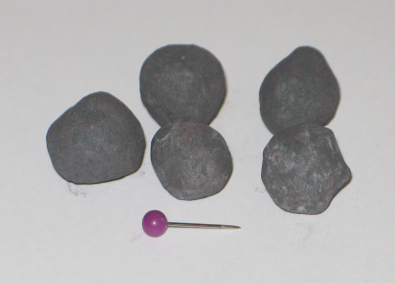
Figure 1 depicts some pellets together with a push pin as a scale reference.
Figure 1: Hematite pellets after drying and oxidation (end product).
The figure shows that these pellets are indeed not perfectly spherical. Nonetheless, this model takes advantage of the assumption of spherical symmetry.
Domain Equations
Starting with the time-dependent heat conduction equation
and expanding it in spherical polar coordinates, the result is the equation
where ρ is the density (kg/m3), cp gives the heat capacity (J/(kg·K)), k denotes the thermal conductivity (W/(m·K)), and Q is an internal heat source (W/m3). Further, r, θ, and φ are the spatial coordinates.
Assuming a perfect sphere of radius Rp and no change in temperature with differing space angles, or T/∂θ = ∂T/∂φ = 0, gives
To avoid division by zero at r = 0, which causes numerical problems, multiply this equation by r2:
(1)
Using a dimensionless radial coordinate by scaling the equation provides the option to quickly change the pellet’s radius without changing or parameterizing the geometry size1. Introducing the dimensionless coordinate


and substituting in Equation 1 leads to
(2)
on the following domain:
In a similar manner, it is possible to derive equations similar to Equation 2 for porous media flow, diffusion-reaction problems, and so on.
The model uses the following material data:
ρ
cp
Rp
Boundary Conditions and Initial Conditions
Because of symmetry about r = 0, there is zero flux through this point, meaning  .
At the surface, , you use a convective heating expression with a heat transfer coefficient, hs (W/(m2·K)), for the influx of heat (W/m2):

This expression describes a hot gas with a temperature Text flowing around the pellet. Text is chosen at 95°C. The heat transfer coefficient is set to 1000 W/(m2·K). The initial condition is set to 25°C.
Results
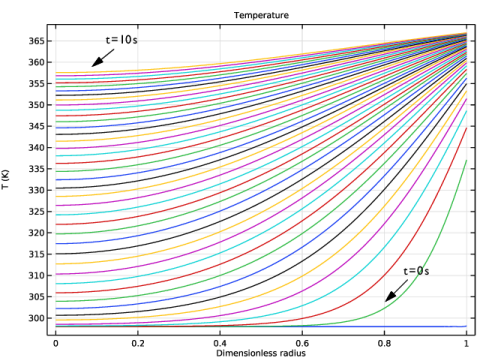
Figure 2: Temperature profiles from t = 0 to t = 10 s.
Figure 2 shows the temperature profiles from 0 to 10 seconds. Each line represents an increment of 0.5 s from the preceding line. From the topmost line it is clear that the center of the pellet has not reached steady state at 10 s. You can also plot the time evolution of the temperature at the center of the pellet.
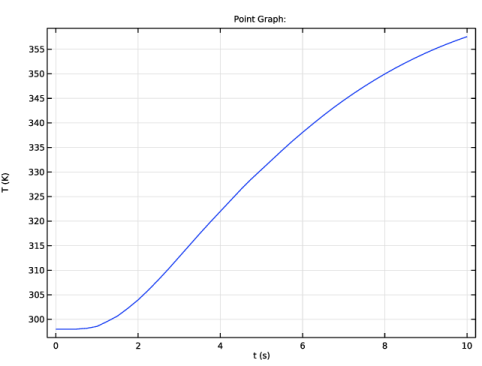
Figure 3: Time evolution of temperature in the center of a pellet with radius Rp = 5 mm.
Figure 3 shows even more clearly how long the process must yet go before it reaches steady state. An interesting next step is to experiment with different particle radii, Rp, and different heating times.
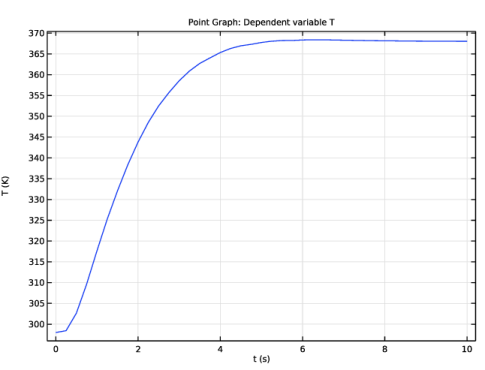
Figure 4: Time evolution in the center of a pellet with radius Rp = 2.5 mm.
Simply reducing the radius somewhat lets the model reach steady state within 7 s.
Notes About the COMSOL Implementation
To implement Equation 2 and the boundary conditions of this problem, use the 1D time-dependent version of the General Form PDE interface:
The space coordinate in the model is . For typographical reasons we use rh in this model for “r-hat.” Identifying the general form with Equation 2, the following settings generate the correct equation:
ea
da
Γ (flux vector)
F (source term)
You must take special care when setting the heat-influx boundary condition on the pellet surface. hs(  Text − T) = k T/∂r on the surface, so you need to compensate G accordingly:
Application Library path: COMSOL_Multiphysics/Equation_Based/spherically_symmetric_transport
Modeling Instructions
From the File menu, choose New.
New
In the New window, click  Model Wizard.
Model Wizard
1
In the Model Wizard window, click  1D.
2
In the Select Physics tree, select Mathematics > PDE Interfaces > General Form PDE (g).
3
Click Add.
4
In the Dependent variables (1) table, enter the following settings:
5
Click  Study.
6
In the Select Study tree, select General Studies > Time Dependent.
7
Root
1
In the Model Builder window, click the root node.
2
In the root node’s Settings window, locate the Unit System section.
3
From the Unit system list, choose None.
The equations in this model are given using the dimensionless radial coordinate. Turning off unit support avoids warnings about inconsistent use of units.
Global Definitions
Parameters 1
1
In the Model Builder window, under Global Definitions click Parameters 1.
2
In the Settings window for Parameters, locate the Parameters section.
3
Geometry 1
Interval 1 (i1)
1
In the Model Builder window, under Component 1 (comp1) right-click Geometry 1 and choose Interval.
2
In the Settings window for Interval, click  Build All Objects.
General Form PDE (g)
General Form PDE 1
1
In the Model Builder window, under Component 1 (comp1) > General Form PDE (g) click General Form PDE 1.
2
In the Settings window for General Form PDE, locate the Conservative Flux section.
3
In the Γ text field, type -k*x^2/Rp^2*Tx.
4
Locate the Source Term section. In the f text field, type x^2*Qs.
5
Locate the Damping or Mass Coefficient section. In the da text field, type x^2*rho*cp.
Note that Tx is the COMSOL Multiphysics syntax for the partial derivative of the variable T with respect to the coordinate x.
Initial Values 1
1
In the Model Builder window, click Initial Values 1.
2
In the Settings window for Initial Values, locate the Initial Values section.
3
In the T text field, type Tinit.
Flux/Source 1
1
In the Physics toolbar, click  Boundaries and choose Flux/Source.
2
Flux/Source 2
1
In the Physics toolbar, click  Boundaries and choose Flux/Source.
2
3
In the Settings window for Flux/Source, locate the Boundary Flux/Source section.
4
In the g text field, type x^2/Rp*hs*(Text-T).
Mesh 1
Scale 1
1
In the Mesh toolbar, click  More Attributes and choose Scale.
2
In the Settings window for Scale, locate the Scale section.
3
In the Element size scale text field, type 0.4.
Edge 1
1
In the Mesh toolbar, click  Edge.
2
In the Settings window for Edge, click  Build All.
Study 1
Step 1: Time Dependent
1
In the Model Builder window, under Study 1 click Step 1: Time Dependent.
2
In the Settings window for Time Dependent, locate the Study Settings section.
3
In the Output times text field, type range(0,0.25,10).
4
In the Study toolbar, click  Compute.
Results
The default plot shows the temperature versus the dimensionless radius for all times in the specified interval.
General Form PDE
1
In the Model Builder window, under Results click General Form PDE.
2
In the Settings window for 1D Plot Group, click to expand the Title section.
3
From the Title type list, choose Manual.
4
In the Title text area, type Temperature.
5
Locate the Plot Settings section.
6
Select the x-axis label checkbox. In the associated text field, type Dimensionless radius.
7
Select the y-axis label checkbox. In the associated text field, type T (K).
8
In the General Form PDE toolbar, click  Plot.
To plot the time evolution of temperature at the center of the pellet of radius 5 mm (Figure 3), follow the steps given below.
1D Plot Group 2
In the Results toolbar, click  1D Plot Group.
Point Graph 1
1
Right-click 1D Plot Group 2 and choose Point Graph.
2
1D Plot Group 2
1
In the Model Builder window, click 1D Plot Group 2.
2
In the Settings window for 1D Plot Group, locate the Plot Settings section.
3
Select the x-axis label checkbox. In the associated text field, type t (s).
4
Select the y-axis label checkbox. In the associated text field, type T (K).
5
In the 1D Plot Group 2 toolbar, click  Plot.
Now change the pellet radius to 2.5 mm in the Parameters section and see its effect on the time evolution of temperature at the center of the pellet.
Global Definitions
Parameters 1
1
In the Model Builder window, under Global Definitions click Parameters 1.
2
In the Settings window for Parameters, locate the Parameters section.
3
Study 1
In the Study toolbar, click  Compute.
Results
1D Plot Group 2
The resulting plot should look like Figure 4.
1
In the Model Builder window, under Results click 1D Plot Group 2.
2
In the 1D Plot Group 2 toolbar, click  Plot.

1
Note that scaling the variables to get well-conditioned problems is not necessary in COMSOL Multiphysics because the solvers use automatic variable scaling.