PDF

Adjusting the Element Size for the
Unstructured Mesh Generator
Introduction
The tet mesher creates an unstructured tetrahedral mesh. It is the most general meshing technique and does not pose any constraints on the structure of the geometry. Hence you can use it to mesh any object. There are nine predefined parameter sets for the mesher, ranging from Extremely fine to Extremely coarse. These settings result in a good mesh for most geometries and simulation problems. In addition, you can tune the mesh parameters individually, as demonstrated in this tutorial.
Model Definition
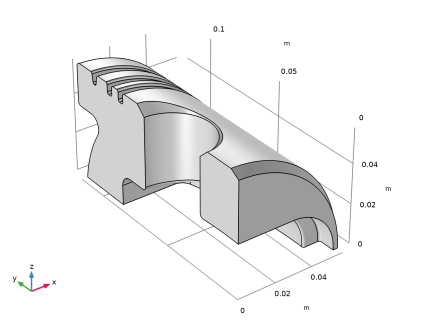
Create a tetrahedral mesh for the geometry of an engine piston as shown in the following figure.
As you can see, the geometry contains small details such as fillets and chamfers. To better resolve these details with the mesh, you will work with the following mesh parameters:
You will also learn how to use the tools for assessing the mesh quality.
Application Library path: COMSOL_Multiphysics/Meshing_Tutorials/piston_mesh
Modeling Instructions
From the File menu, choose New.
New
In the New window, click  Model Wizard.
Model Wizard
1
In the Model Wizard window, click  3D.
2
Geometry 1
Import 1 (imp1)
1
In the Geometry toolbar, click  Import.
2
In the Settings window for Import, locate the Source section.
3
Click  Browse.
4
5
Click  Import.
Mesh 1
1
In the Model Builder window, under Component 1 (comp1) click Mesh 1.
2
In the Settings window for Mesh, locate the Physics-Controlled Mesh section.
3
From the Element size list, choose Coarser.
4
Click  Build All.
The Information section of the Settings window of the Mesh node as well as the Messages window displays the generated number of elements in the mesh. Check how the numbers change with each change in the size settings.
Notice that in the table under the Mesh 1 settings window, Geometric Analysis, Detail Size, is present in the Contributor column. By default, this checkbox is selected so that the geometric analysis contributes to the physics-controlled mesh. This means that the geometry is analyzed before meshing, and the small geometric details, like short edges or small faces, are considered when setting the mesh element size parameters.
Assume that the current mesh does not resolve details such as fillets and chamfers sufficiently for your simulation needs, and that a finer parameter setting is required. This would be the case for a stress analysis of the part.
5
From the Element size list, choose Finer.
6
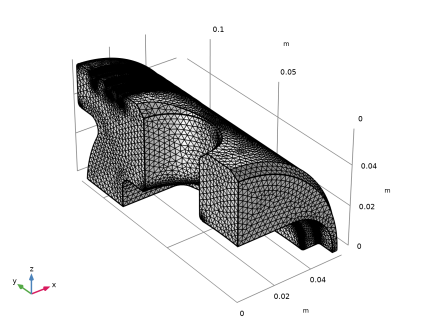
Click  Build All.
The generated number of elements is now many times larger than before. Many of the finer details of the geometry are adequately resolved, but there is a significant increase in the total number of elements compared to the Coarser mesh setting.
In the following you will test how to tune the individual mesh parameters to refine the mesh only on selected boundaries.
Mesh Statistics
Continue with examining the quality of the mesh. The minimum and average quality are also displayed in the Settings window of the Mesh node, but you can also follow the instructions below.
1
In the Mesh toolbar, click  Statistics to get a quick overview of the total number of elements, the minimum element quality, and the average element quality. The result appears in the Messages window. More detailed information is found in the Statistics window.
2
Right-click Component 1 (comp1) > Mesh 1 and choose Statistics.
The Statistics window contains details about the mesh, including the number and type of elements, and a histogram of element quality.
The default quality measure, Skewness, is suitable for most types of meshes, and it is based on the equiangular skew that penalizes elements with large or small angles as compared to the angles in an ideal element. This quality measure is also used when reporting low element quality during mesh generation.
The element quality has a value between 0 and 1, where 1 describes a perfectly symmetric element and 0 describes a degenerated, or completely flat, element. For 3D meshes in general, a minimum quality of about 0.1 means a satisfactory mesh. However, this depends on the type of geometry and physics application. Note also that the quality number is calculated based on the linear elements. Use the Curved skewness quality measure for information about the quality of the curved elements.
Meshing with the predefined sizes usually results in a mesh with quite good quality. According to the information under the section Domain element statistics, the present mesh has an average quality of 0.65 with a minimum quality of 0.2.
The histogram reveals the element quality distribution. In this case, the elements with low quality, represented by the tail on the left of the distribution plot, represent a very small fraction of the mesh.
Before adjusting individual mesh parameters, start by restoring the mesh to the Coarser size settings.
3
Right-click Component 1 (comp1) > Mesh 1 and choose Settings.
4
In the Settings window for Mesh, locate the Physics-Controlled Mesh section.
5
From the Element size list, choose Coarser.
6
Click  Build All.
Meshing Sequence
1
Right-click Component 1 (comp1) > Mesh 1 and choose Edit Physics-Induced Sequence.
You can now access and modify the default meshing sequence that appears under the Mesh 1 node.
Size
The first Size feature node in the meshing sequence is a global attribute node, since it influences all subsequent operation nodes in the meshing sequence. This first Size node cannot be deleted from the sequence.
The second size node, Size 1, is the result of the geometry analysis. After the geometric analysis had been performed, changes were made to element size parameters to account for small geometric details.
Instead of editing parameters of the global Size node add a Size subnode to the Free Tetrahedral 1 mesh operation.
Size 1
1
In the Model Builder window, right-click Free Tetrahedral 1 and choose Size.
The Size 1 node is a local attribute node because it only applies to its parent mesh node.
Resolution of Curvature
1
In the Settings window for Size, locate the Geometric Entity Selection section.
2
From the Geometric entity level list, choose Boundary.
3
By selecting only one of the fillets you can save time generating the mesh while testing parameter values. You will be able to change the selection of the Size 1 node to all boundaries after you have found the right set of parameters.
4
Locate the Element Size section. Click the Custom button.
5
Locate the Element Size Parameters section.
6
Select the Curvature factor checkbox. In the associated text field, type 0.2.
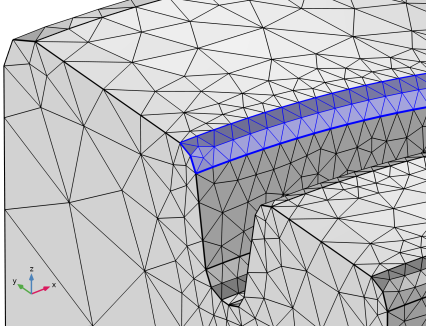
The Curvature factor parameter determines the size of boundary elements compared to the curvature of the geometric boundary. The curvature radius multiplied by the curvature factor gives the maximum allowed element size along the boundary. A lower value gives a finer mesh along curved boundaries.
7
Click  Build All.
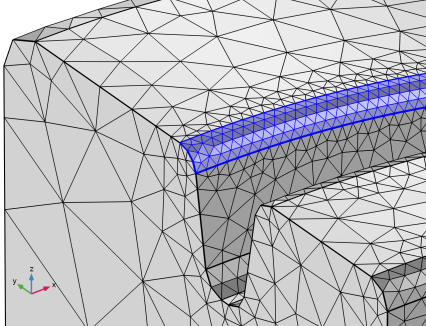
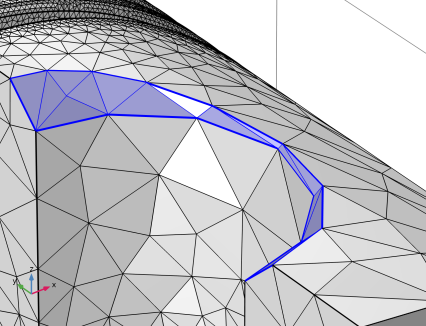
Reducing the curvature factor had a small effect on the number of mesh elements on the fillet. The reason is that another mesh parameter limits the minimum element size allowed in the mesh.
Minimum Element Size
1
In the Model Builder window, under Component 1 (comp 1) > Mesh 1> Free Tetrahedral 1 click Size 1.
2
In the Size settings window, locate the Element Size Parameters section.
3
Select the Minimum element size checkbox. In the associated text field, type 0.0002.
The value in the Minimum element size field specifies the minimum allowed element size. You can use this value to, for example, prevent the generation of many elements around small curved parts of the geometry.
4
Click  Build All.
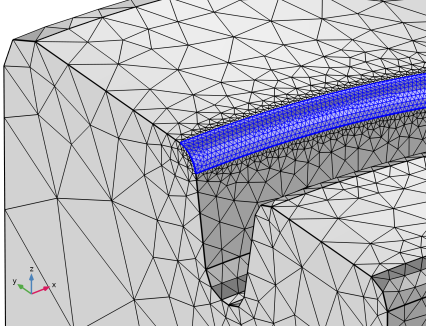
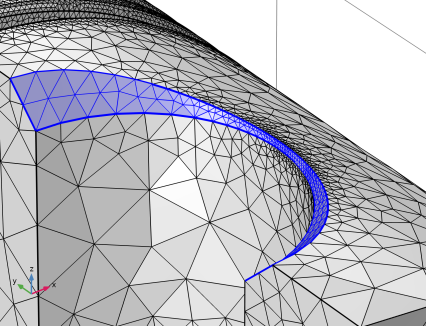
This time the selected boundary has a much finer mesh. Adjust the mesh again by increasing the curvature factor that controls the resolution of curved boundaries.
5
In the Settings window for Size, locate the Element Size Parameters section.
6
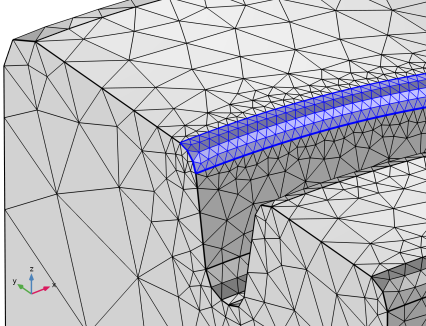
In the Curvature factor text field, type 0.45.
7
Click  Build All.
Now assume that you also want a better resolution of narrow regions with no curvature such as chamfers.
Resolution of Narrow Regions
1
2
Select the Resolution of narrow regions checkbox. In the associated text field, type 2.
The Resolution of narrow regions mesh parameter controls the number of element layers that are created in narrow regions (approximately). If the value of this parameter is less than one, the mesh generator might create elements that are anisotropic in size in narrow regions.
3
Click  Build All.
Assume that you are happy with the parameter settings for curved and narrow regions. Now apply these for all boundaries of the geometry.
4
Locate the Geometric Entity Selection section. From the Selection list, choose All boundaries.
5
Click  Build All.
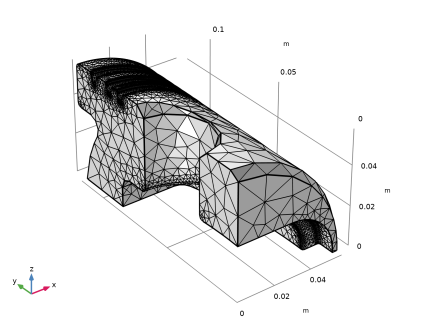
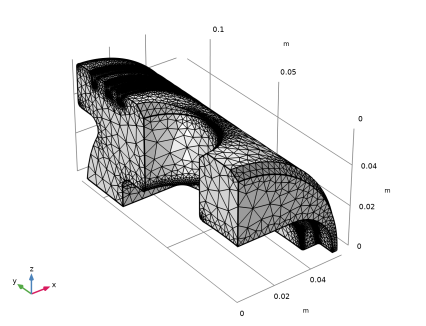
6
Click the  Go to Default View button in the Graphics toolbar to get the view in the figure below.
7
In the Model Builder window, click Mesh 1.
The fine details of the geometry are resolved satisfactorily with this mesh. Continue with checking the mesh quality.
8
In the Mesh toolbar, click  Statistics.
Compared to the mesh with the Finer predefined mesh parameter set, the element quality is slightly lower. This is expected because the boundaries are finely meshed and the elements are growing toward the inner parts of the geometry according to the Coarser parameter set specified in the global Size node. Allowing even higher element growth will reduce the number of elements further.
Maximum Element Growth
Reduce the number of mesh elements further by specifying the rate of growth from the small elements on the surface to the larger elements inside.
Size
1
In the Model Builder window, under Component 1 (comp1) > Mesh 1 click Size.
2
In the Settings window for Size, locate the Element Size section.
3
Click the Custom button.
4
Locate the Element Size Parameters section. In the Maximum element growth rate text field, type 1.8.
The Maximum element growth rate parameter determines the maximum rate at which the element size can grow from a region with small elements to a region with larger elements.
5
In the Model Builder window, under Component 1 (comp1) right-click Mesh 1 and choose Build All.
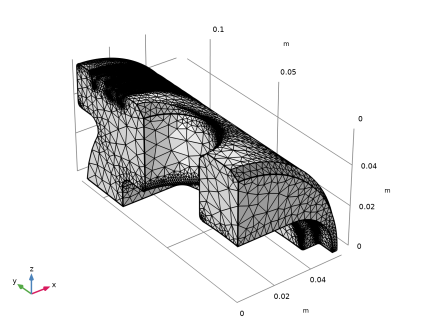
As expected, the number of mesh elements decreased while keeping the fine mesh on curved and narrow boundaries.
6
In the Mesh toolbar, click  Statistics.
As expected the increase of the growth rate parameter results in an even lower quality. The average quality is now 0.61, and the minimum quality is 0.16, which are both acceptable numbers.
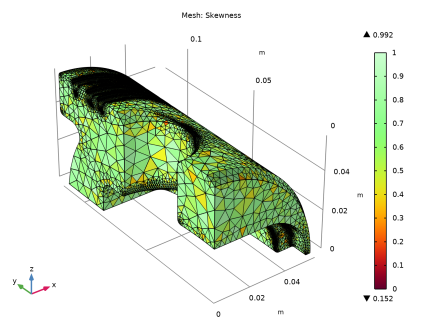
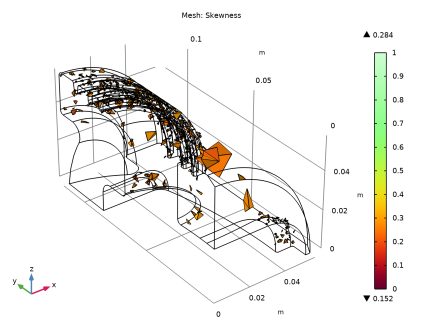
A mesh plot can help with localizing the elements of lowest quality.
7
Results
Mesh 1
The Mesh 1 plot is added to the 3D Plot Group 1 under the Results section of the Model Builder window. The default mesh plot that appears in the Graphics window contains the volume elements colored according to quality.
1
In the Settings window for Mesh, click to expand the Element Filter section.
2
Select the Enable filter checkbox.
3
From the Criterion list, choose Worst quality.
4
In the Fraction text field, type 0.005.
5
In the Mesh Plot 1 toolbar, click  Plot.
You can now see 0.5% of the tetrahedral elements with the lowest quality. These are mostly located in the regions where the elements are growing from the surfaces toward the inside of the geometry.