


PDF

Sensitivity Analysis of a Communication Mast Detail
Introduction
The example Stiffness Analysis of a Communication Mast’s Diagonal Mounting in the COMSOL Multiphysics Application Libraries shows how you can modify a 3D CAD model to improve its performance. In that case, the applied changes were based solely on the analyst’s experience with similar structures. A senior design engineer can sometimes reach acceptable performance after analyzing only a handful of designs, while an inexperienced analyst may have to spend a lot of time on failed attempts.
Usually, you can indeed improve a design by trial and error, but it is difficult to ensure that the price you pay — in this example, added weight and material costs — is as low as possible. With sensitivity analysis, you can find the most cost-efficient direction for a small modification and estimate the effect it has before attempting an updated design.
Model Definition
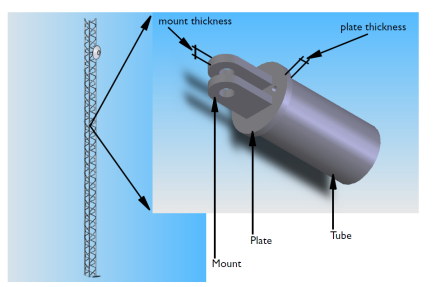
The original model simulates the deformation of a part of a communication mast, shown in Figure 1, under loads in the linear regime. The ratio of the part’s effective stiffness to the stiffness of an equal length of a straight pipe is evaluated as a measure of its performance. Using sensitivity analysis together with a Deformed Geometry interface, you can predict what effect changing the dimensions of the end plate and the mount plates has on the part’s relative stiffness.
Figure 1: Mounting details of a mast diagonal.
From the designer’s point of view, the material thickness of the end plate, tp, and of the mount plates, tm, are the most relevant parameters because they are easy to change both in the CAD system and on the production line. These quantities are, however, not directly comparable to each other because a unit change of tp incurs a different cost — added weight and material use — compared to a unit change in tm.
For a fair analysis, it is therefore more convenient to parameterize the model in terms of the masses Δmp and Δmm added to the end plate and mount, respectively. The relation between added mass, Δm, and thickness change, Δt, is given by
where A is the area affected by the thickness change and ρ is the mass density of the material.
As output from a sensitivity analysis using the stiffness ratio, SR (c.f. the example Stiffness Analysis of a Communication Mast’s Diagonal Mounting for the derivation), as objective function and the differential masses Δmp and Δmm as sensitivity variables, you get the partial derivatives
For a modified geometry corresponding to small values of Δmp and Δmm you can therefore expect to see a change in the stiffness ratio equal to
Note that this relation holds only for a small incremental change from the current configuration because the stiffness ratio is clearly a nonlinear function of the thicknesses. Now suppose that you want to select the best possible design update for a given added mass Δm = Δmp + Δmm with the added condition that both Δmp and Δmm are nonnegative. It is not too difficult to realize that the best option is to take Δmp = Δm, Δmm = 0 if Qp > Qm, and Δmp = 0, Δmm = Δm otherwise.
The optimal stiffness for a given total mass of the structure can be sought by relaxing the nonnegativity condition for the updates and instead restricting the maximum change in Δmp and Δmm during one iteration. With the total mass as only constraint, you find the optimum design at a point where Qp = Qm. This follows strictly from the Karush–Kuhn–Tucker conditions but also from the simple fact that at such a point, the increased stiffness from adding mass to the plate is exactly canceled by the decrease in stiffness from removing the same mass from the mount.
Parameterizing the Geometry
In the Sensitivity interface, you declare sensitivity variables, which can be used to parameterize the physics. The sensitivity variables can appear anywhere COMSOL Multiphysics accepts an expression containing the dependent variables. However, neither dependent variables nor sensitivity variables can be used directly to set dimensions in the geometry.
To evaluate the sensitivity of a model with respect to geometrical changes, the geometry must first be made an active part of the system of equations. You accomplish this by moving all physics onto a deformed configuration controlled by a Deformed Geometry interface, described in Deformed Geometry and Moving Mesh in the COMSOL Multiphysics Reference Manual. This interface sets up an equation governing the position of the mesh nodes inside the domains, while the outer shape of the domain is controlled by boundary conditions.
When doing sensitivity analysis, these boundary conditions are quite simple: on fixed surfaces, set the mesh displacement to zero; on surfaces that may be modified, specify the displacement in terms of the sensitivity variables. In this particular case, where the material thickness of the end plate and the mount can change, it is enough to set the normal displacement of these surfaces equal to the thickness change calculated from the corresponding added mass. For the latter calculation, assume the total undeformed length of the part to be fixed and define Δmp as the net mass added when tp increases.
On surfaces adjacent to a domain with a parameterized normal displacement, it is preferable to restrict the mesh displacement to zero only in the normal direction to avoid an inconsistent constraint on the common edge. However, any remaining inconsistencies do not invalidate your results completely but only effectively modify the parameterization. In cases like this, when the purpose of the analysis is a rough estimate and guidance for a manual redesign, such minor errors in the sensitivities are unimportant.
Another potential source of errors must be checked more carefully, though. Changing the material thickness of the mount also changes the area where the loading is applied. In the Solid Mechanics interface, you specify the load as a given force per area. If you keep this number fixed when the thickness of the part changes, the total applied load also changes; when evaluating the stiffness ratio of the composite part you must account for this effect. Alternatively, you can keep the total force fixed and make sure that the applied force per unit area is calculated using a hole area that follows the parameterization of the geometry. This is simply done by changing the expression for the mount hole xy-projected area to
where Δtm is the increase in the mount thickness.
Choosing Forward or Adjoint Sensitivity Analysis
By default, the Sensitivity interface uses the adjoint method, which is more efficient than the forward method when the number of sensitivity variables is large. When there is only a handful of scalar parameters, as in this case, the forward method has the advantage that it returns the sensitivity of the entire solution with respect to the sensitivity variables in addition to the sensitivity of the objective function. This additional information can sometimes be important in itself, but more often it is useful for checking the model setup because it is easy to visualize.
Results and Discussion
The analysis shows that when the thickness of the end plate is 12 mm and the material thickness in the mount is 15 mm, the sensitivities to adding mass to the two details are Qp = 0.25 and Qm = 0.23, respectively. Because, apparently, adding mass to the end plate has more effect than adding it to the mount, the next redesign of the part should be fitted with a thicker plate. You might even consider decreasing the material thickness of the mount while adding to the plate to keep the weight of the part constant.
Note that these conclusions only hold for the current instance of the design. An experienced analyst quickly realizes that the stiffness contribution of the plate is due to bending action, while the stiffness contribution of the mount is almost pure tensile action. A plate’s resistance to bending grows as its thickness cubed, while resistance to tension is proportional to the cross-sectional area. Therefore, as the thickness of the plate increases, its contribution to the stiffness of the composite part increases rapidly.
If you increase the thickness of the end plate too much, the stiffness of the mount takes over as dominant factor in the overall behavior. Using sensitivity analysis, you can easily detect when this happens, because it leads to Qm > Qp. As noted above, an optimum design for a given total mass is found when Qp = Qm.
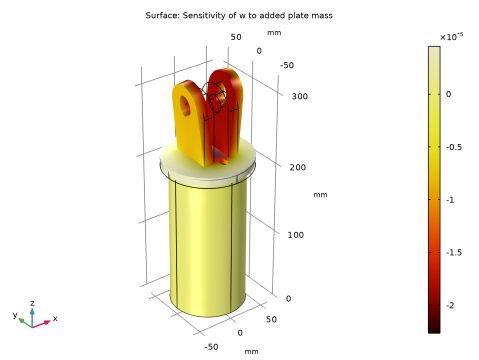
Because the sensitivity analysis was performed using the forward method, the derivatives of the solution with respect to the parameters Δmp and Δmm have also been stored. You can access this data when processing the results by using the syntax sens(expr,var). For example, by plotting the expression sens(w,dm_p), you can directly examine the local effect of a unit increase in the plate mass; see Figure 2.
Figure 2: The influence of 1 mm mount thickness increase on the overall displacement.
Application Library path: COMSOL_Multiphysics/Structural_Mechanics/mast_diagonal_mounting_sensitivity
Modeling Instructions
Application Libraries
1
From the File menu, choose Application Libraries.
2
In the Application Libraries window, select COMSOL Multiphysics > Structural Mechanics > mast_diagonal_mounting in the tree.
3
Add Physics
1
In the Home toolbar, click  Add Physics to open the Add Physics window.
2
Go to the Add Physics window.
3
In the tree, select Mathematics > Deformed Mesh > Legacy Deformed Mesh > Deformed Geometry (dg).
4
Find the Physics interfaces in study subsection. In the table, clear the Solve checkbox for Study 1.
5
Click the Add to Component 1 button in the window toolbar.
6
In the Home toolbar, click  Add Physics to close the Add Physics window.
Add Study
1
In the Home toolbar, click  Add Study to open the Add Study window.
2
Go to the Add Study window.
3
Find the Studies subsection. In the Select Study tree, select General Studies > Stationary.
4
Click the Add Study button in the window toolbar.
5
In the Home toolbar, click  Add Study to close the Add Study window.
Global Definitions
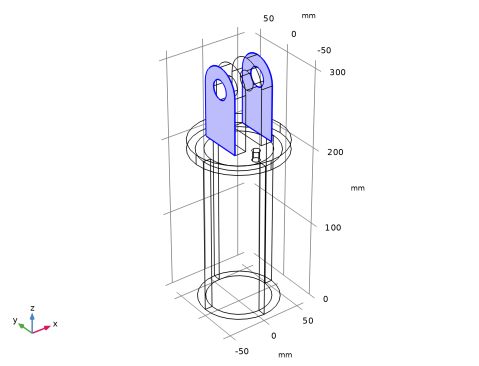
Modify the parameters for the plate thickness and mount thickness to correspond to the updated configuration of the original model.
Parameters 1
1
In the Model Builder window, under Global Definitions click Parameters 1.
2
In the Settings window for Parameters, locate the Parameters section.
3
4
Definitions
Create a selection for the domains where the mesh will be allowed to deform.
Deformed mesh domains
1
In the Definitions toolbar, click  Union.
2
In the Settings window for Union, locate the Input Entities section.
3
Under Selections to add, click  Add.
4
In the Add dialog, in the Selections to add list, choose End plate and Mount.
5
6
In the Settings window for Union, type Deformed mesh domains in the Label text field.
7
Click the  Wireframe Rendering button in the Graphics toolbar.
Outer mount faces
1
In the Definitions toolbar, click  Nonlocal Couplings and choose Integration.
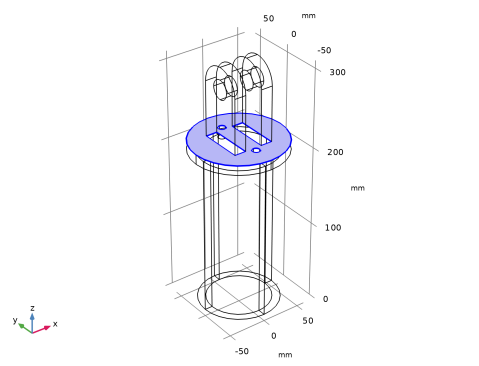
Add component couplings for integrating over the flat surfaces of the plate and mount.
2
In the Settings window for Integration, type dA_mt in the Operator name text field.
3
Locate the Source Selection section. From the Geometric entity level list, choose Boundary.
4
5
Click  Create Selection.
6
In the Create Selection dialog, type Outer mount faces in the Selection name text field.
7
8
In the Settings window for Integration, type Outer mount faces in the Label text field.
Plate surface
1
In the Definitions toolbar, click  Nonlocal Couplings and choose Integration.
2
In the Settings window for Integration, type dA_pl in the Operator name text field.
3
Locate the Source Selection section. From the Geometric entity level list, choose Boundary.
4
5
Click  Create Selection.
6
In the Create Selection dialog, type Plate surface in the Selection name text field.
7
8
In the Settings window for Integration, type Plate surface in the Label text field.
9
Click the  Wireframe Rendering button in the Graphics toolbar to return to the default state.
Next, define variables for the displacements as functions of the added masses.
Sensitivity Variables
1
In the Definitions toolbar, click  Local Variables.
2
In the Settings window for Variables, locate the Variables section.
3
The mass per unit thickness for the plate refers to the area outside the surface where the plate connects to the mount; thus, it gives the net added mass when the thickness of the plate increases.
4
In the Label text field, type Sensitivity Variables.
Variables 1
Modify the variables that are affected by change in plate and mount thickness.
1
In the Model Builder window, click Variables 1.
2
In the Settings window for Variables, locate the Variables section.
3
By default, the mesh is fixed in all domains. Remove this constraint for the mount and plates by adding a Free Deformation node:
Deformed Geometry (dg)
Free Deformation 1
1
In the Physics toolbar, click  Domains and choose Free Deformation.
2
In the Settings window for Free Deformation, locate the Domain Selection section.
3
From the Selection list, choose Deformed mesh domains.
The virtual boundary displacements must be described in a boundary system which does not rotate with the deformation.
Definitions
Boundary System 1 (sys1)
1
In the Model Builder window, under Component 1 (comp1) > Definitions click Boundary System 1 (sys1).
2
In the Settings window for Boundary System, locate the Settings section.
3
From the Frame list, choose Geometry configuration.
Deformed Geometry (dg)
Prescribed Mesh Displacement 1
1
In the Model Builder window, under Component 1 (comp1) > Deformed Geometry (dg) click Prescribed Mesh Displacement 1.
2
In the Settings window for Prescribed Mesh Displacement, locate the Coordinate System Selection section.
3
From the Coordinate system list, choose Boundary System 1 (sys1).
4
Locate the Prescribed Mesh Displacement section. Clear the Prescribed t1 displacement checkbox.
5
Clear the Prescribed t2 displacement checkbox.
This default condition will apply to the boundaries where you do not prescribe nonzero displacements.
Prescribed Mesh Displacement 2
1
In the Physics toolbar, click  Boundaries and choose Prescribed Mesh Displacement.
2
In the Settings window for Prescribed Mesh Displacement, locate the Boundary Selection section.
3
From the Selection list, choose Outer mount faces.
4
Locate the Coordinate System Selection section. From the Coordinate system list, choose Boundary System 1 (sys1).
5
Locate the Prescribed Mesh Displacement section. Clear the Prescribed t1 displacement checkbox.
6
Clear the Prescribed t2 displacement checkbox.
7
In the dn text field, type dt_m.
Prescribed Mesh Displacement 3
1
In the Physics toolbar, click  Boundaries and choose Prescribed Mesh Displacement.
2
In the Settings window for Prescribed Mesh Displacement, locate the Boundary Selection section.
3
From the Selection list, choose Plate surface.
4
Locate the Coordinate System Selection section. From the Coordinate system list, choose Boundary System 1 (sys1).
5
Locate the Prescribed Mesh Displacement section. Clear the Prescribed t1 displacement checkbox.
6
Clear the Prescribed t2 displacement checkbox.
7
In the dn text field, type dt_p.
Study 2
Now, set up the study. In particular, you need to add a Sensitivity node. But first, you must enable advanced study options.
1
Click the  Show More Options button in the Model Builder toolbar.
2
In the Show More Options dialog, in the tree, select the checkbox for the node Study > Sensitivity.
3
Sensitivity
1
In the Study toolbar, click  More Study Extensions and choose Sensitivity.
By using the forward method, you will have access to the derivatives of the solution with respect to the sensitivity variables dm_p and dm_m.
2
In the Settings window for Sensitivity, locate the Sensitivity Method section.
3
From the Gradient method list, choose Forward.
The stiffness ratio computed in the original model serves as the objective function.
4
Click Replace Expression in the upper-right corner of the Objective Function section. From the menu, choose Component 1 (comp1) > Definitions > Variables > comp1.S_R - Stiffness ratio - 1.
5
Locate the Control Variables and Parameters section. Click  Add twice.
6
7
In the Study toolbar, click  Compute.
Results
Begin by evaluating the sensitivities of the stiffness ratio with respect to the two types of small additions.
Global Evaluation 3
1
In the Results toolbar, click  Global Evaluation.
2
In the Settings window for Global Evaluation, locate the Data section.
3
From the Dataset list, choose Study 2/Solution 5 (sol5).
4
Locate the Expressions section. In the table, enter the following settings:
5
Click  Evaluate.
Global Evaluation 4
1
Right-click Global Evaluation 3 and choose Duplicate.
2
In the Settings window for Global Evaluation, locate the Expressions section.
3
4
Click the arrow next to the Evaluate button and choose Table 3 - Global Evaluation 3 (fsens(dm_m)).
Create a plot for the sensitivity of axial displacement with respect to change in the added plate mass.
Sensitivity
1
In the Results toolbar, click  3D Plot Group.
2
In the Settings window for 3D Plot Group, type Sensitivity in the Label text field.
3
Locate the Data section. From the Dataset list, choose Study 2/Solution 5 (sol5).
Surface 1
1
Right-click Sensitivity and choose Surface.
2
In the Settings window for Surface, locate the Expression section.
3
In the Expression text field, type sens(w,dm_p).
4
Locate the Coloring and Style section. From the Color table list, choose ThermalDark.
5
In the Sensitivity toolbar, click  Plot.
Deformation 1
1
Right-click Surface 1 and choose Deformation.
2
In the Settings window for Deformation, locate the Expression section.
3
In the X-component text field, type u+1[mm]*mA_pl*sens(u,dm_p).
4
In the Y-component text field, type v+1[mm]*mA_pl*sens(v,dm_p).
5
In the Z-component text field, type w+1[mm]*mA_pl*sens(w,dm_p).
These deformations give a linear approximation of the deformation that would result from a 1 mm increase in the plate thickness.
6
In the Sensitivity toolbar, click  Plot.
Sensitivity
1
In the Model Builder window, under Results click Sensitivity.
2
In the Settings window for 3D Plot Group, click to expand the Title section.
3
From the Title type list, choose Manual.
4
In the Title text area, type Surface: Sensitivity of w to added plate mass.
5
In the Sensitivity toolbar, click  Plot.