
PDF

Stiffness Analysis of a Communication Mast’s Diagonal Mounting
Introduction
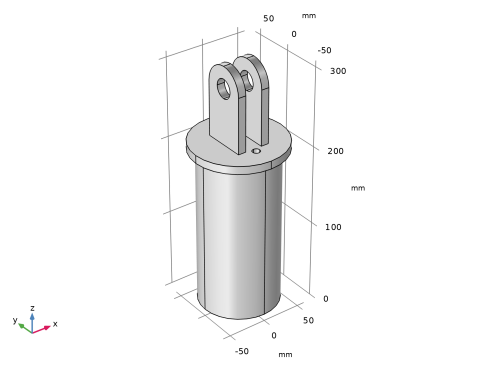
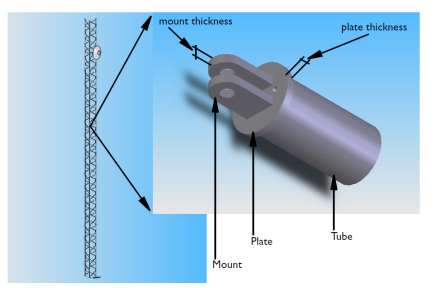
Communication masts usually have a framework with a bolted triangular lattice design as illustrated in Figure 1. The diagonals of the framework are assembled from several parts and welded together.
When operating under a given wind load at a specific location, the antenna’s total rotation angle should stay below a certain limit to ensure uninterrupted communications. For the type of mast used in this example, the engineers have determined that its torsional stiffness is too low, and this effect is due to the geometry of the diagonal mountings. The goal is to increase the stiffness of such a diagonal mounting by first analyzing a parameterized geometry followed by an update of the geometry and a new analysis.
Figure 1: Mounting details of a mast diagonal.
Model Definition
The model geometry includes only a short section of the diagonal tubing together with the other parts of the mounting as illustrated in Figure 1. Although a symmetry exists in both the geometry and load for this problem, the entire assembly is modeled for illustrative purposes.
After obtaining the original stiffness of the diagonal mounting, it is assumed that the geometry has been updated to improve the stiffness. Originally 10 mm, the plate thickness and mount thickness (see Figure 1) have been changed to 12 mm and 15 mm, respectively.
Material Properties
The material is a structural steel, having a Young’s modulus of 200 GPa and a Poisson’s ratio of 0.33.
Boundary Conditions
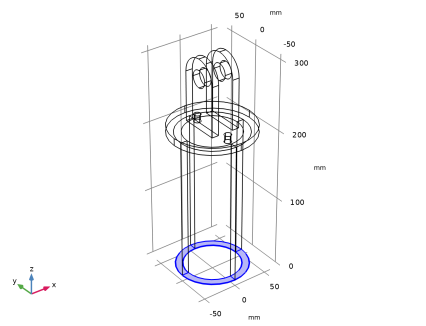
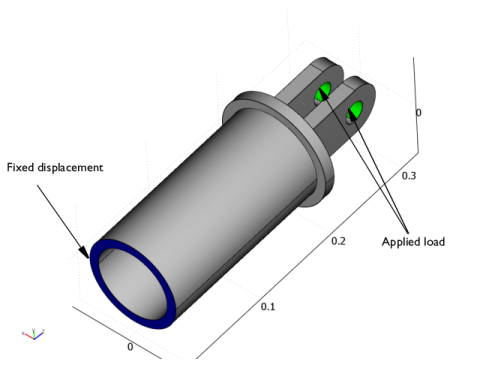
Figure 2 shows the boundaries with an applied load and constrained displacements. Assume that the diagonal is loaded in tension by a force, F = 30 kN, which is transferred through the bolt to the mounting.
Figure 2: Boundaries with constrained displacements and applied loads.
Neglect contact conditions between the bolt and the mounting hole, and also neglect the constraint imposed on the mount by the bolt. Assume that the bolt fills out the entire hole volume. The load is distributed on the appropriate halves of the hole surfaces by applying a pressure, p, according to
where rmh is the mount hole radius, tm is the thickness of the mount, y is the y-coordinate and is the mount hole cross section area projected on the xy-plane.
In the current analysis, the purpose is to increase the stiffness of the assembly. Since the load is transferred through the mount holes, the displacement of the holes under the given external load is sought. If the average z-displacement of the middle plane of the mount holes is denoted by δmh, the stiffness of the assembly is given by
In a bar with a constant cross section, the relation between the applied force and resulting displacement is given by
where E is the Young’s modulus, δ is the displacement, A is the cross section area, and L is the total length. This relation can be rearranged to
It is an expression for the effective stiffness of a bar with a constant cross section. Here, it is considered as the ideal stiffness, SI, against which the actual stiffness of the diagonal mounting is compared. The ideal stiffness can thus be expressed as
where Lt is the equivalent tube length if the entire assembly was made of a tube only, ht is the actual tube height in the present assembly, tp is the plate thickness and omh is the mount hole center offset, measured from the plate surface. Note that the tube height and the equivalent tube length are both measured along the same dimension of the tube. The difference is the fact that the tube height is used to relate the tube used in the mount assembly and the tube length is used to define the tube in an assembly consisting of a tube only.
For evaluation purposes, the ratio between the real stiffness of the assembly with a mount and the ideal stiffness is introduced as
If this value equals one, the stiffness of the assembly with a mount is exactly the same as the stiffens of a single tube.
Results and Discussion
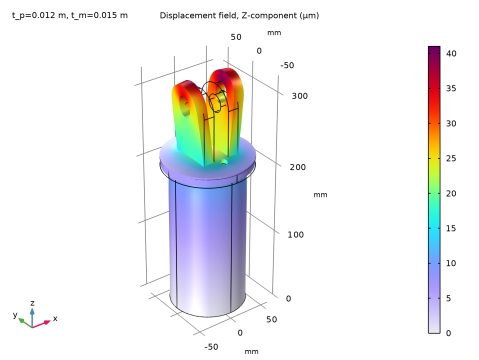
In the original geometry, where both the plate thickness and the mount thickness are 10 mm, the stiffness ratio is evaluated to 0.38. For the setup with the increased plate thickness to 12 mm and the increased mount thickness to 15 mm, the stiffness ratio is evaluated to 0.53. Figure 3 shows the z-component of the displacement for the geometry with the thickened components.
Figure 3: Deformed shape and plot of the axial displacement for the mounting assembly with an end-plate thickness of 12 mm and mount thickness of 15 mm.
Application Library path: COMSOL_Multiphysics/Structural_Mechanics/mast_diagonal_mounting
Modeling Instructions
From the File menu, choose New.
New
In the New window, click  Model Wizard.
Model Wizard
1
In the Model Wizard window, click  3D.
2
In the Select Physics tree, select Structural Mechanics > Solid Mechanics (solid).
3
Click Add.
4
Click  Study.
5
In the Select Study tree, select General Studies > Stationary.
6
Geometry 1
The model geometry is available as a parameterized geometry sequence in a separate MPH file.
1
In the Geometry toolbar, click Insert Sequence and choose Insert Sequence.
2
3
In the Geometry toolbar, click  Build All.
4
Click the  Zoom Extents button in the Graphics toolbar.
5
In the Model Builder window, under Component 1 (comp1) click Geometry 1.
Global Definitions
Parameters 1
1
In the Model Builder window, under Global Definitions click Parameters 1.
2
In the Settings window for Parameters, locate the Parameters section.
3
Definitions
Create a nonlocal average coupling for evaluation of variables across the mid plane of both mount holes.
Mount, mid level
1
In the Definitions toolbar, click  Nonlocal Couplings and choose Average.
2
In the Settings window for Average, type Mount, mid level in the Label text field.
3
Locate the Source Selection section. From the Geometric entity level list, choose Point.
4
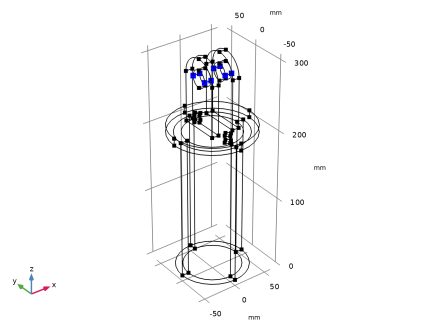
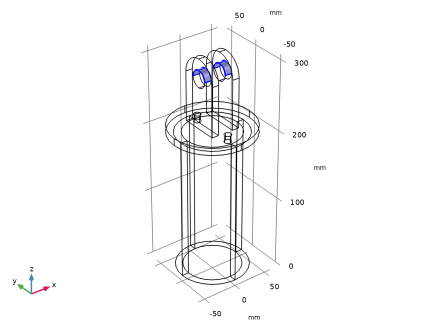
The points along the mid plane are shown in figure below.
5
Click  Create Selection.
6
In the Create Selection dialog, type Mount, mid level in the Selection name text field.
7
Variables 1
1
In the Definitions toolbar, click  Local Variables.
2
In the Settings window for Variables, locate the Variables section.
3
Add Material
1
In the Materials toolbar, click  Add Material to open the Add Material window.
2
Go to the Add Material window.
3
In the tree, select Built-in > Structural steel.
4
Click the Add to Component button in the window toolbar.
5
In the Materials toolbar, click  Add Material to close the Add Material window.
Materials
Structural steel (mat1)
By default, the first material you add applies on all domains so you need not alter any settings.
Solid Mechanics (solid)
Linear Elastic Material 1
By default, the physics interface takes the required material model properties from the domain material.
Next, define the boundary conditions.
Fixed Constraint 1
1
In the Physics toolbar, click  Boundaries and choose Fixed Constraint.
2
Boundary Load 1
1
In the Physics toolbar, click  Boundaries and choose Boundary Load.
2
Use the force components you defined earlier.
3
In the Settings window for Boundary Load, locate the Force section.
4
Specify the fA vector as
Mesh 1
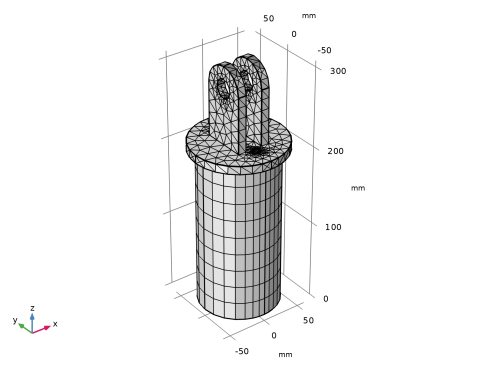
This section illustrates how you can mesh different parts of the model individually to get a suitable mesh.
Free Tetrahedral 1
1
In the Mesh toolbar, click  Free Tetrahedral.
2
In the Settings window for Free Tetrahedral, locate the Domain Selection section.
3
From the Geometric entity level list, choose Domain.
4
Size 1
1
Right-click Free Tetrahedral 1 and choose Size.
2
In the Settings window for Size, locate the Element Size section.
3
From the Predefined list, choose Fine.
Free Tetrahedral 1
In the Model Builder window, right-click Free Tetrahedral 1 and choose Build Selected.
Free Tetrahedral 2
1
In the Mesh toolbar, click  Free Tetrahedral.
2
In the Settings window for Free Tetrahedral, locate the Domain Selection section.
3
From the Geometric entity level list, choose Domain.
4
Size 1
1
Right-click Free Tetrahedral 2 and choose Size.
2
In the Settings window for Size, locate the Element Size section.
3
From the Predefined list, choose Finer.
Free Tetrahedral 2
In the Model Builder window, right-click Free Tetrahedral 2 and choose Build Selected.
Swept 1
1
In the Mesh toolbar, click  Swept.
2
In the Settings window for Swept, click to expand the Source Faces section.
3
4
Click to expand the Destination Faces section. Select Boundary 3 only.
Size 1
1
Right-click Swept 1 and choose Size.
2
In the Settings window for Size, locate the Element Size section.
3
From the Predefined list, choose Fine.
Swept 1
1
In the Model Builder window, right-click Swept 1 and choose Build Selected.
2
Click the  Wireframe Rendering button in the Graphics toolbar to restore the default state.
3
In the Model Builder window, click Mesh 1.
Study 1
In the Study toolbar, click  Compute.
Results
Displacement
1
In the Settings window for 3D Plot Group, type Displacement in the Label text field.
Now, plot the z-displacement and compare the stiffness ratio for the current model geometry dimensions with the ideal one.
Volume 1
1
In the Model Builder window, expand the Displacement node, then click Volume 1.
2
In the Settings window for Volume, click Replace Expression in the upper-right corner of the Expression section. From the menu, choose Component 1 (comp1) > Solid Mechanics > Displacement > Displacement field - m > w - Displacement field, Z-component.
3
Locate the Expression section. From the Unit list, choose µm.
4
In the Displacement toolbar, click  Plot.
5
Click the  Zoom Extents button in the Graphics toolbar.
Global Evaluation 1
1
In the Results toolbar, click  Global Evaluation.
2
In the Settings window for Global Evaluation, click Replace Expression in the upper-right corner of the Expressions section. From the menu, choose Component 1 (comp1) > Definitions > Variables > S_R - Stiffness ratio - 1.
3
Click  Evaluate.
Table 1
1
Go to the Table 1 window.
The stiffness ratio obtained is 0.38, which is less than the desired value.
Study 1
Proceed to add a parametric sweep feature that varies the mount thickness and plate thickness.
Parametric Sweep
1
In the Study toolbar, click  Parametric Sweep.
2
In the Settings window for Parametric Sweep, locate the Study Settings section.
3
4
5
6
7
Locate the Output While Solving section. Select the Plot checkbox.
8
In the Study toolbar, click  Compute.
Results
Displacement
To display the results from the parametric sweep, change the dataset.
1
In the Model Builder window, under Results click Displacement.
2
In the Settings window for 3D Plot Group, locate the Data section.
3
From the Dataset list, choose Study 1/Parametric Solutions 1 (sol2).
The default parameter values correspond to those for the sweep’s last parameter pair.
4
In the Displacement toolbar, click  Plot.
5
Click the  Zoom Extents button in the Graphics toolbar.
Finally, compare the updated stiffness value for the updated model geometry dimensions with the ideal one.
Global Evaluation 2
1
In the Results toolbar, click  Global Evaluation.
2
In the Settings window for Global Evaluation, locate the Data section.
3
From the Dataset list, choose Study 1/Parametric Solutions 1 (sol2).
4
Click Replace Expression in the upper-right corner of the Expressions section. From the menu, choose Component 1 (comp1) > Definitions > Variables > S_R - Stiffness ratio - 1.
5
Click  Evaluate.
Table 2
1
Go to the Table 2 window.
Observe that the stiffness ratio obtained now is 0.53.