PDF

Light Bulb Geometry
Introduction
In COMSOL Multiphysics you can easily create complex two-dimensional shapes by drawing directly in the graphics window. After drawing an initial sketch, the geometry nodes corresponding to the individual components of the drawn curves can be edited to adjust the shape or to introduce parameters in the size expressions. You may also freely combine the shapes you have drawn by joining them with Boolean operations.
In this tutorial, you will create the cross section of a light bulb inside a 2D axisymmetric model component. You will first sketch the outline of the geometry and then modify the elements of the composite curves to obtain the desired shape. In addition, you will use named selections to create the selections for setting up the physics.
The step-by-step instructions demonstrate how to draw the geometry in Sketch mode, while following a workflow typical of creating a geometry in COMSOL Multiphysics. Read on to find out more about the following topics:
The multiphysics analysis of the light bulb is described in the Free Convection in a Light Bulb model located in the Heat Transfer Module Application Library.
Model Definition
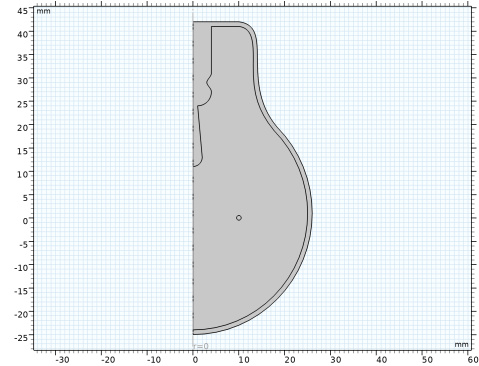
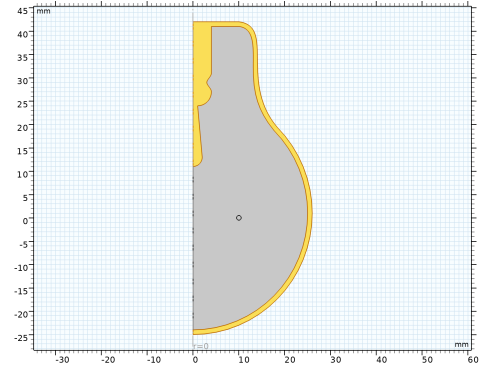
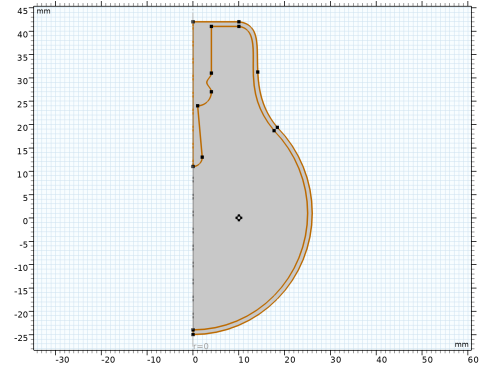
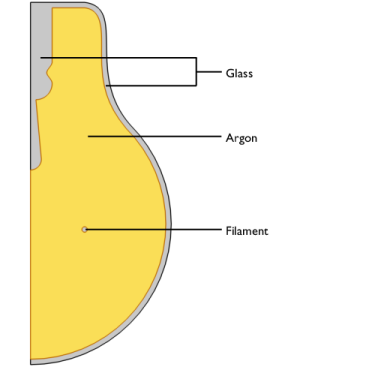
The geometry you are going to create in this tutorial is the cross section of a light bulb, see Figure 1, used in the model Free Convection in a Light Bulb in the Heat Transfer Module Application Library. The outer silhouette and inner structure are created using two composite curves. In the geometry sequence you will also set up the selections for assigning the material and physics definitions.
Figure 1: Cross section of a light bulb.
This example describes only the process of creating the geometry sequence. For the physics setup, follow the instructions in Free Convection in a Light Bulb in the Heat Transfer Module Application Library.
Application Library path: COMSOL_Multiphysics/Geometry_Tutorials/light_bulb_geometry
Modeling Instructions
From the File menu, choose New.
New
In the New window, click  Blank Model.
Add Component
In the Home toolbar, click  Add Component and choose 2D Axisymmetric.
Geometry 1
1
In the Settings window for Geometry, locate the Units section.
2
From the Length unit list, choose mm.
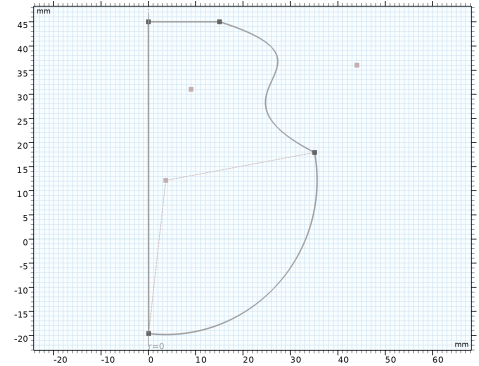
Begin by drawing a rough outline of the bulb. Do not worry about getting it exactly right as you will adjust it later.
The dimensions of the light bulb are larger than the default zoom level in the Graphics window. Adjusting the shape is easier if the original sketch is drawn closer to the final size.
3
Composite Curve 1 (cc1)
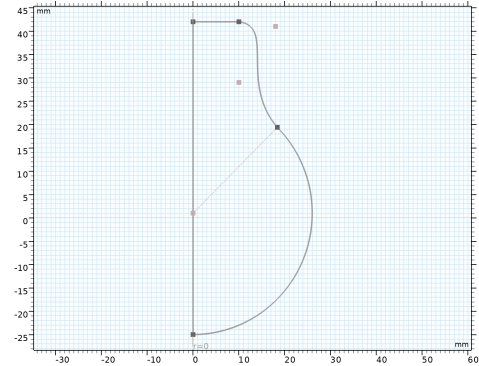
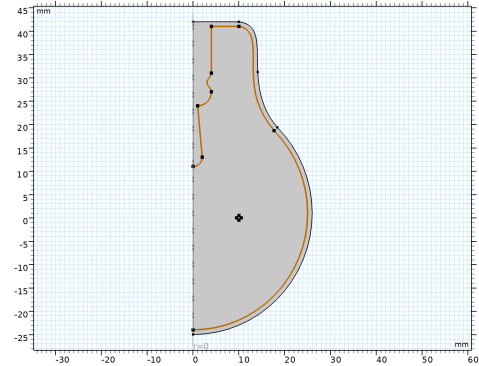
Draw a shape similar to the figure below, starting from the top left corner and continuing clockwise.
Dark gray elements indicate geometrical objects, whereas light gray entities represent control points for higher-order polygons or center points of circular arcs.
1
In the Sketch toolbar, click Polygon, then in the Graphics window place the first vertex by clicking on the centerline close to the top of the canvas.
2
3
4
5
To switch drawing a circular arc, right-click in the Graphics window, and from the context menu choose Circular Arc, then choose Start, Center, Angle.
6
7
8
When done, the Composite Curve 1 node is added to the geometry sequence. This node contains the polygon, cubic Bézier, and circular arc features that you have drawn. Note that the two adjacent straight segments are automatically combined into one feature.
Composite Curve 1 (cc1)
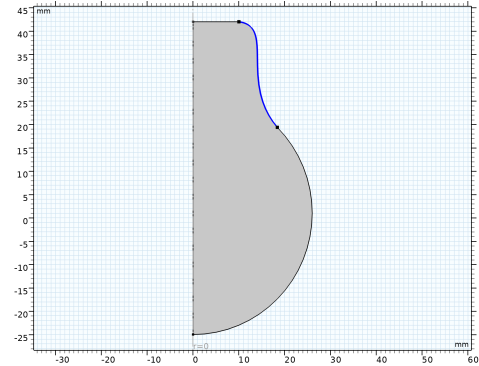
Next, adjust the features inside Composite Curve 1 to obtain the outer shape of the light bulb.
Polygon 1 (pol1)
1
In the Model Builder window, expand the Component 1 (comp1) > Geometry 1 > Composite Curve 1 (cc1) node, then click Polygon 1 (pol1).
2
In the Settings window for Polygon, locate the Coordinates section.
3
When editing the coordinates of the features in a Composite Curve, the adjacent features are automatically updated to keep the start and end points of adjacent edges coincident.
Cubic Bézier 1 (cb1)
1
In the Model Builder window, click Cubic Bézier 1 (cb1).
2
3
Circular Arc 1 (ca1)
1
In the Model Builder window, click Circular Arc 1 (ca1).
2
In the Settings window for Circular Arc, locate the Center section.
3
In the r text field, type 0.
4
In the z text field, type 1.
5
Locate the Radius section. In the Radius text field, type 26.
6
Locate the Angles section. In the Start angle text field, type 45.
7
In the End angle text field, type -90.
8
Click  Build All Objects.
Composite Curve 1 (cc1)
1
In the Model Builder window, click Composite Curve 1 (cc1).
2
In the Settings window for Composite Curve, locate the Selections of Resulting Entities section.
3
Select the Resulting objects selection checkbox.
4
From the Show in physics list, choose Off. With this setting the selection is available only as input for features in the geometry sequence. This way you can keep only the relevant selections in the list of selections when you are defining, for example, physics and mesh features.
Partition Edges 1 (pare1)
1
In the Geometry toolbar, click  Booleans and Partitions and choose Partition Edges.
2
On the object cc1, select Boundary 3 only.
The partitioning operations can be useful in many cases. Here, we are partitioning the selected edge to create segments that reflect that a portion of the upper boundaries of the bulb is covered by a cap.
3
In the Settings window for Partition Edges, click  Build Selected.
Composite Curve 2 (cc2)
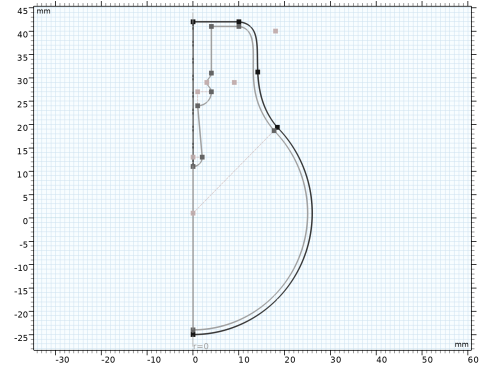
Continue with creating the interior boundaries. Draw a rough outline by starting again from the top left corner, then continuing clockwise.
1
In the Model Builder window, expand the Component 1 (comp1) > Geometry 1 > Composite Curve 2 (cc2) node, then click Polygon 1 (pol1).
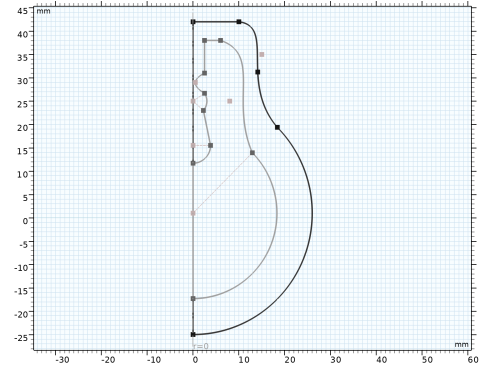
2
In the Sketch toolbar, click  Sketch.
Use the drawing tools in the following order:
3
Right-click in the Graphics window and select Polygon. Start to draw an edge perpendicular to the rotation axis. Its first vertex is located inward from the start vertex of the outer shape.
4
Continue with a Cubic Bézier polygon. Try to follow the outer shape.
5
Add a Circular Arc that ends on the centerline.
6
Draw a Polygon up along the centerline to about halfway up the geometry.
7
Continue with a Circular Arc that curves away from the centerline.
8
Use the Polygon tool to draw an edge that tilts toward the centerline.
9
Draw another Circular Arc that curves away from then back toward the centerline. The start and end vertices can be aligned vertically.
10
Switch to an Interpolation Curve to create a curved segment that first curves toward the centerline then away. Use the Interpolation Points option to define the curve, and add one interpolation point. Try to align the start and end vertices vertically.
11
Continue with editing the features inside Composite Curve 2.
12
In the Settings window for Polygon, locate the Coordinates section.
13
Cubic Bézier 1 (cb1)
1
In the Model Builder window, click Cubic Bézier 1 (cb1).
2
3
4
In the Settings window for Cubic Bézier, locate the Weights section.
5
In the 2 text field, type 3/4.
Circular Arc 1 (ca1)
1
In the Model Builder window, click Circular Arc 1 (ca1).
2
In the Settings window for Circular Arc, locate the Center section.
3
In the r text field, type 0.
4
Locate the Radius section. In the Radius text field, type 25.
5
Locate the Angles section. In the Start angle text field, type 45.
Polygon 2 (pol2)
1
In the Model Builder window, click Polygon 2 (pol2).
2
In the Settings window for Polygon, locate the Coordinates section.
3
Circular Arc 2 (ca2)
1
In the Model Builder window, click Circular Arc 2 (ca2).
2
In the Settings window for Circular Arc, locate the Center section.
3
In the r text field, type 0.
4
In the z text field, type 13.
5
Locate the Radius section. In the Radius text field, type 2.
6
Locate the Angles section. In the Start angle text field, type 270.
Polygon 3 (pol3)
1
In the Model Builder window, click Polygon 3 (pol3).
2
In the Settings window for Polygon, locate the Coordinates section.
3
Circular Arc 3 (ca3)
1
In the Model Builder window, click Circular Arc 3 (ca3).
2
In the Settings window for Circular Arc, locate the Center section.
3
In the r text field, type 1.
4
In the z text field, type 27.
5
Locate the Radius section. In the Radius text field, type 3.
6
Locate the Angles section. In the Start angle text field, type -90.
7
In the End angle text field, type 0.
Interpolation Curve 1 (ic1)
1
In the Model Builder window, click Interpolation Curve 1 (ic1).
2
In the Settings window for Interpolation Curve, locate the Interpolation Points section.
3
The tangent of the curve at the starting point and endpoint follows the z direction.
4
Locate the End Conditions section. From the Condition at starting point list, choose Tangent direction.
5
In the r text field, type 0.
6
In the z text field, type 1.
7
From the Condition at endpoint list, choose Tangent direction.
8
In the r text field, type 0.
9
In the z text field, type 1.
Composite Curve 2 (cc2)
1
In the Model Builder window, click Composite Curve 2 (cc2).
2
In the Settings window for Composite Curve, click  Build Selected.
3
Click the  Zoom Extents button in the Graphics toolbar.
4
Locate the Selections of Resulting Entities section. Select the Resulting objects selection checkbox.
5
From the Show in physics list, choose Off.
Tungsten
Add the next feature from the Geometry toolbar. This allows you to enter the parameters for size and shape directly in the feature.
1
In the Geometry toolbar, click  Circle.
2
In the Settings window for Circle, type Tungsten in the Label text field.
3
Locate the Size and Shape section. In the Radius text field, type 0.5.
4
Locate the Position section. In the r text field, type 10.
5
Locate the Selections of Resulting Entities section. Select the Resulting objects selection checkbox.
6
From the Show in physics list, choose All levels.
7
Click  Build Selected.
The geometry is finished, but before continuing we can leave Sketch mode, and inspect the geometry using the Selection List window.
8
In the Sketch toolbar, click  Sketch.
Selection List
1
In the Geometry toolbar, click  Selection List to open the Selection List window.
2
Go to the Selection List window.
Here you can view a list of geometric objects and entities, and named selections, that exist in the geometry at the current build state for the selected entity level. The list on the top contains objects and entities, and the one at the bottom displays the named selections.
Continue with examining the three objects that comprise the geometry.
3
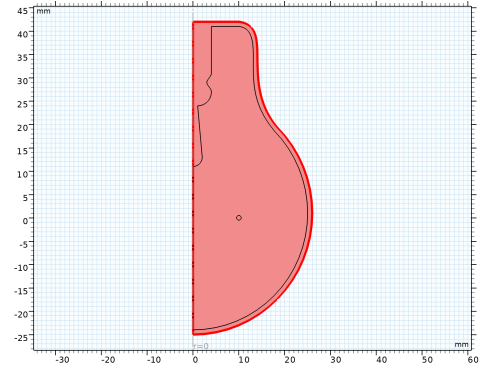
In the Object selections tree, select Composite Curve 1.
4
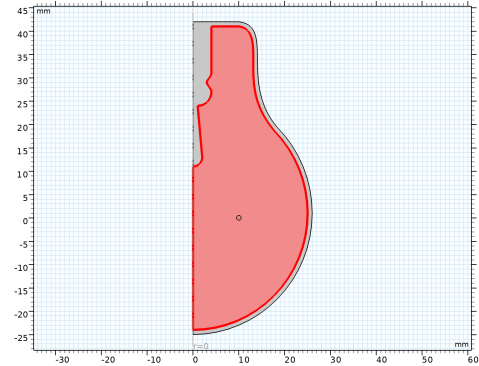
In the Object selections tree, select Composite Curve 2.
5
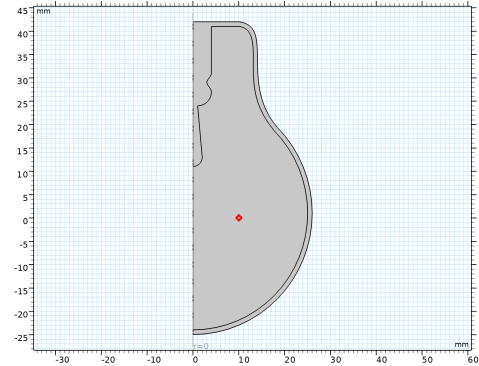
In the Object selections tree, select Tungsten.
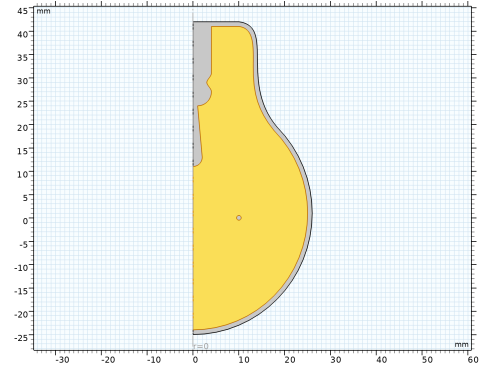
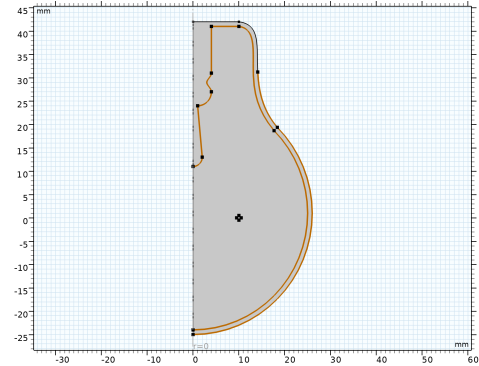
The domains for the glass, and the argon gas, and the tungsten filament result after a geometric Boolean operations of these three objects. Namely, the domain for the glass is the difference of the Composite Curve 1 and Composite Curve 2 objects, and the domain for the argon gas is the difference of the Composite Curve 2 and tungsten objects.
Fortunately, COMSOL Multiphysics automatically computes these domains in the Form Union operation, which is at the end of the geometry sequence, and creates the union of all geometry objects that exist in the sequence while preserving interior boundaries to separate domains.
Geometry 1
Form Union (fin)
1
In the Model Builder window, under Component 1 (comp1) > Geometry 1 click Form Union (fin).
2
In the Settings window for Form Union/Assembly, click  Build Selected.
After Form Union, only one object is displayed in the upper list of the Selection List window. This finalized geometry is divided into domains along the boundaries of the initial objects.
3
In the Graphics window toolbar, clicknext to  Select Objects, then choose Select Domains.
4
In the following sections we will set up named selections that you can use when defining the physics settings.
Glass
1
In the Geometry toolbar, click  Selections and choose Difference Selection.
2
In the Settings window for Difference Selection, type Glass in the Label text field.
3
Locate the Input Entities section. Click the  Add button for Selections to add.
4
In the Add dialog, select Composite Curve 1 in the Selections to add list.
5
6
In the Settings window for Difference Selection, locate the Input Entities section.
7
Click the  Add button for Selections to subtract.
8
In the Add dialog, select Composite Curve 2 in the Selections to subtract list.
9
Now that you have a selection for the glass domain, use an Adjacent Selection feature to obtain its boundaries.
Glass Boundaries
1
In the Geometry toolbar, click  Selections and choose Adjacent Selection.
2
In the Settings window for Adjacent Selection, type Glass Boundaries in the Label text field.
3
Locate the Input Entities section. Click  Add.
4
In the Add dialog, select Glass in the Input selections list.
5
Argon
1
In the Geometry toolbar, click  Selections and choose Difference Selection.
2
In the Settings window for Difference Selection, type Argon in the Label text field.
3
Locate the Input Entities section. Click the  Add button for Selections to add.
4
In the Add dialog, select Composite Curve 2 in the Selections to add list.
5
6
In the Settings window for Difference Selection, locate the Input Entities section.
7
Click the  Add button for Selections to subtract.
8
In the Add dialog, select Tungsten in the Selections to subtract list.
9
Interior Radiation
1
In the Geometry toolbar, click  Selections and choose Difference Selection.
Combine previously defined selections to get the boundaries for the interior radiation.
2
In the Settings window for Difference Selection, type Interior Radiation in the Label text field.
3
Locate the Geometric Entity Level section. From the Level list, choose Boundary.
4
Locate the Input Entities section. Click the  Add button for Selections to add.
5
In the Add dialog, in the Selections to add list, choose Tungsten and Glass Boundaries.
6
7
In the Settings window for Difference Selection, locate the Input Entities section.
8
Click the  Add button for Selections to subtract.
9
In the Add dialog, select Composite Curve 1 in the Selections to subtract list.
10
Exterior Radiation
1
In the Geometry toolbar, click  Selections and choose Explicit Selection.
2
In the Settings window for Explicit Selection, type Exterior Radiation in the Label text field.
3
Locate the Entities to Select section. From the Geometric entity level list, choose Boundary.
4
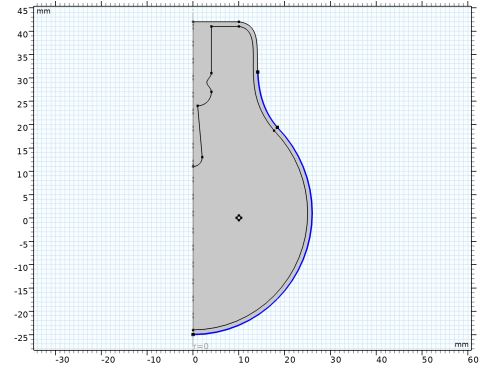
On the object fin, select Boundaries 14 and 15 only.
Radiation
1
In the Geometry toolbar, click  Selections and choose Union Selection.
2
Click in the Graphics window and then press Ctrl+D to clear all objects.
3
In the Settings window for Union Selection, type Radiation in the Label text field.
4
Locate the Geometric Entity Level section. From the Level list, choose Boundary.
5
Locate the Input Entities section. Click  Add.
6
In the Add dialog, in the Selections to add list, choose Interior Radiation and Exterior Radiation.
7
8
In the Settings window for Union Selection, click  Build Selected.