PDF

Axisymmetric Transient Heat Transfer
Introduction
This example shows an axisymmetric transient thermal analysis with a step change to 1000°C at time 0. The example is taken from a NAFEMS benchmark collection (Ref. 1).
Model Definition
This example considers the 0.3 m-by- 0.4 m domain. For the boundary conditions, assume the following:
The other boundaries have a temperature of 1000°C. The entire domain is at 0°C at the start, which represents a step change in temperature at the boundaries.
In the domain use the following material properties:
The density, ρ, is 7850 kg/m3
The heat capacity is 460 J/(kg·°C)
The benchmark case is described with a simulation time of 190 s.
This models doubles the simulation with two scenarios:
1
the temperature condition of 1000°C is maintained during all the simulation.
2
at t = 190 s, the temperature condition is replaced by a thermal insulation condition.
Results
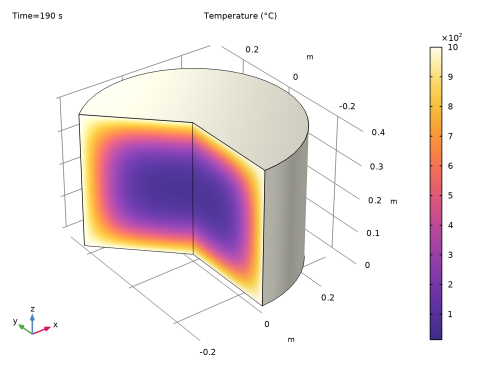
The following revolved surface plot shows the temperature distribution inside the cylinder after 190 seconds:
Figure 1: Temperature distribution after 190 seconds.
The benchmark result for the target location (t = 190 s, r = 0.1 m and z = 0.3 m) is a temperature of 186.5°C. The COMSOL Multiphysics model, using a default mesh with about 430 elements, gives a temperature close to 186.5°C.
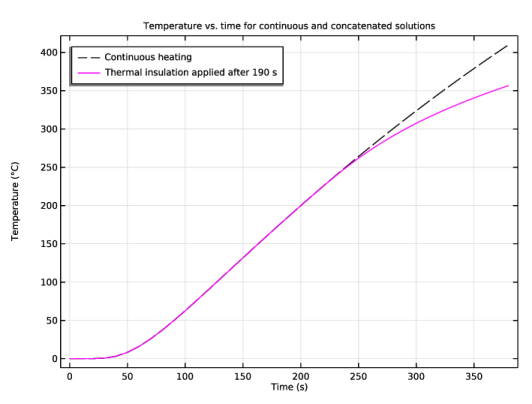
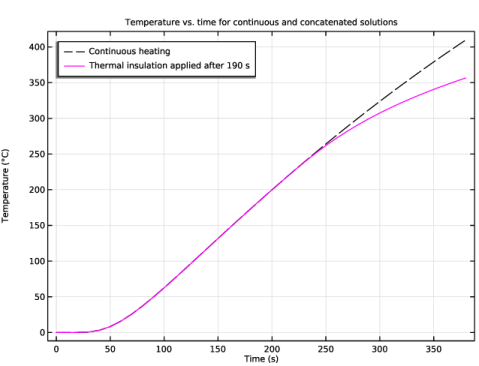
The line graph below shows the temperature variation during 380 s at the target location (r = 0.1 m and z = 0.3 m) for the two scenarios.
Figure 2: Temperature variation at r = 0.1 m and z = 0.3 m for continuous heating and for thermal insulation after 190 s.
Reference
1. A.D. Cameron, J.A. Casey, and G.B. Simpson, NAFEMS Benchmark Tests for Thermal Analysis (Summary), NAFEMS, Glasgow, 1986.
Application Library path: COMSOL_Multiphysics/Heat_Transfer/heat_transient_axi
Modeling Instructions
From the File menu, choose New.
New
In the New window, click  Model Wizard.
Model Wizard
1
In the Model Wizard window, click  2D Axisymmetric.
2
In the Select Physics tree, select Heat Transfer > Heat Transfer in Solids (ht).
3
Click Add.
4
Click  Study.
5
In the Select Study tree, select General Studies > Time Dependent.
6
Geometry 1
Rectangle 1 (r1)
1
In the Geometry toolbar, click  Rectangle.
2
In the Settings window for Rectangle, locate the Size and Shape section.
3
In the Width text field, type 0.3.
4
In the Height text field, type 0.4.
5
Click  Build All Objects.
Heat Transfer in Solids (ht)
Temperature 1
1
In the Physics toolbar, click  Boundaries and choose Temperature.
2
In the Settings window for Temperature, locate the Boundary Selection section.
3
From the Selection list, choose All boundaries.
4
Locate the Temperature section. In the T0 text field, type 1000[degC].
Solid 1
1
In the Model Builder window, click Solid 1.
2
In the Settings window for Solid, locate the Heat Conduction, Solid section.
3
From the k list, choose User defined. In the associated text field, type 52.
4
Locate the Thermodynamics, Solid section. From the ρ list, choose User defined. In the associated text field, type 7850.
5
From the Cp list, choose User defined. In the associated text field, type 460.
Initial Values 1
1
In the Model Builder window, click Initial Values 1.
2
In the Settings window for Initial Values, locate the Initial Values section.
3
In the T text field, type 0[degC].
Study 1
Time Dependent - Continuous Simulation (with Heating)
1
In the Model Builder window, under Study 1 click Step 1: Time Dependent.
2
In the Settings window for Time Dependent, type Time Dependent - Continuous Simulation (with Heating) in the Label text field.
3
Locate the Study Settings section. In the Output times text field, type range(0,10,380).
To improve time accuracy, lower the default solver tolerance:
4
From the Tolerance list, choose User controlled.
5
In the Relative tolerance text field, type 1e-5.
6
In the Study toolbar, click  Compute.
Change the unit of the temperature results to degrees Celsius.
Results
Preferred Units 1
1
In the Results toolbar, click  Configurations and choose Preferred Units.
2
In the Settings window for Preferred Units, locate the Units section.
3
Click  Add Physical Quantity.
4
In the Physical Quantity dialog, select General > Temperature (K) in the tree.
5
6
In the Settings window for Preferred Units, locate the Units section.
7
8
Click  Apply.
Temperature (ht)
The default plot shows the 2D distribution of temperature.
1
In the Model Builder window, under Results click Temperature (ht).
2
In the Settings window for 2D Plot Group, locate the Data section.
3
From the Time (s) list, choose 190.
To get the plot shown in Figure 1, add a result template for 3D Temperature distribution:
Result Templates
1
In the Results toolbar, click  Result Templates to open the Result Templates window.
2
Go to the Result Templates window.
3
In the tree, select Study 1/Solution 1 (sol1) > Heat Transfer in Solids > Temperature (ht).
4
Click the Add Result Template button in the window toolbar.
Results
Temperature 3D
1
In the Settings window for 3D Plot Group, type Temperature 3D in the Label text field.
2
Locate the Data section. From the Time (s) list, choose 190.
Volume 1
Add another result template to visualize the temperature field using a contour plot.
Result Templates
1
Go to the Result Templates window.
2
In the tree, select Study 1/Solution 1 (sol1) > Heat Transfer in Solids > Isothermal Contours (ht).
3
Click the Add Result Template button in the window toolbar.
4
From the Results menu, choose Result Templates.
Results
Isothermal Contours (ht)
The benchmark value for the temperature at t = 190 s, r = 0.1 m and z = 0.3 m is 186.5°C. To compare the value from the simulation, evaluate the temperature at this position.
Cut Point 2D 1
1
In the Model Builder window, expand the Temperature 3D node.
2
Right-click Results > Datasets and choose Cut Point 2D.
3
In the Settings window for Cut Point 2D, locate the Point Data section.
4
In the R text field, type 0.1.
5
In the Z text field, type 0.3.
Point Evaluation 1
1
In the Results toolbar, click  Point Evaluation.
2
In the Settings window for Point Evaluation, locate the Data section.
3
From the Dataset list, choose Cut Point 2D 1.
4
From the Time selection list, choose From list.
5
In the Times (s) list box, select 190.
6
Click  Evaluate.
As an optional extension of the model, you can add a study sequence where, starting from 190 s, the boundaries are thermally insulated.
Add Study
1
In the Home toolbar, click  Add Study to open the Add Study window.
2
Go to the Add Study window.
3
Find the Studies subsection. In the Select Study tree, select General Studies > Time Dependent.
4
Click the Add Study button in the window toolbar.
5
In the Home toolbar, click  Add Study to close the Add Study window.
Study 2
Time Dependent - First Part (with Heating)
1
In the Settings window for Time Dependent, type Time Dependent - First Part (with Heating) in the Label text field.
2
Locate the Study Settings section. In the Output times text field, type range(0,10,190).
3
From the Tolerance list, choose User controlled.
4
In the Relative tolerance text field, type 1e-5.
Time Dependent - Second Part (with Insulation)
1
In the Study toolbar, click  Time Dependent.
2
In the Settings window for Time Dependent, type Time Dependent - Second Part (with Insulation) in the Label text field.
3
Locate the Study Settings section. In the Output times text field, type range(190,10,380).
4
From the Tolerance list, choose User controlled.
5
In the Relative tolerance text field, type 1e-5.
6
Locate the Physics and Variables Selection section. Select the Modify model configuration for study step checkbox.
7
In the tree, select Component 1 (comp1) > Heat Transfer in Solids (ht) > Temperature 1.
8
Click  Disable.
Temperature (ht) 1
In the Study toolbar, click  Compute.
To combine the two time-dependent simulations, add a Combine Solutions study step. This concatenates the two solutions and makes it possible to treat the output as a single continuous time-dependent solution.
Step 3: Combine Solutions
1
In the Study toolbar, click  More Study Extensions and choose Combine Solutions.
2
In the Settings window for Combine Solutions, locate the Combine Solutions Settings section.
3
From the First solution list, choose Study 2/Solution Store 1 (sol3).
4
In the Study toolbar, click  Compute.
Results
Cut Point 2D - Continuous Heating
1
In the Model Builder window, under Results > Datasets click Cut Point 2D 1.
2
In the Settings window for Cut Point 2D, type Cut Point 2D - Continuous Heating in the Label text field.
Cut Point 2D - Combined Solutions
1
In the Results toolbar, click  Cut Point 2D.
2
In the Settings window for Cut Point 2D, type Cut Point 2D - Combined Solutions in the Label text field.
3
Locate the Data section. From the Dataset list, choose Study 2/Solution 2 (sol2).
4
Locate the Point Data section. In the R text field, type 0.1.
5
In the Z text field, type 0.3.
Join - Temperature Difference
1
In the Results toolbar, click  More Datasets and choose Join.
2
In the Settings window for Join, type Join - Temperature Difference in the Label text field.
3
Locate the Data 1 section. From the Data list, choose Cut Point 2D - Continuous Heating.
4
Locate the Data 2 section. From the Data list, choose Cut Point 2D - Combined Solutions.
Temperature, 1D
1
In the Results toolbar, click  1D Plot Group.
2
In the Settings window for 1D Plot Group, type Temperature, 1D in the Label text field.
3
Locate the Data section. From the Dataset list, choose None.
4
Click to expand the Title section. From the Title type list, choose Manual.
5
In the Title text area, type Temperature vs. time for continuous and concatenated solutions.
Point Graph 1
1
Right-click Temperature, 1D and choose Point Graph.
2
In the Settings window for Point Graph, locate the Data section.
3
From the Dataset list, choose Cut Point 2D - Continuous Heating.
4
Click to expand the Coloring and Style section. Find the Line style subsection. From the Line list, choose Dashed.
5
From the Color list, choose From theme.
Point Graph 2
1
In the Model Builder window, right-click Temperature, 1D and choose Point Graph.
2
In the Settings window for Point Graph, locate the Data section.
3
From the Dataset list, choose Cut Point 2D - Combined Solutions.
4
Locate the Coloring and Style section. From the Color list, choose Magenta.
Point Graph 1
1
In the Model Builder window, click Point Graph 1.
2
In the Settings window for Point Graph, click to expand the Legends section.
3
Select the Show legends checkbox.
4
From the Legends list, choose Manual.
5
Point Graph 2
1
In the Model Builder window, click Point Graph 2.
2
In the Settings window for Point Graph, locate the Legends section.
3
Select the Show legends checkbox.
4
From the Legends list, choose Manual.
5
Temperature, 1D
1
In the Model Builder window, click Temperature, 1D.
2
In the Settings window for 1D Plot Group, locate the Legend section.
3
From the Position list, choose Upper left.
4
In the Temperature, 1D toolbar, click  Plot.
Temperature Difference, 1D
1
In the Results toolbar, click  1D Plot Group.
2
In the Settings window for 1D Plot Group, type Temperature Difference, 1D in the Label text field.
3
Locate the Data section. From the Dataset list, choose Join - Temperature Difference.
4
Locate the Title section. From the Title type list, choose Manual.
5
In the Title text area, type Temperature difference.
Point Graph 1
1
Right-click Temperature Difference, 1D and choose Point Graph.
2
In the Temperature Difference, 1D toolbar, click  Plot.
3
In the Model Builder window, click Point Graph 1.