PDF

Busbar Assembly Geometry — with Group Nodes
Introduction
Group nodes in the Model Tree can help with the organization of models by grouping feature nodes that belong together, for example, nodes that belong to a particular part of the geometry, in a folder-like structure.
You can collapse group nodes, drag the group nodes to rearrange them, or drag other nodes to or from the group nodes. Actions like hiding can be applied to all members of a group node, making it more efficient to work with more complex geometries.
Follow this tutorial to create the busbar geometry used in the model Electrical Heating in a Busbar Assembly while learning more about how to:
Busbar Assembly Geometry — with Geometry Parts, the first part of this tutorial series, describes how to build a geometry that consists of several components by using geometry parts. The two tutorials in this series complement each other, and show methods to structure more complex geometry sequences.
Model Definition
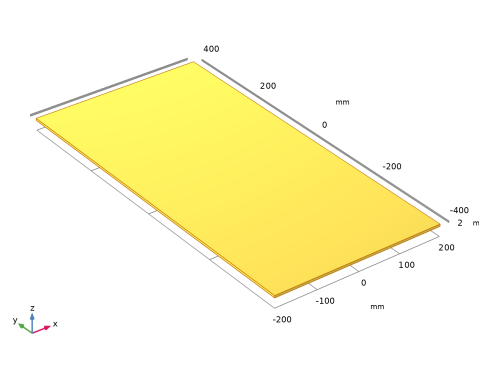
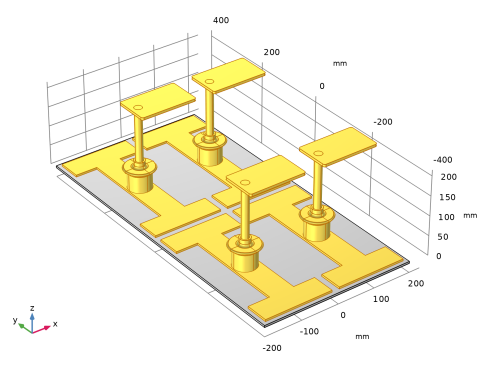
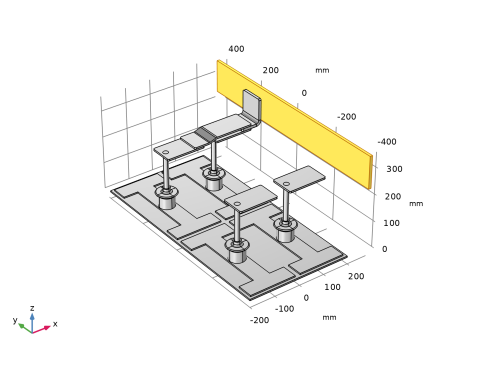
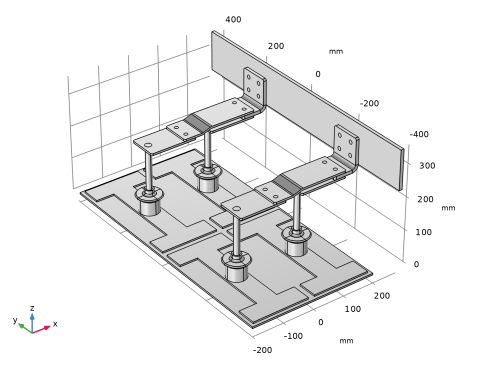
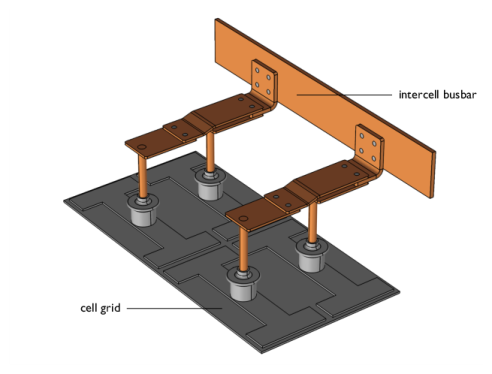
This example contains the detailed steps to create the parameterized geometry used for the model Electrical Heating in a Busbar Assembly. The geometry for this model, displayed in Figure 1, includes the coupling components for one cell, and a section of the intercell busbar that is connected to a cell grid.
Figure 1: The busbar assembly.
When creating the geometry, you will collect feature nodes that build the components of the busbar into separate group nodes. Another approach to organize the geometry sequence could be to group the feature nodes based on, for example, the material properties.
This example describes only the process of creating the geometry sequence. For the physics setup, follow the instructions in Electrical Heating in a Busbar Assembly.
Application Library path: COMSOL_Multiphysics/Geometry_Tutorials/busbar_assembly_groups_geometry
Modeling Instructions
From the File menu, choose New.
New
In the New window, click  Blank Model.
Load the parameters that define the geometry
Global Definitions
Parameters 1
1
In the Model Builder window, under Global Definitions click Parameters 1.
2
In the Settings window for Parameters, locate the Parameters section.
3
Click  Load from File.
4
Add Component
In the Home toolbar, click  Add Component and choose 3D.
Geometry 1
1
In the Settings window for Geometry, locate the Units section.
2
From the Length unit list, choose mm.
Cell Grid Top
1
In the Geometry toolbar, click  Block.
2
In the Settings window for Block, type Cell Grid Top in the Label text field.
3
Locate the Size and Shape section. In the Width text field, type c_g_w.
4
In the Depth text field, type c_g_l.
5
In the Height text field, type c_g_h.
6
Locate the Position section. From the Base list, choose Center.
7
In the z text field, type c_g_h/2.
8
Locate the Selections of Resulting Entities section. Find the Cumulative selection subsection. Click New.
9
In the New Cumulative Selection dialog, type Titanium in the Name text field.
10
11
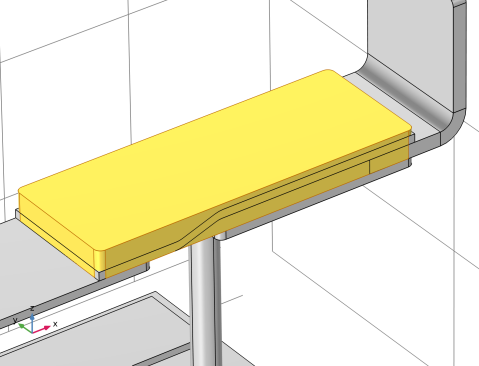
In the Settings window for Block, click  Highlight Result to make it easier to identify the output of the various features.
12
Click  Build Selected.
Work Plane 1 (wp1)
1
In the Geometry toolbar, click  Work Plane.
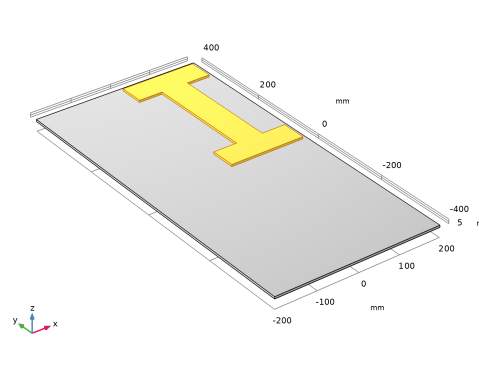
The next part is placed on top of blk 1.
2
In the Settings window for Work Plane, locate the Plane Definition section.
3
From the Plane type list, choose Face parallel.
4
On the object blk1, select Boundary 4 only.
5
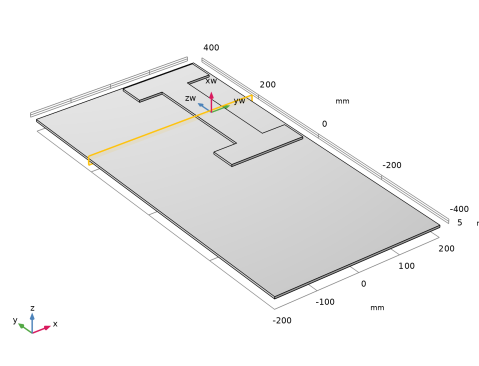
Click to expand the Local Coordinate System section. In the xw-displacement text field, type -c_g_w/2+s_di.
6
In the yw-displacement text field, type -c_g_l/2+s_di.
Specifying the origin of the local coordinate system ensures that the objects drawn on the work plane are correctly positioned without having to move them later.
7
Click  Go to Plane Geometry on top of the Settings window.
Work Plane 1 (wp1) > Plane Geometry
 This brings you automatically to the Sketch toolbar, but we will instead work with the tools on the Work Plane toolbar.
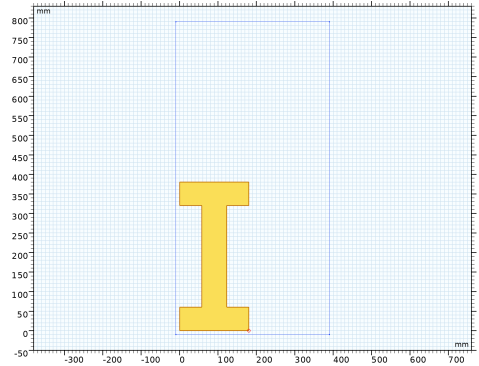
Leave the Sketch mode and create the geometry by entering the polygon coordinates.
1
In the Sketch toolbar, click  Sketch.
Work Plane 1 (wp1) > Polygon 1 (pol1)
1
In the Work Plane toolbar, click  Polygon.
2
In the Settings window for Polygon, locate the Coordinates section.
3
4
Click  Build Selected.
Extrude 1 (ext1)
1
In the Model Builder window, under Component 1 (comp1) > Geometry 1 right-click Work Plane 1 (wp1) and choose Extrude.
2
In the Settings window for Extrude, locate the Distances section.
3
4
Locate the Selections of Resulting Entities section. Find the Cumulative selection subsection. From the Contribute to list, choose Titanium.
5
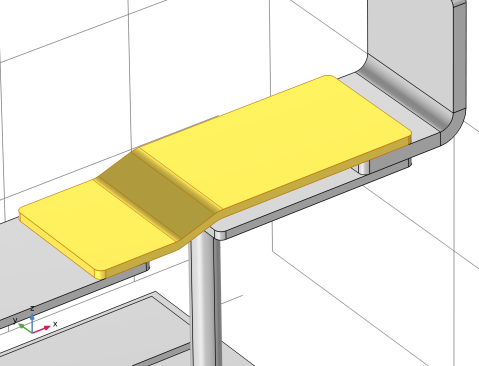
Click  Build Selected.
Extrude 1 (ext1), Work Plane 1 (wp1)
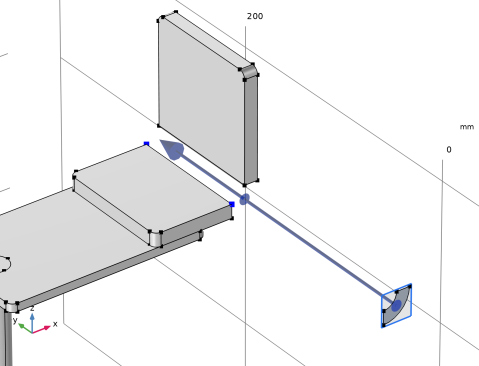
The Work Plane 1 and Extrude 1 nodes create the object for the spine part of the busbar and can be grouped together in the sequence.
1
In the Model Builder window, under Component 1 (comp1) > Geometry 1, Ctrl-click to select Work Plane 1 (wp1) and Extrude 1 (ext1).
2
Spine
In the Settings window for Group, type Spine in the Label text field.
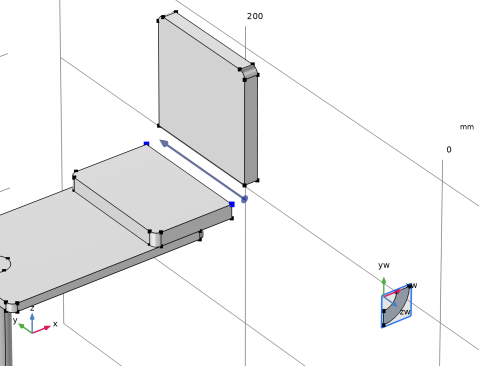
Work Plane 2 (wp2)
1
In the Geometry toolbar, click  Work Plane.
Work Plane 2 is inserted after Extrude 1 within the Spine group node, but you can move it outside the group, as it will be used to create the central column part of the busbar.
2
Right-click Work Plane 2 (wp2) and choose Move Out.
3
In the Model Builder window, click Work Plane 2 (wp2).
4
In the Settings window for Work Plane, locate the Plane Definition section.
5
From the Plane list, choose zx-plane.
6
In the y-coordinate text field, type c_g_l/4.
7
Locate the Local Coordinate System section. In the xw-displacement text field, type c_g_h+s_h.
8
In the yw-displacement text field, type c_g_w/4.
You will now go to the Work Plane toolbar, deactivate Sketch visualization, and create the geometry by entering the polygon coordinates.
9
Click  Go to Plane Geometry at the top of the Settings window.
Work Plane 2 (wp2) > Plane Geometry
In the Sketch toolbar, click  Sketch.
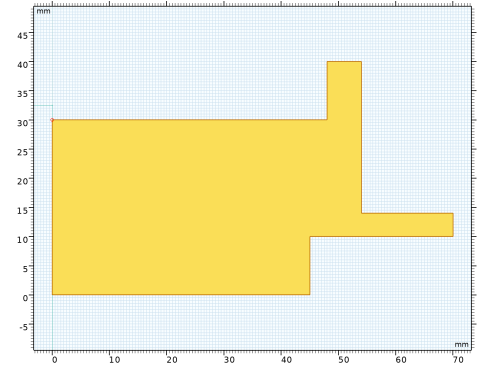
Work Plane 2 (wp2) > Polygon 1 (pol1)
1
In the Work Plane toolbar, click  Polygon.
2
In the Settings window for Polygon, locate the Coordinates section.
3
4
Click  Build Selected.
Zoom and center around the polygon.
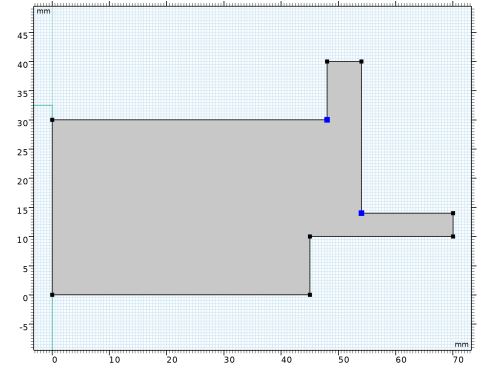
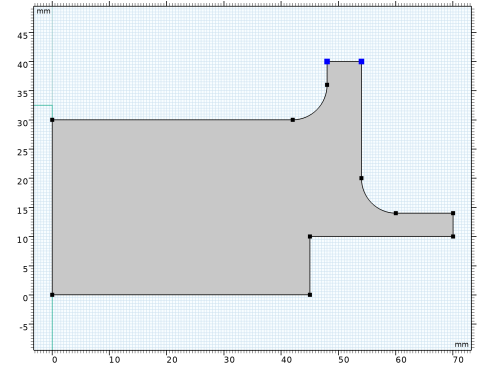
Work Plane 2 (wp2) > Fillet 1 (fil1)
Add fillets to the corners.
1
In the Work Plane toolbar, click  Fillet.
2
In the Settings window for Fillet, locate the Radius section.
3
In the Radius text field, type 0.3*r_d.
4
On the object pol1, select Points 5 and 7 only.
Work Plane 2 (wp2) > Fillet 2 (fil2)
1
In the Work Plane toolbar, click  Fillet.
2
In the Settings window for Fillet, locate the Radius section.
3
In the Radius text field, type 0.15*r_d.
4
On the object fil1, select Points 7 and 9 only.
5
Click  Build Selected.
Revolve 1 (rev1)
1
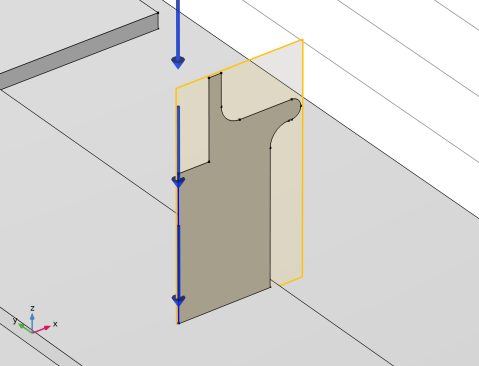
In the Model Builder window, under Component 1 (comp1) > Geometry 1 right-click Work Plane 2 (wp2) and choose Revolve.
2
Click the  Zoom to Selection button in the Graphics toolbar.
3
In the Settings window for Revolve, locate the Revolution Axis section.
4
From the Axis type list, choose Edge.
5
On the object wp2, select Edge 2 only.
6
Locate the Revolution Angles section. Clear the Keep original faces checkbox.
7
Locate the Selections of Resulting Entities section. Find the Cumulative selection subsection. From the Contribute to list, choose Titanium.
8
Click  Build Selected.
9
Click the  Zoom to Selection button in the Graphics toolbar.
Select the features that form the central column and create a new group node.
Revolve 1 (rev1), Work Plane 2 (wp2)
1
In the Model Builder window, under Component 1 (comp1) > Geometry 1, Ctrl-click to select Work Plane 2 (wp2) and Revolve 1 (rev1).
2
Central Column
In the Settings window for Group, type Central Column in the Label text field.
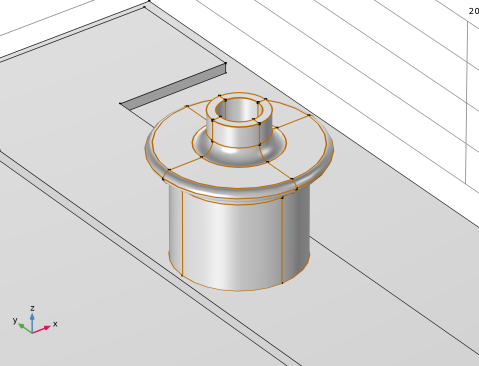
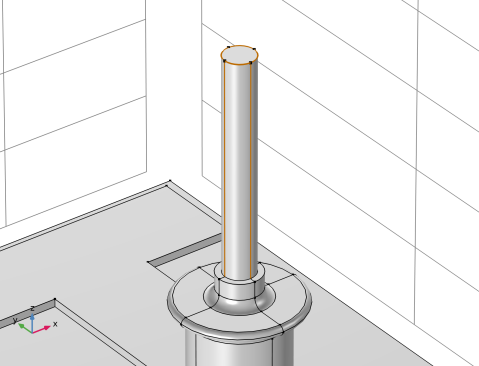
Rod
1
In the Geometry toolbar, click  Cylinder.
2
In the Settings window for Cylinder, type Rod in the Label text field.
3
Locate the Size and Shape section. In the Radius text field, type r_d/2.
4
In the Height text field, type r_l.
5
Locate the Coordinate System section. From the Work plane list, choose Work Plane 2 (wp2).
6
Locate the Axis section. From the Axis type list, choose xw-axis.
7
Locate the Position section. In the xw text field, type c_c_h-c_c_d.
8
Click  Build Selected.
9
Click the  Zoom to Selection button in the Graphics toolbar.
10
Right-click Rod and choose Move Out, since the rod is not part of the Central Column group.
Next we can add an empty group node. The operations following the group node will be automatically added to the group.
Rod Connector
1
In the Model Builder window, right-click Geometry 1 and choose Node Group.
2
In the Settings window for Group, type Rod Connector in the Label text field.
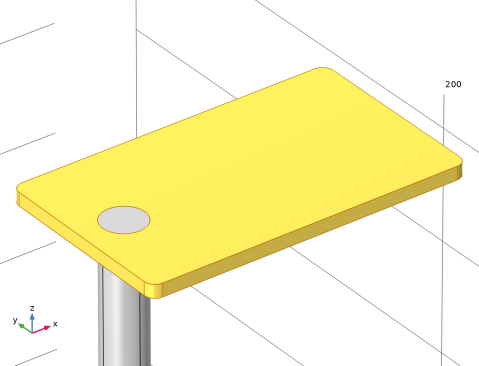
Work Plane 3 (wp3)
1
In the Geometry toolbar, click  Work Plane.
2
In the Settings window for Work Plane, locate the Plane Definition section.
3
From the Plane type list, choose Face parallel.
4
On the object cyl1, select Boundary 4 only, the top boundary of the cylinder.
5
Locate the Local Coordinate System section. In the yw-displacement text field, type r_c_w/2-2*s_di.
6
Click  Go to Plane Geometry.
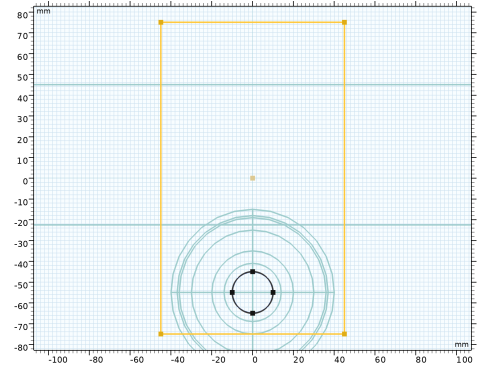
Work Plane 3 (wp3) > Cross Section 1 (cro1)
1
In the Work Plane toolbar, click  Cross Section.
2
In the Settings window for Cross Section, locate the Cross Section section.
3
From the Intersect list, choose Selected objects.
4
5
Click  Build Selected.
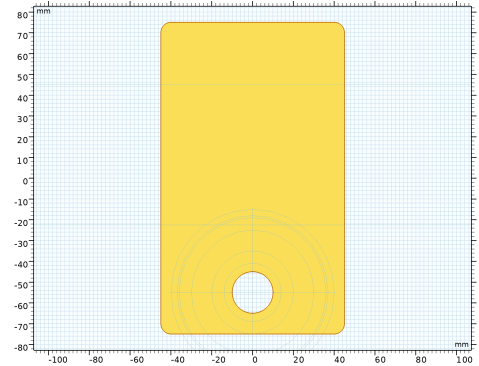
Work Plane 3 (wp3) > Rectangle 1 (r1)
1
In the Work Plane toolbar, click  Rectangle.
2
In the Settings window for Rectangle, locate the Size and Shape section.
3
In the Width text field, type a_c_w.
4
In the Height text field, type r_c_w.
5
Locate the Position section. From the Base list, choose Center.
6
Click  Build Selected.
Zoom in on the rectangle for a better view.
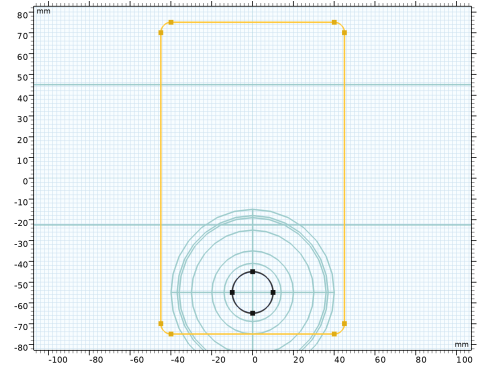
Work Plane 3 (wp3) > Fillet 1 (fil1)
1
In the Work Plane toolbar, click  Fillet.
Round all corners of the rectangle.
2
In the Settings window for Fillet, locate the Radius section.
3
In the Radius text field, type 5[mm].
4
On the object r1, select Points 1–4 only.
5
Click  Build Selected.
Work Plane 3 (wp3) > Difference 1 (dif1)
1
In the Work Plane toolbar, click  Booleans and Partitions and choose Difference.
Subtract the cross section of the rod from the rectangle.
2
3
In the Settings window for Difference, locate the Difference section.
4
Click to select the  Activate Selection toggle button for Objects to subtract.
5
6
Click  Build Selected.
Extrude 2 (ext2)
1
In the Model Builder window, under Component 1 (comp1) > Geometry 1 > Rod Connector right-click Work Plane 3 (wp3) and choose Extrude.
2
In the Settings window for Extrude, locate the Distances section.
3
4
Select the Reverse direction checkbox.
5
Click  Build Selected.
6
Click the  Zoom to Selection button in the Graphics toolbar.
7
Click Geometry 1 to leave the group node.
Array 1 (arr1)
Create a symmetrical pattern with four entities from the objects you have built so far.
1
In the Geometry toolbar, click  Transforms and choose Array.
2
Select the objects cyl1, ext1, ext2, and rev1 only.
3
In the Settings window for Array, locate the Size section.
4
In the x size text field, type 2.
5
In the y size text field, type 2.
6
Locate the Displacement section. In the x text field, type -c_g_w/2.
7
In the y text field, type -c_g_l/2.
8
Click  Build Selected.
Work Plane 4 (wp4)
Continue with creating the geometry for the elbow connector.
1
In the Geometry toolbar, click  Work Plane.
2
In the Settings window for Work Plane, locate the Plane Definition section.
3
In the z-coordinate text field, type c_g_h+s_h+c_c_h-c_c_d+r_l.
4
Locate the Local Coordinate System section. In the xw-displacement text field, type c_g_w/4-3*b_di+r_c_w.
5
In the yw-displacement text field, type c_g_l/4-a_c_w/2.
6
Click  Go to Plane Geometry at the top of the Settings window.
Work Plane 4 (wp4) > Plane Geometry
Go to the Work Plane toolbar and define a rectangle by its width and height.
Work Plane 4 (wp4) > Rectangle 1 (r1)
1
In the Work Plane toolbar, click  Rectangle.
2
In the Settings window for Rectangle, locate the Size and Shape section.
3
In the Width text field, type e_c_lx.
4
In the Height text field, type a_c_w.
Work Plane 4 (wp4) > Fillet 1 (fil1)
1
In the Work Plane toolbar, click  Fillet.
2
On the object r1, select Points 1 and 4 only.
3
In the Settings window for Fillet, locate the Radius section.
4
In the Radius text field, type 5[mm].
5
Click  Build Selected.
6
Click the  Zoom Extents button in the Graphics toolbar.
Extrude 3 (ext3)
1
In the Model Builder window, under Component 1 (comp1) > Geometry 1 right-click Work Plane 4 (wp4) and choose Extrude.
2
In the Settings window for Extrude, locate the Distances section.
3
4
Click  Build Selected.
Work Plane 5 (wp5)
1
In the Geometry toolbar, click  Work Plane.
2
In the Settings window for Work Plane, locate the Plane Definition section.
3
From the Plane list, choose yz-plane.
4
In the x-coordinate text field, type c_g_w/4-3*b_di+r_c_w+e_c_lx+2*e_c_h.
5
Locate the Local Coordinate System section. In the xw-displacement text field, type c_g_l/4-a_c_w/2.
6
In the yw-displacement text field, type c_g_h+s_h+c_c_h-c_c_d+r_l+2*e_c_h.
7
Click  Go to Plane Geometry at the top of the Settings window.
Work Plane 5 (wp5) > Plane Geometry
Go to the Work Plane toolbar and define a rectangle by its width and height.
Work Plane 5 (wp5) > Rectangle 1 (r1)
1
In the Work Plane toolbar, click  Rectangle.
2
In the Settings window for Rectangle, locate the Size and Shape section.
3
In the Width text field, type a_c_w.
4
In the Height text field, type e_c_lz.
Work Plane 5 (wp5) > Fillet 1 (fil1)
1
In the Work Plane toolbar, click  Fillet.
2
On the object r1, select Points 3 and 4 only.
3
In the Settings window for Fillet, locate the Radius section.
4
In the Radius text field, type 5[mm].
5
Click  Build Selected.
Extrude 4 (ext4)
1
In the Model Builder window, under Component 1 (comp1) > Geometry 1 right-click Work Plane 5 (wp5) and choose Extrude.
2
In the Settings window for Extrude, locate the Distances section.
3
4
Select the Reverse direction checkbox.
5
Click  Build Selected.
Work Plane 6 (wp6)
1
In the Geometry toolbar, click  Work Plane.
2
In the Settings window for Work Plane, locate the Plane Definition section.
3
From the Plane list, choose xz-plane.
4
Locate the Local Coordinate System section. In the xw-displacement text field, type c_g_w/4-3*b_di+r_c_w+e_c_lx.
5
In the yw-displacement text field, type c_g_h+s_h+c_c_h-c_c_d+r_l+2*e_c_h.
6
Click  Go to Plane Geometry at the top of the Settings window.
Work Plane 6 (wp6) > Circle 1 (c1)
1
In the Work Plane toolbar, click  Circle.
2
In the Settings window for Circle, locate the Size and Shape section.
3
In the Radius text field, type e_c_h.
4
In the Sector angle text field, type 90.
5
Locate the Rotation Angle section. In the Rotation text field, type 270.
6
Click  Build Selected.
Work Plane 6 (wp6) > Circle 2 (c2)
1
Right-click Component 1 (comp1) > Geometry 1 > Work Plane 6 (wp6) > Plane Geometry > Circle 1 (c1) and choose Duplicate.
2
In the Settings window for Circle, locate the Size and Shape section.
3
In the Radius text field, type e_c_h*2.
4
Click  Build Selected.
Work Plane 6 (wp6) > Plane Geometry
In the Model Builder window, click Plane Geometry.
Work Plane 6 (wp6) > Difference 1 (dif1)
1
In the Work Plane toolbar, click  Booleans and Partitions and choose Difference.
The Objects to add subsection is activated by default. Add the objects on which the operation is to be performed.
2
3
In the Settings window for Difference, locate the Difference section.
4
Click to select the  Activate Selection toggle button for Objects to subtract.
5
6
Click  Build Selected.
7
Click the  Zoom to Selection button in the Graphics toolbar.
Extrude 5 (ext5)
1
In the Model Builder window, under Component 1 (comp1) > Geometry 1 right-click Work Plane 6 (wp6) and choose Extrude.
2
In the Settings window for Extrude, locate the Distances section.
3
From the Specify list, choose Vertices to extrude to.
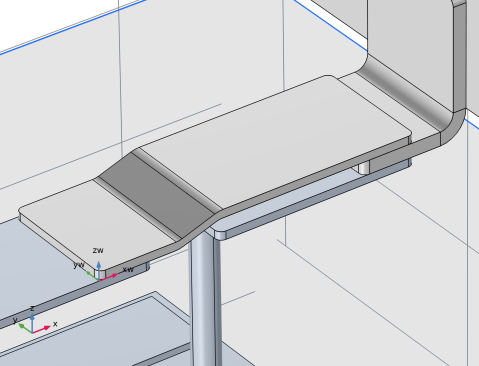
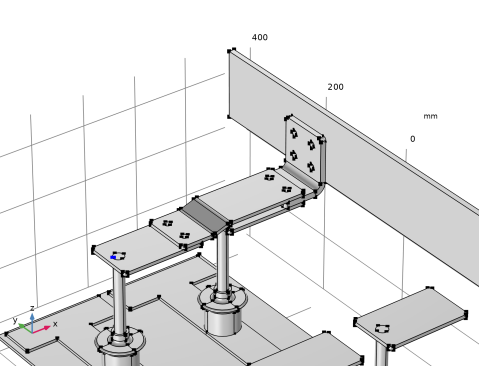
Define the vertices to extrude between. Adjust the view according to the next image to make the selection easier.
4
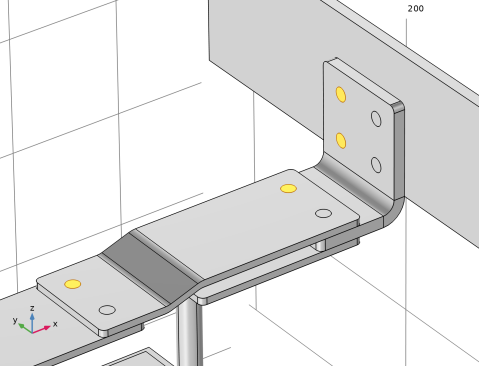
On the object ext3, select Points 10 and 12 only.
5
Clear the Include input entities checkbox to exclude the face from the extrusion.
6
Click  Build Selected.
Union 1 (uni1)
1
In the Geometry toolbar, click  Booleans and Partitions and choose Union.
2
Select the objects ext3, ext4, and ext5 only.
3
In the Settings window for Union, locate the Union section.
4
Clear the Keep interior boundaries checkbox.
5
Click  Build Selected.
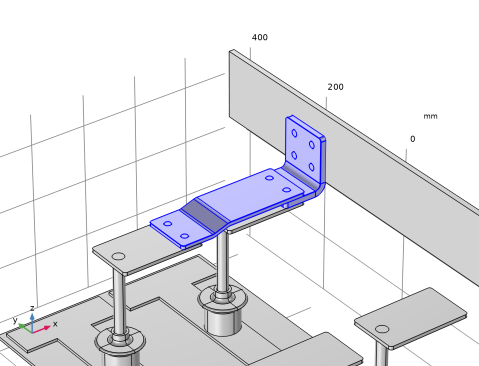
Elbow Connector
1
In the Model Builder window, right-click Geometry 1 and choose Node Group.
2
In the Settings window for Group, type Elbow Connector in the Label text field.
3
In the Model Builder window, under Component 1 (comp1) > Geometry 1, Ctrl-click to select Work Plane 4 (wp4), Extrude 3 (ext3), Work Plane 5 (wp5), Extrude 4 (ext4), Work Plane 6 (wp6), Extrude 5 (ext5), and Union 1 (uni1).
4
Right-click and choose Move To > Elbow Connector.
5
In the Geometry toolbar, click  Work Plane.
Work Plane 7 (wp7)
1
In the Settings window for Work Plane, locate the Plane Definition section.
2
From the Plane list, choose zx-plane.
3
In the y-coordinate text field, type c_g_l/4-a_c_w/2.
4
Locate the Local Coordinate System section. In the xw-displacement text field, type c_g_h+s_h+c_c_h-c_c_d+r_l.
5
In the yw-displacement text field, type -c_g_w/4-b_di*3+r_c_w.
6
Right-click Work Plane 7 (wp7) and choose Move Out.
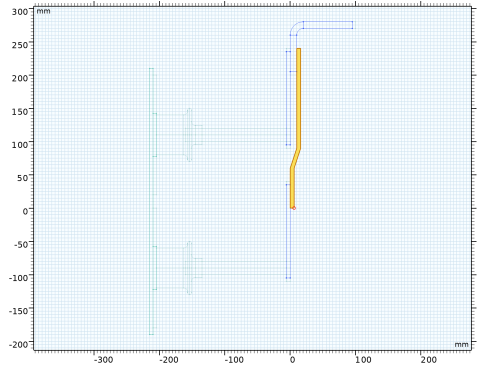
Work Plane 7 (wp7) > Plane Geometry
1
In the Model Builder window, expand the Work Plane 7 (wp7) node, then click Plane Geometry.
2
In the Work Plane toolbar, click  Sketch.
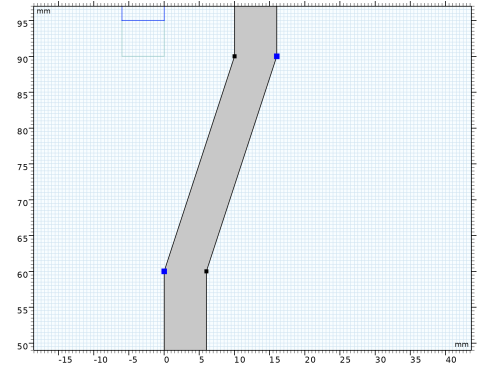
Work Plane 7 (wp7) > Polygon 1 (pol1)
1
In the Work Plane toolbar, click  Polygon.
2
In the Settings window for Polygon, locate the Coordinates section.
3
4
Click  Build Selected.
Work Plane 7 (wp7) > Plane Geometry
Add Fillets to some of the corners. First, zoom in to the region of the bend on the cross section.
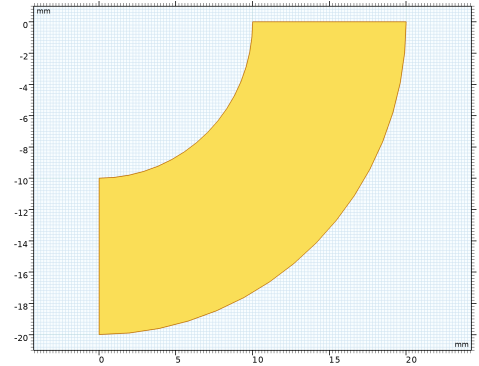
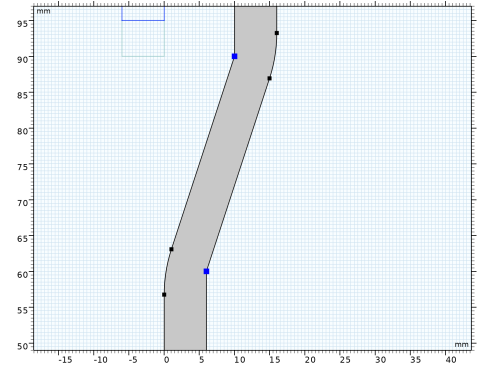
Work Plane 7 (wp7) > Fillet 1 (fil1)
1
In the Work Plane toolbar, click  Fillet.
2
On the object pol1, select Points 2 and 7 only.
3
In the Settings window for Fillet, locate the Radius section.
4
In the Radius text field, type 20[mm].
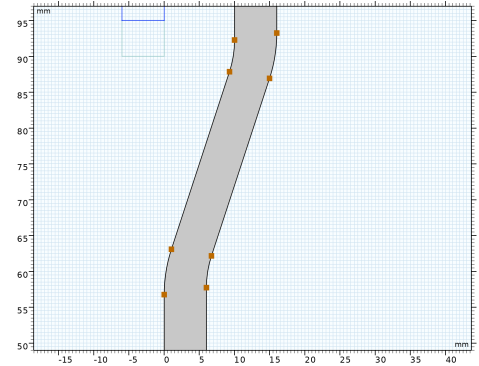
Work Plane 7 (wp7) > Fillet 2 (fil2)
1
In the Work Plane toolbar, click  Fillet.
2
On the object fil1, select Points 5 and 6 only.
3
In the Settings window for Fillet, locate the Radius section.
4
In the Radius text field, type 20[mm]-a_c_h.
5
Click  Build Selected.
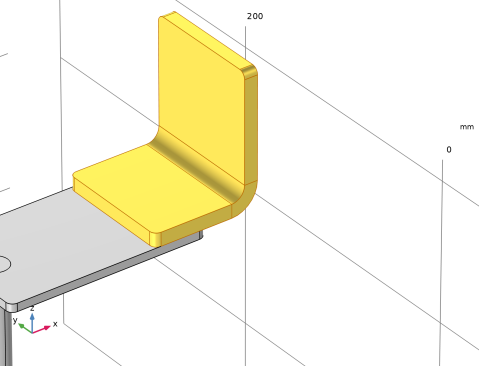
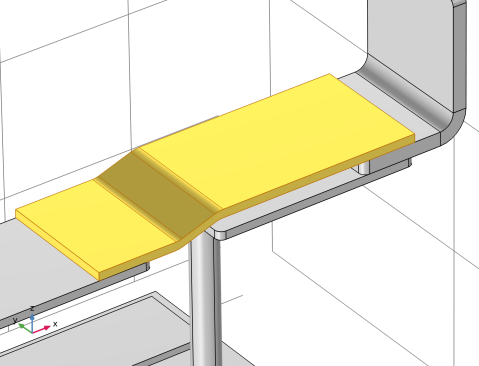
Extrude 6 (ext6)
1
In the Model Builder window, under Component 1 (comp1) > Geometry 1 right-click Work Plane 7 (wp7) and choose Extrude.
2
In the Settings window for Extrude, locate the Distances section.
3
4
Click  Build Selected.
5
Click the  Zoom to Selection button in the Graphics toolbar.
Work Plane 8 (wp8)
1
In the Geometry toolbar, click  Work Plane.
2
In the Settings window for Work Plane, locate the Plane Definition section.
3
In the z-coordinate text field, type c_g_h+s_h+c_c_h-c_c_d+r_l.
4
Locate the Local Coordinate System section. In the xw-displacement text field, type -c_g_w/4-b_di*3+r_c_w.
5
In the yw-displacement text field, type c_g_w/2-a_c_w/2.
6
Click  Go to Plane Geometry at the top of the Settings window.
Work Plane 8 (wp8) > Plane Geometry
Go to the Work Plane toolbar and define a rectangle by its width and height.
Work Plane 8 (wp8) > Rectangle 1 (r1)
1
In the Work Plane toolbar, click  Rectangle.
2
In the Settings window for Rectangle, locate the Size and Shape section.
3
In the Width text field, type c_g_w/2+b_di*2.
4
In the Height text field, type a_c_w.
5
Click  Build Selected.
6
Click the  Zoom Extents button in the Graphics toolbar.
Work Plane 8 (wp8) > Fillet 1 (fil1)
1
In the Work Plane toolbar, click  Fillet.
2
Click the  Select All button in the Graphics toolbar.
3
On the object r1, select Points 1–4 only.
4
In the Settings window for Fillet, locate the Radius section.
5
In the Radius text field, type 5[mm].
6
Click  Build Selected.
Extrude 7 (ext7)
1
In the Model Builder window, under Component 1 (comp1) > Geometry 1 right-click Work Plane 8 (wp8) and choose Extrude.
2
In the Settings window for Extrude, locate the Distances section.
3
4
Click  Build Selected.
Intersection 1 (int1)
1
In the Geometry toolbar, click  Booleans and Partitions and choose Intersection.
2
Select the objects ext6 and ext7 only.
3
In the Settings window for Intersection, click  Build Selected.
Angle Connector
1
In the Model Builder window, right-click Geometry 1 and choose Node Group.
2
In the Settings window for Group, type Angle Connector in the Label text field.
3
In the Model Builder window, under Component 1 (comp1) > Geometry 1, Ctrl-click to select Work Plane 7 (wp7), Extrude 6 (ext6), Work Plane 8 (wp8), Extrude 7 (ext7), and Intersection 1 (int1).
4
Right-click and choose Move To > Angle Connector.
5
In the Geometry toolbar, click  Block.
Intercell Busbar
1
In the Settings window for Block, type Intercell Busbar in the Label text field.
2
Locate the Size and Shape section. In the Width text field, type i_b_h.
3
In the Depth text field, type i_b_l.
4
In the Height text field, type i_b_w.
5
Locate the Position section. From the Base list, choose Center.
6
In the x text field, type -c_g_l/4+a_c_w/2.
7
In the y text field, type i_b_w/2.
8
In the z text field, type i_b_h/2.
9
Locate the Coordinate System section. From the Work plane list, choose Work Plane 5 (wp5).
10
Locate the Axis section. From the Axis type list, choose yw-axis.
11
Right-click Component 1 (comp1) > Geometry 1 > Angle Connector > Intercell Busbar and choose Move Out.
12
In the Model Builder window, click Intercell Busbar (blk2).
13
Click  Build Selected.
14
Click the  Zoom Extents button in the Graphics toolbar.
Bolt Short
1
In the Geometry toolbar, click  Cylinder.
2
In the Settings window for Cylinder, type Bolt Short in the Label text field.
3
Locate the Size and Shape section. In the Radius text field, type b_r.
4
In the Height text field, type r_c_h+a_c_h.
5
Locate the Coordinate System section. From the Work plane list, choose Work Plane 8 (wp8). We can now define the position of the cylinder relative to the origin of the selected work plane.
Zoom in near the origin of the selected work plane.
6
Locate the Position section. In the xw text field, type b_di.
7
In the yw text field, type a_c_w/4.
8
In the zw text field, type -r_c_h.
9
Locate the Selections of Resulting Entities section. Find the Cumulative selection subsection. From the Contribute to list, choose Titanium.
10
Click  Build Selected.
Bolt Long
1
In the Geometry toolbar, click  Cylinder.
2
In the Settings window for Cylinder, type Bolt Long in the Label text field.
3
Locate the Size and Shape section. In the Radius text field, type b_r.
4
In the Height text field, type r_c_h+a_c_h+e_c_h.
5
Locate the Coordinate System section. From the Work plane list, choose Work Plane 4 (wp4).
6
Locate the Position section. In the xw text field, type b_di.
7
In the yw text field, type a_c_w/4.
8
In the zw text field, type -r_c_h.
9
Locate the Selections of Resulting Entities section. Find the Cumulative selection subsection. From the Contribute to list, choose Titanium.
10
Click  Build Selected.
Bolt Medium
1
In the Geometry toolbar, click  Cylinder.
2
In the Settings window for Cylinder, type Bolt Medium in the Label text field.
3
Locate the Size and Shape section. In the Radius text field, type b_r.
4
In the Height text field, type e_c_h+i_b_h.
5
Locate the Coordinate System section. From the Work plane list, choose Work Plane 5 (wp5).
6
Locate the Position section. In the xw text field, type a_c_w/4.
7
In the yw text field, type b_di.
8
In the zw text field, type -e_c_h.
9
Locate the Selections of Resulting Entities section. Find the Cumulative selection subsection. From the Contribute to list, choose Titanium.
10
Click  Build Selected.
11
Move 1 (mov1)
1
In the Geometry toolbar, click  Transforms and choose Move.
2
3
In the Settings window for Move, locate the Input section.
4
Select the Keep input objects checkbox.
5
Locate the Displacement section. In the z text field, type 40[mm].
Mirror 1 (mir1)
1
In the Geometry toolbar, click  Transforms and choose Mirror.
2
Select the objects cyl2, cyl3, cyl4, and mov1 only.
3
In the Settings window for Mirror, locate the Input section.
4
Select the Keep input objects checkbox.
5
Locate the Normal Vector to Plane of Reflection section. In the y text field, type 1.
6
In the z text field, type 0.
7
Locate the Point on Plane of Reflection section. In the y text field, type c_g_l/4.
8
Click  Build Selected.
Move 2 (mov2)
1
In the Geometry toolbar, click  Transforms and choose Move.
2
Select the objects cyl2, cyl3, cyl4, int1, mir1(1), mir1(2), mir1(3), mir1(4), mov1, and uni1 only.
3
In the Model Builder window, click Move 2 (mov2).
4
In the Settings window for Move, locate the Input section.
5
Select the Keep input objects checkbox.
A displacement can also be defined by vertices. The starting point and destination points do not have to be located inside the object to be moved.
6
Locate the Displacement section. From the Specify list, choose Positions.
7
Click to select the  Activate Selection toggle button for Vertex to move.
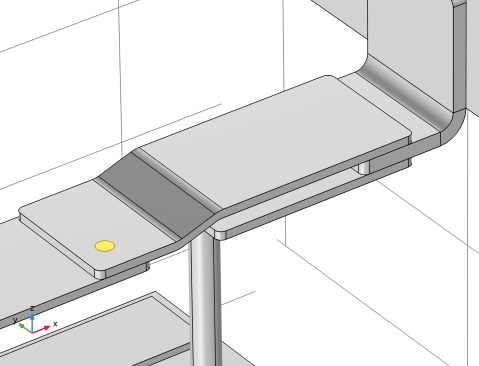
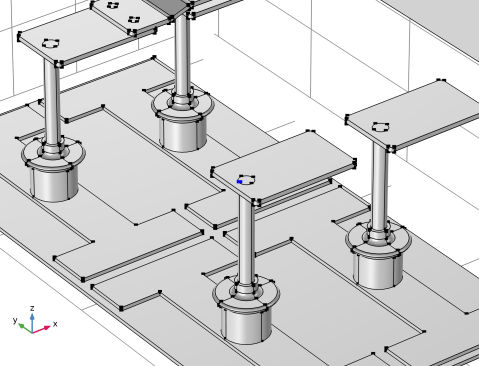
Select one vertex on the rod.
8
On the object arr1(2,1,1,3), select Point 10 only.
9
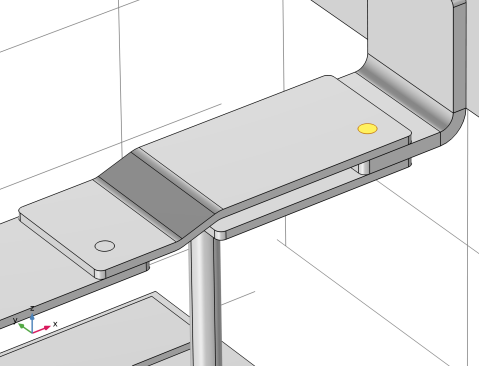
Click to select the  Activate Selection toggle button for Vertices to move to.
10
On the object arr1(2,2,1,3), select Point 10 only.
Form Union (fin)
1
In the Model Builder window, click Form Union (fin).
2
In the Settings window for Form Union/Assembly, click  Build Selected.
Copper
In the following we will set up selections to streamline the material and physics setup.
1
In the Geometry toolbar, click  Selections and choose Complement Selection.
2
In the Settings window for Complement Selection, type Copper in the Label text field.
3
Locate the Input Entities section. Click  Add.
4
In the Add dialog, select Titanium in the Selections to invert list.
5
Adjacent Selection 1 (adjsel1)
1
In the Geometry toolbar, click  Selections and choose Adjacent Selection.
2
In the Settings window for Adjacent Selection, locate the Input Entities section.
3
4
In the Add dialog, in the Input selections list, choose Titanium and Copper.
5
6
In the Settings window for Adjacent Selection, locate the Resulting Selection section.
7
From the Show in physics list, choose Off.
Electrolyte Boundary
1
In the Geometry toolbar, click  Selections and choose Explicit Selection.
2
In the Settings window for Explicit Selection, type Electrolyte Boundary in the Label text field.
3
Locate the Entities to Select section. From the Geometric entity level list, choose Boundary.
4
On the object fin, select Boundary 3 only, the bottom of the Cell Grid Top.
Grounded Boundaries
1
In the Geometry toolbar, click  Selections and choose Explicit Selection.
2
In the Settings window for Explicit Selection, type Grounded Boundaries in the Label text field.
3
Locate the Entities to Select section. From the Geometric entity level list, choose Boundary.
4
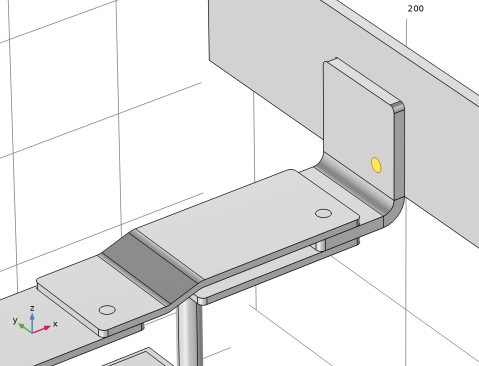
Scroll down in the upper section of the Selection List window, Ctrl-click to select boundaries 556 and 601.
5
Click Add at top of the Selection List window to add the boundaries to the selection.
Heat Flux Boundaries
1
In the Geometry toolbar, click  Selections and choose Difference Selection.
2
In the Settings window for Difference Selection, type Heat Flux Boundaries in the Label text field.
3
Locate the Geometric Entity Level section. From the Level list, choose Boundary.
4
Locate the Input Entities section. Click the  Add button for Selections to add.
5
In the Add dialog, select Adjacent Selection 1 in the Selections to add list.
6
7
In the Settings window for Difference Selection, locate the Input Entities section.
8
Click the  Add button for Selections to subtract.
9
In the Add dialog, in the Selections to subtract list, choose Electrolyte Boundary and Grounded Boundaries.
10