PDF

Busbar Assembly Geometry — with Geometry Parts
Introduction
Geometry parts provide a way to organize, parameterize, and reuse geometries that you create in COMSOL Multiphysics. They can be used to simplify geometry creation by providing easy-to-use parts with a number of parameters for tailoring the part’s shape or dimension when added to a COMSOL Multiphysics geometry.
To create the geometry in a part you use geometry operations just as you would normally do, but these are added to the local geometry sequence of the part. To parameterize the geometry you can define a number of input parameters that will be available when a part instance is inserted into a geometry sequence. In addition, local parameters can help when only local parameterization is needed.
Just as when creating any regular geometry, you can use selections in geometry parts to simplify not only the geometry generation, but also material and physics assignment. You can access selections that you have defined in a part sequence both locally within its sequence or when inserting a part instance into a geometry sequence.
An advantage of breaking up complex geometries with many objects into geometry parts is that you can work in a local coordinate system when creating the geometry within each part. When you are inserting the part into a geometry sequence, you can position it by specifying the coordinates, or by matching a coordinate system defined in the part with a coordinate system in the geometry.
If you create a number of useful geometry parts, it is a good idea to collect them in a user-defined part library. This way you can easily reuse your parts or share them with colleagues.
Follow this tutorial to create the busbar geometry used in the model Electrical Heating in a Busbar Assembly, while learning more about how to:
Busbar Assembly Geometry — with Group Nodes is the second part of this tutorial that describes how to organize a geometry sequence with a folder-like structure. The two tutorials in this series complement each other, and show methods to structure more complex geometry sequences.
Model Definition
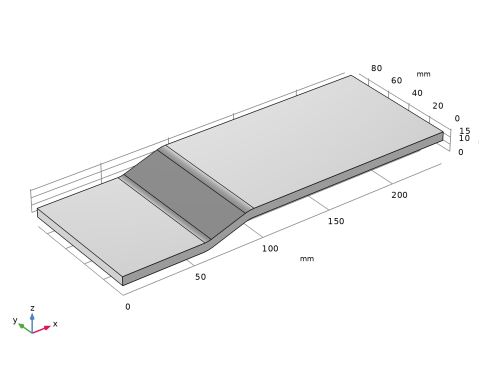
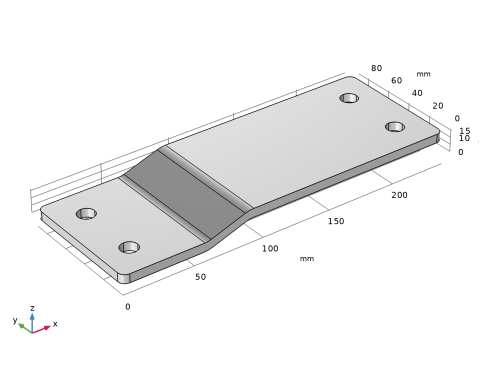
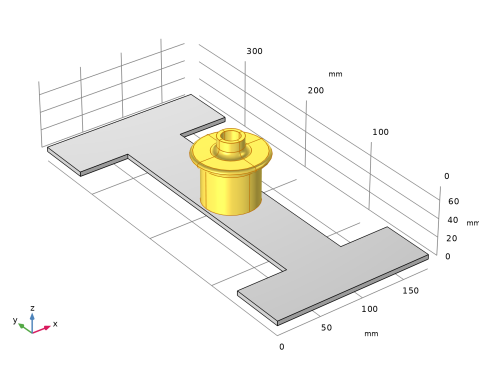
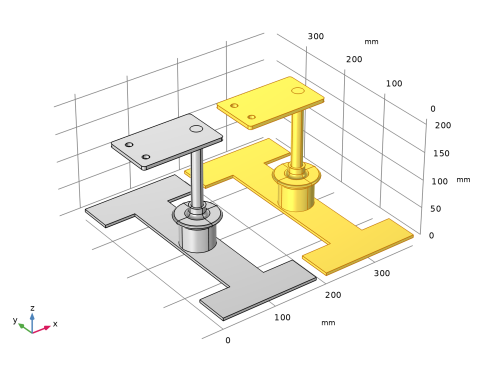
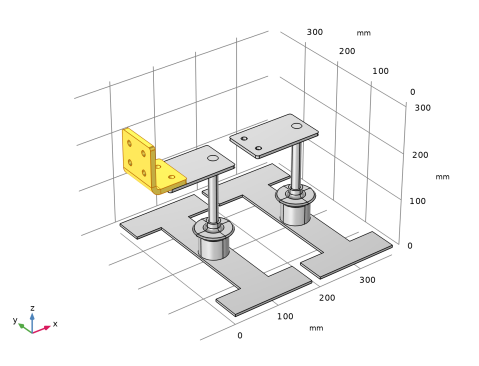
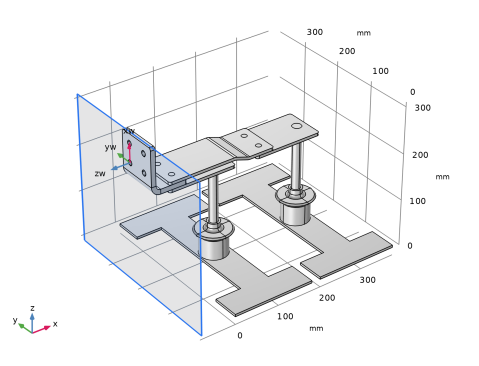
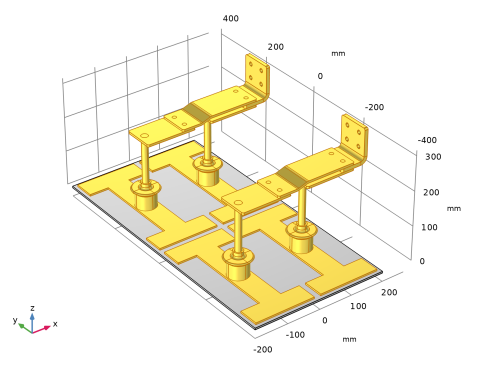
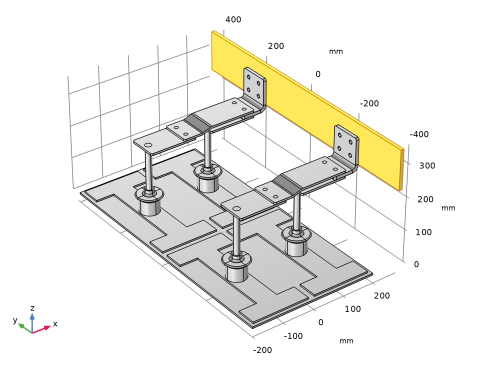
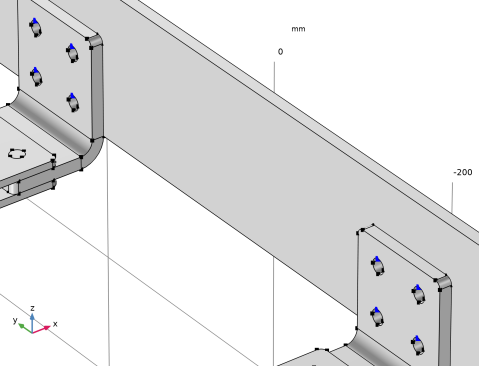
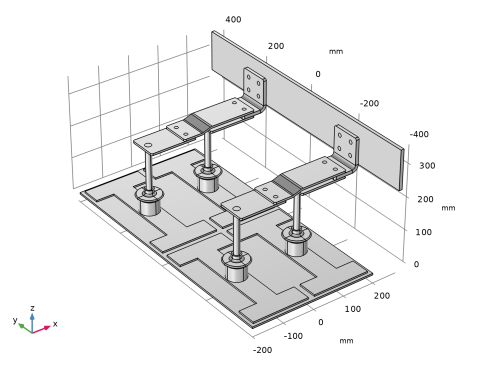
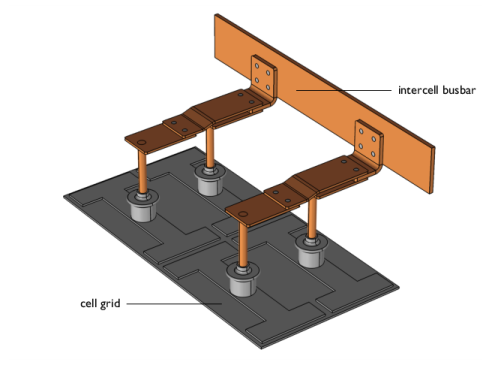
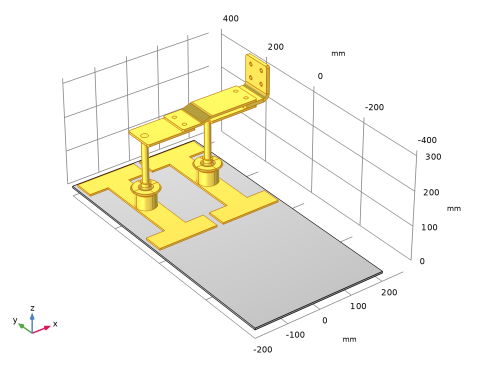
This example contains the detailed steps to create the parameterized geometry used for the model Electrical Heating in a Busbar Assembly. The geometry for this model, displayed in Figure 1, includes the coupling components for one cell, and a section of the intercell busbar that is connected to a cell grid.
Figure 1: The busbar assembly.
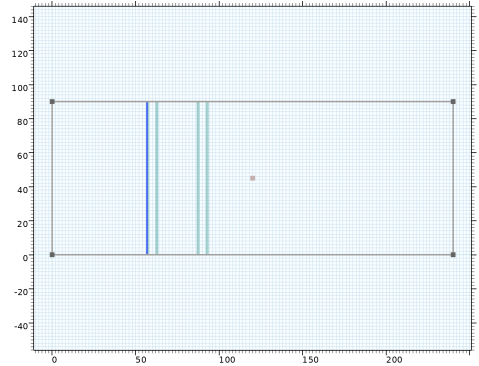
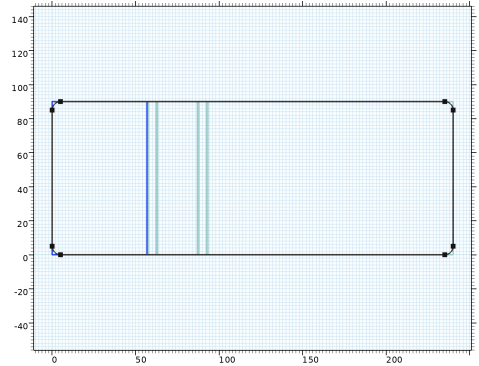
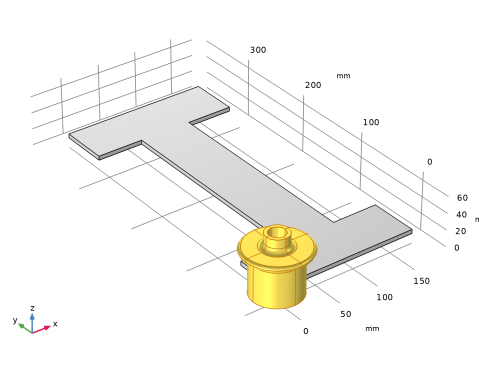
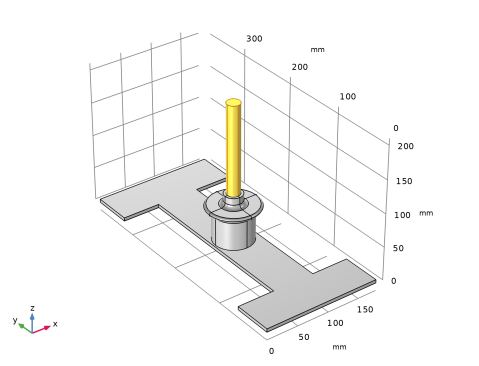
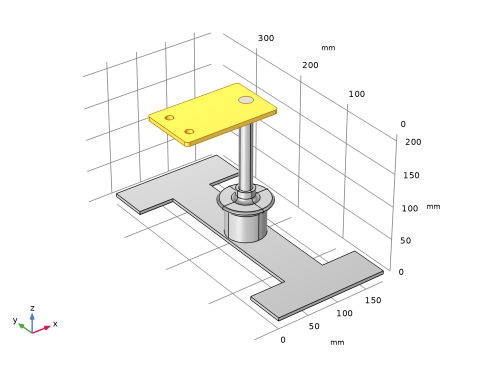
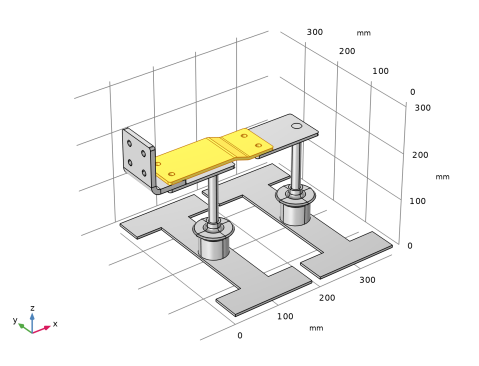
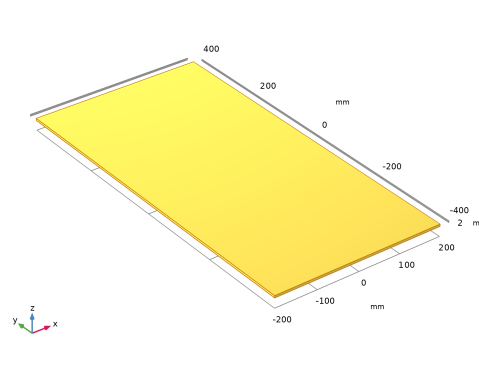
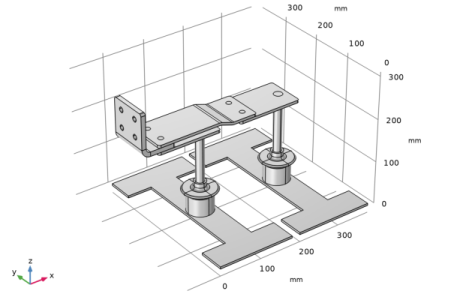
Each component of the busbar is created as a separate geometry part, and a geometry part is also created for the components displayed in Figure 2.
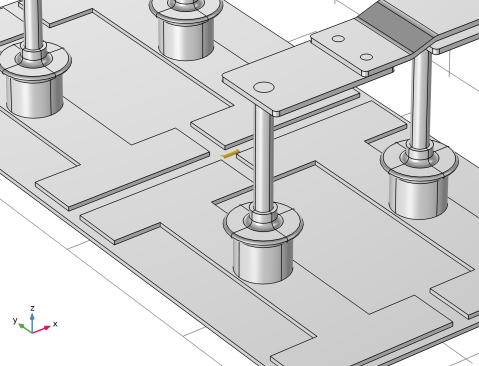
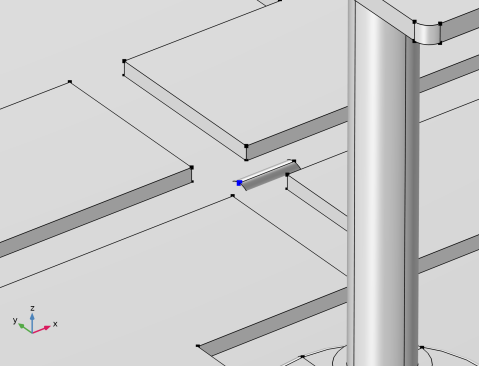
Figure 2: Subunit of the busbar, created in a geometry part.
This example describes only the process of creating the geometry sequence. For the physics setup, follow the instructions in Electrical Heating in a Busbar Assembly.
Application Library path: COMSOL_Multiphysics/Geometry_Tutorials/busbar_assembly_geometry
Modeling Instructions
COMSOL Desktop
1
From the File menu, choose Open.
2
This file contains all but two of the geometry parts for the busbar. In the following you will create the remaining parts and build the busbar geometry. First, check where the geometry parts appear in the model tree.
3
If necessary expand the Geometry Parts section under the Global Definitions node in the Model Builder window.
The geometry parts that appear here are not attached to a specific model component, but can be inserted into the geometry sequence of any model component of the appropriate space dimension. To edit the geometry sequence for a part you can expand the part’s node.
Continue by adding a new geometry part.
Angle Connector
1
In the Model Builder window, right-click Global Definitions and choose Geometry Parts > 3D Part.
2
In the Settings window for Part, type Angle Connector in the Label text field.
3
Locate the Input Parameters section. In the table, enter the following settings:
The parameters listed here are available within the part, and can also be specified with new values when you insert the part into a geometry sequence.
4
Locate the Units section. From the Length unit list, choose mm.
Local Parameters
Local parameters are only available within the part. However, they can be defined by expressions containing input parameters.
1
In the Model Builder window, expand the Angle Connector node, then click Local Parameters.
2
In the Settings window for Local Parameters, locate the Local Parameters section.
3
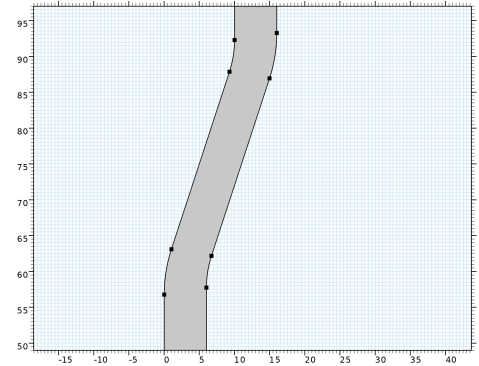
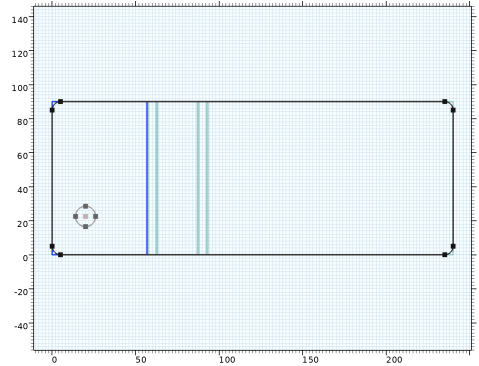
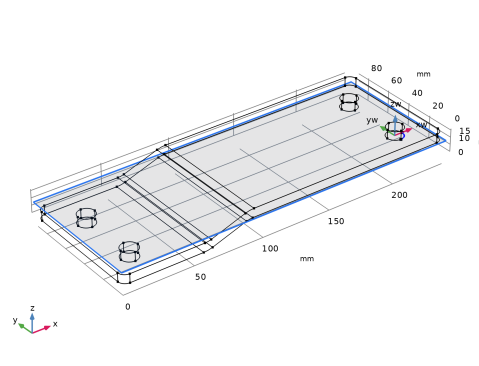
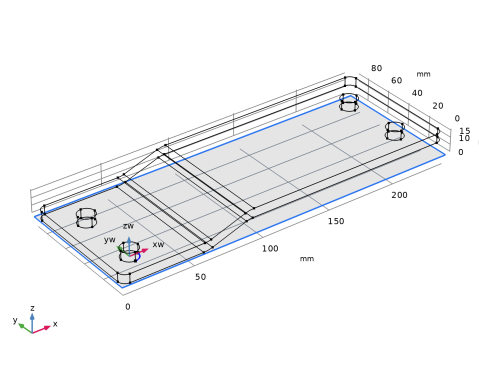
Create the geometry of the angle connector as the intersection of two solid objects: the extrusion of the side view and the extrusion of the top view. Start with drawing and extruding the side view.
Work Plane 1 (wp1)
1
In the Geometry toolbar, click  Work Plane.
2
In the Settings window for Work Plane, locate the Plane Definition section.
3
From the Plane list, choose zx-plane.
Since the work plane is only needed for geometry creation it does not need to be displayed in the part instances.
4
Locate the Part Instances section. Clear the Show work plane in instances checkbox.
Leave the Sketch mode and create the geometry by entering the polygon coordinates.
5
Click  Go to Plane Geometry at the top of the Settings window.
Work Plane 1 (wp1) > Plane Geometry
In the Sketch toolbar, click  Sketch to toggle the Sketch visualization off.
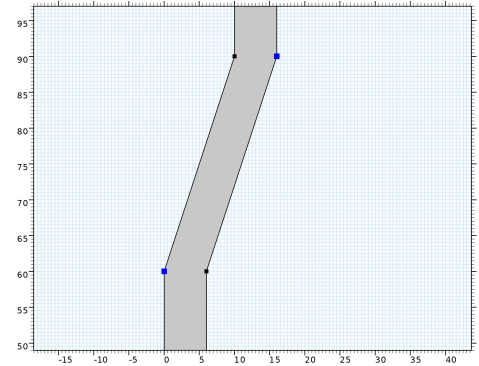
Work Plane 1 (wp1) > Polygon 1 (pol1)
1
In the Work Plane toolbar, click  Polygon.
2
In the Settings window for Polygon, locate the Coordinates section.
3
4
Click  Build Selected.
Work Plane 1 (wp1) > Plane Geometry
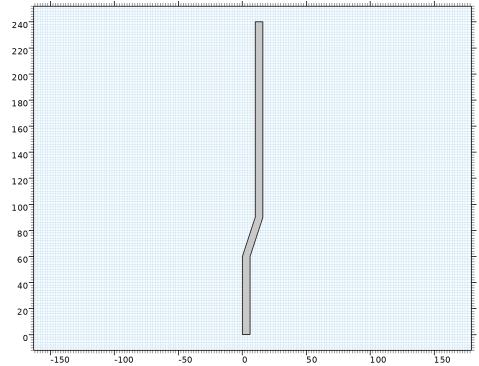
Add Fillets to some of the corners. First, zoom in to the region of the bend on the cross section.
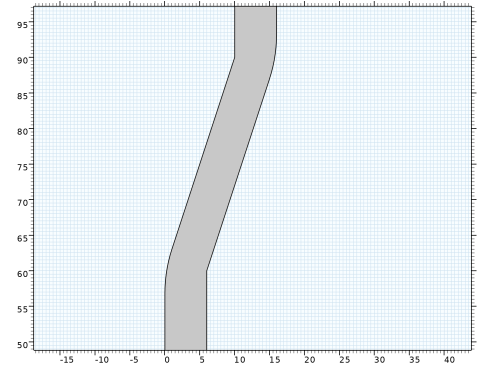
Work Plane 1 (wp1) > Fillet 1 (fil1)
1
In the Work Plane toolbar, click  Fillet.
2
On the object pol1, select Points 2 and 7 only.
3
In the Settings window for Fillet, locate the Radius section.
4
In the Radius text field, type 20[mm].
5
Click  Build Selected.
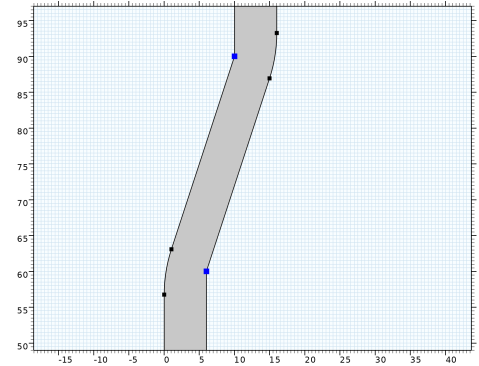
Work Plane 1 (wp1) > Fillet 2 (fil2)
1
In the Work Plane toolbar, click  Fillet.
2
On the object fil1, select Points 5 and 6 only.
3
In the Settings window for Fillet, locate the Radius section.
4
In the Radius text field, type 20[mm]-a_c_h_part.
5
Click  Build Selected.
Extrude 1 (ext1)
1
In the Model Builder window, under Global Definitions > Geometry Parts > Angle Connector right-click Work Plane 1 (wp1) and choose Extrude.
You can use both input and local parameters directly in the feature.
2
3
Click Insert Expression below the Distances section.
4
Expand the Input Parameters section and select a_c_w_part.
5
In the Settings window for Extrude, click  Build Selected.
6
Click the  Zoom Extents button in the Graphics toolbar.
The solid object extruded from the side view is now ready. Continue by drawing and extruding the top view of the angular connector.
Work Plane 2 (wp2)
1
In the Geometry toolbar, click  Work Plane.
2
In the Settings window for Work Plane, locate the Part Instances section.
3
Clear the Show work plane in instances checkbox.
Work Plane 2 (wp2) > Plane Geometry
1
In the Model Builder window, click Plane Geometry.
2
In the Sketch toolbar, click Rectangle.
Draw a rectangle somewhere on the canvas and then adjust its size and position.
Work Plane 2 (wp2) > Rectangle 1 (r1)
1
In the Model Builder window, click Rectangle 1 (r1).
2
In the Settings window for Rectangle, locate the Size and Shape section.
3
In the Width text field, type c_g_w_part/2+b_di_part*2.
4
In the Height text field, type a_c_w_part.
5
Locate the Position section. In the xw text field, type 0.
6
In the yw text field, type 0.
7
Click  Build Selected.
8
Click the  Zoom Extents button in the Graphics toolbar.
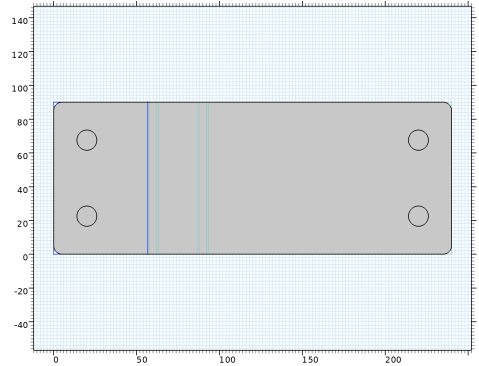
Fillet all corners of the rectangle.
Work Plane 2 (wp2) > Plane Geometry
1
In the Sketch toolbar, click  Fillet.
2
Click the  Select All button in the Graphics toolbar.
3
In the Model Builder window, click Plane Geometry.
4
Select one vertex of r1 and drag it inward to create the fillets.
Adjust the fillet radius.
Work Plane 2 (wp2) > Fillet 1 (fil1)
1
In the Model Builder window, click Fillet 1 (fil1).
2
In the Settings window for Fillet, locate the Radius section.
3
In the Radius text field, type 5[mm].
4
Click  Build Selected.
Add the next feature from the Work Plane toolbar. This allows you to enter the parameters for size and shape directly in the feature.
Work Plane 2 (wp2) > Circle 1 (c1)
1
In the Work Plane toolbar, click  Circle.
2
In the Settings window for Circle, locate the Size and Shape section.
3
In the Radius text field, type b_r_part.
4
Locate the Position section. In the xw text field, type b_di_part.
5
In the yw text field, type a_c_w_part/4.
6
Click  Build Selected.
Work Plane 2 (wp2) > Array 1 (arr1)
1
In the Work Plane toolbar, click  Transforms and choose Array.
2
3
In the Settings window for Array, locate the Size section.
4
In the xw size text field, type 2.
5
In the yw size text field, type 2.
6
Locate the Displacement section. In the xw text field, type c_g_w_part/2.
7
In the yw text field, type a_c_w_part/2.
8
Click  Build Selected.
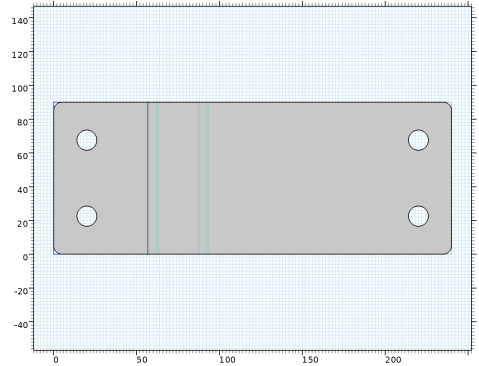
Work Plane 2 (wp2) > Difference 1 (dif1)
1
In the Work Plane toolbar, click  Booleans and Partitions and choose Difference.
2
Select the object fil1 as Objects to add.
3
Activate the Objects to subtract section, and select the objects arr1(1,1), arr1(1,2), arr1(2,1), arr1(2,2), which are the four circles.
4
In the Settings window for Difference, click  Build Selected.
Extrude 2 (ext2)
1
In the Model Builder window, under Global Definitions > Geometry Parts > Angle Connector right-click Work Plane 2 (wp2) and choose Extrude.
2
3
Press Ctrl + Space to open the Insert Expression menu.
4
Expand the Local Parameters section and select e_c_h_part
5
In the Settings window for Extrude, click  Build Selected.
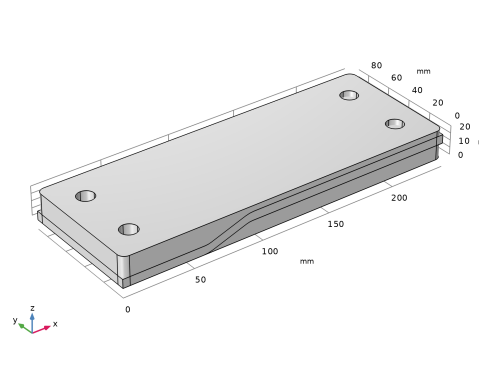
Intersection 1 (int1)
1
In the Geometry toolbar, click  Booleans and Partitions and choose Intersection.
2
Click the  Select All button in the Graphics toolbar.
3
In the Settings window for Intersection, locate the Selections of Resulting Entities section.
4
Select the Resulting objects selection checkbox, to make sure that this selection will be accessible from an instance of the geometry part when inserted into a geometry sequence.
5
Click  Build Selected.
Continue with creating two work planes for the positioning of this connector part. The work planes will be available in the part instances, and we will use them later on when inserting the part into a geometry sequence.
6
Click the  Wireframe Rendering button in the Graphics toolbar, for a better view of the edges without rotating the geometry.
Elbow Connector Position
1
In the Geometry toolbar, click  Work Plane.
2
In the Settings window for Work Plane, type Elbow Connector Position in the Label text field.
3
Locate the Plane Definition section. From the Plane type list, choose Edge parallel.
4
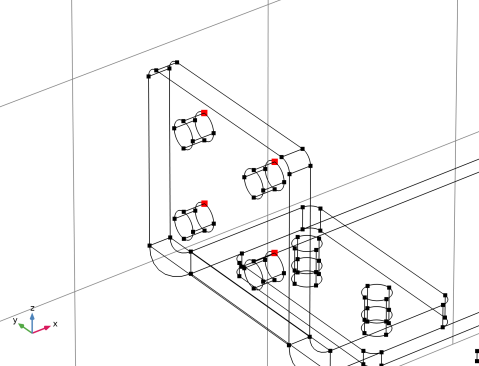
On the object int1, select Edge 74 only. This is one of the lower edges of the front right hole.
5
Click to expand the Local Coordinate System section. In the yw-displacement text field, type b_r_part.
Click somewhere in the Graphics window to update the local coordinate system.
Bolt Position
1
Right-click Elbow Connector Position and choose Duplicate.
2
In the Settings window for Work Plane, type Bolt Position in the Label text field.
The edit field is already activated. Click on the edge located at the front left hole to place the Work Plane.
3
On the object int1, select Edge 26 only.
4
Click the  Zoom Extents button in the Graphics toolbar.
The geometry part for the angle connector is now ready. Continue with adding one more geometry part where you will insert several of the already created parts to create a subassembly.
Geometry Parts
In the Geometry toolbar, click  Create Part.
Anode Top Assembly
1
In the Settings window for Part, type Anode Top Assembly in the Label text field.
2
Locate the Input Parameters section. In the table, enter the following settings:
3
Locate the Units section. From the Length unit list, choose mm.
Local Parameters
1
In the Model Builder window, expand the Anode Top Assembly node, then click Local Parameters.
2
In the Settings window for Local Parameters, locate the Local Parameters section.
3
The individual geometry parts contain different selections, open the Selection List window for a quick access to these selections as we work with the geometry part.
Selection List
In the Geometry toolbar, click  Selection List to open the Selection List window.
Anode Top Assembly
Spine 1 (pi1)
1
In the Geometry toolbar, click  Part Instance and choose Spine.
2
In the Settings window for Part Instance, click to expand the Domain Selections section.
3
Click New Cumulative Selection.
Cumulative selections are useful when the output of several geometry operations is contributing to the same selection. Here the cumulative selections will collect the domains with similar material assignments.
4
In the New Cumulative Selection dialog, type Titanium in the Name text field.
5
6
Select Titanium from the Contribute to list to add the part to this selection.
As soon as a new selection is added and the corresponding entity level is selected, it is displayed in the lower part of the Selection List window.
7
In the Settings window for Part Instance, click  Build Selected.
Central Column 1 (pi2)
1
In the Geometry toolbar, click  Part Instance and choose Central Column.
Link the input parameter of this part instance of Central Column 1 with a parameter of the part Anode Top Assembly.
2
In the Settings window for Part Instance, locate the Input Parameters section.
3
4
Locate the Domain Selections section. In the table, enter the following settings:
5
Click  Build Selected.
6
Click  Highlight Result to make it easier to identify the output of the geometry features.
To position the part for the central column at the center of the spine, use a coordinate system already defined by the appropriate work plane in the geometry part for the spine.
Spine
Central Column Position (wp2)
1
In the Model Builder window, expand the Global Definitions > Geometry Parts > Spine node, then click Central Column Position (wp2).
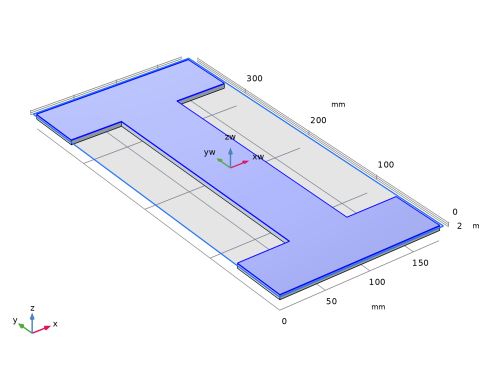
Returning to the geometry sequence of the Anode Top Assembly, use this work plane to position the part for the central column.
Anode Top Assembly
Central Column 1 (pi2)
1
In the Model Builder window, under Global Definitions > Geometry Parts > Anode Top Assembly click Central Column 1 (pi2).
2
In the Settings window for Part Instance, locate the Position and Orientation of Output section.
3
Find the Coordinate system to match subsection. From the Take work plane from list, choose Spine 1 (pi1).
4
From the Work plane list, choose Central Column Position (wp2).
5
Click  Build Selected.
Rod 1 (pi3)
1
In the Geometry toolbar, click  Part Instance and choose Rod.
2
In the Settings window for Part Instance, locate the Input Parameters section.
3
4
Locate the Position and Orientation of Output section. Find the Coordinate system to match subsection. From the Take work plane from list, choose Central Column 1 (pi2).
5
From the Work plane list, choose Rod Position (wp2).
6
Locate the Domain Selections section. Click New Cumulative Selection.
7
In the New Cumulative Selection dialog, type Copper in the Name text field.
8
9
In the Settings window for Part Instance, locate the Domain Selections section.
10
11
Click  Build Selected.
Rod Connector 1 (pi4)
1
In the Geometry toolbar, click  Part Instance and choose Rod Connector.
2
In the Settings window for Part Instance, locate the Input Parameters section.
3
4
Locate the Position and Orientation of Output section. Find the Coordinate system to match subsection. From the Take work plane from list, choose Rod 1 (pi3).
5
From the Work plane list, choose Rod Connector Position (wp1).
6
Locate the Domain Selections section. In the table, enter the following settings:
7
Click  Build Selected.
8
Click the  Zoom Extents button in the Graphics toolbar.
Copy 1 (copy1)
To obtain another copy of the already inserted geometry parts we can use the Copy operation.
1
In the Geometry toolbar, click  Transforms and choose Copy.
2
Click the  Select All button in the Graphics toolbar.
3
In the Settings window for Copy, locate the Displacement section.
4
In the x text field, type c_g_w_asm/2.
5
Click  Build Selected.
6
Click the  Zoom Extents button in the Graphics toolbar.
Elbow Connector 1 (pi5)
1
In the Geometry toolbar, click  Part Instance and choose Elbow Connector.
2
In the Settings window for Part Instance, locate the Input Parameters section.
3
4
Locate the Position and Orientation of Output section. Find the Coordinate system in part subsection. From the Work plane in part list, choose Rod Connector Position (wp4).
5
Find the Coordinate system to match subsection. From the Take work plane from list, choose Rod Connector 1 (pi4).
6
From the Work plane list, choose Elbow Connector Position (wp2).
7
Find the Rotation subsection. In the Rotation angle text field, type 90[deg].
8
Locate the Domain Selections section. In the table, enter the following settings:
9
Click  Build Selected.
10
Locate the Selection Settings section. Select the Keep noncontributing selections checkbox, to make selections from this part available in instances of the Anode Top Assembly part.
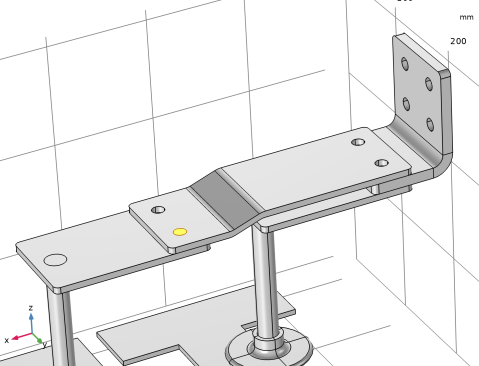
The selection we are interested in is defined on the point level in the Elbow Connector.
11
In the Graphics window toolbar, clicknext to  Select Domains, then choose Select Points. You can now see the named selection Bolt Medium Position (Elbow Connector 1) listed in the lower part of the Selection List window.
12
Click  Highlight Result.
13
Click the  Wireframe Rendering button in the Graphics toolbar for a better view of this selection.
Selection List
1
Go to the Selection List window.
2
In the Point selections tree, select Bolt Medium Position (Elbow Connector 1).
3
4
Reset the view rendering by activating Highlight Result and deactivating Wireframe Rendering.
Anode Top Assembly
Angle Connector 1 (pi6)
1
In the Geometry toolbar, click  Part Instance and choose Angle Connector.
2
In the Settings window for Part Instance, locate the Input Parameters section.
3
4
Locate the Position and Orientation of Output section. Find the Coordinate system in part subsection. From the Work plane in part list, choose Elbow Connector Position (wp3).
5
Find the Coordinate system to match subsection. From the Take work plane from list, choose Elbow Connector 1 (pi5).
6
From the Work plane list, choose Angle Connector Position (wp6).
7
Locate the Domain Selections section. In the table, enter the following settings:
8
Click  Build Selected.
Bolt Small
1
In the Geometry toolbar, click  Part Instance and choose Bolt.
2
In the Settings window for Part Instance, type Bolt Small in the Label text field.
3
Locate the Position and Orientation of Output section. Find the Coordinate system to match subsection. From the Take work plane from list, choose Angle Connector 1 (pi6).
4
From the Work plane list, choose Bolt Position (wp4).
5
Find the Displacement subsection. In the zwi text field, type -r_c_h_asm.
6
Locate the Domain Selections section. In the table, enter the following settings:
7
Click  Build Selected.
Use the mouse to get a better view of the inserted part.
Bolt Large
1
In the Geometry toolbar, click  Part Instance and choose Bolt.
2
In the Settings window for Part Instance, type Bolt Large in the Label text field.
3
Locate the Input Parameters section. In the table, enter the following settings:
4
Locate the Position and Orientation of Output section. Find the Coordinate system to match subsection. From the Take work plane from list, choose Elbow Connector 1 (pi5).
5
From the Work plane list, choose Rod Connector Position (wp4).
6
Find the Displacement subsection. In the zwi text field, type -r_c_h_asm.
7
Locate the Domain Selections section. In the table, enter the following settings:
8
Click  Build Selected.
Mirror 1 (mir1)
1
In the Geometry toolbar, click  Transforms and choose Mirror.
2
Select the objects pi7 and pi8 only.
3
In the Settings window for Mirror, locate the Input section.
4
Select the Keep input objects checkbox.
5
Locate the Point on Plane of Reflection section. In the y text field, type 190[mm], which is half of the length of the spine.
6
Locate the Normal Vector to Plane of Reflection section. In the y text field, type 1.
7
In the z text field, type 0.
8
Click  Build Selected.
Next, add a work plane that will help position this part.
9
Click the  Go to Default View button in the Graphics toolbar.
Intercell Busbar Position
1
In the Geometry toolbar, click  Work Plane.
2
In the Settings window for Work Plane, type Intercell Busbar Position in the Label text field.
3
Locate the Plane Definition section. From the Plane type list, choose Transformed.
4
From the Take work plane from list, choose Elbow Connector 1 (pi5).
5
From the Work plane to transform list, choose Intercell Busbar Position (wp5).
6
Click  Build Selected.
Finally, set up a selection that includes all objects in this geometry part. It will come in handy when building the busbar geometry.
Box Selection 1 (boxsel1)
1
In the Geometry toolbar, click  Selections and choose Box Selection.
2
In the Settings window for Box Selection, locate the Geometric Entity Level section.
3
From the Level list, choose Object.
4
Click the  Zoom Extents button in the Graphics toolbar.
Global Definitions
All geometry parts are now ready. Next, add the global parameters for controlling the busbar dimensions. Then, add a 3D model component where you can build the busbar geometry.
Parameters 1
1
In the Model Builder window, under Global Definitions click Parameters 1.
2
In the Settings window for Parameters, locate the Parameters section.
3
Add Component
In the Home toolbar, click  Add Component and choose 3D.
Geometry 1
1
In the Settings window for Geometry, locate the Units section.
2
From the Length unit list, choose mm.
Cell Grid Top 1 (pi1)
1
In the Geometry toolbar, click  Part Instance and choose Cell Grid Top.
2
In the Settings window for Part Instance, click to expand the Domain Selections section.
In the following we will set up separate selections to collect the titanium and copper parts.
3
Click New Cumulative Selection.
4
In the New Cumulative Selection dialog, type Titanium in the Name text field.
5
6
In the Settings window for Part Instance, locate the Domain Selections section.
7
Click New Cumulative Selection again to define a selection for the copper parts.
8
In the New Cumulative Selection dialog, type Copper in the Name text field.
9
10
In the Settings window for Part Instance, locate the Domain Selections section.
11
12
Click to expand the Boundary Selections section. In the table, enter the following settings:
13
Click  Build Selected.
Anode Top Assembly 1 (pi2)
1
In the Geometry toolbar, click  Part Instance and choose Anode Top Assembly.
2
In the Settings window for Part Instance, locate the Input Parameters section.
3
4
Locate the Position and Orientation of Output section. Find the Coordinate system to match subsection. From the Take work plane from list, choose Cell Grid Top 1 (pi1).
5
From the Work plane list, choose Spine Position (wp1).
6
Click to expand the Object Selections section. In the table, enter the following settings:
7
Locate the Domain Selections section. In the table, enter the following settings:
8
Click to expand the Point Selections section. In the table, enter the following settings:
9
Click  Build Selected.
10
In the Graphics window toolbar, clicknext to  Select Points, then choose Select Objects, to highlight the objects.
Move 1 (mov1)
1
In the Geometry toolbar, click  Transforms and choose Move.
2
In the Settings window for Move, locate the Input section.
3
From the Input objects list, choose Box Selection 1 (Anode Top Assembly 1).
4
Locate the Displacement section. In the y text field, type 0 -400[mm]. By using a displacement vector, the input objects are moved to each of the positions specified by the vector.
5
Click  Build Selected.
Intercell Busbar 1 (pi3)
1
In the Geometry toolbar, click  Part Instance and choose Intercell Busbar.
2
In the Settings window for Part Instance, locate the Input Parameters section.
3
4
Locate the Position and Orientation of Output section. Find the Coordinate system in part subsection. From the Work plane in part list, choose Elbow Connector Position (wp2).
5
Find the Coordinate system to match subsection. From the Take work plane from list, choose Anode Top Assembly 1 (pi2).
6
From the Work plane list, choose Intercell Busbar Position (wp1).
7
Locate the Domain Selections section. In the table, enter the following settings:
8
Locate the Boundary Selections section. In the table, enter the following settings:
9
Click  Build Selected.
Bolt Medium
1
In the Geometry toolbar, click  Part Instance and choose Bolt.
2
In the Settings window for Part Instance, type Bolt Medium in the Label text field.
3
Locate the Input Parameters section. In the table, enter the following settings:
4
Locate the Position and Orientation of Output section. Find the Rotation subsection. From the Axis type list, choose ywi-axis.
5
In the Rotation angle text field, type 90.
6
Locate the Domain Selections section. In the table, enter the following settings:
7
Click  Build Selected.
The part is placed at the origin of the component. Zoom to the center to see the bolt.
Move 2 (mov2)
Position the bolt by adding a Move transform operation, and using the option to specify the positions to move to by selecting vertices.
1
In the Geometry toolbar, click  Transforms and choose Move.
2
3
In the Settings window for Move, locate the Displacement section.
4
From the Specify list, choose Positions.
5
Click to select the  Activate Selection toggle button for Vertex to move.
6
On the object pi4, select Point 1 only.
7
Click  Zoom to Selection.
8
Click to select the  Activate Selection toggle button for Vertices to move to.
9
From the Vertices to move to list, choose Bolt Medium Position (Elbow Connector 1) (Anode Top Assembly 1).
10
Click the  Zoom to Selection button for Vertices to move to.
11
Click  Build Selected.
12
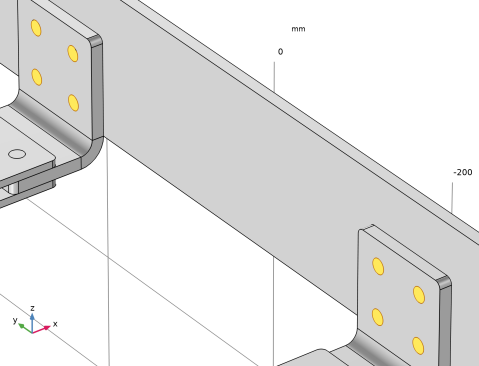
In the Graphics window toolbar, clicknext to  Select Points, then choose Select Objects, to highlight the objects.
13
In the Geometry toolbar, click  Build All.
14
Click the  Zoom Extents button in the Graphics toolbar.
As the busbar geometry is now ready, set up selections to use for the physics definitions.
15
In the Graphics window toolbar, clicknext to  Select Objects, then choose Select Domains.
Selection List
1
Go to the Selection List window.
2
In the Domain selections tree, select Cumulative Selections > Copper and Cumulative Selections > Titanium.
3
Right-click Create Selection and choose Adjacent Selection.
4
In the Create Selection dialog, click OK.
Geometry 1
Heat Flux Boundaries
1
In the Geometry toolbar, click  Selections and choose Difference Selection.
2
In the Settings window for Difference Selection, type Heat Flux Boundaries in the Label text field.
3
Locate the Geometric Entity Level section. From the Level list, choose Boundary.
4
Locate the Input Entities section. Click the  Add button for Selections to add.
5
In the Add dialog, select Adjacent Selection 1 in the Selections to add list.
6
7
In the Settings window for Difference Selection, locate the Input Entities section.
8
Click the  Add button for Selections to subtract.
9
In the Add dialog, in the Selections to subtract list, choose Electrolyte Boundary (Cell Grid Top 1) and Grounded Boundary (Intercell Busbar 1).
10
11
In the Geometry toolbar, click  Selection List to close the Selection List window.