PDF

Radial Pump with Mixing Planes
Introduction
Pumps are some of the most ubiquitous and essential turbomachines driving modern society. They are employed in a variety of applications, mainly for transporting and compressing fluids. Centrifugal or radial pumps work by adding kinetic energy to the fluid in the radial direction, which is later recovered as elevated pressure in the diffuser.
The flow field inside a pump at any instant depends on, among many factors, the spatial position of the rotating components, such as rotor blades, relative to the stationary components, such as guide vanes and stators. A mixing plane methodology averages flow quantities across the interface between rotating and stationary domains along the circumferential direction, thereby, providing a representative average value of the flow field irrespective of the spatial configuration.
The present example computes an averaged flow field in a radial pump model using the mixing plane methodology with a frozen rotor study. The solution approximates an overall flow resulting from various possible positions of the rotor blade. This circumvents the need to perform costly, time-dependent simulations.
Model Definition
The radial pump geometry in the current model is a modified version of the experimental setup in Ref. 1. The pump receives flow through a central cylindrical pipe along the axial direction. The flow is redirected by the pump casing and pushed in the radial direction by six rotating blades. The flow moves into a circular diffuser and exits the device via twelve outlet pipes.
Geometry
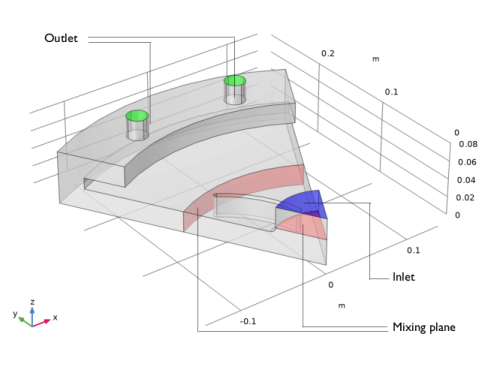
Due to the rotational symmetry, only one-sixth of the full pump geometry is modeled, as shown in Figure 1. Circular arcs are used in the construction of the blade profile. See the Geometry Modeling Instructions section for the step-by-step instructions on constructing the model geometry.
Figure 1: The geometry setup of the model shows one-sixth of the radial pump. Some of the boundary conditions for the flow problem are annotated.
A rotating domain containing the rotor blade is connected to two stationary domains via mixing plane boundaries, one to the tubular inlet at the upstream end, and the other to the circular diffuser at the downstream end.
Physics Interface Settings
The model uses a Turbulent Flow, k-ε physics interface. The fluid properties are taken from predefined properties for water available in the material library. A Wall feature with the slip wall condition is chosen to simplify the model, while a Periodic Flow Condition accounts for rotational periodicity. At the inlet boundary, an average normal velocity is specified. The outlet is open to atmosphere at sea level. Two Mixing Plane feature nodes with axial and radial flow directions, respectively, are added to the model. A suitable edge is chosen for each instance of the Mixing Plane feature where mixing is consolidated. The rotational speed is 600 rotations per minute and the inlet mass flow rate is 13.2 kg/s.
Meshing
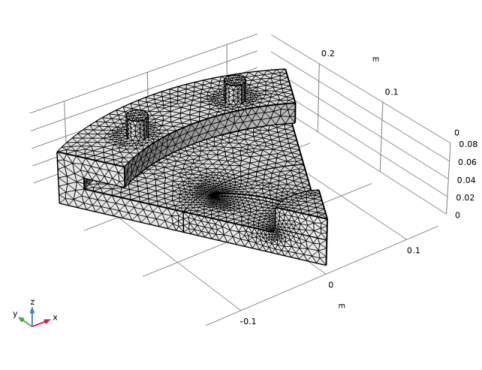
A physics-controlled mesh with “normal” element size is built automatically. The mesh is composed of unstructured tetrahedral elements, as shown in Figure 2.
Figure 2: Unstructured tetrahedral mesh used in the model.
sTudy
The steady-state, frozen rotor solution is obtained in two stages. Two Frozen Rotor study steps are added. The solution to the first step corresponds to ignoring the Mixing Plane features. This solution serves as a good initial solution for the second Frozen Rotor study step with Mixing Plane features enabled. Pseudo time stepping is turned on for accelerating the solution for both Frozen Rotor study steps.
Results and Discussion
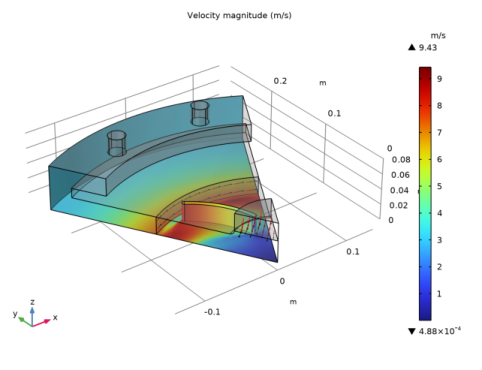
The frozen rotor solution with mixing plane condition is shown in Figure 3 and Figure 4. The surface plot of velocity in Figure 3 help in visualizing the averaging of flow quantities performed at the mixing plane boundaries. In addition, the surface arrow plots show the velocity field immediately upstream (in red) and downstream (in black) of the mixing plane boundaries. The high velocity jet of fluid ejected from the rotating domain at the upstream end of the mixing plane boundary with radial flow is observed along its downstream end as averaged along the circumferential direction.
Figure 3: Frozen rotor solution of the radial pump model. Surface plot of fluid velocity show the averaging of flow quantities at the mixing plane boundaries. Surface arrow plots show fluid velocity upstream (in red) and downstream (in black) at both mixing plane boundaries.
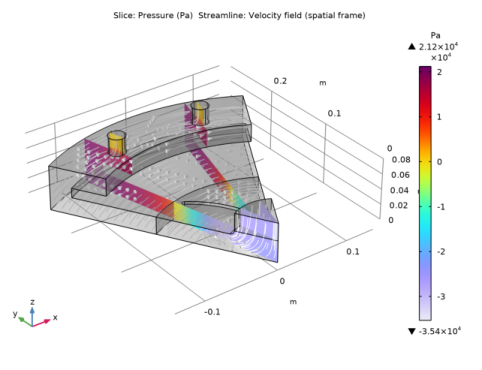
The increase in the fluid pressure developed by the pump’s rotation may be observed in Figure 4. Moreover, streamlines help visualize the flow field.
Figure 4: Frozen rotor solution of the radial pump model. Slice plots of fluid pressure show the averaging of flow quantities at the mixing plane boundaries. Streamline plot helps visualize the flow field.
Moreover, the solution with mixing plane preserves normal mass flux across various boundaries, as computed in the model and tabulated in Table 1. Additionally, the total head created by the pump, computed in the current model, shows good agreement with that computed from a time-averaged, full-model solution (which is left as an exercise for the user), thereby, highlighting the advantage of using the mixing plane methodology.
Reference
1. N. Krause, K. Zahringer, and E. Pap, “Time-resolved particle imaging velocimetry for the investigation of rotating stall in a radial pump,” Experiments in Fluids, vol. 39, pp. 192–201, 2005.
Application Library path: Mixer_Module/Tutorials/radial_pump
Modeling Instructions
From the File menu, choose New.
New
In the New window, click  Model Wizard.
Model Wizard
1
In the Model Wizard window, click  3D.
2
Geometry 1
Import the radial pump geometry from the geometry sequence file.
1
In the Geometry toolbar, click Insert Sequence and choose Insert Sequence.
2
3
In the Geometry toolbar, click  Build All.
Definitions
Explicit 1
In the Definitions toolbar, click  Explicit.
Global Definitions
Import flow parameters from file.
Parameters 2
1
In the Home toolbar, click  Parameters and choose Add > Parameters.
2
In the Settings window for Parameters, locate the Parameters section.
3
Click  Load from File.
4
Definitions
Create explicit selections for important boundaries and domains.
Inlet Boundary
1
In the Model Builder window, under Component 1 (comp1) > Definitions > Selections click Explicit 1.
2
3
In the Settings window for Explicit, locate the Input Entities section.
4
From the Geometric entity level list, choose Boundary.
5
6
Locate the Color section. From the Color list, choose None or — if you are running the cross-platform desktop —Custom. On the cross-platform desktop, click the Color button.
7
Click Define custom colors.
8
9
Click Add to custom colors.
10
Click Show color palette only or OK on the cross-platform desktop.
11
In the Label text field, type Inlet Boundary.
Outlet Boundary
1
In the Definitions toolbar, click  Explicit.
2
In the Settings window for Explicit, locate the Input Entities section.
3
From the Geometric entity level list, choose Boundary.
4
5
Locate the Color section. From the Color list, choose None or — if you are running the cross-platform desktop —Custom. On the cross-platform desktop, click the Color button.
6
Click Define custom colors.
7
8
Click Add to custom colors.
9
Click Show color palette only or OK on the cross-platform desktop.
10
In the Label text field, type Outlet Boundary.
Mixing Plane: Axial Flow
1
In the Definitions toolbar, click  Explicit.
2
In the Settings window for Explicit, locate the Input Entities section.
3
From the Geometric entity level list, choose Boundary.
4
5
In the Label text field, type Mixing Plane: Axial Flow.
6
Locate the Color section. From the Color list, choose None or — if you are running the cross-platform desktop —Custom. On the cross-platform desktop, click the Color button.
7
Click Define custom colors.
8
9
Click Add to custom colors.
10
Click Show color palette only or OK on the cross-platform desktop.
Mixing Plane: Radial Flow
1
In the Definitions toolbar, click  Explicit.
2
In the Settings window for Explicit, locate the Input Entities section.
3
From the Geometric entity level list, choose Boundary.
4
5
In the Label text field, type Mixing Plane: Radial Flow.
6
Locate the Color section. From the Color list, choose None or — if you are running the cross-platform desktop —Custom. On the cross-platform desktop, click the Color button.
7
Click Define custom colors.
8
9
Click Add to custom colors.
10
Click Show color palette only or OK on the cross-platform desktop.
Periodic Boundary
1
In the Definitions toolbar, click  Explicit.
2
In the Settings window for Explicit, locate the Input Entities section.
3
From the Geometric entity level list, choose Boundary.
4
5
In the Label text field, type Periodic Boundary.
Rotating Domain
1
In the Definitions toolbar, click  Explicit.
2
3
In the Settings window for Explicit, type Rotating Domain in the Label text field.
View 1
Turn on transparency temporarily to view geometry selections, specially the mixing plane boundaries.
1
In the Model Builder window, under Component 1 (comp1) > Definitions click View 1.
2
In the Settings window for View, click to expand the Transparency section.
3
Select the Transparency checkbox.
4
Clear the Transparency checkbox.
Average At Inlet
Add average operators at inlet and outlet boundaries.
1
In the Definitions toolbar, click  Nonlocal Couplings and choose Average.
2
In the Settings window for Average, type Average At Inlet in the Label text field.
3
In the Operator name text field, type avein.
4
Locate the Source Selection section. From the Geometric entity level list, choose Boundary.
5
From the Selection list, choose Inlet Boundary.
Average At Outlet
1
In the Definitions toolbar, click  Nonlocal Couplings and choose Average.
2
In the Settings window for Average, type Average At Outlet in the Label text field.
3
In the Operator name text field, type aveout.
4
Locate the Source Selection section. From the Geometric entity level list, choose Boundary.
5
From the Selection list, choose Outlet Boundary.
Component 1 (comp1)
Add a rotating domain to the moving mesh interface.
Rotating Domain 1
1
In the Physics toolbar, click  Moving Mesh and choose Rotating Domain.
2
In the Settings window for Rotating Domain, locate the Domain Selection section.
3
From the Selection list, choose Rotating Domain.
4
Locate the Rotation section. From the Rotation type list, choose Specified rotational velocity.
5
In the ω text field, type -omega.
Materials
Add predefined material properties for water from library.
Add Material
1
In the Materials toolbar, click  Add Material to open the Add Material window.
2
Go to the Add Material window.
3
In the tree, select Built-in > Water, liquid.
4
Click the Add to Component button in the window toolbar.
5
In the Materials toolbar, click  Add Material to close the Add Material window.
Component 1 (comp1)
Add a Turbulent Flow, k −ε physics interface.
Add Physics
1
In the Home toolbar, click  Add Physics to open the Add Physics window.
2
Go to the Add Physics window.
3
In the tree, select Fluid Flow > Single-Phase Flow > Turbulent Flow > Turbulent Flow, k-ε (spf).
4
Click the Add to Component 1 button in the window toolbar.
5
In the Home toolbar, click  Add Physics to close the Add Physics window.
Turbulent Flow, k-ε (spf)
Turn on pseudo time stepping.
1
In the Settings window for Turbulent Flow, k-ε, click to expand the Advanced Settings section.
2
Find the Pseudo time stepping subsection. From the Use pseudo time stepping for stationary equation form list, choose On.
Wall 1
Choose slip condition for all wall boundaries.
1
In the Model Builder window, under Component 1 (comp1) > Turbulent Flow, k-ε (spf) click Wall 1.
2
In the Settings window for Wall, locate the Boundary Condition section.
3
From the Wall condition list, choose Slip.
Inlet 1
Add a velocity inlet boundary condition.
1
In the Physics toolbar, click  Boundaries and choose Inlet.
2
In the Settings window for Inlet, locate the Boundary Selection section.
3
From the Selection list, choose Inlet Boundary.
4
Locate the Velocity section. In the U0 text field, type mfr/material.def.rho/(pi*R_in^2).
Outlet 1
Add a zero pressure outlet condition.
1
In the Physics toolbar, click  Boundaries and choose Outlet.
2
In the Settings window for Outlet, locate the Boundary Selection section.
3
From the Selection list, choose Outlet Boundary.
Mixing Plane 1
Add an axial flow mixing plane boundary condition.
1
In the Physics toolbar, click  Boundaries and choose Mixing Plane.
2
In the Settings window for Mixing Plane, locate the Boundary Selection section.
3
From the Selection list, choose Mixing Plane: Axial Flow.
4
Locate the Edge Where Mixing Is Consolidated section. Click to select the  Activate Selection toggle button.
5
6
Locate the Axis Definition section. Specify the er vector as
Mixing Plane 2
Add a radial flow mixing plane boundary condition.
1
In the Physics toolbar, click  Boundaries and choose Mixing Plane.
2
In the Settings window for Mixing Plane, locate the Boundary Selection section.
3
From the Selection list, choose Mixing Plane: Radial Flow.
4
Locate the Edge Where Mixing Is Consolidated section. Click to select the  Activate Selection toggle button.
5
6
Locate the Axis Definition section. Specify the er vector as
7
Locate the Flow Direction section. From the Flow direction list, choose Radial.
Periodic Flow Condition 1
Add a periodic flow boundary condition.
1
In the Physics toolbar, click  Boundaries and choose Periodic Flow Condition.
2
In the Settings window for Periodic Flow Condition, locate the Boundary Selection section.
3
From the Selection list, choose Periodic Boundary.
Mesh 1
Build a physics-controlled predefined mesh with a normal element size option.
1
In the Model Builder window, under Component 1 (comp1) click Mesh 1.
2
In the Settings window for Mesh, locate the Physics-Controlled Mesh section.
3
From the Element size list, choose Normal.
4
Click  Build All.
5
In the Graphics window toolbar, clicknext to  Colors, then choose Show Selection Colors.
Root
Add two Frozen Rotor study steps. Disable Mixing Plane features for the first study step.
Add Study
1
In the Home toolbar, click  Add Study to open the Add Study window.
2
Go to the Add Study window.
3
Find the Studies subsection. In the Select Study tree, select Preset Studies for Selected Physics Interfaces > Frozen Rotor.
4
Click the Add Study button in the window toolbar.
5
In the Home toolbar, click  Add Study to close the Add Study window.
Study 1
Step 2: Frozen Rotor 1
In the Model Builder window, under Study 1 right-click Step 1: Frozen Rotor and choose Duplicate.
Step 1: Frozen Rotor
1
In the Settings window for Frozen Rotor, locate the Physics and Variables Selection section.
2
Select the Modify model configuration for study step checkbox.
3
In the tree, select Component 1 (comp1) > Turbulent Flow, k-ε (spf) > Mixing Plane 1 and Component 1 (comp1) > Turbulent Flow, k-ε (spf) > Mixing Plane 2.
4
Click  Disable.
5
In the Model Builder window, click Study 1.
6
In the Settings window for Study, locate the Study Settings section.
7
Clear the Generate default plots checkbox.
Solution 1 (sol1)
1
In the Study toolbar, click  Show Default Solver.
2
Click  Show Default Plots.
Solve both study steps.
3
Click  Compute.
Results
Add surface and arrow plots to visualize velocity values.
Velocity
1
In the Results toolbar, click  3D Plot Group.
2
In the Settings window for 3D Plot Group, type Velocity in the Label text field.
3
Locate the Color Legend section. Select the Show maximum and minimum values checkbox.
4
Select the Show titles checkbox.
5
Select the Show units checkbox.
Arrow Surface 1
1
In the Model Builder window, right-click Velocity and choose Arrow Surface.
2
In the Settings window for Arrow Surface, locate the Expression section.
3
In the x-component text field, type up(u).
4
In the y-component text field, type up(v).
5
In the z-component text field, type up(w).
6
Click to expand the Title section. From the Title type list, choose None.
7
Locate the Arrow Positioning section. In the Number of arrows text field, type 20.
8
Locate the Coloring and Style section. From the Arrow base list, choose Head.
9
Select the Scale factor checkbox. In the associated text field, type 1e-3.
Selection 1
1
Right-click Arrow Surface 1 and choose Selection.
2
In the Settings window for Selection, locate the Selection section.
3
Click  Paste Selection.
4
In the Paste Selection dialog, type 10 in the Selection text field.
5
Arrow Surface 2
1
In the Model Builder window, under Results > Velocity right-click Arrow Surface 1 and choose Duplicate.
2
In the Settings window for Arrow Surface, locate the Expression section.
3
In the x-component text field, type down(u).
4
In the y-component text field, type down(v).
5
In the z-component text field, type down(w).
6
Locate the Coloring and Style section. From the Arrow base list, choose Tail.
7
From the Color list, choose Black.
Arrow Surface 3
1
Right-click Arrow Surface 1 and choose Duplicate.
2
In the Model Builder window, click Arrow Surface 3.
3
In the Settings window for Arrow Surface, locate the Coloring and Style section.
4
In the Scale factor text field, type 5e-3.
Selection 1
1
In the Model Builder window, click Selection 1.
2
In the Settings window for Selection, locate the Selection section.
3
Click  Clear Selection.
4
Click  Paste Selection.
5
In the Paste Selection dialog, type 25 in the Selection text field.
6
Arrow Surface 4
1
In the Model Builder window, under Results > Velocity right-click Arrow Surface 3 and choose Duplicate.
2
In the Settings window for Arrow Surface, locate the Expression section.
3
In the x-component text field, type down(u).
4
In the y-component text field, type down(v).
5
In the z-component text field, type down(w).
6
Locate the Coloring and Style section. From the Arrow base list, choose Tail.
7
From the Color list, choose Black.
Surface 1
1
In the Model Builder window, right-click Velocity and choose Surface.
2
In the Settings window for Surface, locate the Expression section.
3
In the Expression text field, type 1.
4
Click to expand the Title section. From the Title type list, choose None.
Material Appearance 1
1
Right-click Surface 1 and choose Material Appearance.
2
In the Settings window for Material Appearance, locate the Appearance section.
3
From the Appearance list, choose Custom.
4
From the Material type list, choose Steel (anodized).
5
From the Color list, choose Gray.
Transparency 1
1
In the Model Builder window, right-click Surface 1 and choose Transparency.
2
In the Settings window for Transparency, locate the Transparency section.
3
Find the Transparency subsection. In the Transparency text field, type 0.7.
Selection 1
1
Right-click Surface 1 and choose Selection.
2
In the Settings window for Selection, locate the Selection section.
3
Click  Paste Selection.
4
In the Paste Selection dialog, type 2-8, 10-22, 24-26, 29-35 in the Selection text field.
5
Surface 2
In the Model Builder window, right-click Velocity and choose Surface.
Selection 1
1
In the Model Builder window, right-click Surface 2 and choose Selection.
2
In the Settings window for Selection, locate the Selection section.
3
Click  Paste Selection.
4
In the Paste Selection dialog, type 2, 3, 11, 19, 20, 22, 29 in the Selection text field.
5
Velocity
1
In the Model Builder window, under Results click Velocity.
2
In the Velocity toolbar, click  Plot.
3
Click the  Go to Default View button in the Graphics toolbar.
4
Click the  Zoom Extents button in the Graphics toolbar.
Pressure
Add slice plots to visualize pressure values.
1
In the Results toolbar, click  3D Plot Group.
2
In the Settings window for 3D Plot Group, type Pressure in the Label text field.
Surface 1
1
Right-click Pressure and choose Surface.
2
In the Settings window for Surface, locate the Expression section.
3
In the Expression text field, type 1.
4
Locate the Title section. From the Title type list, choose None.
Material Appearance 1
1
Right-click Surface 1 and choose Material Appearance.
2
In the Settings window for Material Appearance, locate the Appearance section.
3
From the Appearance list, choose Custom.
4
From the Material type list, choose Steel (anodized).
5
From the Color list, choose Gray.
Transparency 1
1
In the Model Builder window, right-click Surface 1 and choose Transparency.
2
In the Settings window for Transparency, locate the Transparency section.
3
Find the Transparency subsection. In the Transparency text field, type 0.6.
Selection 1
1
Right-click Surface 1 and choose Selection.
2
In the Settings window for Selection, locate the Selection section.
3
Click  Paste Selection.
4
In the Paste Selection dialog, type 2-8, 10-22, 24-26, 29-35 in the Selection text field.
5
Slice 1
1
In the Model Builder window, right-click Pressure and choose Slice.
2
In the Settings window for Slice, locate the Expression section.
3
In the Expression text field, type p.
4
Locate the Plane Data section. From the Plane type list, choose General.
5
In row Point 2, set x to 0.
6
In row Point 2, set z to 1.
7
In row Point 3, set x to cos(75[deg]).
8
In row Point 3, set y to sin(75[deg]).
9
Locate the Coloring and Style section. From the Color table list, choose Prism.
Slice 2
1
Right-click Slice 1 and choose Duplicate.
2
In the Settings window for Slice, locate the Plane Data section.
3
In row Point 3, set x to cos(105[deg]).
4
In row Point 3, set y to sin(105[deg]).
5
Click to expand the Inherit Style section. From the Plot list, choose Slice 1.
6
Locate the Title section. From the Title type list, choose None.
Streamline 1
1
In the Model Builder window, right-click Pressure and choose Streamline.
2
In the Settings window for Streamline, locate the Streamline Positioning section.
3
In the Number text field, type 100.
4
Locate the Selection section. Click  Paste Selection.
5
In the Paste Selection dialog, type 1, 9 in the Selection text field.
6
7
In the Settings window for Streamline, locate the Coloring and Style section.
8
Find the Point style subsection. From the Type list, choose Arrow.
9
From the Color list, choose White.
Streamline 2
1
Right-click Streamline 1 and choose Duplicate.
2
In the Settings window for Streamline, locate the Streamline Positioning section.
3
In the Number text field, type 300.
4
Click to expand the Title section. From the Title type list, choose None.
5
Locate the Streamline Positioning section. In the Number text field, type 30.
6
Locate the Selection section. Click  Clear Selection.
7
Click  Paste Selection.
8
In the Paste Selection dialog, type 23, 26, 28 in the Selection text field.
9
10
In the Settings window for Streamline, click to expand the Inherit Style section.
11
From the Plot list, choose Streamline 1.
Streamline 3
1
Right-click Streamline 2 and choose Duplicate.
2
In the Settings window for Streamline, locate the Selection section.
3
Click  Clear Selection.
4
Click  Paste Selection.
5
In the Paste Selection dialog, type 19, 22, 29 in the Selection text field.
6
Pressure
1
In the Model Builder window, click Pressure.
2
In the Settings window for 3D Plot Group, locate the Color Legend section.
3
Select the Show maximum and minimum values checkbox.
4
Select the Show units checkbox.
5
Select the Show titles checkbox.
6
In the Pressure toolbar, click  Plot.
7
Click the  Go to Default View button in the Graphics toolbar.
8
Click the  Zoom Extents button in the Graphics toolbar.
Inlet Mass Flux
Evaluate normal mass flux across inlet, outlet and mixing plane boundaries. Also compute the pump head.
1
In the Results toolbar, click  More Derived Values and choose Integration > Surface Integration.
2
In the Settings window for Surface Integration, type Inlet Mass Flux in the Label text field.
3
Locate the Selection section. From the Selection list, choose Inlet Boundary.
4
Locate the Expressions section. In the table, enter the following settings:
Outlet Mass Flux
1
In the Results toolbar, click  More Derived Values and choose Integration > Surface Integration.
2
In the Settings window for Surface Integration, type Outlet Mass Flux in the Label text field.
3
Locate the Selection section. From the Selection list, choose Outlet Boundary.
4
Locate the Expressions section. In the table, enter the following settings:
Mixing Plane 1 Mass Flux
1
In the Results toolbar, click  More Derived Values and choose Integration > Surface Integration.
2
In the Settings window for Surface Integration, type Mixing Plane 1 Mass Flux in the Label text field.
3
Locate the Selection section. From the Selection list, choose Mixing Plane: Axial Flow.
4
Locate the Expressions section. In the table, enter the following settings:
Mixing Plane 2 Mass Flux
1
Right-click Mixing Plane 1 Mass Flux and choose Duplicate.
2
In the Settings window for Surface Integration, type Mixing Plane 2 Mass Flux in the Label text field.
3
Locate the Selection section. From the Selection list, choose Mixing Plane: Radial Flow.
Total Head
1
In the Results toolbar, click  Global Evaluation.
2
In the Settings window for Global Evaluation, type Total Head in the Label text field.
3
Locate the Expressions section. In the table, enter the following settings:
4
In the Results toolbar, click  Evaluate and choose Evaluate All.
Geometry Modeling Instructions
Follow these steps below to generate the geometry.
From the File menu, choose New.
New
In the New window, click  Model Wizard.
Model Wizard
1
In the Model Wizard window, click  3D.
2
Global Definitions
Import parameters that define the geometry of the radial pump.
Parameters 1
1
In the Model Builder window, under Global Definitions click Parameters 1.
2
In the Settings window for Parameters, locate the Parameters section.
3
Click  Load from File.
4
Geometry 1
Work Plane 1 (wp1)
In the Geometry toolbar, click  Work Plane.
Work Plane 1 (wp1) > Plane Geometry
In the Model Builder window, click Plane Geometry.
Work Plane 1 (wp1) > Circular Arc 1 (ca1)
1
In the Work Plane toolbar, click  More Primitives and choose Circular Arc.
2
In the Settings window for Circular Arc, locate the Properties section.
3
From the Specify list, choose Endpoints and radius.
4
Locate the Starting Point section. In the xw text field, type R_LE*cos(0[deg]).
5
In the yw text field, type R_LE*sin(0[deg]).
6
Locate the Endpoint section. In the xw text field, type R_TE*cos(delta_theta-0[deg]).
7
In the yw text field, type R_TE*sin(delta_theta-0[deg]).
8
Locate the Radius section. In the Radius text field, type r_b.
Work Plane 1 (wp1) > Partition Edges 1 (pare1)
1
In the Work Plane toolbar, click  Booleans and Partitions and choose Partition Edges.
2
On the object ca1, select Boundary 1 only.
3
In the Settings window for Partition Edges, locate the Positions section.
4
Work Plane 1 (wp1) > Delete Entities 1 (del1)
1
Right-click Plane Geometry and choose Delete Entities.
2
On the object pare1, select Boundaries 1 and 3 only.
Work Plane 1 (wp1) > Thicken 1 (thi1)
1
In the Work Plane toolbar, click  Conversions and choose Thicken.
2
3
In the Settings window for Thicken, locate the Options section.
4
In the Total thickness text field, type T_b.
5
From the Ends list, choose Circular.
Work Plane 1 (wp1) > Move 1 (mov1)
1
In the Work Plane toolbar, click  Transforms and choose Move.
2
3
In the Settings window for Move, locate the Displacement section.
4
In the xw text field, type -0.05.
5
In the yw text field, type 0.005.
Extrude 1 (ext1)
1
In the Model Builder window, under Component 1 (comp1) > Geometry 1 right-click Work Plane 1 (wp1) and choose Extrude.
2
In the Settings window for Extrude, locate the Distances section.
3
Work Plane 2 (wp2)
1
In the Geometry toolbar, click  Work Plane.
2
In the Settings window for Work Plane, locate the Plane Definition section.
3
From the Plane list, choose xz-plane.
Work Plane 2 (wp2) > Plane Geometry
In the Model Builder window, click Plane Geometry.
Work Plane 2 (wp2) > Rectangle 1 (r1)
1
In the Work Plane toolbar, click  Rectangle.
2
In the Settings window for Rectangle, locate the Size and Shape section.
3
In the Width text field, type (R_TE+7.5[mm]).
4
In the Height text field, type 2*W_b+r_p.
5
Click to expand the Layers section. In the table, enter the following settings:
6
Clear the Layers on bottom checkbox.
7
Select the Layers on top checkbox.
Work Plane 2 (wp2) > Plane Geometry
In the Work Plane toolbar, click  Rectangle.
Work Plane 2 (wp2) > Rectangle 2 (r2)
1
In the Settings window for Rectangle, locate the Size and Shape section.
2
In the Width text field, type (R_TE+7.5[mm])-R_in.
3
In the Height text field, type W_b+r_p.
4
Locate the Position section. In the xw text field, type R_in.
5
In the yw text field, type W_b.
Work Plane 2 (wp2) > Plane Geometry
In the Work Plane toolbar, click  Booleans and Partitions and choose Difference.
Work Plane 2 (wp2) > Difference 1 (dif1)
1
2
In the Settings window for Difference, locate the Difference section.
3
Click to select the  Activate Selection toggle button for Objects to subtract.
4
Work Plane 2 (wp2) > Plane Geometry
In the Work Plane toolbar, click  Fillet.
Work Plane 2 (wp2) > Fillet 1 (fil1)
1
On the object dif1, select Point 4 only.
2
In the Settings window for Fillet, locate the Radius section.
3
In the Radius text field, type r_p.
Work Plane 2 (wp2) > Plane Geometry
In the Work Plane toolbar, click  Polygon.
Work Plane 2 (wp2) > Polygon 1 (pol1)
1
In the Settings window for Polygon, locate the Coordinates section.
2
Revolve 1 (rev1)
1
In the Model Builder window, under Component 1 (comp1) > Geometry 1 right-click Work Plane 2 (wp2) and choose Revolve.
2
In the Settings window for Revolve, locate the Revolution Angles section.
3
Click the Angles button.
4
In the Start angle text field, type 60.
5
In the End angle text field, type 120.
6
Locate the Revolution Axis section. From the Axis type list, choose 3D.
7
Find the Direction of revolution axis subsection. In the y text field, type 0.
8
In the z text field, type 1.
Difference 1 (dif1)
1
In the Geometry toolbar, click  Booleans and Partitions and choose Difference.
2
3
In the Settings window for Difference, locate the Difference section.
4
Click to select the  Activate Selection toggle button for Objects to subtract.
5
Cylinder 1 (cyl1)
1
In the Geometry toolbar, click  Cylinder.
2
In the Settings window for Cylinder, locate the Size and Shape section.
3
In the Radius text field, type d_op/2.
4
In the Height text field, type d_op.
5
Locate the Position section. In the x text field, type R_op*cos(75[deg]).
6
In the y text field, type R_op*sin(75[deg]).
7
In the z text field, type W_b+5[mm]+(W_b/3)+W_b.
Cylinder 2 (cyl2)
1
In the Geometry toolbar, click  Cylinder.
2
In the Settings window for Cylinder, locate the Size and Shape section.
3
In the Radius text field, type d_op/2.
4
In the Height text field, type d_op.
5
Locate the Position section. In the x text field, type R_op*cos(105[deg]).
6
In the y text field, type R_op*sin(105[deg]).
7
In the z text field, type W_b+5[mm]+(W_b/3)+W_b.
Form Union (fin)
In the Geometry toolbar, click  Build All.