PDF

Laminar Modular Mixer — Template File
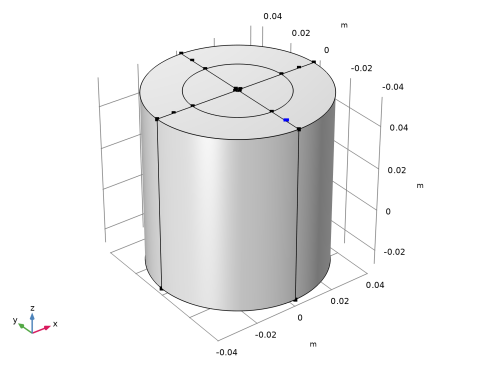
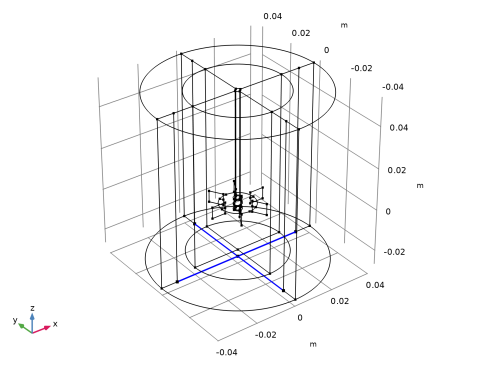
This model is a template MPH file used by the laminar case of the Modular Mixer models. The geometry is a combination of a Rushton impeller and a flat bottom tank. The geometry subsequences to build the impeller and vessel are imported from the Part Libraries.
Application Library path: Mixer_Module/Tutorials/modular_mixer_geom
Modeling Instructions
Add Component
In the Home toolbar, click  Add Component and choose 3D.
Global Definitions
Parameters 1
1
In the Model Builder window, under Global Definitions click Parameters 1.
2
In the Settings window for Parameters, locate the Parameters section.
3
Part Libraries
1
In the Geometry toolbar, click  Part Libraries.
2
In the Model Builder window, under Component 1 (comp1) click Geometry 1.
3
In the Part Libraries window, select Mixer Module > Impellers, Surface Blade Representation > Impellers, Radial > rushton_impeller in the tree.
4
Click  Add to Geometry.
Geometry 1
Rushton Impeller 1 (pi1)
1
In the Model Builder window, under Component 1 (comp1) > Geometry 1 click Rushton Impeller 1 (pi1).
2
In the Settings window for Part Instance, locate the Input Parameters section.
3
4
Click to expand the Object Selections section. Click New Cumulative Selection.
5
In the New Cumulative Selection dialog, type Impeller Domains in the Name text field.
6
7
8
In the Settings window for Part Instance, click to expand the Boundary Selections section.
9
Click New Cumulative Selection.
10
In the New Cumulative Selection dialog, type Rotating Interior Wall in the Name text field.
11
12
In the Settings window for Part Instance, locate the Boundary Selections section.
13
Click New Cumulative Selection.
14
In the New Cumulative Selection dialog, type Rotating Wall in the Name text field.
15
16
17
In the Settings window for Part Instance, click to expand the Edge Selections section.
18
Click New Cumulative Selection.
19
In the New Cumulative Selection dialog, type Remove Edges in the Name text field.
20
21
22
In the Settings window for Part Instance, locate the Selection Settings section.
23
Select the Keep noncontributing selections checkbox.
Part Libraries
1
In the Geometry toolbar, click  Part Libraries.
2
In the Model Builder window, click Geometry 1.
3
In the Part Libraries window, select Mixer Module > Shafts > impeller_shaft in the tree.
4
Click  Add to Geometry.
Geometry 1
Impeller Shaft 1 (pi2)
1
In the Model Builder window, under Component 1 (comp1) > Geometry 1 click Impeller Shaft 1 (pi2).
2
In the Settings window for Part Instance, locate the Input Parameters section.
3
4
Click to expand the Object selections section. In the table, enter the following settings:
5
Click to expand the Boundary selections section. In the table, enter the following settings:
6
Click to expand the Edge selections section. In the table, enter the following settings:
7
Locate the Selection Settings section. Select the Keep noncontributing selections checkbox.
Union 1 (uni1)
1
In the Geometry toolbar, click  Booleans and Partitions and choose Union.
2
Click in the Graphics window and then press Ctrl+A to select both objects.
3
In the Settings window for Union, locate the Union section.
4
From the Repair tolerance list, choose Relative.
Part Libraries
1
In the Geometry toolbar, click  Part Libraries.
2
In the Model Builder window, click Geometry 1.
3
In the Part Libraries window, select Mixer Module > Tanks > flat_bottom_tank in the tree.
4
Click  Add to Geometry.
Geometry 1
Flat Bottom Tank 1 (pi3)
1
In the Model Builder window, under Component 1 (comp1) > Geometry 1 click Flat Bottom Tank 1 (pi3).
2
In the Settings window for Part Instance, locate the Position and Orientation of Output section.
3
Find the Rotation subsection. In the Rotation angle text field, type 90.
4
Locate the Input Parameters section. In the table, enter the following settings:
5
Locate the Boundary Selections section. Click New Cumulative Selection.
6
In the New Cumulative Selection dialog, type Symmetry in the Name text field.
7
8
In the Settings window for Part Instance, locate the Boundary Selections section.
9
Click New Cumulative Selection.
10
In the New Cumulative Selection dialog, type Tank Walls in the Name text field.
11
12
In the Settings window for Part Instance, locate the Boundary Selections section.
13
Click New Cumulative Selection.
14
In the New Cumulative Selection dialog, type Interior Walls in the Name text field.
15
16
In the Settings window for Part Instance, locate the Boundary Selections section.
17
Click New Cumulative Selection.
18
In the New Cumulative Selection dialog, type View Suppression in the Name text field.
19
20
Click to expand the Boundary selections section. In the table, enter the following settings:
21
In the Settings window for Part Instance, locate the Selection Settings section.
22
Select the Keep noncontributing selections checkbox.
Fluid Domain
1
In the Geometry toolbar, click  Booleans and Partitions and choose Difference.
2
In the Settings window for Difference, type Fluid Domain in the Label text field.
3
Locate the Difference section. From the Objects to add list, choose All (Flat Bottom Tank 1).
4
From the Objects to subtract list, choose Impeller Domains.
5
From the Repair tolerance list, choose Relative.
6
Locate the Selections of Resulting Entities section. Select the Resulting objects selection checkbox.
7
From the Show in physics list, choose All levels.
Flat Pressure Point
1
In the Geometry toolbar, click  Selections and choose Explicit Selection.
2
In the Settings window for Explicit Selection, type Flat Pressure Point in the Label text field.
3
Locate the Entities to Select section. From the Geometric entity level list, choose Point.
4
On the object dif1, select Point 34 only.
5
Locate the Resulting Selection section. Find the Cumulative selection subsection. Click New.
6
In the New Cumulative Selection dialog, type Pressure Point Constraint in the Name text field.
7
Edges to Remove
1
In the Geometry toolbar, click  Selections and choose Explicit Selection.
2
In the Settings window for Explicit Selection, type Edges to Remove in the Label text field.
3
Locate the Entities to Select section. From the Geometric entity level list, choose Edge.
4
On the object dif1, select Edges 9, 61, 78, and 79 only.
5
Locate the Resulting Selection section. Find the Cumulative selection subsection. From the Contribute to list, choose Remove Edges.
Rotating Fluid Domain
1
In the Geometry toolbar, click  Selections and choose Explicit Selection.
2
Click the  Zoom Extents button in the Graphics toolbar.
3
On the object dif1, select Domain 2 only.
4
In the Settings window for Explicit Selection, type Rotating Fluid Domain in the Label text field.
Ignore Edges 1 (ige1)
1
In the Geometry toolbar, click  Virtual Operations and choose Ignore Edges.
2
In the Settings window for Ignore Edges, locate the Input section.
3
From the Edges to ignore list, choose Remove Edges.
4
Clear the Ignore adjacent vertices checkbox.
5
In the Geometry toolbar, click  Build All.
Create a selection of all walls. Use Wireframe Rendering to make interior walls visible, too.
Union Selection: All Walls
1
In the Geometry toolbar, click  Selections and choose Union Selection.
2
In the Settings window for Union Selection, type Union Selection: All Walls in the Label text field.
3
Locate the Geometric Entity Level section. From the Level list, choose Boundary.
4
Locate the Input Entities section. Click  Add.
5
In the Add dialog, in the Selections to add list, choose Rotating Interior Wall, Rotating Wall, Tank Walls, and Interior Walls.
6
The model geometry is now complete.