



PDF

Optimization of a Tesla Microvalve with Transient Flow
Introduction
A Tesla valve inhibits backward flow on a fixed geometry by utilizing friction forces instead of moving parts, Ref. 1. This means fluid can flow freely in one direction but not in the reverse direction. Note that the objective function is different from Optimization of a Tesla Microvalve, because the objective is defined in terms of the flow rate with an oscillating pressure difference (instead of the other way around with an objective defined in terms of the pressure drop and oscillating flow rate).
Model Definition
The model solves the transient Navier–Stokes equations with an oscillating pressure drop. The Reynolds number is 500 in this example. A measure of the effectiveness of the design is the average flow rate in the x direction during the period Tperiod:
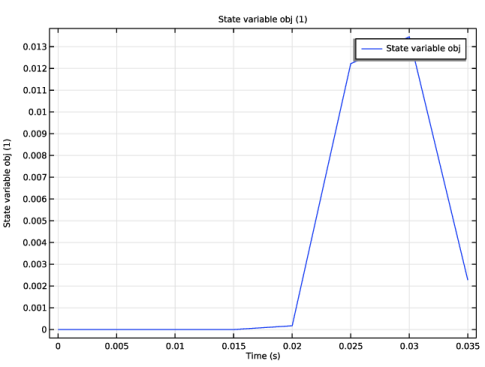
where T is the simulation time taken as two periods of pressure oscillation. The model uses an ODE to perform the time integration (see Figure 1):
where tmax = 1.75Tperiod and fstep is defined so that integration occurs over the last period:
The fluid flow is described by the incompressible Navier–Stokes equations:
where the coefficient α(θ) depends on the distribution of material which impedes the flow within the device. In this example, α(θ) is given by
where θc and θf are the control- and filtered material volume factors. To avoid the effect of grayscale, the filtered field is projected to construct the material volume factor, θ, which is related to the damping term using a convex function; see Ref. 3.
Figure 1: The ODE variable (used to perform the time integration) is plotted for the optimized design.
Results and Discussion
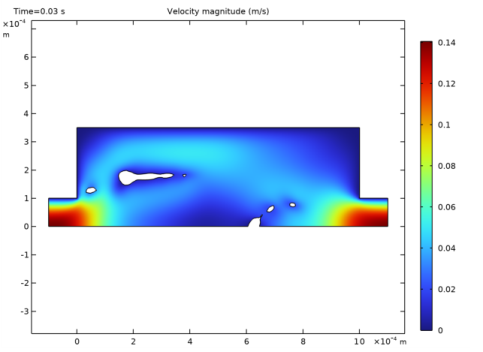
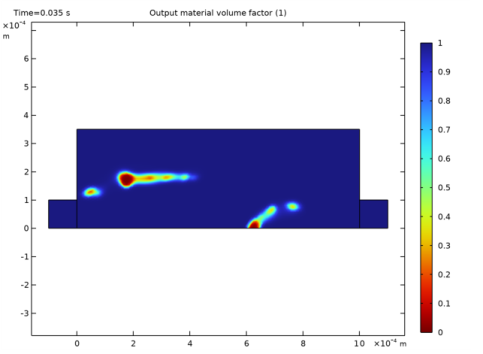
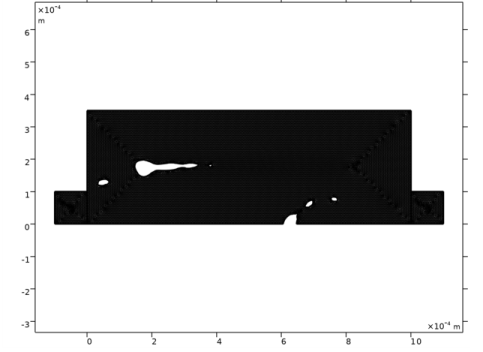
As expected, the design has features similar to that seen in Optimization of a Tesla Microvalve, but the central obstacle is placed further to the right, as seen in Figure 2 and Figure 3. A verification simulation is performed using a body fitted mesh, see Figure 4 and Figure 5. The analysis can be used to ensure that the optimization does not rely on unphysical effects due to the approximate wall descriptions of the optimization.
Figure 2: The filtered material volume factor is plotted for the optimized design.
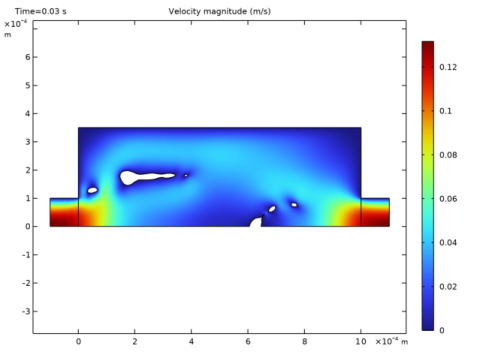
Figure 3: The flow velocity is plotted, while the pressure drop is driving the fluid backward.
Figure 4: The body fitted mesh used for the verification allows for no-slip boundary conditions.
Figure 5: The flow velocity is plotted, while the pressure drop is driving the fluid backward.
A quantitative comparison with the optimization results reveals that objective is slightly worse for the verification, as opposed to the behavior in Optimization of a Tesla Microvalve.
Notes About the COMSOL Implementation
This example uses an objective function defined as a time integral, but the evaluation of transient objectives is always performed at the last time step. Therefore the time integration is implemented as an ODE.
Moreover, fixed time steps with strict time stepping is combined with a segregated solver to speed up the computation.
References
1. S. Lin, “Topology Optimization of Micro Tesla Valve in low and moderate Reynolds number,” Chinese Academy of Sciences, China, September 27, 2011.
2. L. Højgaard Olesen, F. Okkels, and H. Bruus, “A high-level programming-language implementation of topology optimization applied to steady-state Navier–Stokes flow,” Int. J. Numer. Methods Eng., vol. 65, pp. 975–1001, 2006.
3. T. Borrvall and J. Petersson, “Topology optimization of fluids in Stokes flow,” Int. J. Numer. Meth. Fluid, vol. 41, pp. 77–107, 2003.
Application Library path: Microfluidics_Module/Fluid_Flow/tesla_microvalve_transient_optimization
Modeling Instructions
From the File menu, choose New.
New
In the New window, click  Model Wizard.
Model Wizard
1
In the Model Wizard window, click  2D.
2
In the Select Physics tree, select Fluid Flow > Single-Phase Flow > Laminar Flow (spf).
3
Click Add.
4
In the Select Physics tree, select Mathematics > ODE and DAE Interfaces > Global ODEs and DAEs (ge).
5
Click Add.
6
Click  Study.
7
In the Select Study tree, select General Studies > Time Dependent.
8
Global Definitions
Parameters 1
1
In the Model Builder window, under Global Definitions click Parameters 1.
2
In the Settings window for Parameters, locate the Parameters section.
3
Click  Load from File.
4
Browse to the model’s Application Libraries folder and double-click the file tesla_microvalve_transient_optimization_parameters.txt.
Geometry 1
Rectangle 1 (r1)
1
In the Geometry toolbar, click  Rectangle.
2
In the Settings window for Rectangle, locate the Size and Shape section.
3
In the Width text field, type L.
4
In the Height text field, type H.
5
Locate the Selections of Resulting Entities section. Select the Resulting objects selection checkbox.
Square 1 (sq1)
1
In the Geometry toolbar, click  Square.
2
In the Settings window for Square, locate the Size section.
3
In the Side length text field, type L1.
4
Locate the Position section. In the x text field, type -L1.
5
Locate the Selections of Resulting Entities section. Select the Resulting objects selection checkbox.
Move 1 (mov1)
1
In the Geometry toolbar, click  Transforms and choose Move.
2
In the Settings window for Move, locate the Input section.
3
From the Input objects list, choose Square 1.
4
Select the Keep input objects checkbox.
5
Locate the Displacement section. In the x text field, type L+L1.
Symmetry
1
In the Geometry toolbar, click  Selections and choose Box Selection.
2
In the Settings window for Box Selection, locate the Geometric Entity Level section.
3
From the Level list, choose Boundary.
4
In the Label text field, type Symmetry.
5
Locate the Box Limits section. In the y maximum text field, type eps.
6
Locate the Output Entities section. From the Include entity if list, choose Entity inside box.
Outlet
1
Right-click Symmetry and choose Duplicate.
2
In the Settings window for Box Selection, type Outlet in the Label text field.
3
Locate the Box Limits section. In the x maximum text field, type -L1*0.999.
4
In the y maximum text field, type Inf.
Inlet
1
Right-click Outlet and choose Duplicate.
2
In the Settings window for Box Selection, type Inlet in the Label text field.
3
Locate the Box Limits section. In the x minimum text field, type L+L1*0.999.
4
In the x maximum text field, type Inf.
Inlet/Outlet
1
In the Geometry toolbar, click  Selections and choose Union Selection.
2
In the Settings window for Union Selection, type Inlet/Outlet in the Label text field.
3
Locate the Geometric Entity Level section. From the Level list, choose Boundary.
4
Locate the Input Entities section. Click  Add.
5
In the Add dialog, in the Selections to add list, choose Outlet and Inlet.
6
Pressure Reference Point
1
In the Geometry toolbar, click  Selections and choose Disk Selection.
2
In the Settings window for Disk Selection, type Pressure Reference Point in the Label text field.
3
Locate the Geometric Entity Level section. From the Level list, choose Point.
4
Locate the Size and Shape section. In the Outer radius text field, type L/1000.
Materials
Water
1
In the Model Builder window, under Component 1 (comp1) right-click Materials and choose Blank Material.
2
In the Settings window for Material, type Water in the Label text field.
3
Locate the Material Contents section. In the table, enter the following settings:
Component 1 (comp1)
Density Model 1 (dtopo1)
1
In the Physics toolbar, click  Optimization and choose Topology Optimization.
2
In the Settings window for Density Model, locate the Geometric Entity Selection section.
3
From the Selection list, choose Rectangle 1.
4
Locate the Filtering section. From the Rmin list, choose User defined.
5
6
Locate the Projection section. From the Projection type list, choose Hyperbolic tangent projection.
7
In the β text field, type beta.
8
Locate the Interpolation section. From the Interpolation type list, choose Darcy.
9
In the q text field, type q.
10
Locate the Control Variable Discretization section. From the Element order list, choose Constant.
11
Locate the Control Variable Initial Value section. In the θ0 text field, type 1.
Prescribed Material 1
1
In the Topology Optimization toolbar, click  Prescribed Material.
2
In the Settings window for Prescribed Material, locate the Geometric Entity Selection section.
3
From the Selection list, choose Square 1.
Definitions
Velocity Average
1
In the Definitions toolbar, click  Probes and choose Domain Probe.
2
In the Settings window for Domain Probe, type Velocity Average in the Label text field.
3
In the Variable name text field, type uAvg.
4
Locate the Source Selection section. From the Selection list, choose Rectangle 1.
5
Locate the Probe Type section. From the Type list, choose Integral.
6
Locate the Expression section. In the Expression text field, type u/L/H.
Laminar Flow (spf)
Symmetry 1
1
In the Physics toolbar, click  Boundaries and choose Symmetry.
2
In the Settings window for Symmetry, locate the Boundary Selection section.
3
From the Selection list, choose Symmetry.
Periodic Flow Condition 1
1
In the Physics toolbar, click  Boundaries and choose Periodic Flow Condition.
2
In the Settings window for Periodic Flow Condition, locate the Boundary Selection section.
3
From the Selection list, choose Inlet/Outlet.
4
Locate the Flow Condition section. In the Δp text field, type dp*cos(2*pi*t/Tperiod).
Pressure Point Constraint 1
1
In the Physics toolbar, click  Points and choose Pressure Point Constraint.
2
In the Settings window for Pressure Point Constraint, locate the Point Selection section.
3
From the Selection list, choose Pressure Reference Point.
Volume Force 1
1
In the Physics toolbar, click  Domains and choose Volume Force.
2
In the Settings window for Volume Force, locate the Domain Selection section.
3
From the Selection list, choose Rectangle 1.
4
Locate the Volume Force section. Specify the F vector as
Global ODEs and DAEs (ge)
Global Equations 1 (ODE1)
1
In the Model Builder window, under Component 1 (comp1) > Global ODEs and DAEs (ge) click Global Equations 1 (ODE1).
2
In the Settings window for Global Equations, locate the Global Equations section.
3
The boolean expression filters out initialization effects in the first period.
Mesh 1
Free Triangular 1
In the Mesh toolbar, click  Free Triangular.
Size
1
In the Model Builder window, click Size.
2
In the Settings window for Size, locate the Element Size section.
3
Click the Custom button.
4
Locate the Element Size Parameters section. In the Maximum element size text field, type meshsz.
5
Click  Build All.
Study 1: Optimization
1
In the Model Builder window, click Study 1.
2
In the Settings window for Study, type Study 1: Optimization in the Label text field.
Topology Optimization
1
In the Study toolbar, click  Optimization and choose Topology Optimization.
2
In the Settings window for Topology Optimization, locate the Optimization Solver section.
3
From the Method list, choose MMA.
4
In the Maximum number of iterations text field, type 20.
5
Select the Move limits checkbox. In the associated text field, type 0.2.
6
Click Add Expression in the upper-right corner of the Objective Function section. From the menu, choose Component 1 (comp1) > Global ODEs and DAEs > comp1.obj - State variable obj - 1.
7
Locate the Objective Function section. From the Type list, choose Maximization.
8
Find the Objective settings subsection. From the Objective scaling list, choose Manual.
9
In the Scale text field, type 1.5e-3.
10
Click to expand the Output section. From the Probes list, choose None.
Step 1: Time Dependent
1
In the Model Builder window, click Step 1: Time Dependent.
2
In the Settings window for Time Dependent, locate the Study Settings section.
3
In the Output times text field, type range(0,tmax/7,tmax)so that a timestep is saved exactly at t=0.75*Tperiod where the objective evaluation begins.
4
In the Study toolbar, click  Get Initial Value.
Results
Output material volume factor
In the Model Builder window, expand the Results > Topology Optimization node.
Surface 1
1
In the Model Builder window, expand the Output material volume factor node, then click Surface 1.
2
In the Settings window for Surface, locate the Coloring and Style section.
3
From the Color table transformation list, choose Reverse.
Study 1: Optimization
Solver Configurations
In the Model Builder window, expand the Study 1: Optimization > Solver Configurations node.
Solution 1 (sol1)
1
In the Model Builder window, expand the Study 1: Optimization > Solver Configurations > Solution 1 (sol1) > Optimization Solver 1 node, then click Time-Dependent Solver 1.
2
In the Settings window for Time-Dependent Solver, click to expand the Time Stepping section.
3
From the Steps taken by solver list, choose Strict.
4
Right-click Time-Dependent Solver 1 and choose Segregated.
Switch to a segregated solver for increased robustness of the adjoint problem.
5
Right-click Segregated 1 and choose Segregated Step twice.
6
In the Settings window for Segregated Step, type Optimization in the Label text field.
7
Locate the General section. In the Variables list, choose Pressure (comp1.p), Velocity Field (comp1.u), and Global Equations 1 (comp1.ODE1).
8
Under Variables, click  Delete.
9
In the Model Builder window, under Study 1: Optimization > Solver Configurations > Solution 1 (sol1) > Optimization Solver 1 > Time-Dependent Solver 1 > Segregated 1 click Segregated Step 1.
10
In the Settings window for Segregated Step, type Fluid Flow in the Label text field.
11
Locate the General section. Under Variables, click  Add.
12
In the Add dialog, in the Variables list, choose Control Material Volume Factor (comp1.dtopo1.theta_c), Pressure (comp1.p), and Velocity Field (comp1.u).
13
14
In the Model Builder window, under Study 1: Optimization > Solver Configurations > Solution 1 (sol1) > Optimization Solver 1 > Time-Dependent Solver 1 > Segregated 1 click Segregated Step 2.
15
In the Settings window for Segregated Step, type Objective in the Label text field.
16
Locate the General section. Under Variables, click  Add.
17
In the Add dialog, in the Variables list, choose Control Material Volume Factor (comp1.dtopo1.theta_c) and Global Equations 1 (comp1.ODE1).
18
19
In the Model Builder window, click Direct (Merged).
20
In the Settings window for Direct, locate the General section.
21
From the Solver list, choose PARDISO to reduce the computational time.
Topology Optimization
1
In the Model Builder window, under Study 1: Optimization click Topology Optimization.
2
In the Settings window for Topology Optimization, locate the Output section.
3
Select the Plot checkbox.
4
From the Plot group list, choose Output material volume factor.
5
In the Home toolbar, click  Compute.
Results
Objective
1
In the Model Builder window, under Results click 1D Plot Group 3.
2
In the Settings window for 1D Plot Group, type Objective in the Label text field.
3
In the Objective toolbar, click  Plot.
Output material volume factor
1
In the Model Builder window, under Results > Topology Optimization click Output material volume factor.
2
In the Output material volume factor toolbar, click  Plot.
3
Click the  Zoom Extents button in the Graphics toolbar.
Velocity (spf)
1
In the Model Builder window, under Results click Velocity (spf).
2
In the Settings window for 2D Plot Group, locate the Data section.
3
From the Dataset list, choose Filter.
4
From the Time (s) list, choose 0.03.
It is obvious to see that there are significant approximation errors for the no-slip boundary condition in the optimization.
5
In the Velocity (spf) toolbar, click  Plot.
6
Click the  Zoom Extents button in the Graphics toolbar.
Perform a verification in a new component to ensure that the optimization results does not rely on unphysical effects.
Filter
1
In the Model Builder window, expand the Results > Datasets node, then click Filter.
2
In the Settings window for Filter, click Replace Expression in the upper-right corner of the Expression section. From the menu, choose Component 1 (comp1) > Definitions > Density Model 1 > Auxiliary variables > dtopo1.theta_f - Filtered material volume factor.
3
Right-click Results > Datasets > Filter and choose Create Mesh-Based Geometry.
Copy/paste the physics, materials, and probe from the 1st component and correct the selections.
Global ODEs and DAEs (ge), Laminar Flow (spf)
Right-click and choose Copy.
Component 1: Optimization
1
In the Model Builder window, click Component 1 (comp1).
2
In the Settings window for Component, type Component 1: Optimization in the Label text field.
Component 2: Verification
1
In the Model Builder window, click Component 2 (comp2).
2
In the Settings window for Component, type Component 2: Verification in the Label text field.
Laminar Flow (spf2)
Right-click Component 2: Verification and choose Paste Multiple Items.
Global ODEs and DAEs (ge2), Laminar Flow (spf2)
In the Messages from Paste dialog, click OK.
Materials
Water (mat1)
In the Model Builder window, under Component 1: Optimization (comp1) > Materials right-click Water (mat1) and choose Copy.
Water (mat2)
In the Model Builder window, under Component 2: Verification (comp2) right-click Materials and choose Paste Material.
Definitions (comp1)
Velocity Average (uAvg)
In the Model Builder window, under Component 1: Optimization (comp1) > Definitions right-click Velocity Average (uAvg) and choose Copy.
Definitions (comp2)
Velocity Average (dom2)
1
In the Model Builder window, under Component 2: Verification (comp2) right-click Definitions and choose Paste Domain Probe.
2
In the Settings window for Domain Probe, type uAvg in the Variable name text field.
3
Locate the Source Selection section. From the Selection list, choose Rectangle 1.
Laminar Flow (spf2)
Symmetry 1
1
In the Model Builder window, expand the Component 2: Verification (comp2) > Laminar Flow (spf2) node, then click Symmetry 1.
2
In the Settings window for Symmetry, locate the Boundary Selection section.
3
From the Selection list, choose Symmetry.
Periodic Flow Condition 1
1
In the Model Builder window, click Periodic Flow Condition 1.
2
In the Settings window for Periodic Flow Condition, locate the Boundary Selection section.
3
From the Selection list, choose Inlet/Outlet.
Pressure Point Constraint 1
1
In the Model Builder window, click Pressure Point Constraint 1.
2
In the Settings window for Pressure Point Constraint, locate the Point Selection section.
3
From the Selection list, choose Pressure Reference Point.
Volume Force 1
In the Model Builder window, right-click Volume Force 1 and choose Delete.
Global ODEs and DAEs (ge2)
Global Equations 1 (ODE1)
1
In the Model Builder window, expand the Component 2: Verification (comp2) > Global ODEs and DAEs (ge2) node, then click Global Equations 1 (ODE1).
2
In the Settings window for Global Equations, locate the Global Equations section.
3
Component 2: Verification
1
In the Model Builder window, click Component 2: Verification (comp2).
2
In the Settings window for Component, type Component 2: Verification in the Label text field.
Mesh 2
Free Triangular 1
In the Mesh toolbar, click  Free Triangular.
Size
Change the settings to give a uniform mesh with an element size half of that used for the optimization.
1
In the Model Builder window, click Size.
2
In the Settings window for Size, locate the Element Size section.
3
Click the Custom button.
4
Locate the Element Size Parameters section. In the Maximum element size text field, type meshsz/2.
5
In the Maximum element growth rate text field, type Inf.
6
In the Curvature factor text field, type Inf.
7
Click  Build All.
8
Click the  Zoom Extents button in the Graphics toolbar.
Add Study
1
In the Home toolbar, click  Add Study to open the Add Study window.
2
Go to the Add Study window.
3
Find the Studies subsection. In the Select Study tree, select Empty Study.
4
Click the Add Study button in the window toolbar.
5
In the Home toolbar, click  Add Study to close the Add Study window.
Study 1: Optimization
Step 1: Time Dependent
In the Model Builder window, under Study 1: Optimization right-click Step 1: Time Dependent and choose Copy.
Study 2
In the Model Builder window, right-click Study 2 and choose Paste Time Dependent.
1
In the Settings window for Time Dependent, locate the Physics and Variables Selection section.
2
In the Solve for column of the table, under Component 1: Optimization (comp1), clear the checkboxes for Laminar Flow (spf), Global ODEs and DAEs (ge), and Topology Optimization.
3
Click to expand the Results While Solving section. From the Probes list, choose None.
Study 1: Optimization
1
In the Model Builder window, under Study 1: Optimization click Step 1: Time Dependent.
2
In the Settings window for Time Dependent, locate the Physics and Variables Selection section.
3
In the Solve for column of the table, under Component 2: Verification (comp2), clear the checkboxes for Laminar Flow (spf2) and Global ODEs and DAEs (ge2).
Study 2
In the Study toolbar, click  Get Initial Value.
Solver Configurations
In the Model Builder window, expand the Solver Configurations node.
Solution 2 (sol2)
1
In the Model Builder window, expand the Study 2 > Solver Configurations > Solution 2 (sol2) node, then click Time-Dependent Solver 1.
2
In the Settings window for Time-Dependent Solver, click to expand the Time Stepping section.
3
From the Steps taken by solver list, choose Strict.
4
Right-click Time-Dependent Solver 1 and choose Segregated.
5
Right-click Segregated 1 and choose Segregated Step.
6
In the Settings window for Segregated Step, type Fluid Flow in the Label text field.
7
Locate the General section. In the Variables list, choose Filtered Material Volume Factor (comp1.dtopo1.theta_f), Pressure (comp1.p), Velocity Field (comp1.u), Global Equations 1 (comp1.ODE1), and Global Equations 1 (comp2.ODE1).
8
Under Variables, click  Delete.
9
In the Model Builder window, under Study 2 > Solver Configurations > Solution 2 (sol2) > Time-Dependent Solver 1 > Segregated 1 click Segregated Step 1.
10
In the Settings window for Segregated Step, type Objective in the Label text field.
11
Locate the General section. Under Variables, click  Add.
12
In the Add dialog, in the Variables list, choose Control Material Volume Factor (comp1.dtopo1.theta_c) and Global Equations 1 (comp2.ODE1).
13
14
In the Model Builder window, click Study 2.
15
In the Settings window for Study, type Study 2: Verification in the Label text field.
16
In the Study toolbar, click  Compute.
Results
Velocity (spf)
Drag and drop above Topology Optimization > Output material volume factor.
Topology Optimization 1
In the Model Builder window, under Results right-click Topology Optimization 1 and choose Delete.
Objective (Verification)
1
In the Model Builder window, under Results click 1D Plot Group 8.
2
In the Settings window for 1D Plot Group, type Objective (Verification) in the Label text field.
Objective (Verification), Pressure (spf2), Velocity (spf2)
1
In the Model Builder window, under Results, Ctrl-click to select Velocity (spf2), Pressure (spf2), and Objective (Verification).
2
Verification
In the Settings window for Group, type Verification in the Label text field.
Use an Evaluation Group to compare the objective in the two components.
Evaluation Group 1
1
In the Results toolbar, click  Evaluation Group.
2
In the Settings window for Evaluation Group, locate the Data section.
3
From the Time selection list, choose Last.
Global Evaluation 1
Right-click Evaluation Group 1 and choose Global Evaluation.
Global Evaluation 2
1
In the Model Builder window, right-click Global Evaluation 1 and choose Duplicate.
2
In the Settings window for Global Evaluation, locate the Data section.
3
From the Dataset list, choose Study 2: Verification/Solution 2 (4) (sol2).
4
From the Time selection list, choose Last.
5
In the Evaluation Group 1 toolbar, click  Evaluate.
Velocity (spf2)
1
In the Model Builder window, under Results > Verification click Velocity (spf2).
2
In the Settings window for 2D Plot Group, click  Plot Previous.
3
Click the  Zoom Extents button in the Graphics toolbar.