PDF

Drug Delivery System
Introduction
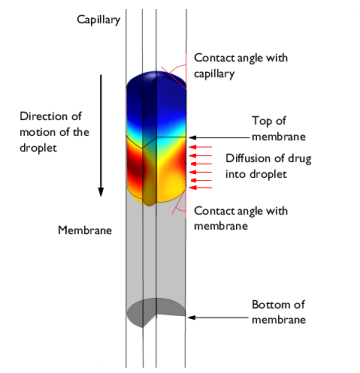
This example describes the operation of a drug delivery system that supplies a variable concentration of a water soluble drug. A droplet with a fixed volume of water travels down a capillary tube at a constant velocity. Part of the capillary wall consists of a permeable membrane separating the interior of the capillary from a concentrated solution of the drug. As the drop passes by the membrane, the drug dissolves into the water. To model this process, a constant flux of the drug is assumed on the capillary wall for the duration of its contact with the membrane. By altering the droplet velocity, the final concentration of the drug in the drop can be adjusted. The principle of the device is illustrated in Figure 1.
Figure 1: Diagram showing the operating principle of the drug delivery device. The color in the droplet represents drug concentration, with red indicating a higher concentration and blue indicating zero concentration. Note that the membrane length is not shown to scale.
Model Definition
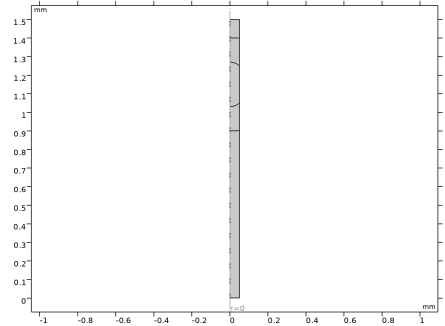
The axisymmetric model geometry is shown in Figure 2. The droplet is visible near the top of the geometry. The horizontal lines across the capillary are included to assist with meshing. The drop is initially stationary at the top of the domain, but accelerates rapidly to a constant velocity before it reaches the permeable membrane. The permeable part of the capillary is not visible as part of the geometry as it is represented by a function applied to the boundary condition. It is located between z = 0.6 mm and z = 0.8 mm.
The droplet consists of liquid water of density 1000 kg/m3 and viscosity 10-3 Pas. The remainder of the capillary is filled with air, with a density of 1.25 kg/m3 and a viscosity of 2×10⁵ Pas. The water air surface tension coefficient is 70 mN/m. The contact angle of the droplet with the capillary wall is 135°, whilst that with the membrane is 157.5°. As the droplet passes the membrane the flux of the drug entering it is 1×10³ mol/(m2s). The diffusion coefficient of the drug in the water is 5×10⁹ m2/s.
The droplet velocity past the membrane is varied between 0.1 and 1 mm/s to adjust the final concentration of the drug in the droplet.
Figure 2: Axisymmetric model geometry.
Results and Discussion
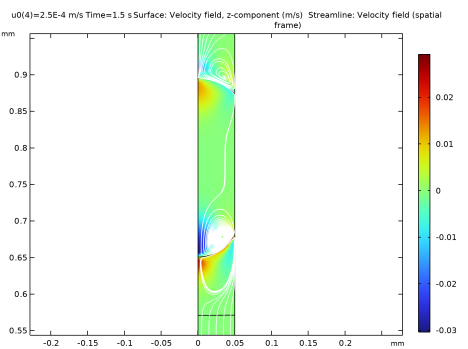
The flow velocity is shown for the drop moving at 0.25 mm/s in Figure 3. The flow pattern around the interface is complex as the flow must redistribute itself from a Poiseuille flow profile away from the droplet surface to a constant velocity flow at the surface of the droplet. Notice that the change in contact angle as the droplet passes the edge of the membrane at z = 8 mm is apparent.
Figure 3: Flow velocity around the droplet as it travels past the edge of the permeable membrane. The droplet velocity is 0.25 mm/s.
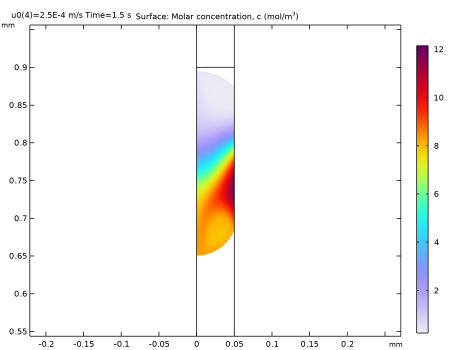
Figure 4 shows the concentration profile for the 0.25 mm/s at the same point in time. The drug is diffusing into the droplet and is also convected by the fluid flow. A marked change in concentration is apparent between the top and the bottom of the droplet.
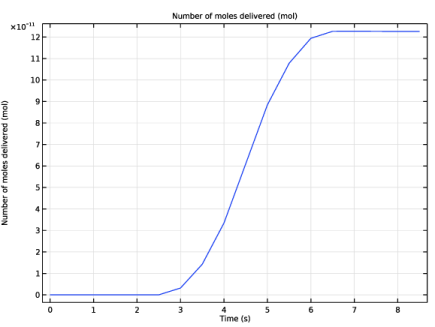
The total amount of drug in the droplet as a function of time is shown in Figure 5, for the drop traveling at 0.1 mm/s. The dissolved drug quantity increases with an ‘S’ shaped profile as the drug travels down the capillary.
Figure 4: Drug concentration in the droplet as it travels past the edge of the permeable membrane. The droplet velocity is 0.25 mm/s.
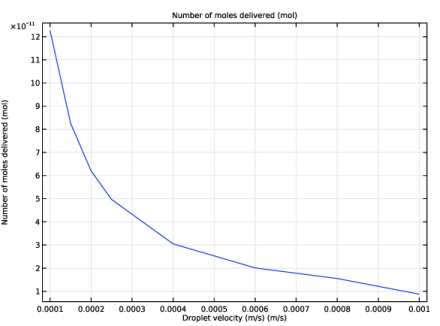
Figure 6 shows the total amount of drug delivered against the droplet velocity. The number of moles delivered is approximately inversely proportional to the droplet velocity, which is expected as the amount of drug that diffuses into the drop depends on the time the drop takes to traverse the permeable part of the capillary.
Figure 5: Total drug dose contained in the droplet as a function of time for the droplet traveling at 0.1 mm/s.
Figure 6: Total drug dose delivered shown against the droplet velocity.
Application Library path: Microfluidics_Module/Two-Phase_Flow/drug_delivery_mm
Modeling Instructions
From the File menu, choose New.
New
In the New window, click  Model Wizard.
Model Wizard
1
In the Model Wizard window, click  2D Axisymmetric.
2
In the Select Physics tree, select Fluid Flow > Multiphase Flow > Two-Phase Flow, Moving Mesh > Laminar Two-Phase Flow, Moving Mesh.
3
Click Add.
4
Click  Study.
5
In the Select Study tree, select General Studies > Time Dependent.
6
Geometry 1
For convenience, the device geometry is inserted from an existing file. You can read the instructions for creating the geometry in the Appendix — Geometry Instructions.
1
In the Geometry toolbar, click Insert Sequence and choose Insert Sequence.
2
3
In the Geometry toolbar, click  Build All.
Global Definitions
Set up a parameter for the droplet velocity.
Parameters 1
1
In the Model Builder window, under Global Definitions click Parameters 1.
2
In the Settings window for Parameters, locate the Parameters section.
3
Set up integration coupling variables to compute volume and point integrals.
Definitions
Integration 1 (intop1)
1
In the Definitions toolbar, click  Nonlocal Couplings and choose Integration.
2
3
In the Settings window for Integration, locate the Advanced section.
4
Clear the Compute integral in revolved geometry checkbox.
Integration 2 (intop2)
1
In the Definitions toolbar, click  Nonlocal Couplings and choose Integration.
2
In the Settings window for Integration, locate the Source Selection section.
3
From the Geometric entity level list, choose Point.
4
5
Locate the Advanced section. Clear the Compute integral in revolved geometry checkbox.
Set up model variables to track drug dose and drop location. Define a function to represent the permeable part of the capillary wall.
Variables 1
1
In the Definitions toolbar, click  Local Variables.
2
In the Settings window for Variables, locate the Variables section.
3
Create a rectangle function that is zero everywhere except at heights corresponding to the permeable membrane.
Rectangle 1 (rect1)
1
In the Definitions toolbar, click  More Functions and choose Rectangle.
2
In the Settings window for Rectangle, locate the Parameters section.
3
In the Lower limit text field, type 6e-4.
4
In the Upper limit text field, type 8e-4.
5
Click to expand the Smoothing section. In the Size of transition zone text field, type 5e-5.
6
Create a step function to ramp up the velocity from zero in the Inlet boundary condition.
Step 1 (step1)
1
In the Definitions toolbar, click  More Functions and choose Step.
2
In the Settings window for Step, locate the Parameters section.
3
In the Location text field, type 1e-4.
4
Click to expand the Smoothing section. In the Size of transition zone text field, type 1e-4.
5
Set constraints on the mesh displacement.
Moving Mesh
Symmetry/Roller 1
1
In the Moving Mesh toolbar, click  Symmetry/Roller.
2
The Navier Slip boundary condition must be used on the walls along which the contact line moves.
Laminar Flow (spf)
Wall 2
1
In the Physics toolbar, click  Boundaries and choose Wall.
2
3
In the Settings window for Wall, locate the Boundary Condition section.
4
From the Wall condition list, choose Navier slip.
Set the inlet boundary condition to accelerate the droplet rapidly to a constant velocity.
Inlet 1
1
In the Physics toolbar, click  Boundaries and choose Inlet.
2
3
In the Settings window for Inlet, locate the Boundary Condition section.
4
From the list, choose Fully developed flow.
5
Locate the Fully Developed Flow section. In the Uav text field, type u0*step1(t/1[s]).
Apply a Pressure constraint at the Outlet.
Outlet 1
1
In the Physics toolbar, click  Boundaries and choose Outlet.
2
Set up the boundary conditions for the droplet surface and the contact point.
Fluid-Fluid Interface 1
1
In the Physics toolbar, click  Boundaries and choose Fluid-Fluid Interface.
2
3
In the Settings window for Fluid-Fluid Interface, locate the Surface Tension section.
4
From the Surface tension coefficient list, choose User defined. Locate the Normal Direction section. Select the Reverse normal direction checkbox.
Contact Angle 1
1
In the Model Builder window, expand the Fluid-Fluid Interface 1 node, then click Contact Angle 1.
2
In the Settings window for Contact Angle, locate the Contact Angle section.
3
In the θw text field, type 3*pi*(1-rect1(z/1[m]))/4+7*pi*rect1(z/1[m])/8.
Note: using the rectangle function in this manner makes the contact angle vary on the permeable part of the wall.
4
Locate the Normal Wall Velocity section. Select the Constrain wall-normal velocity checkbox.
Add the Diluted Species interface to model the solute transport in the droplet.
Add Physics
1
In the Home toolbar, click  Add Physics to open the Add Physics window.
2
Go to the Add Physics window.
3
In the tree, select Chemical Species Transport > Transport of Diluted Species (tds).
4
Click the Add to Component 1 button in the window toolbar.
5
In the Home toolbar, click  Add Physics to close the Add Physics window.
Transport of Diluted Species (tds)
Ensure the drug transport occurs only in the liquid domain.
1
In the Settings window for Transport of Diluted Species, locate the Domain Selection section.
2
Click  Clear Selection.
3
Set up convection and diffusion for the drug.
Fluid 1
1
In the Model Builder window, under Component 1 (comp1) > Transport of Diluted Species (tds) click Fluid 1.
2
In the Settings window for Fluid, locate the Convection section.
3
From the u list, choose Velocity field (spf).
4
Locate the Diffusion section. In the Dc text field, type 5E-9.
Add a boundary condition for the drug flux into droplet.
Flux 1
1
In the Physics toolbar, click  Boundaries and choose Flux.
2
3
In the Settings window for Flux, locate the Inward Flux section.
4
Select the Species c checkbox.
5
In the J0,c text field, type rect1(z/1[m])*0.001[mol/(m^2*s)].
Note: this expression ensures flux only enters the droplet as it passes the permeable membrane.
Add the water and air material properties to the model.
Materials
Material 1 (mat1)
1
In the Model Builder window, under Component 1 (comp1) right-click Materials and choose Blank Material.
2
In the Settings window for Material, locate the Material Contents section.
3
4
Material 2 (mat2)
1
Right-click Materials and choose Blank Material.
2
3
In the Settings window for Material, locate the Material Contents section.
4
Mesh the geometry. The mesh is refined around the edges of the droplet.
Mesh 1
Scale 1
1
In the Mesh toolbar, click  More Attributes and choose Scale.
2
In the Settings window for Scale, locate the Geometric Entity Selection section.
3
From the Geometric entity level list, choose Boundary.
4
5
Locate the Scale section. In the Element size scale text field, type 0.5.
Free Quad 1
In the Mesh toolbar, click  Free Quad.
Size
1
In the Model Builder window, click Size.
2
In the Settings window for Size, locate the Element Size section.
3
Click the Custom button.
4
Locate the Element Size Parameters section. In the Maximum element size text field, type 0.01.
5
In the Minimum element size text field, type 3E-5.
6
In the Maximum element growth rate text field, type 1.1.
7
In the Curvature factor text field, type 0.2.
8
Click  Build All.
Set up the parametric sweep.
Study 1
Parametric Sweep
1
In the Study toolbar, click  Parametric Sweep.
2
In the Settings window for Parametric Sweep, locate the Study Settings section.
3
4
Step 1: Time Dependent
1
In the Model Builder window, click Step 1: Time Dependent.
2
In the Settings window for Time Dependent, locate the Study Settings section.
3
In the Output times text field, type range(0,0.5,10).
Use a strict time step to avoid interpolation of the concentration field at output times, and add a stop condition to prevent the droplet from leaving the geometry.
Solution 1 (sol1)
1
In the Study toolbar, click  Show Default Solver.
2
In the Model Builder window, expand the Solution 1 (sol1) node, then click Time-Dependent Solver 1.
3
In the Settings window for Time-Dependent Solver, click to expand the Time Stepping section.
4
From the Steps taken by solver list, choose Strict.
5
Right-click Study 1 > Solver Configurations > Solution 1 (sol1) > Time-Dependent Solver 1 and choose Stop Condition.
6
In the Settings window for Stop Condition, locate the Stop Expressions section.
7
8
Note that the solver will stop when the real part of the stop expression is negative.
Adjust solver settings for optimum performance.
9
In the Model Builder window, under Study 1 > Solver Configurations > Solution 1 (sol1) click Time-Dependent Solver 1.
10
In the Settings window for Time-Dependent Solver, click to expand the Absolute Tolerance section.
11
From the Global method list, choose Unscaled.
12
Click to expand the Output section. Clear the Store the first time derivative checkbox.
13
In the Study toolbar, click  Compute.
Results
Velocity (spf)
1
In the Model Builder window, expand the Results > Velocity (spf) node, then click Velocity (spf).
2
In the Settings window for 2D Plot Group, locate the Data section.
3
From the Parameter value (u0 (m/s)) list, choose 2.5E-4.
4
From the Time (s) list, choose 1.5.
Streamline 1
1
Right-click Velocity (spf) and choose Streamline.
2
In the Settings window for Streamline, locate the Streamline Positioning section.
3
In the Number text field, type 10.
4
5
Locate the Coloring and Style section. Find the Point style subsection. From the Color list, choose White.
Surface
1
In the Model Builder window, click Surface.
2
In the Settings window for Surface, locate the Expression section.
3
In the Expression text field, type w.
4
Click the  Zoom Extents button in the Graphics toolbar.
5
Click the  Zoom In button in the Graphics toolbar.
6
Click the  Zoom In button in the Graphics toolbar.
7
In the Velocity (spf) toolbar, click  Plot.
Compare the resulting plot with that in Figure 2.
Arrow Surface 1
1
In the Model Builder window, expand the Results > Concentration (tds) node.
2
Right-click Arrow Surface 1 and choose Disable.
Concentration (tds)
1
In the Model Builder window, click Concentration (tds).
2
In the Settings window for 2D Plot Group, locate the Data section.
3
From the Parameter value (u0 (m/s)) list, choose 2.5E-4.
4
From the Time (s) list, choose 1.5.
5
In the Concentration (tds) toolbar, click  Plot.
Compare the resulting plot with that in Figure 3.
1D Plot Group 7
1
In the Results toolbar, click  1D Plot Group.
2
In the Settings window for 1D Plot Group, locate the Data section.
3
From the Dataset list, choose Study 1/Parametric Solutions 1 (sol2).
4
From the Parameter selection (u0) list, choose First.
Global 1
1
Right-click 1D Plot Group 7 and choose Global.
2
In the Settings window for Global, locate the y-Axis Data section.
3
4
Locate the x-Axis Data section. From the Axis source data list, choose Inner solutions.
5
Click to expand the Legends section. Clear the Show legends checkbox.
6
In the 1D Plot Group 7 toolbar, click  Plot.
Compare the resulting plot with that in Figure 4.
1D Plot Group 8
1
In the Results toolbar, click  1D Plot Group.
2
In the Settings window for 1D Plot Group, locate the Data section.
3
From the Dataset list, choose Study 1/Parametric Solutions 1 (sol2).
4
From the Time selection list, choose Last.
Global 1
1
Right-click 1D Plot Group 8 and choose Global.
2
In the Settings window for Global, locate the y-Axis Data section.
3
4
Locate the x-Axis Data section. From the Axis source data list, choose Outer solutions.
5
From the Parameter list, choose Expression.
6
In the Expression text field, type u0.
7
Locate the Legends section. Clear the Show legends checkbox.
8
In the 1D Plot Group 8 toolbar, click  Plot.
Compare the resulting plot with that in Figure 5.
Appendix — Geometry Instructions
From the File menu, choose New.
New
In the New window, click  Blank Model.
Add Component
In the Home toolbar, click  Add Component and choose 2D.
Geometry 1
1
In the Settings window for Geometry, locate the Units section.
2
From the Length unit list, choose mm.
Rectangle 1 (r1)
1
In the Geometry toolbar, click  Rectangle.
2
In the Settings window for Rectangle, locate the Size and Shape section.
3
In the Width text field, type 0.05.
4
In the Height text field, type 1.5.
5
Click to expand the Layers section. In the table, enter the following settings:
Ellipse 1 (e1)
1
In the Geometry toolbar, click  Ellipse.
2
In the Settings window for Ellipse, locate the Size and Shape section.
3
In the a-semiaxis text field, type 0.09.
4
In the b-semiaxis text field, type 0.12.
5
Locate the Position section. In the y text field, type 1.15.
6
Locate the Object Type section. From the Type list, choose Curve.
Partition Objects 1 (par1)
1
In the Geometry toolbar, click  Booleans and Partitions and choose Partition Objects.
2
3
In the Settings window for Partition Objects, locate the Partition Objects section.
4
Click to select the  Activate Selection toggle button for Tool objects.
5
Form Union (fin)
In the Geometry toolbar, click  Build All.