PDF

Quenching of a Bevel Gear
Introduction
The drivetrain of a vehicle transfers mechanical power from an engine to, ultimately, the wheels. The drivetrain is comprised of a number of components such as axles, gears, and so on, many of which experience high mechanical operating loads. The selection of material (often steel) and the subsequent manufacture become critical to their intended function. Steel components are often subjected to different post manufacture treatments for increased endurance, including shot peening and various types of heat treatments. In this example, we consider a bevel gear, such as exists in configurations where incoming and outgoing axles are not parallel. We simulate a heat treatment process where the bevel gear, made from steel, is initially at 900°C and immersed in a quenching oil at 60°C. The initially austenitic bevel gear undergoes phase transformations during the cooling, and the final phase composition and the residual stress state are computed.
Model Definition
In this section, the various aspects of the multiphysics problem of quenching a bevel gear are described.
GEometry and Mesh
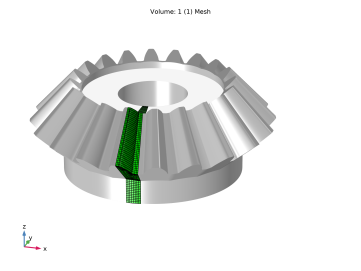
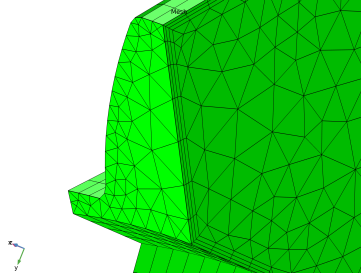
In this example, a simple bevel gear is used. It has twenty teeth at a 40-degree cone angle, and a pitch diameter of 100 mm. By exploiting symmetry, a segment involving half a tooth is considered. Figure 1 shows the bevel gear. The finite element mesh of the computational domain is shown in green. When the bevel gear is subjected to external cooling, it becomes relevant to resolve thermal gradients at the surface. Therefore, a boundary layer mesh is used in these regions. Figure 2 shows a closeup of the mesh near the gear tooth, showing the boundary layer mesh.
Figure 1: The bevel gear and the segment that is used in the simulation (in green).
Figure 2: A boundary layer mesh is used for the external surfaces of the bevel gear.
Material Properties
In quenching simulations, we must recognize and take into account that material properties are generally temperature dependent. Moreover, the properties differ between metallurgical phases. For example, the thermal conductivity of ferrite is different from that of austenite, the yield stress of martensite is different from that of pearlite, and so on. In this example, the material properties for a general steel are imported from JMatPro® (Ref. 1). Material properties that are imported per phase are:
Heat Transfer
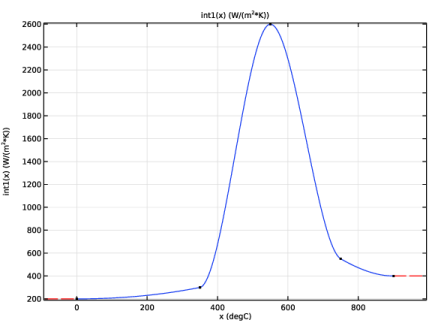
To simulate that the bevel gear is cooled by a quenching oil, this mode of heat transfer must be modeled. Quenching (using oils, water, brine, air, and so on) is often modeled using convective heat transfer. The temperature dependent heat transfer coefficient is typically experimentally obtained for relevant flow conditions and combinations of quenching medium and component surface characteristics. Here, we use a fictitious, but nonetheless reasonable, heat transfer coefficient for immersion of a steel component in oil. Figure 3 shows this temperature-dependent heat transfer coefficient.
The thermal diffusivity of the steel is computed from the thermal material properties of the individual phases and the current phase composition automatically, using an averaging scheme for effective material properties in the Metal Processing Module.
Figure 3: The temperature-dependent heat transfer coefficient for the quenching oil.
Phase Transformations
When the bevel gear is cooled from its initial temperature, the austenite will decompose into a combination of other phases. The ferritic, pearlitic, bainitic, and martensitic phase transformations can be characterized in a number of ways. Experiments can be performed, literature sources can be consulted, computational methods can be employed, and so on. In this example, just like with the phase material properties, we elect to import phase transformation data for a general steel from JMatPro® (Ref. 1). The imported data includes the following information:
Stresses and Strains
The bevel gear model is constrained by applying symmetry boundary conditions and by pinning a point to prevent rigid body translations, but otherwise the bevel gear is free to deform. The material is taken to be linear elastic, with isotropic hardening plasticity. The material properties are computed from the mechanical material properties of the individual phases, just as is done for the thermal properties.
Results and Discussion
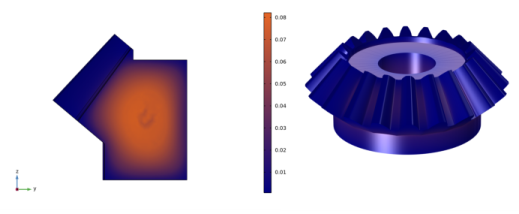
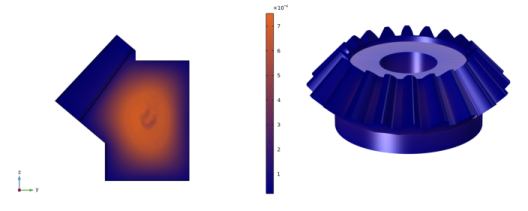
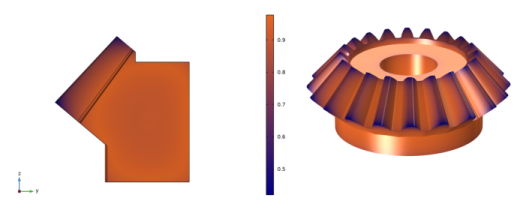
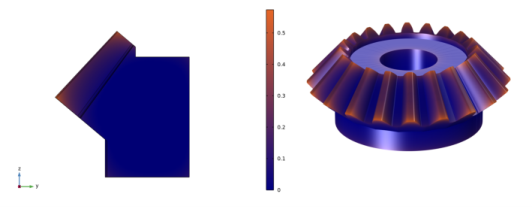
After cooling the bevel gear for a duration of four minutes from its initial temperature of 900°C, the austenite has decomposed into a combination of other phases. Figure 4, Figure 5, Figure 6, and Figure 7 show respectively the phase fractions of ferrite, pearlite, bainite, and martensite. In this example, we used a fictitious oil and a bevel gear made from a general example steel. The final phase composition is mostly bainitic, with some ferrite at the interior of the bevel gear, and gear teeth that are partially martensitic. Note that the final phase composition at any given location is essentially governed by two factors:
This suggests that for a given choice of steel, the final phase composition near the surface of a component can be reasonably well controlled through the choice of quenching medium and the method of application (examples are water spray cooling, oil quenching, air quenching, and so on). However, the austenite decomposition inside a bulky component will be dictated by heat conduction, and therefore only indirectly controllable by the conditions imposed on the surfaces of the component.
Figure 4: Phase fraction of ferrite after cooling.
Figure 5: Phase fraction of pearlite after cooling.
Figure 6: Phase fraction of bainite after cooling.
Figure 7: Phase fraction of martensite after cooling.
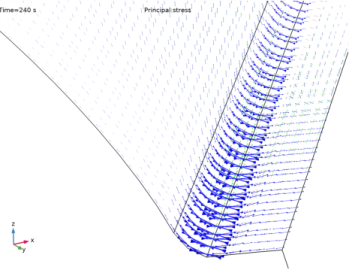
Components like bevel gears are typically integral components of vehicle drivetrains. As such, they have to be designed and manufactured to withstand operating conditions in the high cycle fatigue regime. During operation, gear teeth essentially experience pulsating loading, causing bending, and a critical region becomes the root of each gear tooth, where fatigue cracks may emanate. In Figure 8, we look at the principal state at the root of the gear. These principal stresses are the residual stresses after quenching, and we note that along the surface, and perpendicular to the root itself, stresses are mostly compressive. Given that gear teeth experience bending during operation, these compressive residual stresses should be beneficial to the fatigue endurance of the bevel gear, but a more detailed study would be required to quantify this.
Figure 8: Residual principal stresses near the root of the gear tooth.
In this example, the cooling was applied uniformly at the surfaces. This emulates a rapid immersion of a single bevel gear into the quenching oil. In reality, these types of drivetrain components are often placed, several at a time, on a tray which is lowered into the quenching oil. This adds complexity, as the bevel gears will be gradually lowered into the oil, and where they might affect one another through thermal radiation, and so on. This, in turn, may affect roundness and other critical geometrical features of the post-quenched bevel gears.
Notes About the COMSOL Implementation
In this example, phase material properties and phase transformation data for a general steel were imported from JMatPro® (Ref. 1). Material properties are imported automatically as separate materials, each representing a separate phase. Phase transformation data is imported for each phase transformation, and Phase Transformation nodes are created at the physics interface level automatically. Both imports are performed from the same XML file that was previously exported from JMatPro®.
Phase transformation data is imported by selecting Import Phase Transformations in the physics interface context menu.
Phase material properties are imported by selecting Import Materials from the Materials context menu under Global Definitions or under Materials at the component level (not available in 0D).
Reference
1. Sente Software, Ltd., United Kingdom.
Application Library path: Metal_Processing_Module/Steel_Quenching/quenching_of_a_bevel_gear
Modeling Instructions
From the File menu, choose New.
New
In the New window, click  Model Wizard.
Model Wizard
1
In the Model Wizard window, click  3D.
2
In the Select Physics tree, select Heat Transfer > Metal Processing > Steel Quenching.
3
Click Add.
4
Click  Study.
5
In the Select Study tree, select General Studies > Time Dependent.
6
Mesh 1
Import 1
1
In the Mesh toolbar, click  Import.
2
In the Settings window for Import, locate the Import section.
3
Click  Browse.
4
5
Click  Import.
Global Definitions
Parameters 1
1
In the Model Builder window, under Global Definitions click Parameters 1.
2
In the Settings window for Parameters, locate the Parameters section.
3
Interpolation 1 (int1)
1
In the Home toolbar, click  Functions and choose Global > Interpolation.
2
In the Settings window for Interpolation, locate the Definition section.
3
From the Data source list, choose File.
4
Click  Browse.
5
6
Locate the Data Column Settings section. In the Unit text field, type W/(m^2*K).
7
8
In the Unit text field, type degC.
9
Locate the Interpolation and Extrapolation section. From the Interpolation list, choose Piecewise cubic.
10
Heat Transfer in Solids (ht)
Initial Values 1
1
In the Model Builder window, expand the Heat Transfer in Solids (ht) node, then click Initial Values 1.
2
In the Settings window for Initial Values, locate the Initial Values section.
3
In the T text field, type Tinit.
Heat Flux 1
1
In the Physics toolbar, click  Boundaries and choose Heat Flux.
2
In the Settings window for Heat Flux, locate the Boundary Selection section.
3
From the Selection list, choose All boundaries.
4
5
Locate the Heat Flux section. From the Flux type list, choose Convective heat flux.
6
In the h text field, type int1(T).
7
In the Text text field, type Tamb.
Solid Mechanics (solid)
Linear Elastic Material 1
In the Model Builder window, expand the Solid Mechanics (solid) node, then click Linear Elastic Material 1.
Plasticity 1
1
In the Physics toolbar, click  Attributes and choose Plasticity.
2
In the Settings window for Plasticity, locate the Plasticity Model section.
3
Find the Isotropic hardening model subsection. From the list, choose Hardening function.
Symmetry 1
1
In the Physics toolbar, click  Boundaries and choose Symmetry.
2
Prescribed Displacement 1
1
In the Physics toolbar, click  Points and choose Prescribed Displacement.
2
3
In the Settings window for Prescribed Displacement, locate the Prescribed Displacement section.
4
From the Displacement in z direction list, choose Prescribed.
Materials
Import the material properties, collected in separate phase materials for austenite, ferrite, and so on.
1
In the Materials toolbar, click Import Materials and choose Import Materials.
2
In the Import Materials dialog, click  Browse.
3
4
Austenite Decomposition (audc)
1
In the Model Builder window, under Component 1 (comp1) click Austenite Decomposition (audc).
2
In the Settings window for Austenite Decomposition, locate the Material Properties section.
3
Click Create Compound Material in the upper-right corner of the section.
4
Locate the Solid Mechanics section. Select the Enable phase plasticity checkbox.
5
From the Thermal strain formulation list, choose Density based.
Import the phase transformation data for the different phase transformations. This information is contained in the same file as the phase material properties.
General Steel, Austenite to Ferrite
1
Right-click Component 1 (comp1) > Austenite Decomposition (audc) and choose Import Phase Transformations.
2
Austenite
1
In the Settings window for Metallurgical Phase, locate the Phase Material section.
2
From the Phase material list, choose General Steel, Austenite (mat1).
3
Locate the Mechanical Properties section. From the Isotropic hardening model list, choose Hardening function.
Ferrite
1
In the Model Builder window, click Ferrite.
2
In the Settings window for Metallurgical Phase, locate the Phase Material section.
3
From the Phase material list, choose General Steel, Ferrite (mat2).
4
Locate the Mechanical Properties section. From the Isotropic hardening model list, choose Hardening function.
Pearlite
1
In the Model Builder window, click Pearlite.
2
In the Settings window for Metallurgical Phase, locate the Phase Material section.
3
From the Phase material list, choose General Steel, Pearlite (mat3).
4
Locate the Mechanical Properties section. From the Isotropic hardening model list, choose Hardening function.
Bainite
1
In the Model Builder window, click Bainite.
2
In the Settings window for Metallurgical Phase, locate the Phase Material section.
3
From the Phase material list, choose General Steel, Bainite (mat4).
4
Locate the Mechanical Properties section. From the Isotropic hardening model list, choose Hardening function.
Martensite
1
In the Model Builder window, click Martensite.
2
In the Settings window for Metallurgical Phase, locate the Phase Material section.
3
From the Phase material list, choose General Steel, Martensite (mat5).
4
Locate the Mechanical Properties section. From the Isotropic hardening model list, choose Hardening function.
Set the Volume strain reference temperature. It should be equal across metallurgical phases.
5
Locate the Model Input section. Click  Go to Source for Volume reference temperature.
Global Definitions
Default Model Inputs
1
In the Model Builder window, under Global Definitions click Default Model Inputs.
2
In the Settings window for Default Model Inputs, locate the Browse Model Inputs section.
3
Find the Expression for remaining selection subsection. In the Volume reference temperature text field, type Tinit.
Austenite Decomposition (audc)
General Steel, Austenite to Ferrite
1
In the Model Builder window, under Component 1 (comp1) > Austenite Decomposition (audc) click General Steel, Austenite to Ferrite.
2
In the Settings window for Phase Transformation, locate the Phase Transformation section.
3
From the ξs list, choose Austenite.
4
From the ξd list, choose Ferrite.
General Steel, Austenite to Pearlite
1
In the Model Builder window, click General Steel, Austenite to Pearlite.
2
In the Settings window for Phase Transformation, locate the Phase Transformation section.
3
From the ξs list, choose Austenite.
4
From the ξd list, choose Pearlite.
General Steel, Austenite to Bainite
1
In the Model Builder window, click General Steel, Austenite to Bainite.
2
In the Settings window for Phase Transformation, locate the Phase Transformation section.
3
From the ξs list, choose Austenite.
4
From the ξd list, choose Bainite.
General Steel, Austenite to Martensite
1
In the Model Builder window, click General Steel, Austenite to Martensite.
2
In the Settings window for Phase Transformation, locate the Phase Transformation section.
3
From the ξs list, choose Austenite.
4
From the ξd list, choose Martensite.
Study 1
Step 1: Time Dependent
1
In the Model Builder window, expand the Study 1 node, then click Step 1: Time Dependent.
2
In the Settings window for Time Dependent, locate the Study Settings section.
3
In the Output times text field, type range(0,30,240).
Results
Preferred Units 1
1
In the Results toolbar, click  Configurations and choose Preferred Units.
Set preferred units for result presentation.
2
In the Settings window for Preferred Units, locate the Units section.
3
Click  Add Physical Quantity.
4
In the Physical Quantity dialog, select General > Temperature (K) in the tree.
5
6
In the Settings window for Preferred Units, locate the Units section.
7
8
Click  Add Physical Quantity.
9
In the Physical Quantity dialog, select Solid Mechanics > Stress tensor (N/m^2) in the tree.
10
11
In the Settings window for Preferred Units, locate the Units section.
12
Study 1
In the Study toolbar, click  Compute.