

PDF

Squeeze-Film Gas Damping in an Accelerometer
Micromechanical structures that use capacitance to measure another parameter such as acceleration typically have a very narrow gap between their electrodes. The gap usually contains gas, which damps the movements of the mechanical parts. This model of a microsystem accelerometer shows how to couple squeeze-film gas damping, which you model with the nonlinear Reynolds equation, to displacements in the sensor.
Introduction
Squeeze-film gas damping is a critical aspect of many MEMS transducers and actuators. An example of a microsystem component where gas-damping properties are important is an accelerometer common in vehicle motion-control and safety systems.
In accelerometers, inertia produces a motion that the device detects. A typical structure connects a large proof mass, with dimensions typically in millimeters, to surrounding structures with elastic beams. This combination forms a mechanical oscillator with a specific resonance frequency. However, in accurate motion-detection applications these resonances are unwanted, and the device damps the movements to produce smooth time-step and frequency responses. Such a device can usually achieve suitable damping with a low gas pressure (100 Pa–1000 Pa) that, considering the dimensions of the device, leads to rarefied gas effect in the system.
A narrow gap formed by two solid horizontal plates restricts the displacement of the gas perpendicular to the surfaces. When the sensor squeezes the gap, the gas flows out from its edges. The narrow pathway restricts the flow, which causes gas pressure to increase. This increase in gas pressure, in turn, decelerates the plates’ movement.
You can model the pressure distribution in the narrow gap with the modified Reynolds equation
where the total fluid pressure p is the sum of the initial/ambient pressure, pA and the variation pf; h = h0 + Δh(t) is the gap height consisting of the initial gap and the deformation in the normal direction of the boundary; hs is the location of the solid wall; hb is the location of the channel base; and us and ub define the tangential velocity of the solid wall and the channel base, respectively. Furthermore, the mean film velocity u is given by
where η denotes the fluid viscosity at normal conditions and the term Qch is the relative flow rate function that accounts for the rarefied gas effects. Veijola and others (Ref. 2) have used a simple equation for the relative flow coefficient
which is valid for 0 ≤ Kn ≤ 880. The Knudsen number is the ratio between the gas’ mean free path, λ, and the gap height, h:
The coefficient σP is calculated from the tangential momentum accommodation coefficient, αv:
The mean free path at a pressure p comes from
where λ0 is the mean free path at the reference pressure p0.
Another way to tune the damping is to perforate the structure with holes. By adding a term related to the gas flow through the holes, it is also possible to use the Reynolds equation for perforated plates. For more information about this approach see Ref. 3.
Model Definition
This example models the solid moving parts in the accelerometer using the Solid Mechanics interface in 3D and using the Solid Mechanics interface with a plane strain approximation in 2D. This model solves the squeeze-film air damping on the lower and upper surfaces using the Structure–Thin-Film Flow Interaction multiphysics coupling. The model constrains the film pressure, pf, to 0 at the edges of the boundary.
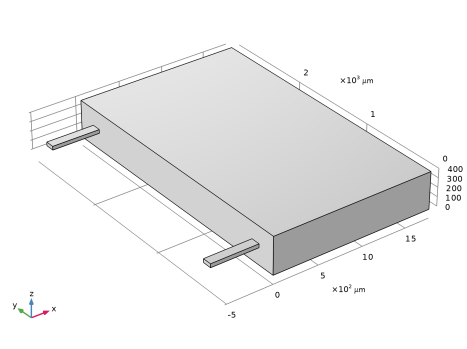
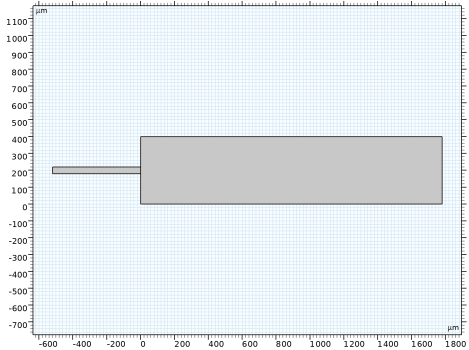
The following two figures show the accelerometer geometry in 3D and in 2D. The model consists of two thin silicon cantilever beams and a silicon proof mass. The cantilever beams are fixed to the surrounding structures at one end. The proof mass reacts to inertial forces and bends the cantilevers. The external acceleration, a, acts in the z direction and causes a body volume force Fz = ρsolida.
In 2D the two cantilevers are lumped as one structure whose thickness equals the sum of the thicknesses of the two cantilevers. Consequently, the model has two domains with different thicknesses at the connecting boundary. You should therefore be prudent when inspecting stress levels near this area.
Figure 1: Model geometry in 3D.
Figure 2: Model geometry in 2D.
The following tables list the structures’ dimensions as well as pertinent material and gas properties used to calculate the effective viscosity:
520 μm
40 μm
400 μm
100 μm
22·10-6 Ns/m2
λ0
p0
Results and Discussion
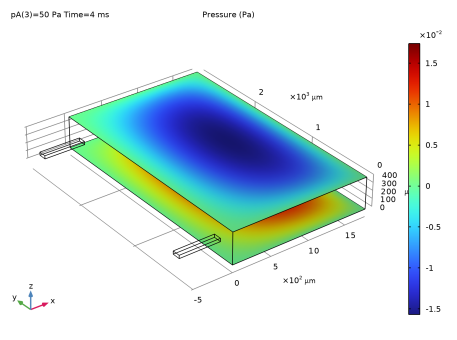
Figure 3 shows the pressure distribution on the surface of the proof mass after 4 ms of simulation. The ambient pressure, pA, in this case is 50 Pa, and the acceleration switches on at the beginning of the simulation. The acceleration’s magnitude is half that due to gravity, g. In this figure, the maximum displacement at the tip of the proof mass is roughly 0.2 μm, or 0.05% of its thickness.
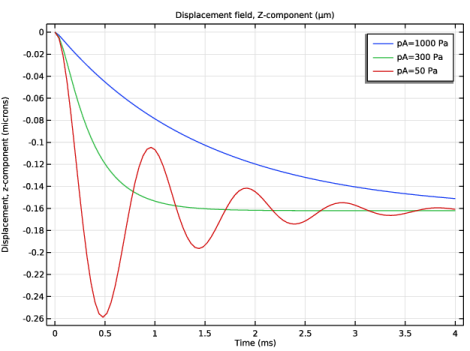
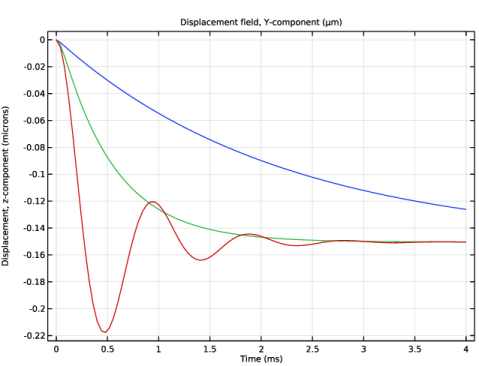
Figure 4 shows the z displacement of the proof mass tip as a function of time for ambient pressures of 50 Pa, 300 Pa, and 1000 Pa. As ambient pressure increases, the film damping at the upper and lower surfaces increases through the increase in the gas’ effective viscosity and density. This increased damping results in a substantial decrease in oscillation with increasing pressure. At 300 Pa, there is no apparent oscillation, and the proof mass seems asymptotically reaching the value of 0.2 μm in z displacement.
Figure 3: A load on the face of the proof mass in the z direction leads to a deformation.
Figure 4: The z displacement of the proof mass tip at ambient pressures of 3 Pa, 30 Pa, and 300 Pa.
References
1. J.B. Starr, “Squeeze-film Damping in Solid-state Accelerometers,” Technical Digest IEEE Solid-State Sensor and Actuator Workshop, p. 47, 1990.
2. T. Veijola, H. Kuisma, J. Lahdenperä, and T. Ryhänen, “Equivalent-circuit Model of the Squeezed Gas Film in a Silicon Accelerometer,” Sensors and Actuators, vol. A 48, pp. 239–248, 1995.
3. M. Bao, H. Yang, Y. Sun, and P.J. French, “Modified Reynolds’ Equation and Analytical Analysis of Squeeze-film Air Damping of Perforated Structures,” J. Micromech. Microeng., vol. 13, pp. 795–800, 2003.
Application Library path: MEMS_Module/Sensors/squeeze_film_accelerometer
Modeling Instructions
From the File menu, choose New.
New
In the New window, click  Model Wizard.
Model Wizard
1
In the Model Wizard window, click  3D.
2
In the Select Physics tree, select Structural Mechanics > Fluid–Structure Interaction > Thin-Film Damping > Solid–Thin-Film Damping.
3
Click Add.
4
Click  Study.
5
In the Select Study tree, select General Studies > Time Dependent.
6
Global Definitions
Fluid Properties and Loads
1
In the Model Builder window, under Global Definitions click Parameters 1.
2
In the Settings window for Parameters, type Fluid Properties and Loads in the Label text field.
3
Locate the Parameters section. In the table, enter the following settings:
Here, g_const is a predefined COMSOL Multiphysics constant representing the standard acceleration of gravity.
Geometry
1
In the Home toolbar, click  Parameters and choose Add > Parameters.
2
In the Settings window for Parameters, type Geometry in the Label text field.
3
Locate the Parameters section. In the table, enter the following settings:
Geometry 1
1
In the Model Builder window, under Component 1 (comp1) click Geometry 1.
2
In the Settings window for Geometry, locate the Units section.
3
From the Length unit list, choose µm.
Proof Mass
1
In the Geometry toolbar, click  Block.
2
In the Settings window for Block, type Proof Mass in the Label text field.
3
Locate the Size and Shape section. In the Width text field, type Lpm.
4
In the Depth text field, type Wpm.
5
In the Height text field, type Hpm.
Cantilever 1
1
In the Geometry toolbar, click  Block.
2
In the Settings window for Block, type Cantilever 1 in the Label text field.
3
Locate the Size and Shape section. In the Width text field, type Lc.
4
In the Depth text field, type Wc.
5
In the Height text field, type Hc.
6
Locate the Position section. In the x text field, type -Lc.
7
In the y text field, type 2*Wc.
8
In the z text field, type (Hpm - Hc)/2.
Cantilever 2
1
In the Geometry toolbar, click  Block.
2
In the Settings window for Block, type Cantilever 2 in the Label text field.
3
Locate the Size and Shape section. In the Width text field, type Lc.
4
In the Depth text field, type Wc.
5
In the Height text field, type Hc.
6
Locate the Position section. In the x text field, type -Lc.
7
In the y text field, type Wpm - 3*Wc.
8
In the z text field, type (Hpm - Hc)/2.
9
Click  Build All Objects.
10
Click the  Zoom Extents button in the Graphics toolbar.
The geometry is now complete and should look like that in Figure 1.
Add Material
1
In the Materials toolbar, click  Add Material to open the Add Material window.
2
Go to the Add Material window.
3
In the tree, select Built-in > Silicon.
4
Click the Add to Component button in the window toolbar.
5
In the Materials toolbar, click  Add Material to close the Add Material window.
Materials
Silicon (mat1)
By default, the first material you add applies on all domains so you need not alter any settings.
Solid Mechanics (solid)
Body Load 1
1
In the Physics toolbar, click  Domains and choose Body Load.
2
Click in the Graphics window and then press Ctrl+A to select all domains.
3
In the Settings window for Body Load, locate the Force section.
4
Specify the fV vector as
Fixed Constraint 1
1
In the Physics toolbar, click  Boundaries and choose Fixed Constraint.
2
Thin-Film Flow (tff)
1
In the Model Builder window, under Component 1 (comp1) click Thin-Film Flow (tff).
2
3
In the Settings window for Thin-Film Flow, locate the Reference Pressure section.
4
In the pref text field, type pref.
Fluid-Film Properties 1
1
In the Model Builder window, under Component 1 (comp1) > Thin-Film Flow (tff) click Fluid-Film Properties 1.
2
In the Settings window for Fluid-Film Properties, locate the Model Input section.
3
Click Make All Model Inputs Editable in the upper-right corner of the section.
4
In the pA text field, type pA.
5
Locate the Wall Properties section. In the hw1 text field, type h0.
6
Locate the Fluid Properties section. From the μ list, choose User defined. In the associated text field, type mu.
7
Locate the Film Flow Model section. From the Film flow model list, choose Rarefied-total accommodation.
8
From the Mean free path list, choose User defined with reference pressure.
9
In the λ0 text field, type Lambda0.
Definitions
Next, define nonlocal integration couplings and corresponding variables for later use in the Results section to observe the total damping force.
Bottom Surface Integration Operator
1
In the Definitions toolbar, click  Nonlocal Couplings and choose Integration.
2
In the Settings window for Integration, type Bottom Surface Integration Operator in the Label text field.
3
In the Operator name text field, type bf.
4
Locate the Source Selection section. From the Geometric entity level list, choose Boundary.
5
Top Surface Integration Operator
1
In the Definitions toolbar, click  Nonlocal Couplings and choose Integration.
2
In the Settings window for Integration, type Top Surface Integration Operator in the Label text field.
3
In the Operator name text field, type tf.
4
Locate the Source Selection section. From the Geometric entity level list, choose Boundary.
5
Variables: Total Forces
1
In the Definitions toolbar, click  Local Variables.
2
In the Settings window for Variables, type Variables: Total Forces in the Label text field.
3
Locate the Variables section. In the table, enter the following settings:
Mesh 1
Free Tetrahedral 1
1
In the Mesh toolbar, click  Free Tetrahedral.
2
In the Settings window for Free Tetrahedral, click  Build All.
Now, create a simplified 2D model for comparison.
Add Component
In the Model Builder window, right-click the root node and choose Add Component > 2D.
Add Physics
1
In the Physics toolbar, click  Add Physics to open the Add Physics window.
2
Go to the Add Physics window.
3
In the tree, select Structural Mechanics > Fluid–Structure Interaction > Thin-Film Damping > Solid–Thin-Film Damping.
4
Click the Add to Component 2 button in the window toolbar.
5
In the Physics toolbar, click  Add Physics to close the Add Physics window.
Geometry 2
1
In the Settings window for Geometry, locate the Units section.
2
From the Length unit list, choose µm.
Proof Mass
1
In the Geometry toolbar, click  Rectangle.
2
In the Settings window for Rectangle, type Proof Mass in the Label text field.
3
Locate the Size and Shape section. In the Width text field, type Lpm.
4
In the Height text field, type Hpm.
Cantilevers
1
In the Geometry toolbar, click  Rectangle.
2
In the Settings window for Rectangle, type Cantilevers in the Label text field.
3
Locate the Size and Shape section. In the Width text field, type Lc.
4
In the Height text field, type Hc.
5
Locate the Position section. In the x text field, type -Lc.
6
In the y text field, type (Hpm-Hc)/2.
7
Click  Build All Objects.
8
Click the  Zoom Extents button in the Graphics toolbar.
Add Material
1
In the Materials toolbar, click  Add Material to open the Add Material window.
2
Go to the Add Material window.
3
In the tree, select Built-in > Silicon.
4
Click the Add to Component button in the window toolbar.
5
In the Materials toolbar, click  Add Material to close the Add Material window.
Solid Mechanics 2 (solid2)
Cantilevers Thickness
1
In the Physics toolbar, click  Domains and choose Change Thickness.
2
In the Settings window for Change Thickness, type Cantilevers Thickness in the Label text field.
3
4
Locate the Change Thickness section. In the d text field, type 2*Wc.
Proof Mass Thickness
1
In the Physics toolbar, click  Domains and choose Change Thickness.
2
In the Settings window for Change Thickness, type Proof Mass Thickness in the Label text field.
3
4
Locate the Change Thickness section. In the d text field, type Wpm.
Body Load 1
1
In the Physics toolbar, click  Domains and choose Body Load.
2
Click in the Graphics window and then press Ctrl+A to select both domains.
3
In the Settings window for Body Load, locate the Force section.
4
Specify the fV vector as
Fixed Constraint 1
1
In the Physics toolbar, click  Boundaries and choose Fixed Constraint.
2
Thin-Film Flow 2 (tff2)
1
In the Model Builder window, under Component 2 (comp2) click Thin-Film Flow 2 (tff2).
2
3
In the Settings window for Thin-Film Flow, locate the Reference Pressure section.
4
In the pref text field, type pref.
The default point setting, Border, which sets the film pressure to zero, applies to this model.
Next, define fluid-film properties on these boundaries.
Fluid-Film Properties 1
1
In the Model Builder window, under Component 2 (comp2) > Thin-Film Flow 2 (tff2) click Fluid-Film Properties 1.
2
In the Settings window for Fluid-Film Properties, locate the Model Input section.
3
Click Make All Model Inputs Editable in the upper-right corner of the section.
4
In the pA text field, type pA.
5
Locate the Wall Properties section. In the hw1 text field, type h0.
6
Locate the Fluid Properties section. From the μ list, choose User defined. In the associated text field, type mu.
7
Locate the Film Flow Model section. From the Film flow model list, choose Rarefied-total accommodation.
8
From the Mean free path list, choose User defined with reference pressure.
9
In the λ0 text field, type Lambda0.
Definitions (comp2)
Bottom Surface Integration Operator
1
In the Definitions toolbar, click  Nonlocal Couplings and choose Integration.
2
In the Settings window for Integration, type Bottom Surface Integration Operator in the Label text field.
3
In the Operator name text field, type bf2d.
4
Locate the Source Selection section. From the Geometric entity level list, choose Boundary.
5
Top Surface Integration Operator
1
In the Definitions toolbar, click  Nonlocal Couplings and choose Integration.
2
In the Settings window for Integration, type Top Surface Integration Operator in the Label text field.
3
In the Operator name text field, type tf2d.
4
Locate the Source Selection section. From the Geometric entity level list, choose Boundary.
5
Variables: Total Forces
1
In the Definitions toolbar, click  Local Variables.
2
In the Settings window for Variables, type Variables: Total Forces in the Label text field.
3
Locate the Variables section. In the table, enter the following settings:
Mesh 2
Free Quad 1
In the Mesh toolbar, click  Free Quad.
Multiphysics
Structure–Thin-Film Flow Interaction 2 (stfi2)
1
In the Model Builder window, under Component 2 (comp2) > Multiphysics click Structure–Thin-Film Flow Interaction 2 (stfi2).
2
Mesh 2
Size
1
In the Model Builder window, under Component 2 (comp2) > Mesh 2 click Size.
2
In the Settings window for Size, locate the Element Size section.
3
Click the Custom button.
4
Locate the Element Size Parameters section. In the Maximum element size text field, type 85.1.
5
In the Minimum element size text field, type 0.288.
6
In the Maximum element growth rate text field, type 1.25.
7
In the Curvature factor text field, type 0.25.
8
In the Resolution of narrow regions text field, type 2.
Study 1
Add a parametric sweep over the ambient pressure.
Parametric Sweep
1
In the Study toolbar, click  Parametric Sweep.
2
In the Settings window for Parametric Sweep, locate the Study Settings section.
3
4
Step 1: Time Dependent
1
In the Model Builder window, click Step 1: Time Dependent.
2
In the Settings window for Time Dependent, locate the Study Settings section.
3
From the Time unit list, choose ms.
4
In the Output times text field, type range(0,4e-2,4).
If you want smoother plots you can use a time step of 2e-5 (20 μs) or 1e-5 (10 μs) instead. The time step 40 μs gives reasonably smooth plots while keeping the MPH file size down.
Solution 1 (sol1)
1
In the Study toolbar, click  Show Default Solver.
2
In the Model Builder window, expand the Solution 1 (sol1) node.
3
In the Model Builder window, expand the Study 1 > Solver Configurations > Solution 1 (sol1) > Time-Dependent Solver 1 node.
4
Right-click Study 1 and choose Compute.
Results
Fluid Pressure (tff)
1
In the Fluid Pressure (tff) toolbar, click  Plot.
The plot reproduces the plot in Figure 3.
Deformation 1
1
In the Model Builder window, expand the Fluid Pressure (tff2) node.
2
Right-click Line 1 and choose Deformation.
3
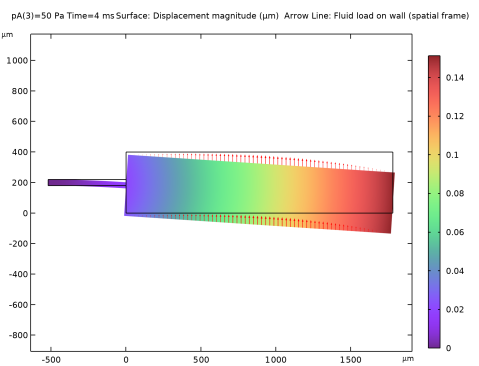
In the Fluid Pressure (tff2) toolbar, click  Plot.
Result Templates
1
In the Results toolbar, click  Result Templates to open the Result Templates window.
2
Go to the Result Templates window.
3
In the tree, select Study 1/Parametric Solutions 1 (4) (sol2) > Solid Mechanics 2 > Displacement (solid2).
4
Click the Add Result Template button in the window toolbar.
5
In the Results toolbar, click  Result Templates to close the Result Templates window.
Results
Displacement and Fluid Load (2D)
In the Settings window for 2D Plot Group, type Displacement and Fluid Load (2D) in the Label text field.
Arrow Line 1
1
Right-click Displacement and Fluid Load (2D) and choose Arrow Line.
2
In the Settings window for Arrow Line, locate the Expression section.
3
In the X-component text field, type tff2.fwallx.
4
In the Y-component text field, type tff2.fwally.
5
Click to expand the Inherit Style section. From the Plot list, choose Surface 1.
Deformation 1
1
Right-click Arrow Line 1 and choose Deformation.
2
In the Displacement and Fluid Load (2D) toolbar, click  Plot.
Displacement and Fluid Load (2D)
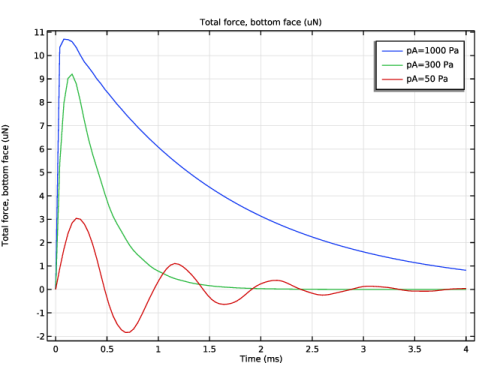
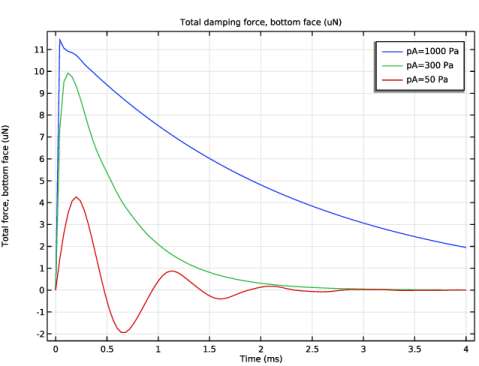
Next, plot the total force on the bottom face as a function of time for the three different values of the ambient pressure.
Total Force on Bottom Surface (3D)
1
In the Results toolbar, click  1D Plot Group.
2
In the Settings window for 1D Plot Group, type Total Force on Bottom Surface (3D) in the Label text field.
3
Locate the Data section. From the Dataset list, choose Study 1/Parametric Solutions 1 (3) (sol2).
4
Locate the Plot Settings section.
5
Select the x-axis label checkbox. In the associated text field, type Time (ms).
Global 1
1
Right-click Total Force on Bottom Surface (3D) and choose Global.
2
In the Settings window for Global, locate the y-Axis Data section.
3
4
Click to expand the Coloring and Style section. Click to expand the Legends section. Find the Include subsection. Clear the Description checkbox.
5
In the Total Force on Bottom Surface (3D) toolbar, click  Plot.
Total load on the bottom face versus time for different ambient pressure values.
NOTE: The above comment is a figure caption, show in italic.
Finally, plot the z displacement at the proof mass’s outer and lower end. Compare the resulting plot with that in Figure 4.
Vertical Displacement (3D)
1
In the Results toolbar, click  1D Plot Group.
2
In the Settings window for 1D Plot Group, type Vertical Displacement (3D) in the Label text field.
3
Locate the Data section. From the Dataset list, choose Study 1/Parametric Solutions 1 (3) (sol2).
4
Locate the Plot Settings section.
5
Select the x-axis label checkbox. In the associated text field, type Time (ms).
6
Select the y-axis label checkbox. In the associated text field, type Displacement, z-component (microns).
Point Graph 1
1
Right-click Vertical Displacement (3D) and choose Point Graph.
2
This is the proof mass’s bottom-right corner.
3
In the Settings window for Point Graph, click Replace Expression in the upper-right corner of the y-Axis Data section. From the menu, choose Component 1 (comp1) > Solid Mechanics > Displacement > Displacement field - m > w - Displacement field, Z-component.
4
Click to expand the Legends section. Find the Include subsection. Clear the Point checkbox.
5
Select the Show legends checkbox.
6
In the Vertical Displacement (3D) toolbar, click  Plot.
Displacement and Fluid Load (2D)
1
Click the  Zoom Extents button in the Graphics toolbar.
2
In the Model Builder window, under Results click Displacement and Fluid Load (2D).
Next, plot the total force on the bottom face as a function of time for the three different values of the ambient pressure.
Total Force on Bottom Surface (2D)
1
In the Results toolbar, click  1D Plot Group.
2
In the Settings window for 1D Plot Group, type Total Force on Bottom Surface (2D) in the Label text field.
3
Locate the Data section. From the Dataset list, choose Study 1/Parametric Solutions 1 (4) (sol2).
4
Locate the Plot Settings section.
5
Select the x-axis label checkbox. In the associated text field, type Time (ms).
6
Select the y-axis label checkbox. In the associated text field, type Total force, bottom face (uN).
Global 1
1
Right-click Total Force on Bottom Surface (2D) and choose Global.
2
In the Settings window for Global, locate the y-Axis Data section.
3
4
Locate the Legends section. Find the Include subsection. Clear the Description checkbox.
5
In the Total Force on Bottom Surface (2D) toolbar, click  Plot.
Finally, follow the steps below to plot the y displacement and the damping force at the proof mass tip versus time.
Vertical Displacement (2D)
1
In the Results toolbar, click  1D Plot Group.
2
In the Settings window for 1D Plot Group, type Vertical Displacement (2D) in the Label text field.
3
Locate the Data section. From the Dataset list, choose Study 1/Parametric Solutions 1 (4) (sol2).
4
Locate the Plot Settings section.
5
Select the x-axis label checkbox. In the associated text field, type Time (ms).
6
Select the y-axis label checkbox. In the associated text field, type Displacement, z-component (microns).
Point Graph 1
1
Right-click Vertical Displacement (2D) and choose Point Graph.
In the Selection list, click on Manual (the default option) to show the geometry in Select Points mode.
2
This is the proof mass’s outer bottom corner.
3
In the Settings window for Point Graph, click Replace Expression in the upper-right corner of the y-Axis Data section. From the menu, choose Component 2 (comp2) > Solid Mechanics 2 > Displacement > Displacement field - m > v2 - Displacement field, Y-component.
4
In the Vertical Displacement (2D) toolbar, click  Plot.
Vertical displacement of the proof mass tip versus time for different ambient pressure values.
5
Locate the Legends section. Find the Include subsection. Clear the Point checkbox.
6
Select the Show legends checkbox.