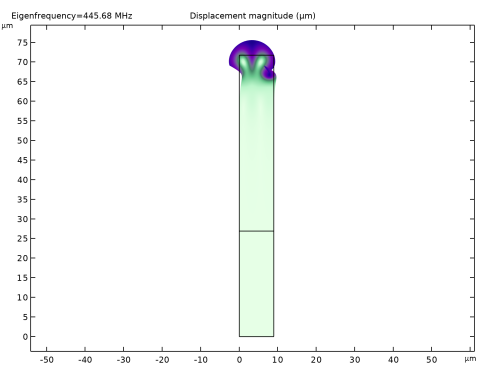
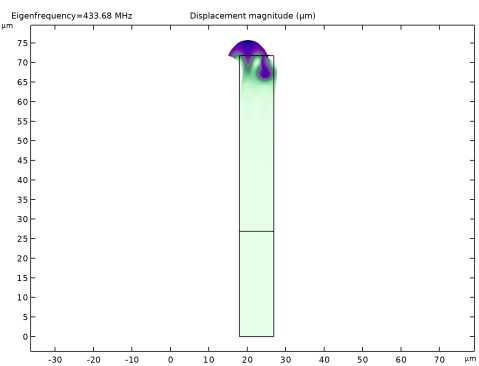
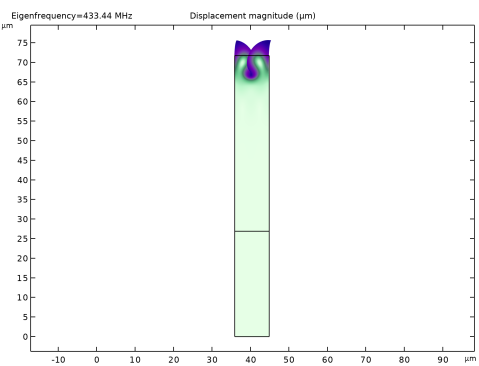
|
|
|
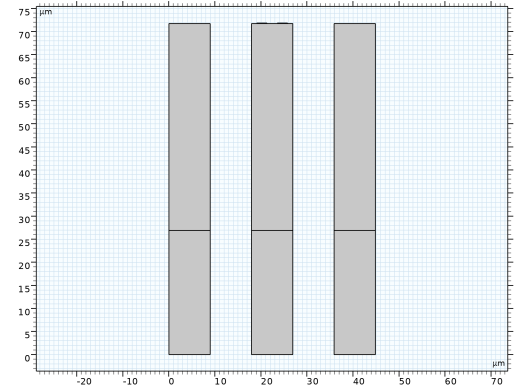





|
1
|
|
2
|
In the Select Physics tree, select AC/DC > Electromagnetics and Mechanics > Piezoelectricity > Piezoelectricity, Solid.
|
|
3
|
Click Add.
|
|
4
|
Click Add.
|
|
5
|
Click Add.
|
|
6
|
Click
 Study. Study. |
|
7
|
|
8
|
Click
 Done. Done. |
|
1
|
|
2
|
|
1
|
|
2
|
|
3
|
|
1
|
|
2
|
|
3
|
|
4
|
|
5
|
Click to expand the Layers section. In the table, enter the following settings:
|
|
6
|
Click
 Build Selected. Build Selected. |
|
1
|
|
2
|
Select the object r1 only.
|
|
3
|
|
4
|
|
5
|
Click
 Build Selected. Build Selected. |
|
1
|
|
2
|
|
3
|
|
4
|
|
5
|
|
6
|
|
7
|
Click
 Build Selected. Build Selected. |
|
1
|
|
2
|
Select the object r2 only.
|
|
3
|
|
4
|
|
5
|
|
6
|
|
7
|
Click
 Build Selected. Build Selected. |
|
1
|
|
2
|
|
3
|
Select the object r1 only.
|
|
4
|
|
5
|
|
6
|
|
1
|
|
2
|
|
1
|
|
2
|
|
1
|
|
2
|
|
1
|
|
2
|
|
3
|
|
1
|
|
2
|
|
3
|
|
1
|
|
2
|
|
3
|
|
1
|
|
2
|
|
3
|
|
4
|
|
1
|
|
2
|
|
3
|
|
1
|
|
2
|
|
3
|
|
1
|
|
2
|
|
3
|
|
1
|
|
2
|
|
3
|
|
1
|
|
2
|
|
3
|
|
4
|
|
1
|
|
2
|
|
3
|
|
1
|
|
2
|
Go to the Add Material window.
|
|
3
|
|
4
|
Click the Add to Component button in the window toolbar.
|
|
1
|
|
2
|
|
1
|
Go to the Add Material window.
|
|
2
|
|
3
|
Click the Add to Component button in the window toolbar.
|
|
4
|
|
1
|
|
2
|
|
1
|
|
2
|
|
3
|
|
4
|
|
1
|
|
2
|
|
3
|
|
1
|
|
2
|
|
3
|
|
4
|
Locate the 2D Approximation section. Select the Out-of-plane mode extension (time-harmonic) checkbox.
|
|
5
|
|
1
|
In the Model Builder window, under Component 1 (comp1) > Solid Mechanics (solid) click Piezoelectric Material 1.
|
|
2
|
|
3
|
|
1
|
|
2
|
|
3
|
|
1
|
|
2
|
|
3
|
|
1
|
|
2
|
|
3
|
|
4
|
|
1
|
|
2
|
|
3
|
|
1
|
|
2
|
|
3
|
|
1
|
|
2
|
|
3
|
Click
 Paste Selection. Paste Selection. |
|
4
|
|
5
|
Click OK.
|
|
6
|
|
7
|
|
1
|
|
2
|
|
3
|
Click
 Paste Selection. Paste Selection. |
|
4
|
|
5
|
Click OK.
|
|
1
|
|
2
|
|
3
|
|
4
|
Locate the 2D Approximation section. Select the Out-of-plane mode extension (time-harmonic) checkbox.
|
|
5
|
|
1
|
In the Model Builder window, under Component 1 (comp1) > Solid Mechanics 2 (solid2) click Piezoelectric Material 1.
|
|
2
|
|
3
|
|
4
|
Locate the Coordinate System Selection section. From the Coordinate system list, choose Rotated System 2 (sys2).
|
|
1
|
|
2
|
|
3
|
|
1
|
|
2
|
|
3
|
|
1
|
|
2
|
|
3
|
|
4
|
|
1
|
|
2
|
|
3
|
|
1
|
|
1
|
|
2
|
|
3
|
|
4
|
Locate the 2D Approximation section. Select the Out-of-plane mode extension (time-harmonic) checkbox.
|
|
5
|
|
1
|
In the Model Builder window, under Component 1 (comp1) > Solid Mechanics 3 (solid3) click Piezoelectric Material 1.
|
|
2
|
|
3
|
|
1
|
|
2
|
|
3
|
|
1
|
|
2
|
|
3
|
|
1
|
|
2
|
|
3
|
|
1
|
In the Model Builder window, under Component 1 (comp1) > Mesh Free, Ctrl-click to select Identical Mesh 1, Identical Mesh 2, Identical Mesh 3, Distribution 1, Free Triangular 1, and Mapped 1.
|
|
2
|
Right-click and choose Delete.
|
|
1
|
|
2
|
Click the Custom button.
|
|
3
|
Locate the Element Size Parameters section. In the Maximum element size text field, type lambdaD/20.
|
|
4
|
|
1
|
|
1
|
|
3
|
|
4
|
|
1
|
|
2
|
|
3
|
|
5
|
|
1
|
|
2
|
|
3
|
|
1
|
In the Model Builder window, under Component 1 (comp1) > Meshes > Mesh IDT, Ctrl-click to select Identical Mesh 1, Identical Mesh 2, Identical Mesh 3, Distribution 1, Free Triangular 1, and Mapped 1.
|
|
2
|
Right-click and choose Delete.
|
|
1
|
|
2
|
Click the Custom button.
|
|
3
|
Locate the Element Size Parameters section. In the Maximum element size text field, type lambdaD/20.
|
|
4
|
|
1
|
|
1
|
|
3
|
|
4
|
|
1
|
|
2
|
|
3
|
|
4
|
Click
 Paste Selection. Paste Selection. |
|
5
|
|
6
|
Click OK.
|
|
1
|
|
2
|
|
3
|
Click
 Paste Selection. Paste Selection. |
|
4
|
|
5
|
Click OK.
|
|
6
|
|
7
|
|
8
|
Click
 Build Selected. Build Selected. |
|
1
|
|
2
|
|
3
|
Click
 Paste Selection. Paste Selection. |
|
4
|
|
5
|
Click OK.
|
|
6
|
|
1
|
|
2
|
|
3
|
Click
 Paste Selection. Paste Selection. |
|
4
|
|
5
|
Click OK.
|
|
6
|
|
7
|
Click to select the
 Activate Selection toggle button. Activate Selection toggle button. |
|
8
|
Click
 Paste Selection. Paste Selection. |
|
9
|
|
10
|
Click OK.
|
|
11
|
|
1
|
|
2
|
|
3
|
|
4
|
Click
 Paste Selection. Paste Selection. |
|
5
|
|
6
|
Click OK.
|
|
1
|
|
2
|
|
3
|
Click
 Paste Selection. Paste Selection. |
|
4
|
|
5
|
Click OK.
|
|
6
|
|
7
|
|
1
|
|
2
|
|
3
|
Click
 Clear Selection. Clear Selection. |
|
1
|
|
2
|
|
3
|
Click
 Clear Selection. Clear Selection. |
|
1
|
|
2
|
|
3
|
Click
 Clear Selection. Clear Selection. |
|
5
|
|
1
|
|
2
|
|
1
|
|
2
|
|
3
|
|
4
|
|
5
|
|
6
|
Locate the Physics and Variables Selection section. In the Solve for column of the table, under Component 1 (comp1), clear the checkboxes for Electrostatics 2 (es2), Solid Mechanics 2 (solid2), Electrostatics 3 (es3), and Solid Mechanics 3 (solid3).
|
|
7
|
In the Solve for column of the table, under Component 1 (comp1) > Multiphysics, clear the checkboxes for Piezoelectricity 2 (pze2) and Piezoelectricity 3 (pze3).
|
|
1
|
|
2
|
In the Model Builder window, expand the Solution 1 (sol1) node, then click Compile Equations: Eigenfrequency.
|
|
3
|
|
4
|
|
5
|
|
6
|
|
7
|
Click OK.
|
|
8
|
|
1
|
|
1
|
Go to the Add Study window.
|
|
2
|
Find the Studies subsection. In the Select Study tree, select Preset Studies for Selected Multiphysics > Eigenfrequency.
|
|
3
|
Find the Physics interfaces in study subsection. In the table, clear the Solve checkboxes for Electrostatics (es), Solid Mechanics (solid), Electrostatics 3 (es3), and Solid Mechanics 3 (solid3).
|
|
4
|
Find the Multiphysics couplings in study subsection. In the table, clear the Solve checkboxes for Piezoelectricity 1 (pze1) and Piezoelectricity 3 (pze3).
|
|
5
|
Click the Add Study button in the window toolbar.
|
|
6
|
|
1
|
In the Model Builder window, expand the Mode Shape (solid) node, then click IDT > Step 1: Eigenfrequency.
|
|
2
|
|
3
|
|
4
|
|
5
|
|
6
|
Click to expand the Mesh Selection section. In the table, enter the following settings:
|
|
1
|
|
2
|
In the Model Builder window, expand the Solution 2 (sol2) node, then click Compile Equations: Eigenfrequency.
|
|
3
|
|
4
|
|
5
|
|
6
|
|
7
|
Click OK.
|
|
8
|
|
1
|
|
1
|
Go to the Add Study window.
|
|
2
|
Find the Studies subsection. In the Select Study tree, select Preset Studies for Selected Multiphysics > Eigenfrequency.
|
|
3
|
Find the Physics interfaces in study subsection. In the table, clear the Solve checkboxes for Electrostatics (es), Solid Mechanics (solid), Electrostatics 2 (es2), and Solid Mechanics 2 (solid2).
|
|
4
|
Find the Multiphysics couplings in study subsection. In the table, clear the Solve checkboxes for Piezoelectricity 1 (pze1) and Piezoelectricity 2 (pze2).
|
|
5
|
Click the Add Study button in the window toolbar.
|
|
6
|
|
1
|
In the Model Builder window, expand the Mode Shape (solid2) node, then click Grounded > Step 1: Eigenfrequency.
|
|
2
|
|
3
|
|
4
|
|
5
|
|
6
|
Locate the Mesh Selection section. In the table, enter the following settings:
|
|
1
|
|
2
|
In the Model Builder window, expand the Solution 3 (sol3) node, then click Compile Equations: Eigenfrequency.
|
|
3
|
|
4
|
|
5
|
|
6
|
|
7
|
Click OK.
|
|
8
|
|
1
|
|
2
|
|
3
|
In the Settings window for Evaluation Group, type Frequencies, Velocities, and Coefficients in the Label text field.
|
|
4
|
|
5
|
|
1
|
|
2
|
|
4
|
|
5
|
|
1
|
|
2
|
|
3
|
|
4
|
Locate the Expressions section. In the table, enter the following settings:
|
|
1
|
|
2
|
|
3
|
|
4
|
Locate the Expressions section. In the table, enter the following settings:
|
|
1
|
|
2
|
|
3
|
|
4
|
|
1
|
|
2
|
|
3
|
Click
 Clear Table. Clear Table. |
|
1
|
|
2
|