|
|
|
|
200 μm
|
170 μm
|
10 μm
|
146 μm
|
250 μm
|
|
|
2 μm
|
2 μm
|
2 μm
|
2 μm
|
120 μm
|
|
|
2.25 μm
|
2.25 μm
|
2.25 μm
|
2.25 μm
|
2.25 μm
|
|
|
T0
|
605oC
|
|
T1
|
25oC
|



 ,
,
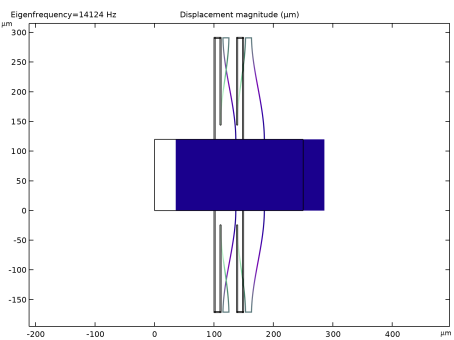
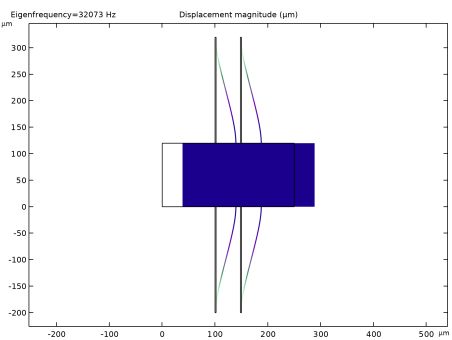
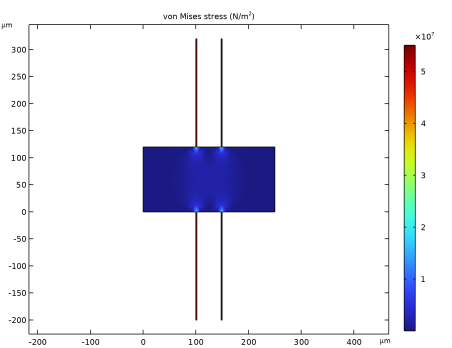
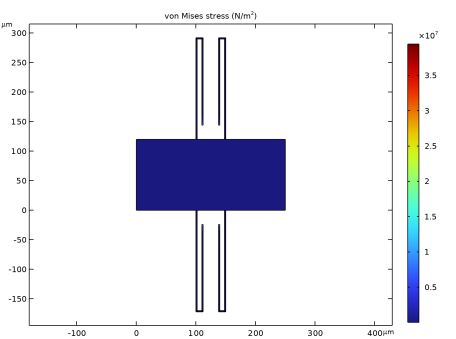
|
1
|
|
2
|
|
3
|
Click Add.
|
|
4
|
Click
 Study. Study. |
|
5
|
|
6
|
Click
 Done. Done. |
|
1
|
|
2
|
|
3
|
Click
 Load from File. Load from File. |
|
4
|
Browse to the model’s Application Libraries folder and double-click the file residual_stress_resonator_2d_parameters.txt.
|
|
1
|
|
2
|
Browse to the model’s Application Libraries folder and double-click the file residual_stress_resonator_2d_geom_sequence.mph.
|
|
3
|
|
4
|
|
1
|
|
2
|
|
3
|
From the list, choose Plane stress.
|
|
4
|
|
1
|
|
2
|
|
3
|
|
4
|
|
1
|
|
2
|
|
3
|
Find the Expression for remaining selection subsection. In the Volume reference temperature text field, type T1.
|
|
1
|
|
2
|
|
3
|
Click
 Paste Selection. Paste Selection. |
|
4
|
|
5
|
Click OK.
|
|
1
|
In the Model Builder window, under Component 1 (comp1) right-click Materials and choose Blank Material.
|
|
2
|
|
1
|
|
2
|
|
3
|
Click
 Paste Selection. Paste Selection. |
|
4
|
|
5
|
Click OK.
|
|
6
|
|
7
|
|
1
|
|
2
|
|
3
|
|
4
|
Click
 Build All. Build All. |
|
1
|
|
2
|
Browse to the model’s Application Libraries folder and double-click the file residual_stress_resonator_2d_geom_sequence.mph.
|
|
3
|
|
4
|
Click OK.
|
|
5
|
|
1
|
|
2
|
Go to the Add Physics window.
|
|
3
|
|
4
|
Click the Add to Component 2 button in the window toolbar.
|
|
5
|
|
1
|
|
2
|
From the list, choose Plane stress.
|
|
3
|
|
1
|
|
2
|
|
3
|
|
1
|
|
2
|
|
3
|
Click
 Paste Selection. Paste Selection. |
|
4
|
|
5
|
Click OK.
|
|
1
|
In the Model Builder window, under Component 2 (comp2) right-click Materials and choose Blank Material.
|
|
2
|
|
1
|
|
2
|
|
3
|
Click
 Paste Selection. Paste Selection. |
|
4
|
|
5
|
Click OK.
|
|
6
|
|
7
|
|
1
|
|
2
|
|
3
|
|
4
|
Click
 Build All. Build All. |
|
1
|
|
2
|
In the Rename Study dialog, type Study 1 - Straight Cantilever, No Stress in the New label text field.
|
|
3
|
Click OK.
|
|
1
|
In the Model Builder window, under Study 1 - Straight Cantilever, No Stress click Step 1: Eigenfrequency.
|
|
2
|
|
3
|
In the Solve for column of the table, under Component 2 (comp2), clear the checkbox for Solid Mechanics 2 (solid2).
|
|
1
|
|
2
|
Go to the Add Study window.
|
|
3
|
|
4
|
Click the Add Study button in the window toolbar.
|
|
5
|
|
1
|
|
2
|
In the Solve for column of the table, under Component 1 (comp1), clear the checkbox for Solid Mechanics (solid).
|
|
3
|
|
4
|
In the Settings window for Study, type Study 2 - Folded Cantilever, No Stress in the Label text field.
|
|
1
|
|
2
|
Go to the Add Study window.
|
|
3
|
Find the Studies subsection. In the Select Study tree, select Preset Studies for Selected Physics Interfaces > Eigenfrequency, Prestressed.
|
|
4
|
Click the Add Study button in the window toolbar.
|
|
5
|
|
1
|
|
2
|
In the Solve for column of the table, under Component 2 (comp2), clear the checkbox for Solid Mechanics 2 (solid2).
|
|
3
|
|
1
|
|
2
|
|
3
|
In the Solve for column of the table, under Component 2 (comp2), clear the checkbox for Solid Mechanics 2 (solid2).
|
|
4
|
|
5
|
In the Rename Study dialog, type Study 3 - Straight Cantilever, Residual Stress in the New label text field.
|
|
6
|
Click OK.
|
|
1
|
|
2
|
Go to the Add Study window.
|
|
3
|
Find the Studies subsection. In the Select Study tree, select Preset Studies for Selected Physics Interfaces > Eigenfrequency, Prestressed.
|
|
4
|
Click the Add Study button in the window toolbar.
|
|
5
|
|
1
|
|
2
|
In the Solve for column of the table, under Component 1 (comp1), clear the checkbox for Solid Mechanics (solid).
|
|
3
|
|
1
|
|
2
|
|
3
|
In the Solve for column of the table, under Component 1 (comp1), clear the checkbox for Solid Mechanics (solid).
|
|
4
|
|
5
|
In the Settings window for Study, type Study 4 - Folded Cantilever, Residual Stress in the Label text field.
|
|
1
|
In the Settings window for 2D Plot Group, type Straight Cantilever, No Stress in the Label text field.
|
|
2
|
|
1
|
In the Settings window for 2D Plot Group, type Folded Cantilever, No Stress in the Label text field.
|
|
2
|
|
1
|
In the Settings window for 2D Plot Group, type Straight Cantilever, Residual Stress in the Label text field.
|
|
2
|
|
1
|
In the Settings window for 2D Plot Group, type Folded Cantilever, Residual Stress in the Label text field.
|
|
2
|
|
1
|
|
2
|
In the Settings window for 2D Plot Group, type Residual Stress in Straight Cantilever in the Label text field.
|
|
3
|
Locate the Data section. From the Dataset list, choose Study 3 - Straight Cantilever, Residual Stress/Solution Store 1 (7) (sol4).
|
|
1
|
|
2
|
|
3
|
|
4
|
|
1
|
|
2
|
In the Settings window for 2D Plot Group, type Residual Stress in Folded Cantilever in the Label text field.
|
|
3
|
Locate the Data section. From the Dataset list, choose Study 4 - Folded Cantilever, Residual Stress/Solution Store 2 (12) (sol6).
|
|
1
|
|
2
|
|
3
|
|
4
|
|
1
|
|
2
|
|
3
|
Click Add.
|
|
4
|
Click
 Done. Done. |
|
1
|
|
2
|
|
3
|
|
1
|
|
2
|
|
3
|
|
4
|
|
1
|
|
2
|
|
3
|
|
4
|
|
5
|
|
6
|
|
1
|
|
2
|
Select the object r2 only.
|
|
3
|
|
4
|
|
5
|
|
6
|
|
7
|
|
8
|
Click
 Build All Objects. Build All Objects. |
|
1
|
|
2
|
|
1
|
|
2
|
|
3
|
|
4
|
|
1
|
|
2
|
|
3
|
|
4
|
|
5
|
|
6
|
|
1
|
|
2
|
|
3
|
|
4
|
|
5
|
|
6
|
|
1
|
|
2
|
|
3
|
|
4
|
|
5
|
|
6
|
|
1
|
|
2
|
|
3
|
|
4
|
|
5
|
|
6
|
Select the Keep input objects checkbox.
|
|
7
|
|
1
|
|
2
|
|
3
|
|
4
|
Select the Keep input objects checkbox.
|
|
5
|
|
6
|
|
7
|
|
8
|
Click
 Build All Objects. Build All Objects. |