

PDF

Piezoelectricity in a Layered Shell
Introduction
This tutorial is intended as a simple example showing how to model piezoelectric devices using the Layered Shell functionality.Two cases of material orientation are investigated. In the first case, the pole axis is normal to the shell surface, which results in a change in thickness of the deformed shell. In the second case, the pole axis is tangential to the shell, which leads to the shell bending.
Note: This model requires Composite Material Module.
Model Definition
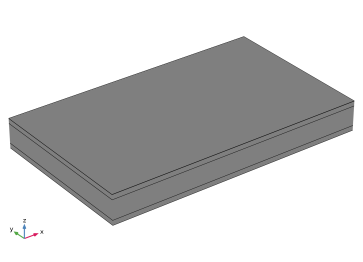
In this tutorial, you model a thin structure with three layers. The top and bottom layers are electric conductors, and the middle one is a piezoelectric material. The geometry of the structure is shown in Figure 1.
Figure 1: Layered shell geometry representation in 3D.
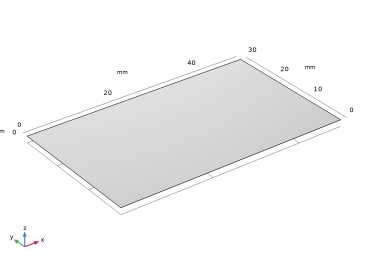
The modeling approach in this tutorial is based on the layered shell technology available in COMSOL Multiphysics. Thus, you represent the geometry by a surface in 3D space, which gives the base of the layered structure; see Figure 2.
Figure 2: Model geometry representation as a surface.
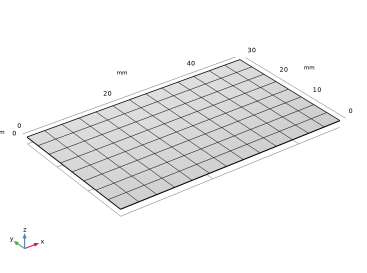
You also use the surface for meshing, which gives the in-plane part of the discretized representation of the model; see Figure 3.
Figure 3: Meshed base selection.
The out-of-plane structure of the shell is modeled using an extra dimension attached to the base selection. The extra dimension together with the base selection span a local 3-dimensional space in which the equations are solved.
The extra dimension is set up using a special Layered Material node, which allows you to change the number of layers as well as their thickness and in-plane rotation, and to change the number of mesh elements used in each layer in the extra dimension. You can also select the materials to be used in each layer.
Materials
The structure in this tutorial has three layers. The top and bottom ones represent 1 mm thick conductors made of aluminum. The layer in the middle has a thickness of 4 mm and is composed of a piezoelectric material called Lead Zirconate Titanate (PZT-5H).
For a piezoelectric material, the inelastic contributions to strain due to applied electric field E can be written in the strain-charge form as
For materials with tetragonal symmetry (class 4mm) such as PZT-5H, the coupling matrix has the following structure (Ref. 1):
(1)
Here, the pole direction is along the third coordinate axis (the z-axis). Such orientation is assumed for all the piezoelectric material data available in COMSOL Material Library. For PZT-5H, the following values are used: d31 = −2.74·1010 C/N, d33 = 5.93·1010 C/N, and d15 = 7.41·1010 C/N.
When the electric field has only one component, Ez, the only nonzero contributions to the strain are: εxx = εyy = d31Ez and εzz = d33Ez.
In this example, the electric field component Ez is positive. Hence, the piezoelectric layer will tend to stretch in the z direction and shrink in the other two directions.
When the pole direction is changed to the x-axis, the first and last lines in the coupling matrix will be swapped. As a result, the only nonzero contribution to the strain will be εxz = 0.5d15Ez so that the piezo layer will be sheared in the xz-plane.
Boundary Conditions
At x = 0, the whole cross section of the layered shell (the yz-plane) is mechanically fixed; see Figure 1. The ground condition is applied to the top conducting interface, and a fixed electric potential of 20 V is applied to the bottom interface. All other boundaries are free.
Results and Discussion
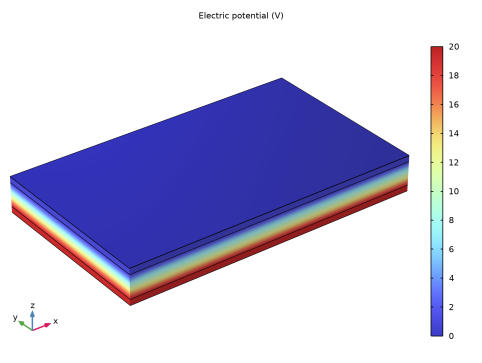
Two different cases of poling directions of piezoelectric materials are considered: the pole axis in the z direction and the pole axis in the x direction. In both cases, the electric potential distribution is similar; see Figure 4.
Figure 4: Electric potential distribution.
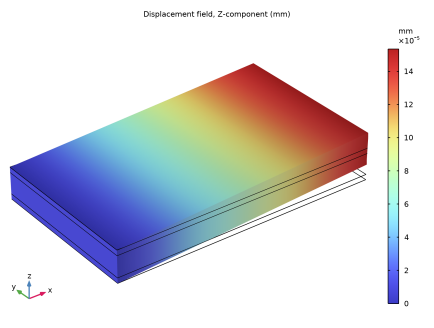
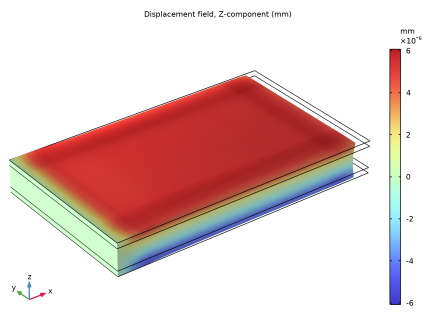
In the first case, the material has a default orientation with the z-axis as the pole direction, which is normal to the shell. The structure deformation is shown in Figure 5.
In the second study, the material orientation is changed so that the pole direction is in-plane along the x-axis. The nature of resulting structural deformation is significantly different; see Figure 6.
The results show that using a correct choice of the material orientation is essential when modeling piezoelectric applications.
Figure 5: Vertical displacement for the case where the z-axis is the pole direction in the piezoelectric layer.
Figure 6: Vertical displacement for the case where the x-axis is the pole direction in the piezoelectric layer.
Notes About the COMSOL Implementation
Modeling a composite laminate as a layered shell requires a surface geometry, in general referred to as a base surface, and a Layered Material node which adds an extra dimension (1D) to the base surface geometry in the surface normal direction. You can use the Layered Material functionality to model several layers stacked on top of each other having different thicknesses, material properties, and fiber orientations. You can optionally specify the interface materials between the layers, and control the number of through-thickness mesh elements for each layer.
The third direction for the selected coordinate system in the Single Layer Material, Layered Material Link, or Layered Material Stack represents the normal direction in the Layered Shell and Shell interfaces. This is also the direction in which the layer stacking is interpreted from bottom to top, and therefore, it is crucial to know it during modeling. There are two ways to achieve this:
-
Using physics symbols: Go to the physics settings, find the Physics Symbols section, and select the Enable physics symbols checkbox. Then go to the material feature, for instance, Linear Elastic Material, to see the normal direction represented by green arrows in the geometry.
-
The device is modeled in 3D using the predefined multiphysics interface Piezoelectricity, Layered Shell. Two physics interfaces, structural Layered Shell and Electric Currents in Layered Shells, will automatically be added to the model together with a multiphysics coupling feature called Piezoelectric Effect, Layered.
The Layered Shell interface will contain a Piezoelectric Material node, where you can select geometry boundary for the base surface, and also select certain layers within the layered material. The Electric Currents in Layered Shells interface will contain a node Piezoelectric Layer, where a similar selection should be made. It is important to have the same selections under both interfaces. All settings for the material properties and orientation can be found under the Piezoelectric Material node within the Layered Shell interface. This includes the structural, dielectric, and coupling properties.
References
1. A.L. Kholkin, N.A. Pertsev, and A.V. Goltsev, “Piezoelectricity and Crystal Symmetry,” Piezoelectric and Acoustic Materials for Transducer Applications, A. Safari and E.K. Akdogan, eds., Springer, Boston, MA, 2008.
Application Library path: MEMS_Module/Piezoelectric_Devices/piezoelectric_layered
Modeling Instructions
From the File menu, choose New.
New
In the New window, click  Model Wizard.
Model Wizard
1
In the Model Wizard window, click  3D.
2
In the Select Physics tree, select Structural Mechanics > Electromagnetics–Structure Interaction > Piezoelectricity > Piezoelectricity, Layered Shell.
3
Click Add.
4
Click  Study.
5
In the Select Study tree, select General Studies > Stationary.
6
Geometry 1
1
In the Model Builder window, under Component 1 (comp1) click Geometry 1.
2
In the Settings window for Geometry, locate the Units section.
3
From the Length unit list, choose mm.
Work Plane 1 (wp1)
1
In the Geometry toolbar, click  Work Plane.
2
In the Settings window for Work Plane, click  Go to Plane Geometry.
Work Plane 1 (wp1) > Plane Geometry
In the Model Builder window, click Plane Geometry.
Work Plane 1 (wp1) > Rectangle 1 (r1)
1
In the Work Plane toolbar, click  Rectangle.
2
In the Settings window for Rectangle, locate the Size and Shape section.
3
In the Width text field, type 50.
4
In the Height text field, type 30.
Array 1 (arr1)
1
In the Geometry toolbar, click  Transforms and choose Array.
2
3
In the Settings window for Array, locate the Size section.
4
In the y size text field, type 2.
5
Locate the Displacement section. In the y text field, type 50.
6
Click  Build Selected.
7
Click the  Zoom Extents button in the Graphics toolbar.
Next, add the materials, aluminum and PZT-5H from the Material Library.
Add Material
1
In the Materials toolbar, click  Add Material to open the Add Material window.
2
Go to the Add Material window.
3
In the tree, select Built-in > Aluminum.
4
Right-click and choose Add to Global Materials.
5
In the tree, select Built-in > Lead Zirconate Titanate (PZT-5H).
6
Right-click and choose Add to Global Materials.
7
In the Materials toolbar, click  Add Material to close the Add Material window.
Add a layered material node and defined a stacking sequence. Here you can also change the number of mesh elements used in the thickness direction.
Global Definitions
Layered Material 1 (lmat1)
1
In the Model Builder window, under Global Definitions right-click Materials and choose Layered Material.
2
In the Settings window for Layered Material, locate the Layer Definition section.
3
Click  Add twice.
4
You can preview the laminate cross section.
5
Click to expand the Preview Plot Settings section. In the Thickness-to-width ratio text field, type 8/30.
6
Locate the Layer Definition section. Click Layer Cross-Section Preview in the upper-right corner of the section.
Add a layered material link node to make the layered material available in Component 1. Using this node, you can also select a coordinate system defining the orientation. Note that only boundary coordinate systems can be selected.
Materials
Layered Material Link 1 (llmat1)
In the Model Builder window, under Component 1 (comp1) right-click Materials and choose Layers > Layered Material Link.
Next, select only the middle layer of the laminate to use the piezoelectric material.
Electric Currents in Layered Shells (ecis)
Piezoelectric Layer 1
1
In the Model Builder window, under Component 1 (comp1) > Electric Currents in Layered Shells (ecis) click Piezoelectric Layer 1.
2
In the Settings window for Piezoelectric Layer, locate the Shell Properties section.
3
Clear the Use all layers checkbox.
4
In the Selection table, clear the checkboxes for Layer 1 and Layer 3.
Layered Shell (lshell)
Piezoelectric Material (Z Pole Axis)
1
In the Model Builder window, under Component 1 (comp1) > Layered Shell (lshell) click Piezoelectric Material 1.
2
In the Settings window for Piezoelectric Material, type Piezoelectric Material (Z Pole Axis) in the Label text field.
3
Locate the Boundary Selection section. Click  Clear Selection.
4
5
Locate the Shell Properties section. Clear the Use all layers checkbox.
6
In the Selection table, clear the checkboxes for Layer 1 and Layer 3.
7
Locate the Piezoelectric Material Properties section. From the Constitutive relation list, choose Strain–charge form.
Add a new Piezoelectric Material feature and change the orientation of the piezoelectric layer.
Piezoelectric Material (X Pole Axis)
1
Right-click Piezoelectric Material (Z Pole Axis) and choose Duplicate.
2
In the Settings window for Piezoelectric Material, type Piezoelectric Material (X Pole Axis) in the Label text field.
3
Locate the Boundary Selection section. Click  Clear Selection.
4
5
Click to expand the Out-of-Plane Material Orientation section. The layered material always operates with a boundary coordinate system on the base surface (laminate system). For such systems, the third base vector direction is always normal to the surface.
Use a special control if you need to change the out-of-plane orientation of the material.
6
From the Use laminate coordinate system with list, choose Swapped normal and 1st tangential directions.
Next, set up the boundary conditions for the structure and the charge balance. Note that you need to operate with edges of the base surface.
Fixed Constraint 1
1
In the Physics toolbar, click  Edges and choose Fixed Constraint.
2
Electric Currents in Layered Shells (ecis)
Conductive Shell 1
In the Model Builder window, under Component 1 (comp1) > Electric Currents in Layered Shells (ecis) click Conductive Shell 1.
Ground 1
In the Physics toolbar, click  Attributes and choose Ground.
Conductive Shell 1
In the Model Builder window, click Conductive Shell 1.
Electric Potential 1
1
In the Physics toolbar, click  Attributes and choose Electric Potential.
2
In the Settings window for Electric Potential, locate the Interface Selection section.
3
From the Apply to list, choose Bottom interface.
4
Locate the Electric Potential section. In the V0 text field, type 20.
Mesh 1
Mapped 1
1
In the Mesh toolbar, click  More Generators and choose Mapped.
2
In the Settings window for Mapped, locate the Boundary Selection section.
3
From the Selection list, choose All boundaries.
Size
1
In the Model Builder window, click Size.
2
In the Settings window for Size, locate the Element Size section.
3
From the Predefined list, choose Fine.
4
Click  Build All.
Study 1
1
In the Model Builder window, click Study 1.
2
In the Settings window for Study, locate the Study Settings section.
3
Clear the Generate default plots checkbox.
4
In the Study toolbar, click  Compute.
Results
Add a Layered Material dataset that will allow a 3D representation of the laminate.
Layered Material 1
1
In the Model Builder window, expand the Results node.
2
Right-click Results > Datasets and choose More Datasets > Layered Material.
Selection
1
In the Results toolbar, click  Attributes and choose Selection.
2
In the Settings window for Selection, locate the Geometric Entity Selection section.
3
From the Geometric entity level list, choose Boundary.
4
Electric Potential
1
In the Results toolbar, click  3D Plot Group.
2
In the Settings window for 3D Plot Group, type Electric Potential in the Label text field.
3
Locate the Data section. From the Dataset list, choose Layered Material 1.
Surface 1
1
Right-click Electric Potential and choose Surface.
2
In the Settings window for Surface, locate the Expression section.
3
In the Expression text field, type V.
4
Locate the Coloring and Style section. From the Color table list, choose RainbowLight.
5
In the Electric Potential toolbar, click  Plot.
6
Click the  Show Grid button in the Graphics toolbar.
Vertical Displacement (Z Pole Axis)
1
In the Results toolbar, click  3D Plot Group.
2
In the Settings window for 3D Plot Group, type Vertical Displacement (Z Pole Axis) in the Label text field.
3
Locate the Data section. From the Dataset list, choose Layered Material 1.
4
Locate the Color Legend section. Select the Show units checkbox.
Surface 1
1
Right-click Vertical Displacement (Z Pole Axis) and choose Surface.
2
In the Settings window for Surface, locate the Expression section.
3
In the Expression text field, type w.
4
Locate the Coloring and Style section. From the Color table list, choose RainbowLight.
Deformation 1
1
Right-click Surface 1 and choose Deformation.
2
In the Vertical Displacement (Z Pole Axis) toolbar, click  Plot.
3
Click the  Go to Default View button in the Graphics toolbar.
Layered Material 2
In the Model Builder window, under Results > Datasets right-click Layered Material 1 and choose Duplicate.
Selection
1
In the Model Builder window, expand the Layered Material 2 node, then click Selection.
2
In the Settings window for Selection, locate the Geometric Entity Selection section.
3
Click  Clear Selection.
4
Vertical Displacement (X Pole Axis)
1
In the Model Builder window, right-click Vertical Displacement (Z Pole Axis) and choose Duplicate.
2
In the Settings window for 3D Plot Group, type Vertical Displacement (X Pole Axis) in the Label text field.
3
Locate the Data section. From the Dataset list, choose Layered Material 2.
4
Locate the Plot Settings section. From the View list, choose New view.
5
In the Vertical Displacement (X Pole Axis) toolbar, click  Plot.
6
Click the  Show Grid button in the Graphics toolbar.