PDF

Piezoelectric Energy Harvester with Uncertainty Quantification
Introduction
This tutorial demonstrates how to use the Uncertainty Quantification Module to analyze the performance variation of a piezoelectric energy harvester. The piezoelectric energy harvester is a “seismic” energy harvester designed to convert vibrational energy to electric energy when mounted to a vibrating piece of machinery. This tutorial studies how variations in manufacturing processes translate to variation in the device’s output power as the quantity of interest (QoI). Different Uncertainty Quantification (UQ) studies are deployed to provide design-of-experiment data from FEM simulations and to generate a surrogate model for evaluating the QoI. The design objective is the output power should not fall below 1 mW in its normal operating range.
Model Definition
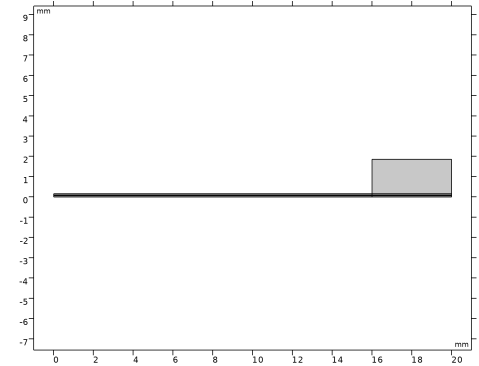
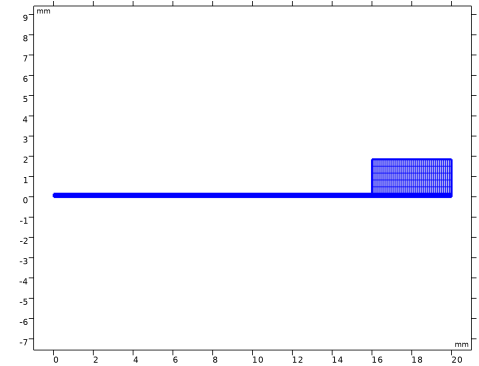
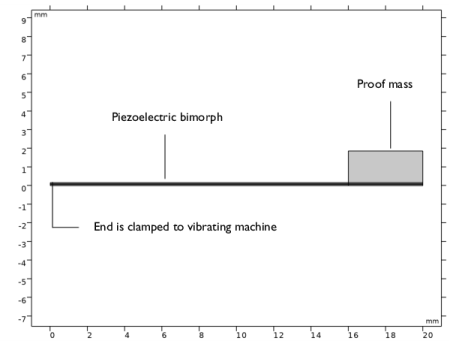
The energy harvester analyzed in this model consists of a mass suspended by a piezoelectric bimorph with one end clamped to a vibrating machinery as shown in Figure 1. The geometry is a simplified version of the device featured in the model Piezoelectric Energy Harvester and has been parameterized for the uncertainty quantification studies. The bimorph has two output electrodes embedded within it and two ground electrodes on the exterior surfaces of the cantilever beam. This configuration ensures that same voltage is induced on the output electrodes, even though the stress above and below the neutral layer is of opposite sign. Electric power is generated when the harvester is subjected to vibrations that cause the proof mass to swing and the piezoelectric layers comprising the beam to bend. The device is analyzed in a vibrating reference frame by the application of a sinusoidal body load. This tutorial begins with the setup of the reference Frequency Domain study assuming the vibrating machinery has a frequency range of 74-82 Hz.
Manufacturing variations produce device-to-device performance variation. For example, variations in thickness of the piezoelectric layers, or t_piezo, results in variation in device output power. In this context, t_piezo is an input parameter and output power is the quantity of interest (QoI). Other input parameters are t_mass and R_load. Here, we consider the case where the input parameters are uncorrelated. The Modeling Instructions show how to specify the distribution function associated with each input parameter. The subsequent Uncertainty Quantification (UQ) studies lead to the probability distributions for the output power. UQ studies are added in sequence, starting with Screening, MOAT and ending with a Reliability Analysis with a reliability criteria involving output power. We also assume the energy harvester is intended to be connected to a band-pass filter with frequency range of 77.5-78.5 Hz (not included in the model) so the Reliability Analysis will apply the criteria to this narrower frequency range.
Figure 1: 2D model geometry, showing the major components of the energy harvester, including the piezoelectric bimorph and proof mass.
The Uncertainty Quantification Studies
The Uncertainty Quantification Module provides five different study types:
Screening, MOAT
-
-
-
Sensitivity Analysis
-
-
-
-
-
-
-
-
This example illustrates the first four of these study types. For more information, see the Uncertainty Quantification Module User’s Guide.
Surrogate Models
To get statistical data based on a physics model you need to run a lot of simulations, varying the parameters of the inputs according to their probability distributions. For a 3D model, this might be computationally unfeasible. To get around this problem, the Uncertainty Quantification Module first builds up a so-called surrogate model that is used for sensitivity analysis, uncertainty propagation, and reliability analysis (but not for screening).
This process is typically adaptive and the surrogate model can approximate the original model to a high degree of accuracy (which can be modified by the user). The Uncertainty Quantification Module uses two different types of surrogate models:
-
-
In this tutorial, a set of UQ studies are done with the assumption that the input parameters are not correlated.
Results and Discussion
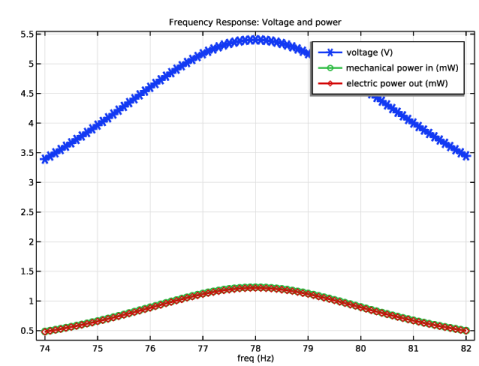
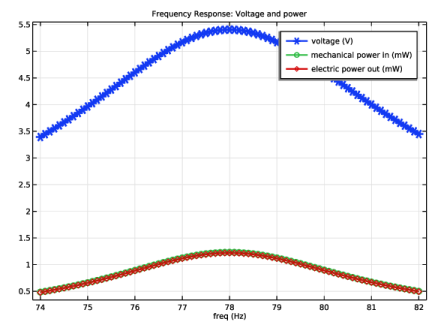
Figure 2 shows the input mechanical power and the power harvested (in mW) as well as the peak voltage induced across the piezoelectric bimorph (in V) as a function of frequency when the energy harvester is excited by a sinusoidal acceleration. The electrical load is 12 kΩ. The response of the system shows a peak at 78 Hz.
Figure 2: Energy harvester input mechanical power and the power harvested (in mW) as well as the peak voltage induced across the piezoelectric bimorph (in V) versus excitation frequency. The load impedance is 12 kΩ.
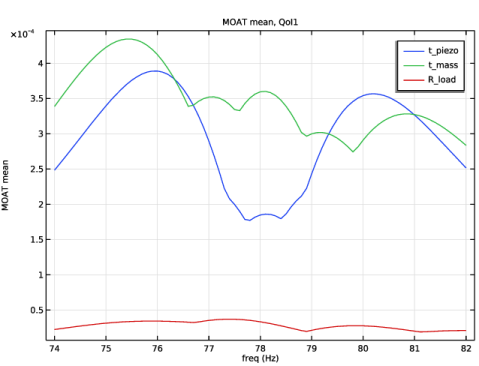
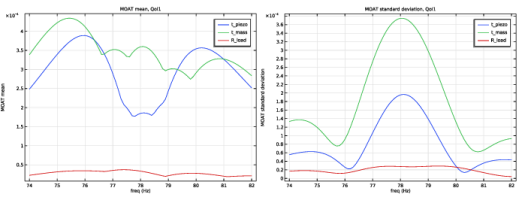
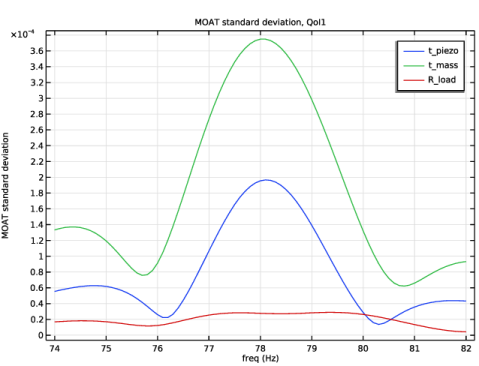
Results from the screening study are shown in Figure 3. They indicate that the piezoelectric layer thickness t_piezo and mass thickness t_mass parameters are the most influential on the quantity of interest. On the other hand, the load resistance R_load is not influential so this parameter is excluded from subsequent analyses.
.
Figure 3: MOAT mean (left) and standard deviation (right) obtained from the Screening study.
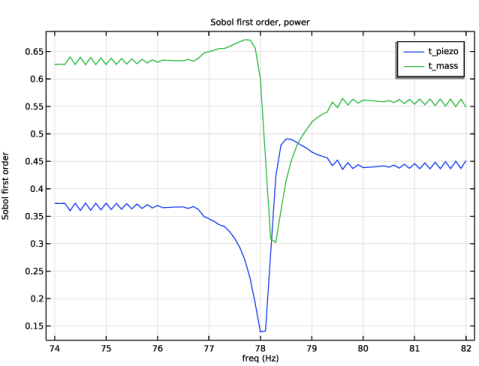
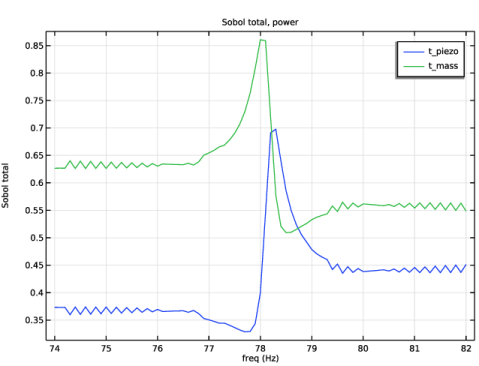
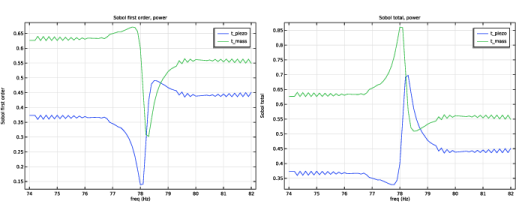
Figure 4 shows the results of the sensitivity analysis: the first-order and the total Sobol indices, or the sensitivity of the quantity of interest to the input parameters. Outside of the region between 77 and 79 Hz, the values oscillate because a tolerance value of 0.01 was chosen to save time. Using the default tolerance value of 0.001 will result in smoother plots.
Figure 4: The first order (left) and the total (right) Sobol indices, or the sensitivity of the quantity of interest to the input parameters, from the Sensitivity Analysis study.
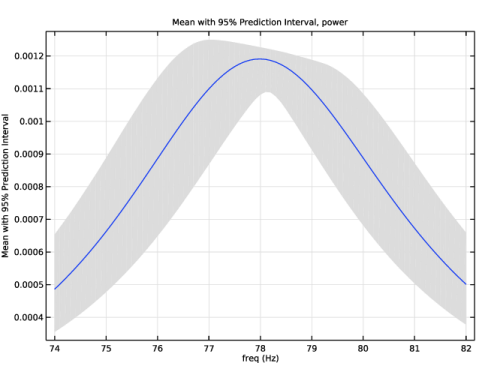
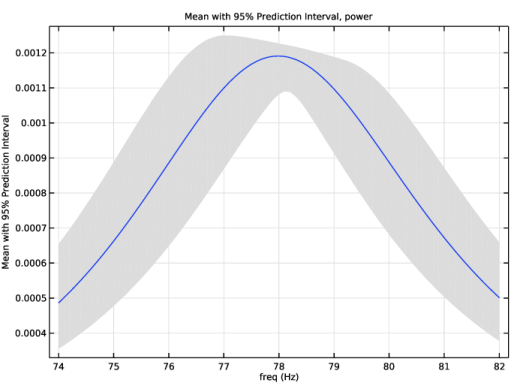
Figure 5 shows the mean of the quantity of interest (QoI) due to the variations in the input parameters with 95% prediction interval resulting from Uncertainty Propagation study.
Figure 5: The mean of the quantity of interest due to the variations in the input parameters with 95% prediction interval from the Uncertainty Propagation study.
Reference
1. E. Lefeuvre, D. Audiger, C. Richard, and D. Guyomar, “Buck-Boost Converter for Sensorless Power Optimization of Piezoelectric Energy Harvester,” IEEE Transactions on Power Electronics, vol. 22, no. 5, pp. 2018–2025, 2007.
Application Library path: MEMS_Module/Piezoelectric_Devices/piezoelectric_energy_harvester_uncertainty_quantification
Modeling Instructions
Start by creating a new 2D model with a Piezoelectricity multiphysics interface and then add a Frequency Domain study.
From the File menu, choose New.
New
In the New window, click  Model Wizard.
Model Wizard
1
In the Model Wizard window, click  2D.
2
In the Select Physics tree, select AC/DC > Electromagnetics and Mechanics > Piezoelectricity > Piezoelectricity, Solid.
3
Click Add.
4
Click  Study.
5
In the Select Study tree, select General Studies > Frequency Domain.
6
Geometry 1
Use millimeters as the geometry unit.
1
In the Model Builder window, under Component 1 (comp1) click Geometry 1.
2
In the Settings window for Geometry, locate the Units section.
3
From the Length unit list, choose mm.
Define and enter the values for the following parameters.
Global Definitions
Parameters 1
1
In the Model Builder window, under Global Definitions click Parameters 1.
2
In the Settings window for Parameters, locate the Parameters section.
3
Create the geometry for the energy harvester using some of the parameters defined previously.
Geometry 1
Rectangle 1 (r1)
1
In the Geometry toolbar, click  Rectangle.
2
In the Settings window for Rectangle, locate the Size and Shape section.
3
In the Width text field, type 20.
4
In the Height text field, type 0.12+t_piezo.
5
Click to expand the Layers section. In the table, enter the following settings:
Rectangle 2 (r2)
1
In the Geometry toolbar, click  Rectangle.
2
In the Settings window for Rectangle, locate the Size and Shape section.
3
In the Width text field, type w_mass.
4
In the Height text field, type t_mass.
5
Locate the Position section. In the x text field, type 20-w_mass.
6
In the y text field, type 0.12+t_piezo.
Partition Domains 1 (pard1)
1
In the Geometry toolbar, click  Booleans and Partitions and choose Partition Domains.
2
On the object r1, select Domains 1–3 only.
3
In the Settings window for Partition Domains, locate the Partition Domains section.
4
Click to select the  Activate Selection toggle button for Vertices defining line segments.
5
From the Partition with list, choose Extended edges.
6
On the object r2, select Boundary 4 only.
7
In the Geometry toolbar, click  Build All.
8
In the Model Builder window, click Geometry 1.
Add materials and assign the domains they belong to.
Add Material
1
In the Materials toolbar, click  Add Material to open the Add Material window.
2
Go to the Add Material window.
3
In the tree, select Piezoelectric > Lead Zirconate Titanate (PZT-5A).
4
Click the Add to Component button in the window toolbar.
5
In the tree, select Built-in > Structural steel.
6
Click the Add to Component button in the window toolbar.
7
In the Materials toolbar, click  Add Material to close the Add Material window.
Materials
Structural steel (mat2)
Select Domains 2, 5, and 7 only.
Specify the settings for the Electrostatics interface.
Electrostatics (es)
1
In the Model Builder window, under Component 1 (comp1) click Electrostatics (es).
2
In the Settings window for Electrostatics, locate the Thickness section.
3
In the d text field, type w_plate.
Charge Conservation, Piezoelectric 1
1
In the Model Builder window, under Component 1 (comp1) > Electrostatics (es) click Charge Conservation, Piezoelectric 1.
2
In the Settings window for Charge Conservation, Piezoelectric, locate the Domain Selection section.
3
Click  Clear Selection.
4
Click  Paste Selection.
5
In the Paste Selection dialog, type 1 3 4 6 in the Selection text field.
6
Ground 1
1
In the Physics toolbar, click  Boundaries and choose Ground.
2
In the Settings window for Ground, locate the Boundary Selection section.
3
Click  Paste Selection.
4
In the Paste Selection dialog, type 2 7 9 15 in the Selection text field.
5
Boundary Terminal 1
1
In the Physics toolbar, click  Boundaries and choose Boundary Terminal.
2
In the Settings window for Boundary Terminal, locate the Boundary Selection section.
3
Click  Paste Selection.
4
In the Paste Selection dialog, type 4 6 11 13 in the Selection text field.
5
6
In the Settings window for Boundary Terminal, locate the Terminal section.
7
From the Terminal type list, choose Circuit.
Specify the settings for the Solid Mechanics interface.
Solid Mechanics (solid)
Linear Elastic Material 1
In the Model Builder window, under Component 1 (comp1) > Solid Mechanics (solid) click Linear Elastic Material 1.
Damping 1
1
In the Physics toolbar, click  Attributes and choose Damping.
2
In the Settings window for Damping, locate the Damping Settings section.
3
From the Damping type list, choose Isotropic loss factor.
4
From the ηs list, choose User defined. In the associated text field, type 0.001.
Piezoelectric Material 1
1
In the Model Builder window, under Component 1 (comp1) > Solid Mechanics (solid) click Piezoelectric Material 1.
2
In the Settings window for Piezoelectric Material, locate the Domain Selection section.
3
Click  Clear Selection.
4
Click  Paste Selection.
5
In the Paste Selection dialog, type 1 3 4 6 in the Selection text field.
6
Mechanical Damping 1
1
In the Physics toolbar, click  Attributes and choose Mechanical Damping.
2
In the Settings window for Mechanical Damping, locate the Damping Settings section.
3
From the Damping type list, choose Isotropic loss factor.
4
From the ηs list, choose User defined. In the associated text field, type 0.001.
Body Load 1
1
In the Physics toolbar, click  Domains and choose Body Load.
2
In the Settings window for Body Load, locate the Domain Selection section.
3
From the Selection list, choose All domains.
4
Locate the Force section. Specify the fV vector as
Fixed Constraint 1
1
In the Physics toolbar, click  Boundaries and choose Fixed Constraint.
2
In the Settings window for Fixed Constraint, locate the Boundary Selection section.
3
Click  Paste Selection.
4
In the Paste Selection dialog, type 1 3 5 in the Selection text field.
5
Add and specify the settings for the Electrical Circuit interface.
Add Physics
1
In the Physics toolbar, click  Add Physics to open the Add Physics window.
2
Go to the Add Physics window.
3
In the tree, select AC/DC > Electrical Circuit (cir).
4
Click the Add to Component 1 button in the window toolbar.
5
In the Home toolbar, click  Add Physics to close the Add Physics window.
Electrical Circuit (cir)
Resistor 1 (R1)
1
In the Electrical Circuit toolbar, click  Resistor.
2
In the Settings window for Resistor, locate the Node Connections section.
3
4
Locate the Device Parameters section. In the R text field, type R_load.
External I-Terminal 1 (termI1)
1
In the Electrical Circuit toolbar, click  External I-Terminal.
2
In the Settings window for External I-Terminal, locate the Node Connections section.
3
In the Node name text field, type 1.
4
Locate the External Terminal section. From the V list, choose Terminal voltage (es/term1).
Create a structured mesh.
Mesh 1
Edge 1
1
In the Mesh toolbar, click  More Generators and choose Edge.
2
In the Settings window for Edge, locate the Boundary Selection section.
3
Click  Paste Selection.
4
In the Paste Selection dialog, type 1 3 5 in the Selection text field.
5
Distribution 1
1
Right-click Edge 1 and choose Distribution.
2
In the Settings window for Distribution, locate the Distribution section.
3
In the Number of elements text field, type 3.
Edge 2
1
In the Mesh toolbar, click  More Generators and choose Edge.
2
In the Settings window for Edge, locate the Boundary Selection section.
3
Click  Paste Selection.
4
In the Paste Selection dialog, type 7 15 in the Selection text field.
5
Distribution 1
1
Right-click Edge 2 and choose Distribution.
2
In the Settings window for Distribution, locate the Boundary Selection section.
3
4
Click  Remove from Selection.
5
6
Locate the Distribution section. In the Number of elements text field, type 160.
Distribution 2
1
In the Model Builder window, right-click Edge 2 and choose Distribution.
2
In the Settings window for Distribution, locate the Boundary Selection section.
3
4
Click  Remove from Selection.
5
6
Locate the Distribution section. In the Number of elements text field, type 40.
Edge 3
1
In the Mesh toolbar, click  More Generators and choose Edge.
2
In the Settings window for Edge, locate the Boundary Selection section.
3
Click  Paste Selection.
4
In the Paste Selection dialog, type 14 in the Selection text field.
5
Distribution 1
Right-click Edge 3 and choose Distribution.
Mapped 1
1
In the Mesh toolbar, click  Mapped.
2
In the Model Builder window, right-click Mapped 1 and choose Build Selected.
Definitions
Define a nonlocal integration coupling to calculate mechanical power input later when plotting results.
Integration 1 (intop1)
1
In the Definitions toolbar, click  Nonlocal Couplings and choose Integration.
2
In the Settings window for Integration, locate the Source Selection section.
3
From the Selection list, choose All domains.
Set up the Frequency Domain study.
Study 1
1
In the Model Builder window, click Study 1.
2
In the Settings window for Study, locate the Study Settings section.
3
Clear the Generate default plots checkbox.
Step 1: Frequency Domain
1
In the Model Builder window, under Study 1 click Step 1: Frequency Domain.
2
In the Settings window for Frequency Domain, locate the Study Settings section.
3
In the Frequencies text field, type range(74, 0.1, 82).
4
In the Study toolbar, click  Compute.
Create a plot of electric power output.
Results
Frequency Response: Voltage and Power
1
In the Results toolbar, click  1D Plot Group.
2
In the Settings window for 1D Plot Group, type Frequency Response: Voltage and Power in the Label text field.
3
Click to expand the Title section. From the Title type list, choose Manual.
4
In the Title text area, type Frequency Response: Voltage and power.
Global 1
1
Right-click Frequency Response: Voltage and Power and choose Global.
2
In the Settings window for Global, locate the y-Axis Data section.
3
4
Click to expand the Coloring and Style section. From the Width list, choose 2.
5
Find the Line markers subsection. From the Marker list, choose Cycle.
6
In the Frequency Response: Voltage and Power toolbar, click  Plot.
Next, add a screening analysis to see which input parameters are most significantly impacting the resonance frequency (QoI). The screening study is added as a study reference which means it refers back to the already defined Frequency Domain study. The parameters that participate in the uncertainty quantification are all assumed to be normally distributed around their nominal values, according to the instructions below. The mean and standard deviation, as well as the max and min limits are all defined in terms of their nominal parameters (from Global Definitions > Parameters).
Study 1
In the Model Builder window, right-click Study 1 and choose More Study Extensions > Add Uncertainty Quantification Study Using Study Reference.
Study 2
Uncertainty Quantification
1
In the Settings window for Uncertainty Quantification, locate the Quantities of Interest section.
2
3
4
Locate the Input Parameters section. Click  Add.
5
6
From the Distribution list, choose Normal(μ,σ).
7
In the Mean text field, type t_piezo.
8
In the Standard deviation text field, type t_piezo*0.01.
9
10
11
From the Distribution list, choose Normal(μ,σ).
12
In the Mean text field, type t_mass.
13
In the Standard deviation text field, type t_mass*0.01.
14
15
16
From the Distribution list, choose Normal(μ,σ).
17
In the Mean text field, type R_load.
18
In the Standard deviation text field, type R_load*0.01.
19
In the Model Builder window, click Study 2.
20
In the Settings window for Study, type Study 2: Screening in the Label text field.
21
In the Study toolbar, click  Compute.
Next, add a Sensitivity Analysis study. Use the results from the screening to decide which parameters to include in the sensitivity analysis. Sensitivity is more computationally demanding than screening and for this reason we would prefer to pick a subset of the parameters used for the screening study. In this example, we exclude R_load. We do not need to type all of the uncertainty quantification parameters again but we can define the new Uncertainty Quantification study for the sensitivity analysis by reusing the information in the screening study.
22
In the Model Builder window, right-click Uncertainty Quantification and choose Add New Uncertainty Quantification Study For > Sensitivity Analysis.
Study 3: Sensitivity Analysis
Delete the input parameter R_load because of its small effect on QoI. To minimize computation time, increase tolerance to 0.01. In Sampling Settings, set the maximum number of input points to 40 and the initial number of input points to 20.
1
In the Model Builder window, under Study 3: Sensitivity Analysis click Uncertainty Quantification.
2
In the Settings window for Uncertainty Quantification, locate the Uncertainty Quantification Settings section.
3
Find the Surrogate model settings subsection. In the Relative tolerance text field, type 0.01.
4
Locate the Quantities of Interest section. In the table, enter the following settings:
5
Locate the Input Parameters section. In the table, click to select the cell at row number 3 and column number 1.
6
Click  Delete.
7
Locate the Sampling Settings section. From the Number of input points type list, choose Manual.
8
In the Maximum number of input points text field, type 40.
9
In the Initial number of input points text field, type 20.
10
In the Study toolbar, click  Compute.
The sensitivity analysis is based on the Sobol method, also known as variance-based sensitivity analysis. The result of the sensitivity analysis is a set of Sobol indices and an associated Sobol table and Sobol plot. There are two different types of Sobol indices: first order-index and total index. The first-order index of a parameter shows the sensitivity by varying this parameter alone. The total index shows how much a parameter contributes to the overall sensitivity. In this case, the first and total indices are equal, up to the computed accuracy, for all parameters which indicates very little or no interaction between the parameters. The Sobol plot indicates that piezoelectric layer thickness and the mass layer thickness are most sensitive. This is consistent with the screening results.
Next, add an Uncertainty Propagation study. For this study we will keep all the parameters to get an accurate estimate of the uncertainties
11
In the Model Builder window, right-click Uncertainty Quantification and choose Add New Uncertainty Quantification Study For > Uncertainty Propagation.
Study 4: Uncertainty Propagation
Uncertainty Quantification 3
1
In the Study toolbar, click  Compute.
The uncertainty propagation study computes a so-called kernel density estimation or KDE. You can think of the KDE as a smooth form of a histogram showing an estimate of the probability density function of the quantity of interest, given the input parameters and their distributions.
Finally, add a Reliability Analysis study.
Uncertainty Quantification
In the Model Builder window, under Study 4: Uncertainty Propagation right-click Uncertainty Quantification and choose Add New Uncertainty Quantification Study For > Reliability Analysis.
Study 5: Reliability Analysis, EGRA
1
In the Model Builder window, under Study 5: Reliability Analysis, EGRA click Uncertainty Quantification.
2
In the Settings window for Uncertainty Quantification, locate the Uncertainty Quantification Settings section.
3
From the Compute action list, choose Compute and analyze.
4
Locate the Quantities of Interest section. In the table, enter the following settings:
5
From the Frequency selection list, choose List.
6
In the List text field, type range(77.5, 0.1, 78.5).
Uncertainty Quantification 4
In the Study toolbar, click  Compute.
To inspect the generated UQ graphs such as MOAT Mean, Sobol Index, and Kernel Density Estimation (KDE) mean, follow these steps:
Results
MOAT mean, QoI1
In the Model Builder window, under Results > Uncertainty Quantification Graph click MOAT mean, QoI1.
MOAT standard deviation, QoI1
In the Model Builder window, click MOAT standard deviation, QoI1.
Sobol first order, power
In the Model Builder window, under Results > Uncertainty Quantification Graph 1 click Sobol first order, power.
Sobol total, power
In the Model Builder window, click Sobol total, power.
Mean with 95% Prediction Interval, power
In the Model Builder window, under Results > Uncertainty Quantification Graph 2 click Mean with 95% Prediction Interval, power.
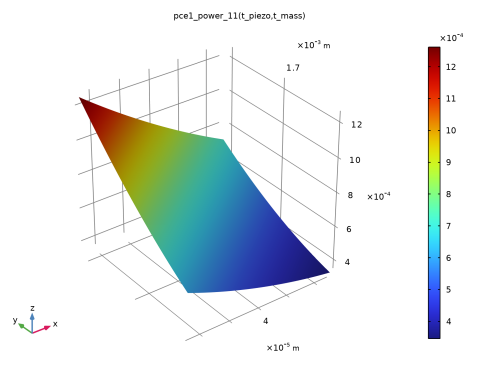
To create a surface plot of any of the functions from the Polynomial Chaos Expansion surrogate model, take the following steps:
Global Definitions
Polynomial Chaos Expansion 1 (pce1_power_1, pce1_power_2, ...)
1
In the Model Builder window, under Global Definitions click Polynomial Chaos Expansion 1 (pce1_power_1, pce1_power_2, ...).
2
In the Settings window for Polynomial Chaos Expansion, click to expand the Plot Parameters section.
3
From the Function name list, choose pce1_power_11.
4