PDF

Shape Optimization of a Microphone Diaphragm
Introduction
Shape optimization can be applied to achieve different design objectives. This tutorial demonstrates how to tune the lowest natural frequency of a MEMS microphone diaphragm using the Shape Optimization interface and study. In this example, Stationary and Eigenfrequency study steps are used in succession to deform the suspension springs and decrease the lowest natural frequency to 125 kHz from around 150 kHz of the initial design. Such investigations can occur during the design phase. Although the model is in 3D, shape optimization preserves the thickness of the structural layer in accordance with standard MEMS fabrication processes.
Note: This example requires the Optimization Module.
Manufacturing constraints might prevent all of the performance improvements gained by the shape optimization, but in many cases the deformed design can be used to fine tune the design and/or the manufacturing process to achieve improved performance. Having some idea about the magnitude of the potential performance improvements can also be useful when deciding whether to change the manufacturing tool/process.
This tutorial includes the use of the following features:
Mirror Symmetry — to preserve the symmetry of the design
Symmetry/Roller — to keep the thickness of the structural layer constant during shape changes, since actual MEMS fabrication results in uniform layer thickness
Model Definition
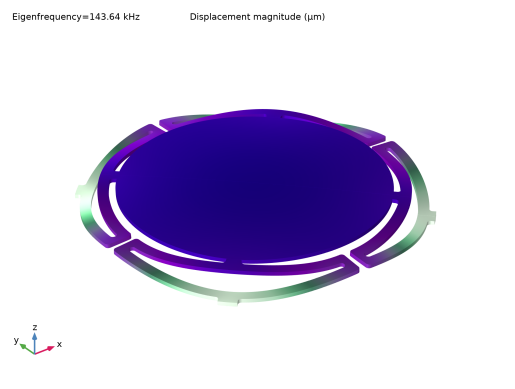
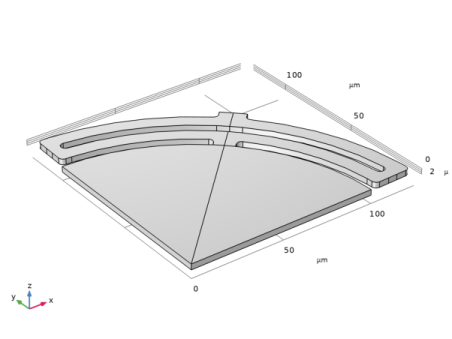
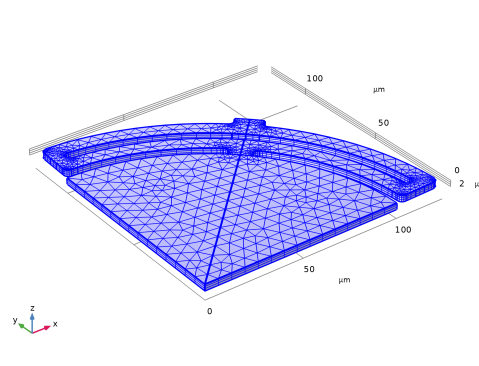
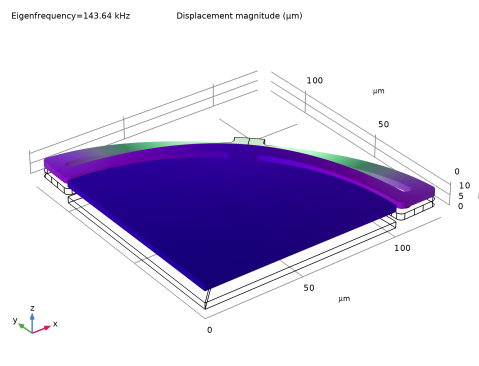
The MEMS microphone diaphragm responds to acoustics pressure with motion along the z direction. The structure has a twofold symmetry comprising a disc and suspension springs with four anchor points, as shown in Figure 1. Because of the symmetry of the structure and the mode of interest, it is sufficient to model one quadrant, as shown in Figure 2. The structure is made of silicon, a linear elastic material. The first study in this tutorial solves for the lowest natural frequency of the initial design, around 150 kHz, as a reference.
Figure 1: 3D plot of a MEMS microphone diaphragm with suspension springs anchored at four points. The plot shows displacement in the z direction.
Figure 2: 3D model of one quadrant of the diaphragm and the spring suspension.
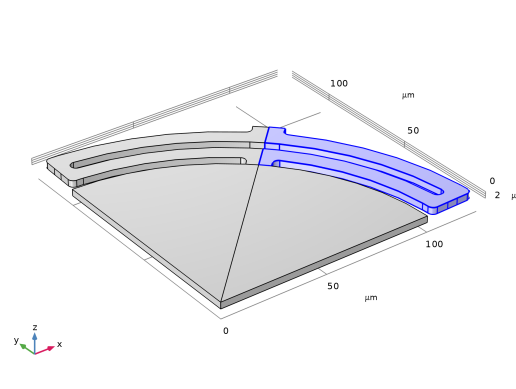
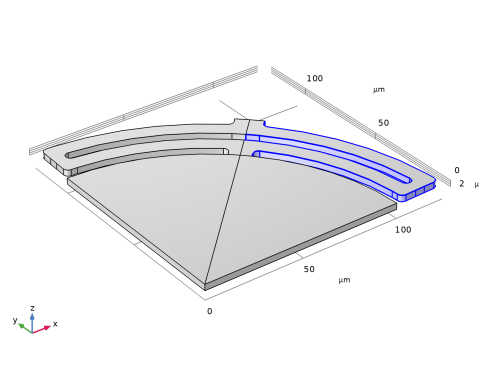
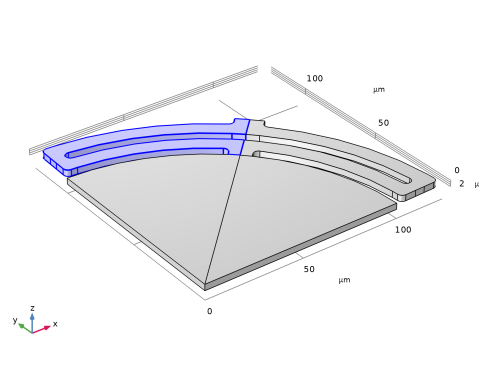
The Shape Optimization interface is added to specify the domain to be optimized, i.e., the spring suspension springs, as shown in Figure 3. Other features are added here to control the shape deformation:
Free Shape Boundary — to impose a maximum displacement
Mirror Symmetry — to preserve symmetry of the design
Symmetry/Roller — to restrict the shape deformation to displacements in the lateral direction in order to preserve the thickness of the silicon layer
Note that although the layer thickness is fixed, the lateral deformation can vary in the vertical direction. This model performs a verification study where these variations are removed, but one can also use equation-based modeling to avoid it as demonstrated in the Optimization Module Application Library model Optimization of an Extruded MBB Beam.
Figure 3: The free-shape domain, where shape deformation is allowed, is highlighted in blue.
In the Shape Optimization study, the problem is a root-finding problem. It is defined as minimization of the objective function (freq-f_opt[kHz])^2, where freq is the natural frequency and f_opt is the target for the first eigenfrequency. You can also add constraints such as, in this example, requiring that the deformed area not exceed the original area. Although the spring is optimized with respect to only the lowest natural frequency, the first six natural frequencies are computed in every optimization iteration. The IPOPT optimization algorithm is used to decrease the lowest natural frequency to 125 kHz. Note, however, that there are many designs that can achieve this result, so the solution to this optimization problem is not unique.
Finally, this tutorial also includes a procedure for exporting the data that defines the optimized shape and a third and last study that uses the optimized geometry for verification. Detailed information is found in the Modeling Instructions section.
Results and Discussion
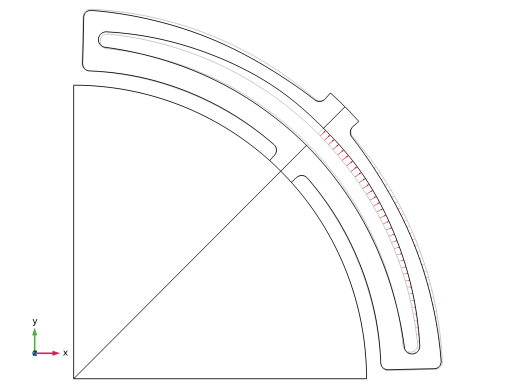
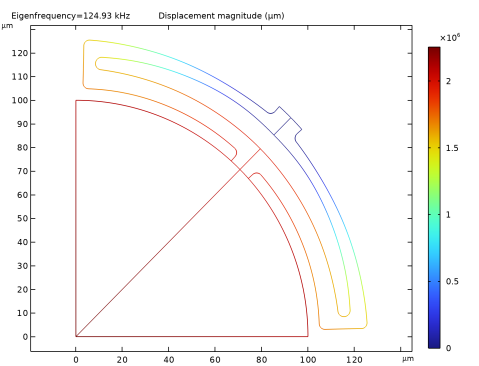
Figure 4: The shape-optimized suspension spring and displacement vectors (in red) from the boundaries of the original design.
Shape optimization deforms the free-shape domain to obtain the natural frequency of 125 kHz. Figure 4 shows a 2D plot of the shape-optimized suspension spring with displacement from the original boundaries to the initial design. This optimized geometry can then be exported in a text format for other uses, such as in a separate verification study.
Application Library path: MEMS_Module/Actuators/microphone_diaphragm_shape_optimization
Modeling Instructions
Start by creating a new 3D model with a Solid Mechanics interface and then add an Eigenfrequency study.
From the File menu, choose New.
New
In the New window, click  Model Wizard.
Model Wizard
1
In the Model Wizard window, click  3D.
2
In the Select Physics tree, select Structural Mechanics > Solid Mechanics (solid).
3
Click Add.
4
Click  Study.
5
In the Select Study tree, select General Studies > Eigenfrequency.
6
Optimization
1
In the Model Builder window, click Component 1 (comp1).
2
In the Settings window for Component, type Optimization in the Label text field.
Define and enter the values for the following parameters.
Global Definitions
Parameters 1
1
In the Model Builder window, under Global Definitions click Parameters 1.
2
In the Settings window for Parameters, locate the Parameters section.
3
Geometry 1
Create the geometry for microphone diaphragm using some of the parameters defined previously.
Use micrometers as the geometry unit.
1
In the Model Builder window, under Optimization (comp1) click Geometry 1.
2
In the Settings window for Geometry, locate the Units section.
3
From the Length unit list, choose µm.
Work Plane 1 (wp1)
In the Geometry toolbar, click  Work Plane.
Work Plane 1 (wp1) > Plane Geometry
In the Model Builder window, click Plane Geometry.
Work Plane 1 (wp1) > Circle 1 (c1)
1
In the Work Plane toolbar, click  Circle.
2
In the Settings window for Circle, locate the Size and Shape section.
3
In the Radius text field, type rd+2*ws+2*d.
4
In the Sector angle text field, type alpha-beta/2.
5
Locate the Rotation Angle section. In the Rotation text field, type beta/2.
6
Click to expand the Layers section. In the table, enter the following settings:
7
Click  Build Selected.
Work Plane 1 (wp1) > Circle 2 (c2)
1
In the Work Plane toolbar, click  Circle.
2
In the Settings window for Circle, locate the Size and Shape section.
3
In the Radius text field, type rd+2*ws+3*d.
4
In the Sector angle text field, type beta.
5
Locate the Rotation Angle section. In the Rotation text field, type alpha-beta.
6
Locate the Layers section. In the table, enter the following settings:
7
Click  Build Selected.
Work Plane 1 (wp1) > Circle 3 (c3)
1
In the Work Plane toolbar, click  Circle.
2
In the Settings window for Circle, locate the Size and Shape section.
3
In the Radius text field, type rd+2*ws+2*d.
4
In the Sector angle text field, type beta.
5
Locate the Rotation Angle section. In the Rotation text field, type beta/2.
6
Locate the Layers section. In the table, enter the following settings:
7
Click  Build Selected.
Work Plane 1 (wp1) > Delete Entities 1 (del1)
1
Right-click Plane Geometry and choose Delete Entities.
2
In the Settings window for Delete Entities, locate the Entities or Objects to Delete section.
3
From the Geometric entity level list, choose Domain.
4
On the object c1, select Domains 1 and 3 only.
5
On the object c2, select Domains 1 and 3 only.
6
On the object c3, select Domain 1 only.
7
Click  Build Selected.
Work Plane 1 (wp1) > Union 1 (uni1)
1
In the Work Plane toolbar, click  Booleans and Partitions and choose Union.
2
In the Settings window for Union, locate the Union section.
3
From the Input objects list, choose All objects.
4
Clear the Keep interior boundaries checkbox.
5
Locate the Selections of Resulting Entities section. Select the Resulting objects selection checkbox.
6
Find the Cumulative selection subsection. Click New.
7
In the New Cumulative Selection dialog, type Spring in the Name text field.
8
Work Plane 1 (wp1) > Circle 4 (c4)
1
In the Work Plane toolbar, click  Circle.
2
In the Settings window for Circle, locate the Size and Shape section.
3
In the Radius text field, type rd.
4
In the Sector angle text field, type alpha.
5
Click  Build Selected.
6
Locate the Selections of Resulting Entities section. Select the Resulting objects selection checkbox.
7
Find the Cumulative selection subsection. Click New.
8
In the New Cumulative Selection dialog, type Diaphragm in the Name text field.
9
Work Plane 1 (wp1) > Union 2 (uni2)
1
In the Work Plane toolbar, click  Booleans and Partitions and choose Union.
2
In the Settings window for Union, locate the Union section.
3
From the Input objects list, choose All objects.
4
Click  Build Selected.
Work Plane 1 (wp1) > Fillet 1 (fil1)
1
In the Work Plane toolbar, click  Fillet.
2
On the object uni2, select Points 5, 12, 16, 17, 19, and 22 only.
3
In the Settings window for Fillet, locate the Radius section.
4
In the Radius text field, type d/2.
5
Click  Build Selected.
Work Plane 1 (wp1) > Mirror 1 (mir1)
1
In the Work Plane toolbar, click  Transforms and choose Mirror.
2
In the Settings window for Mirror, locate the Input section.
3
From the Input objects list, choose All objects.
4
Select the Keep input objects checkbox.
5
Locate the Normal Vector to Line of Reflection section. In the xw text field, type -1.
6
In the yw text field, type 1.
7
Locate the Selections of Resulting Entities section. Select the Resulting objects selection checkbox.
8
Locate the Selections on Input Objects section. Clear the Propagate selections to resulting objects checkbox.
9
Click  Build Selected.
Extrude 1 (ext1)
1
In the Model Builder window, right-click Geometry 1 and choose Extrude.
2
In the Settings window for Extrude, locate the Distances section.
3
4
Click  Build Selected.
Add some coordinate-based selections.
Definitions
Spring Domain
1
In the Definitions toolbar, click  Cylinder.
2
In the Settings window for Cylinder, type Spring Domain in the Label text field.
3
Locate the Size and Shape section. In the Outer radius text field, type Inf.
4
In the Inner radius text field, type rd-0.1.
5
In the End angle text field, type alpha.
6
Locate the Output Entities section. From the Include entity if list, choose Entity inside cylinder.
Spring Boundaries
1
Right-click Spring Domain and choose Duplicate.
2
In the Settings window for Cylinder, type Spring Boundaries in the Label text field.
3
Locate the Geometric Entity Level section. From the Level list, choose Boundary.
4
Locate the Size and Shape section. In the Outer radius text field, type rd+2*ws+3*d-0.1.
5
In the Inner radius text field, type rd+0.1.
6
In the Top distance text field, type td-0.1.
7
In the Bottom distance text field, type 0.1.
8
In the End angle text field, type alpha-0.1.
9
Locate the Output Entities section. From the Include entity if list, choose Entity intersects cylinder.
Mirror Symmetry
1
In the Model Builder window, right-click Spring Domain and choose Duplicate.
2
In the Settings window for Cylinder, type Mirror Symmetry in the Label text field.
3
Locate the Size and Shape section. In the Start angle text field, type alpha.
4
In the End angle text field, type 2*alpha.
Spring Mirror Plane
1
In the Model Builder window, right-click Spring Boundaries and choose Duplicate.
2
In the Settings window for Cylinder, type Spring Mirror Plane in the Label text field.
3
Locate the Size and Shape section. In the Outer radius text field, type rd+2*ws+3*d+0.1.
4
In the Inner radius text field, type rd-0.1.
5
In the Top distance text field, type td+0.1.
6
In the Bottom distance text field, type -0.1.
7
In the Start angle text field, type alpha-0.1.
8
In the End angle text field, type alpha+0.1.
9
Locate the Output Entities section. From the Include entity if list, choose Entity inside cylinder.
Fixed Boundaries
1
Right-click Spring Mirror Plane and choose Duplicate.
2
In the Settings window for Cylinder, type Fixed Boundaries in the Label text field.
3
Locate the Size and Shape section. In the Inner radius text field, type rd+2*ws+3*d-0.1.
4
In the Start angle text field, type 0.
5
In the End angle text field, type 360.
Symmetry Planes
1
In the Definitions toolbar, click  Explicit.
2
In the Settings window for Explicit, type Symmetry Planes in the Label text field.
3
Locate the Input Entities section. From the Geometric entity level list, choose Boundary.
4
Add a material model.
Add Material
1
In the Home toolbar, click  Add Material to open the Add Material window.
2
Go to the Add Material window.
3
In the tree, select MEMS > Semiconductors > Si - Silicon (single-crystal, isotropic).
4
Click the Add to Component button in the window toolbar.
5
In the Home toolbar, click  Add Material to close the Add Material window.
Create a mesh.
Mesh 1
Free Triangular 1
1
In the Mesh toolbar, click  More Generators and choose Free Triangular.
2
Click the  Zoom Extents button in the Graphics toolbar.
3
Size 1
1
Right-click Free Triangular 1 and choose Size.
2
In the Settings window for Size, locate the Element Size section.
3
From the Predefined list, choose Finer.
4
Click  Build Selected.
Copy Face 1
1
In the Mesh toolbar, click  Copy and choose Copy Face.
2
3
In the Settings window for Copy Face, locate the Destination Boundaries section.
4
Click to select the  Activate Selection toggle button.
5
6
Click  Build Selected.
Swept 1
In the Mesh toolbar, click  Swept.
Distribution 1
1
Right-click Swept 1 and choose Distribution.
2
In the Settings window for Distribution, locate the Distribution section.
3
In the Number of elements text field, type 3.
4
Click  Build All.
Specify the settings for the Solid Mechanics interface.
Solid Mechanics (solid)
Fixed Constraint 1
1
In the Physics toolbar, click  Boundaries and choose Fixed Constraint.
2
In the Settings window for Fixed Constraint, locate the Boundary Selection section.
3
From the Selection list, choose Fixed Boundaries.
Symmetry 1
1
In the Physics toolbar, click  Boundaries and choose Symmetry.
2
In the Settings window for Symmetry, locate the Boundary Selection section.
3
From the Selection list, choose Symmetry Planes.
Set up and compute the Eigenfrequency study.
Initial Design
1
In the Model Builder window, click Study 1.
2
In the Settings window for Study, type Initial Design in the Label text field.
Step 1: Eigenfrequency
1
In the Model Builder window, under Initial Design click Step 1: Eigenfrequency.
2
In the Settings window for Eigenfrequency, locate the Study Settings section.
3
From the Unit list, choose kHz.
4
In the Study toolbar, click  Compute.
Results
Mode Shape (solid)
Next, add a Shape Optimization interface and the necessary features.
Optimization (comp1)
Free Shape Domain 1
1
In the Physics toolbar, click  Optimization and choose Shape Optimization.
2
In the Settings window for Free Shape Domain, locate the Domain Selection section.
3
From the Selection list, choose Spring Domain.
Free Shape Boundary 1
1
In the Shape Optimization toolbar, click  Free Shape Boundary.
2
In the Settings window for Free Shape Boundary, locate the Boundary Selection section.
3
From the Selection list, choose Spring Boundaries.
Symmetry/Roller 1
1
In the Shape Optimization toolbar, click  Symmetry/Roller.
2
Mirror Symmetry 1
1
In the Shape Optimization toolbar, click  Mirror Symmetry.
2
In the Settings window for Mirror Symmetry, locate the Geometric Entity Selection section.
3
From the Selection list, choose Mirror Symmetry.
Symmetry/Roller 2
1
In the Shape Optimization toolbar, click  Symmetry/Roller.
2
In the Settings window for Symmetry/Roller, locate the Geometric Entity Selection section.
3
From the Selection list, choose Spring Mirror Plane.
Next, add an empty study for the Shape Optimization study using the Stationary then Eigenfrequency study step.
Add Study
1
In the Home toolbar, click  Add Study to open the Add Study window.
2
Go to the Add Study window.
3
Find the Studies subsection. In the Select Study tree, select Empty Study.
4
Click the Add Study button in the window toolbar.
5
In the Home toolbar, click  Add Study to close the Add Study window.
Study 2
Shape Optimization
1
In the Study toolbar, click  Optimization and choose Shape Optimization.
2
In the Settings window for Study, type Shape Optimization in the Label text field.
Step 1: Stationary Then Eigenfrequency
1
In the Study toolbar, click  More Study Steps and choose Eigenfrequency > Stationary Then Eigenfrequency.
2
In the Settings window for Stationary Then Eigenfrequency, locate the Study Settings section.
3
From the Unit list, choose kHz.
Define the objective function. Replace the default GCMMA with IPOPT and choose to use initial solution for objective scaling to reduce the computational time.
Shape Optimization
1
In the Model Builder window, click Shape Optimization.
2
In the Settings window for Shape Optimization, locate the Optimization Solver section.
3
From the Method list, choose IPOPT.
4
Locate the Objective Function section. In the table, enter the following settings:
5
From the Solution list, choose Use first.
6
Find the Objective settings subsection. From the Objective scaling list, choose Initial solution based.
7
Click Replace Expression in the upper-right corner of the Constraints section. From the menu, choose Optimization (comp1) > Definitions > Free Shape Domain 1 > comp1.fsd1.relVolume - Material volume divided by geometry volume - 1.
8
Locate the Constraints section. In the table, enter the following settings:
9
In the Study toolbar, click  Compute.
Results
Mode Shape (solid)
1
In the Model Builder window, under Results click Mode Shape (solid).
2
In the Settings window for 3D Plot Group, click  Plot Next.
3
Click  Plot Previous.
Data that defines the optimized geometry can be exported for other uses, for example to define a new lithographic mask. The following steps describe how to export the data in a text format to create a new geometry for a separate FEM study. The procedure starts with (a) creating a 2D plot of the displaced boundaries, (b) exporting this as a text with sectionwise data format, (c) creating a mesh part based on the data, and (d) importing this mesh part when creating a new geometry.
Shape Optimization
1
Click the  Go to XY View button in the Graphics toolbar.
2
Click the  Orthographic Projection button in the Graphics toolbar.
3
Click the  Show Grid button in the Graphics toolbar.
4
Click the  Show Legends button in the Graphics toolbar.
Cut Plane 1
1
In the Model Builder window, expand the Results > Datasets node.
2
Right-click Results > Datasets and choose Cut Plane.
3
In the Settings window for Cut Plane, locate the Data section.
4
From the Dataset list, choose Shape Optimization/Solution 2 (sol2).
5
Locate the Plane Data section. From the Plane list, choose XY-planes.
6
In the Z-coordinate text field, type 0.5*td.
7
For Export
1
In the Results toolbar, click  2D Plot Group.
2
In the Settings window for 2D Plot Group, type For Export in the Label text field.
Line 1
1
Right-click For Export and choose Line.
2
In the For Export toolbar, click  Plot.
3
In the Model Builder window, click Line 1.
Plot 1
1
In the Results toolbar, click  Data and choose Plot.
2
In the Settings window for Plot, locate the Plot section.
3
From the Plot group list, choose For Export.
4
Locate the Output section. In the Filename text field, type microphone_diaphragm_shape_optimization_optimized_geometry.txt.
5
From the Data format list, choose Sectionwise, then click Export.
Global Definitions
In the Model Builder window, right-click Global Definitions and choose Mesh Parts > 2D Part.
Mesh Part 1
Import 1
1
In the Settings window for Import, locate the Import section.
2
From the Source list, choose Sectionwise file.
3
In the Filename text field, type microphone_diaphragm_shape_optimization_optimized_geometry.txt.
4
Click  Import.
Add Component
Right-click Global Definitions > Mesh Parts > Mesh Part 1 > Import 1 and choose 3D.
Verification
In the Settings window for Component, type Verification in the Label text field.
Geometry 2
1
In the Model Builder window, under Verification (comp2) click Geometry 2.
2
In the Settings window for Geometry, locate the Units section.
3
From the Length unit list, choose µm.
Work Plane 1 (wp1)
In the Geometry toolbar, click  Work Plane.
Work Plane 1 (wp1) > Plane Geometry
In the Model Builder window, click Plane Geometry.
Work Plane 1 (wp1) > Import 1 (imp1)
1
In the Home toolbar, click  Import.
2
In the Settings window for Import, locate the Source section.
3
From the Source list, choose Mesh.
4
From the Mesh list, choose Mesh Part 1.
5
In the Home toolbar, click  Build All.
Work Plane 1 (wp1) > Convert to Solid 1 (csol1)
1
In the Work Plane toolbar, click  Conversions and choose Convert to Solid.
2
In the Settings window for Convert to Solid, locate the Input section.
3
Click the  Paste Selection button for Input objects.
4
In the Paste Selection dialog, type imp1 in the Selection text field.
5
6
In the Settings window for Convert to Solid, locate the Selections of Resulting Entities section.
7
Select the Resulting objects selection checkbox.
8
Click  Build Selected.
Work Plane 1 (wp1) > Adjacent Selection 1 (adjsel1)
1
In the Work Plane toolbar, click  Selections and choose Adjacent Selection.
2
In the Settings window for Adjacent Selection, locate the Input Entities section.
3
4
In the Add dialog, select Convert to Solid 1 in the Input selections list.
5
6
In the Settings window for Adjacent Selection, click  Build Selected.
Work Plane 1 (wp1) > Adjacent Selection 2 (adjsel2)
1
In the Work Plane toolbar, click  Selections and choose Adjacent Selection.
2
In the Settings window for Adjacent Selection, locate the Input Entities section.
3
From the Geometric entity level list, choose Boundary.
4
5
In the Add dialog, select Adjacent Selection 1 in the Input selections list.
6
7
In the Settings window for Adjacent Selection, locate the Output Entities section.
8
From the Geometric entity level list, choose Adjacent domains.
9
Click  Build Selected.
Work Plane 1 (wp1) > Complement Selection 1 (comsel1)
1
In the Work Plane toolbar, click  Selections and choose Complement Selection.
2
In the Settings window for Complement Selection, locate the Input Entities section.
3
4
In the Add dialog, select Adjacent Selection 2 in the Selections to invert list.
5
6
In the Settings window for Complement Selection, click  Build Selected.
Work Plane 1 (wp1) > Delete Entities 1 (del1)
1
Right-click Plane Geometry and choose Delete Entities.
2
In the Settings window for Delete Entities, locate the Entities or Objects to Delete section.
3
From the Geometric entity level list, choose Domain.
4
From the Selection list, choose Complement Selection 1.
5
Click  Build Selected.
Extrude 1 (ext1)
1
In the Model Builder window, right-click Geometry 2 and choose Extrude.
2
In the Settings window for Extrude, locate the Distances section.
3
4
Click  Build Selected.
Copy a coordinate-based selection from the Optimization component.
Definitions (comp1)
Fixed Boundaries
In the Model Builder window, under Optimization (comp1) > Definitions > Selections right-click Fixed Boundaries and choose Copy.
Definitions (comp2)
1
In the Model Builder window, expand the Verification (comp2) > Definitions node.
2
Right-click Verification (comp2) > Definitions and choose Paste Cylinder.
Definitions (comp1)
Symmetry Planes
In the Model Builder window, under Optimization (comp1) > Definitions > Selections right-click Symmetry Planes and choose Copy.
Definitions (comp2)
In the Model Builder window, under Verification (comp2) > Definitions right-click Selections and choose Paste Explicit.
Add Material from Library
In the Home toolbar, click  Windows and choose Add Material from Library.
Add Material
1
Go to the Add Material window.
2
In the tree, select MEMS > Semiconductors > Si - Silicon (single-crystal, isotropic).
3
Click the Add to Component button in the window toolbar.
4
In the Home toolbar, click  Add Material to close the Add Material window.
Add Physics
1
In the Home toolbar, click  Add Physics to open the Add Physics window.
2
Go to the Add Physics window.
3
In the tree, select Structural Mechanics > Solid Mechanics (solid).
4
Click the Add to Verification button in the window toolbar.
5
In the Home toolbar, click  Add Physics to close the Add Physics window.
Solid Mechanics 2 (solid2)
Fixed Constraint 1
1
In the Physics toolbar, click  Boundaries and choose Fixed Constraint.
2
In the Settings window for Fixed Constraint, locate the Boundary Selection section.
3
From the Selection list, choose Fixed Boundaries.
Symmetry 1
1
In the Physics toolbar, click  Boundaries and choose Symmetry.
2
In the Settings window for Symmetry, locate the Boundary Selection section.
3
From the Selection list, choose Symmetry Planes.
Mesh 2
Free Triangular 1
1
In the Mesh toolbar, click  More Generators and choose Free Triangular.
2
Size 1
1
Right-click Free Triangular 1 and choose Size.
2
In the Settings window for Size, locate the Element Size section.
3
From the Predefined list, choose Finer.
Copy Face 1
1
In the Mesh toolbar, click  Copy and choose Copy Face.
2
3
In the Settings window for Copy Face, locate the Destination Boundaries section.
4
Click to select the  Activate Selection toggle button.
5
Swept 1
In the Mesh toolbar, click  Swept.
Distribution 1
1
Right-click Swept 1 and choose Distribution.
2
In the Settings window for Distribution, locate the Distribution section.
3
In the Number of elements text field, type 3.
4
Click  Build Selected.
Add Study
1
In the Home toolbar, click  Add Study to open the Add Study window.
2
Go to the Add Study window.
3
Find the Studies subsection. In the Select Study tree, select General Studies > Eigenfrequency.
4
Click the Add Study button in the window toolbar.
5
In the Home toolbar, click  Add Study to close the Add Study window.
Verification
In the Settings window for Study, type Verification in the Label text field.
Step 1: Eigenfrequency
1
In the Model Builder window, under Verification click Step 1: Eigenfrequency.
2
In the Settings window for Eigenfrequency, locate the Study Settings section.
3
From the Unit list, choose kHz.
4
Locate the Physics and Variables Selection section. In the Solve for column of the table, clear the checkbox for Optimization (comp1).
5
In the Study toolbar, click  Compute.
Results
Mode Shape (solid2)
Next, delete the Shape Optimization plot associated with the last study.
Shape Optimization 1
In the Model Builder window, right-click Shape Optimization 1 and choose Delete.
Eigenfrequencies (Initial Design)
Next, clear the selection of the Verification component in the first two Eigenfrequency study steps.
Initial Design
Step 1: Eigenfrequency
1
In the Model Builder window, under Initial Design click Step 1: Eigenfrequency.
2
In the Settings window for Eigenfrequency, locate the Physics and Variables Selection section.
3
In the Solve for column of the table, under Verification (comp2), clear the checkbox for Solid Mechanics 2 (solid2).
Shape Optimization
Step 1: Stationary Then Eigenfrequency
1
In the Model Builder window, under Shape Optimization click Step 1: Stationary Then Eigenfrequency.
2
In the Settings window for Stationary Then Eigenfrequency, locate the Physics and Variables Selection section.
3
In the Solve for column of the table, clear the checkbox for Verification (comp2).