PDF

Prestressed Micromirror Vibrations: Thermoviscous–Thermoelasticity Coupling
Introduction
This model extends the analysis of the Prestressed Micromirror by including the losses from the thermoelastic effect and the interaction with the surrounding air. This model also demonstrates the use of the Thermoviscous Acoustics–Thermoelasticity Boundary multiphysics coupling.
Model Definition
Physics Interfaces and Couplings
This model uses the following interfaces and multiphysics couplings:
Thermoelasticity — to compute the mechanical losses from irreversible heat transfer driven by thermoelastic effect, which can be particularly important for small structures.
Thermoviscous Acoustics, Frequency Domain — to compute the acoustic variations of pressure, velocity, and temperature in geometries of small dimensions (microacoustics). This interface is used when modeling the response of transducers like microphones, miniature loudspeakers, and MEMS structures.
Pressure Acoustics, Frequency Domain — to compute the pressure variations of the acoustic waves in fluids at quiescent background conditions.
Thermal Expansion multiphysics coupling — to add an internal thermal strain caused by changes in the temperature and account for the corresponding mechanical losses in the heat balance.
Thermoviscous Acoustics–Thermoelasticity Boundary multiphysics coupling — to model thermoviscous losses in acoustic-structure interaction problems in great detail. It captures the effect of a nonideal thermal condition at the fluid-structure interface, which is important in MEMS.
Acoustic–Thermoviscous Acoustic Boundary multiphysics coupling — to couple the Thermoviscous Acoustics interface to the Pressure Acoustics interface.
Geometry
In addition to the solid domain (for the micromirror), the geometry model includes:
A box enclosing the original micromirror, assigned to the Thermoviscous Acoustics, Frequency Domain interface.
A half sphere surrounding the box, assigned to the Pressure Acoustics, Frequency Domain interface.
Studies
The full model includes both thermoelastic and thermoviscous losses. By disabling the Thermoviscous Acoustics interface, the model includes only the thermoelastic effect, that is, only solid losses.
The model analyzes the operation of the micromirror through three studies. The first study computes stationary solutions for the initial normal stress, sigma_pre, of 3 GPa as well as the eigenfrequencies of the micromirror.
The second study computes the frequency response using the full model, including thermoviscous and solid losses. The study is done for 50–600 Hz (operating frequency) and for 13,150–13,500 Hz (near resonance).
The third study computes the frequency response using the model with only solid losses. The study is done for 50–600 Hz (frequency of operation) and for 13,150–13,500 Hz (near resonance).
Results and Discussion
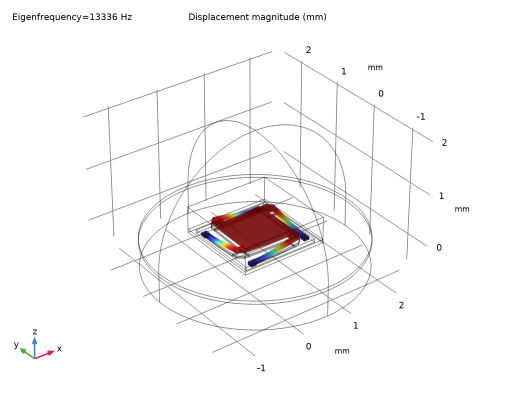
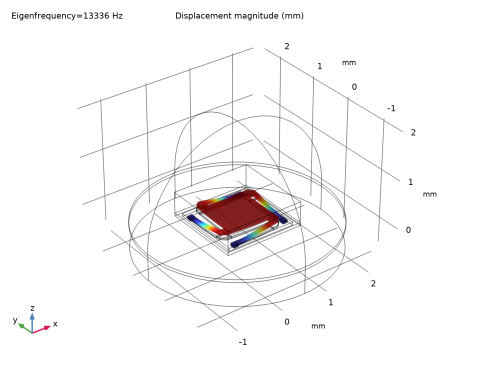
Figure 1 shows the fundamental eigenmode of the micromirror, f0 = 13,339 Hz.
Figure 1: Fundamental eigenmode of the micromirror, initial normal stress = 3 GPa.
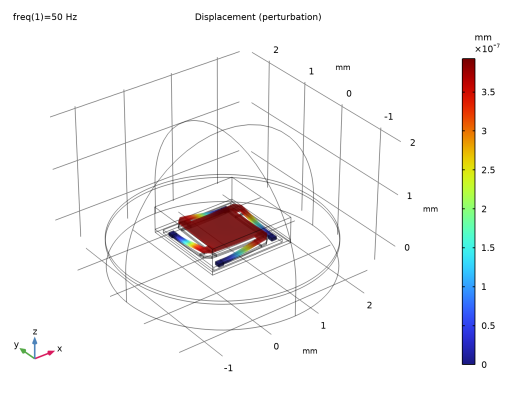
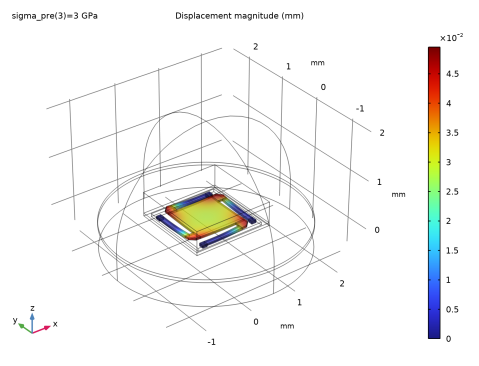
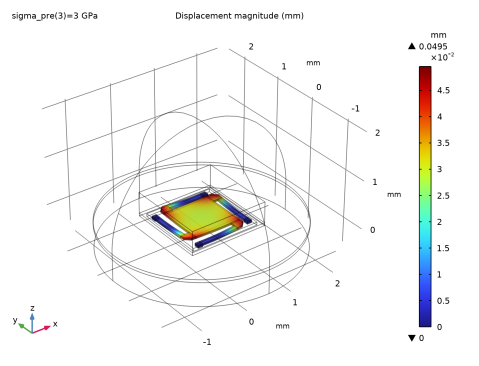
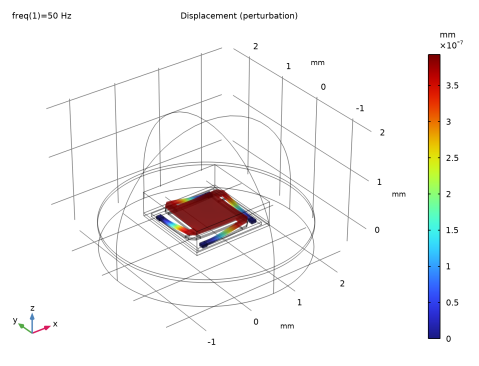
Figure 2 contains a surface plot of the displacement for f = 50 Hz.
Figure 2: Surface plot of displacement for f = 50 Hz.
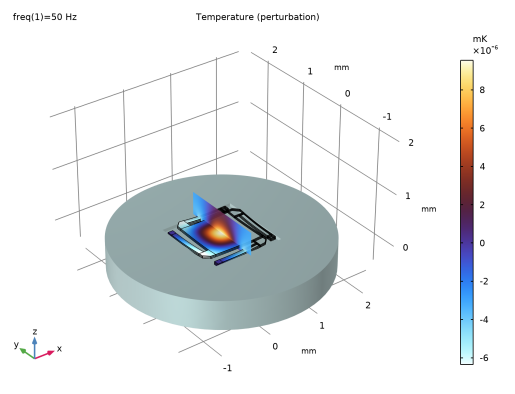
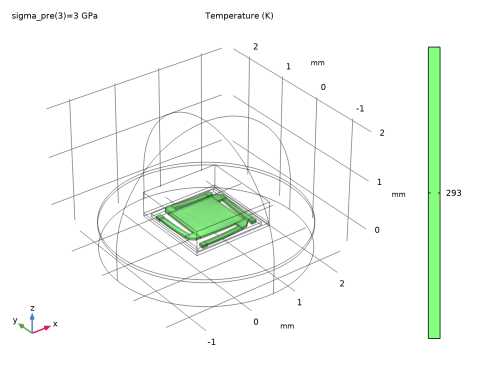
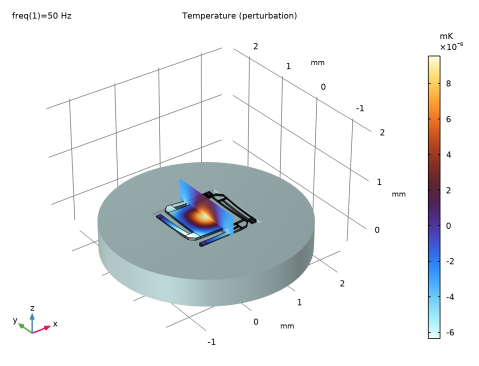
Figure 3 visualizes the temperature distribution for f = 50 Hz using a combination of surface and slice plots.
Figure 3: Surface and slice plots of the temperature for f = 50 Hz.
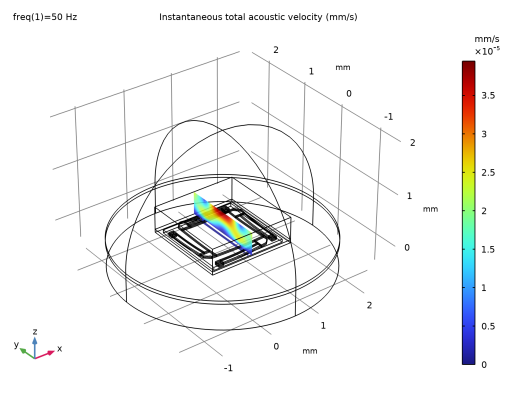
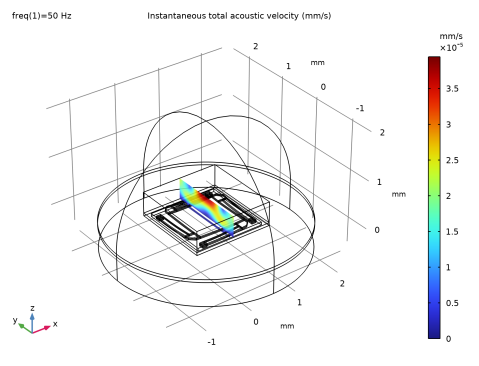
Figure 4 shows the acoustic velocity field surrounding the micromirror for f = 50 Hz.
Figure 4: The acoustic velocity field around the micromirror for f = 50 Hz.
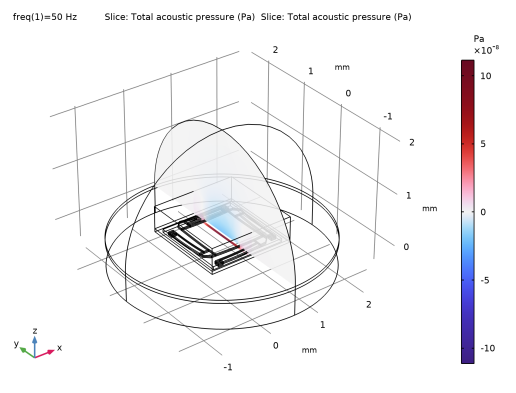
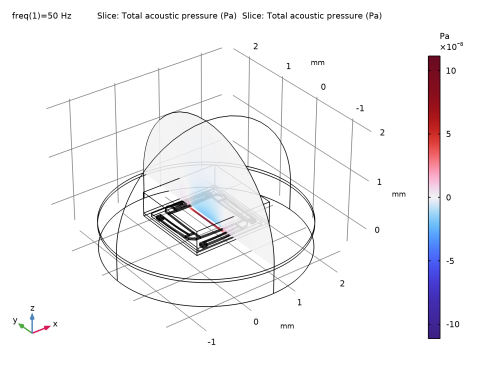
Figure 5 shows the acoustic pressure field surrounding the micromirror for f = 50 Hz
Figure 5: The acoustic pressure field around the micromirror for f = 50 Hz.
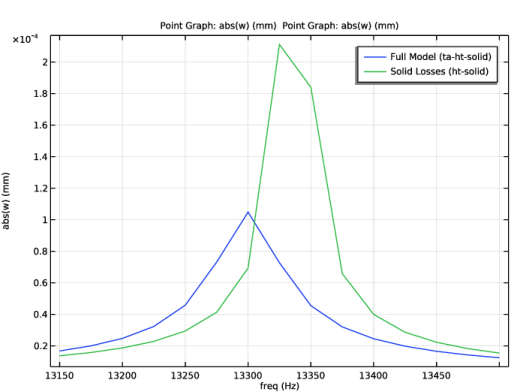
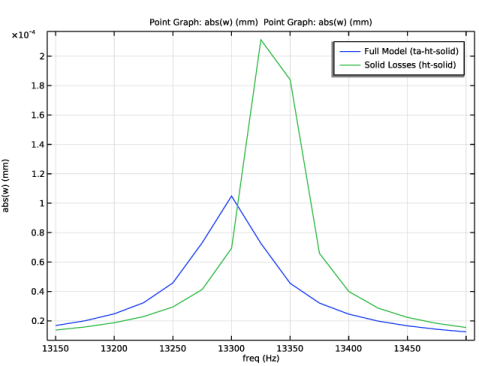
Figure 6 shows a comparison of the frequency response near the resonance for the full model and for the model with only solid losses.
Figure 6: Frequency response around the resonance frequency for the full model and the model with only solid losses.
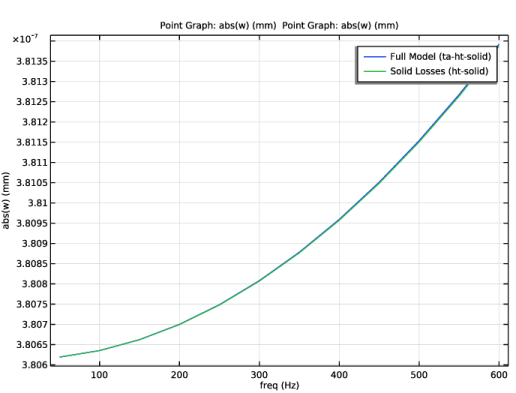
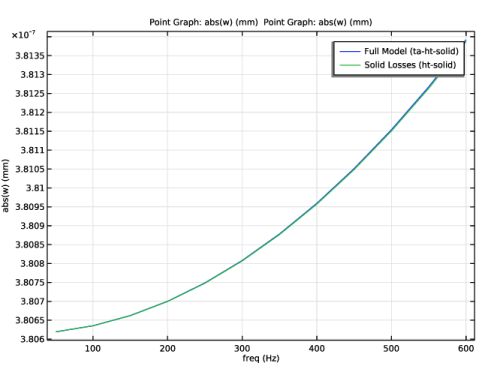
Figure 7 shows a comparison of the frequency responses in the range 50–600 Hz for the two different models.
Figure 7: Frequency response around the operating frequencies (50–600 Hz) for the full model and the model with only solid losses.
As expected, near the resonance, the vibration frequency and amplitude are less for the full model than for the model with only solid losses. Around operating frequencies in the range 50–600 Hz, however, the difference in losses is negligible.
Reference
1. G. Kovacs, Micromachined Transducers Sourcebook, WCM McGraw Hill, 1998.
Application Library path: MEMS_Module/Actuators/micromirror_prestressed_vibration
Modeling Instructions
Start by creating a new 3D model.
From the File menu, choose New.
New
In the New window, click  Model Wizard.
Model Wizard
1
In the Model Wizard window, click  3D.
2
In the Select Physics tree, select Structural Mechanics > Thermal–Structure Interaction > Thermoelasticity.
3
Click Add.
4
In the Select Physics tree, select Acoustics > Thermoviscous Acoustics > Thermoviscous Acoustics, Frequency Domain (ta).
5
Click Add.
6
In the Select Physics tree, select Acoustics > Pressure Acoustics > Pressure Acoustics, Frequency Domain (acpr).
7
Click Add.
8
Click  Study.
9
In the Select Study tree, select Preset Studies for Selected Physics Interfaces > Solid Mechanics > Eigenfrequency, Prestressed.
10
Multiphysics
Acoustic–Thermoviscous Acoustic Boundary 1 (atb1)
In the Physics toolbar, click  Multiphysics Couplings and choose Boundary > Acoustic–Thermoviscous Acoustic Boundary.
Thermoviscous Acoustic–Thermoelasticity Boundary 1 (tatb1)
In the Physics toolbar, click  Multiphysics Couplings and choose Boundary > Thermoviscous Acoustic–Thermoelasticity Boundary.
Define and enter the values of the global parameters.
Global Definitions
Parameters 1
1
In the Model Builder window, under Global Definitions click Parameters 1.
2
In the Settings window for Parameters, locate the Parameters section.
3
Build the geometry of the micromirror.
Geometry 1
Set the geometry unit to mm for convenience.
1
In the Model Builder window, under Component 1 (comp1) click Geometry 1.
2
In the Settings window for Geometry, locate the Units section.
3
From the Length unit list, choose mm.
Work Plane 1 (wp1)
In the Geometry toolbar, click  Work Plane.
Work Plane 1 (wp1) > Plane Geometry
In the Model Builder window, click Plane Geometry.
Work Plane 1 (wp1) > Square 1 (sq1)
In the Work Plane toolbar, click  Square.
Work Plane 1 (wp1) > Square 2 (sq2)
1
In the Work Plane toolbar, click  Square.
2
In the Settings window for Square, locate the Size section.
3
In the Side length text field, type 0.2.
4
Locate the Position section. In the yw text field, type 1.
Work Plane 1 (wp1) > Chamfer 1 (cha1)
1
In the Work Plane toolbar, click  Chamfer.
2
Click the  Zoom Extents button in the Graphics toolbar.
3
On the object sq2, select Point 4 only.
4
In the Settings window for Chamfer, locate the Distance section.
5
In the Distance from vertex text field, type 0.1.
Work Plane 1 (wp1) > Rectangle 1 (r1)
1
In the Work Plane toolbar, click  Rectangle.
2
In the Settings window for Rectangle, locate the Size and Shape section.
3
In the Width text field, type 0.9.
4
In the Height text field, type 0.1.
5
Locate the Position section. In the xw text field, type 0.2.
6
In the yw text field, type 1.1.
Work Plane 1 (wp1) > Square 3 (sq3)
1
In the Work Plane toolbar, click  Square.
2
In the Settings window for Square, locate the Size section.
3
In the Side length text field, type 0.1.
4
Locate the Position section. In the xw text field, type 1.
5
In the yw text field, type 1.1.
Work Plane 1 (wp1) > Rotate 1 (rot1)
1
In the Work Plane toolbar, click  Transforms and choose Rotate.
2
Select the objects cha1, r1, and sq3 only.
3
In the Settings window for Rotate, locate the Rotation section.
4
In the Angle text field, type range(90,90,360).
5
Locate the Center of Rotation section. In the xw text field, type 0.5.
6
In the yw text field, type 0.5.
Extrude 1 (ext1)
1
In the Model Builder window, right-click Geometry 1 and choose Extrude.
2
In the Settings window for Extrude, locate the Distances section.
3
Extrude 2 (ext2)
1
In the Geometry toolbar, click  Extrude.
2
In the Settings window for Extrude, locate the General section.
3
From the Extrude from list, choose Faces.
4
On the object ext1, select Boundaries 17, 26, 111, and 120 only.
5
Locate the Distances section. In the table, enter the following settings:
Block 1 (blk1)
1
In the Geometry toolbar, click  Block.
2
In the Settings window for Block, locate the Size and Shape section.
3
In the Width text field, type 1.45.
4
In the Depth text field, type 1.45.
5
In the Height text field, type 0.06.
6
Locate the Position section. In the x text field, type -0.225.
7
In the y text field, type -0.225.
8
In the z text field, type -0.02.
Add a cylindrical base for the micromirror.
Cylinder 1 (cyl1)
1
In the Geometry toolbar, click  Cylinder.
2
In the Settings window for Cylinder, locate the Size and Shape section.
3
In the Radius text field, type 2.
4
In the Height text field, type 0.5.
5
Locate the Position section. In the x text field, type 0.5.
6
In the y text field, type 0.5.
7
In the z text field, type -0.52.
Cylinder 2 (cyl2)
1
In the Geometry toolbar, click  Cylinder.
2
In the Settings window for Cylinder, locate the Size and Shape section.
3
In the Radius text field, type 2.
4
In the Height text field, type 0.06.
5
Locate the Position section. In the x text field, type 0.5.
6
In the y text field, type 0.5.
7
In the z text field, type -0.02.
Difference 1 (dif1)
1
In the Geometry toolbar, click  Booleans and Partitions and choose Difference.
2
Click the  Zoom Extents button in the Graphics toolbar.
3
4
In the Settings window for Difference, locate the Difference section.
5
Click to select the  Activate Selection toggle button for Objects to subtract.
6
Add a box for the thermoviscous acoustics domain.
Block 2 (blk2)
1
In the Geometry toolbar, click  Block.
2
In the Settings window for Block, locate the Size and Shape section.
3
In the Width text field, type 1.65.
4
In the Depth text field, type 1.65.
5
In the Height text field, type .5.
6
Locate the Position section. In the x text field, type -0.325.
7
In the y text field, type -0.325.
8
In the z text field, type -0.02.
Add a sphere for the pressure acoustics domain.
Sphere 1 (sph1)
1
In the Geometry toolbar, click  Sphere.
2
In the Settings window for Sphere, locate the Size section.
3
In the Radius text field, type 2.
4
Locate the Position section. In the x text field, type 0.5.
5
In the y text field, type 0.5.
6
In the z text field, type 0.04.
Work Plane 2 (wp2)
1
In the Geometry toolbar, click  Work Plane.
2
In the Settings window for Work Plane, locate the Plane Definition section.
3
In the z-coordinate text field, type 0.04.
Partition Objects 1 (par1)
1
In the Geometry toolbar, click  Booleans and Partitions and choose Partition Objects.
2
3
In the Settings window for Partition Objects, locate the Partition Objects section.
4
From the Partition with list, choose Work plane.
Delete Entities 1 (del1)
1
Right-click Geometry 1 and choose Delete Entities.
2
In the Settings window for Delete Entities, locate the Entities or Objects to Delete section.
3
From the Geometric entity level list, choose Domain.
4
On the object par1, select Domain 1 only.
Define selections to use when assigning material properties and boundary conditions.
Definitions
Air TA
1
In the Definitions toolbar, click  Explicit.
2
In the Settings window for Explicit, type Air TA in the Label text field.
3
Locate the Input Entities section. Click  Paste Selection.
4
In the Paste Selection dialog, type 5 6 in the Selection text field.
5
Air ACPR
1
In the Definitions toolbar, click  Explicit.
2
In the Settings window for Explicit, type Air ACPR in the Label text field.
3
Locate the Input Entities section. Click  Paste Selection.
4
In the Paste Selection dialog, type 3 in the Selection text field.
5
Substrate
1
In the Definitions toolbar, click  Explicit.
2
In the Settings window for Explicit, type Substrate in the Label text field.
3
Locate the Input Entities section. Click  Paste Selection.
4
In the Paste Selection dialog, type 1 2 4 in the Selection text field.
5
Solid
1
In the Definitions toolbar, click  Explicit.
2
In the Settings window for Explicit, type Solid in the Label text field.
3
Locate the Input Entities section. Click  Paste Selection.
4
In the Paste Selection dialog, type 7-36 in the Selection text field.
5
Solid Aluminum
1
In the Definitions toolbar, click  Explicit.
2
In the Settings window for Explicit, type Solid Aluminum in the Label text field.
3
Locate the Input Entities section. Click  Paste Selection.
4
In the Paste Selection dialog, type 9-18, 23, 24, 29-36 in the Selection text field.
5
Solid Steel
1
In the Definitions toolbar, click  Explicit.
2
In the Settings window for Explicit, type Solid Steel in the Label text field.
3
Locate the Input Entities section. Click  Paste Selection.
4
In the Paste Selection dialog, type 7, 8, 19-22, 25-28 in the Selection text field.
5
Solid-TA
1
In the Definitions toolbar, click  Explicit.
2
In the Settings window for Explicit, type Solid-TA in the Label text field.
3
Locate the Input Entities section. From the Geometric entity level list, choose Boundary.
4
Click  Paste Selection.
5
In the Paste Selection dialog, type 24-28, 30, 31, 33, 34, 37-39, 41, 44, 47-52, 54, 55, 57, 58, 60-73, 75, 76, 78, 80-82, 84, 85, 87, 89-92, 94, 95, 98-106, 108, 109, 111, 113-115, 123, 124, 126, 128-130, 133-138, 140, 141, 143, 145-149, 152, 155, 157-162, 164, 165, 167, 168, 170-172, 174, 175, 178, 181-192 in the Selection text field.
6
Air
1
In the Definitions toolbar, click  Union.
2
In the Settings window for Union, type Air in the Label text field.
3
Locate the Input Entities section. Under Selections to add, click  Add.
4
In the Add dialog, in the Selections to add list, choose Air TA and Air ACPR.
5
Participation Factors 1 (mpf1)
In the Definitions toolbar, click  Physics Utilities and choose Participation Factors.
Add materials from the material library and assign to the respective domains.
Add Material
1
In the Materials toolbar, click  Add Material to open the Add Material window.
2
Go to the Add Material window.
3
In the tree, select Built-in > Aluminum.
4
Click the Add to Component button in the window toolbar.
5
In the tree, select Built-in > Structural steel.
6
Click the Add to Component button in the window toolbar.
7
In the tree, select Built-in > Air.
8
Click the Add to Component button in the window toolbar.
9
In the Materials toolbar, click  Add Material to close the Add Material window.
Materials
Aluminum (mat1)
1
In the Settings window for Material, locate the Geometric Entity Selection section.
2
From the Selection list, choose Solid Aluminum.
Structural steel (mat2)
1
In the Model Builder window, click Structural steel (mat2).
2
In the Settings window for Material, locate the Geometric Entity Selection section.
3
From the Selection list, choose Solid Steel.
Air (mat3)
1
In the Model Builder window, click Air (mat3).
2
In the Settings window for Material, locate the Geometric Entity Selection section.
3
From the Selection list, choose Air.
Define the Deforming Domain.
Component 1 (comp1)
Deforming Domain 1
1
In the Physics toolbar, click  Moving Mesh and choose Free Deformation.
2
In the Settings window for Deforming Domain, locate the Domain Selection section.
3
Click  Clear Selection.
4
Click  Paste Selection.
5
In the Paste Selection dialog, type 5 6 in the Selection text field.
6
7
In the Settings window for Deforming Domain, locate the Smoothing section.
8
From the Mesh smoothing type list, choose Hyperelastic.
Solid Mechanics (solid)
Linear Elastic Material 1
In the Model Builder window, under Component 1 (comp1) > Solid Mechanics (solid) click Linear Elastic Material 1.
Initial Stress and Strain 1
1
In the Physics toolbar, click  Attributes and choose Initial Stress and Strain.
2
In the Settings window for Initial Stress and Strain, locate the Domain Selection section.
3
From the Selection list, choose Manual.
4
Click  Clear Selection.
5
Click  Paste Selection.
6
In the Paste Selection dialog, type 10 18 24 36 in the Selection text field.
7
8
In the Settings window for Initial Stress and Strain, locate the Initial Stress and Strain section.
9
Specify the S0 matrix as
Linear Elastic Material 1
In the Model Builder window, click Linear Elastic Material 1.
Initial Stress and Strain 2
1
In the Physics toolbar, click  Attributes and choose Initial Stress and Strain.
2
In the Settings window for Initial Stress and Strain, locate the Domain Selection section.
3
Click  Clear Selection.
4
Click  Paste Selection.
5
In the Paste Selection dialog, type 9 17 23 35 in the Selection text field.
6
7
In the Settings window for Initial Stress and Strain, locate the Initial Stress and Strain section.
8
Specify the S0 matrix as
Fixed Constraint 1
1
In the Physics toolbar, click  Boundaries and choose Fixed Constraint.
2
In the Settings window for Fixed Constraint, locate the Boundary Selection section.
3
Click  Paste Selection.
4
In the Paste Selection dialog, type 40 53 150 163 in the Selection text field.
5
Boundary Load 1
1
In the Physics toolbar, click  Boundaries and choose Boundary Load.
2
In the Settings window for Boundary Load, locate the Boundary Selection section.
3
Click  Paste Selection.
4
In the Paste Selection dialog, type 85 in the Selection text field.
5
6
In the Settings window for Boundary Load, locate the Force section.
7
Specify the fA vector as
8
In the Model Builder window, click Solid Mechanics (solid).
9
In the Settings window for Solid Mechanics, locate the Domain Selection section.
10
From the Selection list, choose Solid.
Heat Transfer in Solids (ht)
1
In the Model Builder window, under Component 1 (comp1) click Heat Transfer in Solids (ht).
2
In the Settings window for Heat Transfer in Solids, locate the Domain Selection section.
3
From the Selection list, choose Solid.
Temperature 1
1
In the Physics toolbar, click  Boundaries and choose Temperature.
2
In the Settings window for Temperature, locate the Boundary Selection section.
3
Click  Paste Selection.
4
In the Paste Selection dialog, type 40 53 150 163 in the Selection text field.
5
Thermoviscous Acoustics, Frequency Domain (ta)
1
In the Model Builder window, under Component 1 (comp1) click Thermoviscous Acoustics, Frequency Domain (ta).
2
In the Settings window for Thermoviscous Acoustics, Frequency Domain, locate the Domain Selection section.
3
From the Selection list, choose Manual.
4
Click  Clear Selection.
5
Click  Paste Selection.
6
In the Paste Selection dialog, type 5 6 in the Selection text field.
7
Wall 2
1
In the Physics toolbar, click  Boundaries and choose Wall.
2
In the Settings window for Wall, locate the Boundary Selection section.
3
Click  Paste Selection.
4
In the Paste Selection dialog, type 15 in the Selection text field.
5
6
In the Settings window for Wall, locate the Mechanical section.
7
From the Mechanical condition list, choose Slip (perfect).
8
Locate the Thermal section. From the Thermal condition list, choose Adiabatic.
Pressure Acoustics, Frequency Domain (acpr)
1
In the Model Builder window, under Component 1 (comp1) click Pressure Acoustics, Frequency Domain (acpr).
2
In the Settings window for Pressure Acoustics, Frequency Domain, locate the Domain Selection section.
3
From the Selection list, choose Air ACPR.
4
Click the  Show More Options button in the Model Builder toolbar.
5
In the Show More Options dialog, click Cancel.
Perfectly Matched Boundary 1
1
In the Physics toolbar, click  Boundaries and choose Perfectly Matched Boundary.
2
In the Settings window for Perfectly Matched Boundary, locate the Boundary Selection section.
3
Click  Paste Selection.
4
In the Paste Selection dialog, type 7 9 118 119 in the Selection text field.
5
6
In the Settings window for Perfectly Matched Boundary, locate the Geometry section.
7
From the Attenuation direction list, choose Normal.
Multiphysics
Thermal Expansion 1 (te1)
1
In the Model Builder window, under Component 1 (comp1) > Multiphysics click Thermal Expansion 1 (te1).
2
In the Settings window for Thermal Expansion, locate the Heat Sources section.
3
Select the Mechanical losses checkbox.
4
Click the  Transparency button in the Graphics toolbar.
Acoustic–Thermoviscous Acoustic Boundary 1 (atb1)
1
In the Model Builder window, click Acoustic–Thermoviscous Acoustic Boundary 1 (atb1).
2
In the Settings window for Acoustic–Thermoviscous Acoustic Boundary, locate the Boundary Selection section.
3
From the Selection list, choose All boundaries.
Thermoviscous Acoustic–Thermoelasticity Boundary 1 (tatb1)
1
In the Model Builder window, click Thermoviscous Acoustic–Thermoelasticity Boundary 1 (tatb1).
2
In the Settings window for Thermoviscous Acoustic–Thermoelasticity Boundary, locate the Boundary Selection section.
3
From the Selection list, choose Solid-TA.
Define the mesh for the model.
Mesh 1
Mapped 1
1
In the Mesh toolbar, click  More Generators and choose Mapped.
2
In the Settings window for Mapped, locate the Boundary Selection section.
3
Click  Paste Selection.
4
In the Paste Selection dialog, type 30, 37, 47, 60, 80, 89, 98, 113, 128, 145, 157, 170, 178 in the Selection text field.
5
Distribution 1
1
Right-click Mapped 1 and choose Distribution.
2
In the Settings window for Distribution, locate the Edge Selection section.
3
Click  Copy Selection.
4
Click  Paste Selection.
5
In the Paste Selection dialog, type 45, 115, 129, 134, 160, 173, 219, 304 in the Selection text field.
6
7
In the Settings window for Distribution, locate the Distribution section.
8
In the Number of elements text field, type 12.
Distribution 2
1
In the Model Builder window, right-click Mapped 1 and choose Distribution.
2
In the Settings window for Distribution, locate the Edge Selection section.
3
Click  Paste Selection.
4
In the Paste Selection dialog, type 56, 64, 74, 75, 95, 159, 199, 227, 243, 261, 288, 298 in the Selection text field.
5
6
In the Settings window for Distribution, locate the Distribution section.
7
In the Number of elements text field, type 3.
Distribution 3
1
Right-click Mapped 1 and choose Distribution.
2
In the Settings window for Distribution, locate the Edge Selection section.
3
Click  Paste Selection.
4
In the Paste Selection dialog, type 37 152 194 309 in the Selection text field.
5
6
In the Settings window for Distribution, locate the Distribution section.
7
In the Number of elements text field, type 6.
Swept 1
1
In the Mesh toolbar, click  Swept.
2
In the Settings window for Swept, locate the Domain Selection section.
3
From the Geometric entity level list, choose Domain.
4
From the Selection list, choose Solid.
Distribution 1
1
Right-click Swept 1 and choose Distribution.
2
In the Settings window for Distribution, locate the Domain Selection section.
3
Click  Clear Selection.
4
Locate the Distribution section. In the Number of elements text field, type 2.
Free Tetrahedral 1
1
In the Mesh toolbar, click  Free Tetrahedral.
2
In the Settings window for Free Tetrahedral, locate the Domain Selection section.
3
From the Geometric entity level list, choose Domain.
4
Click  Paste Selection.
5
In the Paste Selection dialog, type 6 in the Selection text field.
6
Size 1
1
Right-click Free Tetrahedral 1 and choose Size.
2
In the Settings window for Size, locate the Element Size section.
3
Click the Custom button.
4
Locate the Geometric Entity Selection section. From the Geometric entity level list, choose Boundary.
5
Click  Paste Selection.
6
In the Paste Selection dialog, type 19 20 23 193 in the Selection text field.
7
8
In the Settings window for Size, locate the Element Size Parameters section.
9
Select the Maximum element size checkbox. In the associated text field, type 0.04.
Free Tetrahedral 2
In the Mesh toolbar, click  Free Tetrahedral.
Size 1
1
Right-click Free Tetrahedral 2 and choose Size.
2
In the Settings window for Size, locate the Element Size section.
3
Click the Custom button.
4
Locate the Element Size Parameters section.
5
Select the Maximum element size checkbox. In the associated text field, type 0.8.
Boundary Layers 1
1
In the Mesh toolbar, click  Boundary Layers.
2
In the Settings window for Boundary Layers, locate the Geometric Entity Selection section.
3
From the Geometric entity level list, choose Domain.
4
Click  Paste Selection.
5
In the Paste Selection dialog, type 5 6 in the Selection text field.
6
7
In the Settings window for Boundary Layers, click to expand the Corner Settings section.
8
From the Handling of sharp edges list, choose No special handling.
Boundary Layer Properties
1
In the Model Builder window, click Boundary Layer Properties.
2
In the Settings window for Boundary Layer Properties, locate the Boundary Selection section.
3
From the Selection list, choose Solid-TA.
4
Locate the Layers section. In the Number of layers text field, type 3.
5
From the Thickness specification list, choose All layers.
6
In the Total thickness text field, type dvisc.
Size
1
In the Model Builder window, under Component 1 (comp1) > Mesh 1 click Size.
2
In the Settings window for Size, locate the Element Size section.
3
Click the Custom button.
4
Locate the Element Size Parameters section. In the Maximum element size text field, type 1.
5
In the Minimum element size text field, type 0.01.
6
In the Model Builder window, right-click Mesh 1 and choose Build All.
Add a study to compute the eigenfrequencies of the solid structure.
Study 1 - Structural Modes (lossless)
1
In the Model Builder window, click Study 1.
2
In the Settings window for Study, type Study 1 - Structural Modes (lossless) in the Label text field.
3
Locate the Study Settings section. Clear the Generate default plots checkbox.
Step 1: Stationary
1
In the Model Builder window, under Study 1 - Structural Modes (lossless) click Step 1: Stationary.
2
In the Settings window for Stationary, locate the Physics and Variables Selection section.
3
In the Solve for column of the table, under Component 1 (comp1), clear the checkboxes for Heat Transfer in Solids (ht) and Moving Mesh.
4
In the Solve for column of the table, under Component 1 (comp1) > Multiphysics, clear the checkbox for Thermal Expansion 1 (te1).
5
Right-click Study 1 - Structural Modes (lossless) > Step 1: Stationary and choose Compute Selected Step.
Step 2: Eigenfrequency
1
In the Model Builder window, click Step 2: Eigenfrequency.
2
In the Settings window for Eigenfrequency, locate the Study Settings section.
3
Select the Desired number of eigenfrequencies checkbox. In the associated text field, type 4.
4
In the Search for eigenfrequencies around shift text field, type 8000[Hz].
5
From the Search method around shift list, choose Larger real part.
6
Locate the Physics and Variables Selection section. In the Solve for column of the table, under Component 1 (comp1), clear the checkboxes for Heat Transfer in Solids (ht), Thermoviscous Acoustics, Frequency Domain (ta), Pressure Acoustics, Frequency Domain (acpr), and Moving Mesh.
7
In the Solve for column of the table, under Component 1 (comp1) > Multiphysics, clear the checkboxes for Thermal Expansion 1 (te1), Acoustic–Thermoviscous Acoustic Boundary 1 (atb1), and Thermoviscous Acoustic–Thermoelasticity Boundary 1 (tatb1).
8
Right-click Step 2: Eigenfrequency and choose Compute Selected Step.
Add a study to compute the frequency response of the full model.
Add Study
1
In the Home toolbar, click  Add Study to open the Add Study window.
2
Go to the Add Study window.
3
Find the Studies subsection. In the Select Study tree, select Preset Studies for Selected Physics Interfaces > Solid Mechanics > Frequency Domain, Prestressed.
4
Click the Add Study button in the window toolbar.
5
In the Home toolbar, click  Add Study to close the Add Study window.
Study 2 - Frequency Response: Full Model (ta-ht-solid)
1
In the Settings window for Study, type Study 2 - Frequency Response: Full Model (ta-ht-solid) in the Label text field.
2
Locate the Study Settings section. Clear the Generate default plots checkbox.
Step 1: Stationary
1
In the Model Builder window, under Study 2 - Frequency Response: Full Model (ta-ht-solid) click Step 1: Stationary.
2
In the Settings window for Stationary, click to expand the Study Extensions section.
3
Select the Auxiliary sweep checkbox.
4
5
6
Right-click Study 2 - Frequency Response: Full Model (ta-ht-solid) > Step 1: Stationary and choose Compute Selected Step.
Step 2: Frequency-Domain Perturbation
1
In the Model Builder window, click Step 2: Frequency-Domain Perturbation.
2
In the Settings window for Frequency-Domain Perturbation, locate the Study Settings section.
3
In the Frequencies text field, type range(50,50,600) range(13150,25,13500).
4
From the Reuse solution from previous step list, choose No.
5
Locate the Values of Linearization Point section. From the Settings list, choose User controlled.
6
From the Parameter value (sigma_pre (GPa)) list, choose 3 GPa.
7
Locate the Physics and Variables Selection section. In the Solve for column of the table, under Component 1 (comp1), clear the checkbox for Moving Mesh.
8
Click to expand the Values of Dependent Variables section. Find the Values of variables not solved for subsection. From the Settings list, choose User controlled.
9
From the Use list, choose Solution Store 2 (sol4).
10
From the Parameter value (sigma_pre (GPa)) list, choose 3 GPa.
11
Right-click Step 2: Frequency-Domain Perturbation and choose Compute Selected Step.
Add a study to compute the frequency response of the model with only solid losses.
Add Study
1
In the Study toolbar, click  Add Study to open the Add Study window.
2
Go to the Add Study window.
3
Find the Studies subsection. In the Select Study tree, select Preset Studies for Selected Physics Interfaces > Solid Mechanics > Frequency Domain, Prestressed.
4
Click the Add Study button in the window toolbar.
5
In the Study toolbar, click  Add Study to close the Add Study window.
Study 3 - Frequency Response: Solid Losses (ht-solid)
1
In the Settings window for Study, type Study 3 - Frequency Response: Solid Losses (ht-solid) in the Label text field.
2
Locate the Study Settings section. Clear the Generate default plots checkbox.
Step 1: Stationary
1
In the Model Builder window, under Study 3 - Frequency Response: Solid Losses (ht-solid) click Step 1: Stationary.
2
In the Settings window for Stationary, locate the Physics and Variables Selection section.
3
In the Solve for column of the table, under Component 1 (comp1), clear the checkbox for Moving Mesh.
4
Locate the Study Extensions section. Select the Auxiliary sweep checkbox.
5
6
7
Right-click Study 3 - Frequency Response: Solid Losses (ht-solid) > Step 1: Stationary and choose Compute Selected Step.
Step 2: Frequency-Domain Perturbation
1
In the Model Builder window, click Step 2: Frequency-Domain Perturbation.
2
In the Settings window for Frequency-Domain Perturbation, locate the Study Settings section.
3
In the Frequencies text field, type range(50,50,600) range(13150,25,13500).
4
Locate the Values of Linearization Point section. From the Settings list, choose User controlled.
5
From the Parameter value (sigma_pre (GPa)) list, choose 3 GPa.
6
Locate the Physics and Variables Selection section. In the Solve for column of the table, under Component 1 (comp1), clear the checkboxes for Thermoviscous Acoustics, Frequency Domain (ta), Pressure Acoustics, Frequency Domain (acpr), and Moving Mesh.
7
In the Solve for column of the table, under Component 1 (comp1) > Multiphysics, clear the checkboxes for Acoustic–Thermoviscous Acoustic Boundary 1 (atb1) and Thermoviscous Acoustic–Thermoelasticity Boundary 1 (tatb1).
8
Right-click Step 2: Frequency-Domain Perturbation and choose Compute Selected Step.
Results
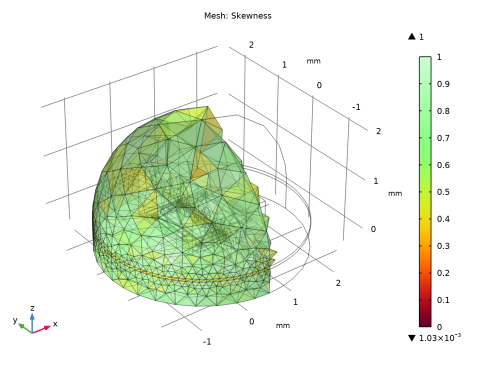
Mesh 1
1
In the Model Builder window, expand the Results node.
2
Right-click Results > Datasets and choose Mesh.
Create a mesh plot.
3
In the Settings window for Mesh, click  Plot.
Mesh Plot
1
In the Results toolbar, click  3D Plot Group.
2
In the Settings window for 3D Plot Group, type Mesh Plot in the Label text field.
3
Locate the Data section. From the Dataset list, choose Mesh 1.
4
Click to expand the Selection section. Click to expand the Title section. Locate the Plot Settings section. Select the Propagate hiding to lower dimensions checkbox.
5
Locate the Color Legend section. Select the Show maximum and minimum values checkbox.
Mesh 1
1
Right-click Mesh Plot and choose Mesh.
2
In the Settings window for Mesh, locate the Level section.
3
From the Level list, choose Volume.
4
Click to expand the Element Filter section. Select the Enable filter checkbox.
5
In the Expression text field, type x<0.5[mm].
6
In the Mesh Plot toolbar, click  Plot.
Plot the mode shapes from the eigenfrequency study.
Mode Shape (solid)
1
In the Results toolbar, click  3D Plot Group.
2
In the Settings window for 3D Plot Group, type Mode Shape (solid) in the Label text field.
3
Locate the Plot Settings section. From the Frame list, choose Spatial  (x, y, z).
4
Locate the Color Legend section. Clear the Show legends checkbox.
Surface 1
Right-click Mode Shape (solid) and choose Surface.
Deformation 1
1
In the Model Builder window, right-click Surface 1 and choose Deformation.
2
In the Mode Shape (solid) toolbar, click  Plot.
3
In the Model Builder window, click Deformation 1.
Plot the stress from the stationary study for the full model.
Stress (stationary)
1
In the Results toolbar, click  3D Plot Group.
2
In the Settings window for 3D Plot Group, type Stress (stationary) in the Label text field.
3
Locate the Data section. From the Dataset list, choose Study 2 - Frequency Response: Full Model (ta-ht-solid)/Solution Store 2 (sol4).
4
Locate the Plot Settings section. From the Frame list, choose Spatial  (x, y, z).
5
Locate the Data section. From the Parameter value (sigma_pre (GPa)) list, choose 3.
Volume 1
1
Right-click Stress (stationary) and choose Volume.
2
In the Stress (stationary) toolbar, click  Plot.
3
In the Model Builder window, click Volume 1.
Plot the displacement from the stationary study for the full model.
Displacement (stationary)
1
In the Results toolbar, click  3D Plot Group.
2
In the Settings window for 3D Plot Group, type Displacement (stationary) in the Label text field.
3
Locate the Data section. From the Dataset list, choose Study 2 - Frequency Response: Full Model (ta-ht-solid)/Solution Store 2 (sol4).
4
From the Parameter value (sigma_pre (GPa)) list, choose 3.
5
Locate the Plot Settings section. From the Frame list, choose Spatial  (x, y, z).
6
Locate the Color Legend section. Select the Show maximum and minimum values checkbox.
7
Select the Show units checkbox.
8
In the Displacement (stationary) toolbar, click  Plot.
Surface 1
1
Right-click Displacement (stationary) and choose Surface.
2
In the Displacement (stationary) toolbar, click  Plot.
3
In the Model Builder window, click Surface 1.
Plot the temperature from the stationary study for the full model.
Temperature (stationary)
1
In the Results toolbar, click  3D Plot Group.
2
In the Settings window for 3D Plot Group, type Temperature (stationary) in the Label text field.
3
Locate the Data section. From the Dataset list, choose Study 2 - Frequency Response: Full Model (ta-ht-solid)/Solution Store 2 (sol4).
4
From the Parameter value (sigma_pre (GPa)) list, choose 3.
5
Locate the Plot Settings section. From the Frame list, choose Spatial  (x, y, z).
Surface 1
1
Right-click Temperature (stationary) and choose Surface.
2
In the Settings window for Surface, locate the Expression section.
3
In the Expression text field, type T.
4
In the Temperature (stationary) toolbar, click  Plot.
Plot the displacement from the frequency domain perturbation study for the full model.
Displacement (perturbation)
1
In the Results toolbar, click  3D Plot Group.
2
In the Settings window for 3D Plot Group, type Displacement (perturbation) in the Label text field.
3
Locate the Data section. From the Dataset list, choose Study 2 - Frequency Response: Full Model (ta-ht-solid)/Solution 3 (sol3).
4
Locate the Title section. From the Title type list, choose Label.
5
Locate the Plot Settings section. From the Frame list, choose Spatial  (x, y, z).
6
Locate the Color Legend section. Select the Show units checkbox.
Surface 1
Right-click Displacement (perturbation) and choose Surface.
Deformation 1
1
In the Model Builder window, right-click Surface 1 and choose Deformation.
2
In the Displacement (perturbation) toolbar, click  Plot.
3
In the Model Builder window, click Deformation 1.
Plot the temperature from the frequency domain perturbation study for the full model.
Temperature (perturbation)
1
In the Results toolbar, click  3D Plot Group.
2
In the Settings window for 3D Plot Group, type Temperature (perturbation) in the Label text field.
3
Locate the Data section. From the Dataset list, choose Study 2 - Frequency Response: Full Model (ta-ht-solid)/Solution 3 (sol3).
4
Locate the Title section. From the Title type list, choose Label.
5
Locate the Plot Settings section. Clear the Plot dataset edges checkbox.
6
Locate the Color Legend section. Select the Show units checkbox.
Surface 1
1
Right-click Temperature (perturbation) and choose Surface.
2
In the Settings window for Surface, locate the Expression section.
3
In the Expression text field, type T.
4
From the Unit list, choose mK.
5
Locate the Coloring and Style section. From the Color table list, choose ThermalWave.
6
In the Temperature (perturbation) toolbar, click  Plot.
Deformation 1
1
Right-click Surface 1 and choose Deformation.
2
In the Settings window for Deformation, locate the Scale section.
3
Select the Scale factor checkbox. In the associated text field, type 1.
Filter 1
1
In the Model Builder window, right-click Surface 1 and choose Filter.
2
In the Settings window for Filter, locate the Element Selection section.
3
In the Logical expression for inclusion text field, type x<0.5[mm].
Selection 1
1
Right-click Surface 1 and choose Selection.
2
In the Settings window for Selection, locate the Selection section.
3
From the Selection list, choose Solid-TA.
Slice 1
1
In the Model Builder window, right-click Temperature (perturbation) and choose Slice.
2
In the Settings window for Slice, locate the Expression section.
3
In the Expression text field, type ta.T_t.
4
From the Unit list, choose mK.
5
Locate the Plane Data section. In the Planes text field, type 1.
6
Locate the Coloring and Style section. Clear the Color legend checkbox.
7
Click to expand the Inherit Style section. From the Plot list, choose Surface 1.
8
In the Temperature (perturbation) toolbar, click  Plot.
Transparency 1
1
Right-click Slice 1 and choose Transparency.
2
In the Settings window for Transparency, locate the Transparency section.
3
Find the Transparency subsection. In the Transparency text field, type 0.05.
4
Find the Fresnel transmittance subsection. In the Fresnel transmittance text field, type 0.1.
5
In the Temperature (perturbation) toolbar, click  Plot.
Slice 2
1
In the Model Builder window, right-click Temperature (perturbation) and choose Slice.
2
In the Settings window for Slice, locate the Expression section.
3
In the Expression text field, type T.
4
From the Unit list, choose mK.
5
Locate the Coloring and Style section. Clear the Color legend checkbox.
6
Locate the Inherit Style section. From the Plot list, choose Surface 1.
7
In the Temperature (perturbation) toolbar, click  Plot.
Volume 1
1
Right-click Temperature (perturbation) and choose Volume.
2
In the Settings window for Volume, locate the Expression section.
3
In the Expression text field, type 1.
4
Locate the Coloring and Style section. From the Coloring list, choose Uniform.
5
From the Color list, choose Custom.
6
7
Click Define custom colors.
8
9
Click Add to custom colors.
10
Click Show color palette only or OK on the cross-platform desktop.
Selection 1
1
Right-click Volume 1 and choose Selection.
2
In the Settings window for Selection, locate the Selection section.
3
Click  Paste Selection.
4
In the Paste Selection dialog, type 1 2 4 in the Selection text field.
5
Material Appearance 1
1
In the Model Builder window, right-click Volume 1 and choose Material Appearance.
2
In the Settings window for Material Appearance, locate the Appearance section.
3
From the Appearance list, choose Custom.
4
From the Material type list, choose Aluminum (anodized).
5
Locate the Color section. Select the Use the plot’s color checkbox.
6
In the Temperature (perturbation) toolbar, click  Plot.
Line 1
1
In the Model Builder window, right-click Temperature (perturbation) and choose Line.
2
In the Settings window for Line, locate the Coloring and Style section.
3
From the Coloring list, choose Uniform.
4
From the Color list, choose Black.
5
In the Temperature (perturbation) toolbar, click  Plot.
Create a slice plot of the acoustic velocity from the frequency domain perturbation study for the full model.
Acoustic Velocity (perturbation)
1
In the Results toolbar, click  3D Plot Group.
2
In the Settings window for 3D Plot Group, type Acoustic Velocity (perturbation) in the Label text field.
3
Locate the Data section. From the Dataset list, choose Study 2 - Frequency Response: Full Model (ta-ht-solid)/Solution 3 (sol3).
4
Locate the Plot Settings section. From the Frame list, choose Spatial  (x, y, z).
5
Locate the Color Legend section. Select the Show units checkbox.
Slice 1
1
Right-click Acoustic Velocity (perturbation) and choose Slice.
2
In the Settings window for Slice, locate the Expression section.
3
In the Expression text field, type ta.v_inst.
4
From the Unit list, choose mm/s.
5
Locate the Plane Data section. In the Planes text field, type 1.
6
In the Acoustic Velocity (perturbation) toolbar, click  Plot.
Transparency 1
1
Right-click Slice 1 and choose Transparency.
2
In the Settings window for Transparency, locate the Transparency section.
3
Find the Transparency subsection. In the Transparency text field, type 0.1.
4
Find the Fresnel transmittance subsection. In the Fresnel transmittance text field, type 0.1.
5
In the Acoustic Velocity (perturbation) toolbar, click  Plot.
Create a slice plot of the acoustic pressure from the frequency domain perturbation study for the full model.
Acoustic Pressure (perturbation)
1
In the Results toolbar, click  3D Plot Group.
2
In the Settings window for 3D Plot Group, type Acoustic Pressure (perturbation) in the Label text field.
3
Locate the Data section. From the Dataset list, choose Study 2 - Frequency Response: Full Model (ta-ht-solid)/Solution 3 (sol3).
4
Locate the Plot Settings section. From the Frame list, choose Spatial  (x, y, z).
5
Locate the Color Legend section. Select the Show units checkbox.
Slice 1
1
Right-click Acoustic Pressure (perturbation) and choose Slice.
2
In the Settings window for Slice, locate the Expression section.
3
In the Expression text field, type ta.p_t.
4
Locate the Plane Data section. In the Planes text field, type 1.
5
Locate the Coloring and Style section. From the Color table list, choose Wave.
6
From the Scale list, choose Linear symmetric.
7
In the Acoustic Pressure (perturbation) toolbar, click  Plot.
Transparency 1
1
Right-click Slice 1 and choose Transparency.
2
In the Settings window for Transparency, locate the Transparency section.
3
Find the Transparency subsection. In the Transparency text field, type 0.1.
4
Find the Fresnel transmittance subsection. In the Fresnel transmittance text field, type 0.1.
5
In the Acoustic Pressure (perturbation) toolbar, click  Plot.
Slice 2
1
In the Model Builder window, right-click Acoustic Pressure (perturbation) and choose Slice.
2
In the Settings window for Slice, locate the Expression section.
3
In the Expression text field, type acpr.p_t.
4
Locate the Plane Data section. In the Planes text field, type 1.
5
Locate the Inherit Style section. From the Plot list, choose Slice 1.
6
In the Acoustic Pressure (perturbation) toolbar, click  Plot.
Transparency 1
1
Right-click Slice 2 and choose Transparency.
2
In the Acoustic Pressure (perturbation) toolbar, click  Plot.
3
In the Model Builder window, click Transparency 1.
Plot the displacement versus the frequency to compare the response of full model with the response of the model with only solid losses near the resonance.
Response Comparison (at resonance)
1
In the Results toolbar, click  1D Plot Group.
2
In the Settings window for 1D Plot Group, type Response Comparison (at resonance) in the Label text field.
3
Locate the Data section. From the Dataset list, choose Study 2 - Frequency Response: Full Model (ta-ht-solid)/Solution 3 (sol3).
4
From the Parameter selection (freq) list, choose Manual.
5
In the Parameter indices (1-27) text field, type range(13,1,27).
Point Graph 1
1
Right-click Response Comparison (at resonance) and choose Point Graph.
2
In the Settings window for Point Graph, locate the Selection section.
3
Click  Paste Selection.
4
In the Paste Selection dialog, type 97 in the Selection text field.
5
6
In the Settings window for Point Graph, locate the y-Axis Data section.
7
In the Expression text field, type abs(w).
8
Click to expand the Coloring and Style section. From the Width list, choose 1.
9
Click to expand the Legends section. Select the Show legends checkbox.
10
From the Legends list, choose Manual.
11
12
In the Response Comparison (at resonance) toolbar, click  Plot.
Point Graph 2
1
Right-click Point Graph 1 and choose Duplicate.
2
In the Settings window for Point Graph, locate the Data section.
3
From the Dataset list, choose Study 3 - Frequency Response: Solid Losses (ht-solid)/Solution 5 (sol5).
4
From the Parameter selection (freq) list, choose Manual.
5
In the Parameter indices (1-27) text field, type range(13,1,27).
6
Locate the Legends section. In the table, enter the following settings:
7
In the Response Comparison (at resonance) toolbar, click  Plot.
Plot the displacement versus the frequency to compare the response of the full model with the response of the model with only solid losses between 50 and 600 Hz.
Response Comparison (typical operation)
1
In the Results toolbar, click  1D Plot Group.
2
In the Settings window for 1D Plot Group, type Response Comparison (typical operation) in the Label text field.
3
Locate the Data section. From the Dataset list, choose Study 2 - Frequency Response: Full Model (ta-ht-solid)/Solution 3 (sol3).
4
From the Parameter selection (freq) list, choose Manual.
5
In the Parameter indices (1-27) text field, type range(1,1,12).
Point Graph 1
1
Right-click Response Comparison (typical operation) and choose Point Graph.
2
In the Settings window for Point Graph, locate the Selection section.
3
Click  Paste Selection.
4
In the Paste Selection dialog, type 97 in the Selection text field.
5
6
In the Settings window for Point Graph, locate the y-Axis Data section.
7
In the Expression text field, type abs(w).
8
Locate the Coloring and Style section. From the Width list, choose 1.
9
Locate the Legends section. Select the Show legends checkbox.
10
From the Legends list, choose Manual.
11
12
In the Response Comparison (typical operation) toolbar, click  Plot.
Point Graph 2
1
Right-click Point Graph 1 and choose Duplicate.
2
In the Settings window for Point Graph, locate the Data section.
3
From the Dataset list, choose Study 3 - Frequency Response: Solid Losses (ht-solid)/Solution 5 (sol5).
4
From the Parameter selection (freq) list, choose Manual.
5
In the Parameter indices (1-27) text field, type range(1,1,12).
6
Locate the Legends section. In the table, enter the following settings:
7
In the Response Comparison (typical operation) toolbar, click  Plot.