PDF

Prestressed Micromirror
Introduction
One method of creating spring-like structures or inducing curvature in plated structures is to plate materials onto a substrate such that the layer has a residual stress after the plating process. The plating process can control this stress, which can be either compressive or tensile, even for similar materials. The automotive industry has studied this phenomenon at length because highly stressed chrome is appreciably shinier than nonstressed chrome. MEMS device manufacturers sometimes use this effect to create curved cantilevers or spring-loaded micromechanical structures that lift off the substrate when deliberately undercut by an etchant.
One such device is the electrostatically controlled micromirror. It is typically quite small, and arrays of such devices can implement a projection system. They serve as optical redirectors and similar reflection devices. This section shows the fundamentals of how to set up and solve lift-off of a prestressed plated device.
Model Definition
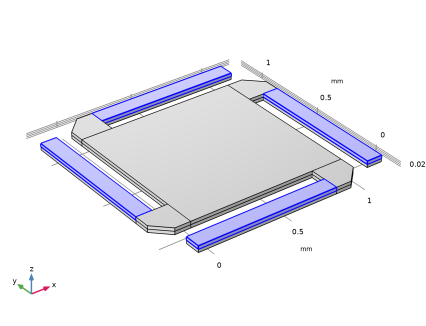
This single-physics model uses 3D structural analysis. The micromirror has a stiff, flat, reflective center portion, which is supported by four prestressed plated cantilever springs. To keep the mesh size small and the solution time reasonable, this exercise studies the plated structure with two layers. It also assumes that the plating process creates equal and opposite (compressive and tensile) initial stresses in the top and bottom layers. This convenience makes the model straightforward to set up. You can make the initial-stress distribution as complex as desired and set it up as shown in this example. Depending on the magnitude of the deformations, you are likely best advised to solve such simulations with a large-deformation analysis using a nonlinear or parametric nonlinear solver, noting that the latter is more likely to converge. Thus this illustrative model uses the large-deformation analysis type with both the linear and parametric linear solvers.
Note in particular that a 3D structure with thin layers such as the one in this model leads to a very large unstructured tetrahedral mesh. To avoid this case, this example first generates a 2D quadrilateral mesh by mesh mapping and then extrudes it into 3D to produce a mesh with hexahedral (brick) elements. This way you can have the mesher create structured elements with a high aspect ratio.
One of the key process parameters you wish to determine in this class of problem is generally what prestress level is necessary to result in a desired lift-off. Another common concern is how much effect variations in the prestress might have on displacement. A parametric study answers this question.
Results and Discussion
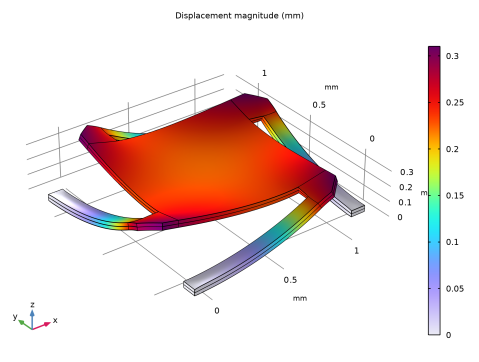
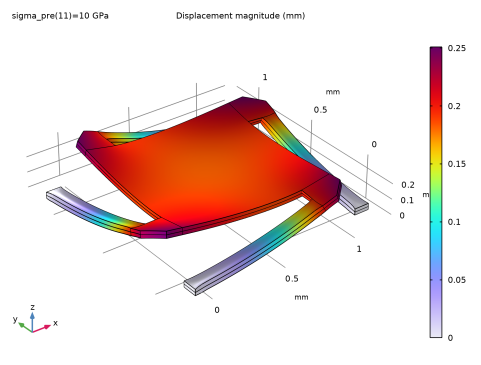
The following two images compare lift-off for aluminum and steel plates. The steel, being stiffer than aluminum, deforms less.
Figure 1: Lift-off for aluminum.
Figure 2: Lift-off for steel.
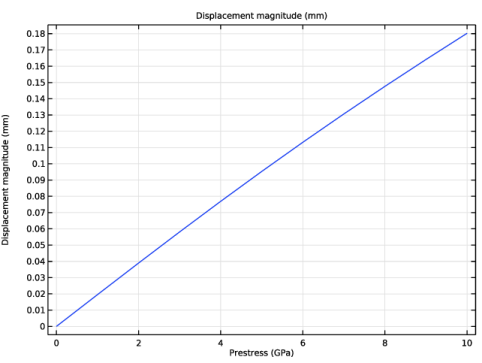
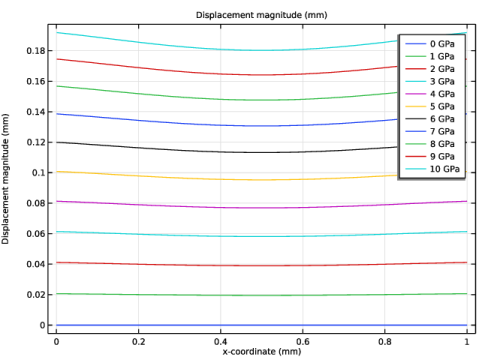
The following two figures show the mirror response to the different levels of applied prestress. According to Figure 3, the centerpoint deflection is almost linearly dependent on the prestress. Figure 4 shows the mirror’s curvature along its centerline for different values of prestress. In line with expectations, increasing the stress bends the mirror more.
Figure 3: Total deflection of the center of the mirror for different prestress levels.
Figure 4: Mirror curvature along the centerline for different prestress levels.
Reference
1. G. Kovacs, Micromachined Transducers Sourcebook, WCM McGraw Hill, 1998.
Application Library path: MEMS_Module/Actuators/micromirror
Modeling Instructions
From the File menu, choose New.
New
In the New window, click  Model Wizard.
Model Wizard
1
In the Model Wizard window, click  3D.
2
In the Select Physics tree, select Structural Mechanics > Solid Mechanics (solid).
3
Click Add.
4
Click  Study.
5
In the Select Study tree, select General Studies > Stationary.
6
The Model Wizard starts the COMSOL Desktop with the Geometry node selected. We can take the chance to set the length unit to a more convenient one.
Geometry 1
1
In the Model Builder window, under Component 1 (comp1) click Geometry 1.
2
In the Settings window for Geometry, locate the Units section.
3
From the Length unit list, choose mm.
Now set up some global parameters.
Global Definitions
Parameters 1
1
In the Model Builder window, under Global Definitions click Parameters 1.
2
In the Settings window for Parameters, locate the Parameters section.
3
Geometry 1
Work Plane 1 (wp1)
1
In the Geometry toolbar, click  Work Plane.
2
In the Settings window for Work Plane, click  Go to Plane Geometry.
Work Plane 1 (wp1) > Plane Geometry
In the Model Builder window, click Plane Geometry.
Work Plane 1 (wp1) > Square 1 (sq1)
1
In the Work Plane toolbar, click  Square.
2
In the Settings window for Square, click  Build Selected.
Work Plane 1 (wp1) > Square 2 (sq2)
1
In the Work Plane toolbar, click  Square.
2
In the Settings window for Square, locate the Size section.
3
In the Side length text field, type 0.2.
4
Locate the Position section. In the yw text field, type 1.
5
Click  Build Selected.
6
Click the  Zoom Extents button in the Graphics toolbar.
Work Plane 1 (wp1) > Chamfer 1 (cha1)
1
In the Work Plane toolbar, click  Chamfer.
2
On the object sq2, select Point 4 only.
3
In the Settings window for Chamfer, locate the Distance section.
4
In the Distance from vertex text field, type 0.1.
5
Click  Build Selected.
Work Plane 1 (wp1) > Rectangle 1 (r1)
1
In the Work Plane toolbar, click  Rectangle.
2
In the Settings window for Rectangle, locate the Size and Shape section.
3
In the Width text field, type 0.9.
4
In the Height text field, type 0.1.
5
Locate the Position section. In the xw text field, type 0.2.
6
In the yw text field, type 1.1.
7
Click  Build Selected.
Work Plane 1 (wp1) > Rotate 1 (rot1)
1
In the Work Plane toolbar, click  Transforms and choose Rotate.
2
Select the objects cha1 and r1 only.
3
In the Settings window for Rotate, locate the Rotation section.
4
In the Angle text field, type range(90,90,360).
5
Locate the Center of Rotation section. In the xw text field, type 0.5.
6
In the yw text field, type 0.5.
7
Click  Build Selected.
Extrude 1 (ext1)
1
In the Model Builder window, under Component 1 (comp1) > Geometry 1 right-click Work Plane 1 (wp1) and choose Extrude.
2
In the Settings window for Extrude, locate the Distances section.
3
4
Click  Build Selected.
This creates two layers with thickness of 0.02 mm each (not one of 0.04 mm on top of one of 0.02 mm).
Form Union (fin)
1
In the Model Builder window, click Form Union (fin).
2
In the Settings window for Form Union/Assembly, click  Build Selected.
3
Click the  Zoom Extents button in the Graphics toolbar.
Add Material
1
In the Materials toolbar, click  Add Material to open the Add Material window.
2
Go to the Add Material window.
3
In the tree, select Built-in > Aluminum.
4
Click the Add to Component button in the window toolbar.
5
In the Materials toolbar, click  Add Material to close the Add Material window.
Materials
Aluminum (mat1)
By default the first material you add applies to all domains, so you do not need to change the settings in the Geometric Entity Selection.
You can inspect which material properties are used and what values they take in the Material Contents table.
Solid Mechanics (solid)
Linear Elastic Material 1
In the Model Builder window, under Component 1 (comp1) > Solid Mechanics (solid) click Linear Elastic Material 1.
Initial Stress and Strain 1
1
In the Physics toolbar, click  Attributes and choose Initial Stress and Strain.
2
In the Settings window for Initial Stress and Strain, locate the Domain Selection section.
3
Click  Clear Selection.
4
5
Locate the Initial Stress and Strain section. Specify the S0 matrix as
Linear Elastic Material 1
In the Model Builder window, click Linear Elastic Material 1.
Initial Stress and Strain 2
1
In the Physics toolbar, click  Attributes and choose Initial Stress and Strain.
2
In the Settings window for Initial Stress and Strain, locate the Domain Selection section.
3
Click  Clear Selection.
4
5
Locate the Initial Stress and Strain section. Specify the S0 matrix as
Fixed Constraint 1
1
In the Physics toolbar, click  Boundaries and choose Fixed Constraint.
2
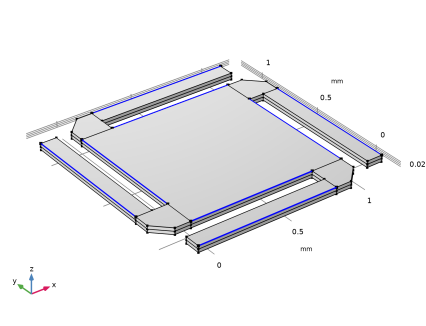
It might be easier to select the correct boundaries by using the Selection List window. To open this window, in the Home toolbar click Windows and choose Selection List. (If you are running the cross-platform desktop, you find Windows in the main menu.)
3
Click the  Zoom Extents button in the Graphics toolbar.
Mesh 1
Mapped 1
1
In the Mesh toolbar, click  More Generators and choose Mapped.
2
Distribution 1
1
Right-click Mapped 1 and choose Distribution.
2
3
In the Settings window for Distribution, locate the Distribution section.
4
In the Number of elements text field, type 12.
Distribution 2
1
In the Model Builder window, right-click Mapped 1 and choose Distribution.
2
3
In the Settings window for Distribution, locate the Distribution section.
4
In the Number of elements text field, type 3.
Distribution 3
1
Right-click Mapped 1 and choose Distribution.
2
3
In the Settings window for Distribution, locate the Distribution section.
4
In the Number of elements text field, type 6.
Mapped 1
1
Right-click Mapped 1 and choose Build Selected.
2
Click the  Zoom Extents button in the Graphics toolbar.
Swept 1
1
In the Mesh toolbar, click  Swept.
2
In the Settings window for Swept, click  Build Selected.
Study 1
Step 1: Stationary
1
In the Model Builder window, under Study 1 click Step 1: Stationary.
2
In the Settings window for Stationary, locate the Study Settings section.
3
Select the Include geometric nonlinearity checkbox.
Solution 1 (sol1)
1
In the Study toolbar, click  Show Default Solver.
2
In the Model Builder window, expand the Solution 1 (sol1) node.
3
In the Model Builder window, expand the Study 1 > Solver Configurations > Solution 1 (sol1) > Dependent Variables 1 node, then click Displacement Field (comp1.u).
4
In the Settings window for Field, locate the Residual Scaling section.
5
From the Method list, choose Manual.
The initial stress value used in the auxiliary sweep is 0 GPa so here it is best to use manual residual scaling.
6
In the Model Builder window, expand the Study 1 > Solver Configurations > Solution 1 (sol1) > Stationary Solver 1 node, then click Fully Coupled 1.
7
In the Settings window for Fully Coupled, click to expand the Method and Termination section.
8
From the Nonlinear method list, choose Constant (Newton).
Sometimes the automatic Newton nonlinear solver is too conservative, so here we choose the solver with constant damping.
9
In the Study toolbar, click  Compute.
Results
The following steps reproduce the displacement plot shown in Figure 1.
Volume 1
1
In the Model Builder window, expand the Results > Stress (solid) node, then click Volume 1.
2
In the Settings window for Volume, click Replace Expression in the upper-right corner of the Expression section. From the menu, choose Component 1 (comp1) > Solid Mechanics > Displacement > solid.disp - Displacement magnitude - m.
3
In the Stress (solid) toolbar, click  Plot.
4
Click the  Zoom Extents button in the Graphics toolbar.
Materials
Change the plate material to steel.
Add Material
1
In the Materials toolbar, click  Add Material to open the Add Material window.
2
Go to the Add Material window.
3
In the tree, select Built-in > Structural steel.
4
Click the Add to Component button in the window toolbar.
5
In the Materials toolbar, click  Add Material to close the Add Material window.
Materials
Structural steel (mat2)
1
The remaining domains keep their previous material, that is aluminum.
Study 1
Step 1: Stationary
1
In the Model Builder window, under Study 1 click Step 1: Stationary.
2
In the Settings window for Stationary, click to expand the Study Extensions section.
3
Select the Auxiliary sweep checkbox.
4
5
To keep the sequence Stationary Solver 1 intact, disable it and generate a new solver sequence.
Solution 1 (sol1)
In the Model Builder window, under Study 1 > Solver Configurations right-click Solution 1 (sol1) and choose Exclude When Computing Study.
Solution 2 (sol2)
1
In the Study toolbar, click  Show Default Solver.
2
In the Model Builder window, expand the Solution 2 (sol2) node.
3
In the Model Builder window, expand the Study 1 > Solver Configurations > Solution 2 (sol2) > Dependent Variables 1 node, then click Displacement Field (comp1.u).
4
In the Settings window for Field, locate the Residual Scaling section.
5
From the Method list, choose Manual.
The initial stress value used in the auxiliary sweep is 0 GPa so here it is best to use manual residual scaling.
Repeat the settings you previously made for Stationary Solver 1.
6
In the Model Builder window, expand the Study 1 > Solver Configurations > Solution 2 (sol2) > Stationary Solver 1 node, then click Fully Coupled 1.
7
In the Settings window for Fully Coupled, locate the Method and Termination section.
8
From the Nonlinear method list, choose Constant (Newton).
9
In the Model Builder window, right-click Solution 2 (sol2) and choose Run.
Results
Follow the steps below to reproduce the plot in Figure 2.
Volume 1
1
In the Model Builder window, expand the Results > Stress (solid) 1 node, then click Volume 1.
2
In the Settings window for Volume, click Replace Expression in the upper-right corner of the Expression section. From the menu, choose solid.disp - Displacement magnitude - m.
3
In the Stress (solid) 1 toolbar, click  Plot.
4
Click the  Zoom Extents button in the Graphics toolbar.
Next, reproduce the plot in Figure 3, showing the total deflection at the center of the mirror as a function of the prestress level.
Cut Point 3D 1
1
In the Results toolbar, click  Cut Point 3D.
2
In the Settings window for Cut Point 3D, locate the Data section.
3
From the Dataset list, choose Study 1/Solution 2 (sol2).
4
Locate the Point Data section. In the X text field, type 0.5.
5
In the Y text field, type 0.5.
6
In the Z text field, type 0.04.
1D Plot Group 3
1
In the Results toolbar, click  1D Plot Group.
2
In the Settings window for 1D Plot Group, locate the Data section.
3
From the Dataset list, choose Cut Point 3D 1.
4
Locate the Plot Settings section.
5
Select the x-axis label checkbox. In the associated text field, type Prestress (GPa).
Point Graph 1
1
Right-click 1D Plot Group 3 and choose Point Graph.
2
In the Settings window for Point Graph, click Replace Expression in the upper-right corner of the y-Axis Data section. From the menu, choose Component 1 (comp1) > Solid Mechanics > Displacement > solid.disp - Displacement magnitude - m.
3
In the 1D Plot Group 3 toolbar, click  Plot.
Finally, reproduce the plot in Figure 4 of the total deflection along the centerline for the prestress levels included in the parametric sweep.
Cut Line 3D 1
1
In the Results toolbar, click  Cut Line 3D.
2
In the Settings window for Cut Line 3D, locate the Data section.
3
From the Dataset list, choose Study 1/Solution 2 (sol2).
4
Locate the Line Data section. In row Point 1, set Y to 0.5 and Z to 0.04.
1D Plot Group 4
1
In the Results toolbar, click  1D Plot Group.
2
In the Settings window for 1D Plot Group, locate the Data section.
3
From the Dataset list, choose Cut Line 3D 1.
Line Graph 1
1
Right-click 1D Plot Group 4 and choose Line Graph.
Keep the default plot expression.
2
In the Settings window for Line Graph, click Replace Expression in the upper-right corner of the x-Axis Data section. From the menu, choose Component 1 (comp1) > Geometry > Coordinate (spatial frame) > x - x-coordinate.
3
Click to expand the Legends section. Select the Show legends checkbox.
4
In the 1D Plot Group 4 toolbar, click  Plot.