PDF

Micromachined Gyroscope with Mixed Formulation
Introduction
This tutorial shows how to model a capacitively-driven gyroscope using electromechanics coupling. The model solves for electromechanical force, Coriolis force and structure deformation without using analytic formulas used in A Micromachined Comb-Drive Tuning Fork Rate Gyroscope. The electromechanics coupling is specified at the start and the relevant physics are added automatically. The original device is loosely based on Ref. 1.
Model Definition
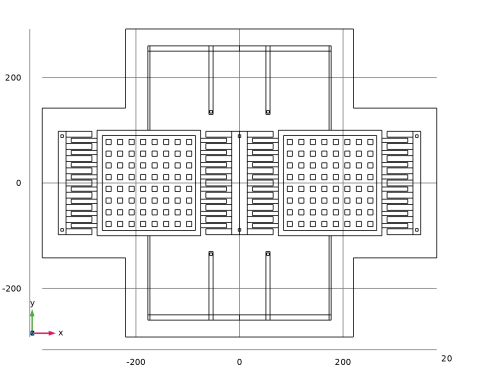
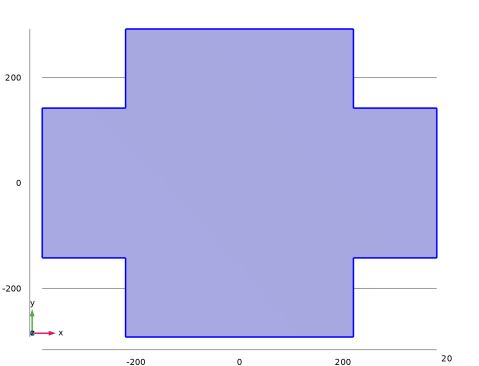
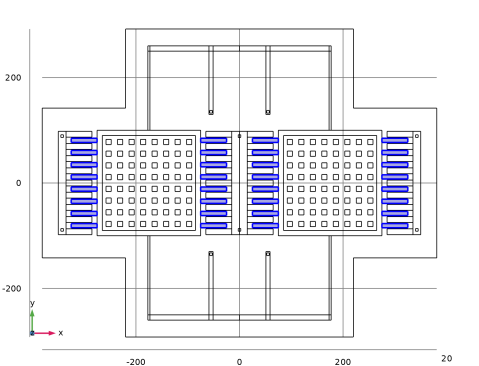
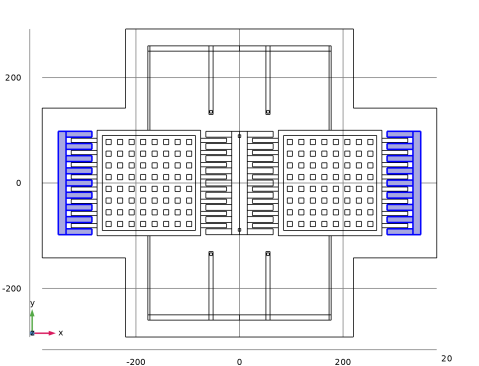
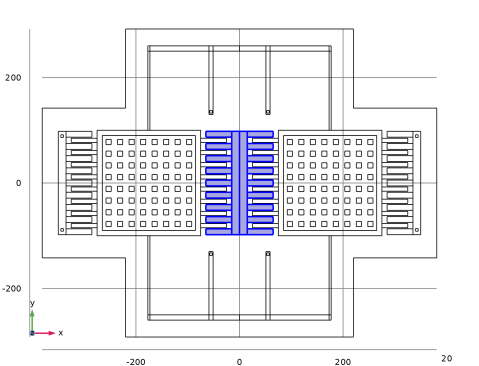
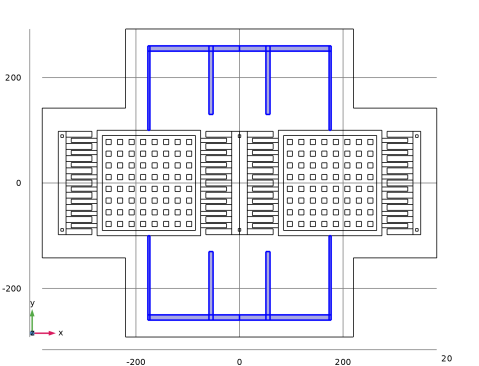
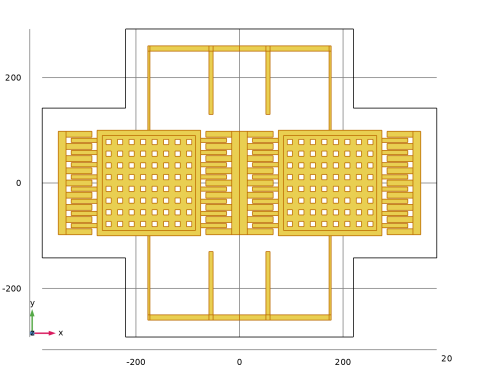
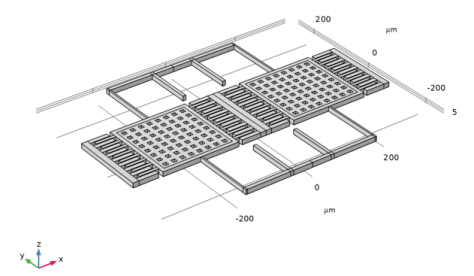
For convenience, the geometry is imported into the model. The structural part (excluding the free space around it) is the same as in A Micromachined Comb-Drive Tuning Fork Rate Gyroscope shown in the figure below. Various selection features are used for the setup of domain or boundary-dependent features and mesh.
Figure 1: The geometry of the gyroscope.
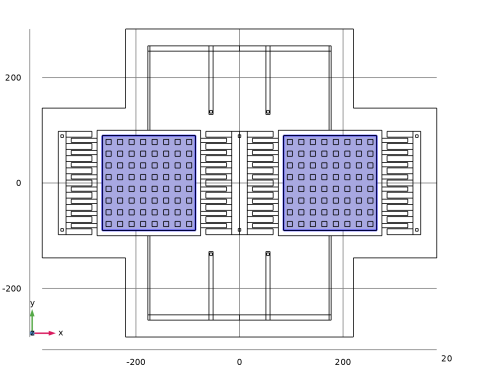
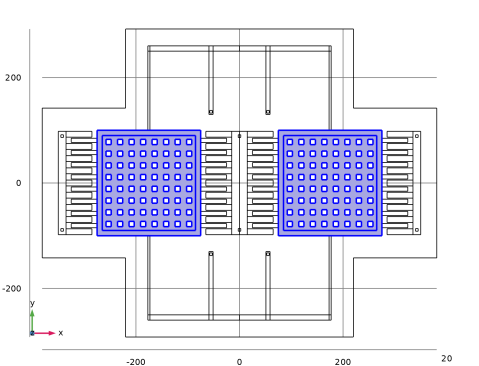
The gyroscope is composed of two proof masses supported by springs anchored to the substrate (not explicitly modeled). The comb drive excites the drive mode with the two masses oscillating along the X-axis in opposite directions. The device is designed to sense rotations around the Y-axis. The combination of such rotations and the drive-mode motion causes a Coriolis force in the positive and negative Z directions, which excites the out-of-plane sense-mode oscillation of the two masses. The sense-mode oscillation is picked up capacitively with electrodes in the substrate.
The combs are assumed to be DC-biased at 20 V and AC-excited at 1.5 V. The sense electrodes are assumed to be DC-biased at 5 V.
To save time and file size, a relatively coarse mesh is used. Nevertheless, the mesh is parameterized to be ready for refinement studies.
Results and Discussion
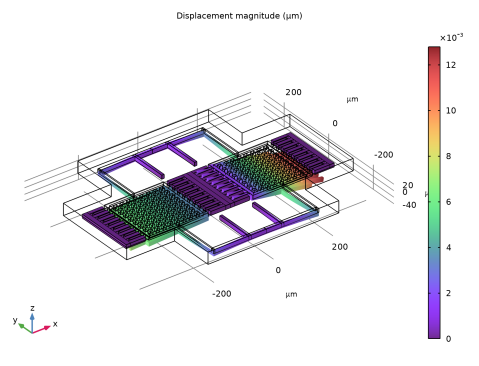
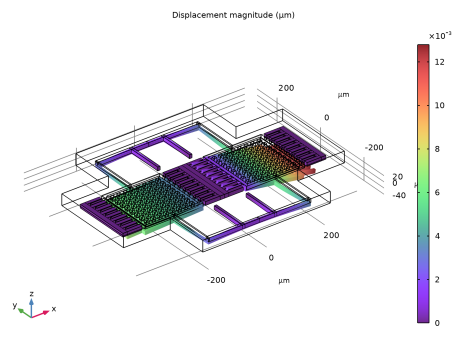
Figure 2 shows the stationary response of the device. The masses are pulled down slightly by the bias voltage of the sense electrodes. The masses do not move horizontally since the DC part of the comb drive forces for each mass are equal and in opposite directions so they cancel out.
Figure 2: Stationary response of the device.
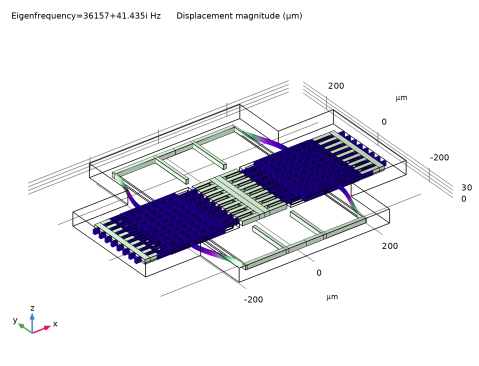
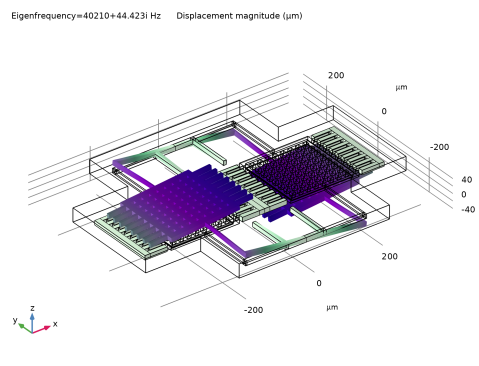
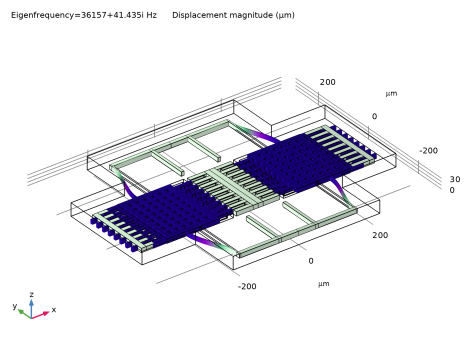
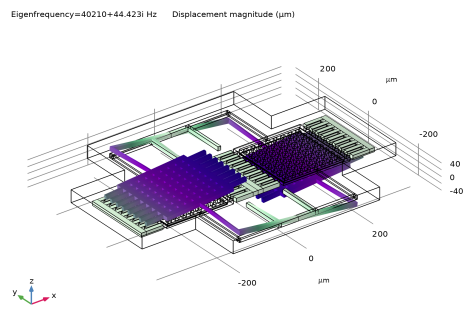
Figure 3 and Figure 4 show the prestressed eigenfrequencies and mode shapes of the in-plane drive mode and the out-of-plane sense mode, respectively.
Figure 3: Drive mode shape.
Figure 4: Sense mode shape.
The drive-mode and sense-mode resonant frequencies can be estimated with analytic formulas from standard textbooks (for example, Ref. 2). The agreement between the numerical and analytic results is good; see Table 1.
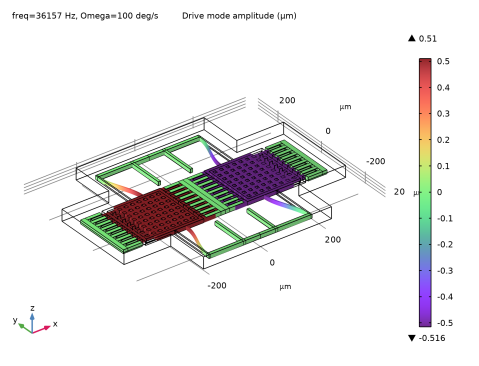
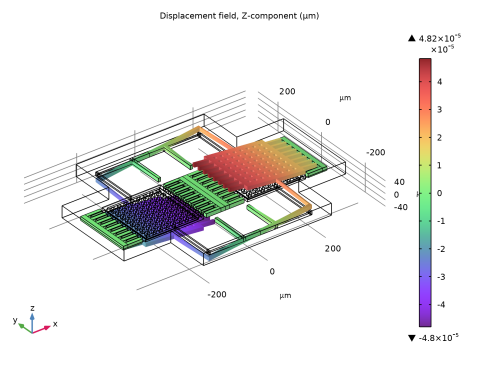
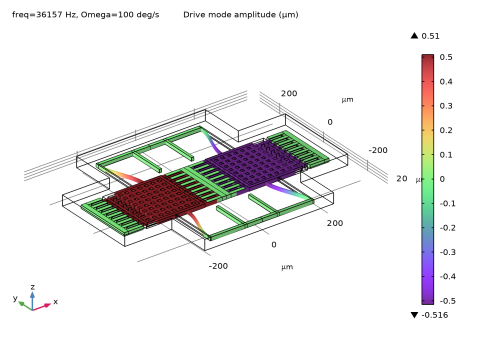
Figure 5 shows the drive-mode displacement under the simulated operation. The amplitude can be read off from the color legend.
Figure 5: The drive mode displacement.
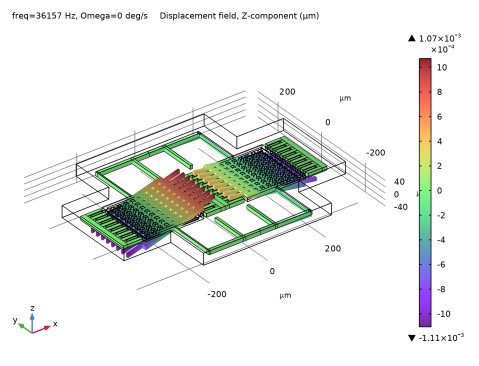
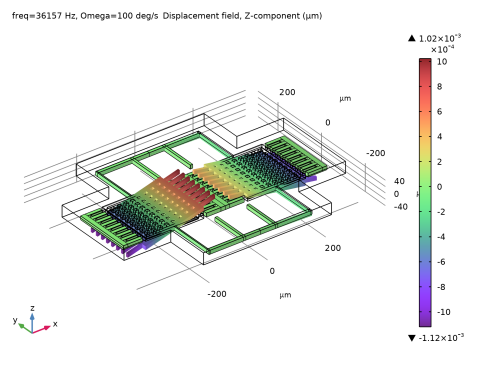
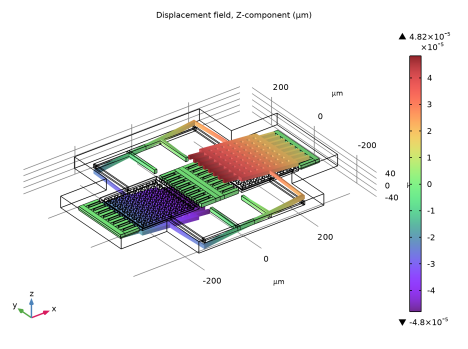
Figure 6 shows the sense-mode displacement. Due to the tilt of the masses, the amplitude is either read off the Evaluation 3D table after clicking around the centers of the masses, or evaluated using Join dataset as detailed in the Modeling Instructions section.
Figure 6: The sense-mode displacement.
Reference
1. J. Bernstein, S. Cho, A.T. King, A. Kourepenis, P. Maciel, and M. Weinberg, “A micromachined comb-drive tuning fork rate gyroscope,” Proceedings IEEE Micro Electro Mechanical Systems, Fort Lauderdale, FL, USA, 1993, pp. 143–148.
2. V. Kaajakari, Practical MEMS, Small Gear Pub. (Las Vegas, Nev.), 2009.
Application Library path: MEMS_Module/Sensors/gyroscope_mixed_formulation
Modeling Instructions
From the File menu, choose New.
New
In the New window, click  Model Wizard.
Model Wizard
1
In the Model Wizard window, Start by creating a new 3D model with a Electromechanics multiphysics interface.
2
3
In the Select Physics tree, select AC/DC > Electromagnetics and Mechanics > Electromechanics > Electromechanics, Solid.
4
Click Add.
5
Click  Study.
6
In the Select Study tree, select General Studies > Stationary.
7
Geometry 1
The Model Wizard starts the COMSOL Desktop at the Geometry node. Take the opportunity to set the length unit to microns for convenience.
1
In the Model Builder window, under Component 1 (comp1) click Geometry 1.
2
In the Settings window for Geometry, locate the Units section.
3
From the Length unit list, choose µm.
Define and specify the parameters of the model.
Global Definitions
Parameters 1
1
In the Model Builder window, under Global Definitions click Parameters 1.
2
In the Settings window for Parameters, locate the Parameters section.
3
Instead of creating the geometry, use the Import feature.
Geometry 1
Import 1 (imp1)
1
In the Geometry toolbar, click  Import.
2
In the Settings window for Import, locate the Source section.
3
Click the Browse button. From the menu, choose Browse.
4
5
Click  Import.
6
Click the  Go to XY View button in the Graphics toolbar.
7
Click the  Orthographic Projection button in the Graphics toolbar.
8
Click the  Wireframe Rendering button in the Graphics toolbar.
Define selections for the electrodes and other boundaries and domains. This will make specifying the material models and physics interface settings easier.
Definitions
Base
1
In the Definitions toolbar, click  Box.
2
In the Settings window for Box, type Base in the Label text field.
3
Locate the Geometric Entity Level section. From the Level list, choose Boundary.
4
Locate the Box Limits section. In the z maximum text field, type -t_anchor.
5
Locate the Output Entities section. From the Include entity if list, choose Entity inside box.
Bottom electrode
1
In the Definitions toolbar, click  Explicit.
2
In the Settings window for Explicit, type Bottom electrode in the Label text field.
3
Locate the Input Entities section. From the Geometric entity level list, choose Boundary.
4
Click  Paste Selection.
5
In the Paste Selection dialog, type 146 813 in the Selection text field.
6
Ground
1
In the Definitions toolbar, click  Explicit.
2
In the Settings window for Explicit, type Ground in the Label text field.
3
Locate the Input Entities section. From the Geometric entity level list, choose Boundary.
4
Click  Paste Selection.
5
In the Paste Selection dialog, type 1 2 4 5 216 217 218 219 1036 1037 1038 in the Selection text field.
6
Mass
1
In the Definitions toolbar, click  Explicit.
2
In the Settings window for Explicit, type Mass in the Label text field.
3
Click the  Select Box button in the Graphics toolbar.
4
5
Click the  Select Box button in the Graphics toolbar.
6
Rotor
1
In the Definitions toolbar, click  Explicit.
2
In the Settings window for Explicit, type Rotor in the Label text field.
3
Click the  Select Box button in the Graphics toolbar.
4
5
Click the  Select Box button in the Graphics toolbar.
6
7
Click the  Select Box button in the Graphics toolbar.
8
9
Click the  Select Box button in the Graphics toolbar.
10
Outer stator
1
In the Definitions toolbar, click  Explicit.
2
In the Settings window for Explicit, type Outer stator in the Label text field.
3
Click the  Select Box button in the Graphics toolbar.
4
5
Click the  Select Box button in the Graphics toolbar.
6
Center stator
1
In the Definitions toolbar, click  Explicit.
2
In the Settings window for Explicit, type Center stator in the Label text field.
3
Click the  Select Box button in the Graphics toolbar.
4
Spring
1
In the Definitions toolbar, click  Explicit.
2
In the Settings window for Explicit, type Spring in the Label text field.
3
Click the  Select Box button in the Graphics toolbar.
4
5
Click the  Select Box button in the Graphics toolbar.
6
All domain
1
In the Definitions toolbar, click  Explicit.
2
In the Settings window for Explicit, type All domain in the Label text field.
3
Locate the Input Entities section. Select the All domains checkbox.
Stator
1
In the Definitions toolbar, click  Union.
2
In the Settings window for Union, type Stator in the Label text field.
3
Locate the Input Entities section. Under Selections to add, click  Add.
4
In the Add dialog, in the Selections to add list, choose Outer stator and Center stator.
5
Rotor, stator
1
In the Definitions toolbar, click  Union.
2
In the Settings window for Union, type Rotor, stator in the Label text field.
3
Locate the Input Entities section. Under Selections to add, click  Add.
4
In the Add dialog, in the Selections to add list, choose Rotor, Outer stator, and Center stator.
5
Polysilicon
1
In the Definitions toolbar, click  Union.
2
In the Settings window for Union, locate the Input Entities section.
3
Under Selections to add, click  Add.
4
In the Add dialog, in the Selections to add list, choose Mass, Rotor, Outer stator, Center stator, and Spring.
5
6
In the Settings window for Union, type Polysilicon in the Label text field.
Mass, rotor, spring
1
In the Definitions toolbar, click  Union.
2
In the Settings window for Union, type Mass, rotor, spring in the Label text field.
3
Locate the Input Entities section. Under Selections to add, click  Add.
4
In the Add dialog, in the Selections to add list, choose Mass, Rotor, and Spring.
5
Free space
1
In the Definitions toolbar, click  Difference.
2
In the Settings window for Difference, type Free space in the Label text field.
3
Locate the Input Entities section. Under Selections to add, click  Add.
4
In the Add dialog, select All domain in the Selections to add list.
5
6
In the Settings window for Difference, locate the Input Entities section.
7
Under Selections to subtract, click  Add.
8
In the Add dialog, select Polysilicon in the Selections to subtract list.
9
Integration 1 (intop1)
1
In the Definitions toolbar, click  Nonlocal Couplings and choose Integration.
2
In the Settings window for Integration, locate the Source Selection section.
3
From the Geometric entity level list, choose Point.
4
Click  Paste Selection.
5
In the Paste Selection dialog, type 164 in the Selection text field.
6
Integration 2 (intop2)
1
In the Definitions toolbar, click  Nonlocal Couplings and choose Integration.
2
In the Settings window for Integration, locate the Source Selection section.
3
From the Geometric entity level list, choose Point.
4
Click  Paste Selection.
5
In the Paste Selection dialog, type 759 in the Selection text field.
6
Integration 3 (intop3)
1
In the Definitions toolbar, click  Nonlocal Couplings and choose Integration.
2
In the Settings window for Integration, locate the Source Selection section.
3
From the Geometric entity level list, choose Boundary.
4
Click  Paste Selection.
5
In the Paste Selection dialog, type 149 816 in the Selection text field.
6
Average 1 (aveop1)
1
In the Definitions toolbar, click  Nonlocal Couplings and choose Average.
2
In the Settings window for Average, locate the Source Selection section.
3
From the Geometric entity level list, choose Boundary.
4
Click  Paste Selection.
5
In the Paste Selection dialog, type 149 816 in the Selection text field.
6
Add polysilicon material to the model and specify the regions it belongs to.
Add Material from Library
In the Home toolbar, click  Windows and choose Add Material from Library.
Add Material
1
Go to the Add Material window.
2
In the tree, select MEMS > Semiconductors > Si - Polycrystalline silicon.
3
Click the Add to Component button in the window toolbar.
4
In the Home toolbar, click  Add Material to close the Add Material window.
Materials
Si - Polycrystalline silicon (mat1)
1
In the Settings window for Material, locate the Geometric Entity Selection section.
2
From the Selection list, choose Polysilicon.
Moving Mesh
Deforming Domain 1
1
In the Model Builder window, under Component 1 (comp1) > Moving Mesh click Deforming Domain 1.
2
In the Settings window for Deforming Domain, locate the Domain Selection section.
3
From the Selection list, choose Free space.
Symmetry/Roller 1
In the Model Builder window, right-click Symmetry/Roller 1 and choose Disable.
Specify the settings for the Electrostatics interface.
Electrostatics (es)
1
In the Model Builder window, under Component 1 (comp1) click Electrostatics (es).
2
In the Settings window for Electrostatics, click to expand the Discretization section.
Charge Conservation in Solids 1
1
In the Model Builder window, under Component 1 (comp1) > Electrostatics (es) click Charge Conservation in Solids 1.
2
In the Settings window for Charge Conservation in Solids, locate the Domain Selection section.
3
From the Selection list, choose Polysilicon.
Domain Terminal 1
1
In the Physics toolbar, click  Domains and choose Domain Terminal.
2
In the Settings window for Domain Terminal, locate the Domain Selection section.
3
From the Selection list, choose Mass, rotor, spring.
4
Locate the Terminal section. From the Terminal type list, choose Voltage.
5
In the V0 text field, type 0.
Domain Terminal 2
1
Right-click Domain Terminal 1 and choose Duplicate.
2
In the Settings window for Domain Terminal, locate the Domain Selection section.
3
From the Selection list, choose Outer stator.
4
Locate the Terminal section. In the V0 text field, type Vcomb.
Harmonic Perturbation 1
1
In the Physics toolbar, click  Attributes and choose Harmonic Perturbation.
2
In the Settings window for Harmonic Perturbation, locate the Terminal section.
3
In the V0 text field, type V_ac.
4
Locate the Domain Selection section. From the Selection list, choose Outer stator.
Domain Terminal 3
1
In the Model Builder window, under Component 1 (comp1) > Electrostatics (es) right-click Domain Terminal 2 and choose Duplicate.
2
In the Settings window for Domain Terminal, locate the Domain Selection section.
3
From the Selection list, choose Center stator.
Harmonic Perturbation 1
1
In the Model Builder window, expand the Domain Terminal 3 node, then click Harmonic Perturbation 1.
2
In the Settings window for Harmonic Perturbation, locate the Domain Selection section.
3
From the Selection list, choose Center stator.
4
Locate the Terminal section. In the V0 text field, type -V_ac.
Boundary Terminal 4
1
In the Physics toolbar, click  Boundaries and choose Boundary Terminal.
2
In the Settings window for Boundary Terminal, locate the Boundary Selection section.
3
From the Selection list, choose Bottom electrode.
4
Locate the Terminal section. From the Terminal type list, choose Voltage.
5
In the V0 text field, type Vbase.
Ground 1
1
In the Physics toolbar, click  Boundaries and choose Ground.
2
In the Settings window for Ground, locate the Boundary Selection section.
3
From the Selection list, choose Ground.
Specify the settings for the Solid Mechanics interface.
Solid Mechanics (solid)
1
In the Model Builder window, under Component 1 (comp1) click Solid Mechanics (solid).
2
In the Settings window for Solid Mechanics, locate the Domain Selection section.
3
From the Selection list, choose Polysilicon.
Linear Elastic Material 1
In the Model Builder window, under Component 1 (comp1) > Solid Mechanics (solid) click Linear Elastic Material 1.
Damping 1
1
In the Physics toolbar, click  Attributes and choose Damping.
2
In the Settings window for Damping, locate the Damping Settings section.
3
From the Damping type list, choose Isotropic loss factor.
4
From the ηs list, choose User defined. In the associated text field, type 1/Q.
Fixed Constraint 1
1
In the Physics toolbar, click  Boundaries and choose Fixed Constraint.
2
In the Settings window for Fixed Constraint, locate the Boundary Selection section.
3
From the Selection list, choose Base.
Rotating Frame 1
1
In the Physics toolbar, click  Domains and choose Rotating Frame.
2
In the Settings window for Rotating Frame, locate the Rotating Frame section.
3
In the ωr text field, type Omega.
4
From the Axis of rotation list, choose y-axis.
5
Locate the Frame Acceleration Effect section. Select the Coriolis force checkbox.
Create the mesh for the model.
Mesh 1
Free Tetrahedral 1
1
In the Mesh toolbar, click  Free Tetrahedral.
2
In the Settings window for Free Tetrahedral, locate the Domain Selection section.
3
From the Geometric entity level list, choose Entire geometry.
Size 1
1
Right-click Free Tetrahedral 1 and choose Size.
2
In the Settings window for Size, locate the Geometric Entity Selection section.
3
From the Geometric entity level list, choose Domain.
4
From the Selection list, choose Spring.
5
Locate the Element Size section. Click the Custom button.
6
Locate the Element Size Parameters section.
7
Select the Maximum element size checkbox. In the associated text field, type mf.
8
Select the Minimum element size checkbox. In the associated text field, type mf/5.
Size 2
1
Right-click Size 1 and choose Duplicate.
2
In the Settings window for Size, locate the Geometric Entity Selection section.
3
From the Selection list, choose Mass.
4
Locate the Element Size Parameters section. In the Maximum element size text field, type mf*4.
5
In the Minimum element size text field, type mf*4/5.
Size 3
1
Right-click Size 2 and choose Duplicate.
2
In the Settings window for Size, locate the Geometric Entity Selection section.
3
From the Selection list, choose Rotor, stator.
Size 4
1
In the Model Builder window, right-click Free Tetrahedral 1 and choose Size.
2
In the Settings window for Size, locate the Geometric Entity Selection section.
3
From the Geometric entity level list, choose Domain.
4
From the Selection list, choose Free space.
Compute the Stationary study.
Study 1
In the Study toolbar, click  Compute.
Results
Displacement (solid)
Click the  Go to Default View button in the Graphics toolbar.
Deformation 1
1
In the Model Builder window, expand the Displacement (solid) node.
2
Right-click Volume 1 and choose Deformation.
Set up an Eigenfrequency Prestressed study to search for an eigenfrequency around 36 kHz.
Add Study
1
In the Study toolbar, click  Add Study to open the Add Study window.
2
Go to the Add Study window.
3
Find the Studies subsection. In the Select Study tree, select Preset Studies for Selected Physics Interfaces > Solid Mechanics > Eigenfrequency, Prestressed.
4
Click the Add Study button in the window toolbar.
5
In the Study toolbar, click  Add Study to close the Add Study window.
Study 2
In the Study toolbar, click  Compute.
Results
Mode Shape (solid)
1
In the Settings window for 3D Plot Group, click  Plot Next.
2
Click  Plot Next.
3
Click  Plot Next.
4
Click  Plot Next.
Set up a Frequency Domain Perturbation study at the drive frequency.
Add Study
1
In the Home toolbar, click  Add Study to open the Add Study window.
2
Go to the Add Study window.
3
Find the Studies subsection. In the Select Study tree, select Preset Studies for Selected Physics Interfaces > Solid Mechanics > Frequency Domain, Prestressed.
4
Click the Add Study button in the window toolbar.
5
In the Home toolbar, click  Add Study to close the Add Study window.
Study 3
Step 2: Frequency-Domain Perturbation
In the Settings window for Frequency-Domain Perturbation, locate the Study Settings section and type in the value of the drive frequency.
1
In the Settings window for Frequency-Domain Perturbation, click to expand the Study Extensions section.
2
Select the Auxiliary sweep checkbox.
3
4
For the study to solve, set null-space function to Sparse.
Solution 4 (sol4)
1
In the Study toolbar, click  Show Default Solver.
2
In the Model Builder window, expand the Solution 4 (sol4) node.
3
In the Model Builder window, expand the Study 3 > Solver Configurations > Solution 4 (sol4) > Stationary Solver 2 node, then click Advanced.
4
In the Settings window for Advanced, locate the General section.
5
From the Null-space function list, choose Sparse.
6
In the Study toolbar, click  Compute.
Results
Imag X displacement - Drive mode amplitude
1
In the Model Builder window, right-click Displacement (solid) 1 and choose Duplicate.
2
In the Settings window for 3D Plot Group, type Imag X displacement - Drive mode amplitude in the Label text field.
3
Click to expand the Title section. From the Title type list, choose Manual.
4
In the Title text area, type Drive mode amplitude (µm).
5
Locate the Plot Settings section. From the Frame list, choose Material  (X, Y, Z).
6
Locate the Color Legend section. Select the Show maximum and minimum values checkbox.
Volume 1
1
In the Model Builder window, expand the Imag X displacement - Drive mode amplitude node, then click Volume 1.
2
In the Settings window for Volume, locate the Expression section.
3
In the Expression text field, type imag(u).
Deformation 1
1
Right-click Volume 1 and choose Deformation.
2
In the Settings window for Deformation, locate the Expression section.
3
In the x-component text field, type imag(u).
4
In the y-component text field, type imag(v).
5
In the z-component text field, type imag(w).
Imag X displacement - Drive mode amplitude
1
In the Model Builder window, under Results click Imag X displacement - Drive mode amplitude.
2
In the Imag X displacement - Drive mode amplitude toolbar, click  Plot.
Real Z displacement - No rotation
1
In the Model Builder window, right-click Displacement (solid) 1 and choose Duplicate.
2
In the Settings window for 3D Plot Group, type Real Z displacement - No rotation in the Label text field.
3
Locate the Data section. From the Parameter value (Omega (deg/s)) list, choose 0.
4
Locate the Plot Settings section. From the Frame list, choose Material  (X, Y, Z).
5
Locate the Color Legend section. Select the Show maximum and minimum values checkbox.
Volume 1
1
In the Model Builder window, expand the Real Z displacement - No rotation node, then click Volume 1.
2
In the Settings window for Volume, locate the Expression section.
3
In the Expression text field, type w.
Deformation 1
1
Right-click Volume 1 and choose Deformation.
2
In the Settings window for Deformation, locate the Expression section.
3
In the z-component text field, type w*1e3.
Real Z displacement - No rotation
1
In the Model Builder window, under Results click Real Z displacement - No rotation.
2
In the Real Z displacement - No rotation toolbar, click  Plot.
Real Z displacement - Rotation
1
Right-click Real Z displacement - No rotation and choose Duplicate.
2
In the Settings window for 3D Plot Group, type Real Z displacement - Rotation in the Label text field.
3
Locate the Data section. From the Parameter value (Omega (deg/s)) list, choose 100.
4
In the Real Z displacement - Rotation toolbar, click  Plot.
Use Join dataset to calculate the very small difference between rotation and no rotation.
Join 1
1
In the Results toolbar, click  More Datasets and choose Join.
2
In the Settings window for Join, locate the Data 1 section.
3
From the Data list, choose Study 3/Solution 4 (sol4).
4
From the Solutions list, choose One.
5
Locate the Data 2 section. From the Data list, choose Study 3/Solution 4 (sol4).
6
From the Solutions list, choose One.
7
From the Parameter value (freq (Hz),Omega (deg/s)) list, choose 1: freq=36157 Hz, Omega=0 deg/s.
Real Z displacement - Net sense signal
1
In the Model Builder window, right-click Real Z displacement - Rotation and choose Duplicate.
2
In the Settings window for 3D Plot Group, type Real Z displacement - Net sense signal in the Label text field.
3
Locate the Data section. From the Dataset list, choose Join 1.
4
In the Real Z displacement - Net sense signal toolbar, click  Plot.