
|
|
|
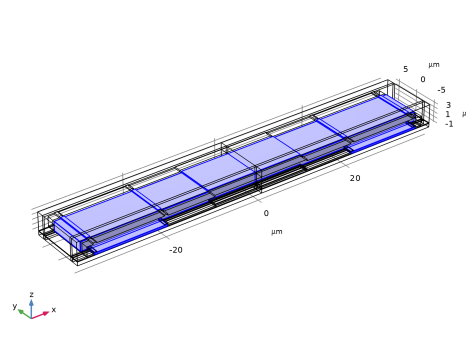
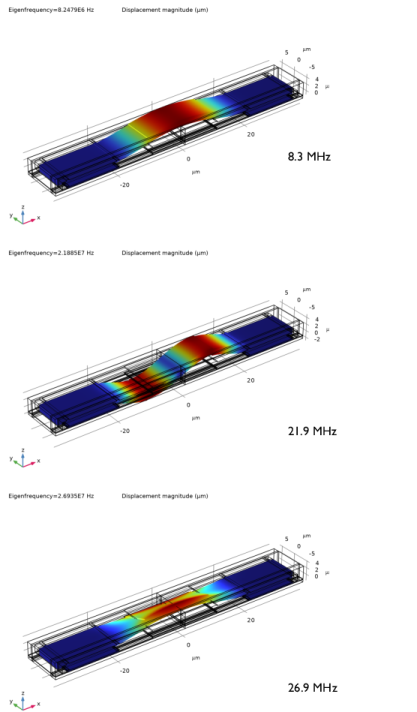
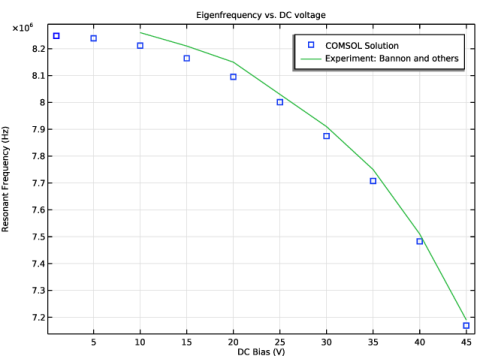
|
1
|
|
2
|
In the Application Libraries window, select MEMS Module > Actuators > biased_resonator_3d_basic in the tree.
|
|
3
|
Click
 Open. Open. |
|
1
|
|
2
|
|
3
|
|
4
|
|
5
|
|
6
|
Click in the Graphics window and then press Ctrl+A to select both objects.
|
|
7
|
|
8
|
Click
 Build All Objects. Build All Objects. |
|
9
|
|
1
|
|
2
|
|
3
|
|
4
|
Click
 Browse. Browse. |
|
5
|
Browse to the model’s Application Libraries folder and double-click the file biased_resonator_3d_modes_experiment.txt.
|
|
6
|
Click
 Import. Import. |
|
7
|
|
8
|
In the Function table, enter the following settings:
|
|
9
|
Locate the Interpolation and Extrapolation section. From the Extrapolation list, choose Specific value.
|
|
10
|
|
1
|
|
2
|
|
1
|
|
2
|
|
3
|
Click the Custom button.
|
|
4
|
|
5
|
Click
 Build All. Build All. |
|
1
|
|
2
|
Go to the Add Study window.
|
|
3
|
Find the Studies subsection. In the Select Study tree, select Preset Studies for Selected Multiphysics > Eigenfrequency.
|
|
4
|
Click the Add Study button in the window toolbar.
|
|
5
|
|
1
|
|
2
|
|
3
|
|
4
|
Click to expand the Store in Output section. In the table, enter the following settings:
|
|
1
|
|
2
|
|
3
|
|
4
|
|
5
|
|
1
|
In the Model Builder window, expand the Results > Datasets node, then click Unbiased Eigenfrequency/Solution 2 (sol2).
|
|
2
|
|
3
|
|
1
|
|
2
|
|
3
|
|
1
|
|
2
|
In the Settings window for Volume, click Replace Expression in the upper-right corner of the Expression section. From the menu, choose Component 1 (comp1) > Solid Mechanics > Displacement > solid.disp - Displacement magnitude - m.
|
|
3
|
|
1
|
|
1
|
|
2
|
Go to the Add Study window.
|
|
3
|
Find the Studies subsection. In the Select Study tree, select Preset Studies for Selected Physics Interfaces > Solid Mechanics > Eigenfrequency, Prestressed.
|
|
4
|
Click the Add Study button in the window toolbar.
|
|
5
|
|
1
|
|
1
|
|
2
|
|
3
|
Click
 Add. Add. |
|
4
|
|
5
|
Click
 Range. Range. |
|
6
|
|
7
|
|
8
|
|
9
|
Click Add.
|
|
1
|
|
2
|
|
3
|
|
1
|
|
2
|
|
3
|
In the Model Builder window, expand the Biased Eigenfrequency > Solver Configurations > Solution 3 (sol3) > Dependent Variables 2 node, then click Spatial Mesh Displacement (comp1.spatial.disp).
|
|
4
|
|
5
|
|
6
|
In the Model Builder window, under Biased Eigenfrequency > Solver Configurations > Solution 3 (sol3) > Dependent Variables 2 click Displacement Field (comp1.u).
|
|
7
|
|
8
|
|
9
|
|
10
|
|
11
|
Clear the Generate default plots checkbox.
|
|
12
|
|
1
|
|
2
|
|
3
|
|
1
|
|
3
|
|
4
|
|
5
|
|
6
|
Click to expand the Coloring and Style section. Find the Line style subsection. From the Line list, choose None.
|
|
7
|
|
8
|
|
9
|
|
1
|
|
2
|
|
3
|
|
4
|
|
5
|
|
6
|
|
1
|
|
2
|
|
3
|
|
4
|
|
5
|
|
6
|
Locate the y-Axis Data section. In the table, enter the following settings:
|
|
7
|
|
8
|
|
9
|
|
10
|
|
1
|
|
2
|
|
3
|
|
4
|
|
5
|
Locate the Plot Settings section.
|
|
6
|
|
7
|
|
8
|


