



PDF

Frequency Response of a Biased Resonator — 2D
Introduction
Silicon micromechanical resonators have long been used for designing sensors and are now becoming increasingly important as oscillators in the consumer electronics market. In this sequence of models, a surface micromachined MEMS resonator, designed as part of a micromechanical filter, is analyzed in detail. The resonator is based on that developed in Ref. 1.
This model performs a frequency-domain analysis of the structure, which is also biased with its operating DC offset. The analysis begins from the stationary analysis performed in the accompanying model Stationary Analysis of a Biased Resonator — 2D; please review this model first.
Model Definition
The geometry, fabrication, and operation of the device are discussed for the Stationary Analysis of a Biased Resonator — 2D model.
For the frequency-domain analysis of the structure, consider an applied drive voltage consisting of a 35 V DC offset with a 100 mV drive signal added as a harmonic perturbation. Solve the linearized problem to compute the response of the system.
Damping
To obtain the response of the system, you need to add damping to the model. For this study, assume that the damping mechanism is Rayleigh damping or material damping.
To specify the damping, two material constants are required (αdM and βdK). For a system with a single degree of freedom (a mass-spring-damper system) the equation of motion with viscous damping is given by
where c is the damping coefficient, m is the mass, k is the spring constant, u is the displacement, t is the time, and f(t) is a driving force.
In the Rayleigh damping model, the parameter c is related to the mass, m, and the stiffness, k, by the equation:
The Rayleigh damping term in COMSOL Multiphysics is proportional to the mass and stiffness matrices and is added to the static weak term.
The damping coefficient, c, is frequently defined as a damping ratio or factor, expressed as a fraction of the critical damping, c0, for the system such that
where for a system with one degree of freedom
Finally note that for large values of the quality factor, Q,
The material parameters αdM and βdK are usually not available in the literature. Often the damping ratio is available, typically expressed as a percentage of the critical damping. It is possible to transform damping factors to Rayleigh damping parameters. The damping factor, ξ, for a specified pair of Rayleigh parameters, αdM and βdK, at the frequency, f, is
Using this relationship at two frequencies, f1 and f2, with different damping factors, ξ1 and ξ2, results in an equation system that can be solved for αdM and βdK:
The damping factors for this model are provided as αdM = 4189 Hz and βdK = 
8.29·1013 s, consistent with the observed Quality factor of 8000 for the fundamental mode.
Results and Discussion
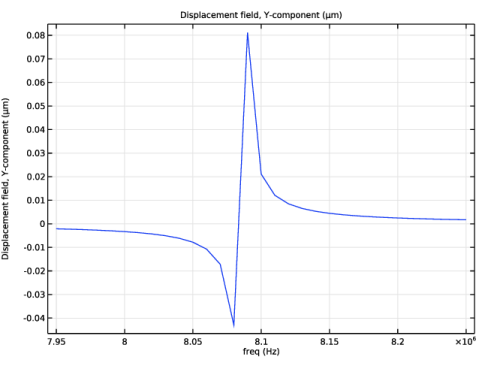
Figure 1 shows the frequency response of the resonator. A clear anti-resonance structure for the frequency response is observable. This response can be compared to that shown in Figure 15 (a) in Ref. 1. Although the experimental results are from a pair of coupled resonators in this instance, the two resonances are sufficiently separate in frequency space that it is possible to distinguish the two modes. If the details of the external circuits were available, a terminal boundary condition with an attached circuit could be used to compute the electrical response of the system for a more direct comparison with the experimental results
Figure 1: Frequency response of the fundamental mode of the resonator.
Reference
1. F.D. Bannon III, J.R. Clark and C.T.-C. Nguyen, “High-Q HF Microelectromechanical Filters,” IEEE Journal of Solid State Circuits, vol. 35, no. 4, pp. 512–526, 2000.
Application Library path: MEMS_Module/Actuators/biased_resonator_2d_freq
Modeling Instructions
Start from the existing stationary model.
Application Libraries
1
From the File menu, choose Application Libraries.
2
In the Application Libraries window, select MEMS Module > Actuators > biased_resonator_2d_basic in the tree.
3
Create parameters for the material damping factors.
Global Definitions
Parameters 1
1
In the Model Builder window, under Global Definitions click Parameters 1.
2
In the Settings window for Parameters, locate the Parameters section.
3
Component 1 (comp1)
In the Model Builder window, expand the Component 1 (comp1) node.
Solid Mechanics (solid)
Add damping to the physics settings.
Linear Elastic Material 1
In the Model Builder window, expand the Component 1 (comp1) > Solid Mechanics (solid) node, then click Linear Elastic Material 1.
Damping 1
1
In the Physics toolbar, click  Attributes and choose Damping.
2
In the Settings window for Damping, locate the Damping Settings section.
3
In the αdM text field, type alpha.
4
In the βdK text field, type beta.
Add a Harmonic Perturbation to the DC bias term, to represent the AC drive voltage.
Electrostatics (es)
Electric Potential 1
In the Model Builder window, expand the Component 1 (comp1) > Electrostatics (es) node, then click Electric Potential 1.
Harmonic Perturbation 1
1
In the Physics toolbar, click  Attributes and choose Harmonic Perturbation.
2
In the Settings window for Harmonic Perturbation, locate the Electric Potential section.
3
In the V0 text field, type 0.1.
Set up the frequency domain study.
Add Study
1
In the Home toolbar, click  Add Study to open the Add Study window.
2
Go to the Add Study window.
3
Find the Studies subsection. In the Select Study tree, select Preset Studies for Selected Physics Interfaces > Solid Mechanics > Frequency Domain, Prestressed.
4
Click the Add Study button in the window toolbar.
5
In the Home toolbar, click  Add Study to close the Add Study window.
Study 2
Step 2: Frequency-Domain Perturbation
1
In the Settings window for Frequency-Domain Perturbation, locate the Study Settings section.
2
In the Frequencies text field, type range(7.95[MHz],0.01[MHz],8.25[MHz]).
3
In the Model Builder window, click Study 2.
4
In the Settings window for Study, type Frequency domain in the Label text field.
5
Locate the Study Settings section. Clear the Generate default plots checkbox.
6
In the Study toolbar, click  Compute.
Produce a plot of the frequency response of the system.
Results
Frequency Domain
1
In the Results toolbar, click  1D Plot Group.
2
In the Settings window for 1D Plot Group, locate the Data section.
3
From the Dataset list, choose Frequency domain/Solution 2 (sol2).
4
In the Label text field, type Frequency Domain.
Point Graph 1
1
Right-click Frequency Domain and choose Point Graph.
2
In the Settings window for Point Graph, locate the Selection section.
3
Click  Paste Selection.
4
In the Paste Selection dialog, type 9 in the Selection text field.
5
6
In the Settings window for Point Graph, locate the y-Axis Data section.
7
In the Expression text field, type v.
8
In the Frequency Domain toolbar, click  Plot.
Compare the resulting plot with Figure 1.