|
|
|
|
•
|
|
•
|
Use the Mass and Moment of Inertia subnode of the Rigid Material node to enter the inertia properties given at a certain point.
|
|
•
|
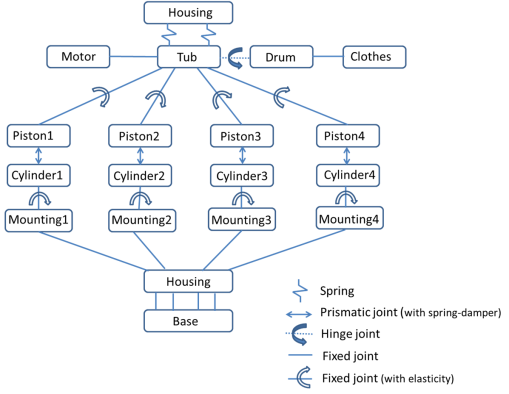
The connections set up in the model and the details of the system DOF and constraints can be seen in the Joints Summary and Rigid Body DOF Summary sections of the Multibody Dynamics node.
|
|
•
|
Use the Attachment boundary condition in the Shell interface to establish the connection to the solid objects through joints and springs.
|
|
1
|
|
2
|
|
3
|
Click Add.
|
|
4
|
|
5
|
Click Add.
|
|
6
|
Click
 Study. Study. |
|
7
|
|
8
|
Click
 Done. Done. |
|
1
|
|
2
|
|
3
|
Click
 Load from File. Load from File. |
|
4
|
Browse to the model’s Application Libraries folder and double-click the file washing_machine_vibration_parameters.txt.
|
|
1
|
|
2
|
|
3
|
|
1
|
|
2
|
|
3
|
Click
 Browse. Browse. |
|
4
|
Browse to the model’s Application Libraries folder and double-click the file washing_machine_vibration.mphbin.
|
|
5
|
Click
 Import. Import. |
|
1
|
|
2
|
|
3
|
|
4
|
Clear the Create pairs checkbox.
|
|
5
|
|
1
|
|
2
|
|
3
|
Select the Wireframe rendering checkbox.
|
|
1
|
|
2
|
|
3
|
|
4
|
On the object fin, select Boundaries 1, 2, 5, 6, 10, 12, and 14 only.
|
|
5
|
|
1
|
|
2
|
|
3
|
|
5
|
Select the Group by continuous tangent checkbox.
|
|
1
|
|
2
|
|
4
|
|
1
|
|
2
|
In the Settings window for Mass and Moment of Inertia, locate the Mass and Moment of Inertia section.
|
|
3
|
|
1
|
|
2
|
|
3
|
Specify the F vector as
|
|
1
|
|
2
|
|
4
|
|
5
|
|
6
|
Select the Translation along first axis checkbox.
|
|
7
|
Select the Translation along second axis checkbox.
|
|
8
|
Select the Translation along third axis checkbox.
|
|
9
|
Select the Total rotation checkbox.
|
|
1
|
|
2
|
|
3
|
From the list, choose Centroid of selected entities.
|
|
4
|
|
5
|
|
1
|
|
1
|
|
2
|
|
1
|
|
2
|
|
4
|
|
1
|
|
2
|
In the Settings window for Mass and Moment of Inertia, locate the Mass and Moment of Inertia section.
|
|
3
|
|
4
|
|
1
|
|
2
|
|
1
|
In the Model Builder window, under Component 1 (comp1) right-click Materials and choose Blank Material.
|
|
2
|
|
1
|
|
2
|
Go to the Add Material window.
|
|
3
|
|
4
|
Click the Add to Component button in the window toolbar.
|
|
5
|
|
1
|
|
2
|
|
3
|
|
1
|
|
2
|
|
3
|
|
4
|
|
1
|
In the Model Builder window, under Component 1 (comp1) > Shell [Housing] (shell) click Thickness and Offset 1.
|
|
2
|
|
3
|
|
1
|
|
2
|
|
3
|
|
1
|
|
2
|
|
1
|
|
2
|
|
3
|
|
4
|
|
1
|
|
1
|
|
2
|
|
3
|
|
1
|
|
2
|
|
3
|
Click
 Clear Selection. Clear Selection. |
|
1
|
|
2
|
|
3
|
|
4
|
|
5
|
|
6
|
|
1
|
|
1
|
|
2
|
|
3
|
|
4
|
|
1
|
|
2
|
|
3
|
|
4
|
|
1
|
|
1
|
|
2
|
|
3
|
|
4
|
|
1
|
|
2
|
|
3
|
Click
 Clear Selection. Clear Selection. |
|
1
|
|
2
|
|
3
|
|
4
|
|
5
|
|
1
|
|
1
|
|
1
|
|
2
|
|
3
|
|
4
|
|
1
|
|
2
|
|
3
|
|
4
|
|
5
|
|
6
|
|
1
|
|
1
|
|
1
|
|
2
|
|
3
|
Clear the First axis checkbox.
|
|
4
|
Clear the Second axis checkbox.
|
|
5
|
Clear the Third axis checkbox.
|
|
6
|
|
7
|
|
1
|
In the Model Builder window, under Component 1 (comp1) > Multibody Dynamics (mbd) click Cylinder 2-piston 2.
|
|
2
|
|
3
|
Select the Reverse direction checkbox.
|
|
1
|
|
2
|
|
3
|
Select the Reverse direction checkbox.
|
|
1
|
|
2
|
|
3
|
Select the Reverse direction checkbox.
|
|
1
|
|
2
|
|
3
|
Select the Reverse direction checkbox.
|
|
1
|
|
2
|
|
3
|
Select the Reverse direction checkbox.
|
|
1
|
|
2
|
|
3
|
Select the Reverse direction checkbox.
|
|
1
|
|
2
|
|
3
|
|
4
|
|
5
|
|
6
|
|
7
|
|
1
|
In the Model Builder window, under Component 1 (comp1) > Multibody Dynamics (mbd), Ctrl-click to select Clothes, Drum, Tub, Motor, Piston 1, Piston 2, Piston 3, Piston 4, Cylinder 1, Cylinder 2, Cylinder 3, Cylinder 4, Mounting 1, Mounting 2, Mounting 3, Mounting 4, and Base.
|
|
2
|
Right-click and choose Group.
|
|
1
|
In the Model Builder window, under Component 1 (comp1) > Multibody Dynamics (mbd), Ctrl-click to select Motor-tub, Drum-clothes, Tub-piston 1, Tub-piston 2, Tub-piston 3, Tub-piston 4, Cylinder 1-mounting 1, Cylinder 2-mounting 2, Cylinder 3-mounting 3, Cylinder 4-mounting 4, Mounting 1-housing, Mounting 2-housing, Mounting 3-housing, Mounting 4-housing, Housing-base 1, Housing-base 2, Housing-base 3, and Housing-base 4.
|
|
2
|
Right-click and choose Group.
|
|
1
|
In the Model Builder window, under Component 1 (comp1) > Multibody Dynamics (mbd), Ctrl-click to select Cylinder 1-piston 1, Cylinder 2-piston 2, Cylinder 3-piston 3, and Cylinder 4-piston 4.
|
|
2
|
Right-click and choose Group.
|
|
1
|
In the Model Builder window, under Component 1 (comp1) > Multibody Dynamics (mbd), Ctrl-click to select Housing-tub (front) and Housing-tub (back).
|
|
2
|
Right-click and choose Group.
|
|
1
|
In the Model Builder window, under Component 1 (comp1) > Shell [Housing] (shell), Ctrl-click to select Front spring, Back spring, Mounting 1, Mounting 2, Mounting 3, Mounting 4, Base 1, Base 2, Base 3, and Base 4.
|
|
2
|
Right-click and choose Group.
|
|
1
|
|
2
|
|
3
|
|
4
|
Click
 Build All. Build All. |
|
1
|
|
2
|
|
3
|
|
4
|
|
5
|
|
6
|
Clear the Generate default plots checkbox.
|
|
7
|
|
1
|
|
2
|
|
1
|
|
2
|
|
3
|
|
1
|
|
2
|
|
3
|
|
4
|
|
5
|
|
6
|
|
1
|
|
2
|
|
3
|
|
4
|
|
5
|
|
1
|
|
2
|
|
3
|
|
4
|
|
5
|
|
6
|
|
7
|
|
8
|
|
1
|
In the Model Builder window, under Component 1 (comp1) right-click Definitions and choose Variables.
|
|
2
|
|
1
|
|
2
|
Go to the Add Study window.
|
|
3
|
|
4
|
Click the Add Study button in the window toolbar.
|
|
5
|
|
1
|
|
2
|
|
3
|
|
4
|
|
5
|
Clear the Generate default plots checkbox.
|
|
1
|
|
2
|
|
3
|
|
4
|
|
5
|
Click to expand the Time Stepping section. From the Steps taken by solver list, choose Intermediate.
|
|
6
|
Right-click Study 2 > Solver Configurations > Solution 2 (sol2) > Time-Dependent Solver 1 and choose Fully Coupled.
|
|
7
|
|
8
|
|
9
|
|
10
|
In the Model Builder window, under Study 2 > Solver Configurations > Solution 2 (sol2) > Time-Dependent Solver 1 click Advanced.
|
|
11
|
|
12
|
|
13
|
|
1
|
|
2
|
|
3
|
|
4
|
|
5
|
|
6
|
|
1
|
In the Model Builder window, expand the Results > Displacement > Surface 1 node, then click Deformation 1.
|
|
2
|
|
3
|
|
1
|
In the Model Builder window, expand the Results > Displacement > Surface 2 node, then click Deformation 1.
|
|
2
|
|
3
|
|
4
|
|
5
|
|
1
|
|
2
|
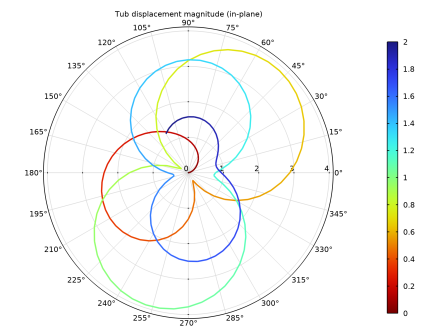
In the Settings window for Polar Plot Group, type Tub displacement magnitude (in-plane) in the Label text field.
|
|
3
|
|
4
|
|
1
|
|
2
|
In the Settings window for Global, click Replace Expression in the upper-right corner of the r-Axis Data section. From the menu, choose Component 1 (comp1) > Definitions > Variables > uin_tub - Tub displacement magnitude (in-plane) - m.
|
|
3
|
|
4
|
Click Replace Expression in the upper-right corner of the θ Angle Data section. From the menu, choose Component 1 (comp1) > Definitions > Variables > th_drum - Drum rotation - rad.
|
|
5
|
|
6
|
|
1
|
|
2
|
In the Settings window for Color Expression, click Replace Expression in the upper-right corner of the Expression section. From the menu, choose Solver > t - Time - s.
|
|
3
|
|
4
|
|
5
|
|
1
|
In the Model Builder window, right-click Tub displacement magnitude (in-plane) and choose Duplicate.
|
|
2
|
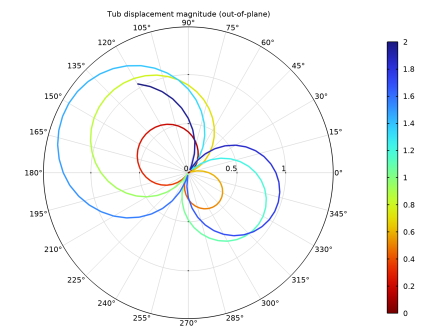
In the Settings window for Polar Plot Group, type Tub displacement magnitude (out-of-plane) in the Label text field.
|
|
1
|
In the Model Builder window, expand the Tub displacement magnitude (out-of-plane) node, then click Global 1.
|
|
2
|
In the Settings window for Global, click Replace Expression in the upper-right corner of the r-Axis Data section. From the menu, choose Component 1 (comp1) > Definitions > Variables > uout_tub - Tub displacement magnitude (out-of-plane) - m.
|
|
3
|
|
4
|
|
1
|
|
2
|
|
3
|
|
4
|
|
5
|
Locate the Plot Settings section.
|
|
6
|
|
7
|
|
1
|
|
2
|
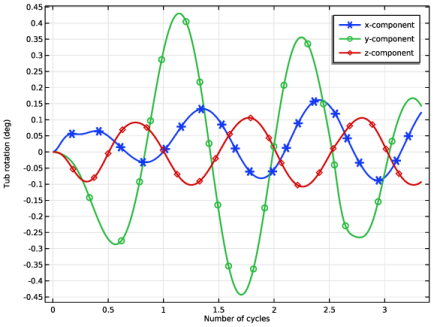
In the Settings window for Global, click Replace Expression in the upper-right corner of the y-Axis Data section. From the menu, choose Component 1 (comp1) > Multibody Dynamics > Rigid domains > Tub > Rigid body rotation (spatial frame) - rad > mbd.rd3.thx - Rigid body rotation, x-component.
|
|
3
|
Click Add Expression in the upper-right corner of the y-Axis Data section. From the menu, choose Component 1 (comp1) > Multibody Dynamics > Rigid domains > Tub > Rigid body rotation (spatial frame) - rad > mbd.rd3.thy - Rigid body rotation, y-component.
|
|
4
|
Click Add Expression in the upper-right corner of the y-Axis Data section. From the menu, choose Component 1 (comp1) > Multibody Dynamics > Rigid domains > Tub > Rigid body rotation (spatial frame) - rad > mbd.rd3.thz - Rigid body rotation, z-component.
|
|
5
|
Locate the y-Axis Data section. In the table, enter the following settings:
|
|
6
|
Click Replace Expression in the upper-right corner of the x-Axis Data section. From the menu, choose Component 1 (comp1) > Definitions > Variables > n_cycle - Number of cycles - 1.
|
|
7
|
|
8
|
|
9
|
|
10
|
|
11
|
|
13
|
|
14
|
|
1
|
|
2
|
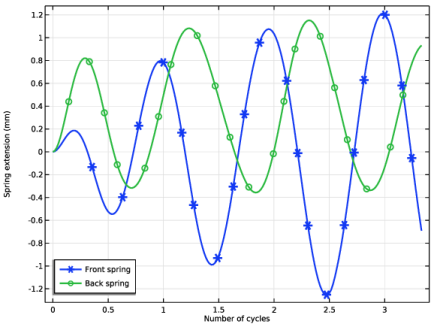
In the Settings window for 1D Plot Group, type Stabilizing spring extension in the Label text field.
|
|
3
|
|
4
|
|
1
|
|
2
|
In the Settings window for Global, click Replace Expression in the upper-right corner of the y-Axis Data section. From the menu, choose Component 1 (comp1) > Multibody Dynamics > Spring–Dampers > Housing-tub (front) > mbd.spd1.dl - Spring extension - m.
|
|
3
|
Click Add Expression in the upper-right corner of the y-Axis Data section. From the menu, choose Component 1 (comp1) > Multibody Dynamics > Spring–Dampers > Housing-tub (back) > mbd.spd2.dl - Spring extension - m.
|
|
4
|
Locate the Legends section. In the table, enter the following settings:
|
|
5
|
|
6
|
|
1
|
|
2
|
|
3
|
|
1
|
|
2
|
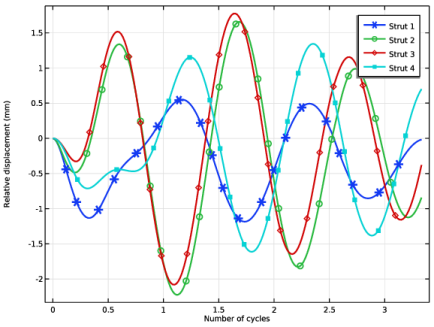
In the Settings window for Global, click Replace Expression in the upper-right corner of the y-Axis Data section. From the menu, choose Component 1 (comp1) > Multibody Dynamics > Prismatic joints > Cylinder 1-piston 1 > mbd.prj1.u - Relative displacement - m.
|
|
3
|
Click Add Expression in the upper-right corner of the y-Axis Data section. From the menu, choose Component 1 (comp1) > Multibody Dynamics > Prismatic joints > Cylinder 2-piston 2 > mbd.prj2.u - Relative displacement - m.
|
|
4
|
Click Add Expression in the upper-right corner of the y-Axis Data section. From the menu, choose Component 1 (comp1) > Multibody Dynamics > Prismatic joints > Cylinder 3-piston 3 > mbd.prj3.u - Relative displacement - m.
|
|
5
|
Click Add Expression in the upper-right corner of the y-Axis Data section. From the menu, choose Component 1 (comp1) > Multibody Dynamics > Prismatic joints > Cylinder 4-piston 4 > mbd.prj4.u - Relative displacement - m.
|
|
6
|
Locate the Legends section. In the table, enter the following settings:
|
|
7
|
|
8
|
|
1
|
|
2
|
|
1
|
|
2
|
|
4
|
|
5
|
|
1
|
|
2
|
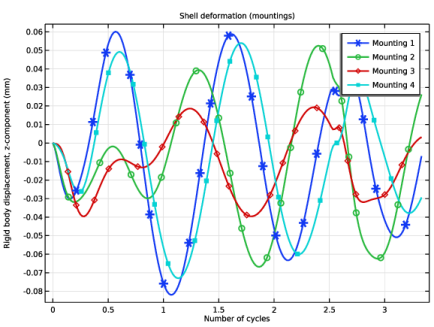
In the Settings window for 1D Plot Group, type Shell deformation (mountings) in the Label text field.
|
|
3
|
|
1
|
|
2
|
|
4
|
Locate the Legends section. In the table, enter the following settings:
|
|
5
|
|
6
|
|
1
|
|
2
|
|
3
|
|
4
|
|
5
|
|
6
|
|
7
|
|
8
|
Click
 Plot. Plot. |
|
1
|
|
2
|
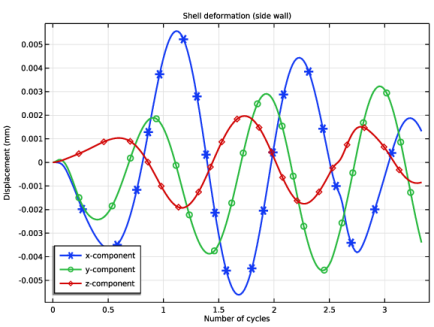
In the Settings window for 1D Plot Group, type Shell deformation (side wall) in the Label text field.
|
|
3
|
|
4
|
|
5
|
Locate the Plot Settings section.
|
|
6
|
|
7
|
|
8
|
|
1
|
|
2
|
|
3
|
|
4
|
Click Replace Expression in the upper-right corner of the x-Axis Data section. From the menu, choose Component 1 (comp1) > Definitions > Variables > n_cycle - Number of cycles - 1.
|
|
5
|
|
6
|
|
7
|
|
8
|
|
9
|
|
10
|
|
1
|
|
2
|
|
3
|
|
4
|
Locate the Legends section. In the table, enter the following settings:
|
|
1
|
|
2
|
|
3
|
|
4
|
Locate the Legends section. In the table, enter the following settings:
|
|
5
|
|
6
|