PDF

Slider Crank Mechanism with Joint Clearance
Introduction
Joints between two components of a mechanical system are not always perfectly fitting. For the ease of assembly and to allow relative movement between the components, a small gap called clearance is provided between the joining components. The presence of clearance on joints can sometimes adversely affect the performance of the system by generating impact forces thus giving rise to noise and vibrations.
This model compares the performance of a slider crank mechanism with and without a joint clearance. All components of the mechanism are assumed rigid. Hinge Joint node is used when there is no clearance on a joint whereas Clearance Joint node is used to include clearance on a joint. A transient analysis is performed to analyze the effect of joint clearance on slider velocity, slider acceleration, and crank moment. In addition to this, the dynamics of journal within the bearing and the reaction force in the clearance joint are also analyzed.
Model Definition
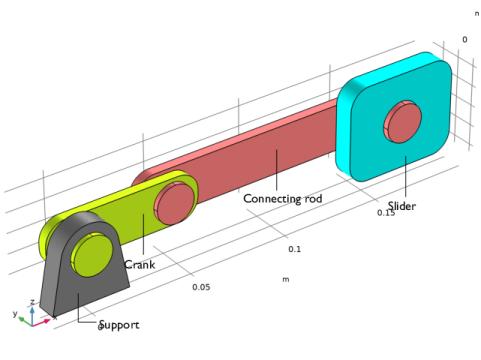
As shown in Figure 1, the model geometry consists of four rigid components: support, crank, connecting rod, and slider.
Figure 1: Model geometry of a slider crank mechanism.
One end of the crank is connected to the fixed support and other end to the connecting rod. Connecting rod, in turn, is connected to the center of the slider, which can slide freely along x direction.
The connection between the support and crank is modeled as a hinge joint with one rotational degree of freedom about y-axis. A similar hinge joint is used to model the connection between crank and connecting rod also. To model the connection between connecting rod journal and slider, two different cases are considered:
In the second case, a clearance of 0.5 mm is provided between journal and the slider. A clearance joint is used to model this connection, which allows the connected members to move within the provided clearance distance.
The mechanism is driven by the crank which rotates with an angular velocity of 5000 rpm. A time dependent study is performed for 25 ms to analyze the effect of joint clearance on slider velocity, slider acceleration, and crank moment.
Results and Discussion
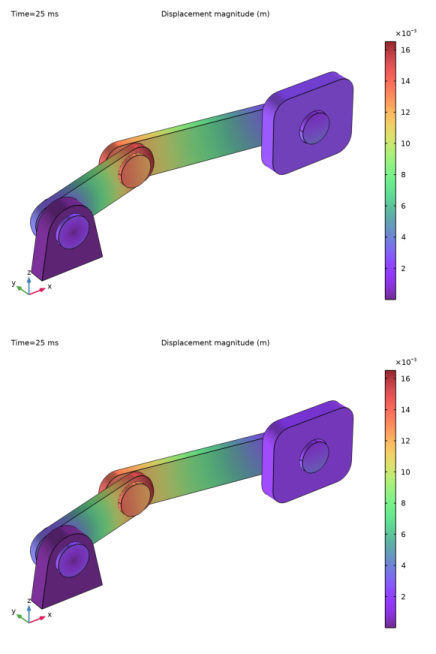
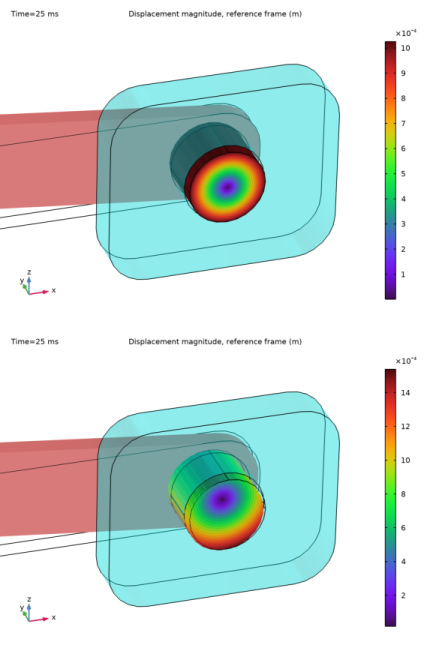
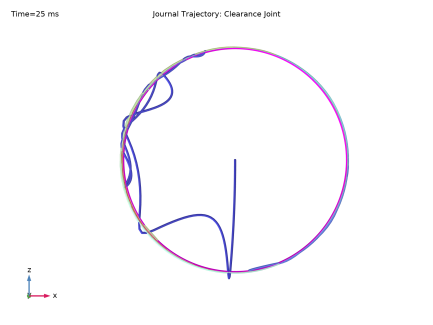
Figure 2 shows the displacement of components in the slider crank mechanism for hinge joint and clearance joint cases. To visualize the motion of connecting rod with respect to the slider, the relative displacement of connecting rod is plotted in Figure 3. For hinge joint case, the relative motion is purely rotational without any translation, however for clearance joint case, connecting rod journal exhibits both translational and rotational motion within the slider hole. This trajectory of the journal within the slider hole is plotted in Figure 7.
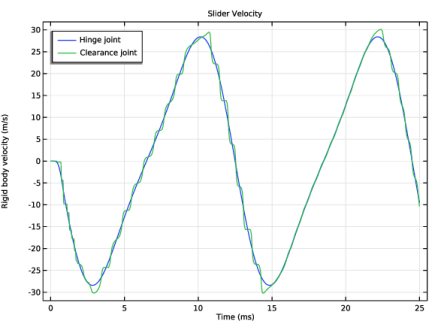
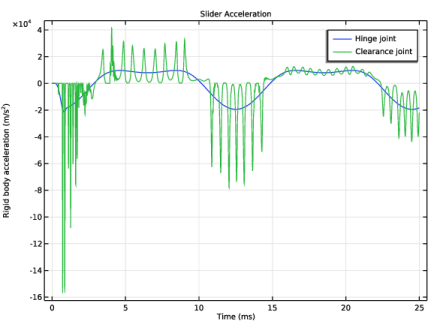
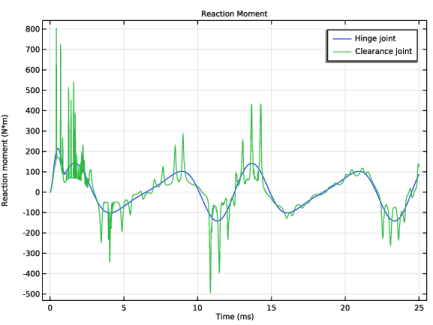
The time variation of slider velocity is plotted in Figure 4. It is observed that the velocity profile in hinge joint case is smoother compared to the clearance joint case. Unlike the continuous contact in hinge joint, the translation and the consequent impact of journal with the slider generate a step like velocity profile in clearance joint case. As shown in Figure 5 and Figure 6, the impact between journal and slider also causes sudden variations in slider acceleration and reaction moment in the crank.
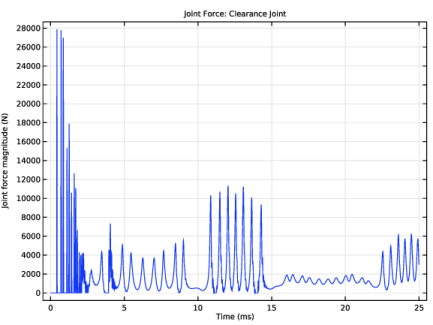
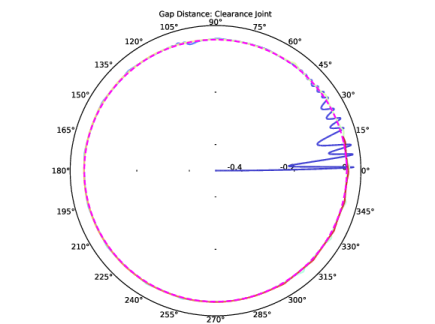
Figure 8 shows the variation in clearance joint force as a function of time. The zero value of force at times denotes the intermittent contact within the clearance joint. The variation of gap distance with crank rotation is shown in Figure 9. When gap distance is negative (inside magenta circle), journal and slider are in contact and penalty force acts on the bodies to maintain the relative movement of journal within the specified clearance.
Figure 2: Displacement of the slider crank mechanism for the hinge joint (top) and clearance joint (bottom) cases at t = 25 ms.
Figure 3: Relative displacement of the connecting rod journal with respect to the slider for the hinge joint (top) and clearance joint (bottom) cases at t = 25 ms.
Figure 4: Slider velocity as a function of time for the hinge joint and clearance joint cases.
Figure 5: Slider acceleration as a function of time for the hinge joint and clearance joint cases.
Figure 6: Crank reaction moment as a function of time for the hinge joint and clearance joint cases.
Figure 7: Journal trajectory within the slider hole for the clearance joint. Here blue color denotes the initial position and red color denotes the final position.
Figure 8: Clearance joint force as a function of time.
Figure 9: Gap distance as a function of crank rotation for the clearance joint. Here blue color denotes the initial position, red color denotes the final position, and the magenta-dotted circle corresponds to the zero gap distance.
Notes About the COMSOL Implementation
In this model, linkages are modeled as rigid elements using Rigid Material nodes which can be created automatically using the Create Rigid Domains button in the Automated Model Setup section at the physics interface.
Joint nodes between two respective components can also be created automatically using the Create Joints button in the Automated Model Setup section at the physics interface. The automatic joint creation requires the geometry to be in assembly mode and Identity Boundary Pair nodes to be available in the Definitions. In case the geometry does not create an identity pair automatically due to a geometric clearance between the two sets of boundaries, then the identity pair can be created manually in order to create a joint between those two components.
Reference
1. P. Flores and J. Ambrosio, “Revolute Joints with Clearance in Multibody Systems,” Comput. Struct., vol. 82, pp. 1359–1369, 2004.
Application Library path: Multibody_Dynamics_Module/Tutorials/slider_crank_mechanism_with_clearance
Modeling Instructions
From the File menu, choose New.
New
In the New window, click  Model Wizard.
Model Wizard
1
In the Model Wizard window, click  3D.
2
In the Select Physics tree, select Structural Mechanics > Multibody Dynamics (mbd).
3
Click Add.
4
Click  Study.
5
In the Select Study tree, select General Studies > Time Dependent.
6
Global Definitions
Parameters 1
1
In the Model Builder window, under Global Definitions click Parameters 1.
2
In the Settings window for Parameters, locate the Parameters section.
3
Click  Load from File.
4
Browse to the model’s Application Libraries folder and double-click the file slider_crank_mechanism_with_clearance_parameters.txt.
If you do not want to import the geometry and create selections, you can load the geometry sequence from the stored model. In the Model Builder window, under Component 1 (comp1) right-click Geometry 1 and choose Insert Sequence. Browse to the model’s Application Libraries folder and double-click the file slider_crank_mechanism_with_clearance.mph. You can then continue to the Definitions section below.
To import the geometry and create selections from scratch, continue here.
Geometry 1
Import 1 (imp1)
1
In the Model Builder window, expand the Component 1 (comp1) > Geometry 1 node.
2
Right-click Geometry 1 and choose Import.
3
In the Settings window for Import, locate the Source section.
4
Click  Browse.
5
6
Click  Import.
Form Union (fin)
1
In the Model Builder window, under Component 1 (comp1) > Geometry 1 click Form Union (fin).
2
In the Settings window for Form Union/Assembly, locate the Form Union/Assembly section.
3
From the Action list, choose Form an assembly.
4
In the Geometry toolbar, click  Build All.
Support
1
In the Geometry toolbar, click  Selections and choose Explicit Selection.
2
In the Settings window for Explicit Selection, type Support in the Label text field.
3
On the object fin, select Domain 1 only.
4
Locate the Color section. From the Color list, choose None or — if you are running the cross-platform desktop —Custom. On the cross-platform desktop, click the Color button.
5
Click Define custom colors.
6
7
Click Add to custom colors.
8
Click Show color palette only or OK on the cross-platform desktop.
9
Click  Build Selected.
Crank
1
Right-click Support and choose Duplicate.
2
In the Settings window for Explicit Selection, type Crank in the Label text field.
3
Locate the Entities to Select section. Click the  Clear Selection button for Entities to select.
4
On the object fin, select Domains 2 and 3 only.
5
Locate the Color section. Click Define custom colors.
6
7
Click Add to custom colors.
8
Click Show color palette only or OK on the cross-platform desktop.
9
Click  Build Selected.
Connecting Rod
1
Right-click Crank and choose Duplicate.
2
In the Settings window for Explicit Selection, type Connecting Rod in the Label text field.
3
Locate the Entities to Select section. Click the  Clear Selection button for Entities to select.
4
On the object fin, select Domains 4–6 only.
5
Locate the Color section. Click Define custom colors.
6
7
Click Add to custom colors.
8
Click Show color palette only or OK on the cross-platform desktop.
9
Click  Build Selected.
Slider
1
Right-click Connecting Rod and choose Duplicate.
2
In the Settings window for Explicit Selection, type Slider in the Label text field.
3
Locate the Entities to Select section. Click the  Clear Selection button for Entities to select.
4
On the object fin, select Domain 7 only.
5
Locate the Color section. Click Define custom colors.
6
7
Click Add to custom colors.
8
Click Show color palette only or OK on the cross-platform desktop.
9
Click  Build Selected.
Support and Crank
1
In the Geometry toolbar, click  Selections and choose Union Selection.
2
In the Settings window for Union Selection, type Support and Crank in the Label text field.
3
Locate the Input Entities section. Click  Add.
4
In the Add dialog, in the Selections to add list, choose Support and Crank.
5
Connecting Rod Boundaries
1
In the Geometry toolbar, click  Selections and choose Adjacent Selection.
2
In the Settings window for Adjacent Selection, type Connecting Rod Boundaries in the Label text field.
3
Locate the Input Entities section. Click  Add.
4
In the Add dialog, select Connecting Rod in the Input selections list.
5
Journal Boundaries
1
In the Geometry toolbar, click  Selections and choose Explicit Selection.
2
In the Settings window for Explicit Selection, type Journal Boundaries in the Label text field.
3
Locate the Entities to Select section. From the Geometric entity level list, choose Boundary.
4
On the object fin, select Boundaries 39–41, 47, and 48 only.
Connecting Rod without Journal
1
In the Geometry toolbar, click  Selections and choose Difference Selection.
2
In the Settings window for Difference Selection, type Connecting Rod without Journal in the Label text field.
3
Locate the Geometric Entity Level section. From the Level list, choose Boundary.
4
Locate the Input Entities section. Click the  Add button for Selections to add.
5
In the Add dialog, select Connecting Rod Boundaries in the Selections to add list.
6
7
In the Settings window for Difference Selection, locate the Input Entities section.
8
Click the  Add button for Selections to subtract.
9
In the Add dialog, select Journal Boundaries in the Selections to subtract list.
10
The identity pair between the connecting rod and the slider is not added automatically because of the geometric clearance. Add it manually to allow the automatic joint creation functionality in the Multibody Dynamics interface to create a hinge joint between the two components.
Definitions
Identity Boundary Pair 3 (p3)
1
In the Model Builder window, expand the Component 1 (comp1) > Definitions node.
2
Right-click Definitions and choose Pairs > Identity Boundary Pair.
3
In the Settings window for Pair, locate the Source Boundaries section.
4
From the Selection list, choose Journal Boundaries.
5
6
Locate the Destination Boundaries section. Click to select the  Activate Selection toggle button.
7
Step 1 (step1)
1
In the Definitions toolbar, click  More Functions and choose Step.
2
In the Settings window for Step, click to expand the Smoothing section.
3
Locate the Parameters section. In the Location text field, type 5e-4[s].
4
Locate the Smoothing section. In the Size of transition zone text field, type 1e-3.
Multibody Dynamics (mbd)
Do as follows to generate Rigid Material nodes for all components.
1
In the Model Builder window, under Component 1 (comp1) click Multibody Dynamics (mbd).
2
In the Settings window for Multibody Dynamics, locate the Automated Model Setup section.
3
Select the Include mass and moment of inertia node checkbox. This automatically sets the density of all rigid domains to zero and adds a Mass and Moment of Inertia subnode to each Rigid Material node.
4
Click Physics Node Generation in the upper-right corner of the Automated Model Setup section. From the menu, choose Create Rigid Domains.
Rigid Material: Support
1
In the Model Builder window, expand the Rigid Domains (All) node, then click Rigid Material 1.
2
In the Settings window for Rigid Material, type Rigid Material: Support in the Label text field.
Fixed Constraint 1
In the Physics toolbar, click  Attributes and choose Fixed Constraint.
Rigid Material: Crank
1
In the Model Builder window, expand the Component 1 (comp1) > Multibody Dynamics (mbd) > Rigid Domains (All) > Rigid Material 2 node, then click Rigid Material 2.
2
In the Settings window for Rigid Material, type Rigid Material: Crank in the Label text field.
Mass and Moment of Inertia 1
1
In the Model Builder window, click Mass and Moment of Inertia 1.
2
In the Settings window for Mass and Moment of Inertia, locate the Mass and Moment of Inertia section.
3
In the m text field, type m1.
4
In the I text field, type I1.
Rigid Material: Connecting Rod
1
In the Model Builder window, expand the Component 1 (comp1) > Multibody Dynamics (mbd) > Rigid Domains (All) > Rigid Material 3 node, then click Rigid Material 3.
2
In the Settings window for Rigid Material, type Rigid Material: Connecting Rod in the Label text field.
Mass and Moment of Inertia 1
1
In the Model Builder window, click Mass and Moment of Inertia 1.
2
In the Settings window for Mass and Moment of Inertia, locate the Mass and Moment of Inertia section.
3
In the m text field, type m2.
4
In the I text field, type I2.
Rigid Material: Slider
1
In the Model Builder window, expand the Component 1 (comp1) > Multibody Dynamics (mbd) > Rigid Domains (All) > Rigid Material 4 node, then click Rigid Material 4.
2
In the Settings window for Rigid Material, type Rigid Material: Slider in the Label text field.
Mass and Moment of Inertia 1
1
In the Model Builder window, click Mass and Moment of Inertia 1.
2
In the Settings window for Mass and Moment of Inertia, locate the Mass and Moment of Inertia section.
3
In the m text field, type m3.
Rigid Material: Slider
In the Model Builder window, click Rigid Material: Slider.
Prescribed Displacement/Rotation 1
1
In the Physics toolbar, click  Attributes and choose Prescribed Displacement/Rotation.
2
In the Settings window for Prescribed Displacement/Rotation, locate the Prescribed Displacement at Center of Rotation section.
3
Select the Prescribed in y direction checkbox.
4
Select the Prescribed in z direction checkbox.
5
Locate the Prescribed Rotation section. From the By list, choose Constrained rotation.
6
Select the Constrain rotation around x-axis checkbox.
7
Select the Constrain rotation around y-axis checkbox.
8
Select the Constrain rotation around z-axis checkbox.
Do as follows to generate Hinge Joint nodes between components.
9
In the Model Builder window, click Multibody Dynamics (mbd).
10
In the Settings window for Multibody Dynamics, click Physics Node Generation in the upper-right corner of the Automated Model Setup section. From the menu, choose Create Joints.
Hinge Joint 1
In the Model Builder window, expand the Hinge Joints node, then click Hinge Joint 1.
Prescribed Motion 1
1
In the Physics toolbar, click  Attributes and choose Prescribed Motion.
2
In the Settings window for Prescribed Motion, locate the Prescribed Rotational Motion section.
3
From the Prescribed motion through list, choose Angular velocity.
4
In the ωp text field, type omega*step1(t).
5
Click to expand the Reaction Force Settings section. Select the Evaluate reaction forces using weak constraints checkbox.
In order to visualize the motion of the system with respect to the slider, you can define a reference part in the Multibody Dynamics interface and plot the postprocessing variables for displacement and velocity with respect to this reference frame.
6
In the Model Builder window, click Multibody Dynamics (mbd).
7
In the Settings window for Multibody Dynamics, click to expand the Results section.
8
From the Body defining reference frame list, choose Rigid Material: Slider.
Mesh 1
Swept 1
In the Mesh toolbar, click  Swept.
Size
1
In the Model Builder window, click Size.
2
In the Settings window for Size, locate the Element Size section.
3
From the Predefined list, choose Extra fine.
4
Click  Build All.
Study 1: Hinge Joint
1
In the Model Builder window, click Study 1.
2
In the Settings window for Study, type Study 1: Hinge Joint in the Label text field.
Step 1: Time Dependent
1
In the Model Builder window, under Study 1: Hinge Joint click Step 1: Time Dependent.
2
In the Settings window for Time Dependent, locate the Study Settings section.
3
From the Time unit list, choose ms.
4
In the Output times text field, type range(0,0.01,25).
Solution 1 (sol1)
1
In the Study toolbar, click  Show Default Solver.
2
In the Model Builder window, expand the Solution 1 (sol1) node, then click Time-Dependent Solver 1.
3
In the Settings window for Time-Dependent Solver, click to expand the Time Stepping section.
4
Find the Algebraic variable settings subsection. From the Error estimation list, choose Exclude algebraic.
5
In the Study toolbar, click  Compute.
Results
Click the  Show Grid button in the Graphics toolbar.
Displacement: Hinge Joint
1
In the Model Builder window, under Results click Displacement (mbd).
2
In the Settings window for 3D Plot Group, type Displacement: Hinge Joint in the Label text field.
Velocity: Hinge Joint
1
In the Model Builder window, under Results click Velocity (mbd).
2
In the Settings window for 3D Plot Group, type Velocity: Hinge Joint in the Label text field.
Follow the instructions below to plot the relative displacement in the hinge joint case. The resulting plot should match the one shown in Figure 3.
Relative Displacement: Hinge Joint
1
In the Model Builder window, right-click Displacement: Hinge Joint and choose Duplicate.
2
In the Settings window for 3D Plot Group, type Relative Displacement: Hinge Joint in the Label text field.
3
Locate the Plot Settings section. From the View list, choose New view.
4
From the Frame list, choose Material  (X, Y, Z).
Surface
1
In the Model Builder window, expand the Relative Displacement: Hinge Joint node, then click Surface.
2
In the Settings window for Surface, click Replace Expression in the upper-right corner of the Expression section. From the menu, choose Component 1 (comp1) > Multibody Dynamics > Displacement > mbd.disp_ref - Displacement magnitude, reference frame - m.
3
Locate the Coloring and Style section. From the Color table list, choose Spectrum.
Selection 1
Right-click Surface and choose Selection.
Deformation
In the Settings window for Deformation, click Replace Expression in the upper-right corner of the Expression section. From the menu, choose Component 1 (comp1) > Multibody Dynamics > Displacement > u_ref,...,w_ref - Displacement field, reference frame (spatial frame).
Selection 1
1
In the Model Builder window, click Selection 1.
2
In the Settings window for Selection, locate the Selection section.
3
From the Selection list, choose Journal Boundaries.
Contour 1
1
In the Model Builder window, right-click Relative Displacement: Hinge Joint and choose Contour.
2
In the Settings window for Contour, locate the Expression section.
3
In the Expression text field, type mbd.disp_ref.
4
Click to expand the Title section. From the Title type list, choose None.
5
Locate the Coloring and Style section. From the Color table list, choose Spectrum.
6
Clear the Color legend checkbox.
Deformation 1
1
Right-click Contour 1 and choose Deformation.
2
In the Settings window for Deformation, click Replace Expression in the upper-right corner of the Expression section. From the menu, choose Component 1 (comp1) > Multibody Dynamics > Displacement > u_ref,...,w_ref - Displacement field, reference frame (spatial frame).
3
Locate the Scale section.
4
Select the Scale factor checkbox. In the associated text field, type 1.
Selection 1
1
In the Model Builder window, right-click Contour 1 and choose Selection.
2
In the Settings window for Selection, locate the Selection section.
3
From the Selection list, choose Journal Boundaries.
Surface 2
1
In the Model Builder window, right-click Surface and choose Duplicate.
2
In the Settings window for Surface, click Replace Expression in the upper-right corner of the Expression section. From the menu, choose Component 1 (comp1) > Geometry > dom - Entity index.
3
Click to expand the Title section. From the Title type list, choose None.
4
Locate the Coloring and Style section. From the Coloring list, choose Uniform.
5
From the Color list, choose Custom.
6
7
Click Define custom colors.
8
9
Click Add to custom colors.
10
Click Show color palette only or OK on the cross-platform desktop.
Selection 1
1
In the Model Builder window, expand the Surface 2 node, then click Selection 1.
2
In the Settings window for Selection, locate the Selection section.
3
From the Selection list, choose Connecting Rod without Journal.
Volume 1
1
In the Model Builder window, right-click Relative Displacement: Hinge Joint and choose Volume.
2
In the Settings window for Volume, click Replace Expression in the upper-right corner of the Expression section. From the menu, choose Component 1 (comp1) > Geometry > dom - Entity index.
3
Click to expand the Title section. From the Title type list, choose None.
4
Locate the Coloring and Style section. From the Coloring list, choose Uniform.
5
From the Color list, choose Cyan.
Selection 1
1
Right-click Volume 1 and choose Selection.
2
In the Settings window for Selection, locate the Selection section.
3
From the Selection list, choose Slider.
Transparency 1
1
In the Model Builder window, right-click Volume 1 and choose Transparency.
2
In the Settings window for Transparency, locate the Transparency section.
3
Find the Transparency subsection. Set the Transparency value to 0.75.
Deformation 1
1
Right-click Volume 1 and choose Deformation.
2
In the Settings window for Deformation, click Replace Expression in the upper-right corner of the Expression section. From the menu, choose Component 1 (comp1) > Multibody Dynamics > Displacement > u_ref,...,w_ref - Displacement field, reference frame (spatial frame).
3
Locate the Scale section.
4
Select the Scale factor checkbox. In the associated text field, type 1.
Volume 2
1
Right-click Volume 1 and choose Duplicate.
2
In the Settings window for Volume, locate the Coloring and Style section.
3
From the Coloring list, choose Color table.
4
From the Color table list, choose TrafficLight.
5
Clear the Color legend checkbox.
Selection 1
1
In the Model Builder window, expand the Volume 2 node, then click Selection 1.
2
In the Settings window for Selection, locate the Selection section.
3
Click  Clear Selection.
4
From the Selection list, choose Support and Crank.
Transparency 1
In the Model Builder window, right-click Transparency 1 and choose Delete.
Relative Displacement: Hinge Joint
1
In the Model Builder window, under Results click Relative Displacement: Hinge Joint.
2
In the Relative Displacement: Hinge Joint toolbar, click  Plot.
Multibody Dynamics (mbd)
Clearance Joint 1
1
In the Physics toolbar, click  Global and choose Clearance Joint.
2
In the Settings window for Clearance Joint, locate the Attachment Selection section.
3
From the Source list, choose Rigid Material: Connecting Rod.
4
From the Connection point list, choose Centroid of selected entities.
Source Point: Boundary 1
1
In the Model Builder window, click Source Point: Boundary 1.
2
In the Settings window for Source Point: Boundary, locate the Boundary Selection section.
3
From the Selection list, choose Journal Boundaries.
4
5
Click  Remove from Selection.
6
Clearance Joint 1
1
In the Model Builder window, click Clearance Joint 1.
2
In the Settings window for Clearance Joint, locate the Attachment Selection section.
3
From the Destination list, choose Rigid Material: Slider.
4
Locate the Clearance Settings section. In the C text field, type C.
5
In the pj text field, type 1e9[N/m].
Add Study
1
In the Home toolbar, click  Add Study to open the Add Study window.
2
Go to the Add Study window.
3
Find the Studies subsection. In the Select Study tree, select General Studies > Time Dependent.
4
Click the Add Study button in the window toolbar.
5
In the Home toolbar, click  Add Study to close the Add Study window.
Study 2: Clearance Joint
In the Settings window for Study, type Study 2: Clearance Joint in the Label text field.
Step 1: Time Dependent
1
In the Model Builder window, under Study 2: Clearance Joint click Step 1: Time Dependent.
2
In the Settings window for Time Dependent, locate the Study Settings section.
3
From the Time unit list, choose ms.
4
In the Output times text field, type range(0,0.01,25).
5
Locate the Physics and Variables Selection section. Select the Modify model configuration for study step checkbox.
6
In the tree, select Component 1 (comp1) > Multibody Dynamics (mbd), Controls spatial frame > Hinge Joints > Hinge Joint 3.
7
Solution 2 (sol2)
1
In the Study toolbar, click  Show Default Solver.
2
In the Model Builder window, expand the Solution 2 (sol2) node, then click Time-Dependent Solver 1.
3
In the Settings window for Time-Dependent Solver, locate the Time Stepping section.
4
Find the Algebraic variable settings subsection. From the Error estimation list, choose Exclude algebraic.
5
In the Study toolbar, click  Compute.
Results
Displacement: Clearance Joint
In the Settings window for 3D Plot Group, type Displacement: Clearance Joint in the Label text field.
Velocity: Clearance Joint
1
In the Model Builder window, under Results click Velocity (mbd).
2
In the Settings window for 3D Plot Group, type Velocity: Clearance Joint in the Label text field.
Follow the instructions below to plot the relative displacement in the clearance joint case. The resulting plot should match the one shown in Figure 3.
Relative Displacement: Clearance Joint
1
In the Model Builder window, right-click Relative Displacement: Hinge Joint and choose Duplicate.
2
In the Settings window for 3D Plot Group, type Relative Displacement: Clearance Joint in the Label text field.
3
Locate the Data section. From the Dataset list, choose Study 2: Clearance Joint/Solution 2 (sol2).
4
In the Relative Displacement: Clearance Joint toolbar, click  Plot.
Follow the instructions below to plot the slider velocity. The resulting plot should match the one shown in Figure 4.
Slider Velocity
1
In the Results toolbar, click  1D Plot Group.
2
In the Settings window for 1D Plot Group, type Slider Velocity in the Label text field.
3
Click to expand the Title section. From the Title type list, choose Label.
4
Locate the Legend section. From the Position list, choose Upper left.
Global 1
1
Right-click Slider Velocity and choose Global.
2
In the Settings window for Global, click Replace Expression in the upper-right corner of the y-Axis Data section. From the menu, choose Component 1 (comp1) > Multibody Dynamics > Rigid domains > Rigid Material: Slider > Rigid body velocity (spatial frame) - m/s > mbd.rd4.u_tx - Rigid body velocity, x-component.
3
Locate the y-Axis Data section. In the table, enter the following settings:
Global 2
1
Right-click Global 1 and choose Duplicate.
2
In the Settings window for Global, locate the Data section.
3
From the Dataset list, choose Study 2: Clearance Joint/Solution 2 (sol2).
4
Locate the y-Axis Data section. In the table, enter the following settings:
Slider Velocity
1
In the Model Builder window, click Slider Velocity.
2
In the Settings window for 1D Plot Group, locate the Plot Settings section.
3
Select the y-axis label checkbox. In the associated text field, type Rigid body velocity (m/s).
4
In the Slider Velocity toolbar, click  Plot.
Follow the instructions below to plot the slider acceleration. The resulting plot should match the one shown in Figure 5.
Slider Acceleration
1
Right-click Slider Velocity and choose Duplicate.
2
In the Settings window for 1D Plot Group, type Slider Acceleration in the Label text field.
3
Locate the Plot Settings section. In the y-axis label text field, type Rigid body acceleration (m/s<sup>2</sup>).
4
Locate the Legend section. From the Position list, choose Upper right.
Global 1
1
In the Model Builder window, expand the Slider Acceleration node, then click Global 1.
2
In the Settings window for Global, locate the y-Axis Data section.
3
Global 2
1
In the Model Builder window, click Global 2.
2
In the Settings window for Global, locate the y-Axis Data section.
3
Follow the instructions below to plot the crank reaction moment. The resulting plot should match the one shown in Figure 6.
Reaction Moment
1
In the Model Builder window, right-click Slider Acceleration and choose Duplicate.
2
In the Settings window for 1D Plot Group, type Reaction Moment in the Label text field.
3
Locate the Plot Settings section. In the y-axis label text field, type Reaction moment (N*m).
Global 1
1
In the Model Builder window, expand the Reaction Moment node, then click Global 1.
2
In the Settings window for Global, locate the y-Axis Data section.
3
Global 2
1
In the Model Builder window, click Global 2.
2
In the Settings window for Global, locate the y-Axis Data section.
3
4
In the Reaction Moment toolbar, click  Plot.
Follow the instructions below to plot the journal trajectory in the clearance joint. The resulting plot should match the one shown in Figure 7.
Journal Trajectory: Clearance Joint
1
In the Results toolbar, click  3D Plot Group.
2
In the Settings window for 3D Plot Group, type Journal Trajectory: Clearance Joint in the Label text field.
3
Locate the Data section. From the Dataset list, choose Study 2: Clearance Joint/Solution 2 (sol2).
4
Click to expand the Title section. From the Title type list, choose Label.
5
Locate the Plot Settings section. From the View list, choose New view.
6
Clear the Plot dataset edges checkbox.
Point Trajectories 1
1
In the Journal Trajectory: Clearance Joint toolbar, click  More Plots and choose Point Trajectories.
2
In the Settings window for Point Trajectories, locate the Trajectory Data section.
3
From the Plot data list, choose Global.
4
Click Replace Expression in the upper-right corner of the Trajectory Data section. From the menu, choose Component 1 (comp1) > Multibody Dynamics > Clearance joints > Clearance Joint 1 > mbd.crj1.dx,...,mbd.crj1.dz - Instantaneous distance.
5
Locate the Coloring and Style section. Find the Line style subsection. From the Type list, choose Tube.
6
In the Tube radius expression text field, type 1e-8.
7
Select the Radius scale factor checkbox. In the associated text field, type 500.
Color Expression 1
1
Right-click Point Trajectories 1 and choose Color Expression.
2
In the Settings window for Color Expression, locate the Expression section.
3
In the Expression text field, type t.
4
Locate the Coloring and Style section. From the Color table list, choose RainbowLight.
5
Clear the Color legend checkbox.
Parametric Curve 3D 1
1
In the Results toolbar, click  More Datasets and choose Parametric Curve 3D.
2
In the Settings window for Parametric Curve 3D, locate the Data section.
3
From the Dataset list, choose Study 2: Clearance Joint/Solution 2 (sol2).
4
Locate the Parameter section. In the Maximum text field, type 2*pi.
5
Locate the Expressions section. In the x text field, type C*sin(s).
6
In the z text field, type C*cos(s).
Line 1
1
In the Model Builder window, right-click Journal Trajectory: Clearance Joint and choose Line.
2
In the Settings window for Line, locate the Data section.
3
From the Dataset list, choose Parametric Curve 3D 1.
4
Locate the Expression section. In the Expression text field, type 1.
5
Locate the Coloring and Style section. From the Line type list, choose Tube.
6
In the Tube radius expression text field, type 1e-8.
7
Select the Radius scale factor checkbox. In the associated text field, type 500.
8
From the Coloring list, choose Uniform.
9
From the Color list, choose Magenta.
10
In the Journal Trajectory: Clearance Joint toolbar, click  Plot.
11
Click the  Zoom Extents button in the Graphics toolbar.
Follow the instructions below to plot the clearance joint force. The resulting plot should match the one shown in Figure 8.
Joint Force: Clearance Joint
1
In the Results toolbar, click  1D Plot Group.
2
In the Settings window for 1D Plot Group, type Joint Force: Clearance Joint in the Label text field.
3
Locate the Data section. From the Dataset list, choose Study 2: Clearance Joint/Solution 2 (sol2).
4
Locate the Title section. From the Title type list, choose Label.
5
Locate the Legend section. Clear the Show legends checkbox.
Global 1
1
Right-click Joint Force: Clearance Joint and choose Global.
2
In the Settings window for Global, click Replace Expression in the upper-right corner of the y-Axis Data section. From the menu, choose Component 1 (comp1) > Multibody Dynamics > Clearance joints > Clearance Joint 1 > mbd.crj1.Fj - Joint force magnitude - N.
3
In the Joint Force: Clearance Joint toolbar, click  Plot.
Follow the instructions below to plot the gap distance in clearance joint. The resulting plot should match the one shown in Figure 9.
Gap Distance: Clearance Joint
1
In the Results toolbar, click  Polar Plot Group.
2
In the Settings window for Polar Plot Group, type Gap Distance: Clearance Joint in the Label text field.
3
Locate the Data section. From the Dataset list, choose Study 2: Clearance Joint/Solution 2 (sol2).
4
Click to expand the Title section. From the Title type list, choose Label.
5
Locate the Grid section. Clear the Show grid checkbox.
6
Locate the Legend section. Clear the Show legends checkbox.
Global 1
1
Right-click Gap Distance: Clearance Joint and choose Global.
2
In the Settings window for Global, locate the r-Axis Data section.
3
4
Locate the θ Angle Data section. From the Parameter list, choose Expression.
5
In the Expression text field, type mbd.hgj1.th.
6
Click to expand the Coloring and Style section. From the Width list, choose 2.
Global 2
1
Right-click Global 1 and choose Duplicate.
Add a dotted line indicating zero gap distance in the clearance joint.
2
In the Settings window for Global, locate the r-Axis Data section.
3
4
Locate the Coloring and Style section. Find the Line style subsection. From the Line list, choose Dotted.
5
From the Color list, choose Magenta.
Color Expression 1
1
In the Model Builder window, right-click Global 1 and choose Color Expression.
2
In the Settings window for Color Expression, locate the Expression section.
3
In the Expression text field, type t.
4
Locate the Coloring and Style section. From the Color table list, choose RainbowLight.
5
In the Gap Distance: Clearance Joint toolbar, click  Plot.
Displacement: Hinge Joint
1
In the Results toolbar, click  Animation and choose Player.
2
In the Settings window for Animation, type Displacement: Hinge Joint in the Label text field.
3
Locate the Frames section. In the Number of frames text field, type 50.
Displacement: Clearance Joint
1
Right-click Displacement: Hinge Joint and choose Duplicate.
2
In the Settings window for Animation, type Displacement: Clearance Joint in the Label text field.
3
Locate the Scene section. From the Subject list, choose Displacement: Clearance Joint.
Relative Displacement: Hinge Joint
1
In the Model Builder window, right-click Displacement: Hinge Joint and choose Duplicate.
2
In the Settings window for Animation, type Relative Displacement: Hinge Joint in the Label text field.
3
Locate the Scene section. From the Subject list, choose Relative Displacement: Hinge Joint.
Relative Displacement: Clearance Joint
1
Right-click Relative Displacement: Hinge Joint and choose Duplicate.
2
In the Settings window for Animation, type Relative Displacement: Clearance Joint in the Label text field.
3
Locate the Scene section. From the Subject list, choose Relative Displacement: Clearance Joint.
Journal Trajectory: Clearance Joint
1
Right-click Relative Displacement: Clearance Joint and choose Duplicate.
2
In the Settings window for Animation, type Journal Trajectory: Clearance Joint in the Label text field.
3
Locate the Scene section. From the Subject list, choose Journal Trajectory: Clearance Joint.