
|
|
|
|
•
|
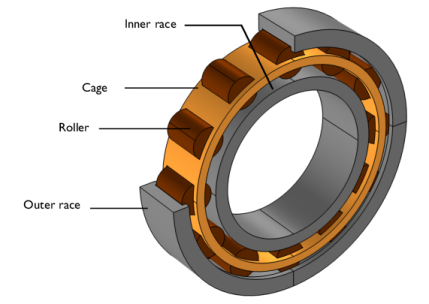
In this model, all components are modeled as rigid elements using the Rigid Material nodes which can be created automatically using the Create Rigid Domains button in the Automated Model Setup section at the physics interface.
|
|
•
|
Joint nodes between rollers and cage can also be created automatically using the Create Joints button in the Automated Model Setup section at the physics interface. The automatic joint creation requires the geometry to be in assembly mode and Identity Boundary Pair nodes to be available in the Definitions.
|
|
1
|
|
2
|
|
3
|
Click Add.
|
|
4
|
Click
 Study. Study. |
|
5
|
|
6
|
Click
 Done. Done. |
|
1
|
|
2
|
|
3
|
Click
 Load from File. Load from File. |
|
4
|
Browse to the model’s Application Libraries folder and double-click the file roller_bearing_dynamics_parameters.txt.
|
|
1
|
|
2
|
|
3
|
|
4
|
Click
 Browse. Browse. |
|
5
|
Browse to the model’s Application Libraries folder and double-click the file roller_bearing_dynamics.mphbin.
|
|
6
|
Click
 Import. Import. |
|
1
|
|
2
|
|
3
|
On the object imp1(2), select Domain 1 only.
|
|
4
|
Locate the Color section. From the Color list, choose None or — if you are running the cross-platform desktop —Custom. On the cross-platform desktop, click the Color button.
|
|
5
|
Click Define custom colors.
|
|
7
|
Click Add to custom colors.
|
|
8
|
|
9
|
Click
 Build Selected. Build Selected. |
|
1
|
|
2
|
|
3
|
On the object imp1(1), select Domain 1 only.
|
|
4
|
On the object imp1(15), select Domains 1–4 only.
|
|
5
|
Locate the Color section. From the Color list, choose None or — if you are running the cross-platform desktop —Custom. On the cross-platform desktop, click the Color button.
|
|
6
|
Click Define custom colors.
|
|
8
|
Click Add to custom colors.
|
|
9
|
|
10
|
Click
 Build Selected. Build Selected. |
|
1
|
|
2
|
|
3
|
|
4
|
|
5
|
Click OK.
|
|
6
|
|
7
|
From the Color list, choose None or — if you are running the cross-platform desktop —Custom. On the cross-platform desktop, click the Color button.
|
|
8
|
Click Define custom colors.
|
|
10
|
Click Add to custom colors.
|
|
11
|
|
12
|
Click
 Build Selected. Build Selected. |
|
1
|
|
2
|
|
3
|
|
4
|
|
5
|
Click OK.
|
|
6
|
|
1
|
|
2
|
In the Settings window for Adjacent Selection, type Cage & Rollers Boundaries in the Label text field.
|
|
3
|
|
4
|
|
5
|
Click OK.
|
|
6
|
|
1
|
|
2
|
|
3
|
On the object imp1(15), select Domains 1–4 only.
|
|
4
|
Click
 Build Selected. Build Selected. |
|
1
|
|
2
|
|
3
|
|
4
|
|
5
|
Click OK.
|
|
6
|
|
7
|
Select the Interior boundaries checkbox.
|
|
8
|
Click
 Build Selected. Build Selected. |
|
1
|
|
2
|
In the Settings window for Complement Selection, type Boundaries without Outer Race in the Label text field.
|
|
3
|
|
4
|
|
5
|
|
6
|
Click OK.
|
|
7
|
|
1
|
|
2
|
|
3
|
|
4
|
Click
 Build Selected. Build Selected. |
|
5
|
|
6
|
|
7
|
On the object fin, select Domain 1 only.
|
|
1
|
In the Model Builder window, under Component 1 (comp1) right-click Definitions and choose Variables.
|
|
2
|
|
3
|
Click
 Load from File. Load from File. |
|
4
|
Browse to the model’s Application Libraries folder and double-click the file roller_bearing_dynamics_variables.txt.
|
|
1
|
|
2
|
|
3
|
|
4
|
|
5
|
Select the Cutoff checkbox.
|
|
1
|
|
2
|
Go to the Add Material window.
|
|
3
|
|
4
|
Click the Add to Component button in the window toolbar.
|
|
5
|
|
1
|
In the Settings window for Multibody Dynamics, click Physics Node Generation in the upper-right corner of the Automated Model Setup section. From the menu, choose Create Rigid Domains.
|
|
1
|
|
2
|
In the Settings window for Rigid Material, type Rigid Material 1: Outer Race in the Label text field.
|
|
1
|
In the Model Builder window, under Component 1 (comp1) > Multibody Dynamics (mbd) > Rigid Domains (All) click Rigid Material 3.
|
|
2
|
|
1
|
|
2
|
In the Settings window for Prescribed Displacement/Rotation, locate the Prescribed Displacement at Center of Rotation section.
|
|
3
|
Select the Prescribed in y direction checkbox.
|
|
4
|
|
5
|
Select the Constrain rotation around x-axis checkbox.
|
|
6
|
Select the Constrain rotation around z-axis checkbox.
|
|
1
|
In the Model Builder window, under Component 1 (comp1) > Multibody Dynamics (mbd) > Rigid Domains (All) click Rigid Material 6.
|
|
2
|
In the Settings window for Rigid Material, type Rigid Material 6: Inner Race in the Label text field.
|
|
1
|
|
2
|
In the Settings window for Prescribed Displacement/Rotation, locate the Prescribed Displacement at Center of Rotation section.
|
|
3
|
Select the Prescribed in y direction checkbox.
|
|
4
|
|
5
|
Specify the Ω vector as
|
|
6
|
|
1
|
|
2
|
|
3
|
Specify the F vector as
|
|
4
|
|
5
|
In the Settings window for Multibody Dynamics, click Physics Node Generation in the upper-right corner of the Automated Model Setup section. From the menu, choose Create Joints.
|
|
1
|
|
2
|
|
3
|
|
4
|
|
5
|
|
6
|
|
7
|
|
8
|
|
9
|
|
10
|
|
11
|
Select the Use inside boundaries for contact checkbox.
|
|
12
|
|
13
|
|
1
|
|
2
|
|
3
|
|
4
|
|
1
|
In the Model Builder window, under Component 1 (comp1) > Multibody Dynamics (mbd), Ctrl-click to select Rigid Body Contact 1, Rigid Body Contact 2, Rigid Body Contact 3, Rigid Body Contact 4, Rigid Body Contact 5, Rigid Body Contact 6, Rigid Body Contact 7, Rigid Body Contact 8, Rigid Body Contact 9, Rigid Body Contact 10, Rigid Body Contact 11, and Rigid Body Contact 12.
|
|
2
|
Right-click and choose Group.
|
|
1
|
|
2
|
|
1
|
In the Model Builder window, expand the Roller-Inner Race Contact node, then click Rigid Body Contact 13.
|
|
2
|
|
3
|
|
4
|
Clear the Use inside boundaries for contact checkbox.
|
|
5
|
|
1
|
Similar to the changes done for Rigid Body Contact 13, reset the inputs of other eleven Rigid Body Contact nodes using the information given in the table below.
|
|
2
|
|
3
|
|
4
|
|
1
|
|
2
|
|
3
|
|
4
|
Click
 Build All. Build All. |
|
1
|
|
2
|
|
3
|
|
1
|
|
2
|
|
3
|
In the Model Builder window, expand the Study 1 > Solver Configurations > Solution 1 (sol1) > Time-Dependent Solver 1 node, then click Fully Coupled 1.
|
|
4
|
|
5
|
|
6
|
In the Model Builder window, under Study 1 > Solver Configurations > Solution 1 (sol1) click Time-Dependent Solver 1.
|
|
7
|
|
8
|
|
9
|
|
1
|
|
2
|
|
3
|
Select the Propagate hiding to lower dimensions checkbox.
|
|
4
|
|
1
|
|
2
|
|
3
|
|
4
|
|
1
|
|
2
|
|
3
|
|
4
|
|
5
|
|
1
|
|
2
|
Click to select the
 Activate Selection toggle button. Activate Selection toggle button. |
|
3
|
|
4
|
|
1
|
|
2
|
|
3
|
Click to expand the Selection section. Locate the Plot Settings section. From the View list, choose New view.
|
|
1
|
|
2
|
|
1
|
|
2
|
|
3
|
|
4
|
|
1
|
|
2
|
|
3
|
|
4
|
|
5
|
Click
 Remove from Selection. Remove from Selection. |
|
1
|
|
2
|
|
3
|
|
4
|
|
1
|
|
2
|
|
3
|
|
1
|
|
2
|
|
3
|
|
1
|
|
2
|
|
3
|
|
4
|
|
5
|
|
6
|
|
7
|
Locate the Coloring and Style section.
|
|
8
|
|
9
|
|
1
|
|
2
|
|
3
|
|
1
|
|
2
|
|
3
|
|
4
|
|
1
|
|
2
|
|
1
|
|
2
|
|
3
|
|
1
|
|
2
|
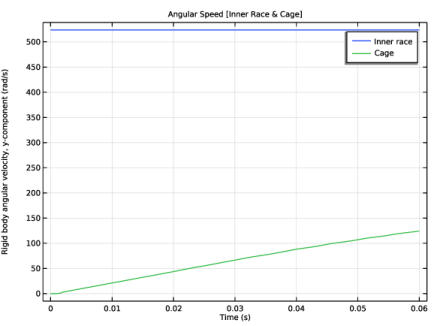
In the Settings window for 1D Plot Group, type Angular Speed [Inner Race & Cage] in the Label text field.
|
|
3
|
|
1
|
|
2
|
|
4
|
|
6
|
|
1
|
|
2
|
|
1
|
|
2
|
|
4
|
|
5
|
Locate the Legends section. In the table, enter the following settings:
|
|
6
|
|
1
|
|
2
|
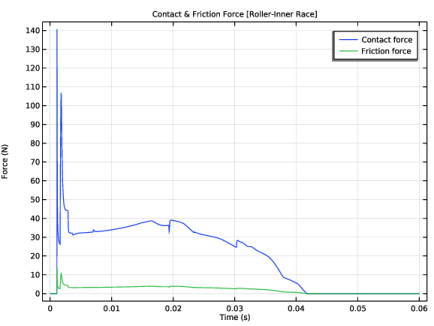
In the Settings window for 1D Plot Group, type Contact & Friction Force [Roller-Inner Race] in the Label text field.
|
|
1
|
In the Model Builder window, expand the Contact & Friction Force [Roller-Inner Race] node, then click Global 1.
|
|
2
|
|
3
|
Click
 Clear Table. Clear Table. |
|
5
|
|
1
|
|
2
|
|
3
|
|
4
|
|
1
|
|
2
|
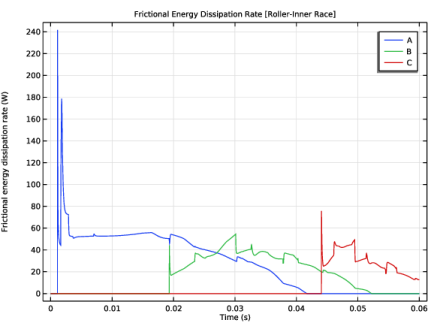
In the Settings window for 1D Plot Group, type Frictional Energy Dissipation Rate [Roller-Inner Race] in the Label text field.
|
|
1
|
In the Model Builder window, expand the Frictional Energy Dissipation Rate [Roller-Inner Race] node, then click Global 1.
|
|
2
|
|
3
|
Click
 Clear Table. Clear Table. |
|
5
|
|
1
|
|
2
|
|
3
|
Clear the y-axis label checkbox.
|
|
4
|
|
1
|
|
2
|
|
1
|
|
2
|
|
3
|
Click
 Clear Table. Clear Table. |
|
5
|
|
6
|
|
7
|
|
8
|
|
1
|
|
2
|
|
1
|
|
2
|
|
3
|
|
1
|
|
2
|
|
3
|
|
1
|
|
2
|
|
3
|


 next to


