PDF

Modeling a Radial Cam Based Valve Opening Mechanism
Introduction
In this example, a spring-loaded valve opening mechanism with a rocker arm and a radial cam is studied. All the components of the system are modeled as rigid, and are connected through prismatic, hinge, and slot joints. The cam–follower connection as well as other joint connections are modeled using built-in nodes of the Multibody Dynamics interface.
A transient analysis is performed for various values of the valve spring stiffness. The output from the model includes, among many things, the follower velocity, follower acceleration, cam–follower connection force, and the torque required to rotate the cam shaft.
Model Definition
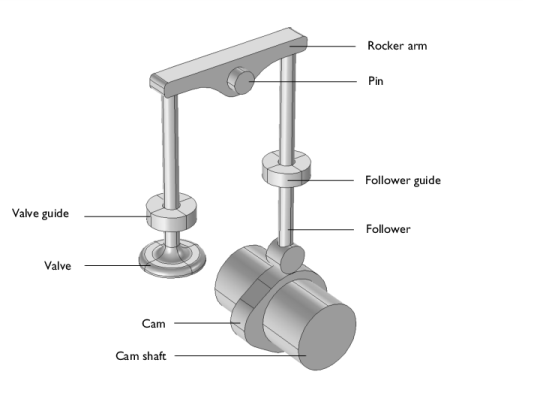
Figure 1: Geometry of a valve opening mechanism with a rocker arm and a radial cam.
The geometry of a valve opening mechanism is shown in Figure 1. All the components of the mechanism are assumed rigid and are divided into two categories based on whether they are movable or fixed.
The moving components of the mechanism are:
The fixed components of the mechanisms are:
In this mechanism, the cam rotation is prescribed and the spring is attached to the valve to restrict its motion. The objective of this analysis is twofold:
One of the main objectives behind mounting the spring on the valve is to force the follower to follow the cam profile and to avoid intermittent contacts between the cam and the follower. Hence the optimal value of the valve spring stiffness should be the one which enforces the contact between the cam and follower all the time while at the same time requiring the least torque to rotate the cam shaft.
Cam profile
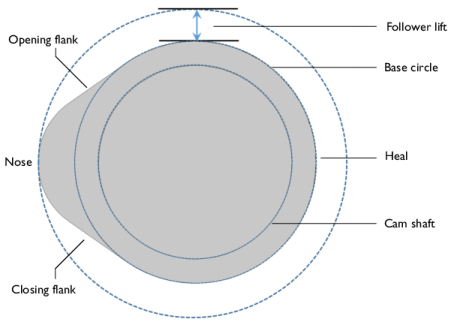
The profile of the cam used in this mechanism together with the maximum follower lift is shown in Figure 2. It can be seen that the cam profile is divided into four regions based on the follower or valve motion:
Figure 2: The profile of a cam used for the opening and closing of a valve.
Meshing of A Cam surface
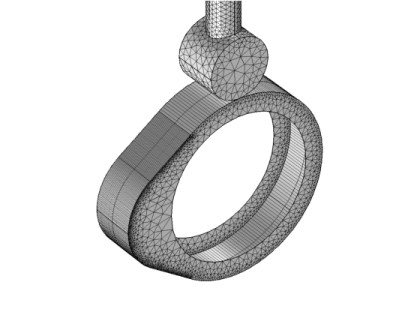
A point on the follower body follows the cam profile, which is discretized through a finite element mesh. Hence in order to get accurate results and to avoid spurious oscillations, it is necessary to have a mesh which reproduces the cam profile accurately as shown in Figure 3.
Joints
Apart from a cam–follower connection, the following types of joints are used to connect various components of the system:
Material
Structural steel is used as the material for all the components.
Figure 3: A fine mapped mesh created on the cam surface in order to get an accurate surface representation.
Model parameters
The parameters used in the model are given in the table below:
The model is solved with 4 different values of valve spring stiffness: kN/m, 10 kN/m, 20 kN/m, and 30 kN/m.
Results and Discussion
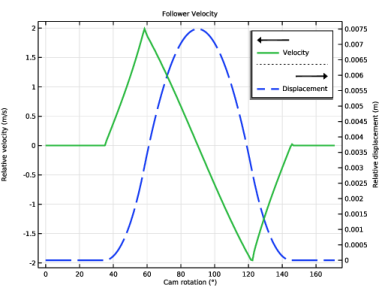
Figure 4 shows the follower velocity together with the follower displacement as a function of cam rotation. It can be seen that the follower velocity is nonzero only for a small range of cam rotations (35°−145°).
The follower velocity first increases when the follower comes in contact with the opening flank region of the cam profile, later it decreases and becomes zero at the tip of the nose region. Similarly it increases in the reverse direction and becomes zero when the follower comes in contact with the heal region of the cam profile.
Figure 4: Variation of the follower velocity with cam rotation.
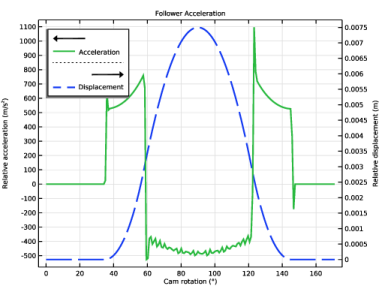
Figure 5: Variation of the follower acceleration with cam rotation.
The corresponding follower acceleration is shown in Figure 5. It can be seen that the acceleration values are negative in the range of 60° to 120° of cam rotation. This is the region where the follower has a tendency to leave the contact with the cam profile which depends on the valve spring stiffness value for a given camshaft RPM.
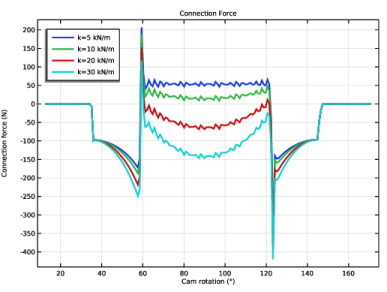
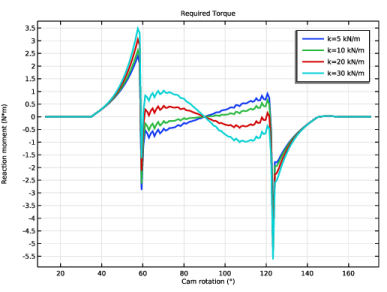
Figure 6 and Figure 7 show the cam–follower connection force and the torque required to rotate the cam shaft respectively. In order to have a continuous contact between the cam and follower, the connection force should be negative all the time.
It can be seen that out of the four valve stiffness values, only 20 kN/m and 30 kN/m can enforce a continuous contact between the cam and follower. In order to choose the optimal value for the valve spring stiffness, we can look at the required torque plot in Figure 7. It can be noticed in this plot that the required torque is lesser for a value of 20 kN/m and hence it is the optimal value of the valve stiffness among the values considered in this analysis.
Figure 6: Variation of the cam–follower connection force with cam rotation for different values of the valve spring stiffness.
Figure 7: Variation of the torque required to rotate the cam shaft for different values of the valve spring stiffness.
Notes About the COMSOL Implementation
Change the discretization order of the dependent variable to Quadratic in order to increase the geometry shape order and improve the accuracy of the mesh normal used in the Cam–Follower connection node.
Application Library path: Multibody_Dynamics_Module/Tutorials/radial_cam_follower
Modeling Instructions
From the File menu, choose New.
New
In the New window, click  Model Wizard.
Model Wizard
1
In the Model Wizard window, click  3D.
2
In the Select Physics tree, select Structural Mechanics > Multibody Dynamics (mbd).
3
Click Add.
4
Click  Study.
5
In the Select Study tree, select General Studies > Time Dependent.
6
Global Definitions
Parameters 1
1
In the Model Builder window, under Global Definitions click Parameters 1.
2
In the Settings window for Parameters, locate the Parameters section.
3
Click  Load from File.
4
Geometry 1
Import 1 (imp1)
1
In the Model Builder window, expand the Component 1 (comp1) > Geometry 1 node.
2
Right-click Geometry 1 and choose Import.
3
In the Settings window for Import, locate the Source section.
4
Click  Browse.
5
6
Click  Import.
Form Union (fin)
1
In the Model Builder window, under Component 1 (comp1) > Geometry 1 click Form Union (fin).
2
In the Settings window for Form Union/Assembly, locate the Form Union/Assembly section.
3
From the Action list, choose Form an assembly.
4
Clear the Create pairs checkbox.
5
In the Geometry toolbar, click  Build All.
Global Definitions
Step 1 (step1)
1
In the Home toolbar, click  Functions and choose Global > Step.
2
In the Settings window for Step, locate the Parameters section.
3
In the Location text field, type T/40.
4
Click to expand the Smoothing section. In the Size of transition zone text field, type T/20.
Definitions
Cam Surface
1
In the Definitions toolbar, click  Explicit.
2
In the Settings window for Explicit, locate the Input Entities section.
3
From the Geometric entity level list, choose Boundary.
4
5
Select the Group by continuous tangent checkbox.
6
In the Label text field, type Cam Surface.
Cam Surface: Adjacent Edges
1
In the Definitions toolbar, click  Adjacent.
2
In the Settings window for Adjacent, locate the Input Entities section.
3
From the Geometric entity level list, choose Boundary.
4
Under Input selections, click  Add.
5
In the Add dialog, select Cam Surface in the Input selections list.
6
7
In the Settings window for Adjacent, locate the Output Entities section.
8
From the Geometric entity level list, choose Adjacent edges.
9
In the Label text field, type Cam Surface: Adjacent Edges.
Add Material
1
In the Materials toolbar, click  Add Material to open the Add Material window.
2
Go to the Add Material window.
3
In the tree, select Built-in > Structural steel.
4
Click the Add to Component button in the window toolbar.
5
In the Materials toolbar, click  Add Material to close the Add Material window.
Multibody Dynamics (mbd)
1
In the Settings window for Multibody Dynamics, click to expand the Discretization section.
2
From the Displacement field list, choose Quadratic Lagrange.
Start by defining different components of the mechanism as rigid bodies.
Rigid Material: Cam
1
In the Physics toolbar, click  Domains and choose Rigid Material.
2
In the Settings window for Rigid Material, type Rigid Material: Cam in the Label text field.
3
Rigid Materials
Create more components with the information given in the table below:
Rigid Material: Follower Guide
In the Model Builder window, click Rigid Material: Follower Guide.
Fixed Constraint 1
In the Physics toolbar, click  Attributes and choose Fixed Constraint.
Rigid Material: Pin
In the Model Builder window, under Component 1 (comp1) > Multibody Dynamics (mbd) click Rigid Material: Pin.
Fixed Constraint 1
In the Physics toolbar, click  Attributes and choose Fixed Constraint.
Rigid Material: Valve Guide
In the Model Builder window, under Component 1 (comp1) > Multibody Dynamics (mbd) click Rigid Material: Valve Guide.
Fixed Constraint 1
In the Physics toolbar, click  Attributes and choose Fixed Constraint.
Now define the cam-follower connection and joints to connect different components of the mechanism.
Cam–Follower 1
1
In the Physics toolbar, click  Global and choose Cam–Follower.
2
In the Settings window for Cam–Follower, locate the Boundary Selection, Cam section.
3
From the Selection list, choose Cam Surface.
4
Locate the Point Selection, Follower section. Click  Paste Selection.
5
In the Paste Selection dialog, type 148 164 in the Selection text field.
6
7
In the Settings window for Cam–Follower, locate the Cam section.
8
In the Xoffset text field, type rf.
9
Locate the Connection Force section. From the list, choose Computed using weak constraints.
Hinge Joint 1
1
In the Physics toolbar, click  Global and choose Hinge Joint.
2
In the Settings window for Hinge Joint, locate the Attachment Selection section.
3
From the Source list, choose Fixed.
4
From the Destination list, choose Rigid Material: Cam.
5
Locate the Center of Joint section. From the Entity level list, choose Point.
6
Locate the Axis of Joint section. Specify the e0 vector as
Center of Joint: Point 1
1
In the Model Builder window, click Center of Joint: Point 1.
2
In the Settings window for Center of Joint: Point, locate the Point Selection section.
3
Click  Paste Selection.
4
In the Paste Selection dialog, type 108 128 in the Selection text field.
5
Joints
Create the remaining connections using the information given in the table below:
Next, prescribe the cam rotation and add a spring to the valve motion.
Hinge Joint 1
In the Model Builder window, click Hinge Joint 1.
Prescribed Motion 1
1
In the Physics toolbar, click  Attributes and choose Prescribed Motion.
2
In the Settings window for Prescribed Motion, locate the Prescribed Rotational Motion section.
3
From the Prescribed motion through list, choose Angular velocity.
4
In the ωp text field, type omega*step1(t).
5
Click to expand the Reaction Force Settings section. Select the Evaluate reaction forces checkbox.
Prismatic Joint 2
In the Model Builder window, under Component 1 (comp1) > Multibody Dynamics (mbd) click Prismatic Joint 2.
Spring and Damper 1
1
In the Physics toolbar, click  Attributes and choose Spring and Damper.
2
In the Settings window for Spring and Damper, locate the Spring and Damper: Translational section.
3
In the ku text field, type k.
To create node groups for the physics features, do the following:
Rigid Material: Cam, Rigid Material: Follower, Rigid Material: Follower Guide, Rigid Material: Pin, Rigid Material: Rocker Arm, Rigid Material: Valve, Rigid Material: Valve Guide
1
In the Model Builder window, under Component 1 (comp1) > Multibody Dynamics (mbd), Ctrl-click to select Rigid Material: Cam, Rigid Material: Follower, Rigid Material: Rocker Arm, Rigid Material: Valve, Rigid Material: Follower Guide, Rigid Material: Pin, and Rigid Material: Valve Guide.
2
Rigid Materials
In the Settings window for Group, type Rigid Materials in the Label text field.
Hinge Joint 1, Hinge Joint 2
1
In the Model Builder window, under Component 1 (comp1) > Multibody Dynamics (mbd), Ctrl-click to select Hinge Joint 1 and Hinge Joint 2.
2
Hinge Joints
In the Settings window for Group, type Hinge Joints in the Label text field.
Prismatic Joint 1, Prismatic Joint 2
1
In the Model Builder window, under Component 1 (comp1) > Multibody Dynamics (mbd), Ctrl-click to select Prismatic Joint 1 and Prismatic Joint 2.
2
Prismatic Joints
In the Settings window for Group, type Prismatic Joints in the Label text field.
Slot Joint 1, Slot Joint 2
1
In the Model Builder window, under Component 1 (comp1) > Multibody Dynamics (mbd), Ctrl-click to select Slot Joint 1 and Slot Joint 2.
2
Slot Joints
In the Settings window for Group, type Slot Joints in the Label text field.
Mesh 1
Edge 1
1
In the Mesh toolbar, click  More Generators and choose Edge.
2
In the Settings window for Edge, locate the Edge Selection section.
3
From the Selection list, choose Cam Surface: Adjacent Edges.
Size 1
1
Right-click Edge 1 and choose Size.
2
In the Settings window for Size, locate the Element Size section.
3
Click the Custom button.
4
Locate the Element Size Parameters section.
5
Select the Curvature factor checkbox. In the associated text field, type 0.015.
6
Select the Maximum element growth rate checkbox. In the associated text field, type 1.1.
7
Click  Build Selected.
Mapped 1
1
In the Mesh toolbar, click  More Generators and choose Mapped.
2
In the Settings window for Mapped, locate the Boundary Selection section.
3
From the Selection list, choose Cam Surface.
Distribution 1
1
Right-click Mapped 1 and choose Distribution.
2
In the Settings window for Distribution, locate the Edge Selection section.
3
Click  Paste Selection.
4
In the Paste Selection dialog, type 199 in the Selection text field.
5
6
In the Settings window for Distribution, locate the Distribution section.
7
In the Number of elements text field, type 3.
Free Tetrahedral 1
In the Mesh toolbar, click  Free Tetrahedral.
Size
1
In the Model Builder window, click Size.
2
In the Settings window for Size, locate the Element Size section.
3
From the Predefined list, choose Extra fine.
4
Click  Build All.
Study 1
Step 1: Time Dependent
1
In the Model Builder window, under Study 1 click Step 1: Time Dependent.
2
In the Settings window for Time Dependent, locate the Study Settings section.
3
In the Output times text field, type range(0,T/400,T/2).
4
Click to expand the Study Extensions section. Select the Auxiliary sweep checkbox.
5
6
Solution 1 (sol1)
1
In the Study toolbar, click  Show Default Solver.
2
In the Model Builder window, expand the Solution 1 (sol1) node.
3
In the Model Builder window, expand the Study 1 > Solver Configurations > Solution 1 (sol1) > Dependent Variables 1 node, then click Connection Force (comp1.mbd.cfc1.F).
4
In the Settings window for State, locate the Scaling section.
5
In the Scale text field, type 1e9.
6
In the Model Builder window, under Study 1 > Solver Configurations > Solution 1 (sol1) > Dependent Variables 1 click Reaction Moment (comp1.mbd.hgj1.pm1.RM).
7
In the Settings window for State, locate the Scaling section.
8
In the Scale text field, type 1e7.
9
In the Study toolbar, click  Compute.
Follow the instructions below to plot the velocity and acceleration of the follower as shown in Figure 4 and Figure 5 respectively.
Results
Follower Velocity
1
In the Results toolbar, click  1D Plot Group.
2
In the Settings window for 1D Plot Group, type Follower Velocity in the Label text field.
3
Click to expand the Title section. From the Title type list, choose Label.
4
Locate the Data section. From the Parameter selection (k) list, choose First.
5
Locate the Plot Settings section. Select the Two y-axes checkbox.
Global 1
1
Right-click Follower Velocity and choose Global.
2
In the Settings window for Global, click Replace Expression in the upper-right corner of the y-Axis Data section. From the menu, choose Component 1 (comp1) > Multibody Dynamics > Prismatic joints > Prismatic Joint 1 > mbd.prj1.u - Relative displacement - m.
3
Locate the y-Axis section. Select the Plot on secondary y-axis checkbox.
4
Locate the x-Axis Data section. From the Parameter list, choose Expression.
5
Click Replace Expression in the upper-right corner of the x-Axis Data section. From the menu, choose Component 1 (comp1) > Multibody Dynamics > Hinge joints > Hinge Joint 1 > mbd.hgj1.th - Relative rotation - rad.
6
Locate the x-Axis Data section. From the Unit list, choose °.
7
Select the Description checkbox. In the associated text field, type Cam rotation.
8
Click to expand the Coloring and Style section. Find the Line style subsection. From the Line list, choose Dashed.
9
From the Width list, choose 2.
10
Click to expand the Legends section. From the Legends list, choose Manual.
11
Global 2
1
Right-click Global 1 and choose Duplicate.
2
In the Settings window for Global, click Replace Expression in the upper-right corner of the y-Axis Data section. From the menu, choose Component 1 (comp1) > Multibody Dynamics > Prismatic joints > Prismatic Joint 1 > mbd.prj1.u_t - Relative velocity - m/s.
3
Locate the y-Axis section. Clear the Plot on secondary y-axis checkbox.
4
Locate the Coloring and Style section. Find the Line style subsection. From the Line list, choose Solid.
5
Locate the Legends section. In the table, enter the following settings:
6
In the Follower Velocity toolbar, click  Plot.
7
Click the  Zoom Extents button in the Graphics toolbar.
Follower Acceleration
1
In the Model Builder window, right-click Follower Velocity and choose Duplicate.
2
In the Settings window for 1D Plot Group, type Follower Acceleration in the Label text field.
3
Locate the Legend section. From the Position list, choose Upper left.
Global 2
1
In the Model Builder window, expand the Follower Acceleration node, then click Global 2.
2
In the Settings window for Global, click Replace Expression in the upper-right corner of the y-Axis Data section. From the menu, choose Component 1 (comp1) > Multibody Dynamics > Prismatic joints > Prismatic Joint 1 > mbd.prj1.u_tt - Relative acceleration - m/s².
3
Locate the Legends section. In the table, enter the following settings:
4
In the Follower Acceleration toolbar, click  Plot.
5
Click the  Zoom Extents button in the Graphics toolbar.
Follow the instructions below to plot the connection force and required torque as shown in Figure 6 and Figure 7 respectively.
Connection Force
1
In the Results toolbar, click  1D Plot Group.
2
In the Settings window for 1D Plot Group, type Connection Force in the Label text field.
3
Locate the Title section. From the Title type list, choose Label.
4
Locate the Data section. From the Time selection list, choose Manual.
5
In the Parameter indices (1-201) text field, type range(25,1,201).
6
Locate the Legend section. From the Position list, choose Upper left.
Global 1
1
Right-click Connection Force and choose Global.
2
In the Settings window for Global, click Replace Expression in the upper-right corner of the y-Axis Data section. From the menu, choose Component 1 (comp1) > Multibody Dynamics > Cam–followers > Cam–Follower 1 > mbd.cfc1.F - Connection force - N.
3
Locate the x-Axis Data section. From the Parameter list, choose Expression.
4
Click Replace Expression in the upper-right corner of the x-Axis Data section. From the menu, choose Component 1 (comp1) > Multibody Dynamics > Hinge joints > Hinge Joint 1 > mbd.hgj1.th - Relative rotation - rad.
5
Locate the x-Axis Data section. From the Unit list, choose °.
6
Select the Description checkbox. In the associated text field, type Cam rotation.
7
Locate the Coloring and Style section. From the Width list, choose 2.
8
Locate the Legends section. Find the Include subsection. Clear the Description checkbox.
9
In the Connection Force toolbar, click  Plot.
10
Click the  Zoom Extents button in the Graphics toolbar.
Required Torque
1
In the Model Builder window, right-click Connection Force and choose Duplicate.
2
In the Settings window for 1D Plot Group, type Required Torque in the Label text field.
3
Locate the Legend section. From the Position list, choose Upper right.
Global 1
1
In the Model Builder window, expand the Required Torque node, then click Global 1.
2
In the Settings window for Global, click Replace Expression in the upper-right corner of the y-Axis Data section. From the menu, choose Component 1 (comp1) > Multibody Dynamics > Hinge joints > Hinge Joint 1 > mbd.hgj1.pm1.RM - Reaction moment - N·m.
3
In the Required Torque toolbar, click  Plot.
4
Click the  Zoom Extents button in the Graphics toolbar.
Animation 1
1
In the Results toolbar, click  Animation and choose Player.
2
In the Settings window for Animation, locate the Frames section.
3
In the Number of frames text field, type 50.